A forgotten Wi-Fi password keeps devices from connecting, while a forgotten router admin password locks you out of settings. They’re separate credentials, so changing one does not automatically change the other. Start with saved passwords and recovery options, then use your router’s factory-reset procedure if admin recovery fails.
Start with the password you need to reset
Match the password to what you’re trying to access.
- 1.To connect a phone, computer, or other device, retrieve the Wi-Fi password from a saved connection using the options below.
- 2.To open router settings, change the admin password while signed in or use your model’s password recovery option.
- 3.To access a management app, check which account it uses. Deco uses TP-Link ID; native eero accounts use verification codes.
- 4.If admin recovery fails, follow your model’s factory-reset procedure. This erases configuration and requires setup again.
If you only forgot the Wi-Fi password
A forgotten Wi-Fi password blocks new connections even when another device still has it saved.
On a current Windows 11 PC, open Settings > Network & internet > Properties. Beside Wi-Fi network password, select Show.
For another saved Windows network, go back to Settings > Network & internet > Wi-Fi > Manage known networks. Select the network, then choose Show.
On an iPhone running iOS 16 or later, or an iPad running iPadOS 16.1 or later, open Settings > Wi-Fi. Tap the connected network’s Info button. Tap Password, then authenticate to reveal the saved password.
On a Mac with the Passwords app, open Passwords > Wi-Fi. Select your network, then hover over the dots beside Password to reveal it.
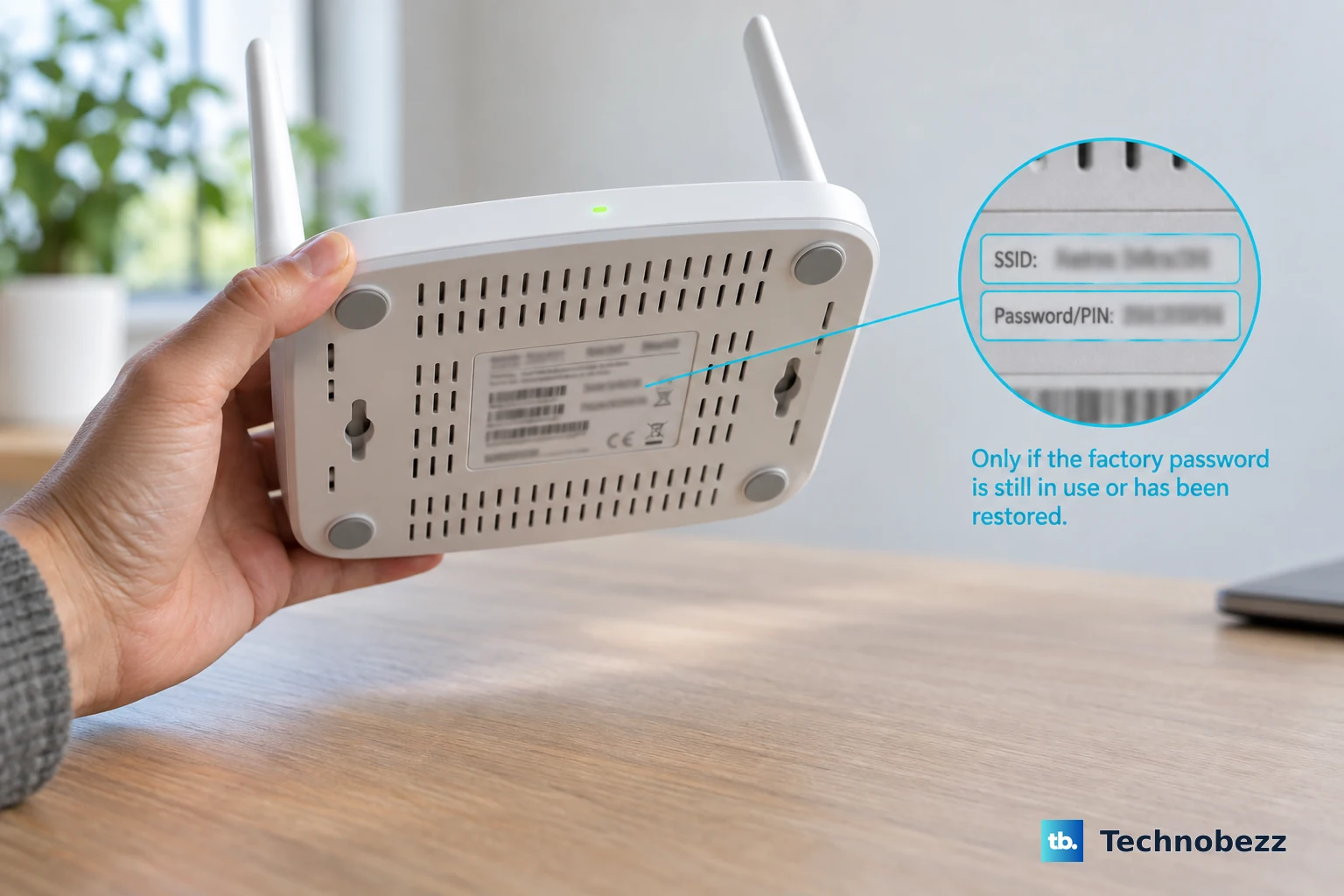
For a TP-Link router with printed factory credentials, check its bottom label. That password works only if the original credentials remain in use or have been restored. It won’t reveal a password you changed later.
Change your Wi-Fi password through the router
Use this route when you can sign in to the router and want to replace the password your devices use. Choose the instructions that match your brand and interface.
For a compatible TP-Link Archer router, sign in at tplinkwifi.net or 192.168.0.1. Open Advanced > Wireless > Wireless Settings.
Edit Password for the relevant network. Smart Connect can make multiple bands share these credentials. Select SAVE.
For NETGEAR, sign in at routerlogin.net. Select Wireless, or Settings > Wireless Setup on Nighthawk Pro Gaming routers. Replace Password (Network Key). Click Apply.
For ASUS routers with firmware 3.0.0.6.102_35404 or later and the newer interface, sign in at asusrouter.com or the router’s LAN address. Open Network > Main network profile. Enter the replacement Wi-Fi password. Click Apply.
For a Linksys router with this browser interface, sign in to its dashboard. Under Router Settings, open Wi-Fi Settings > Wireless. Select Show more if you need separate band settings.
Replace Wi-Fi password. Some Smart WiFi models call this field Password. Select Apply, then select Ok. Reconnect affected devices using the new Wi-Fi password.
Mesh Wi-Fi password changes in the app
For Deco, connect to its Wi-Fi. Open the Deco app’s More > Wi-Fi Settings page. Edit the password and tap Save.
For Google Nest Wifi or Google Wifi, open Google Home’s Home > Wifi > Network settings page. Select the existing password. Enter its replacement and tap Save.
For eero, open the app’s Settings > Wifi name & password page. Edit Wifi network password. Tap Save.
For Orbi, connect to Orbi Wi-Fi. Open the app, select SIGN IN, and open WiFi Settings. Replace Network Key (Password) and tap SAVE.
When your internet provider manages the Wi-Fi settings
Some provider gateways require their app for Wi-Fi password changes, which explains why the browser settings don’t offer that option.
For a rented Xfinity gateway, open the Xfinity app’s WiFi > WiFi details > Edit WiFi settings page. Access to the WiFi tab requires a Primary, Manager, or Member Xfinity ID. Edit WiFi password.
Select Save. XB6 and newer gateways, and networks using Xfinity WiFi Extenders, require the app for this change.
For supported AT&T equipment, sign in to Smart Home Manager on a computer. On My Wi-Fi card, select Change beside the password. Select X to clear the old value, then enter the replacement password. Select Save.
For a Fios Quantum Gateway or Verizon Fios Advanced router, sign in to My Verizon. Open Home > Services > Internet. Under My Network, select your network, then select Manage. Enter the replacement credentials, then select Save Changes.
For a T-Life-supported T-Mobile gateway, sign in to T-Life with your T-Mobile ID. The gateway must be connected to T-Mobile’s network. From T-Life Home, select Home Internet > My Wi-Fi.
Under My networks, select the network. Edit Wi-Fi network password (key). Select Save. The Askey LTE gateway uses Manage with web tool instead.
Replace the admin password while you still have access
Choose your brand to change the password that protects router settings.
- 1.For a TP-Link Wi-Fi router with this interface, connect by Wi-Fi or Ethernet and sign in at tplinkwifi.net or 192.168.0.1. Open Advanced > System > Administration, enter the current and replacement passwords, and select Save.
- 2.For NETGEAR, sign in at routerlogin.net and open ADVANCED > Administration > Set Password. Enter the current password and the new password twice, then click Apply. Nighthawk Pro Gaming uses Settings > Administration > Set Password.
- 3.For ASUS, sign in at asusrouter.com and open Administration > System. Select Change for the login password, supply the current and new passwords, and click OK. Complete the confirmation and sign in again.
- 4.For Linksys Intelligent Mesh, sign in to the dashboard and open Connectivity > Basic. Select Edit beside Admin Password, enter the replacement and an optional hint, then select OK.
Recover a forgotten admin or app password
Locked out? Your next move depends on the router and its recovery setup. TP-Link email recovery and TP-Link or NETGEAR security questions must be configured before you lose access.
For a compatible TP-Link Archer router with email recovery already configured, open tplinkwifi.net. Select Forgot Password?. Complete the email verification to set a new password. Email recovery is disabled when using TP-Link ID login.
For a TP-Link model with previously configured security questions, select Forgot Password? on the router login page. Complete the available verification prompts.
For a supported NETGEAR Nighthawk or Orbi router with configured recovery questions, connect to the router’s network. Open routerlogin.net for Nighthawk, or orbilogin.local or orbilogin.com for Orbi. Enter incorrect credentials three times to reach Router Password Reset.
Enter the router’s serial number. Select CONTINUE. Answer the two configured security questions. Select CONTINUE.
Set a new password and security questions. Select NEXT.
For a Linksys router with a printed recovery key and the matching recovery screen, connect to its network. Open the router’s web interface. Select Reset Password. Enter the Recovery Key printed beneath the parent router.
Select Submit. Enter a replacement password and hint. Select Reset. This recovery method preserves your router settings.
For a forgotten Deco management password, tap Forgot Password? on the Deco login screen. Enter your registered email address. Tap Send.
Open the reset link in the email. Enter and confirm a new password. Select Save.
Return to Deco. Tap Already Reset. This changes your TP-Link ID password, not your Wi-Fi password.
For native eero account access, sign in with a previously verified email address or phone number and its verification code. A linked Amazon account is another sign-in option.
If router admin recovery fails, try your model’s factory-reset procedure below. For a provider-owned eero Communities network, contact the service provider or property manager for changes requiring their administration.
Factory reset as the last resort
A factory reset clears the router’s configuration so you can set it up again with new credentials. Check your exact model’s reset instructions first. Button timing and LED behavior differ between models, even within the same brand.
For TP-Link routers covered by its standard reset procedure, keep the router powered on. Hold Reset or the combined WPS/Reset button for more than 10 seconds, until the SYS LED changes from slow to rapid flashing. A short press of the combined button activates WPS instead.
Release the button. Wait for the reboot to finish. Run setup again to establish new credentials.
For Nighthawk and Orbi devices covered by NETGEAR’s password-recovery procedure, hold the physical Reset button with a paperclip for 15 seconds. Other NETGEAR models use different timings; follow your model’s manual. Repeat initial setup after the reset. All personalized settings are erased.
For ASUS models covered by its standard reset procedure, keep power connected. Hold RESET for 5–10 seconds until the power LED flashes. Release the button, then wait for the restart to finish. Set up the router again with new credentials.
For a Google Home-managed Nest Wifi Pro, Nest Wifi, or Google Wifi network, open Home > All devices. Touch and hold the router’s tile. Select Settings > Factory reset network.
Select Factory Reset. This erases network settings and removes associated app and cloud data and the account association. Set up the network again after the reset completes.
Frequently Asked Questions
Can I share Wi-Fi from a Pixel without resetting the password?
Yes. On a supported Pixel, open Settings > Network & internet > Internet. Select the settings icon beside the connected network, then Share. Authenticate if prompted and scan the QR code with the other device. This shares access without changing the password.
How do I give a Deco guest network its own password?
On a Deco model supporting Guest Network, open More > Guest Network in the Deco app. For initial setup, select Turn On Guest Network, enter a password, and tap Done, then Save. For an existing guest network, edit its password on the guest settings page and tap Save. This credential is separate from the main network password.
Can my Xfinity voice remote show my Wi-Fi password?
With an eligible Xfinity X1 TV box and rented gateway, press the remote’s microphone button and say “What’s my WiFi name?” You can also press xfinity, then open the gear icon > Help > Tools > WiFi. These options display credentials; they do not change them.
Can I reset a provider-owned eero Communities network myself?
Residents cannot delete provider-owned eero Communities networks, and hard-reset provider units automatically rejoin. For move-out, give your service provider or property manager the move-out date so they can remotely reset and disassociate the network.