Your iPhone alarm stays silent, rings too quietly, or misses the mornings you need it most. Start with its schedule, volume, and selected sound, then check the separate controls for Sleep wake-up alarms. Follow the settings for your iOS version, including the independent alarm volume available in iOS 27.
Check when your alarm is set to ring
Open Clock > Alarms.
Turn on the switch beside the alarm you need.
Tap the alarm’s time to open its settings, or use Edit > the alarm time.
Correct the time, including AM or PM when shown.
Use Repeat to select the days you need.
Enable Snooze if you want another alert after snoozing.
On iOS 26 and iOS 27, set Snooze Duration to the interval you want.
Tap Done to save.
Test your changes while awake before relying on the alarm overnight.
Raise the volume that actually controls your alarm
Regular alarms and Sleep wake-up alarms have separate volume controls. For a regular alarm on iOS 27, open Settings > Sounds & Haptics.
Under Alarms and Timers, turn off Match Ringtone Volume.
Raise the dedicated volume slider. This sets alarm and timer volume independently of your ringtone.
On iOS 26 and earlier, raise Ringtone and Alerts in Settings > Sounds & Haptics. On iOS 27, the volume slider under Ringtone controls regular alarms when Match Ringtone Volume is enabled.
For alarms using shared ringtone volume, turn off Change with Buttons after setting the level you want. This prevents the side buttons from accidentally lowering it. Raising media volume alone is not a reliable alarm-volume adjustment.
If the alarm stays silent at a higher volume, check its selected sound next.
Give a silent alarm an audible sound
This fixes an alarm set to None and tests whether the selected song is the problem.
Open Clock > Alarms > Edit > the affected alarm > Sound.
Select an audible built-in sound instead of None or your selected song. Replacing a song is a diagnostic test, not a guaranteed repair.
Save the alarm with Done on iOS 27.
Use an audible sound in StandBy, which disables alarm haptics and leaves vibration-only alarms without an alert.
Repair a failing Sleep wake-up alarm
Sleep alarms have their own switches, schedules, and volume settings.
- 1.On iOS 27, open Clock > Alarms > Change and correct the wake-up time.
- 2.Under Alarm Options, turn on Alarm.
- 3.Select Sounds & Haptics, raise Alarm volume, and check Snooze.
- 4.Tap Done > Change Next Alarm Only for the next wake-up. Choose Change This Schedule instead to update the recurring schedule.
- 5.For missing days or recurring failures on iOS 27, open Health > Browse > Sleep > Sleep > Your Schedule > Full Schedule & Options. Turn on Sleep Schedule, since disabling it also disables scheduled Sleep alarms. On iOS 26, reach Sleep through Search.
- 6.Tap Edit under the relevant schedule. Correct its active days and wake-up time, enable Alarm, and set its sound, volume, and vibration before tapping Done. Use Add Schedule for missing weekday or weekend coverage.
Replace an alarm that keeps failing
If one regular alarm keeps failing, delete it by swiping left on its entry in Clock > Alarms and tapping Delete.
Create its replacement with Add, using the required time, the days you need under Repeat, and an audible Sound.
Tap Done to save. Recreating an alarm is a troubleshooting test, with no guarantee of repair.
Test the replacement while awake. A regular Clock alarm operates independently of the Health sleep schedule, so it also provides an alternative while you troubleshoot Sleep scheduling.
Correct the clock if the time is wrong
Connect your iPhone to the internet.
Enable Set Time Automatically in Settings > General > Date & Time. Some interfaces label this Set Automatically.
Enable Setting Time Zone in Settings > Privacy & Security > Location Services > System Services.
Restart the iPhone if prompted about updated time-zone information.
Restart your paired Apple Watch if prompted about the same update.
If automatic adjustment leaves the actual time wrong and manual controls are available, open Settings > General > Date & Time. On iOS 27, turn off Set Time Automatically, then set the date and time.
To change the time zone on iOS 27, turn off Set Time Zone Automatically in Settings, then tap Time Zone City and search for a city, or tap Set By > Time Zone Offset. On iOS 26 and earlier, turn off Set Automatically, then correct the values using Time Zone or the displayed date and time. Apple's date and time guide lists the controls for each iOS version.
For a dimmed automatic-time control, ask the Screen Time passcode holder or device administrator to review the restriction.
Restart the iPhone and install available updates
Use these general troubleshooting steps for persistent failures; neither guarantees an alarm repair.
Open Settings > General > Shut Down and drag the power-off slider.
Wait 30 seconds, then hold the side button until the Apple logo appears.
Back up the iPhone before updating.
Connect it to power and Wi-Fi.
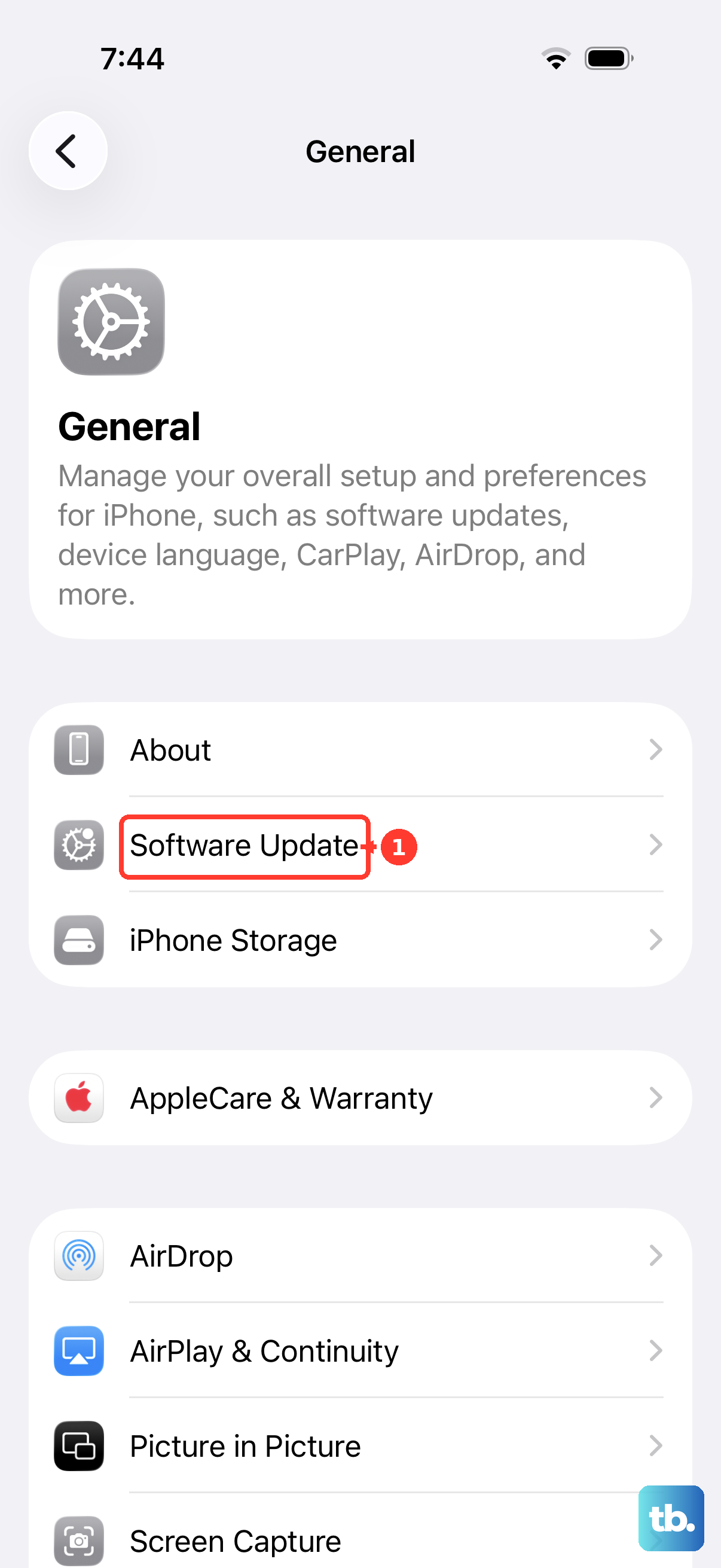
Open Settings > General > Software Update and select Download and Install when an update is offered.
Test Attention Aware settings for unusually quiet alerts
Attention Aware lowers alert volume when it detects that you are looking at the phone. This test applies to Face ID iPhones with a TrueDepth camera and excludes iPhone SE models.
Turn off Attention Aware Features in Settings > Face ID & Passcode.
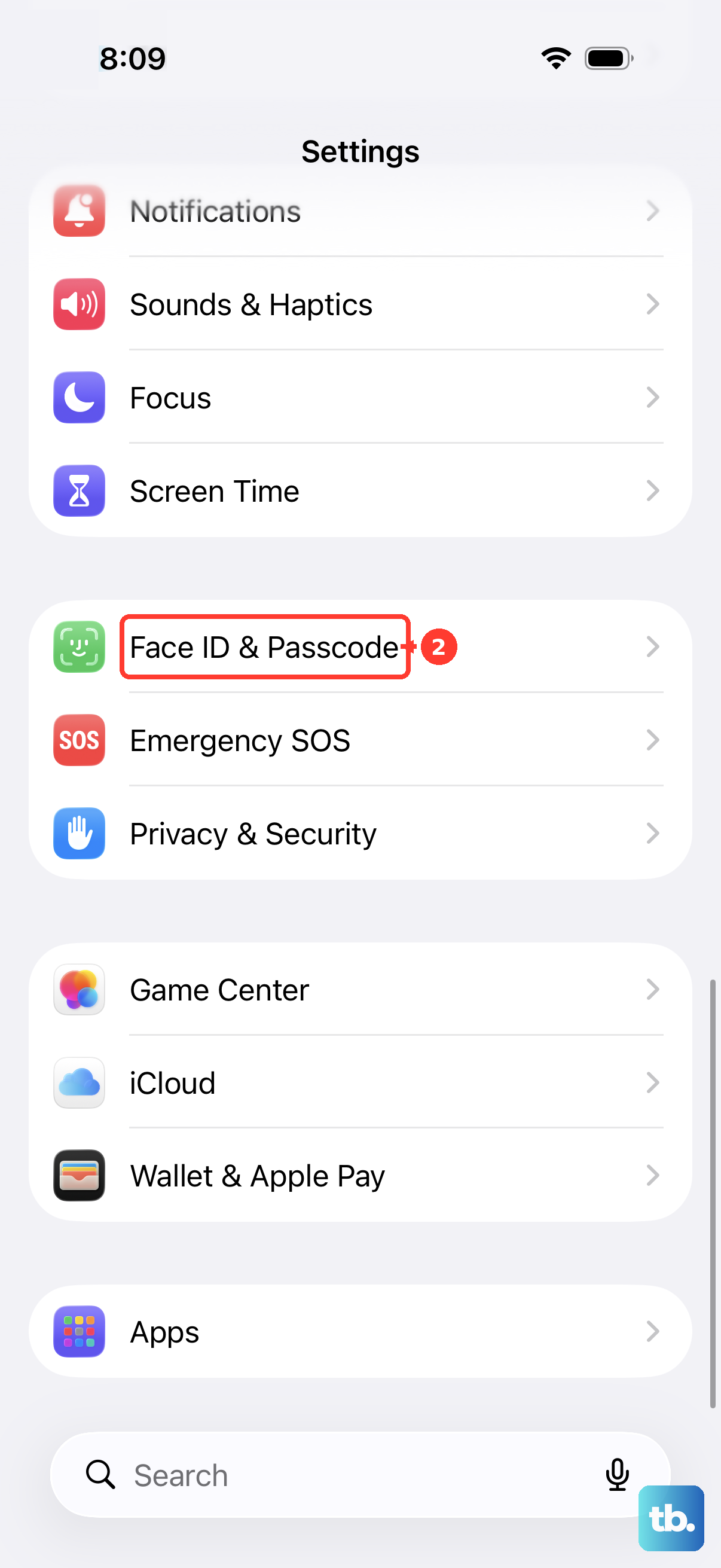
Test the alarm again while awake. Apple documents reduced alert volume, but does not identify this setting as a fix for every missed alarm.
Inspect the speaker when sound still fails
Silent or distorted sounds beyond the alarm point toward a broader audio problem.
Remove any cases, films, or protectors that obstruct the speaker.
Inspect the speaker openings for debris.
Clean them if necessary with a clean, dry, small soft-bristled brush.
Test sound using Settings > Sounds & Haptics > Ringtone and Alerts. Silent or distorted previews call for speaker troubleshooting as well as alarm checks.
If the alarm or speaker still fails, contact Apple through Get suggestions in its alarm support article or Get service in its speaker support article. For a third-party alarm app that continues failing after updating and reinstalling, contact the developer through its App Store support information.
Frequently Asked Questions
Can Silent mode, Focus, or headphones stop my iPhone alarm from sounding?
Silent mode and Focus do not silence built-in Clock alarms. Headphones also do not prevent the alarm from playing through the iPhone speaker. Apps that rely on ordinary notifications have separate notification and Focus controls.
Why does my alarm make sound but no longer vibrate?
Turn on Vibration in Settings > Accessibility > Touch. Select a vibration in the alarm’s Sound settings, or Sounds & Haptics for a Sleep alarm. StandBy disables alarm haptics even with vibration enabled.
Why does an alarm I created on Apple Watch not ring on my iPhone?
Alarms created only in the Watch Alarms app do not alert the iPhone. Create the alarm on your iPhone if the phone needs to ring. To also receive iPhone alarm alerts on your Watch, enable Push Alerts from iPhone in the Apple Watch app on iPhone > My Watch > Clock.
What should I check if a third-party alarm app fails but Clock works?
For an AlarmKit app on iOS 26 or later, grant the system alarm-authorization request when creating an alarm. If you previously denied it, review the app’s authorization in Settings; the permission controls vary by app. For a notification-based app, enable Allow Notifications in Settings > Notifications > the app. Enable Sounds where supported. If Scheduled Summary is active, select Immediate Delivery under Notification Delivery. To allow the app through Focus, open Settings > Focus > the active Focus > Apps or Choose Apps > Allow Notifications From, then include it with Add Apps.