

To convert a PDF to Excel without a converter, open Excel for Microsoft 365 on Windows, select Data > Get Data > From File > From PDF, choose the file, pick the table in the Navigator and select Load. Excel reads the PDF on your own PC, puts the table on a new sheet and keeps a link to the file, so Refresh All can read it again when the PDF changes.
We made PDFs from our own sample tables and imported them in Excel for Microsoft 365 on Windows 11, version 25H2. Three results surprised us. A table that ran onto a second page came in as two tables, a password-protected PDF failed without asking for the password, and Excel for the web imported a PDF that Microsoft's web help does not list as a source.
The short version
- Windows, Microsoft 365: Data > Get Data > From File > From PDF, pick a Table item in the Navigator, then Load.
- Long tables: repeat the header row on every page before you make the PDF, since without it our table split into one item per page.
- Changed PDF: save it over the old file under the same name, press Ctrl + Alt + F5 for Refresh All and check the row count, because rows that move to another page are left out without a warning.
- Scanned page: clip the table with Windows + Shift + S, use Data > From Picture > Picture From Clipboard and check every cell.
- No From PDF: open the PDF in Word, copy the table and paste it into Excel.
Pick the right way to convert a PDF to Excel
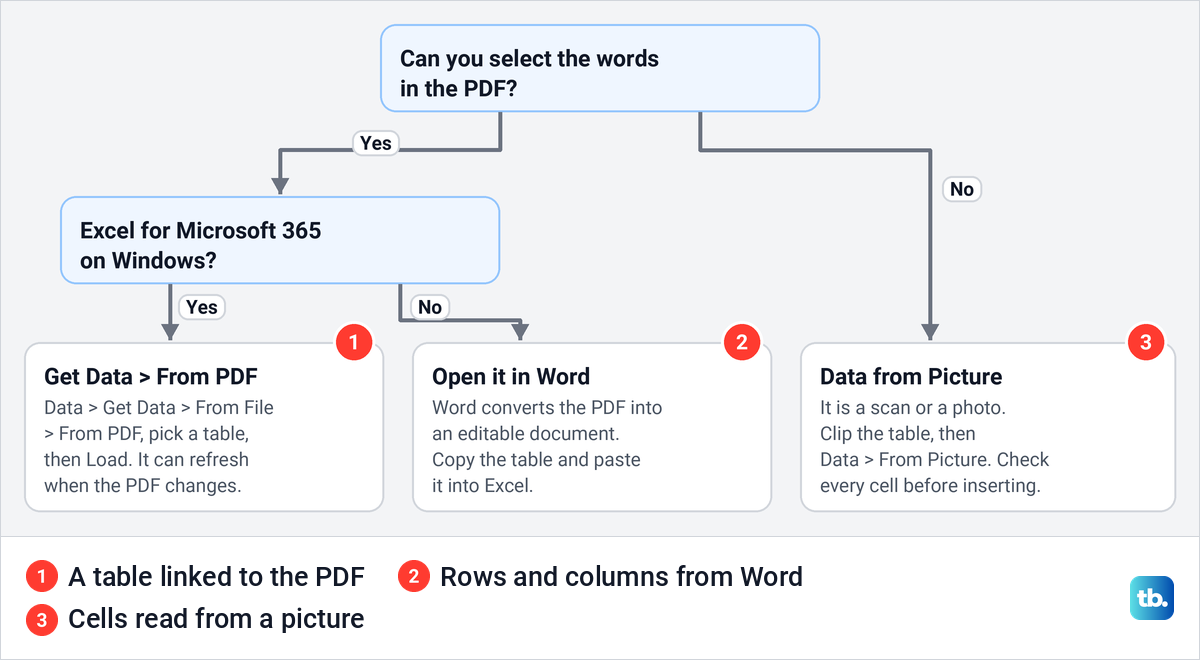
Start with one check. Open the PDF in your browser and drag across a few words. If they highlight, the PDF holds real text that Excel can read, and if nothing highlights, the page is probably a picture, such as a scan. On the picture-only PDF we made, a drag across the heading selected nothing at all, and if From PDF then finds no table, use Data from Picture.
| What you have | Use this | Where to find it | What you get |
|---|---|---|---|
| A PDF with real text and Excel for Microsoft 365 on Windows | From PDF | Data > Get Data > From File > From PDF | A table on its own sheet that refreshes from the PDF |
| A Microsoft 365 Business or Enterprise account in a browser | Get Data in Excel for the web | Data > Get Data, then the PDF tile | A table with Column1 headers and every value as text |
| Word for Microsoft 365, or Word 2016 or later | Word's PDF conversion | File > Open in Word, then Ctrl + C and Ctrl + V | Rows and columns with Word's formatting |
| A scanned page or a photo of a table | Data from Picture | Data > From Picture > Picture From Clipboard | Cells you check one by one before inserting |
| A few values in a PDF | Copy and paste | Ctrl + C in the PDF, Ctrl + V in Excel | Everything in one cell, so only for a few values |
| Many PDFs with the same layout | From Folder | Data > Get Data > From File > From Folder | One table from all the files, says Microsoft |
| Excel for Mac | Data From Picture | Data > Data From Picture > Picture From Clipboard | Cells read from a screen clipping |
From PDF and Word's conversion open the PDF straight from your PC. Data from Picture is different, because Microsoft lists it as a connected experience that sends the screenshot or image to a Microsoft service to read it, and Excel for the web uploads the PDF to your OneDrive first. The chart below picks a route in two questions.
Convert a PDF to Excel with Get Data
Microsoft lists the From PDF connector for Microsoft 365 plans on Windows. Its table of Power Query sources marks PDF as included for Microsoft 365 and leaves it out for Office 2016 and Office 2019, and its list for Excel for Mac has no PDF source at all.
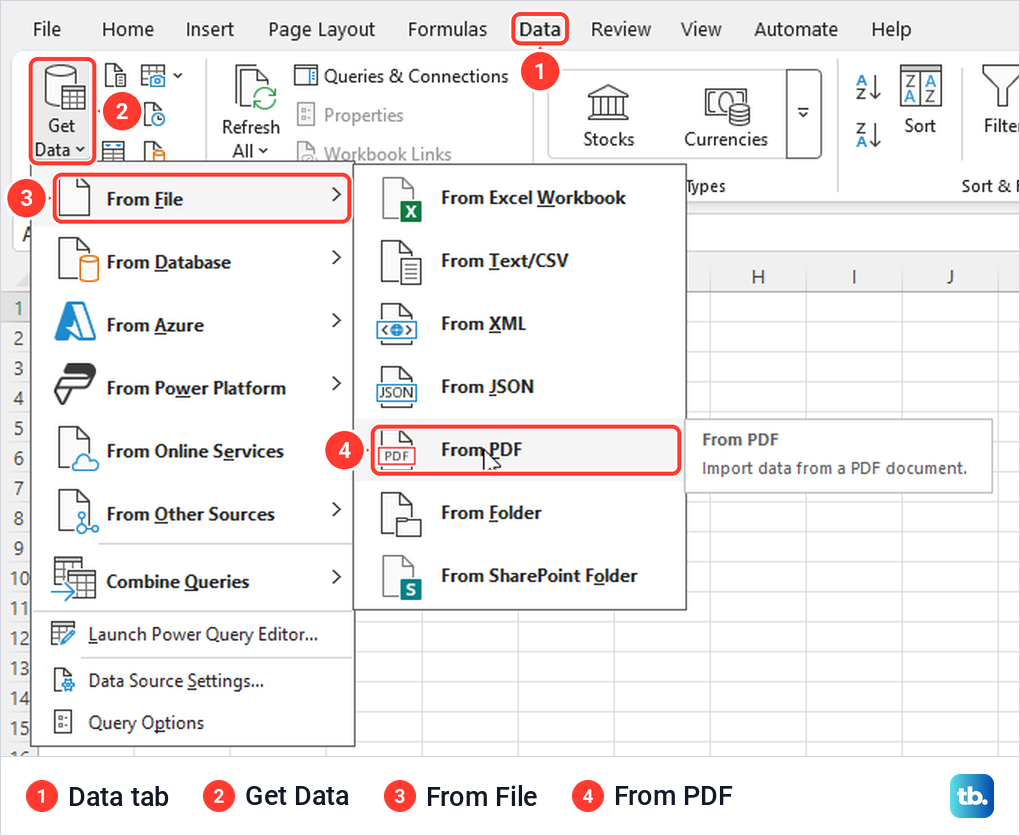
Open a blank workbook, or the workbook you want the table in, and select the Data tab. Select Get Data at the left end of the ribbon, point to From File and select From PDF. On our PC its tooltip read Import data from a PDF document.
A file box titled Import Data opens. Select your PDF, then select Open (the button says Open, not Import). Its file type list on our PC held only All Files, so Excel and Word files appear beside your PDFs. The Navigator appeared about five seconds later for our three-page PDF.
Choose the right table in the Navigator
The Navigator lists what Excel found in the PDF. For our three-page order list it showed Orders.pdf [6] with six items: Table001 (Page 1), Table002 (Page 2) and Table003 (Page 3) with a table icon, and Page001 to Page003 with a page icon. Select an item and its preview appears on the right.
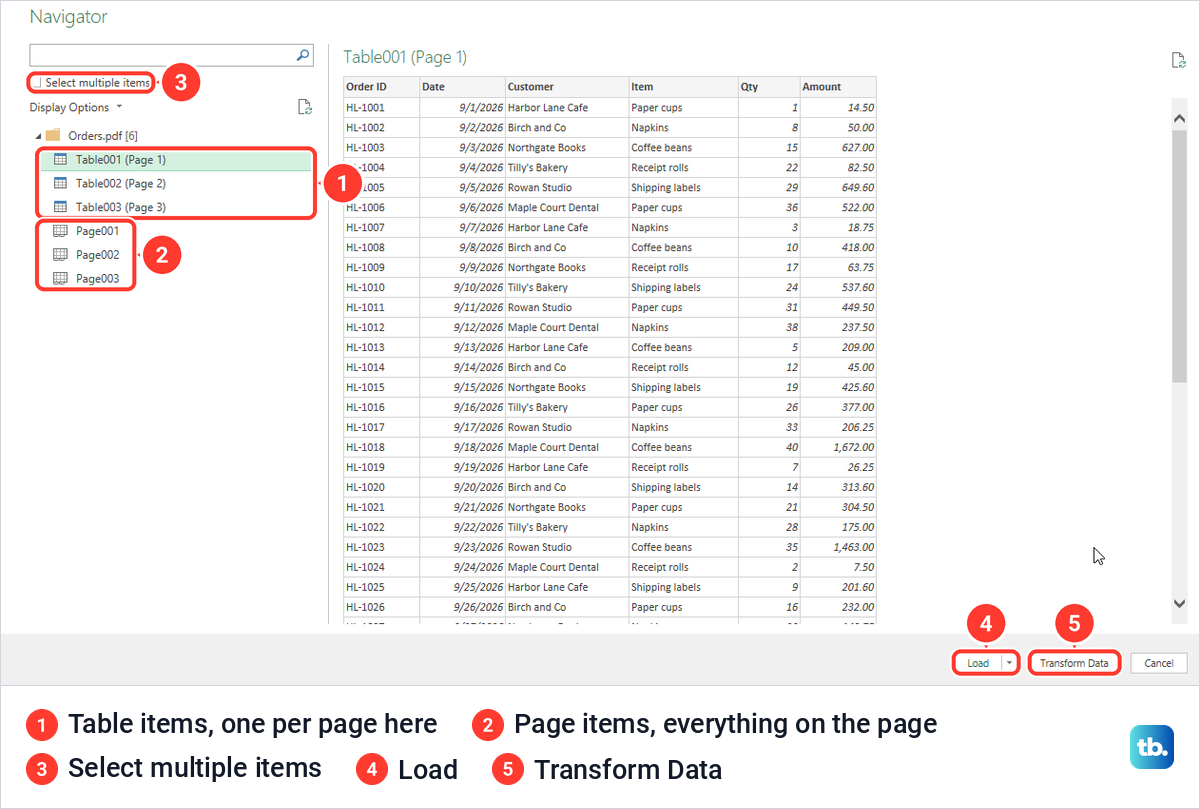
A Table item holds one table Excel recognised. A Page item holds everything on that page, so it gets messy when a heading or a few sentences sit above the table. On the price list we made in Word, Page001 held the heading, both sentences, both tables and empty null cells, with prices kept as text such as $4.00, while Table001 and Table002 held the two clean tables.
So the PDF does not have to come from Excel, since our Word-made PDF imported exactly like the Excel-made one. The Navigator shows no row counts, so scroll to the bottom of the preview to see where a table ends.
Load, Load To or Transform Data
Load is the quick route. On our PC it put the table on a new sheet named after the item, Table001 (Page 1), as a formatted Excel table with filter buttons, and opened the Queries & Connections pane with the line 48 rows loaded. Select a cell in the table and the Query tab appears, which Microsoft says is how you can tell that data came from Power Query.
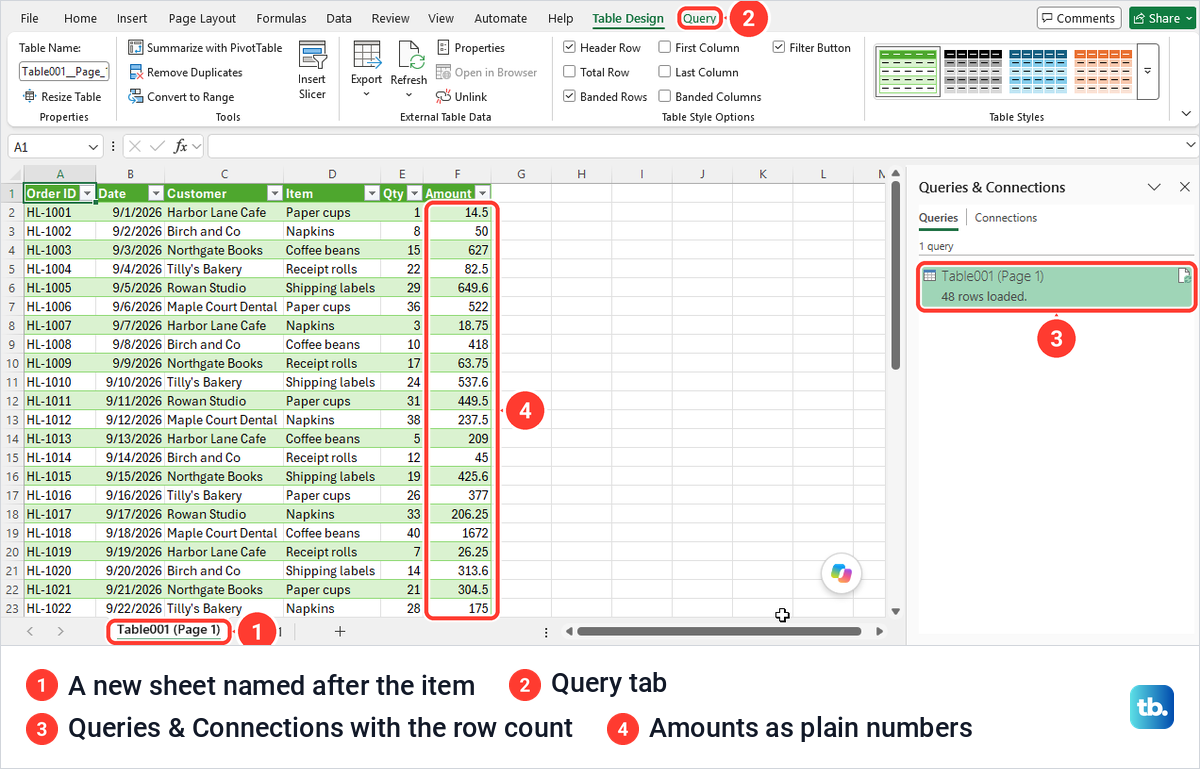
Check the numbers before you use them. Our dates and amounts arrived as real values, and =ISNUMBER returned TRUE for both, but the PDF's currency look was gone, so $14.50 came in as 14.5 and $1,672.00 as 1672. Format the amount column as currency again on the sheet.
To choose what Excel builds, select the arrow beside Load and choose Load To. The Import Data box offers Table, PivotTable Report, PivotChart and Only Create Connection, then Existing worksheet or New worksheet, and a box that adds the data to the Data Model.
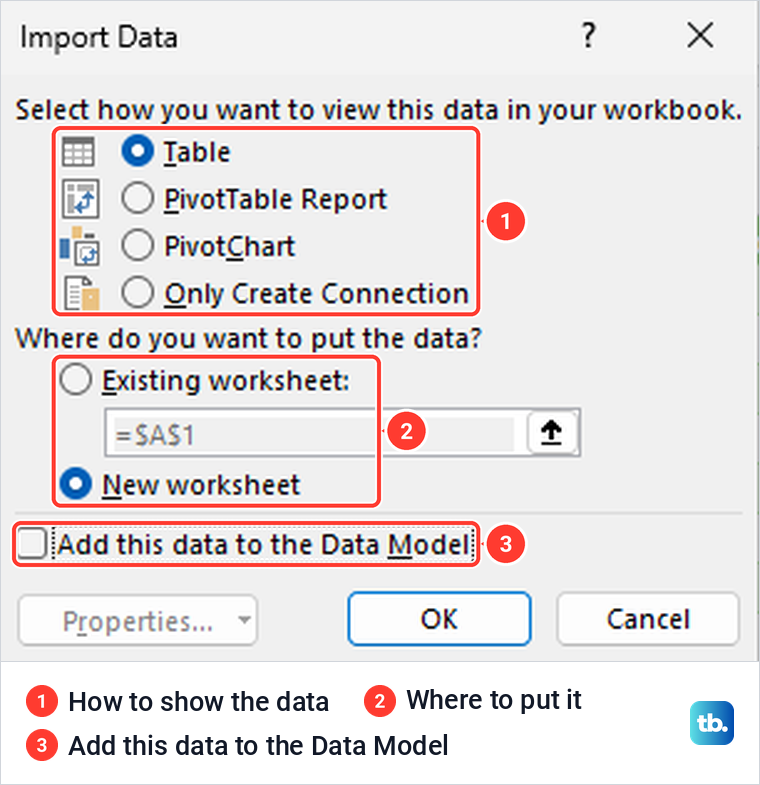
PivotTable Report with New worksheet gave us an empty PivotTable with the PDF's columns in its field list, ready to build a PivotTable from. One catch: Cancel in this box left the query behind as Connection only, so right-click it in Queries & Connections and select Delete if you do not want it.
Once the table is on a sheet you can sort and filter it, freeze the header row on a long statement and look values up with XLOOKUP from another sheet. Keep it as a table, though. Convert to Range on the Table Design tab warned us that it would permanently remove the query definition, and afterwards Refresh All left the range alone, so only turn the table back into a normal range when you no longer need updates.
Clean up the table in Power Query
Transform Data in the Navigator opens the Power Query Editor before anything reaches the sheet. For our order list, the APPLIED STEPS pane already held Source, Navigation, Promoted Headers and Changed Type. Power Query had made the first row the headers and set Date as a date, Qty as a whole number and Amount as Currency on its own.
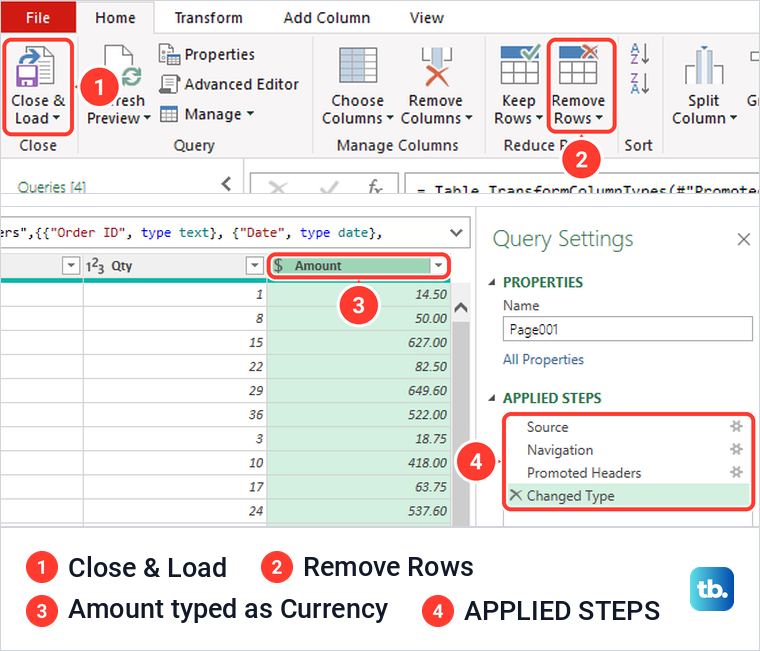
So a PDF made from a tidy table may need no clean-up at all. When a page brings extra lines, Remove Rows on the Home tab offers Remove Top Rows, Remove Duplicates, Remove Blank Rows and Remove Errors, and Use First Row as Headers sits in the Transform group.
Select Close & Load when you are done, and the result lands on a new sheet. Microsoft says every step runs again each time you refresh, while the PDF itself never changes. The Currency type still reached our sheet as plain numbers, so format that column on the sheet as well.
Import a table that runs over several pages
Microsoft says Excel joins similar tables on consecutive pages into one table by default. On our PC that only happened when the header row repeated at the top of the second page. Our first PDF put 48 orders on page 1 and the last 12 on page 2 with no header, and the Navigator listed them as two items, the second with the headers Column1 to Column6.
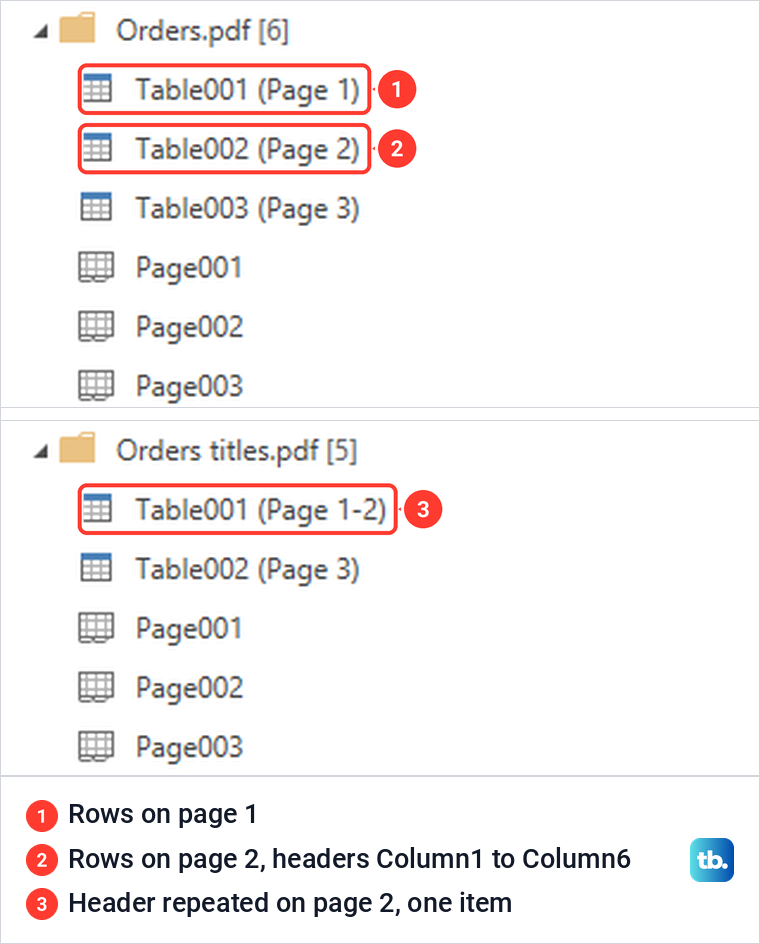
We then saved the PDF again with the header set to repeat, using Page Layout > Print Titles and Rows to repeat at top in Excel. This time the Navigator offered one item, Table001 (Page 1-2), and it loaded 60 rows with no stray header row in the middle. If you make the PDF yourself, set the header to repeat before you save it.
To take several items at once, tick Select multiple items at the top of the list. Our two price tables from one page were ticked and the button still read Load, yet plain Load made no sheets at all, because both queries were set to Only Create Connection and loaded only into the Data Model, even though the pane showed rows loaded. Right-click each query in Queries & Connections, select Load To and choose Table and New worksheet to put it on a sheet.
For a pile of statements with the same layout, Microsoft points to the Folder connector. Put the PDFs in a folder with nothing else in it, select Data > Get Data > From File > From Folder and choose Combine & Load. Microsoft says every file in that folder is included, so keep anything else out of it.
Check the totals after any combine. If the same orders turn up twice, for example from statements that overlap, remove duplicate rows in Excel before you add anything up.
Refresh the table when the PDF changes
An imported PDF stays linked to its file. Save the new version over the old one with the same name in the same folder, then select Data > Refresh All or press Ctrl + Alt + F5, the shortcut Microsoft lists for it.
We changed one amount and one customer in our order list, added two orders and saved a new PDF over the old one. After Refresh All, the new amount, 999.99, and the new customer were in the table, and the yellow fill and column widths we had added before the refresh were still there.
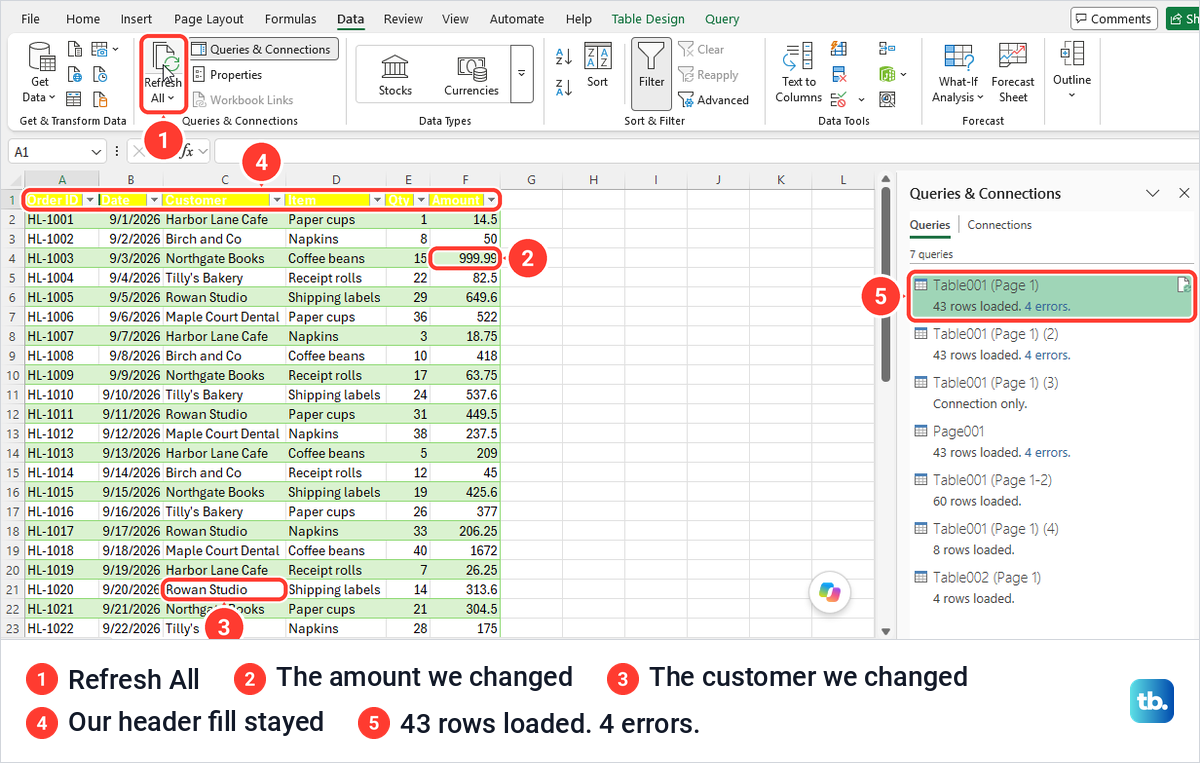
Two things went wrong. Our query read only page 1, and page 1 of the new PDF ended five orders earlier, so the table shrank to 43 rows and the two new orders, now on a later page, never arrived.
Excel showed no message about the missing orders, only the new count in the pane. After every refresh, check the count in Queries & Connections and the last rows of the table, and if the PDF's page breaks have changed, import it again with From PDF and pick the item that covers the pages you need.
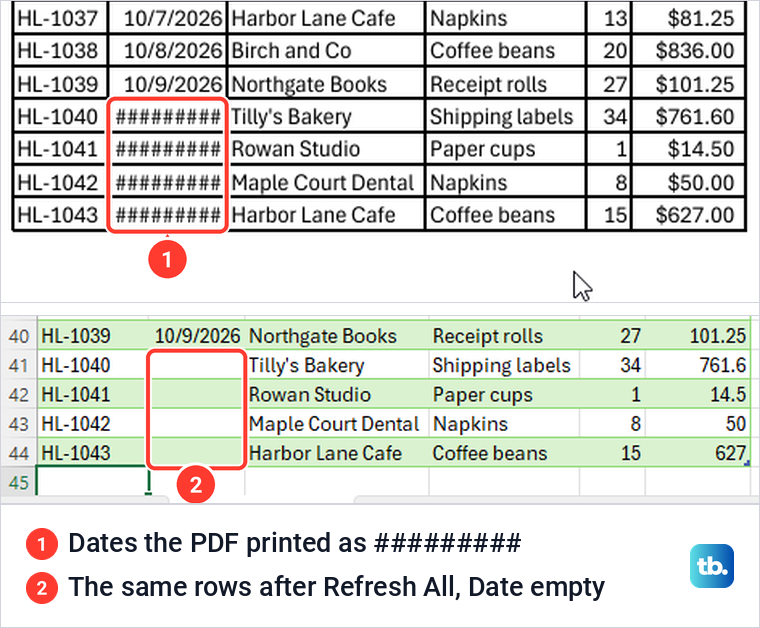
The pane also reported 4 errors. The new PDF had been saved with the date column too narrow, so four dates printed as #########, and those cells came into Excel empty. Widen the columns before you save a PDF, and look at the PDF itself whenever Excel reports errors.
Excel can also refresh on its own. Right-click the query, select Properties and look at the Usage tab, where our Query Properties box had Refresh every 60 minutes and Refresh data when opening the file, both off by default. When we reopened the workbook, a SECURITY WARNING bar said External Data Connections have been disabled until we selected Enable Content.
If you moved or renamed the PDF
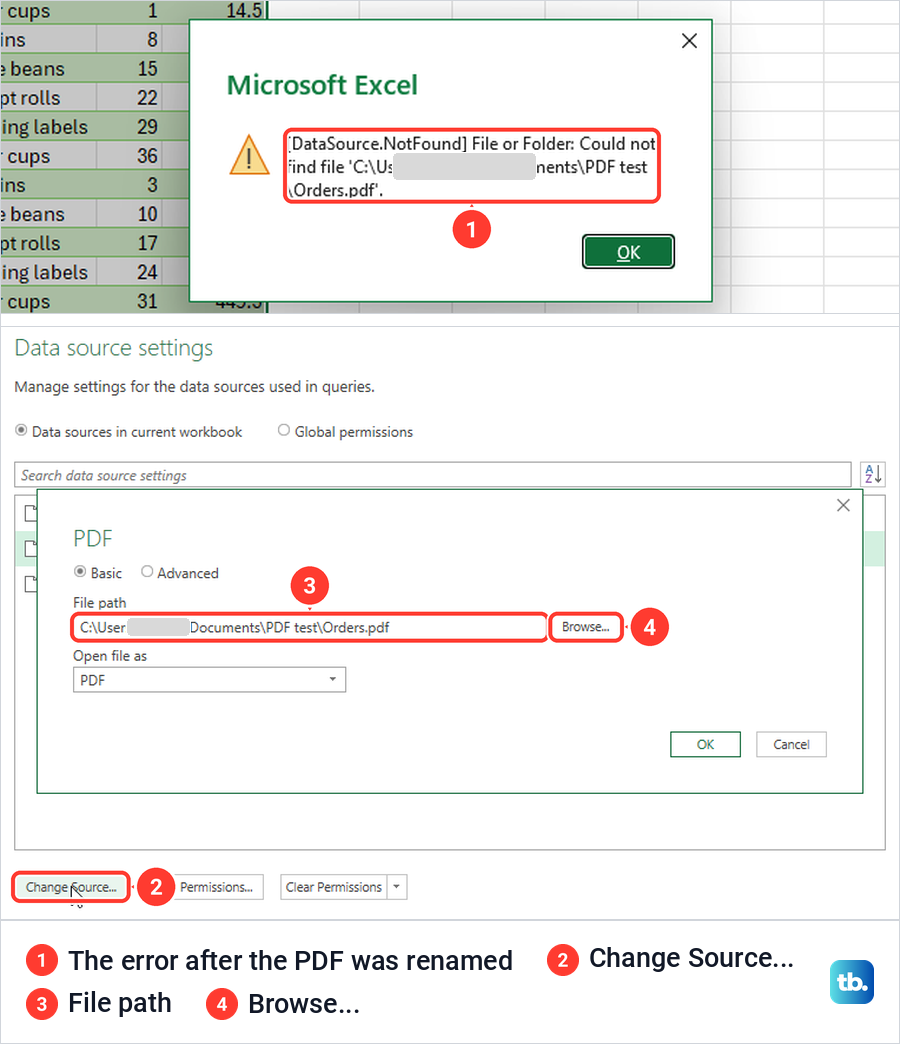
We renamed the PDF and selected Refresh All. Excel showed [DataSource.NotFound] File or Folder: Could not find file, followed by the old path, once for each query that used the file. The data on the sheet stayed as it was, and the pane marked those queries Download did not complete.
To point the query at the new file, select Data > Get Data > Data Source Settings, select the old path and choose Change Source. A box titled PDF shows the File path with a Browse button, so pick the file, select OK and Close, then select Refresh All. Ours came back with no message.
Open the PDF in Word and copy the table
Word was the fallback that worked best for us. In Word, select File > Open, choose the PDF and select OK when Word warns that it will convert your PDF to an editable Word document that might not look exactly like the original. Microsoft says Word makes a copy and never changes the PDF, and that it works best with files that are mostly text.
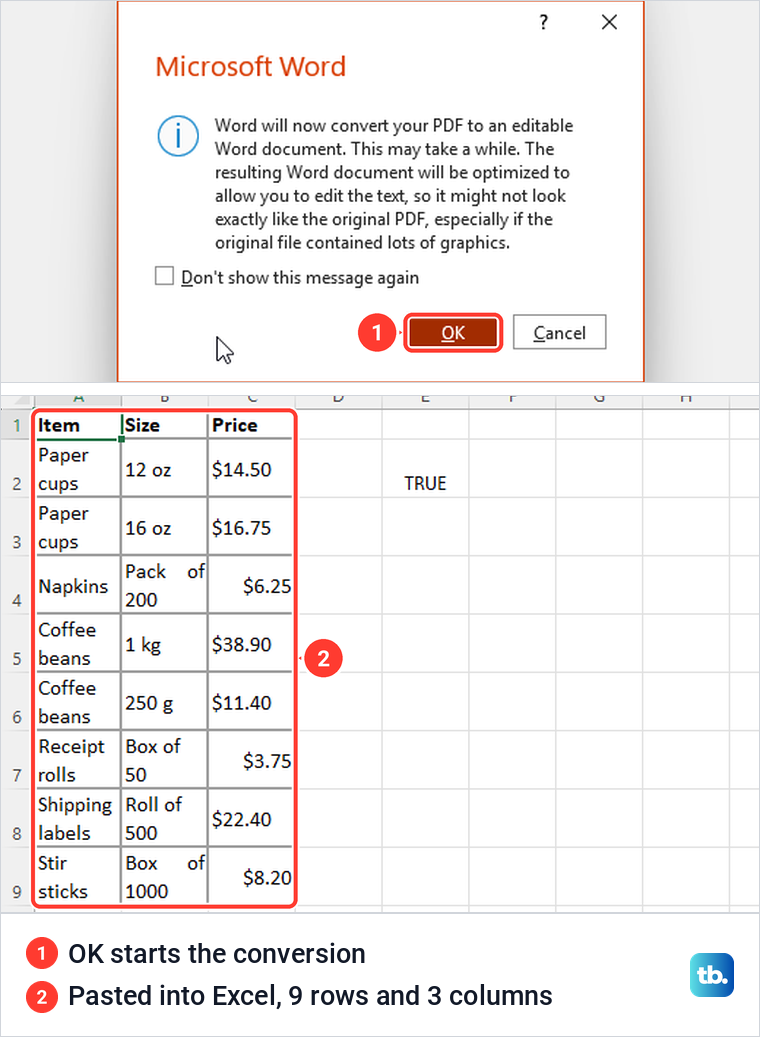
Our price list converted in a few seconds into real Word tables. Click inside the table, select the move handle at its top-left corner, press Ctrl + C, then click a cell in Excel and press Ctrl + V. Ours arrived as 9 rows and 3 columns with no merged cells and the prices as numbers, with Word's font, borders and wrapped text.
A three-page order list converted just as well, its rows running on across Word's own page break with nothing between them. Microsoft lists tables with cell spacing among the things that do not convert well. This is the same conversion Word uses when you edit a PDF, and if you still have the Excel or Word file the PDF came from, Microsoft says to start from that original instead.
Copy and paste a table from a PDF
Copy and paste looks like the obvious fix, but from Edge's PDF viewer it failed for us. Dragging across our order table selected text in the viewer's own order, with whole columns running far down the page while Qty and Amount stopped where we let go. Pressing Ctrl + V in Excel then put all of it into one cell, A1, as a single scrambled line.
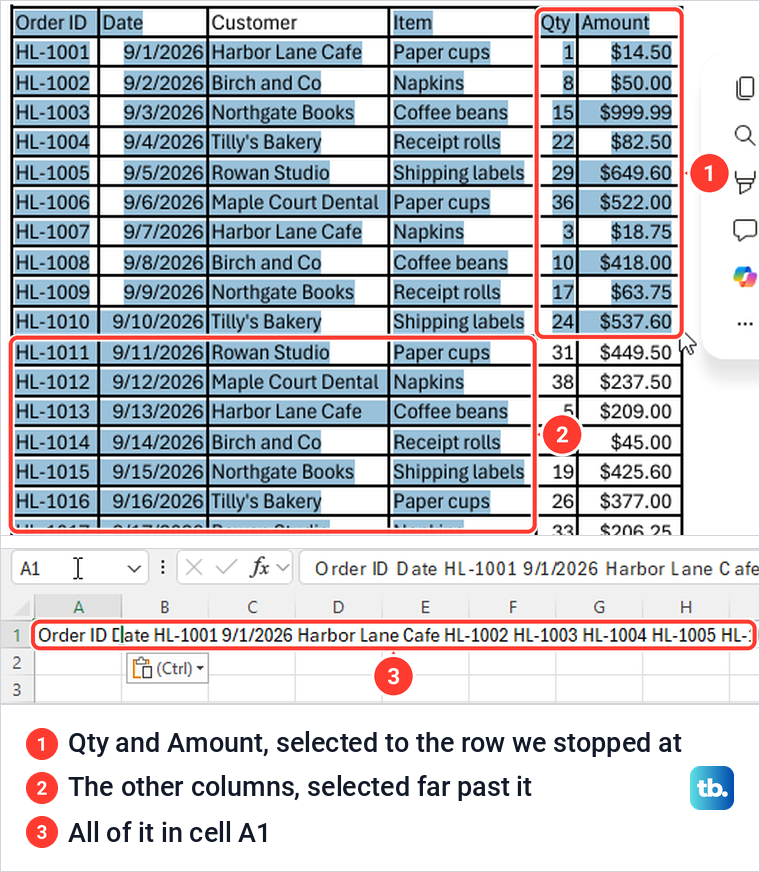
The pasted cell was text, so =ISNUMBER returned FALSE, and Paste Options offered only Keep Source Formatting and Match Destination Formatting. Pasted numbers that stay text are a common reason SUM returns 0, so check a few cells with =ISNUMBER before you total anything.
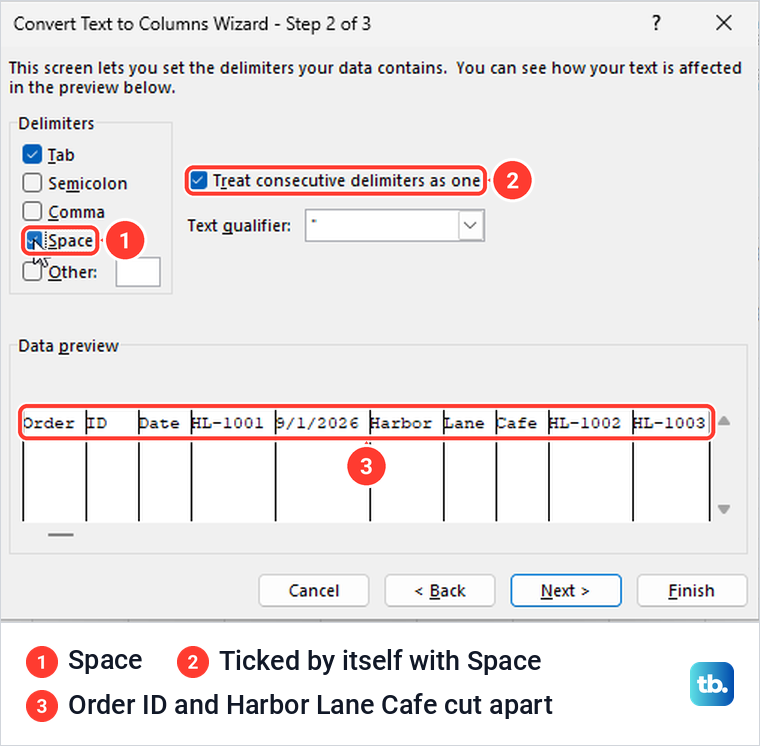
Data > Text to Columns can split a pasted line, but it splits on every space. With Delimited and Space ticked, the wizard also ticked Treat consecutive delimiters as one by itself, and the preview cut Order ID into two columns and Harbor Lane Cafe into three. Use copy and paste for a few values only, and paste into an empty area, never over data.
Convert a scanned PDF to Excel
A scanned PDF holds a picture of the table, not text. We made a picture-only copy of our price list, and From PDF listed a single item, Page001, whose preview said This table is empty. Excel's answer for pictures is Data from Picture.
Open the PDF and zoom in until the table is sharp. Press Windows + Shift + S and snip the table and nothing around it, since Microsoft says the picture should be head-on and hold only the data you want. In Excel, select Data > From Picture > Picture From Clipboard, where From Picture was a small unlabelled icon on our ribbon.
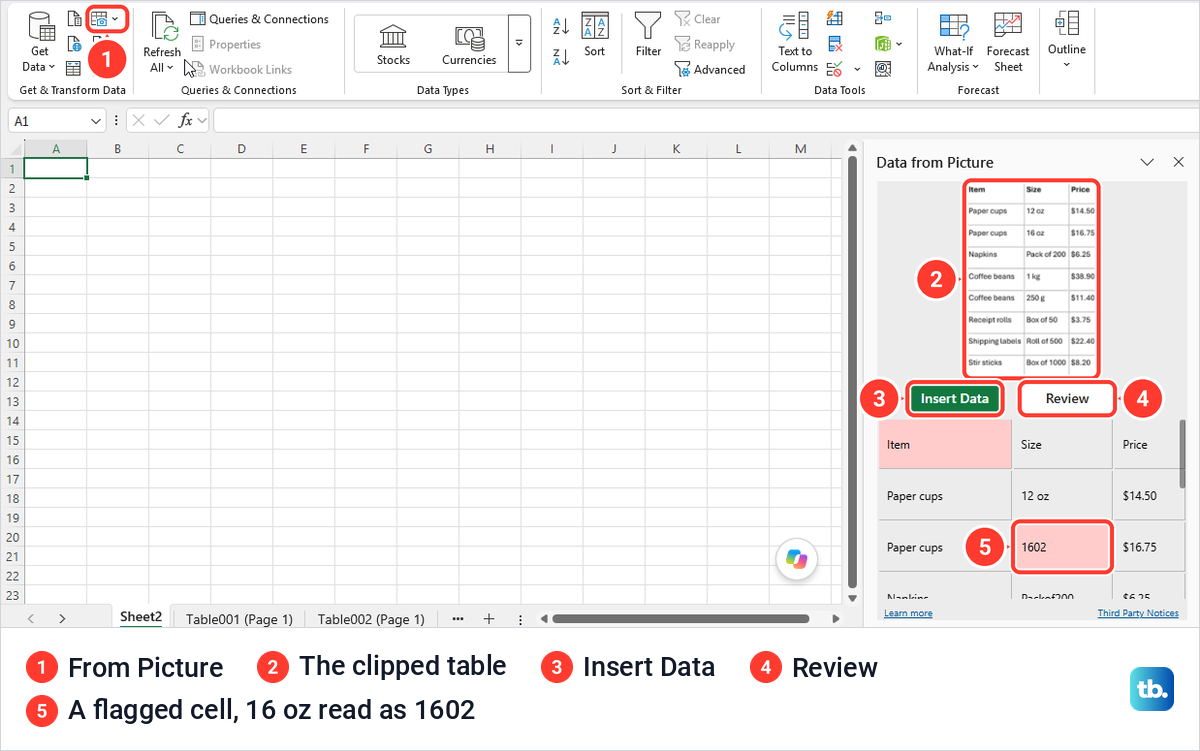
The pane shows your clip, a preview grid with doubtful cells in pink, and the Insert Data and Review buttons. Review steps through the flagged cells one by one. Insert Data with cells still unreviewed asked us to confirm with Insert Anyway, under the line You are responsible for validating the accuracy of all data.
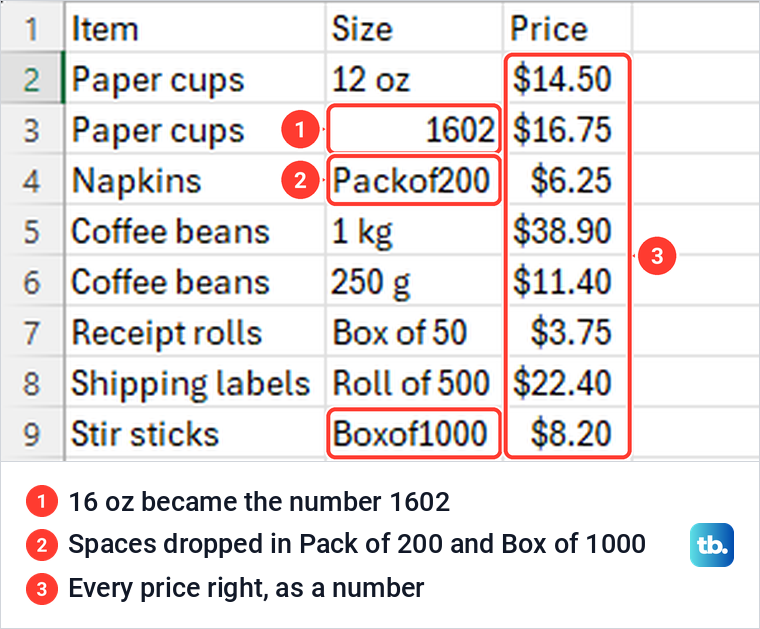
Take that line seriously. Data from Picture read every item name and all eight prices correctly, and the prices came in as numbers, but it turned 16 oz into the number 1602 and wrote Pack of 200 and Box of 1000 without spaces. Of those three mistakes only 1602 was flagged, while two Coffee beans cells that were already correct were flagged too.
Check every cell against the PDF before you rely on the numbers. Microsoft says Data from Picture on Windows needs Windows 11, or Windows 10 version 1903 or later, and reads only a listed set of languages, English among them.
Fix From PDF missing, greyed out or failing
If Get Data and the commands around it are greyed out, check first whether Excel is still in a cell you are typing in. We saw the Data tab grey out while a cell was being edited, so press Esc to leave the cell and try again.
If From PDF is missing from the From File list, check which Excel you have. Microsoft lists it for Microsoft 365 plans, not for Office 2016 or Office 2019, and not for Excel for Mac. Its table does not cover Excel 2021 or 2024, so look for From PDF under Data > Get Data > From File, and if it is not there, use Word's conversion below. On Microsoft 365, update Microsoft Office and restart Excel.
If Excel says This connector requires one or more additional components to be installed before it can be used, Microsoft says the PDF connector needs the .NET Framework on your PC. Its fix is to download and install the latest .NET Framework from Microsoft, then try From PDF again.
Our PDF that needed a password to open would not import. Excel never asked us for the password: it showed Unable to connect with the details Pdf failed to load with result: PasswordRequired, and its Edit button only offered the file path. If yours does the same and you made the PDF yourself, save it again from the original Excel or Word file without a password, then import that copy. Otherwise ask whoever sent it for a copy without a password.
Convert a PDF to Excel on the web, a Mac or a phone
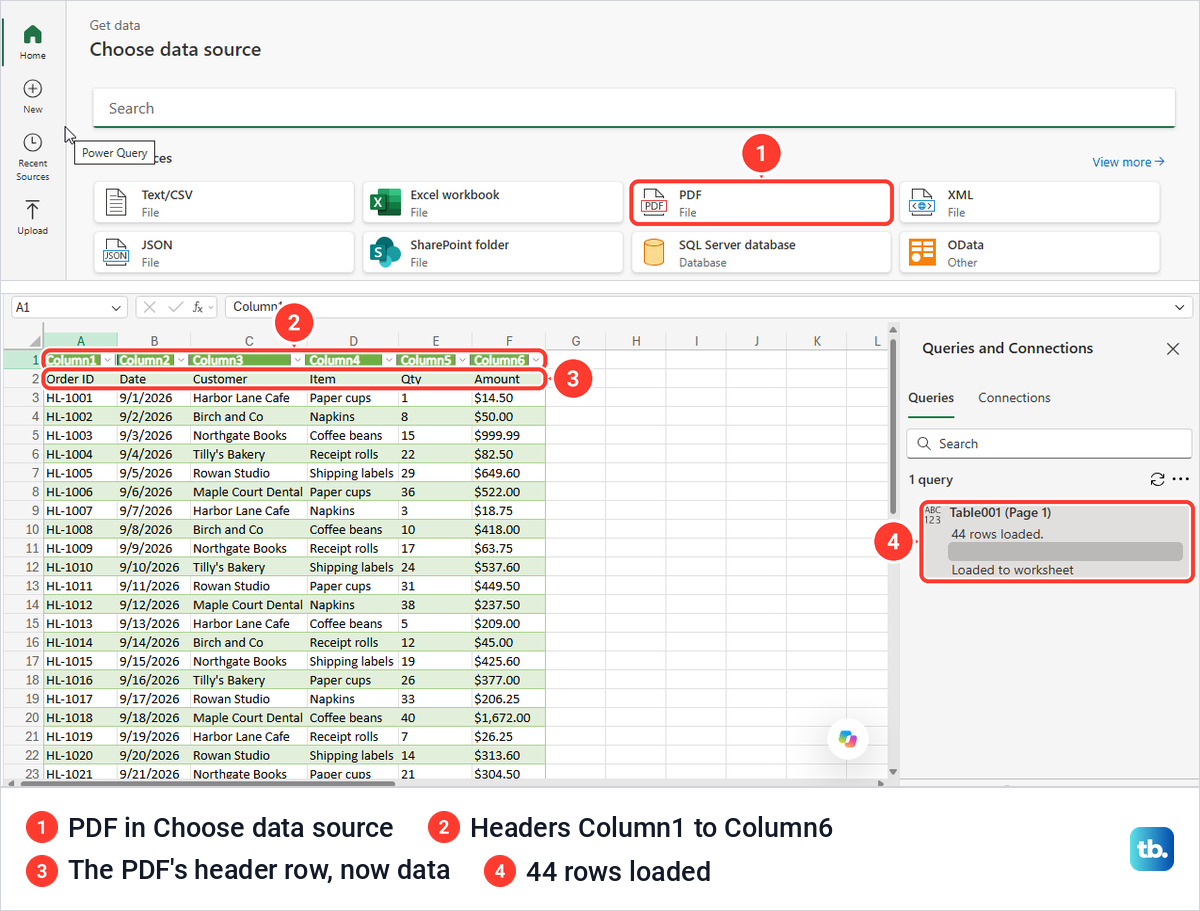
Microsoft's help page for Power Query on the web does not list PDF among its sources, but on our work account Data > Get Data and then the Get Data item in its menu opened Choose data source with a PDF tile. Choosing it offered Link to file or Upload file, and an uploaded PDF goes into your own OneDrive. Microsoft says the full Power Query experience on the web needs a Business or Enterprise plan.
Choose data then listed the same Table and Page items as the desktop Navigator, and Load put the table on a new sheet. The result was rougher than on the desktop, with headers Column1 to Column6, the PDF's own header row as the first data row and every value as text such as $14.50.
Microsoft's list of Power Query sources for the Mac does not include PDF, so Excel for Mac has no From PDF. Microsoft's route there is to press Shift + Control + Command + 4 to clip the table, then select Data > Data From Picture > Picture From Clipboard. If your Microsoft 365 plan includes Copilot in Excel, Microsoft says you can also ask it to add data from a PDF saved in OneDrive or SharePoint.
On an iPhone, iPad or Android phone, Microsoft says Power Query is not supported, so there is no PDF import. Tap Insert > Data from Picture in Excel to read a table from a photo instead.
How we tested this guide
We tested this on Windows 11, version 25H2, with Excel for Microsoft 365, importing PDFs built from invented data with From PDF and Data from Picture.
Frequently Asked Questions
Can I convert a PDF to Excel for free without uploading it?
If you already have Excel for Microsoft 365 on Windows, yes, with no converter and no extra fee. From PDF and Word's conversion open the file from your PC. Data from Picture sends the clipped image to a Microsoft service, and Excel for the web uploads the PDF to your own OneDrive.
Why don't I see From PDF in Excel?
Microsoft lists it for Microsoft 365 on Windows, not for Office 2016, Office 2019 or Excel for Mac. On Microsoft 365, update Office and restart Excel. If the whole Data tab is grey, press Esc to leave the cell you are typing in.
Why did my PDF table come in as two tables?
Microsoft says Excel joins similar tables on consecutive pages by default, but in our test the order table split when page 2 had no header row and joined into one item when the header repeated. Remake the PDF with Print Titles, or load both items.
Does the Excel table update when the PDF changes?
Yes, if the new PDF replaces the old one under the same name and folder and you select Data > Refresh All. Rows that move to a page your query does not read will not arrive, so check the row count after each refresh and import the PDF again if its page breaks changed.
Can I convert a scanned PDF to Excel?
Not with From PDF, which found nothing in our picture-only PDF. Snip the table with Windows + Shift + S, then use Data > From Picture > Picture From Clipboard and check every cell, because it got three of the size cells in our price list wrong.
Can Excel import a password-protected PDF?
Not the one we tried. Our PDF needed a password to open, and Excel reported PasswordRequired without ever asking for it, so remove that password first and import the unlocked copy.