
Excel SUM problems show up in a few familiar ways: the total stays at 0, the formula appears in the cell, or the answer refuses to update. The fixes below start with the fastest checks and move toward workbook repair only when the sheet itself keeps failing.
Work through the symptom that matches your file, then stop once the total calculates correctly.
1. Write the SUM formula cleanly
Start with the formula cell. Select the result cell, type =SUM(A2:A10), replace A2:A10 with your real range, then press Enter.
Need to add separate ranges? Use a comma between them, like =SUM(A2:A10,C2:C10), then press Enter.
Excel can also build the formula for you. Select a cell next to the numbers, choose Home > AutoSum, check the highlighted range, then press Enter. You can use Formulas > AutoSum > Sum for the same command.
2. Switch calculation back to Automatic
If SUM only updates after you edit the cell, calculation is set to manual. In Excel for Windows desktop, go to File > Options > Formulas > Calculation options > Workbook Calculation, then select Automatic.
The faster ribbon path is Formulas > Calculation Options > Automatic. In desktop Excel, this change affects every open workbook.
In Excel for the web, choose Formulas > Calculation Options > Automatic. In the browser, the setting applies only to the current workbook.
3. Refresh the workbook now
- 1.Open Formulas.
- 2.In the Calculation group, select Calculate Now.
- 3.Press F9 for the same recalculation across all open workbooks.
- 4.Choose Calculate Sheet, or press Shift+F9, to refresh only the active sheet.
For a full recalculation in Excel for Windows desktop, press Ctrl+Alt+F9. To rebuild dependent formulas too, press Ctrl+Shift+Alt+F9.
In Excel for the web, use Formulas > Calculation Options > Calculate Workbook.
4. Stop showing the formula instead of the answer
When the cell displays =SUM(...) instead of a number, turn off formula display. Choose Formulas > Show Formulas, or press Ctrl+`.
If the cell was formatted as text before you entered the formula, fix the cell format next. Select the formula cell, set the format to General or Number, press F2, then press Enter.
5. Convert numbers stored as text
A SUM result of 0, or a total that skips visible values, means the values are stored as text. Convert them to real numbers, then run the SUM again.
- Use Excel’s warning button: go to File > Options > Formulas > Error Checking, turn on Enable background error checking, select the affected cells, select the warning button, then choose the option that converts numbers stored as text.
- Use VALUE: insert a new column, enter =VALUE(cell_reference), fill the formula down, copy the converted results, then paste them back as values.
- Use Paste Special: type 1 in an empty cell, copy it, select the text-formatted numbers, then choose Home > Paste > Paste Special > Multiply > OK.
For copied or imported data, use Data > Text to Columns. Choose Delimited, select the needed delimiters, choose a Destination, then select Finish.
6. Fix separators that break numbers or formulas
Decimal and thousands separators can make imported values behave like text. In Excel for Windows, open File > Options > Advanced, go to Editing options, clear Use system separators, enter the correct Decimal separator and Thousands separator, then select OK.
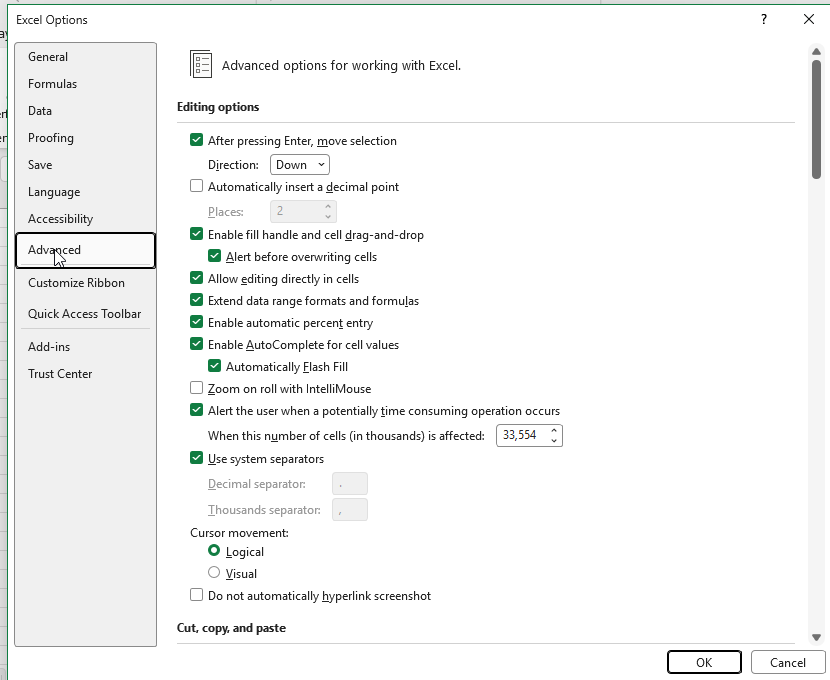
Formula punctuation can also fail when the character you type does not match the Windows regional list separator. Open Windows regional settings, find List separator, then either type that same separator in your formulas or reset it to your region’s default. As a specific case, a list separator set to a minus sign makes subtraction formulas return #VALUE!: change it, select OK, reopen the workbook, edit the affected formulas, then press Enter.
To scan the sheet for formula problems, select the worksheet, press F9 when calculation is manual, then choose Formulas > Formula Auditing > Error Checking. To recheck errors you previously ignored, use File > Options > Formulas > Error Checking > Reset Ignored Errors > OK.
7. Remove circular references and blocked results
A circular reference can stop a SUM total from calculating correctly. Go to Formulas > Error Checking > Circular References, select each listed cell address, and edit the formula so it no longer refers back to itself.
Repeat that check until the status bar no longer shows Circular References. Use Formulas > Trace Precedents or Trace Dependents when the source cell is hard to follow.
Only enable circular calculation for a workbook that intentionally uses a circular model. Use File > Options > Formulas > Calculation options > Enable iterative calculation, then set Maximum Iterations and Maximum Change.
If SUM shows #####, the column is usually too narrow to show the result. Select the right edge of the column header and drag it wider until the value appears. If widening the column does not help and the formula returns a date or time, check for a negative date or time result.
8. Repair Excel when the file or app keeps failing
When the problem follows one workbook, repair that file. Choose File > Open, pick the location, select the workbook, select the arrow next to Open, then choose Open and Repair > Repair. If repair fails, choose Extract Data.
Add-ins are the next check. On Windows, press Windows+R, type excel /safe, then select OK. If SUM works in Safe Mode, turn off Excel add-ins through File > Options > Add-ins > Manage > Excel Add-ins > Go, then clear the add-in checkbox. For COM add-ins, use Manage > COM Add-ins > Go.
Update Excel on Windows from any Microsoft 365 app through File > Account > Update Options > Update Now. On Mac, open Excel and choose Help > Check for Updates, then select Update or Update All in Microsoft AutoUpdate.
Repair Office on Windows when Excel keeps failing across files. On Windows 11, right-click Start > Installed apps, select your Microsoft 365 or Office product, choose the ellipses > Modify > Online Repair > Repair. On Windows 10, right-click Start > Apps and Features, select your Microsoft 365 or Office product, choose Modify, then run Online Repair.
Frequently Asked Questions
Why does Excel SUM return 0 when I can see numbers?
Those values are stored as text. Convert them with Excel’s warning button, VALUE, Paste Special multiply by 1, or Text to Columns, then recalculate the workbook.
Why does Excel SUM stop updating automatically?
Workbook calculation is set to Manual. Change it to Automatic from Formulas > Calculation Options > Automatic, or use File > Options > Formulas on Excel for Windows desktop.
Why does Excel show ##### instead of my SUM result?
The column is too narrow to display the value. Drag the right edge of the column header wider until the result appears.
Can Copilot help with a broken SUM formula?
Yes. Eligible Microsoft 365 and Copilot users can select the Copilot icon in Excel and ask it to fix or generate a SUM formula for the selected data.