You send a document, the printer wakes up, and the page never appears. The failure usually comes down to power, paper or ink, the print queue, the selected printer, network discovery, or driver software. Start with the checks below and move in order, because the early fixes clear the most common blocks before you remove printers or rebuild drivers.
1. Rule out the basic printer blocks first
Start here before changing computer settings. Turn the printer off, wait at least 60 seconds, then turn it back on. Restart the computer, phone, or tablet you are printing from. If the printer uses Wi-Fi or Ethernet, restart the router.
Confirm the printer is powered on, loaded with paper, and has ink or toner. Check the USB or Ethernet cable if you use one. For wireless printing, confirm the printer and your device are on the same Wi-Fi or local network.
A full restart clears many temporary printer and network states, and the physical checks keep you from chasing a software problem that is not there. After that, send one short test page. If it still does not print, the next likely block is the queue.
2. Empty the stuck queue and resume printing
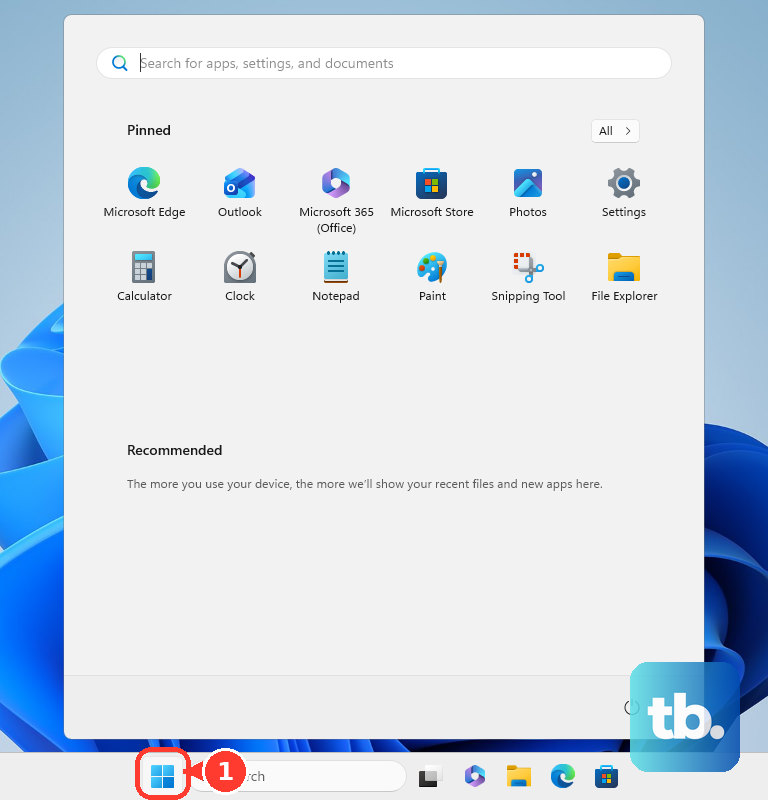
On Windows 11, open Start > Settings > Bluetooth & devices > Printers & scanners. Select your printer, then choose Open print queue. Right-click each stuck print job and choose Cancel.
On a Mac, click the Print Center icon in the Dock. If macOS shows Resume, click it. If a job is blocking the queue, select that job and click Delete Job.
One frozen print job can stop everything behind it. Clear the queue, then send a fresh print job instead of resending the same stuck one.
When the Windows queue stays stuck after canceling jobs, press Windows key + R. Type services.msc, then press Enter. Right-click Print Spooler and choose Restart.
If jobs remain trapped, stop Print Spooler. Open C:\Windows\System32\spool\PRINTERS in File Explorer. Delete the files in that folder. Start Print Spooler again.
3. Pick the correct printer before printing again
If the job is being sent to the wrong destination, the printer beside you will stay silent. On Windows 11, open Start > Settings > Bluetooth & devices > Printers & scanners. Under Printer preferences, turn Let Windows manage my default printer off. Select the printer you use and choose Set as default.
In Chrome on desktop, open the page, image, or file. Choose File > Print. In Destination, select the intended printer. Adjust the print settings, then click Print.
On a Mac, also confirm the selected printer is the printer you meant to use before sending the job.
4. Re-add the printer in Windows 11
Let Windows repair the setup before you go looking for driver packages.
- 1.Open Get Help and run the Printer troubleshooter.
- 2.Open Start > Settings > Bluetooth & devices > Printers & scanners.
- 3.Select the printer, choose Remove, then confirm with Yes.
- 4.Return to Printers & scanners, choose Add a printer or scanner, then select Add device.
- 5.If Windows does not find it, choose The printer that I want isn't listed or Add a new device manually, then follow the Add Printer prompts.
For Microsoft 365 printing trouble, test outside the Office app before changing the printer. Open Notepad, type This is a test, and use File > Print.
If Notepad prints, create a new blank file in the Microsoft 365 app. Save it, then print that file. When only the original file fails, treat that file, font, or content as the problem.
5. Refresh the current driver path
Use current driver sources only. On Windows 11, use Windows Update after adding or reinstalling the printer. If Find drivers appears next to the printer in Printers & scanners, select it; otherwise run Windows Update.
For manufacturer software, identify the exact printer model. Use the official HP, Canon, Epson, or Brother support page. Open Support or Drivers, search the model, and select Windows if prompted. Download the current printer software or driver.
Right-click the downloaded file. Choose Open. Follow the prompts, then restart if prompted.
On a Windows on ARM PC, including a Copilot+ PC, Microsoft warns that a manufacturer installer may fail to add the printer. Open Settings > Bluetooth & devices > Printers & scanners and select Add device instead, unless the printer maker publishes specific Windows on ARM guidance.
To check which you have, open Settings > System > About. Look for ARM based processor under System type.
To check Device Manager, open Start > Device Manager. Expand Printers. Right-click the printer and choose Update driver. If no update is available, choose Uninstall device.
Restart the computer and let Windows reinstall the driver automatically. On Windows 11 version 24H2 and later, Windows protected print mode can block printers that need a non-compatible manufacturer driver.
Open Start > Settings > Bluetooth & Devices > Printers & scanners. Scroll to Printer Preferences. Under Windows protected print mode, choose Turn Off and confirm with Yes. Reinstall the printer or driver afterward.
6. Rebuild the printer on Mac
Start with the connection. For USB, check the cable and power. Press and hold Option, open the Apple menu, and choose System Information.
For a network printer, confirm the Mac and printer are on the same network. Open Apple menu > System Settings > Printers & Scanners. Control-click the printer and choose Remove Printer. Confirm with Remove Printer.
Click Add Printer, Scanner, or Fax. Select the printer. Choose AirPrint, Select Software, or Other from the pop-up menu. Choose Add.
If the Mac printing system is still stuck, open Apple menu > System Settings > Printers & Scanners. Control-click the printer list or empty list and choose Reset Printing System. This deletes all printers from your printer list, deletes the information about all completed print jobs, and deletes all printer presets, so add the printers again afterward.
Install available macOS updates from Apple menu > System Settings > General > Software Update. Check the printer maker for current printer software or firmware.
7. Set up phone and Chromebook printing cleanly
On iPhone or iPad, confirm the printer supports AirPrint and that both devices are on the same Wi-Fi network. Open the item, use Share or the app print control, and choose Print. Tap Printer, select the printer, and tap Print.
If a printer companion app on iPhone or iPad cannot find the printer, open Settings > Privacy & Security > Local Network. Turn access on for that printer app.
On Android, open Settings > Connected devices > Connection preferences > Printing. Tap Default Print Service and turn it on. Most Android devices already have that service built in, so you do not install it.
Use Add service only to add a different print service, such as HP, Brother, Canon, Epson, or Mopria. If Android still cannot find a compatible printer, install Mopria Print Service. Open Settings > Printing, then turn Mopria Print Service on. Verify the phone and printer are on the same wireless network or use Wi-Fi Direct.
On Chromebook, click the bottom-right time. Open Settings. Go to Device > Printers and scanners > Print. Next to the printer, choose More > Edit and verify the details.
If the details are correct, choose More > Remove. Set up the printer again.
Phones and Chromebooks fail most often when discovery is missing. Confirm the print service first. Then choose the printer from the app you are printing from.
When a Chromebook does not discover the printer, go to Other available printers > + Add printer manually and enter the printer details. If a work or school Chromebook blocks adding a printer, contact the administrator.
8. Check HP Canon and account-specific blocks
HP printers have their own repair path through the HP app or HP Smart on Windows or macOS. Select Diagnose & Fix from the support or tools area. Follow the prompts.
For HP wireless setup trouble, use the printer control panel to open Setup or Wireless. Open Network setup or Settings. Choose Restore Network Settings, then set up the printer again in the HP app.
For HP+ or Instant Ink printers, restart the computer or mobile device, printer, and router. If HP reports an account, payment, or cartridge issue, check the HP account or Instant Ink status.
Canon printers can stop until a jam or panel error is cleared. On the Canon PIXMA TR4720 example, if paper cannot be pulled out or is torn, open the printer's paper output cover. Remove jammed paper inside the printer. Press the printer's OK button.
9. Ignore outdated printer fixes
Use current repair paths instead of old ones. Skip Google Cloud Print, Windows HomeGroup printer sharing, old install discs, Bonjour Print Services for Windows, and the legacy Add Printer Driver Wizard as normal repair paths.
Google Cloud Print is no longer supported, HomeGroup was removed from Windows 10 version 1803, install-disc software may be outdated, and Apple lists Bonjour Print Services for Windows with Windows XP, Vista, and Windows 7 requirements.
Use current Windows 11 printing, macOS printing, ChromeOS printing, AirPrint, Mopria, current vendor apps, Windows Update, and official manufacturer downloads instead. On managed Windows PCs, protected print or printer installation may be controlled by policy; contact the organization administrator when Settings blocks the change.
Frequently Asked Questions
Why does my printer say it is ready but still not print?
The queue may be blocked, the wrong printer may be selected, or Windows may need the Print Spooler restarted. Clear the queue, confirm the destination printer, then restart Print Spooler if you use Windows.
Should I reinstall the printer or update the driver first?
On Windows 11, run the Get Help printer troubleshooter and re-add the printer first. Then use Windows Update, Find drivers, or the printer maker's official support page for current driver software.
Why can my phone not find my wireless printer?
The phone and printer must be on the same Wi-Fi network, and the phone needs the right print system. Use AirPrint on iPhone or iPad. On Android, add Default Print Service, Mopria, or the printer brand's print service.
Can an HP account or ink plan stop printing?
Yes. For HP+ and Instant Ink printers, account, payment, or cartridge issues can block printing when HP reports that type of problem. Restart the device, printer, and router, then check the HP account or Instant Ink status.