Your printer is on, the job is waiting, and nothing comes out. Most printer connection problems come from power, Wi-Fi, the wrong print destination, a stuck queue, or missing printer software.
Start with the quick checks, then move into the exact Windows, Mac, Chromebook, iPhone, Android, and printer-brand fixes that match your setup.
1. Restart the printer and verify the connection
Begin with the physical connection before changing anything in Windows, macOS, ChromeOS, iOS, or Android. Turn off the printer, unplug it from power, wait 30 seconds, then plug it back in and turn it on.
For USB printers, make sure the USB cable is firmly connected to the printer and the computer. For Wi-Fi printers, turn on the printer wireless option from its wireless button or network menu, then put the computer, phone, or tablet on the same Wi-Fi network as the printer.
If your printer menu includes a wireless connectivity test, run it after the restart. A failed test means the printer is not properly joined to the network yet.
2. Choose the right printer before changing settings
A printer can look broken when the app is sending the job to another printer, an old queue, or a print-to-file destination. On Mac, open the print dialog and select the intended printer.
On Chrome desktop, open the page, image, or file, then choose File > Print, or press Ctrl+P on Windows or Linux and Command+P on Mac. Open Destination, select the printer, then choose Print.
On Android Chrome, choose More > Share > Print. Open the down arrow for print settings, select the printer, then print.
On iPhone or iPad Chrome, choose Share > View more > Print. Select the printer and settings, then tap Print.
3. Run the current Windows printer troubleshooter
- 1.Open Get Help.
- 2.Click the Search bar.
- 3.Enter printer troubleshooter.
- 4.Follow the prompts to scan for printers and troubleshoot the configuration.
Windows 11 uses the Get Help printer troubleshooter for current troubleshooting. Skip old Control Panel and MSDT printer-troubleshooter instructions.
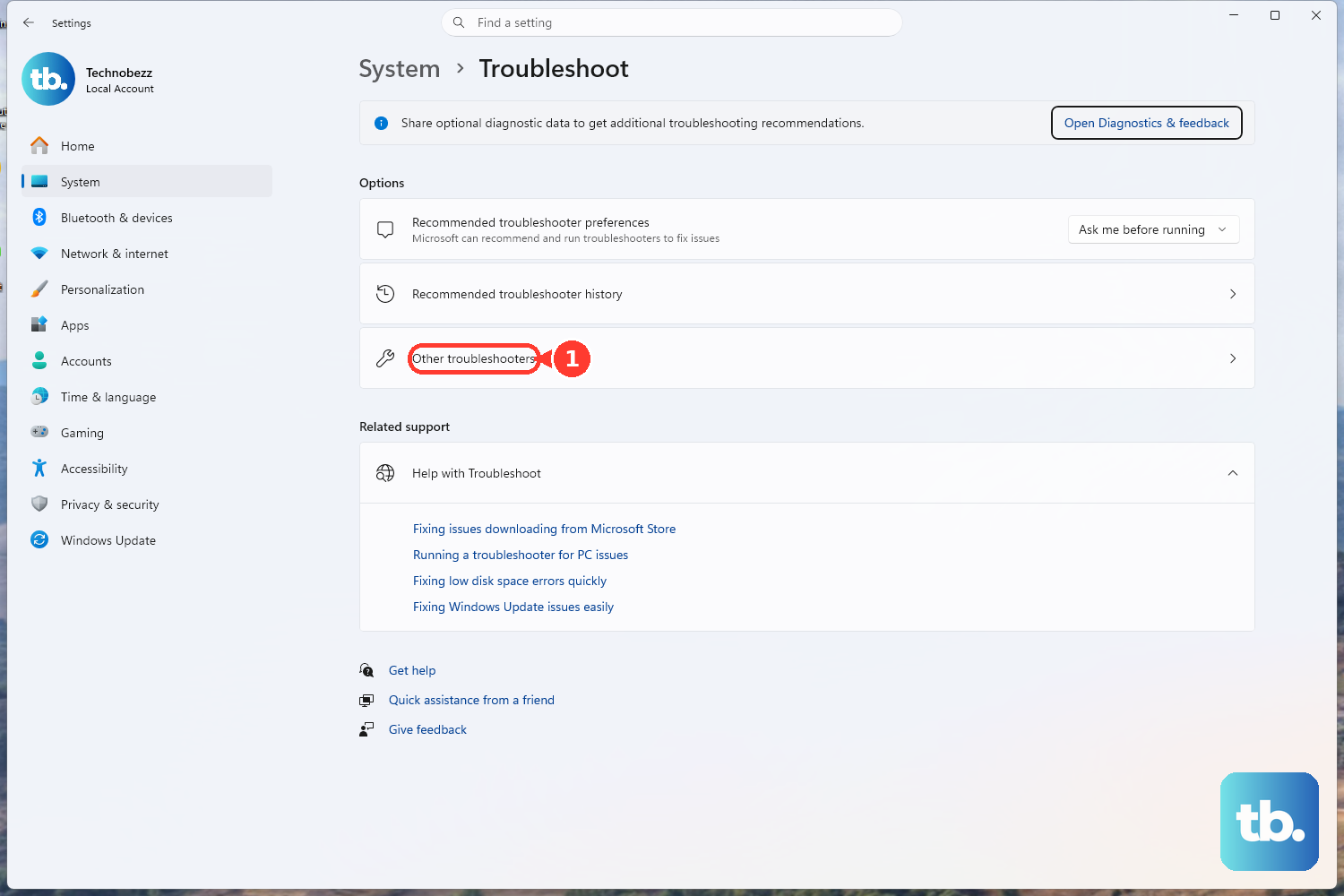
You can also open Start > Settings > System > Troubleshoot > Other Troubleshooters, then select the printer troubleshooter. Windows 10 support ended on October 14, 2025, so use the Windows 11 path on current PCs.
4. Reinstall the printer in Windows
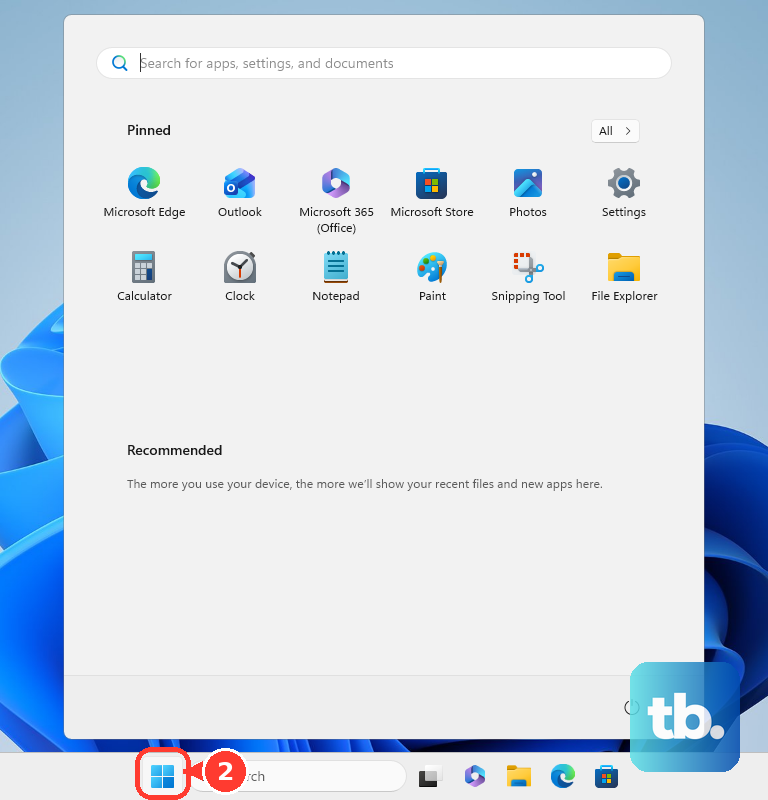
Remove the printer entry and add it again when Windows sees the printer but still will not connect cleanly. Open Start > Settings > Bluetooth & devices > Printers & scanners, select the printer, choose Remove, then choose Yes.
Return to Printers & scanners. Choose Add device or Refresh, select the printer, then choose Add device.
For a USB printer, plug it into the Windows device, turn it on, then choose Add device. For a network, wireless, Bluetooth, or shared printer, keep the printer powered on and connected to the same network. If Windows does not find it, choose Add manually.
5. Clear the Windows queue and restart Print Spooler
Open Start > Settings > Bluetooth & devices > Printers & scanners, select the printer, and choose Open print queue. Cancel the stuck jobs.
A stuck job can make a working printer act disconnected. Clear the queue first. If the queue will not clear, restart Print Spooler.
Press Windows key + R, type services.msc, and press Enter. Find Print Spooler, right-click Print Spooler, then choose Restart.
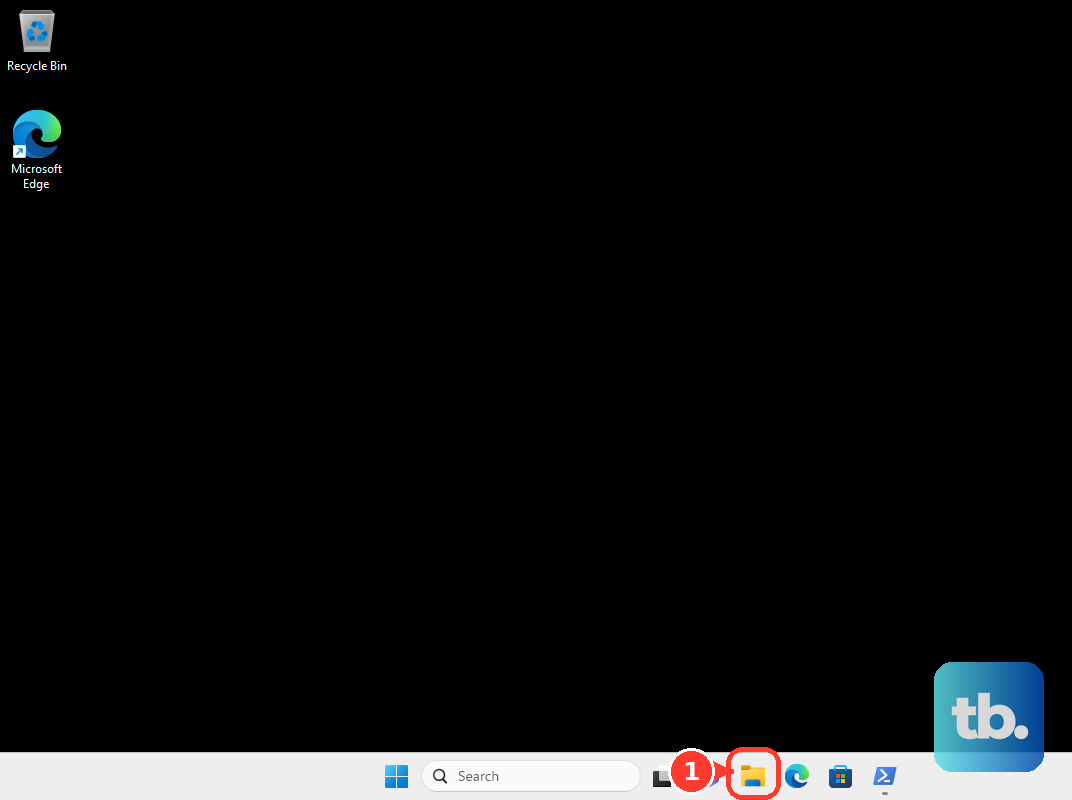
For a queue that stays stuck, open Services, right-click Print Spooler, choose Stop, open File Explorer, go to C:\Windows\System32\spool\PRINTERS, delete the files there, return to Services, right-click Print Spooler, and choose Start.
6. Repair the printer setup on Mac
On Mac, start with the queue, then check detection, then create a fresh printer queue. Resume the queue: Click the Print Center icon in the Dock, then click Resume when it appears.
Delete a bad job: In Print Center, select the job and choose Delete Job. For a paused job, select it and choose Resume Job.
Check USB detection: Hold Option, open the Apple menu, choose System Information, then check whether the printer appears in the hardware list. Add a new queue: Open Apple menu > System Settings > Printers & Scanners > Add Printer, Scanner, or Fax, then choose the printer from the local network list.
Add by IP address: Use the IP address option in Add Printer, Scanner, or Fax when the printer is not listed on the local network. Use generic features: Open Apple menu > System Settings > Printers & Scanners, click the printer, choose Options & Supplies, select Use Generic Printer Features, then choose OK.
If the new queue works, delete the old queue. Use Reset Printing System only as the last Mac step: open Printers & Scanners, control-click the printer list or empty list, choose Reset Printing System, then add your printers again. That removes all printers, completed-job information, and printer presets.
7. Reconnect from iPhone Android or Chromebook
AirPrint: Connect the printer to your network over Wi-Fi or a wired network connection. Put the iPhone, iPad, Mac, or Apple Vision Pro on that same network. Open the app print dialog, and choose the AirPrint printer.
On iPhone, open the app, choose Share, More, Reply, or the Actions Menu, then tap Print > No Printer Selected and choose the AirPrint printer. Cancel AirPrint: To cancel an iPhone or iPad AirPrint job, open the App Switcher, tap Print Center, select the print job, then tap Cancel Printing.
Android: Open Settings > Connected devices > Connection preferences > Printing, tap a print service, and turn it on. To add a service, choose Add service, enter the printer information, then print from apps through Menu or More > Print.
For Mopria, turn on Mopria Print Service, keep the phone on Wi-Fi, keep the printer on the same wireless network, and confirm that the printer supports Mopria. Chromebook: Click the time, open Settings, go to Printers and scanners > Print, then under Other available printers choose Save.
If the saved printer will not print, choose More > Edit and verify the printer information. If it still fails, choose More > Remove, then set up the printer again.
Phones and tablets need the same-network check plus the correct print service. Chromebooks are different: they need a compatible printer that connects to the internet, your network, or a USB cable, saved in ChromeOS printer settings.
When automatic Chromebook discovery fails, use + Add printer manually, enter the printer name, IP address, protocol, and queue, then choose Add. For most printers, Google lists Internet Printing Protocol (IPP) as the protocol and ipp/print as the queue. Chromebooks currently do not support Bluetooth printing.
8. Use the printer maker app or update the driver
Brand apps are the cleanest route after a router change, Wi-Fi password change, or failed first setup. HP: Install or open the HP app, prepare the printer for Wi-Fi setup mode, add or select the printer, then enter the Wi-Fi password or let the app access it, and follow the prompts.
In the HP app on a Windows or Mac computer, choose the printer and use Diagnose & Fix to check offline status and reconnect the printer when available. Canon: Put the printer into Cableless Setup or Easy Wireless Connect mode.
Open Canon PRINT, and follow the prompts. On Windows 10 or Windows 11 with supported Canon software installed, open Start > All > Canon Utilities > Wi-Fi Connection Assistant to check, diagnose, and repair the connection.
Epson: Open Epson Smart Panel. Select or add the compatible Epson product, and use the wireless setup flow. In Epson iPrint, tap Printer is not selected. Tap here to select a printer, choose Local, then select the printer.
Use Search, Manual IP, or Wi-Fi Direct Setup when the printer is missing. Brother: Install Brother Mobile Connect and follow the app instructions to connect the Brother machine to Wi-Fi.
If the app cannot connect the machine to the wireless network, use WPS, return to Mobile Connect App, then tap Add machine > Connected. On Windows, use Windows Update for printer drivers first.
If Windows Update does not find a driver, identify the printer model, open the official manufacturer Support or Drivers page, enter the model, select the Windows version when prompted, download the latest printer software or driver, right-click the downloaded software, choose Open, and follow the prompts.
On ARM or Copilot+ PCs where printer installers fail, use Settings > Bluetooth & devices > Printers & scanners > Add device unless the manufacturer gives ARM-specific guidance. On Mac, open Apple menu > System Settings > Printers & Scanners, click the printer, and check the driver version.
Use the printer manufacturer support or download page for the latest driver or firmware. For AirPrint printers, check with the manufacturer for model updates.
Skip Google Cloud Print fixes. Google Cloud Print was deprecated in January 2021 and is no longer supported, so use ChromeOS native printing, AirPrint, Android print services, Mopria, Windows printing, macOS printing, or the current printer maker app.
Frequently Asked Questions
Why does my printer say offline even though it is on?
The printer is powered on but not connected to the same Wi-Fi network, blocked by a stuck queue, or waiting for a driver, spooler, or setup fix. Restart the printer, confirm the same network, then clear the queue or run the Windows printer troubleshooter.
Do I need a printer driver for AirPrint?
No. AirPrint-enabled printers work from iPhone, iPad, Mac, and Apple Vision Pro without extra printer drivers or software when the device and printer are on the same Wi-Fi network.
Can a Chromebook print over Bluetooth?
No. Google states that Chromebooks currently do not support Bluetooth printing. Use a compatible network, internet, or USB printer instead.
Should I use Google Cloud Print to reconnect an old printer?
No. Google Cloud Print was deprecated in January 2021 and is no longer supported. Use ChromeOS native printing, AirPrint, Android print services, Mopria, Windows or macOS printing, or the printer maker’s current setup app.