You plugged in a second screen, and nothing happened. The desktop stayed locked to one display, the second monitor sat there dark, and Windows acted like the cable was never connected. This is one of the more frustrating PC hiccups because the hardware looks fine, yet your system refuses to acknowledge it. The good news is that most second-monitor problems come down to a connection, a projection setting, or a graphics driver, and you can work through all three without opening your PC case.
If the fault comes and goes, an online monitor test helps you reproduce it on demand with solid colors and gradient patterns.
The fixes below are ordered from the quickest and safest to the more involved. Start at the top and stop as soon as your second monitor wakes up. Each step works on both Windows 11 and Windows 10, with the small path differences noted where they matter.
Start With the Cable and the Port
Before changing a single setting, rule out the physical connection. Make sure the cable running between your PC and the external monitor is seated firmly at both ends, then try swapping it for a different cable entirely. A worn or partially seated cable is one of the most common reasons a second display never shows up.
If a new cable does not help, plug the monitor into a different video output port on your PC. Typical ports include HDMI, VGA, DVI, and DisplayPort, and a single bad or unsupported port can be the whole problem. Switching ports often gets the display recognized immediately.
It is also worth removing anything sitting between your PC and the monitor. Disconnect docking stations, USB adapters, dongles, and other accessories, because these can cause conflicts that block detection. Connect the monitor straight to your PC to confirm whether one of those extras was the culprit.
Tell Windows to Extend the Display
Windows will not always light up a second monitor automatically; sometimes it just needs to know what to do with it. Press the Windows logo key + P to open the Project pane, which offers four modes: PC screen only, Duplicate, Extend, and Second screen only.
Make sure the Extend option is selected so your desktop spans across both screens. If the second monitor is blank, choosing Extend or Duplicate often brings it to life right away. PC screen only keeps everything on your main display, which is exactly what you do not want here, so avoid that mode while troubleshooting.
Force a Manual Display Detection
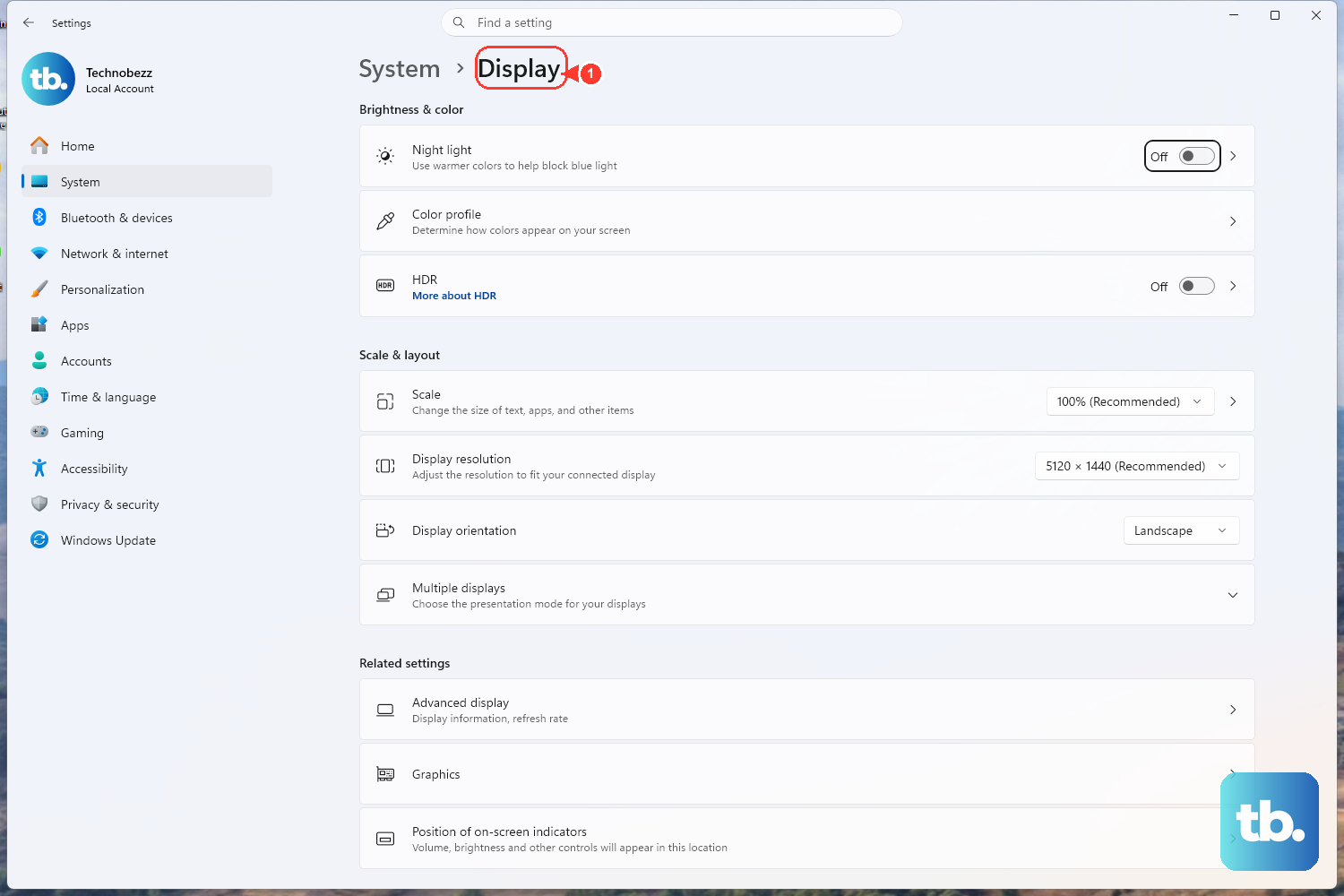
If the second monitor is connected but never appears in your settings, you can prompt Windows to look for it again. On Windows 11, go to Start > Settings > System > Display > Multiple displays > Detect. On Windows 10, open the same Display page under Start > Settings > System > Display > Multiple displays, then select Detect.
This manual detect tells Windows to rescan for any connected display that is not currently showing. Once a second display does appear, you can select Identify to make a number flash on each screen, which confirms which physical monitor is which. That makes it far easier to arrange your displays correctly afterward.
Reset the Graphics Driver Without Rebooting
Sometimes the display stack simply locks up, and a quick reset clears it faster than a full restart. Press Windows logo key + Ctrl + Shift + B to reset your graphics driver. The screen flickers briefly, which tells you it worked.
This shortcut restarts the display stack in place and can recover a monitor that stopped responding, all without closing your open apps or rebooting. If the second screen was hung rather than disconnected, this is often enough to bring it back. It is harmless, so it is worth trying before you commit to a restart.
Restart the PC to Reinitialize Everything
A full restart is a classic step for a reason, and it is part of the recommended external-monitor troubleshooting. Go to Start > Power > Restart and let the system come back up with both screens connected.
Restarting reinitializes the graphics and the connection state from scratch, which clears up many transient detection problems that the in-place driver reset cannot. If your second monitor still does not show after the system has fully booted, move on to the update and driver steps below.
Install the Latest Windows Updates
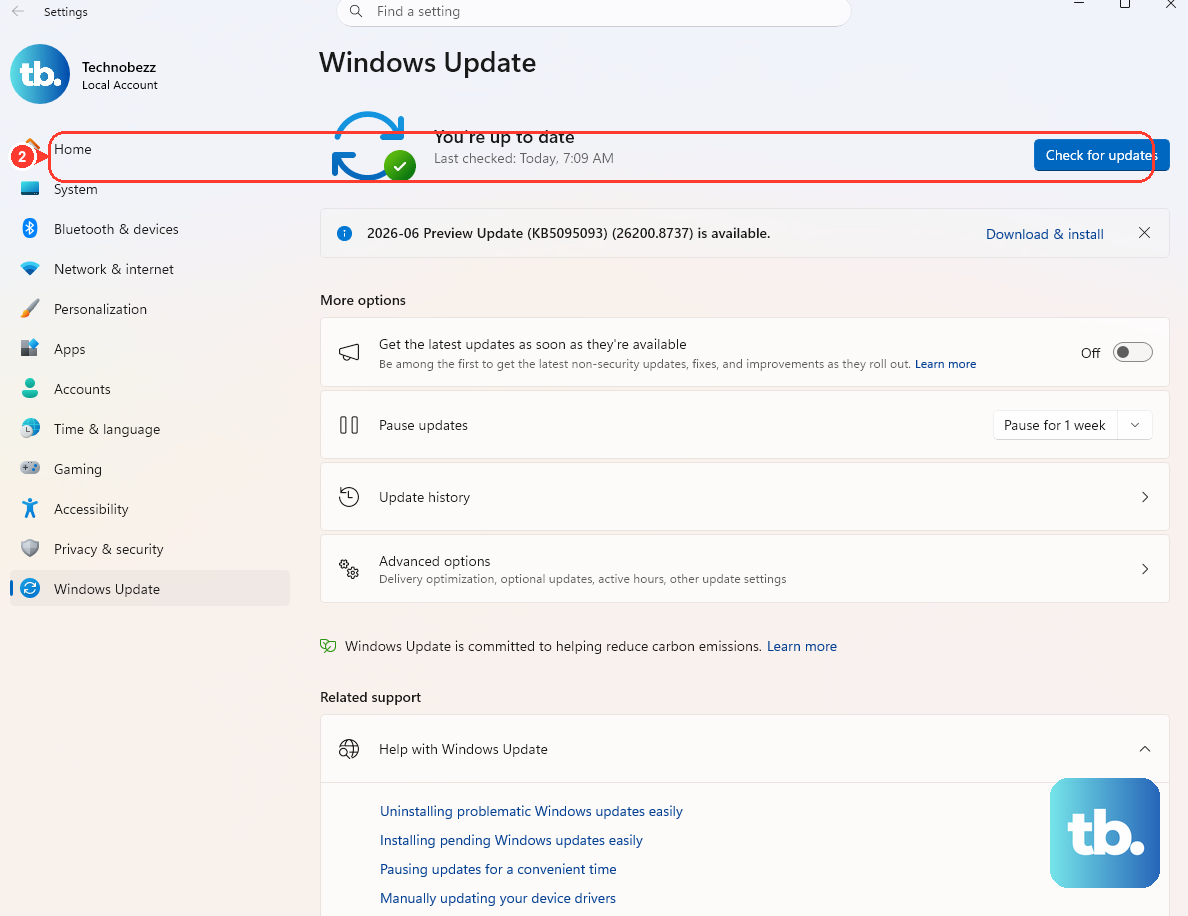
Outdated system files can include buggy graphics and device drivers that break multi-monitor support, and Windows updates often bundle the fixes. On Windows 11, go to Start > Settings > Windows Update > Check for Windows updates. On Windows 10, go to Start > Settings > Update & Security > Windows Update to check for available updates. Free software updates and support for Windows 10 ended on October 14, 2025.
If updates are available, select Download & install, then restart if you are prompted to. Because these updates can carry corrected graphics and device drivers, this is one of the more reliable fixes when the problem appeared after a while of working fine.
Roll Back a Recent Graphics Driver
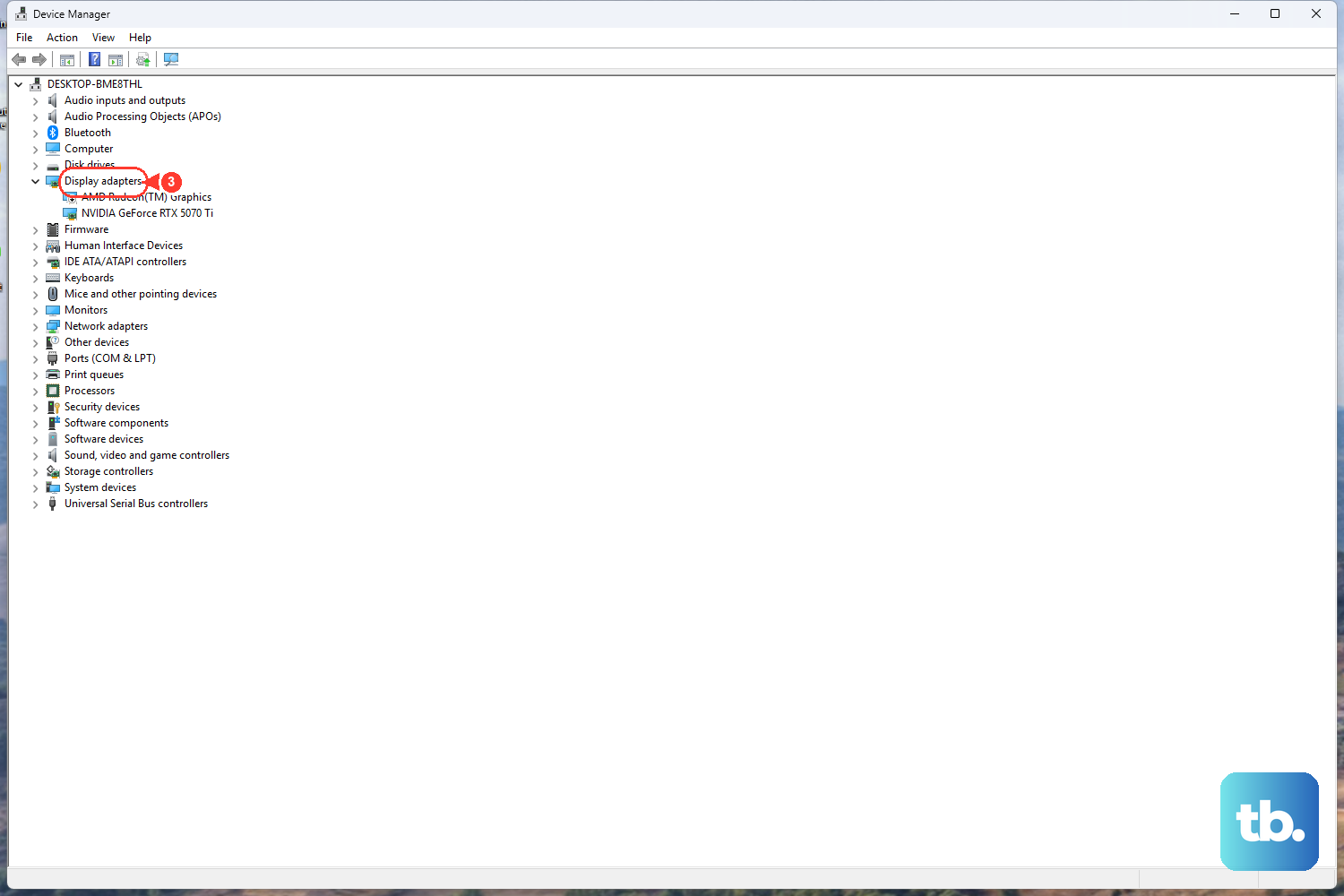
If your second monitor stopped being detected right after a driver update, the new driver is the prime suspect. You can revert to the previous driver version, but you must be signed in with administrator permissions. In the search box on the taskbar, enter device manager and open Device Manager.
- 1.Expand the Display adapters section.
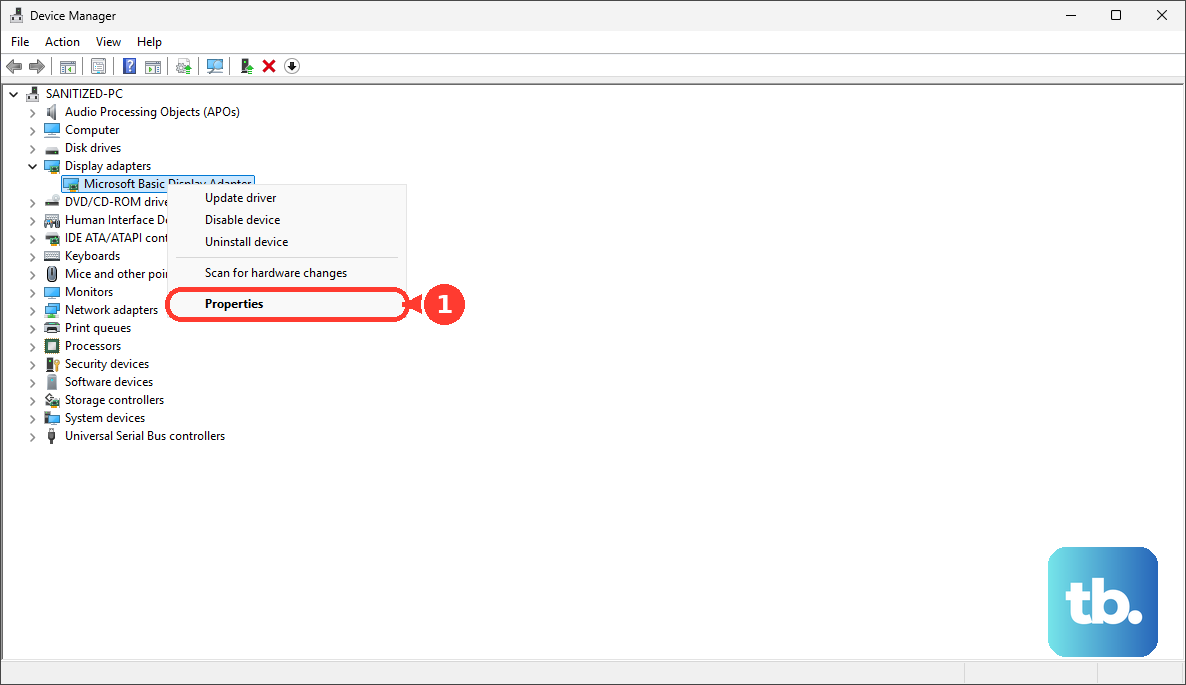
- 2.Right-click your display adapter and select Properties.
- 3.Open the Driver tab.
- 4.Select Roll Back Driver, choose a reason when prompted, and select Yes to confirm. Restart the device if prompted.
This reverts to the previously working driver and undoes whatever the update changed. If the Roll Back Driver option is unavailable, there is no earlier driver stored to return to, in which case the reinstall step below is your next move.
Reinstall the Graphics Driver Cleanly
When rolling back is not an option or does not help, a clean reinstall of the graphics driver often clears a corrupted display setup. Windows attempts to reinstall the driver after restarting, so make sure you can still see your main screen well enough to follow along before you start, and save any open work first since you will restart partway through.
- 1.In Device Manager, expand Display adapters.
- 2.Right-click your display adapter and select Uninstall device, select Attempt to remove the driver for this device, then select Uninstall.
- 3.Restart your PC.
- 4.Open Device Manager again and expand Display adapters.
- 5.Right-click the adapter and select Update driver.
- 6.Select Search automatically for updated driver software and follow the remaining installation instructions.
After the reinstall, reconnect the second monitor and check whether it now appears. A fresh driver frequently resolves detection failures that survived every earlier step.
Sort Out a USB-C Connection
If you connect your monitor over USB-C, the rules are a little different, and you may even see a notification that reads "Display connection might be limited." That message points to an Alternate Mode problem rather than a broken cable.
First, make sure your PC, the external display, and the cable all support DisplayPort or MHL Alternate Modes, since video over USB-C depends on those. Connect the device or dongle directly to your PC and avoid routing the display through external hubs or docks, which can strip out the video signal.
Then confirm the cable is plugged into the USB-C port that actually supports the correct Alternate Mode, because not every USB-C port on a PC handles video. If it still will not display, try plugging the device into a different USB port on your PC to find one that carries the signal.
Frequently Asked Questions
Why does my second monitor stay black even though it is plugged in?
A black second screen usually means Windows is set to PC screen only, or the connection is not being detected. Press Windows logo key + P and select Extend, and if that does not work, force a scan with Start > Settings > System > Display > Multiple displays > Detect.
What does the Detect button actually do?
Detect tells Windows to rescan for any connected display that is not currently showing in your settings. It is the right step when the monitor is physically connected but never appears in the Multiple displays section.
My monitor worked until a recent update. What should I do first?
Start by rolling back the graphics driver through Device Manager > Display adapters > (right-click your adapter) > Properties > Driver tab > Roll Back Driver. If the problem followed a Windows update rather than a driver update, also check for newer updates that may include a fix.
Do I need to disconnect my docking station to fix this?
It is worth trying. Docking stations, USB adapters, dongles, and other accessories can cause conflicts that block detection, so connect the monitor directly to your PC to see whether one of those extras was the issue.
What is the fastest fix to try before restarting?
Press Windows logo key + Ctrl + Shift + B to reset the graphics driver. The screen flickers briefly, the display stack restarts in place, and a monitor that stopped responding can come back without a reboot or losing your open apps.