You just plugged a second monitor into your Windows PC and nothing happened, or maybe both screens are showing the same picture instead of giving you more room to work. A two-screen setup should be simple, but a loose cable, a busy dock, or the wrong display mode can leave you staring at one working monitor and one dark one. The good news is that Windows 10 and Windows 11 handle dual monitors the same way, and a short checklist gets a second display detected, extended, and arranged the way you want.
Before adjusting cables and settings, run a quick monitor test in your browser. Its fullscreen patterns make problems like flicker, banding, and uniformity issues much easier to spot and describe.
This guide walks through connecting the monitor, switching to the Extend mode that turns the second screen into extra desktop space, and fixing the most common reasons a display refuses to show up. Work through it in order, since the early steps catch the simplest causes before you touch any drivers.
Plug In the Second Monitor and Verify the Cable
Start with the physical connection, because a cable that looks seated is not always making contact. Connect the second monitor to your PC with a video cable and make sure it is secure at both the PC end and the monitor end. Common video ports Windows works with are HDMI, VGA, DVI, and DisplayPort, so match the cable to whatever ports your PC and monitor both have.
If the screen still stays dark, suspect the cable itself. Try changing the cable connecting the external monitor; if a different cable works, you know the previous one was faulty. It is worth keeping a known-good spare on hand, since a marginal cable is one of the easiest problems to misdiagnose.
Strip Away Docks, Dongles, and Adapters First
Extra hardware between your PC and the monitor can cause conflicts that look like a display failure. Disconnect all accessories from your PC, including docks, dongles, adapters, and any other inline hardware, then connect the second monitor straight into the PC's own video port.
If the monitor lights up once it is connected directly, the problem is in the accessory chain rather than the monitor. Add the dock or adapter back one piece at a time so you can see exactly which one introduces the fault. This isolates the culprit instead of leaving you guessing.
Choose Extend So the Second Screen Adds Desktop Space
Windows can use a second monitor in several ways, and the default is not always the one you want. Press the Windows logo key + P to open the Project pane, which gives you four choices: PC screen only, Duplicate, Extend, and Second screen only.
To use the second monitor as extra desktop space rather than a mirror of the first, select Extend. If a display is connected but not behaving, press the Windows logo key + P again and make sure that the Extend option is selected. Duplicate shows the same image on both screens, while Extend spreads your desktop across them.
Make Windows Look Again With Detect
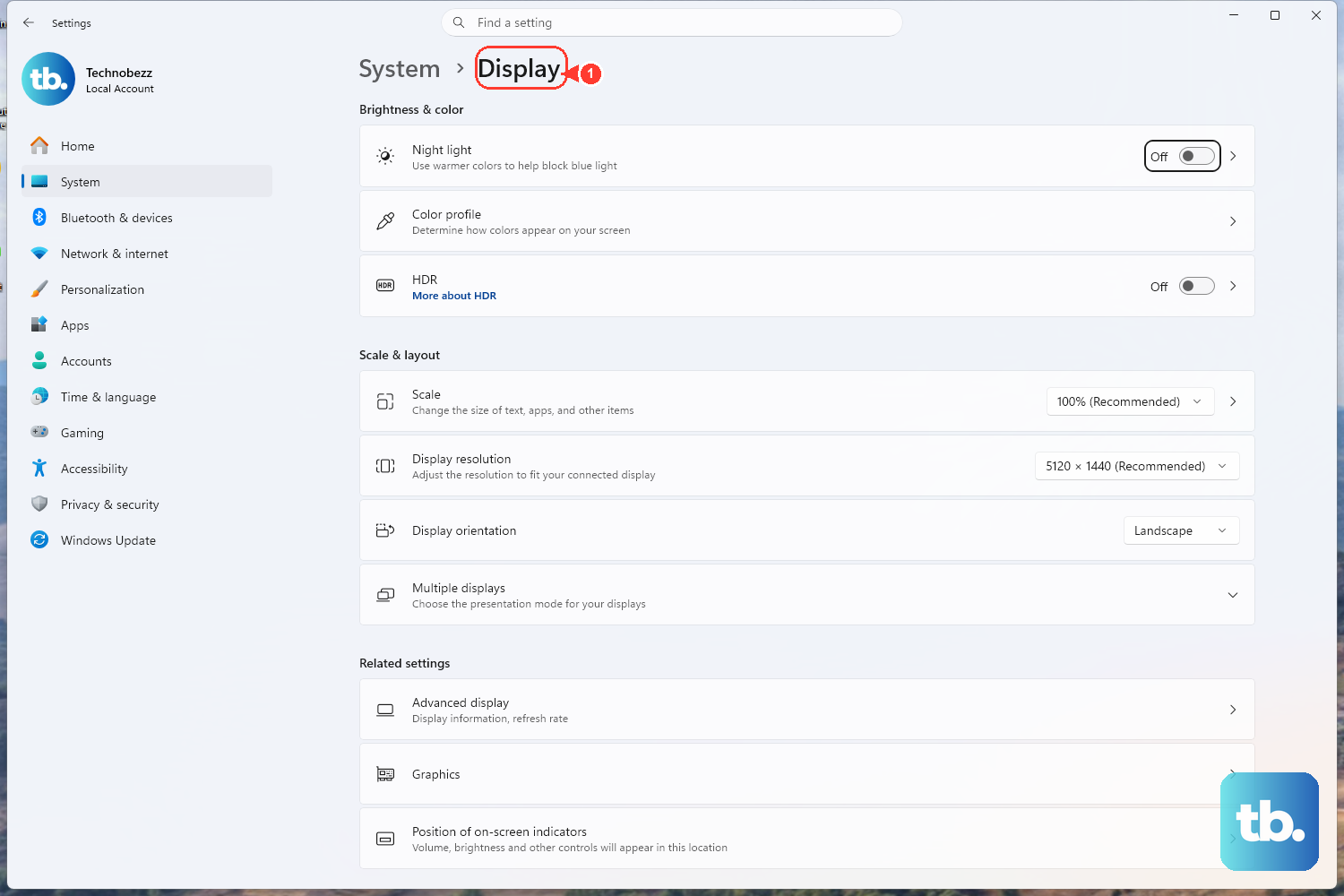
Sometimes the monitor is connected correctly but Windows simply has not registered it. You can force a fresh search from the display settings. Go to Start > Settings > System > Display, open Multiple displays, and select Detect.
This tells Windows to look again for any connected monitor it may have missed, and the path works the same on Windows 10 and Windows 11. If the second screen appears in the list after you press Detect, you are ready to position the two displays.
Line Up the Displays the Way They Sit on Your Desk
Once both screens show in Display settings, you can set how they line up so your mouse moves naturally between them. In Display settings, select and drag the display to where you want it, doing this for each display so the on-screen layout matches the real arrangement on your desk.
When the boxes are positioned correctly, select Apply to save the layout. Test your new layout by moving your mouse pointer across the different displays to make sure it works like you expect; if the cursor jumps off the wrong edge, drag the displays again until the movement feels right.
Reset the Graphics Driver Without a Reboot
If the picture is missing or glitchy after the monitor is detected, you can reset the graphics driver instantly. Pressing the Windows logo key + Ctrl + Shift + B may fix the issue without restarting anything.
The screen flickers briefly when you do this, and you may hear a short beep, both of which are normal. This is the quickest software fix to try before you move on to the longer driver steps below.
Update the Graphics Driver in Device Manager
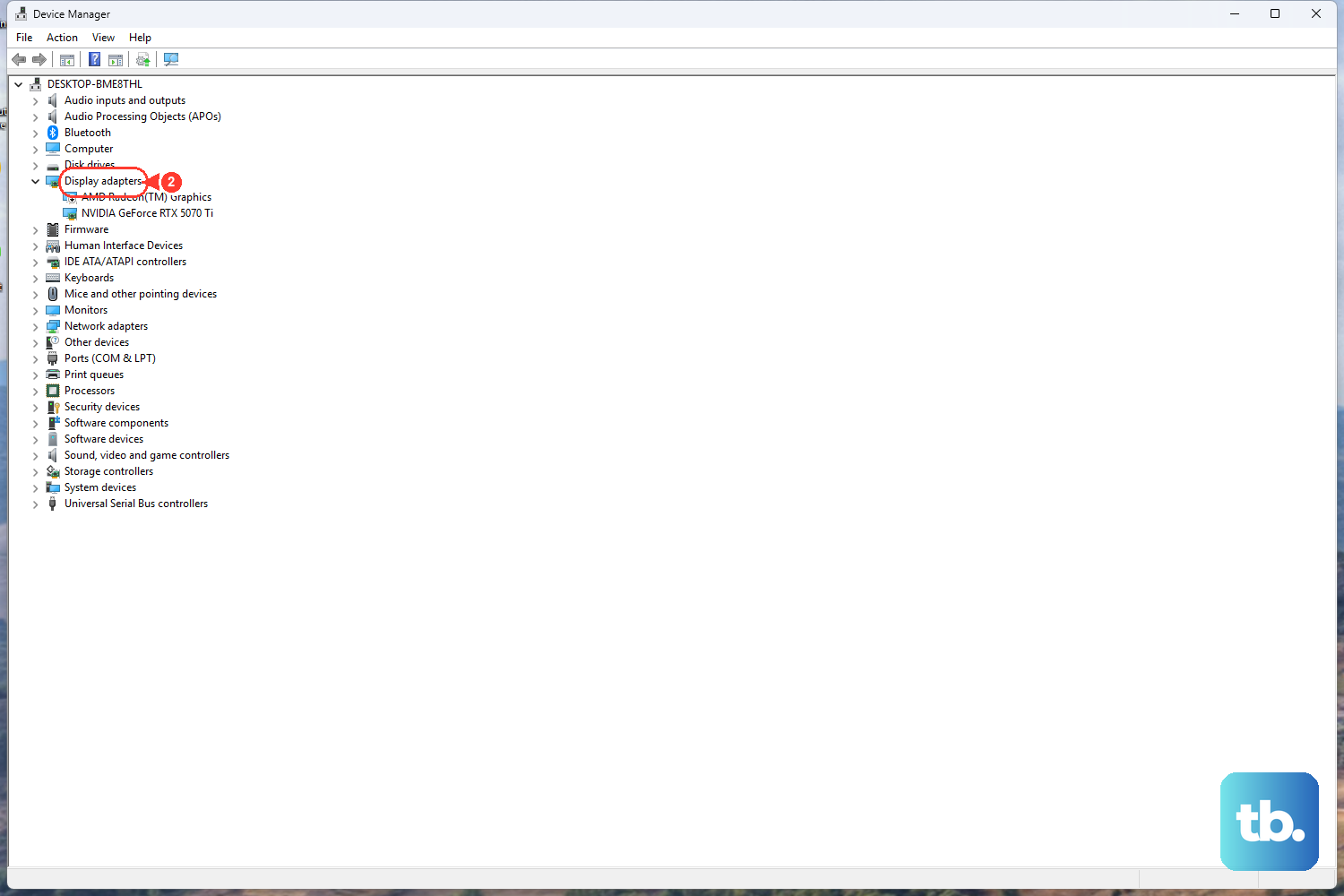
An outdated graphics driver can stop a second monitor from working properly, and Windows can search for a newer one for you. Follow these steps:
- 1.In the search box on the taskbar, enter
device manager. - 2.Select Device Manager from the list to open it.
- 3.Select the arrow to expand the Display adapters section.
- 4.Right click your display adapter and select Update driver.
- 5.Select Search automatically for updated driver software and follow the remaining installation instructions.
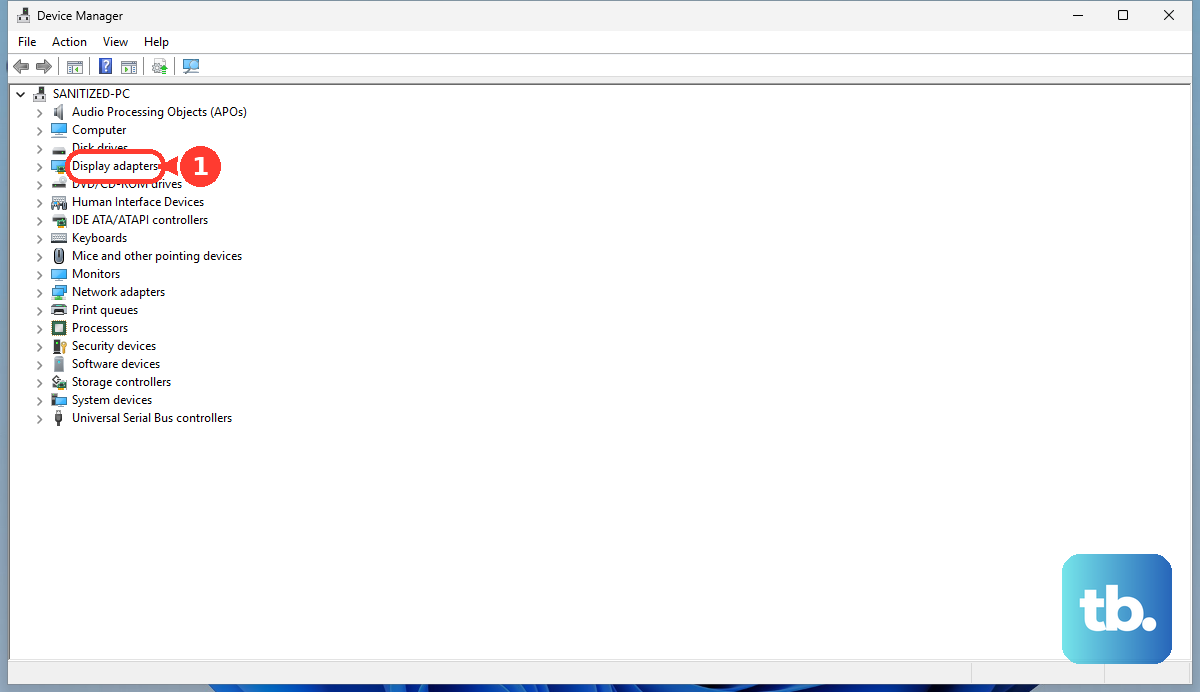
If Windows finds a newer driver, let it install and then check whether the second monitor behaves. This is often enough to bring a stubborn display back to life.
Roll Back a Driver That Broke After an Update
If your second monitor was working and then stopped right after a driver update, the new driver is the likely cause. Windows keeps the previous version so you can revert.
In Device Manager, right-click your display adapter and select Properties and the Driver tab, and then select Roll Back Driver. This reverts to the previously installed driver, which should restore the behavior you had before the update.
Uninstall and Reinstall the Graphics Driver
When updating and rolling back do not help, a clean reinstall is the stronger fix. This step removes the current display driver, so have a way to read these instructions on another device in case the screen output changes during the process. Use these steps:
- 1.In Device Manager, right click your display adapter, then select Uninstall device and Attempt to remove the driver for this device, then select Uninstall.
- 2.You may be asked to restart your computer; allow it to restart if prompted.
- 3.Open Device Manager again and expand the Display adapters section.
- 4.Right click your display adapter and select Update driver.
- 5.Select Search automatically for updated driver software and follow the remaining installation instructions.
Removing the driver and letting Windows reinstall it clears out a corrupted installation that an in-place update cannot repair.
Restart to Clear Lingering Display Glitches
A plain restart resolves many display problems that no single setting seems to fix, because it reloads everything from scratch. To restart your device, select Start, then select Power > Restart.
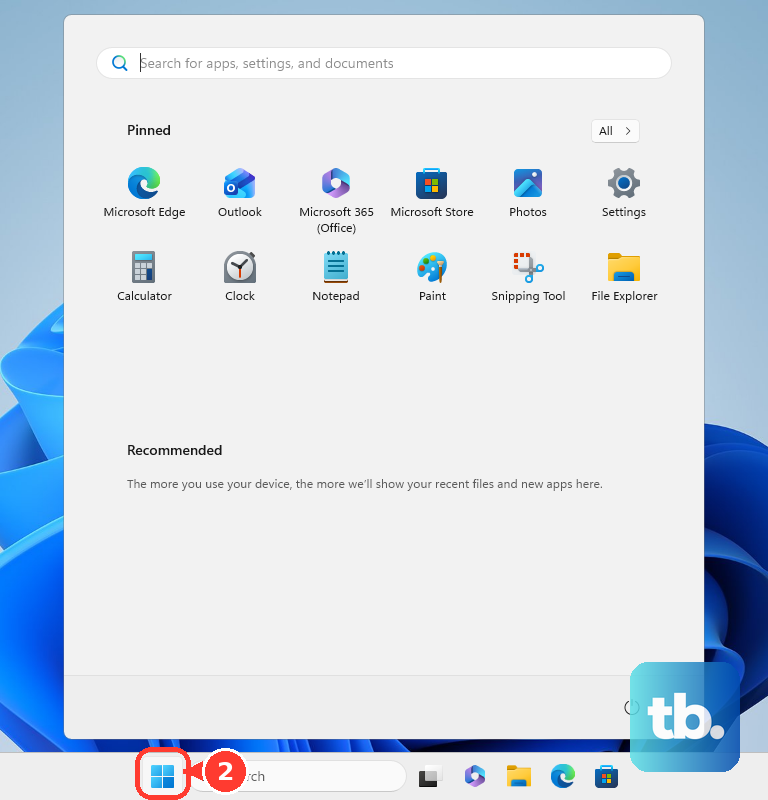
Give the PC a moment to come back up and check the second monitor again. If a glitch survived every step until now, a full restart is the cleanest way to wipe it.
Add Video Outputs With a Dock or USB-C Adapter
If your PC does not have enough ports for the monitor you want to add, you have two ways to gain another video output. A docking station can add outputs; to find out whether docking stations are available for your PC, contact the manufacturer of your PC.
A USB adapter is the other route. If you have a USB-C port, you may be able to use a USB adapter to give your device an additional video output port. Either option lets you drive a display from a port the PC does not natively provide.
When a USB Display or Dock Keeps Dropping Out
A monitor running through a USB adapter or USB dock has an extra link in the chain, and that link can misbehave. If the connection drops, unplug the USB cable, give Windows a moment to register the change, then plug it back in. A quick reconnect often re-establishes the link cleanly.
If that does not hold, try a different USB port on the PC. When a USB hub is part of the setup, make sure the hub has power, or plug the device directly into the PC to take the hub out of the equation. If the adapter or dock came from your PC or dock manufacturer, check their support resources for firmware or driver updates specific to that hardware.
Frequently Asked Questions
How do I make my second monitor an extension instead of a copy of my main screen?
Press the Windows logo key + P to open the Project pane, then select Extend. Duplicate mirrors your main screen onto the second one, while Extend turns the second monitor into extra desktop space. If a connected display is misbehaving, press Windows logo key + P again and confirm that Extend is selected.
Windows is not detecting my second monitor. What should I check first?
Confirm the video cable is secure at both ends, and if it still does not appear, try a different cable to rule out a faulty one. Disconnect any docks, dongles, or adapters and connect the monitor straight to the PC. Then go to Start > Settings > System > Display, open Multiple displays, and select Detect to make Windows look again.
My monitor stopped working right after a Windows update. How do I undo it?
Open Device Manager, expand Display adapters, then right-click your display adapter and select Properties and the Driver tab, and select Roll Back Driver. This reverts to the previously installed driver, which usually restores the second monitor if a driver update caused the problem.
What is the fastest way to fix a glitchy or missing picture?
Press the Windows logo key + Ctrl + Shift + B to reset your graphics driver without restarting. The screen flickers briefly and you may hear a beep, both of which are normal. If that does not help, restart the PC by selecting Start, then Power > Restart.
Can I add a second monitor if my PC has no spare video port?
Yes. A docking station can add outputs, so contact your PC's manufacturer to find out which docks are available. If your PC has a USB-C port, you may be able to use a USB adapter to give the device an additional video output port.











