


Most streaming mixers ask you to pay for the name before you get to the features. The Maono G3 goes the other way. For around $100, it gives you four physical faders, three separate mixes, an XLR input with phantom power, programmable sound pads, RGB lighting and a second USB-C port for a dual-PC setup. After a week of streaming, gaming and recording with it, the surprise isn't that it does all that. It's how well it's put together.
Technobezz is supported by its audience. We may get a commission from retail offers. Reviews ethics statement.
Maono G3 Puts Your Whole Stream Mix Under Four Faders
The Maono G3 gives Windows streamers four faders, three separate mixes, an XLR input with phantom power, dual-PC support and customizable RGB lighting for around $100.
Updated November 20, 2026Nov 20, 2026
•11 min read

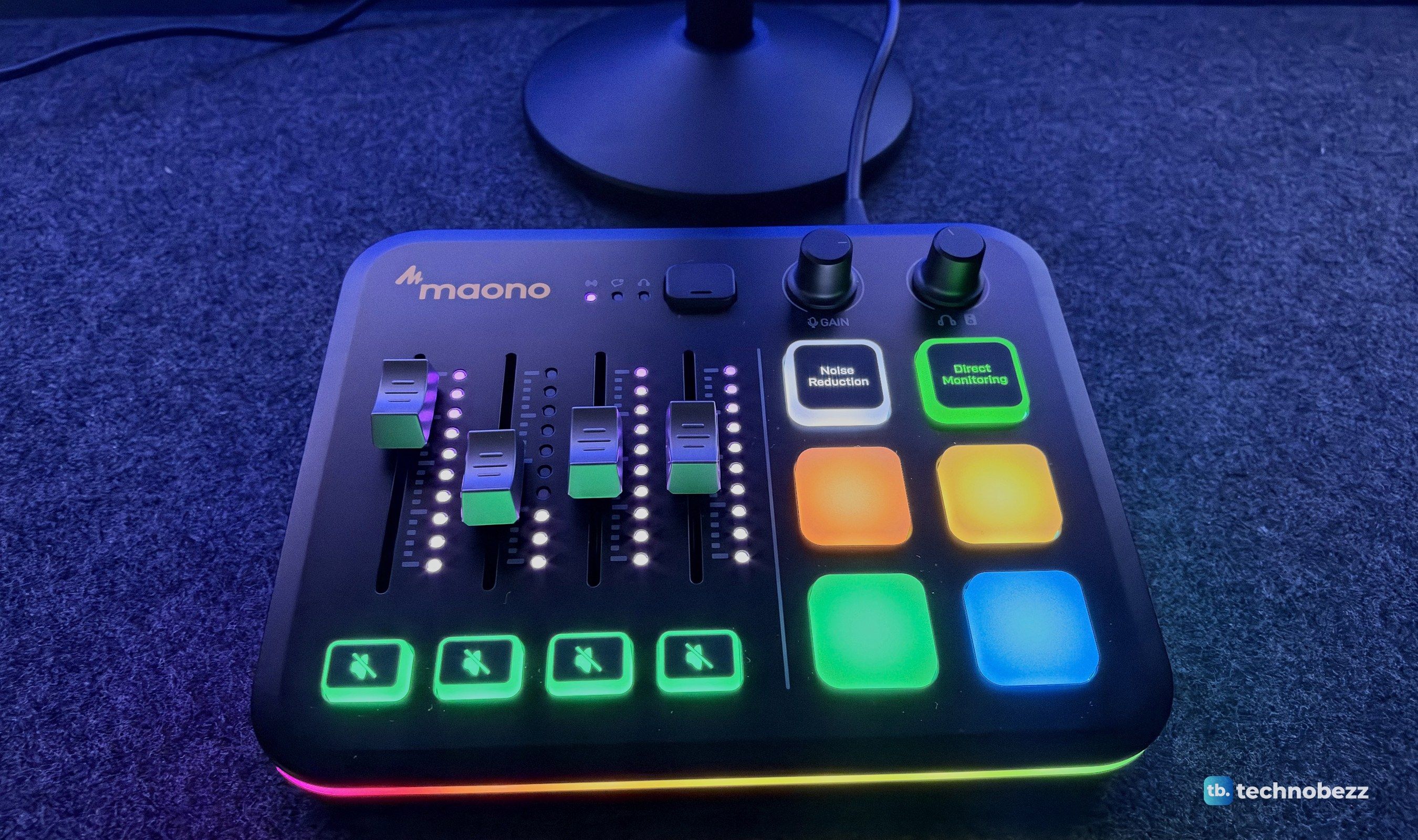
Credit: Technobezz
Get Deals Like These in Your Inbox
The best prices, straight to your inbox.
Add Technobezz on Google:Preferred SourceGoogle Discover
8.8/ 10

Best for Windows streamers and gamers who want hands-on control of mic, game, chat and music
Maono G3 Audio Mixer
TypeStreaming audio mixer and USB audio interface
ModelMaono G3, black as tested
Faders4, with mute buttons and level meters
Mixes3: Stream, Chat and Personal (headphones)
Mic InputXLR combo with 48V phantom power, plus a 3.5mm headset jack
Preamp GainUp to 57dB
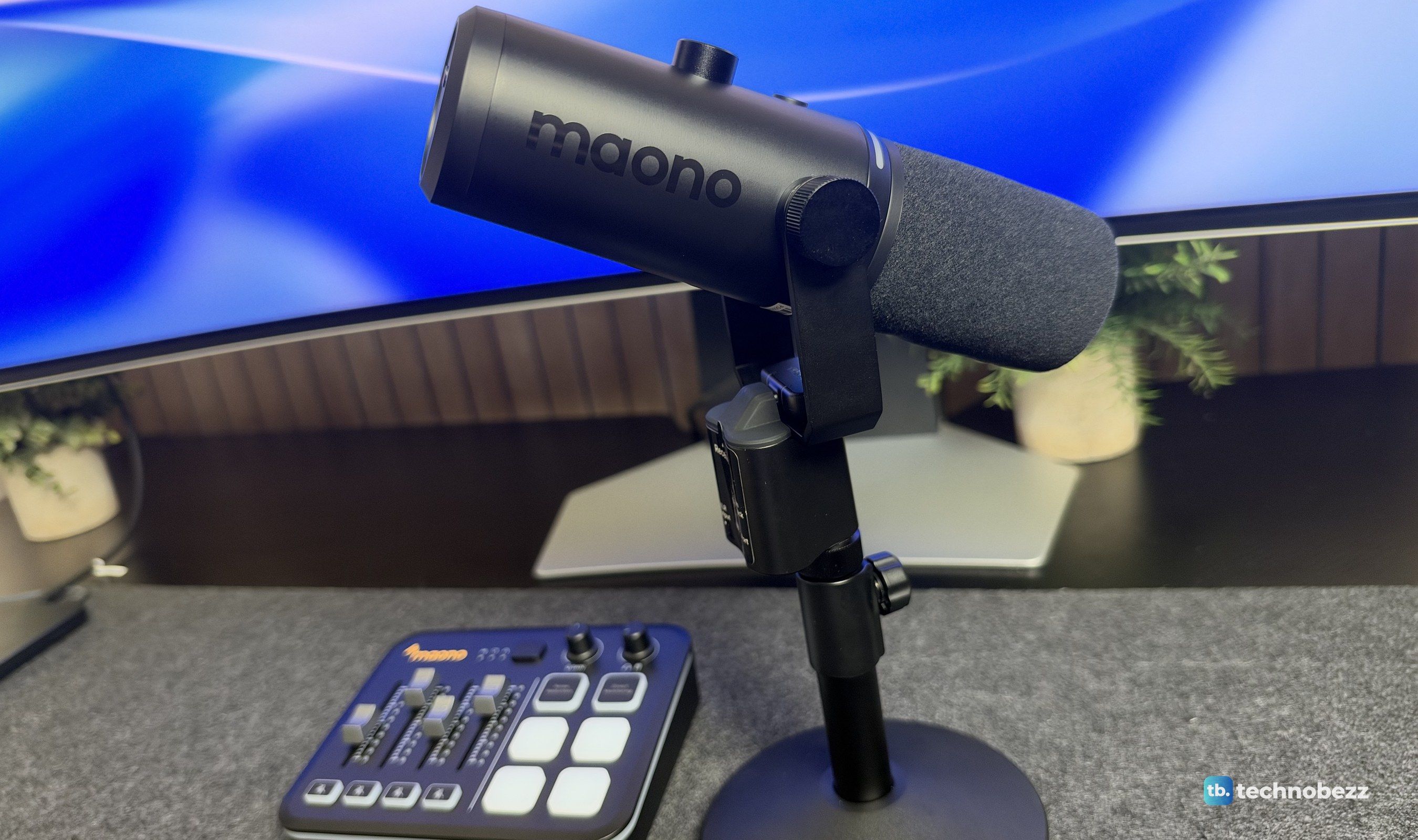
Maono sent us the G3 to review, and we ran it on a Windows PC with the Maono Arena software, with our Maono PD500W microphone plugged in over XLR, a pair of headphones and a set of speakers.
Maono G3 Audio Mixer - Best Budget Streaming Mixer for Windows
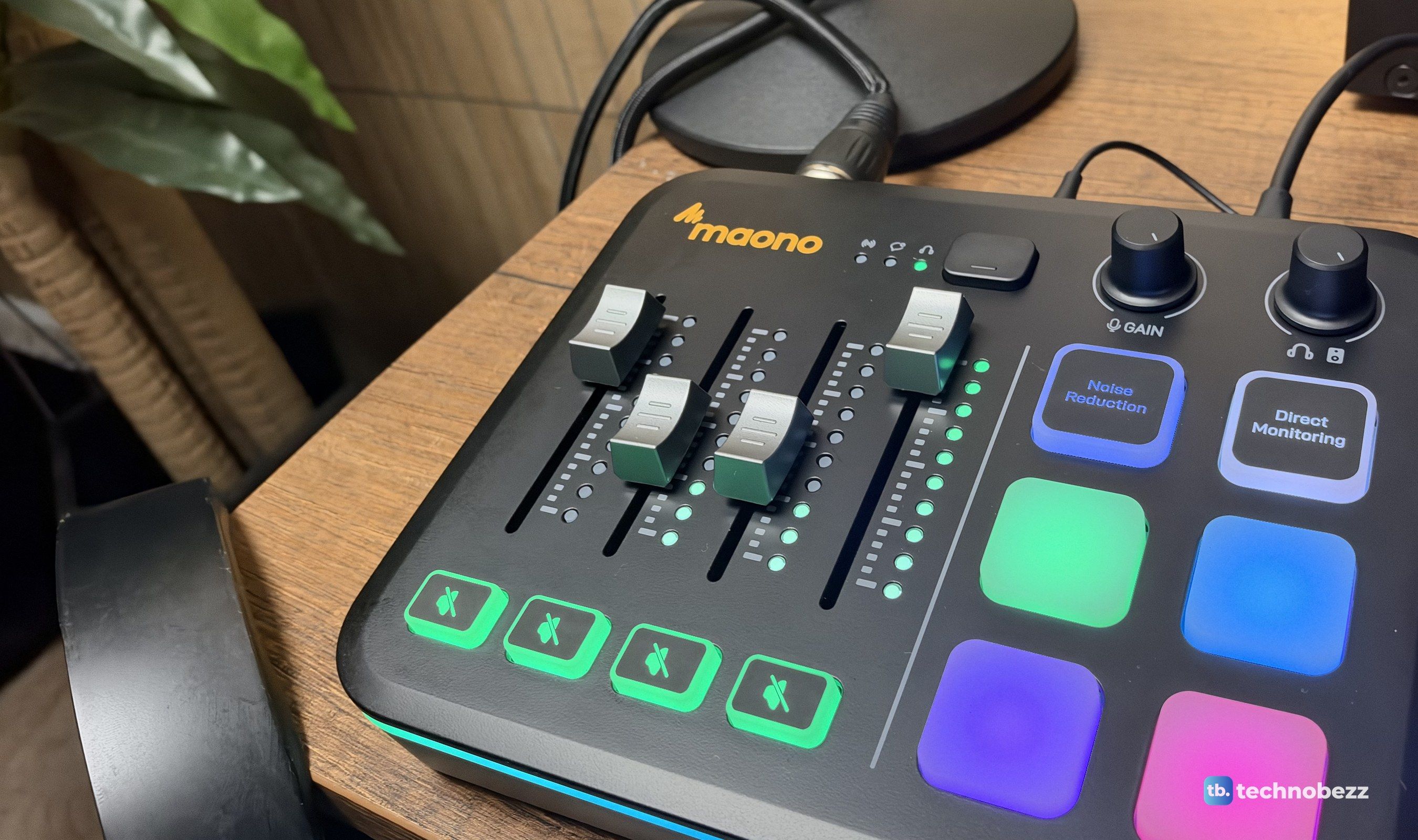
The G3 is a desktop audio mixer and XLR interface built for Windows PC streamers, gamers and solo creators. Its four faders control whatever you assign to them in Arena, from your mic to your game, Discord, music or browser, and three submixes let you send a different balance to your stream, your voice chat and your own headphones. The XLR input has 48V phantom power and up to 57dB of gain, and two USB-C ports let you connect a second PC or device. It comes in black or white. On Amazon, the black G3 was $79.99 at the time of writing, down from its $99.99 list price.
Key Highlights
- Four faders with individual mute buttons and level meters
- Three mixes: Stream, Chat and Personal (your headphones)
- XLR input with 48V phantom power and up to 57dB of gain
- Dual USB-C ports for a two-PC or PC and console setup
- AI noise reduction and direct monitoring at the press of a pad
- Four sound pads, with up to 72 effects in Arena
- Headphone, headset and monitor speaker outputs
- RGB light strip and pads you can customize in Arena
- Rubber feet and a weight of about 1.4 lb
Pros
- Excellent build quality with a clean, polished finish
- Smooth faders and well-placed controls
- Three submixes keep chat and private audio off your stream
- Dual-PC support at this price is rare
- Customizable RGB lighting that looks great on a desk
- Clear, clean audio through headphones, speakers and the XLR input
- Great value for the features
Cons
- Arena is Windows only, so there's no full Mac support
- Not every fader has the same friction, and the fader caps have a little play
- On-screen faders don't stay in sync with the hardware after you switch mixes
Who it's for
Windows streamers and gamers who want hands-on control of their audio, especially anyone who's been juggling game, Discord and music volumes in the Windows mixer. It's also a smart first mixer for new creators, and a big step up for dual-PC streamers who want to drop a pile of cables and loopback software.
Skip if
You work on a Mac. The G3 shows up as a USB audio device on macOS, but the routing, submixes and pads all depend on Arena, which only runs on Windows. You'd be better off with a mixer that has macOS software. And if you record music or need more than one mic input, look at a traditional audio interface instead.
Design and Build Quality
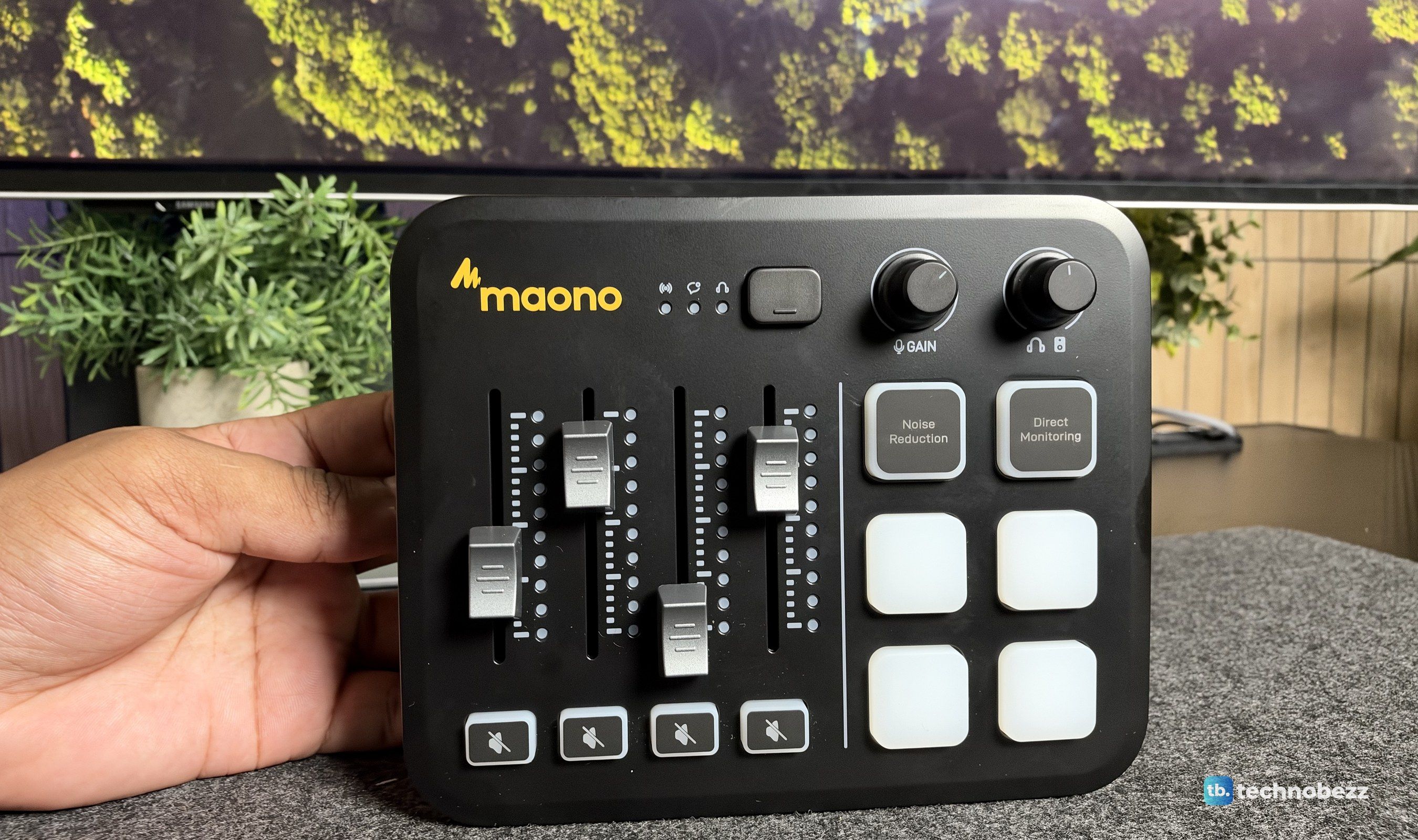
Build quality is where the G3 punches well above its price. The trim, buttons, knobs and the whole exterior get an A from me. The matte black top is clean and minimal, the labels are crisp, and the two knobs for gain and headphone volume feel just as solid as the rest of it. At around 1.4 lb, it feels solid, not hollow.
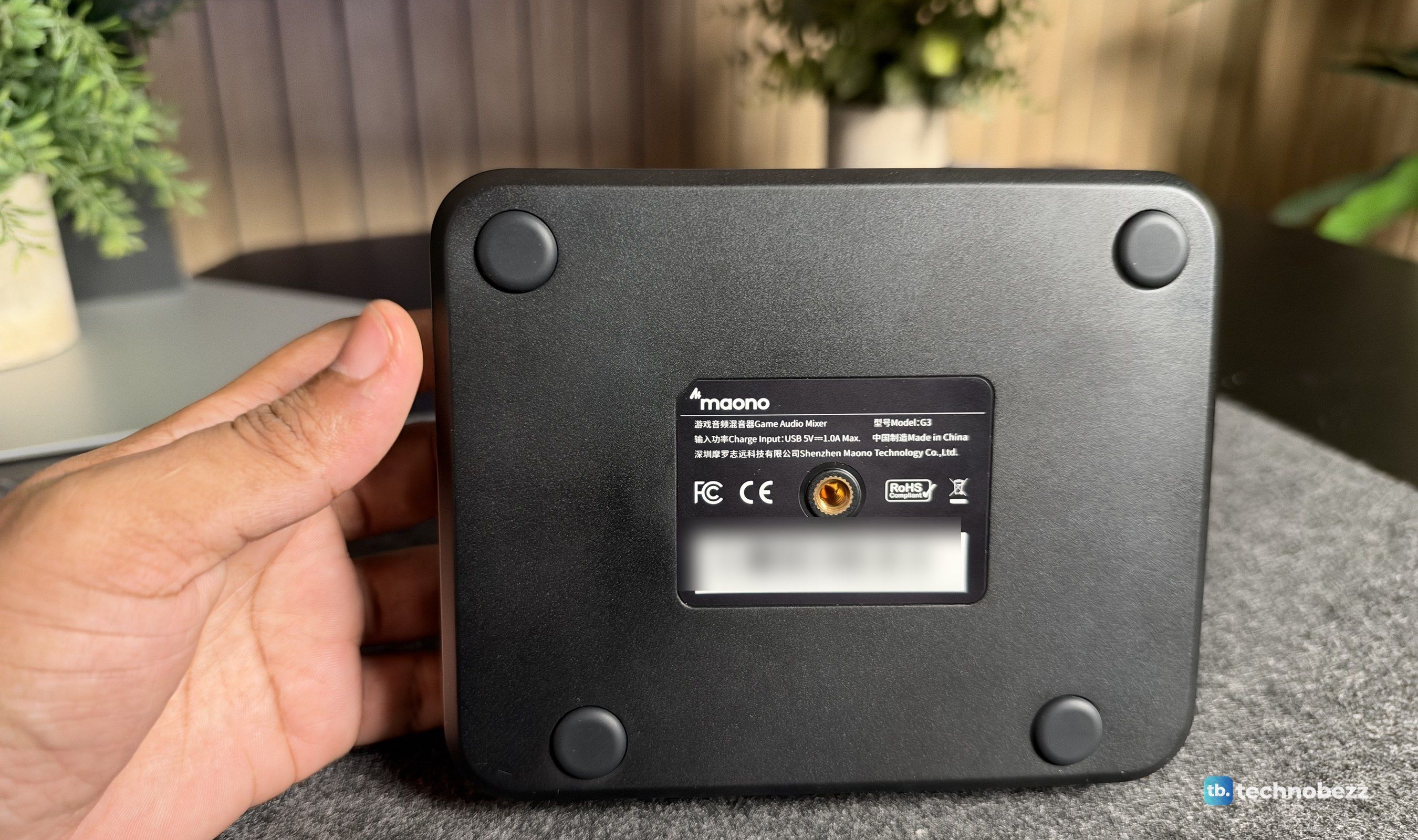
Four rubber feet on the bottom keep it planted. It doesn't slide around on the desk, even when you're working the faders in a hurry. There's also a threaded insert in the center of the base.
The mute buttons and the sound pads are made of soft rubber with a cushioned press. They don't have the click of a mechanical keyboard. Instead, they need just a little more force and give a soft, relaxed press that I came to really like. Each one lights up so you can see its state at a glance.
Faders and Controls
The four faders glide smoothly with no catches or hiccups, and each one has its own level meter and mute button, which turns red when the channel is muted. Being able to reach out and drop the music or cut a noisy lobby without leaving the game is exactly why you buy a mixer like this, and the G3 makes it feel natural.
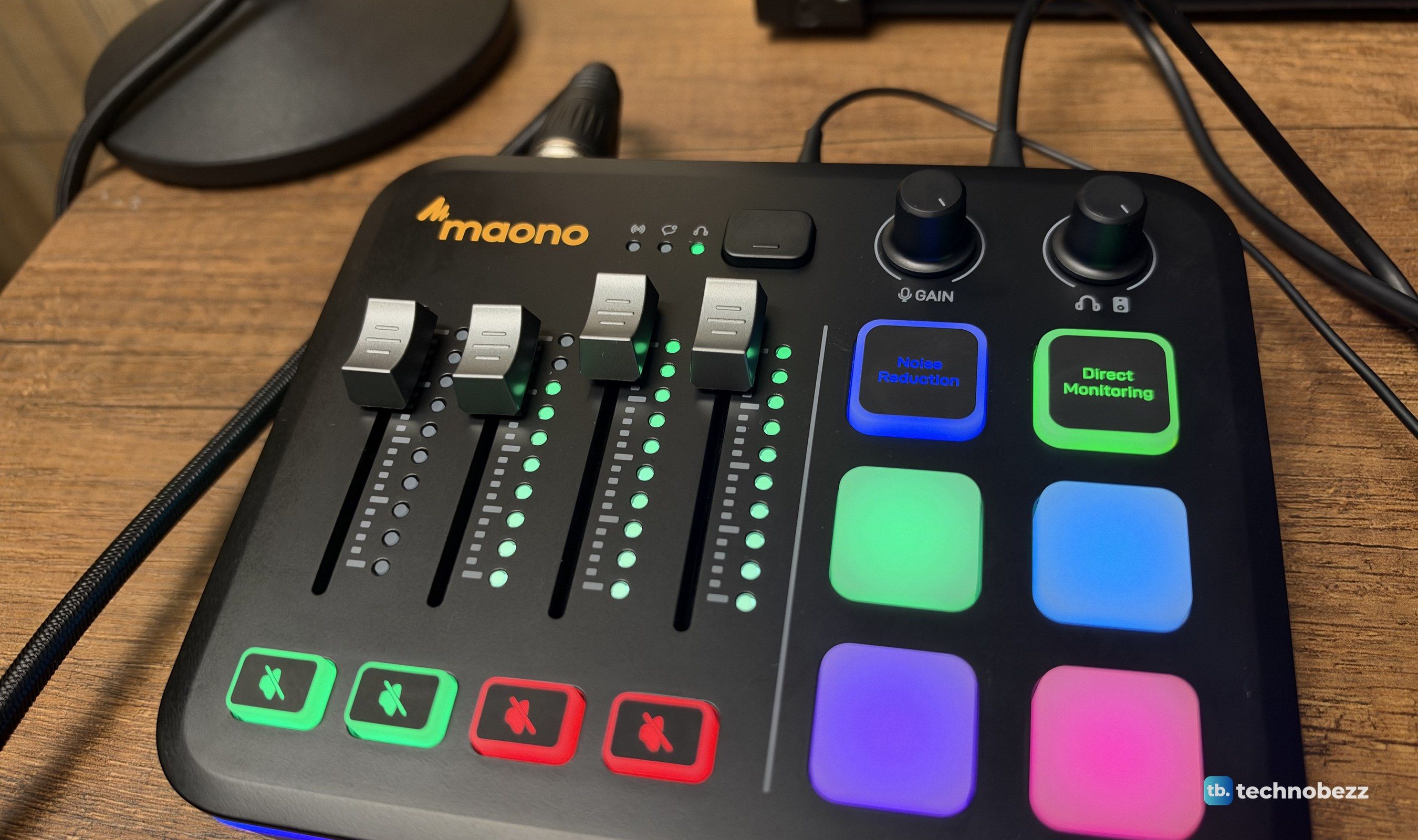
This is also where Maono saved a little money. After a lot of up-and-down movement, I noticed that not every fader moves with the same friction, and one or two feel slightly different from the rest. The fader caps also have a little wobble if you pay close attention. It's not horrible, and it had no real impact on use or performance, but it stands out because the rest of the G3 is so well put together.
The mode button at the top cycles between the Stream, Chat and Personal mixes, with an indicator light for each, and the two pads at the top right turn on noise reduction and direct monitoring.
Ports and Connectivity
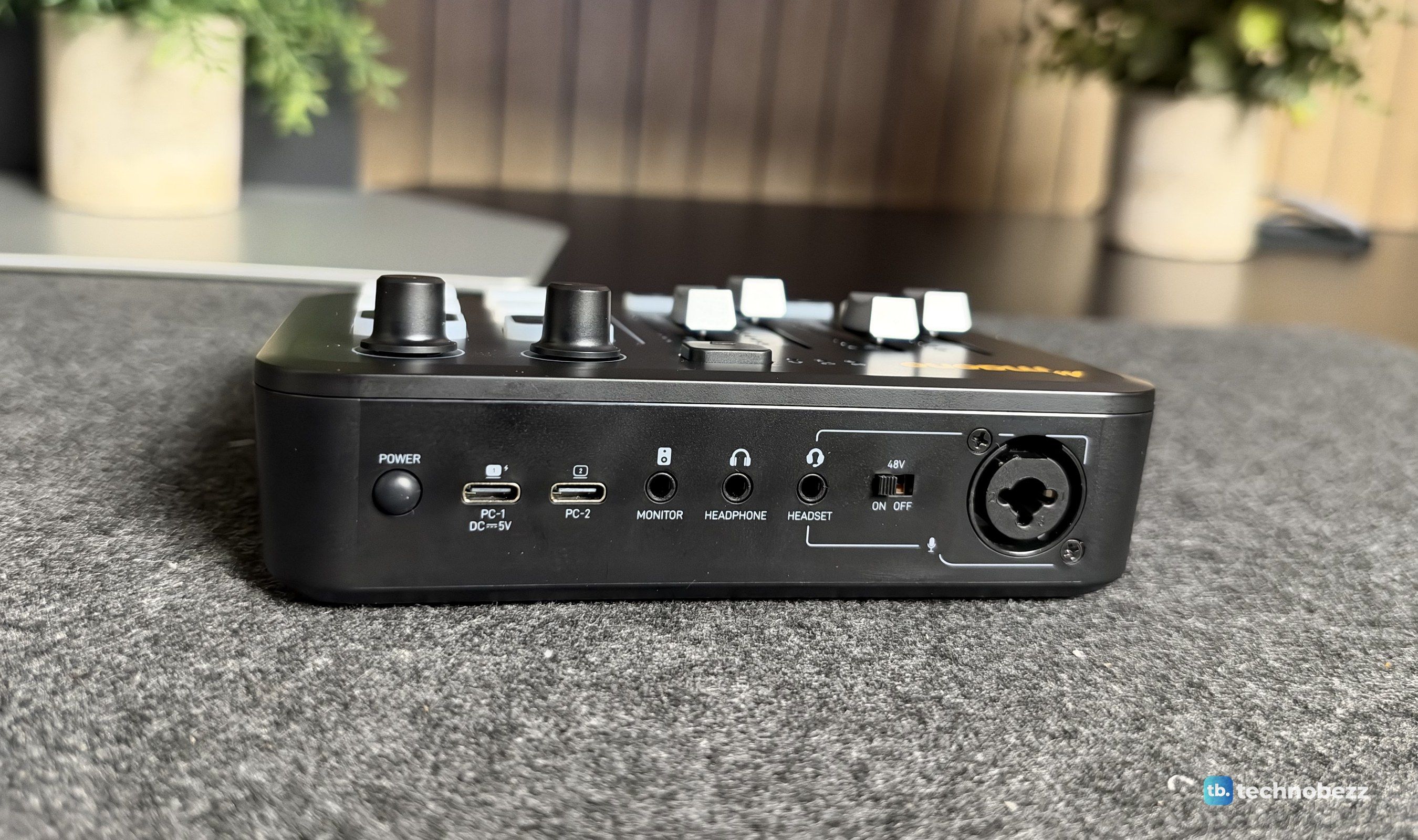
The back panel covers a lot for a mixer this size. There's a power button, two USB-C ports labeled PC-1 and PC-2, a monitor output for speakers, a headphone jack, a headset jack, a 48V phantom power switch and an XLR combo input. PC-1 powers the G3 and connects to your main PC, and PC-2 lets you send one of your mixes to a second computer, so a dual-PC streaming setup needs nothing more than two cables. Having both a headphone and a monitor output at this price is one of the best things about it.
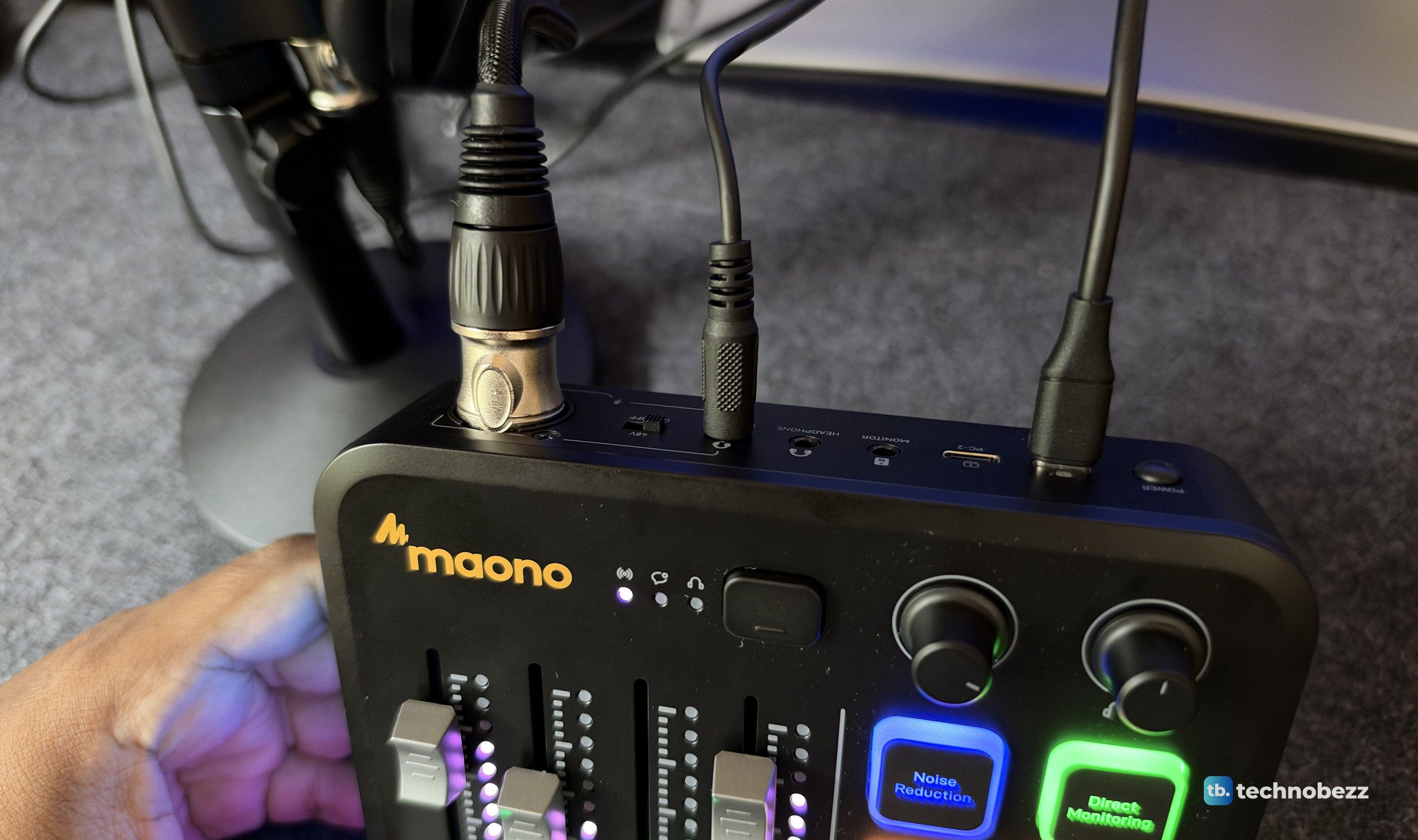
Everything we connected worked without issues. Our PD500W microphone over XLR, our headphones and our speakers all came through clear and crisp, and swapping between them was seamless. If you use a dynamic mic like the PD500W, keep the 48V switch off. Turn it on only for a condenser mic that needs phantom power.
RGB Lighting
The G3 looks great once it's on. A light strip runs around the base, and the mute buttons and sound pads all light up. The strip is placed well, it looks clean instead of tacky, and it lifts the whole look of a gaming setup.
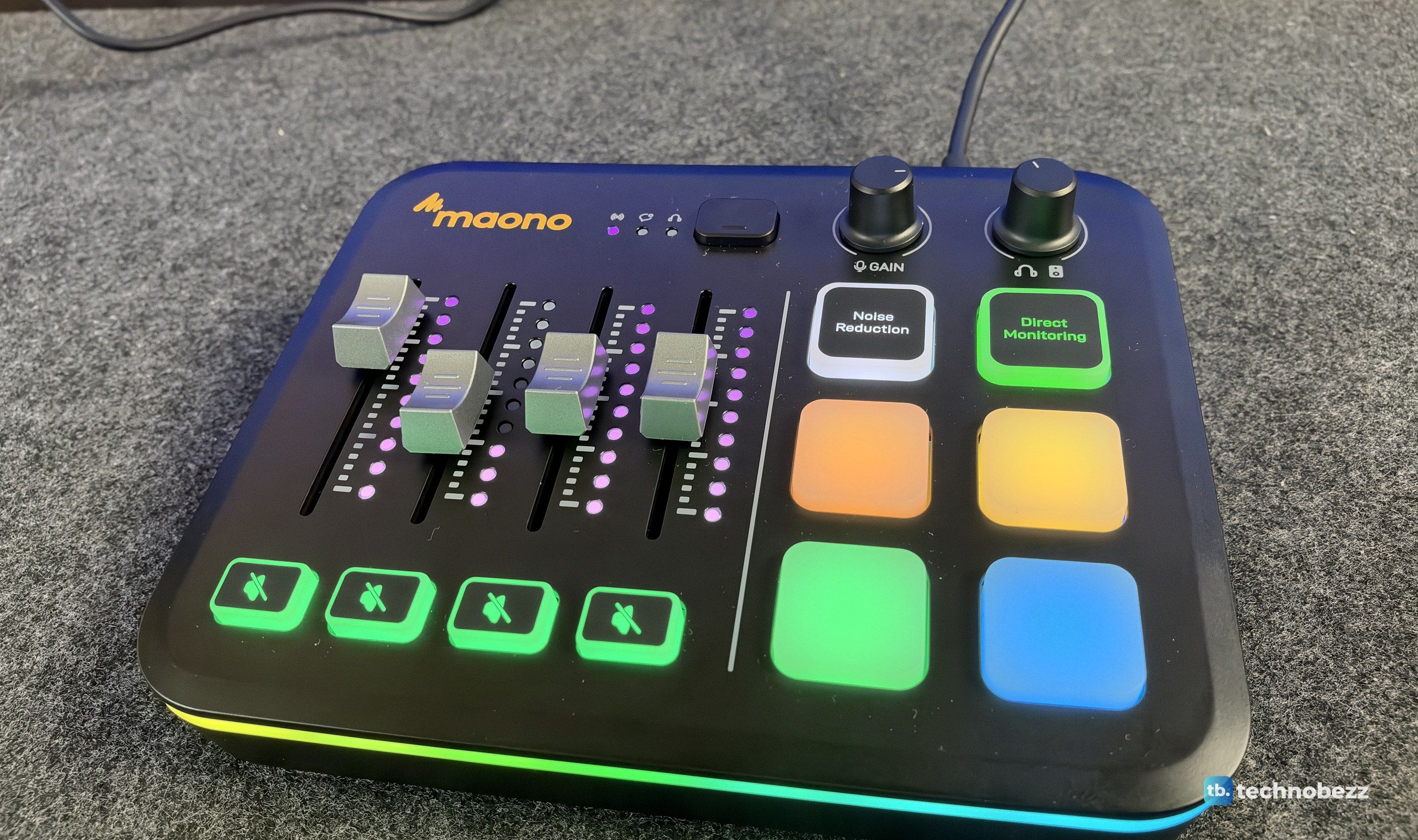
Better yet, you can customize almost all of it in Arena. You can change the light strip mode and brightness, set colors for each mix mode and the mute buttons, and pick how the noise reduction and monitoring pads look when they're off. The sound pad colors sync from the app too.
The Maono Arena Software
Arena is where the G3 comes alive, and it's simple and straightforward to use. You assign apps to virtual channels, then drag and drop to choose which four sit on the physical faders. You can change channel icons and names, and the software mirrors what you're doing on the mixer, so you always know what each fader controls. It picked up every app we threw at it, from Steam games to Chrome, and it worked tremendously well in our testing.
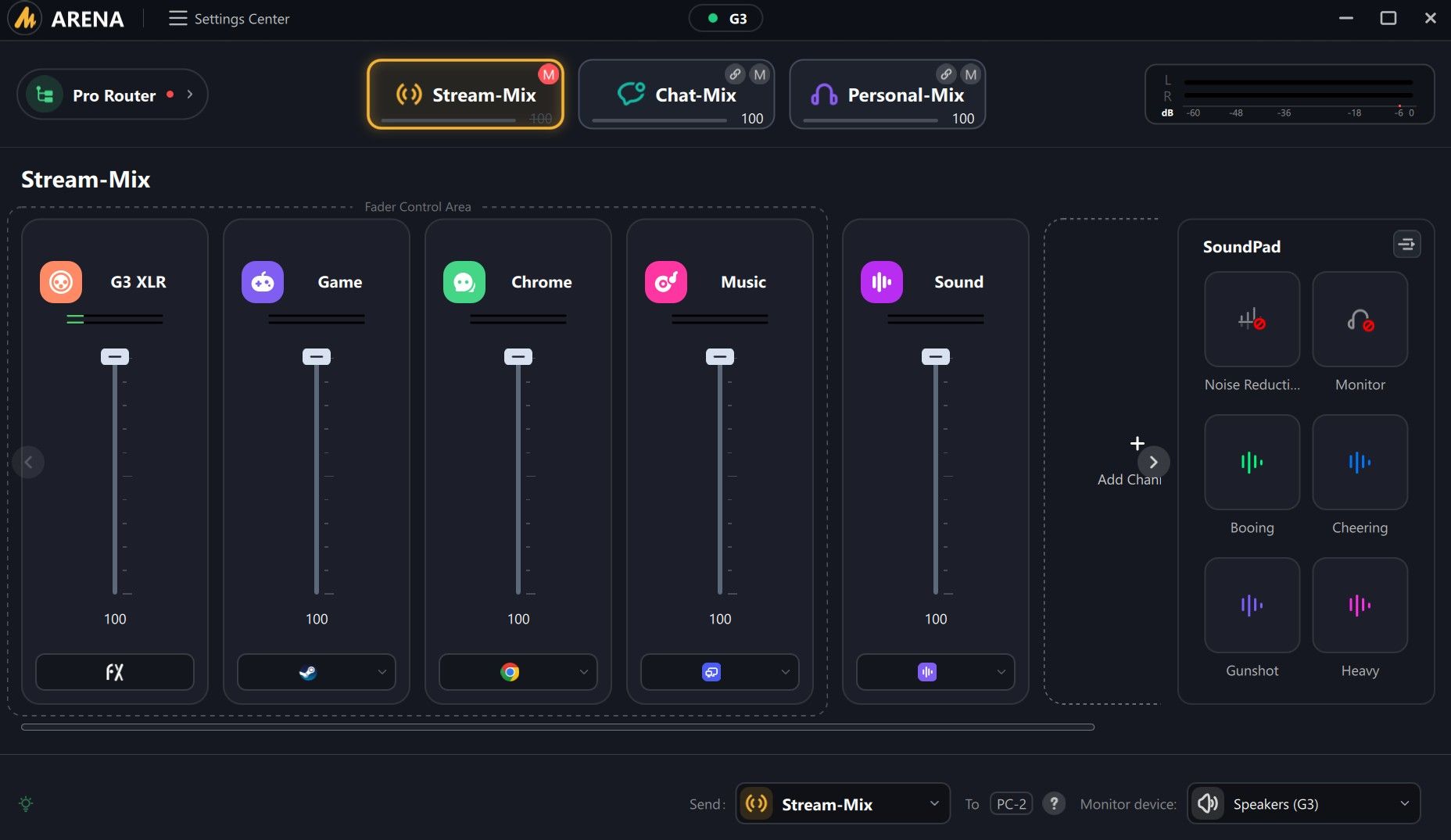
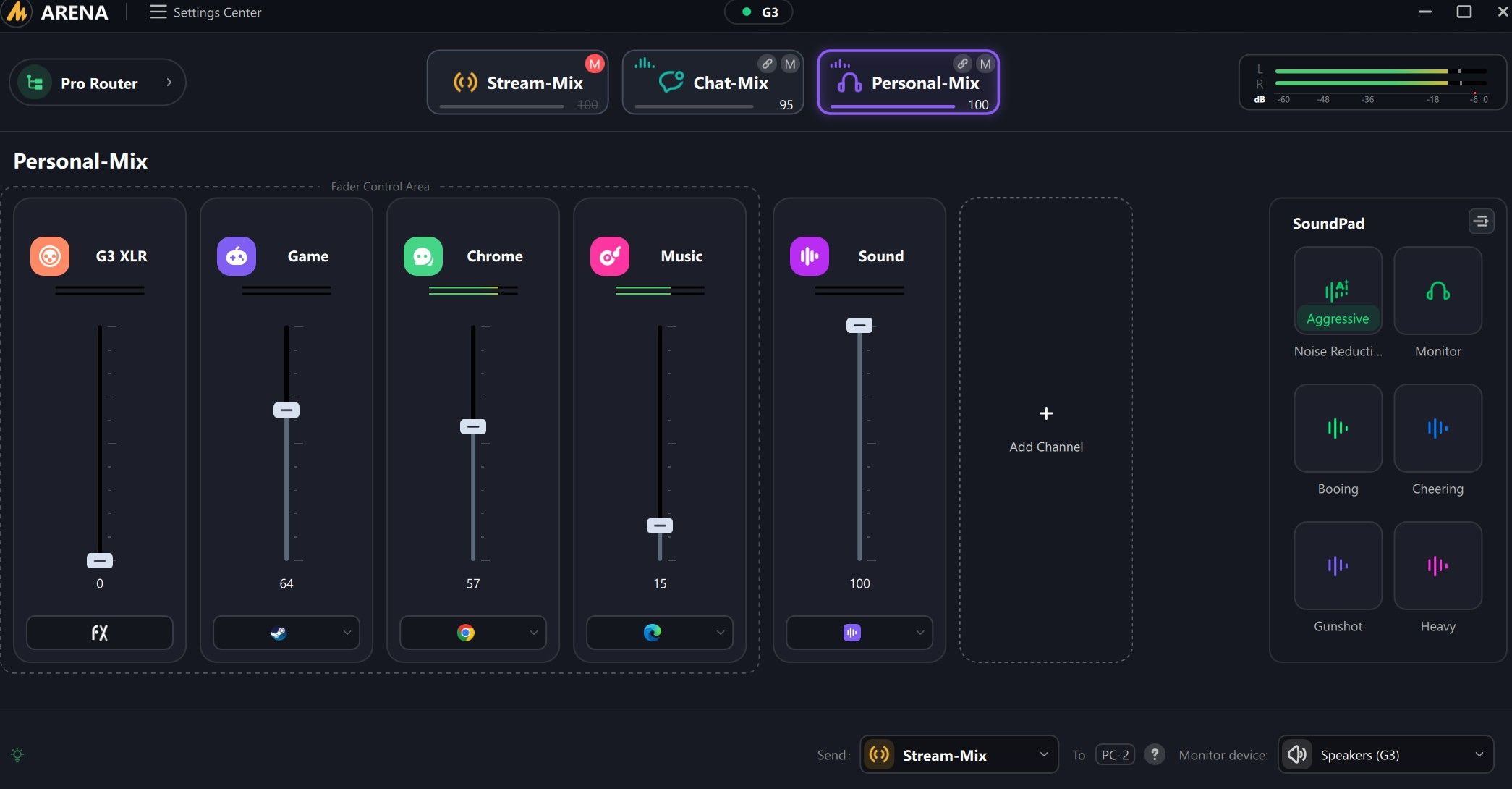
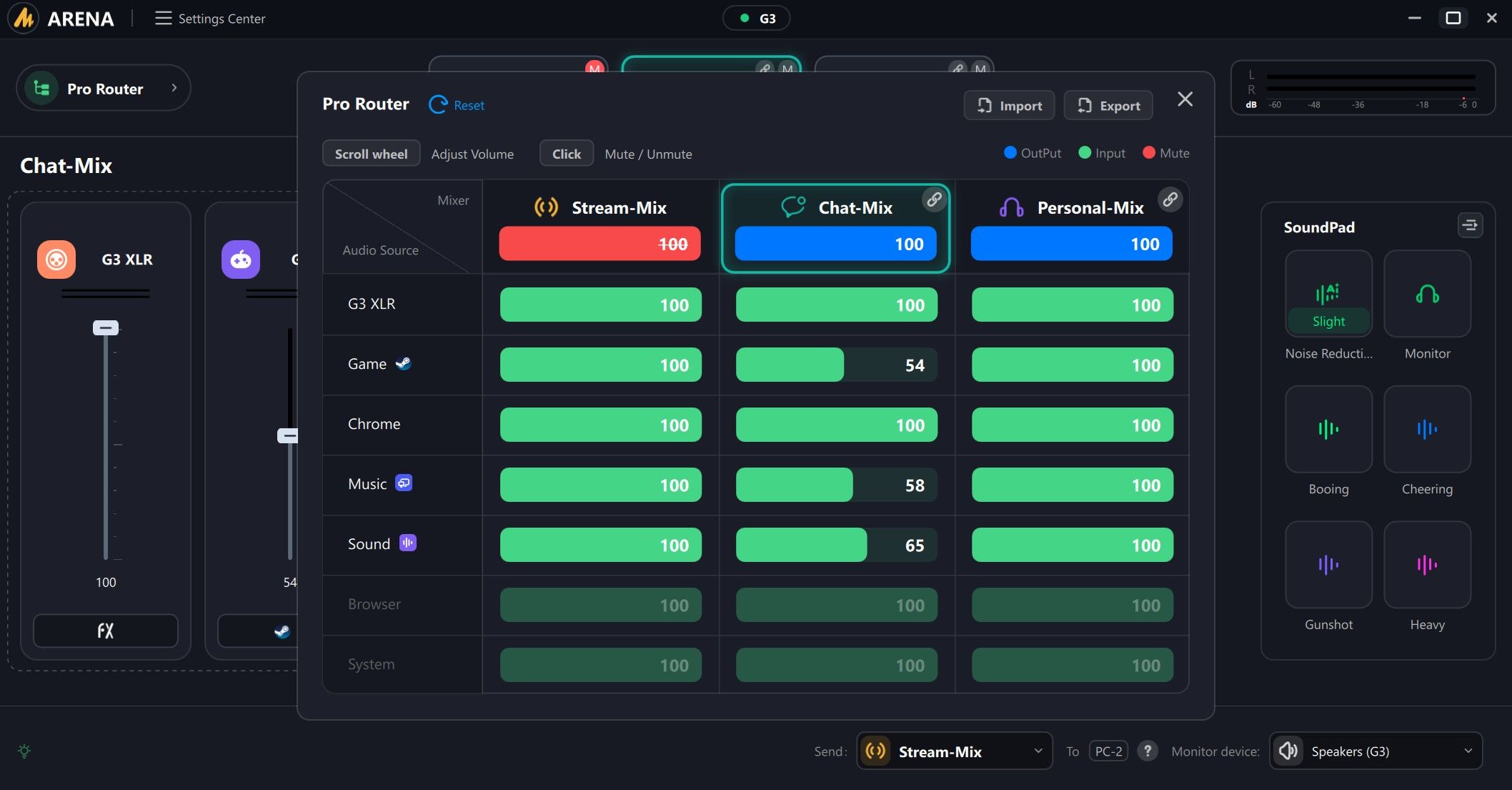
The three mixes are the big feature. Each channel can have a different level or be muted in each mix, so your viewers can hear your mic and the game while Discord stays only in your headphones. Arena calls them Stream-Mix, Chat-Mix and Personal-Mix, and its Pro Router view lays out the level of every channel in all three mixes side by side, so you can check what your stream hears against what you hear at a glance. Arena also handles the AI noise reduction, the DSP noise reduction levels, the SoundPad effects, shortcuts and firmware updates.
1 / 2
There's one quirk. After you move between mixes, the on-screen faders don't always line up with where the physical faders are. When that happens, you have to move the hardware fader to where the on-screen one sits before it picks up control again. It avoids sudden jumps in volume, but it takes some getting used to.
Sound and Noise Reduction
Audio through the G3 is clean and crisp, whether it's game sound in headphones, music through speakers or a voice coming in over XLR. The XLR preamp is rated for up to 57dB of gain. The AI noise reduction, which Maono says targets ambient noise, fans and keyboard clicks, is on by default, and having it on a pad means you can turn it on mid-stream without opening anything.
This product was provided to Technobezz for review. We independently select what we review. The manufacturer had no input on this article and did not see it before publication. All opinions are our own.
FAQ
Does the Maono G3 work on a Mac?
Only partly. Our Mac recognized the G3 as a USB audio device with no driver, but Maono Arena is Windows only, so the app routing, the three mixes and the sound pads don't work on macOS.
Do I need Maono Arena to use the G3?
For the full experience, yes. Arena handles the app routing, virtual channels, mixes and the link between the software and the hardware controls.
Can I keep Discord off my stream?
Yes. Route Discord to its own channel in Arena and mute it in the Stream mix. You'll still hear it in your headphones.
Does the G3 support a dual-PC setup?
Yes. Connect your main Windows PC with Arena to PC-1 and your second computer to PC-2, then choose which mix goes to PC-2.
Should I turn on 48V phantom power?
Only for a condenser mic that needs it. Leave it off for dynamic mics like the Maono PD500W.
A Lot of Mixer for the Money
The Maono G3 is a feature-rich, great-value mixer for anyone serious about streaming or gaming on Windows. It's beautifully built, the RGB lighting looks great, the three mixes and dual-PC support are genuinely useful, and the sound is clean through every output we tried. The slightly uneven faders and the lack of Mac support are the only real compromises, and at this price, they're easy to live with.
If you stream from a Windows PC and you're tired of digging through menus to fix your audio, the G3 is one of the easiest recommendations you can make.
Add Technobezz on Google:Preferred SourceGoogle Discover
More reviews
Review
The Maono PD500W Keeps Recording Even When Your Computer Doesn't
Review
Why the GOOLOO A5 Is Staying in My Trunk for Good
Review
Otto One Gives Your AI Agent a Computer of Its Own, and the Software Is the Real Product
Review
VTOMAN Jump 600X With 110W Solar: Small, Smart Power for Road Trips and Blackouts
ReviewGameSir's Fortnite G8 Plus Is the One Controller I Use on My iPhone, iPad and SwitchReviewINIU Outdoor Rugged 10000 Review, a Compact 45W Power Bank Built for the TrailReviewRokid AI Glasses Style Review, Light Camera Glasses That Let You Choose Your AIReviewTurtle Beach Stealth Pro II Review, a Gaming Headset With Swappable Batteries and Big BassReviewThe GameSir G7 Pro 8K Is the Controller I Forget I'm HoldingReviewRicoh SP-2240N Review, the Network Scanner My Whole Family Uses Without a PCReviewTribit PocketGo Review, a Small Speaker With Big SoundReviewThe Baseus Bowie MC2 Is the Open-Ear Pair I Keep Forgetting to Take Off