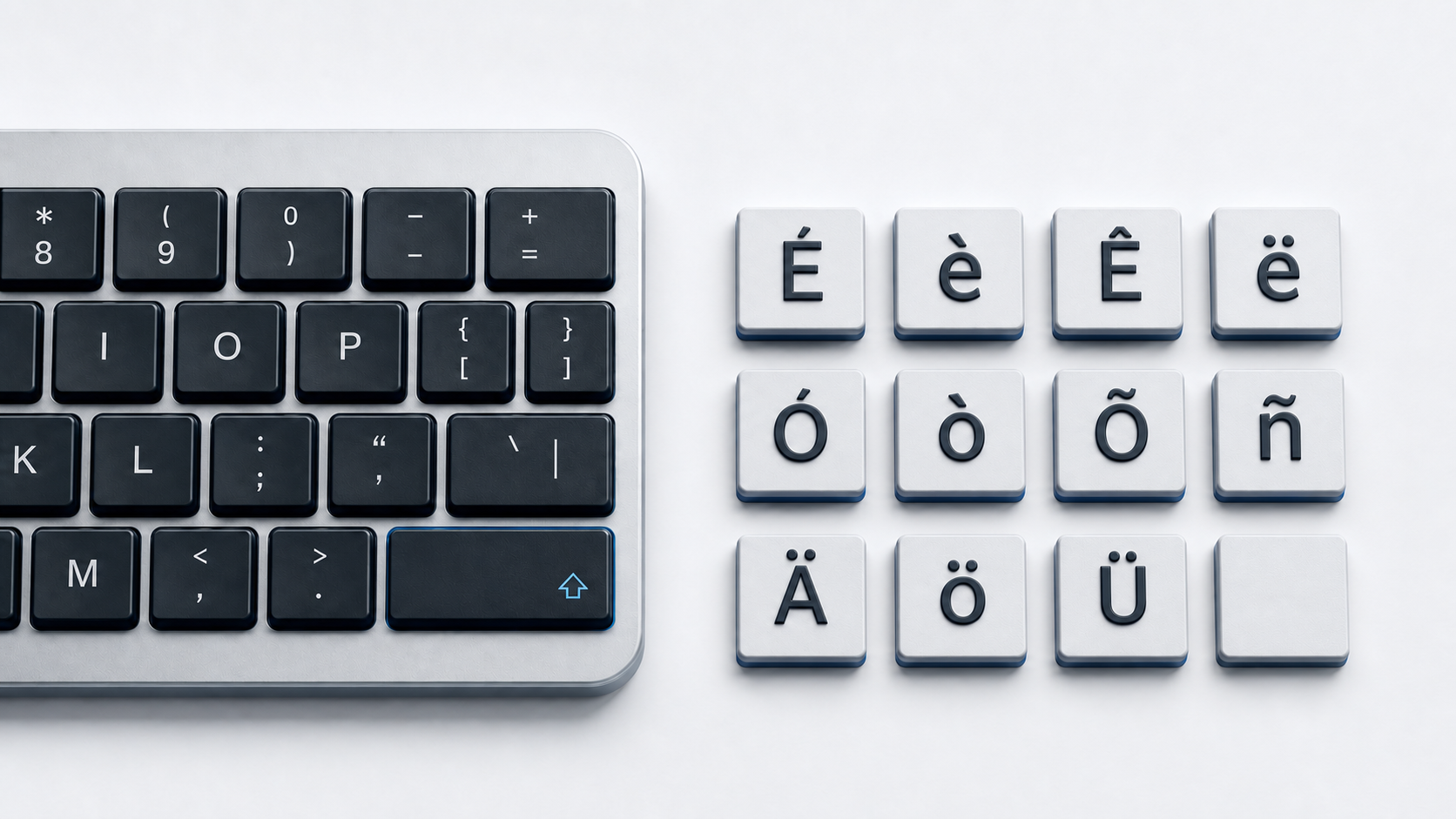
Copy the A variant you need from the panel above. Microsoft documents a Word and Outlook sequence for all six marks shown here, and Word's Unicode conversion, Windows Character Map, the Mac accent menu, the iPhone and iPad keyboards, Chromebook dead keys, and the Google Docs picker reach the same letters elsewhere.
The set holds twelve precomposed characters, six lowercase and six uppercase, all of them in the Latin-1 Supplement block. Language and spelling decide which mark is correct, and the marks are not stylistic substitutes for one another.
Identify the correct A character
The lowercase forms are á U+00E1, à U+00E0, â U+00E2, ä U+00E4, ã U+00E3, and å U+00E5, with Á U+00C1, À U+00C0, Â U+00C2, Ä U+00C4, Ã U+00C3, and Å U+00C5 as the capitals. Unicode gives each one an official name and a canonical decomposition made of A or a plus a combining mark, such as U+0301 for acute and U+030A for ring above.
Some characters only resemble an accented A. The feminine ordinal indicator ª is U+00AA, a superscript form of a. The angstrom sign Å is U+212B and canonically decomposes to U+00C5, so the two can compare unequal before normalization. The letter Æ is U+00C6, a separate letter rather than a marked A. Three further A forms sit outside this set in Latin Extended-A, namely ā U+0101, ă U+0103, and ą U+0105 with their capitals. Use the E with accent reference or the O with accent reference for those vowels.
Type A accents in Word and Outlook
Microsoft documents one sequence per mark. Press Ctrl and grave, release, then type a or A for à or À. Press Ctrl and apostrophe for á or Á. Press Ctrl, Shift, and ^ for â or Â. Press Ctrl, Shift, and ~ for ã or Ã. Press Ctrl, Shift, and the colon key for ä or Ä. Press Ctrl, Shift, and @ for å or Å.
Microsoft says to hold the Ctrl, Shift, and symbol keys together and release them before typing the letter, and the case of that final letter sets the case of the result. These sequences are documented for Word and Outlook, not as system-wide Windows shortcuts.
Enter any listed A in Word by Unicode
Type the hexadecimal code without U+ and press Alt-X. Use 00E1 for á, 00E4 for ä, and 00E5 for å, or the uppercase codes in the copy panel for Á, Ä, and Å. Microsoft notes that when Alt-X picks up the wrong code you can select the correct code first or precede it with the text U+.
Windows Character Map is the fallback when a program cannot convert Unicode codes, which Microsoft says applies to some Office programs. Open Character Map, choose a font that contains the letter, select the character, copy it, and paste it.
Type A accents on Mac
Apple's own documentation uses this letter as its example. In a supported app, press and hold the a key until the accent menu opens, then click the character, press the number shown below it, or move to it with the arrow keys and press the Space bar. Apple notes that accent marks are not available in all apps.
Dead keys are quicker for repeated typing. Apple documents entering ã on the ABC layout by pressing Option-N for a tilde and then pressing a. Keyboard Viewer outlines the dead keys the active input source offers, so the sequence follows that input source rather than one universal Mac mapping. Character Viewer, opened with Fn-E, the Globe key and E, or Edit and then Emoji & Symbols, covers the rest.
Type A accents on iPhone or iPad
Touch and hold the a key on the onscreen keyboard, slide to the accented form you want, and release. Apple documents the same gesture for iPhone and iPad, describing it as touching and holding the letter related to the character you want. The alternatives follow the active language keyboard, so one keyboard may not present all twelve characters.
Type A accents on Chromebook
With the English (US) with International keyboard, Google documents apostrophe then the letter for acute, grave then the letter for grave, Shift and grave for tilde, Shift and 6 for circumflex, and Shift and apostrophe for diaeresis. Those five dead keys cover á, à, ã, â, and ä with their capitals.
The same page lists direct combinations on the US International keyboard, including AltGr and a for á and AltGr and q for ä, where AltGr is the Alt key on the right of the keyboard. Google documents no ring-above sequence, so use the ChromeOS accents menu, the Docs picker, or a copy for å and Å. The Spanish accented letters guide gathers á with the other marks Spanish needs.
Insert A accents in Google Docs or Slides
On a computer, open a document or presentation, choose Insert, Symbols, and Special characters, then find the letter by category, by entering its Unicode value, or by drawing it. Click the character to add it. Google states that special characters cannot be inserted directly in Sheets and suggests copying one from Docs or Slides into a cell.
Use A accents in HTML and Unicode data
A UTF-8 page can contain these letters directly. WHATWG also defines a named reference for every character in this set, including À, Á, Â, Ã, Ä, Å, and their lowercase forms. Numeric references follow the code point, so á is á and Å is Å.
Two details matter for data work. WHATWG maps Å to U+00C5 as well, so the same character can arrive from more than one source spelling. Text that compares unequal while looking identical is usually precomposed on one side and decomposed on the other, which is what Unicode normalization resolves.
Fix missing or incorrect A accents
- 1.Check a shortcut's documented scope before blaming the keyboard, because Microsoft's sequences are written for Word and Outlook.
- 2.Release the Ctrl, Shift, and symbol keys before typing the letter, and type that letter in the case you want.
- 3.Confirm the active Mac input source or Chromebook input method, since the available dead keys change with it.
- 4.Fall back to Character Map, Character Viewer, the Google Docs picker, or a direct copy when a menu lacks the exact letter, which is common for å and Å.
- 5.Compare code points and normalize both strings when identical-looking text fails a search, a filename match, or a database comparison.
- 6.Work through the general accented letters guide when the problem covers several letters rather than A alone.
Common questions
Which A accent is the correct one
The language, the name, or the source text decides. Each of the twelve characters has its own code point and official name, so replacing one mark with another changes the character rather than its styling.
Is there one A accent shortcut that works everywhere
No. Microsoft's sequences are scoped to Word and Outlook, Apple's accent menu depends on the app and input source, and the Chromebook sequences depend on the selected input method.
Are Å and the angstrom sign the same character
No. Unicode assigns U+00C5 to the capital A with ring above and U+212B to the angstrom sign. The angstrom sign canonically decomposes to U+00C5, so the two match after normalization while remaining different stored code points.
Official references
- Unicode Latin-1 Supplement chart
- Unicode Latin Extended-A chart
- Unicode Combining Diacritical Marks chart
- Unicode Normalization Forms
- Microsoft accent shortcuts for Word and Outlook
- Microsoft Unicode character entry and Character Map
- Apple guide to accent marks on Mac
- Apple guide to Character Viewer
- Apple guide to onscreen keyboard accents on iPhone
- Apple guide to onscreen keyboard accents on iPad
- Google Chromebook keyboard languages and special characters
- Google Docs and Slides special characters
- WHATWG named character references