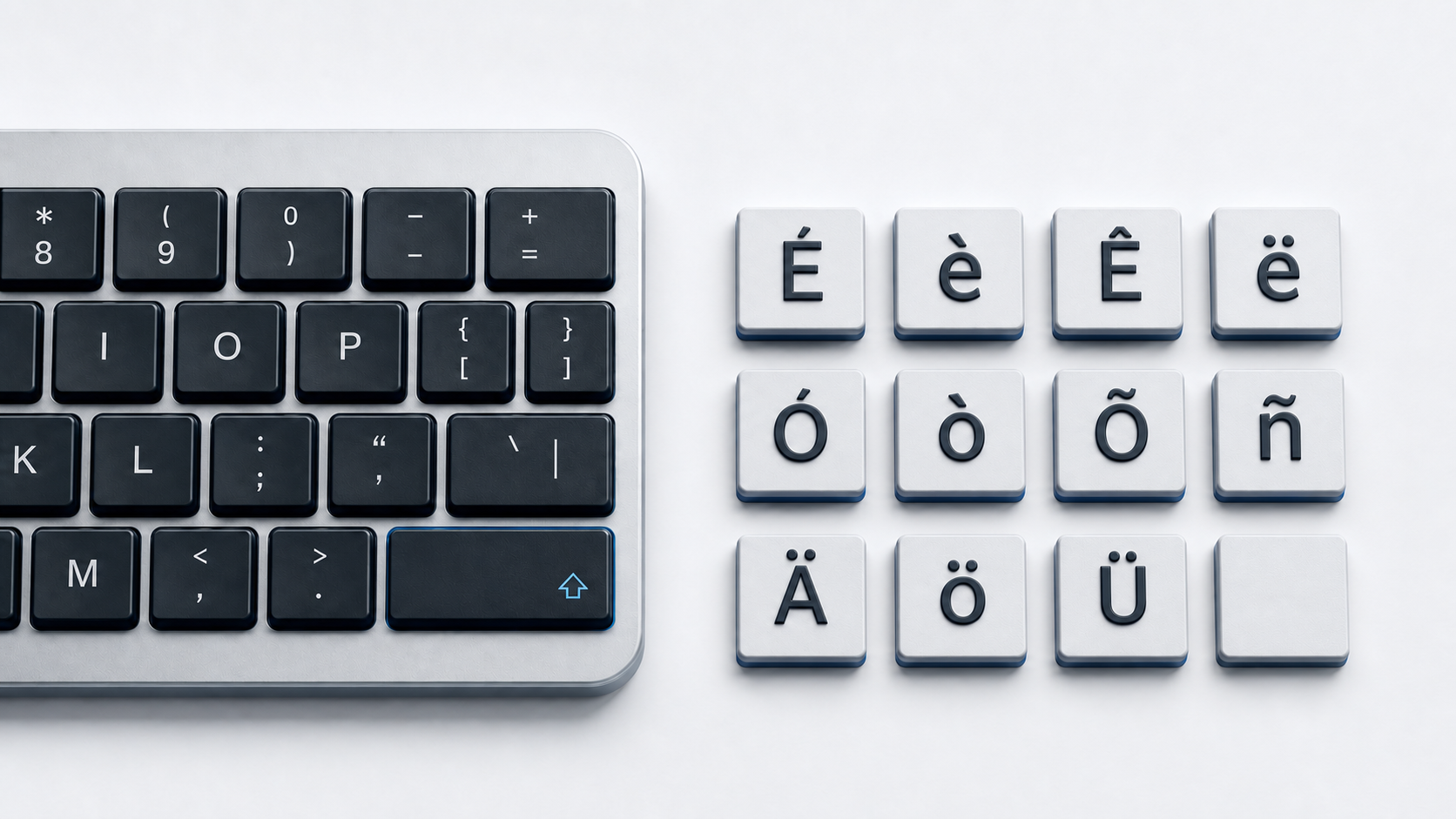
Copy the E variant you need from the panel above. In Word or Outlook on Windows, the documented accent sequences cover È/è, É/é, Ê/ê, and Ë/ë; for the extended forms, use Word's Unicode conversion or a character picker.
Choose the correct E character
This page groups nine uppercase and lowercase precomposed E pairs: grave, acute, circumflex, diaeresis, macron, breve, dot above, ogonek, and caron. It is a practical copy set, not every E-based character in Unicode. Language and spelling determine which mark is correct.
Unicode assigns a different code point and official name to every listed character. Each one also has a canonical decomposition made from E or e plus the corresponding combining mark. A precomposed letter and its decomposed sequence may render alike while containing different code points before normalization.
Type common E accents in Word and Outlook
Microsoft documents four accent sequences for these common Latin-1 E forms. Press Ctrl-grave and then E for È or è. Press Ctrl-apostrophe and then E for É or é. Press Ctrl-Shift-^ and then E for Ê or ê. Press Ctrl-Shift-: and then E for Ë or ë. Release the accent keys before typing the final letter, and use the final letter's case for uppercase or lowercase output.
Those sequences are scoped to supported Word and Outlook fields. They do not establish system-wide Windows shortcuts for every app.
Enter any listed E in Word by Unicode
Type the hexadecimal code without U+ and press Alt-X. Examples include 00E9 for é, 0113 for ē, 0117 for ė, 0119 for ę, and 011B for ě. Use the uppercase code from the copy panel when you need a capital letter.
Windows Character Map provides another official route. Open it, choose a font containing the desired character, select the letter, copy it, and paste it into the target app.
Type E accents on Mac
In a supported Mac app, press and hold E to open Apple's accent menu, then click a character, press the number shown below it, or select it with the arrow keys and Space. Apple notes that the menu is not available in every app and does not promise that every Unicode E variant appears.
Use Character Viewer when the press-and-hold menu does not offer the exact letter. Keyboard Viewer can show dead keys for the active input source; the available sequence follows that input source rather than one universal Mac mapping.
Type E accents on iPhone or iPad
Touch and hold E on the onscreen keyboard, slide to the required alternative, and release. Apple's iPhone and iPad guides use é as the example. The choices depend on the active language keyboard, so the full copy panel may not be present in every keyboard menu.
Type common E accents on Chromebook
With the English (US) with International keyboard selected, Google documents apostrophe then E for acute, grave then E for grave, Shift-6 then E for circumflex, and Shift-apostrophe then E for diaeresis. ChromeOS also offers an accents menu when enabled, but Google notes that accents are not available for every character.
These Chromebook methods cover é, è, ê, and ë. Use the accents menu when it offers the needed form, Google Docs special characters, or direct copy for Ē/ē, Ĕ/ĕ, Ė/ė, Ę/ę, and Ě/ě.
Insert E accents in Google Docs or Slides
On a computer, choose Insert, Symbols, and Special characters. Google documents finding a character by category, Unicode value, or drawing it, then selecting the result. The cited flow applies to Docs and Slides and does not insert special characters directly in Sheets.
Use E accents in HTML and Unicode data
A UTF-8 HTML document can contain these letters directly. WHATWG defines familiar named references such as È, É, Ê, Ë and their lowercase forms. Numeric references work from the Unicode value, such as é for é and ě for ě.
Use Unicode normalization when an application requires canonically equivalent text to compare consistently. Do not remove an accent merely because a search, filename, or form mishandles the decomposed sequence.
Related accent guides
Use the O with accent reference for O-specific forms, the N with accent guide for ñ and Ñ, and the general accented letters guide for reusable cross-device methods.
Fix missing or incorrect E accents
- 1.Check whether a shortcut is documented only for Word and Outlook before using it elsewhere.
- 2.Confirm the active Mac or Chromebook input source.
- 3.Use the final letter's case when a dead-key sequence returns the wrong case.
- 4.Use Character Map, Character Viewer, Google Docs special characters, or direct copy for an extended form absent from an accent menu.
- 5.Compare code points and normalize strings when identical-looking text fails a data comparison.
For Windows layout problems, follow Technobezz's keyboard layout instructions. If the issue affects ordinary keys as well as accents, use the Windows and Mac keyboard test guide.
Common questions
Which E accent should I use?
Use the character required by the language, name, or source text. The marks are not stylistic substitutes for one another, and each listed form has its own Unicode code point.
Is there one E-accent shortcut for every app?
No. Microsoft's sequences are scoped to Word and Outlook, Apple's menus depend on the app and input source, and Chromebook sequences depend on the selected input method.
Does HTML require a named reference?
No. UTF-8 source can contain the letter directly. A named or numeric character reference is an alternative source representation.
Official references
- Unicode Latin-1 Supplement chart
- Unicode Latin Extended-A chart
- Unicode Combining Diacritical Marks chart
- Unicode Normalization Forms
- Microsoft accent shortcuts for Word and Outlook
- Microsoft Unicode character entry and Character Map
- Apple guide to accent marks on Mac
- Apple guide to Character Viewer
- Apple guide to onscreen keyboard accents on iPhone
- Apple guide to onscreen keyboard accents on iPad
- Google Chromebook keyboard languages and special characters
- Google Docs and Slides special characters
- WHATWG named character references