The wrong Windows keyboard layout makes symbols, accents, and passwords come out differently from the keys you press. Windows 11 handles normal keyboard layout changes in Settings, with quick switching from the taskbar or keyboard shortcuts after more than one layout is installed. Start with the Settings fix, then use the faster options once the layout you need is available.
Fix the wrong keyboard layout in Settings
The most common cause is that Windows has the wrong keyboard layout selected for your current display language.
Open Start, then open Settings.
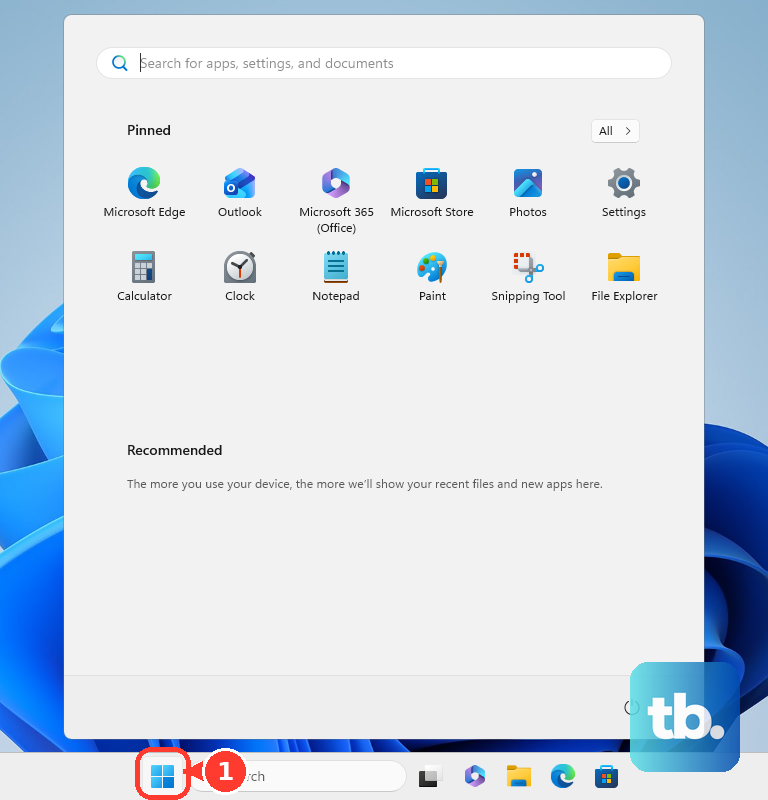
Go to Time & language, then choose Language & region.
Under Preferred languages, select the ellipses next to your current Windows display language, then choose Language options.
Find Keyboards, select Add a keyboard, and choose the keyboard layout you want.
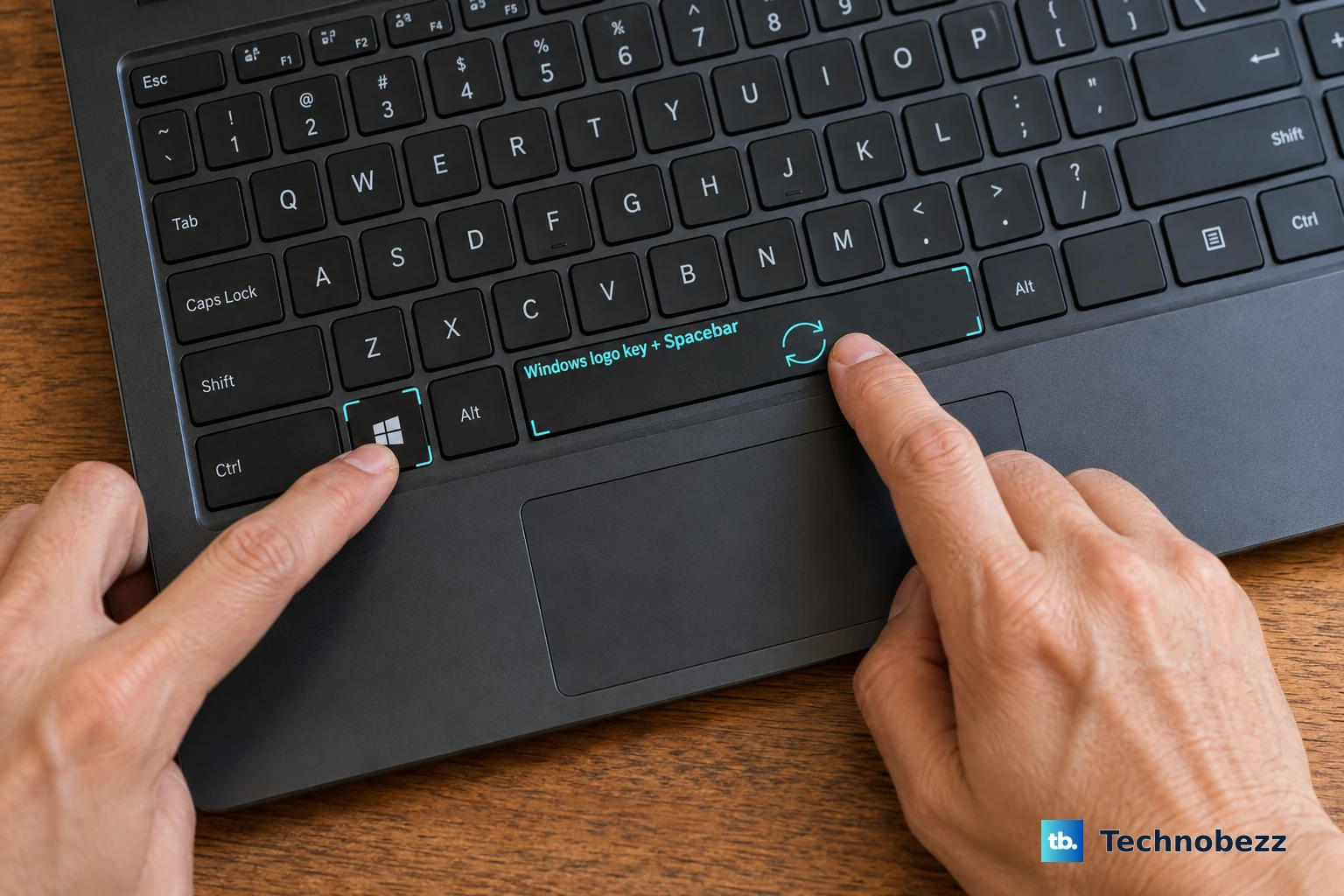
After the layout is added, switch to it from the taskbar input language icon or with Windows logo key + Spacebar.
Add the matching language first
This fixes a keyboard layout that is missing from the list under your current language.
Open Start.
Open Settings.
Select Time & language.
Open Language & region.
Under Preferred languages, select Add a language.
Choose the language that matches the keyboard layout you need, then select Next.
Select Install.
Return to that language's Language options.
Go to Keyboards, then select Add a keyboard.
Switch layouts from the taskbar
The input language icon is enabled by default and sits in the system tray area of the taskbar, showing whichever keyboard layout is active. Select that icon, then choose the keyboard layout you want from the pop-up menu.
If the icon is not there, the legacy desktop language bar is turned on, and it disables the taskbar icon. Go to Settings, then Time & language, then Typing, then Advanced keyboard settings, and clear Use the desktop language bar when it’s available to bring the icon back. Either way, Windows logo key + Spacebar still cycles through your installed keyboard layouts.
Use keyboard shortcuts for faster switching
Windows logo key + Spacebar switches the active input language and keyboard layout. Hold Windows logo key and press Spacebar again to cycle through the installed layouts.
Windows key + Ctrl + Spacebar returns to the previously selected input. Use it after switching layouts when you want to jump back quickly.
Alt + Shift also switches keyboard layouts after more than one layout is enabled. Add the layout in Settings first when there is nothing to switch to.
Remove keyboard layouts you never use
Clean up extra layouts so the switcher only shows the keyboards you need.
- 1.Open Start, then Settings.
- 2.Go to Time & language, then Language & region.
- 3.Under Preferred languages, select the ellipses next to the language that contains the layout, then choose Language options.
- 4.Go to Keyboards.
- 5.Select the ellipses next to the keyboard layout you do not want, then choose Remove.
Change the layout before signing in
At the Windows sign-in screen, select the input language icon before you type your username or password.
Choose the keyboard layout you want to use.
Enter your username or password after the layout changes.
Use this when a password fails because Windows is reading your keys through the wrong layout.
Change touch keyboard layout options
The touch keyboard has its own layout styles. These options change the on-screen keyboard shape, not the system input language layout.
Open the touch keyboard by tapping a text field or selecting the Touch keyboard icon in the system tray area of the taskbar.
Select the Keyboard settings icon in the upper-left corner.
Choose Default keyboard, Split keyboard, Small keyboard, Traditional keyboard, or Handwriting panel. Japanese input adds two more: the 12-key layout and the 50-on layout.
If changing the touch keyboard style fails, change the Windows keyboard layout in Settings instead.
Remap keys with PowerToys
Use this when you want specific keys or shortcuts to behave differently. PowerToys Keyboard Manager remaps keys and shortcuts on Windows 11 and on Windows 10 version 2004 build 19041 or newer, on x64 or ARM64; it does not add a Windows language keyboard layout and does not work on password screens.
Install PowerToys from the Microsoft Store, the Microsoft PowerToys GitHub releases page, or Windows Package Manager with winget install --id Microsoft.PowerToys --source winget.
Open PowerToys Settings.
Open Keyboard Manager.
Choose Remap a key or Remap a shortcut.
Select Add key remapping or Add shortcut remapping.
Choose the Select and To send values, then select OK.
Skip Microsoft Keyboard Layout Creator, an older tool without official Windows 11 support. Use Windows Settings for normal layout changes and PowerToys only for remapping.
Frequently Asked Questions
Why does Windows type different symbols than my keyboard shows?
Windows is using a keyboard layout that does not match your physical keyboard. Switch layouts from the taskbar input language icon or with Windows logo key + Spacebar.
Can I use more than one keyboard layout in Windows?
Yes. Add another layout in Settings under Time & language, Language & region, Language options, Keyboards, then Add a keyboard.
Why is the Remove button unavailable for a keyboard layout?
Remove is unavailable when the layout is the only installed keyboard layout for the current Windows display language.
Does PowerToys add a new Windows keyboard layout?
No. PowerToys Keyboard Manager remaps keys or shortcuts. It does not add a language keyboard layout and does not work on password screens.