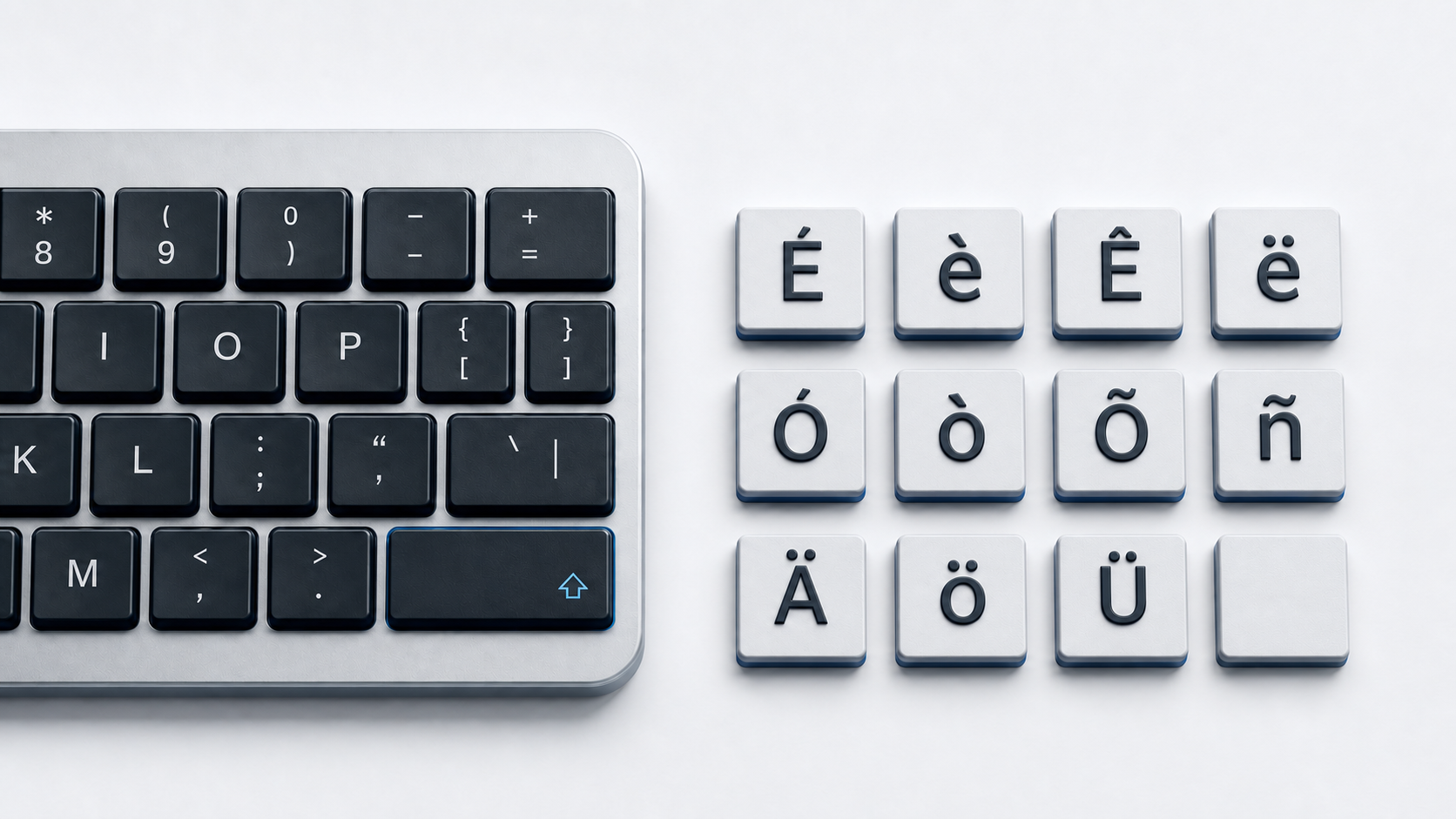
Use the accent method documented for your app, operating system, and active keyboard, or copy a character from the panel above. There is no single universal accent shortcut across Windows, Mac, iPhone, iPad, Chromebook input methods, and document editors.
Choose an accent family
The copy panel gives representative precomposed letters for seven common families: acute, grave, circumflex, tilde, diaeresis, cedilla, and ring above. It is a browsable starting point rather than an exhaustive Unicode character table.
- Acute examples include á, é, í, ó, and ú.
- Grave examples include à, è, ì, ò, and ù.
- Circumflex examples include â, ê, î, ô, and û.
- Tilde examples include ã, ñ, and õ.
- Diaeresis or umlaut examples include ä, ë, ï, ö, ü, and ÿ.
- Cedilla includes ç in Microsoft's documented accent table.
- Ring above includes å and Å in the same Microsoft table.
Use the spelling of the relevant language or the exact source text to choose the character. Accent marks are not interchangeable decoration.
Type accents in Word and Outlook on Windows
Microsoft documents app-specific accent sequences. Press the accent sequence, release it, and then type the letter in the required case. Use Ctrl-apostrophe for acute, Ctrl-grave for grave, Ctrl-Shift-^ for circumflex, Ctrl-Shift-~ for tilde, and Ctrl-Shift-: for diaeresis or umlaut. Microsoft also documents Ctrl-comma then C for ç or Ç, and Ctrl-Shift-@ then A for å or Å.
These shortcuts apply to supported Word and Outlook fields. They are not universal Windows shortcuts. When you need a different precomposed character, Word can convert its hexadecimal Unicode value with Alt-X.
Use Windows Character Map
Character Map is the conservative system copy-and-paste route. Open Character Map, choose a font that contains the character, select the required letter, copy it, and paste it into the destination app. This is useful for a mark or letter pair not covered by Word's accent table.
Type accented letters on Mac
Apple documents two approaches. In a supported app, press and hold a letter to open the accent menu, then click the desired character, press its displayed number, or select it with the arrow keys and Space. For repeat entry, Keyboard Viewer reveals dead keys available to the active input source.
Apple notes that accent marks are not available in every app. Available dead keys and characters also follow the selected input source, so use Character Viewer when neither the menu nor the current layout exposes the exact character.
Type accented letters on iPhone or iPad
Touch and hold the related base letter on the onscreen keyboard, slide to the desired accented alternative, and release. Apple uses é as an example in both guides. The active keyboard determines which alternatives appear.
Type accents on Chromebook
ChromeOS provides an accents menu and language-specific input methods. In the accents menu, hold a supported letter, enter the menu, choose an accent with the arrow keys, and confirm it. Google notes that the menu does not offer accents for every character.
With the English (US) with International keyboard selected, Google documents apostrophe then a letter for acute, grave then a letter for grave, Shift-grave then a letter for tilde, Shift-6 then a letter for circumflex, Shift-apostrophe then a letter for diaeresis, and Shift-AltGr-5 then a letter for cedilla. AltGr is the right Alt key on the documented layout.
ChromeOS also documents direct modifier combinations for a limited set: Alt+N for ñ, Alt+E for é, Alt+U for ë, Alt+I for ô, and Alt+grave for è. Those five combinations are the only ones Google lists; other accents need one of the methods above.
Insert accents in Google Docs or Slides
On a computer, choose Insert, Symbols, and Special characters. Find the exact character by category, Unicode value, or drawing it, then select the result. Google says this picker applies to Docs and Slides; it cannot insert special characters directly in Sheets.
Understand precomposed and combining characters
Many familiar accented letters have a precomposed code point and a canonical decomposition. For example, á is U+00E1, while the decomposed representation is U+0061 LATIN SMALL LETTER A followed by U+0301 COMBINING ACUTE ACCENT. Unicode Normalization Form C composes eligible sequences, while Normalization Form D decomposes them.
Combining marks attach to a preceding base character and are not universal substitutes for a precomposed letter in every data workflow. Copy a precomposed form when it exists and ordinary text compatibility is the priority. Normalize strings when an application requires canonically equivalent representations to compare consistently.
Use accented letters in HTML
A UTF-8 HTML document can contain accented letters directly. WHATWG also defines named references for many familiar Latin-1 forms, such as é, ñ, ü, and ç. A decimal or hexadecimal numeric character reference can represent any valid Unicode scalar value, such as é or é for é.
Character references are HTML source syntax. They may appear literally when pasted into a plain-text field that does not parse HTML.
Open a character-specific guide
Use E with accent marks or O with accent marks for curated uppercase and lowercase character tables. The N with accent guide covers ñ and Ñ plus normalization, and the umlaut letters guide owns the complete Ä Ö Ü ä ö ü typing intent. The German special letters reference adds sharp S and German-layout context.
Fix accent entry problems
- 1.Check the method's scope before using a Word, Outlook, Mac, or Chromebook sequence in another context.
- 2.Verify the active keyboard language or input source.
- 3.Release a dead key before typing the base letter.
- 4.Use the base letter's case for uppercase or lowercase output.
- 5.Use Character Map, Character Viewer, Google Docs special characters, or direct copy when an accent menu lacks the required form.
- 6.Compare and normalize Unicode sequences when text looks identical but fails a search or equality check.
See Technobezz's Windows keyboard layout guide when keys produce the wrong symbols. If ordinary keys also skip or repeat, use the keyboard testing checklist.
Common questions
Is there one universal keyboard shortcut for accents?
No. The method depends on the app, operating system, selected input source, and target character. Use the platform-specific rows above and their stated limitations.
Why is an accented letter missing from the menu?
Apple and Google both scope available alternatives to the current app, keyboard, character, or input method. Switch to an appropriate language input source or use a character picker or direct copy.
Can two accented strings look identical but contain different code points?
Yes. A precomposed letter and a canonically equivalent base-plus-combining sequence can render alike. Unicode normalization provides defined ways to compose or decompose eligible sequences.
Must I replace accented letters with HTML entities?
No. Correctly encoded UTF-8 HTML can contain the character directly. Named and numeric references are optional source representations.
Official references
- Unicode Latin-1 Supplement chart
- Unicode Combining Diacritical Marks chart
- Unicode Normalization Forms
- Microsoft accent shortcuts for Word and Outlook
- Microsoft Unicode character entry and Character Map
- Apple guide to accent marks on Mac
- Apple guide to Keyboard Viewer
- Apple guide to Character Viewer
- Apple guide to onscreen keyboard accents on iPhone
- Apple guide to onscreen keyboard accents on iPad
- Google Chromebook keyboard languages and special characters
- Google Docs and Slides special characters
- WHATWG named character references