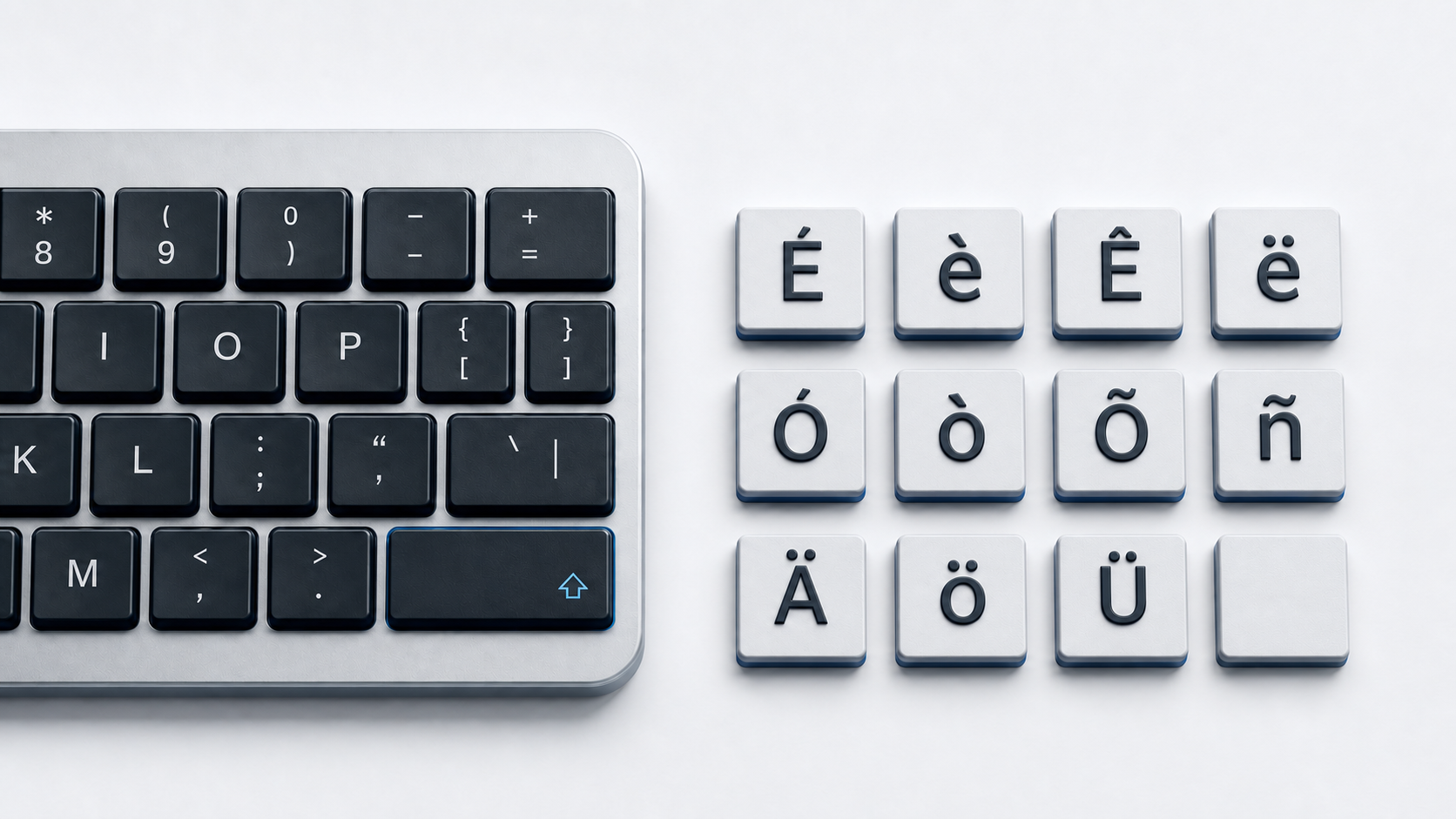
Copy Spanish characters here: ñ Ñ, á é í ó ú, Á É Í Ó Ú, ü Ü, ¡ and ¿. In Word, use the documented accent sequence or type a hexadecimal Unicode value and press Alt+X. On Mac, iPhone, or iPad, press and hold the related letter and choose the accented form when the app offers it. For reliable storage, prefer the precomposed NFC characters copied here.
Copy Spanish letters and punctuation
Lowercase: ñ á é í ó ú ü. Uppercase: Ñ Á É Í Ó Ú Ü. Opening punctuation: ¡ ¿. The acute accent and diaeresis remain on uppercase letters when Spanish spelling requires them. RAE guidance specifically shows the diaeresis on uppercase U, and Spanish questions and exclamations use opening as well as closing signs.
These are the common precomposed characters. For broader Latin accents, use the accented letters guide. The focused N with accent guide compares ñ with other N variants, while the umlaut letters guide covers diaeresis characters used in several languages.
Understand Unicode and normalization
What is a precomposed NFC character?
A precomposed letter stores the base and mark as one code point. For example, á is U+00E1 LATIN SMALL LETTER A WITH ACUTE, ñ is U+00F1 LATIN SMALL LETTER N WITH TILDE, and ü is U+00FC LATIN SMALL LETTER U WITH DIAERESIS. The copy panel uses these single-code-point forms. NFC normalization prefers the composed form when Unicode defines a canonical composition.
How is a combining sequence different?
The decomposed sequence a + U+0301 can render like á; n + U+0303 can render like ñ; and u + U+0308 can render like ü. Each sequence contains two code points. For these examples, Unicode defines canonical equivalence between the decomposed sequence and its precomposed counterpart. NFD decomposes them, while NFC recomposes them when possible.
Canonical equivalence does not mean raw strings are byte-for-byte or code-point-for-code-point identical. Search, validation, cursor movement, length checks, and identifiers can behave differently until text is normalized. Do not add a combining mark after a precomposed accented letter, because that creates an unintended extra mark. The inverted signs ¡ and ¿ are standalone punctuation and are not combining sequences.
Type Spanish characters in Word and Windows
Use Word's accent sequences
In Word and Outlook on Windows, press Ctrl+', release the keys, and type a vowel for an acute accent. For ñ, press Ctrl+Shift+~, release, and type N. For ü, press Ctrl+Shift+:, release, and type U. Type the base letter in uppercase when you need the uppercase result. These are Microsoft Word and Outlook sequences, not universal Windows shortcuts.
Use hexadecimal Unicode values in Word
Type the hexadecimal value without U+, then press Alt+X. Examples include 00F1 for ñ, 00D1 for Ñ, 00E1 for á, 00FC for ü, 00A1 for ¡, and 00BF for ¿. If a neighboring hexadecimal character is captured, select only the intended code before pressing Alt+X.
For regular Spanish typing across apps, add and select a Spanish keyboard layout in Windows instead of memorizing individual codes. Microsoft publishes the Spanish layout and documents how to switch installed layouts. The physical keycap alone does not prove which software layout is active.
Type Spanish characters on Apple devices
Mac accent menu and viewers
In a supported Mac app, press and hold A, E, I, O, U, or N. Choose the desired variant from the accent menu. Apple notes that this menu is not available in every app. When it does not appear, use Keyboard Viewer to inspect dead keys for the active input source or Character Viewer to search for the exact Unicode character.
Keyboard Viewer reflects the selected layout and highlights available dead keys. Check it before relying on a dead-key sequence from a different input source.
iPhone and iPad touch-and-hold
On the onscreen keyboard, touch and hold the related letter, slide to the accented form, and release. Hold N for ñ, the relevant vowel for an acute form, and U for ü. Available choices depend on the active keyboard language. For ¡ and ¿, open the punctuation layer and touch and hold the corresponding closing sign when the active keyboard presents that option, or copy the opening sign from this page.
Use Google tools and ChromeOS input methods
Google documents two distinct Chromebook mappings. The English (US) with International keyboard uses dead keys, including apostrophe followed by a letter for an acute accent, Shift plus grave followed by a letter for a tilde, and Shift plus apostrophe followed by a letter for a diaeresis. The separate US International keyboard uses AltGr combinations: AltGr plus the matching vowel for the five acute vowels, AltGr plus N for ñ, and AltGr plus Y for ü. Select the named keyboard before using its mapping.
In Google Docs or Slides on a computer, choose Insert > Special characters. Find a character by category, Unicode value, or drawing, then select it. Google says the special-character picker is not available directly in Sheets; copy and paste there instead.
Use Spanish characters in HTML
UTF-8 HTML can contain these characters directly. Named references include ñ, Ñ, á, Á, ü, Ü, ¡, and ¿. Numeric references use the code point in decimal or hexadecimal, such as ñ or ñ for ñ.
A character reference is HTML source syntax. It does not normalize a decomposed sequence and may remain visible in a plain-text field. Normalize text explicitly when an application requires NFC, and declare UTF-8 so literal characters are decoded consistently.
Use the marks correctly in Spanish
ñis a distinct Spanish letter, not an N that can be dropped without changing the spelling.- Acute accents appear where Spanish orthographic rules require them; not every vowel receives an accent.
- The diaeresis in forms such as vergüenza indicates that U is pronounced in the relevant gue or gui sequence, and it is retained in uppercase.
- Direct Spanish questions and exclamations use opening signs
¿and¡with their closing counterparts.
Fix missing accents or unexpected output
- 1.Confirm the active keyboard layout or input source before testing a shortcut.
- 2.Try the same input in a plain-text app to separate an app conflict from a system layout issue.
- 3.In Word, use a documented accent sequence or an exact hexadecimal value plus Alt+X.
- 4.On Mac, use Keyboard Viewer when a dead key or physical key does not match instructions.
- 5.If visually identical text fails comparison, inspect its code points and normalize both values to the same Unicode form.
- 6.If a font shows an empty box, choose a font containing the Latin-1 character; do not replace the letter with an unaccented approximation.
Official references
- Unicode Consortium Latin-1 Supplement chart
- Unicode Consortium Combining Diacritical Marks chart
- Unicode Standard Annex on normalization forms
- RAE and ASALE guidance on the diaeresis
- RAE student orthography guide
- Microsoft Support accent shortcuts for Word and Outlook
- Microsoft Support keyboard layout guide
- Apple User Guide for accent marks on Mac
- Apple User Guide for the iPhone onscreen keyboard
- Google Chromebook Help for keyboard languages and accents
- Google Docs Editors Help for special characters
- WHATWG named character references