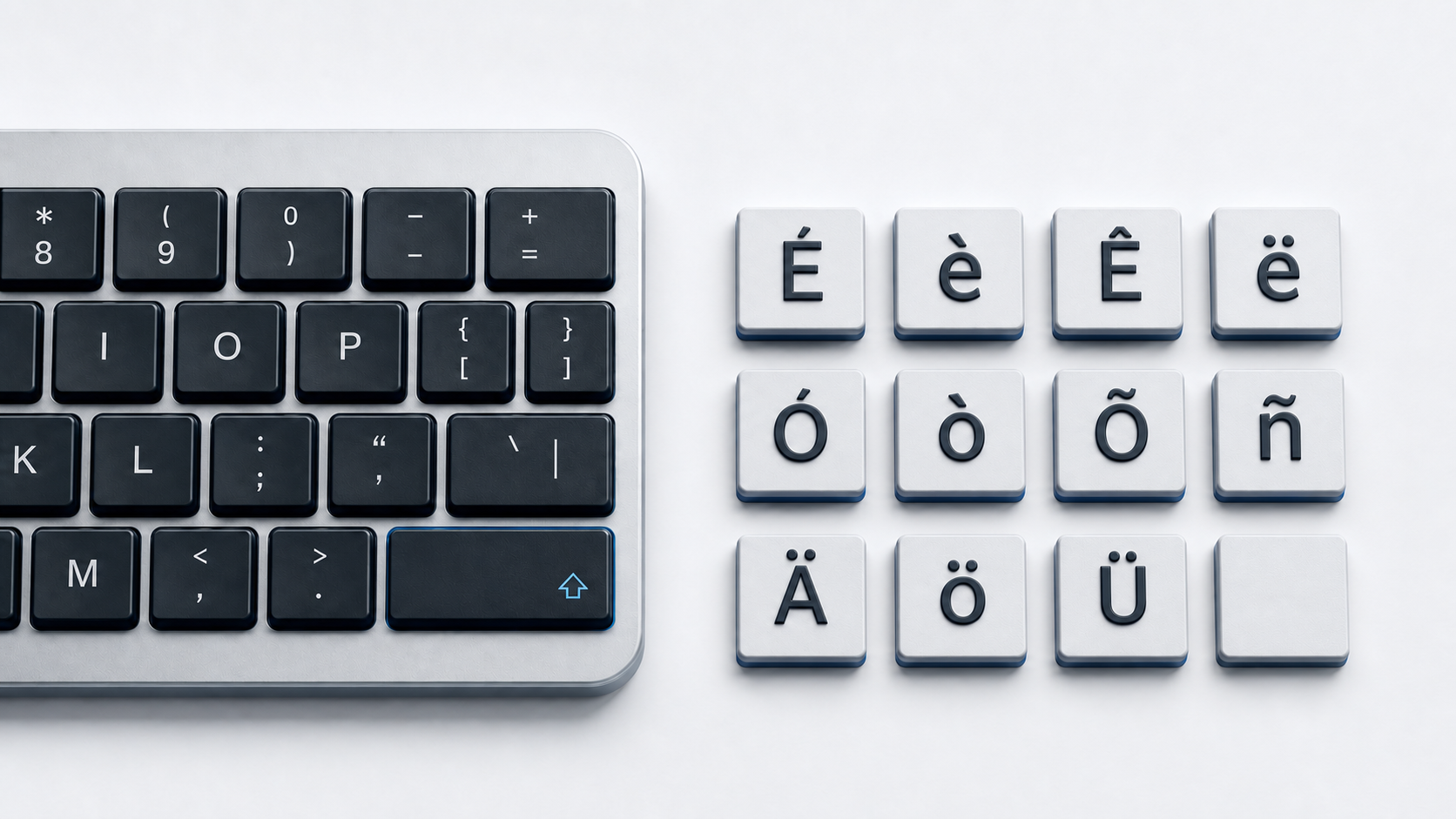
Copy the O variant you need from the panel above. In Word or Outlook on Windows, documented sequences cover grave, acute, circumflex, tilde, and diaeresis forms, while Word's Unicode conversion or a character picker handles the extended set.
Choose the correct O character
This page provides ten uppercase and lowercase single-code-point O pairs: grave, acute, circumflex, tilde, diaeresis, stroke, macron, breve, double acute, and caron. It is a curated reference rather than every O-based character in Unicode. Language and spelling determine which form belongs in a word or name.
Ø and ø are included because people commonly look for them with O variants, but Unicode names them O WITH STROKE rather than accented O. Unlike the other listed forms, Ø and ø do not have a canonical decomposition into O plus a combining accent.
Type common O accents in Word and Outlook
Microsoft documents separate sequences for the common forms. Press Ctrl-grave and then O for Ò or ò. Press Ctrl-apostrophe and then O for Ó or ó. Press Ctrl-Shift-^ and then O for Ô or ô. Press Ctrl-Shift-~ and then O for Õ or õ. Press Ctrl-Shift-: and then O for Ö or ö. For Ø or ø, press Ctrl-/ and then O.
Release the accent or stroke keys before entering the final letter, and type that letter in the case you need. These sequences are scoped to Word and Outlook, not every Windows text field.
Enter any listed O in Word by Unicode
Word supports hexadecimal Unicode conversion. Type the code without U+ and press Alt-X. Examples include 00F3 for ó, 00F8 for ø, 014D for ō, 0151 for ő, and 01D2 for ǒ. Use the uppercase code shown in the panel when required.
Windows Character Map is the copy-and-paste alternative. Choose a font that contains the character, select the exact O form, copy it, and paste it into the destination app.
Type O accents on Mac
In a supported Mac app, press and hold O to open Apple's accent menu, then click the required form, press its displayed number, or choose it with the arrow keys and Space. Apple says accent marks are not available in every app and does not guarantee that every Unicode O variant appears in the menu.
Use Character Viewer for a form that is absent. Keyboard Viewer reveals dead keys for the active input source, which is safer than treating one layout's Option sequence as universal.
Type O accents on iPhone or iPad
Touch and hold O on the onscreen keyboard, slide to the alternative you need, and release. The choices depend on the active language keyboard, so use direct copy when the required variant is not offered.
Type common O accents on Chromebook
With the English (US) with International keyboard selected, Google documents apostrophe then O for acute, grave then O for grave, Shift-6 then O for circumflex, Shift-grave then O for tilde, and Shift-apostrophe then O for diaeresis. ChromeOS also has an accents menu when enabled.
Those methods cover ó, ò, ô, õ, and ö, not the full panel. Use the accents menu when it offers the exact form, Google Docs special characters, or direct copy for Ø/ø, Ō/ō, Ŏ/ŏ, Ő/ő, and Ǒ/ǒ.
Insert O variants in Google Docs or Slides
On a computer, choose Insert, Symbols, and Special characters. Google's picker can locate a character by category, Unicode value, or a drawn shape. Select the result to insert it. The cited flow applies to Docs and Slides rather than direct insertion in Sheets.
Use O variants in HTML and Unicode data
UTF-8 HTML can contain each character directly. WHATWG defines familiar Latin-1 named references including Ò, Ó, Ô, Õ, Ö, Ø, and their lowercase forms. Numeric references are available for every code point, such as ó for ó and ǒ for ǒ.
The accented forms have canonical decompositions identified in the Unicode charts. Use Unicode normalization when a system needs canonically equivalent text to compare consistently. Do not assume that visual similarity makes Ø equivalent to O plus an overlaid stroke.
Ö and the umlaut guide
Ö and ö belong in this O-specific copy and code reference. The umlaut letters guide owns the deeper Ä/Ö/Ü typing intent, while the German special letters page adds sharp S and German-layout context. Use the general accented letters guide for methods that apply across letter families.
Fix missing or incorrect O variants
- 1.Check whether the shortcut is limited to Word or Outlook.
- 2.Confirm the active input source before using Mac or Chromebook dead keys.
- 3.Use the final letter's case when a sequence returns the wrong case.
- 4.Use Character Map, Character Viewer, Google Docs special characters, or direct copy when a menu omits the exact form.
- 5.Verify the code point when Ø, Ö, and plain O are confused by a font or data field.
Technobezz's Windows layout guide covers adding and switching keyboards. If normal keys as well as accent sequences misbehave, use the keyboard test guide before assuming a hardware fault.
Common questions
Is Ø an O with an accent mark?
Unicode names it LATIN LETTER O WITH STROKE. It is a separate letter included here as a commonly requested O variant, and it does not canonically decompose into O plus a combining mark.
Should I use this page for German umlauts?
Use this page to copy Ö or ö and check their codes. Use the dedicated umlaut guide for the complete typing method across Ä, Ö, and Ü.
Is there one shortcut for every O form?
No. App shortcuts, input sources, and accent menus cover different subsets. Unicode conversion and character pickers provide the conservative route for an exact extended character.
Official references
- Unicode Latin-1 Supplement chart
- Unicode Latin Extended-A chart
- Unicode Latin Extended-B chart
- Unicode Combining Diacritical Marks chart
- Unicode Normalization Forms
- Microsoft accent shortcuts for Word and Outlook
- Microsoft Unicode character entry and Character Map
- Apple guide to accent marks on Mac
- Apple guide to Character Viewer
- Apple guide to onscreen keyboard accents on iPhone
- Apple guide to onscreen keyboard accents on iPad
- Google Chromebook keyboard languages and special characters
- Google Docs and Slides special characters
- WHATWG named character references