

To wrap text in Excel, select the cell or range, open the Home tab and select Wrap Text in the Alignment group. The text then breaks onto several lines inside the same cell, following the column width. If some lines stay hidden, select the row and choose Home > Format > AutoFit Row Height, or drag the row's bottom border down for a merged cell. To break a line at a point you choose instead, press Alt + Enter while you edit the cell.
We ran the Windows methods below in Excel for Microsoft 365 on Windows 11, version 25H2, and checked Wrap Text, Alt + Enter and a CHAR(10) formula in Excel for the web in Microsoft Edge. Three results differ from common advice: Alt + Enter switched Wrap Text on by itself, a long word with no spaces was split in the middle, and dragging a column wider or narrower left the row height where it was.
The short version
- Wrap automatically: select the cells, then Home > Wrap Text. Select it again to turn wrapping off.
- From the keyboard: press Ctrl + 1, open Alignment and tick Wrap text.
- Your own line break: edit the cell and press Alt + Enter where the new line should start.
- In a formula: join the parts with CHAR(10), then turn on Wrap Text for that cell.
- Lines cut off: select the row and use Home > Format > AutoFit Row Height, or drag the row's border for a merged cell.
- Button greyed out: press Esc to leave the cell, or unprotect the sheet if it is yours.
Ways to wrap text in Excel at a glance
| Method | Use it to | What happened on our sheet |
|---|---|---|
| Home > Wrap Text | Wrap the selected cells to the column width | The text broke inside the cell and the row grew to fit |
| Ctrl + 1, then Alignment > Wrap text | Set the same format from the keyboard, next to the other alignment options | Same result as the button, and the box stayed ticked when we reopened it |
| Alt + Enter while editing | Start a new line at an exact point | A fixed break, and Wrap Text switched on by itself |
=A5&CHAR(10)&B5 plus Wrap Text | Put a line break in a formula result | One line until Wrap Text was on, then two lines |
| Home > Format > AutoFit Row Height | Show lines that a short row hides | Row 3 went from a height of 15 to 45 and every line showed |
| Drag the row's bottom border | Show the text in a merged cell | Dragging the row border revealed the text after AutoFit did not |
The first two rows set the same Wrap Text format, so use whichever is closer to hand. The last two rows change the row height, not the format, so use them after wrapping when lines stay hidden.
Wrap text with the Wrap Text button
Select the cell you want to wrap, or drag across a range. On the Home tab, find the Alignment group and select Wrap Text. In our Excel window the button was a small icon with no label. Hover over it and the tooltip reads Wrap Text, with the line Wrap extra-long text into multiple lines so you can see all of it.
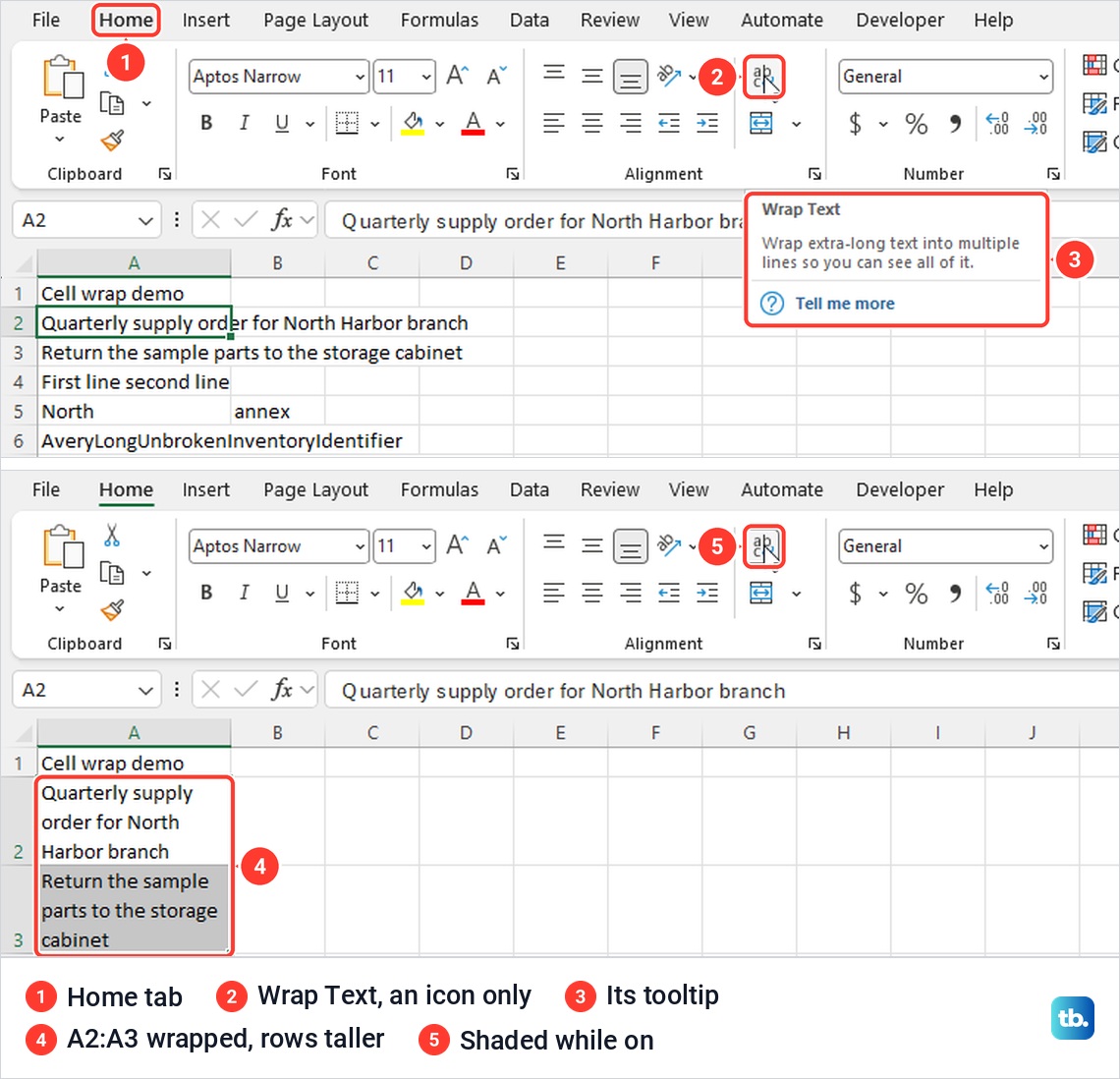
Our test cell A2 held Quarterly supply order for North Harbor branch in a column with a width of 18. One click put it on three lines inside A2, row 2 grew to fit, and the button stayed shaded while A2 was selected. Selecting Wrap Text again turned wrapping off and returned row 2 to its normal height.
To wrap several cells, select them all first. We selected A2:A3 and clicked Wrap Text once, and both cells wrapped. To wrap a whole column, select its letter at the top of the sheet before you select the button.
What happens when you change the column width
Wrapping follows the column width. Microsoft's help puts it this way: if you change the column width, data wrapping adjusts automatically. On our PC that held for the line breaks, but not for the row height.
When we dragged column A wider, A2 went back to one line, yet row 2 kept its three-line height and left an empty band above the text. Dragged narrower, the breaks moved to Quarterly, supply and order for, but the row did not grow, so Harbor branch disappeared below the edge of the cell.
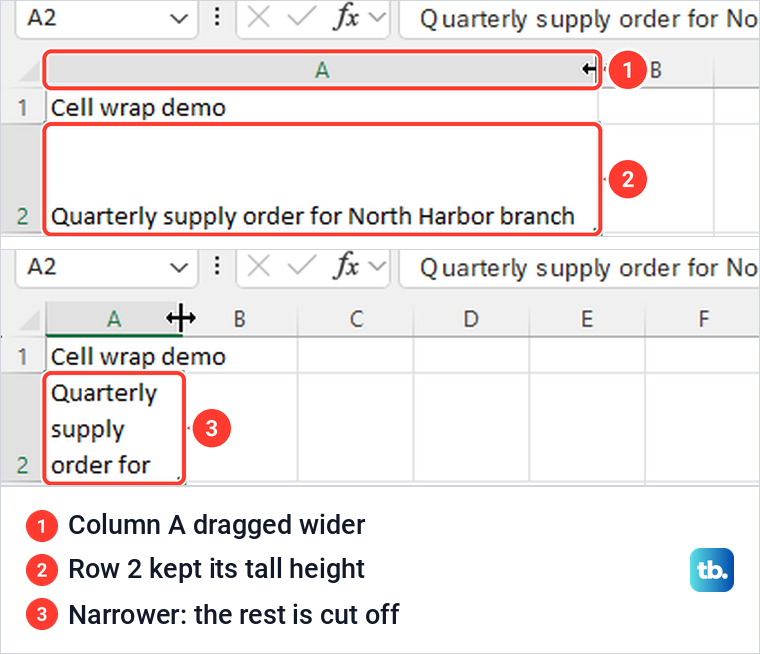
The empty band sits above the text because Excel lines text up at the bottom of a cell by default, which is what the Vertical box in Format Cells showed for our cells. The fix is the same either way: after you change a column's width, select the rows and run AutoFit Row Height, covered further down.
Wrap text from the Format Cells dialog
The dialog sets the same format and sits next to the other alignment options. Open it in any of three ways: press Ctrl + 1, right-click the cell and choose Format Cells, or select the small arrow in the corner of the Home tab's Alignment group, which Excel calls Alignment Settings.
Open the Alignment tab, tick Wrap text under Text control and select OK. On our sheet that wrapped A7 onto three lines, the same as the button does. Pressing Ctrl + 1 again reopened the dialog straight on the Alignment tab with the box still ticked, which is a quick way to check whether a cell is set to wrap.
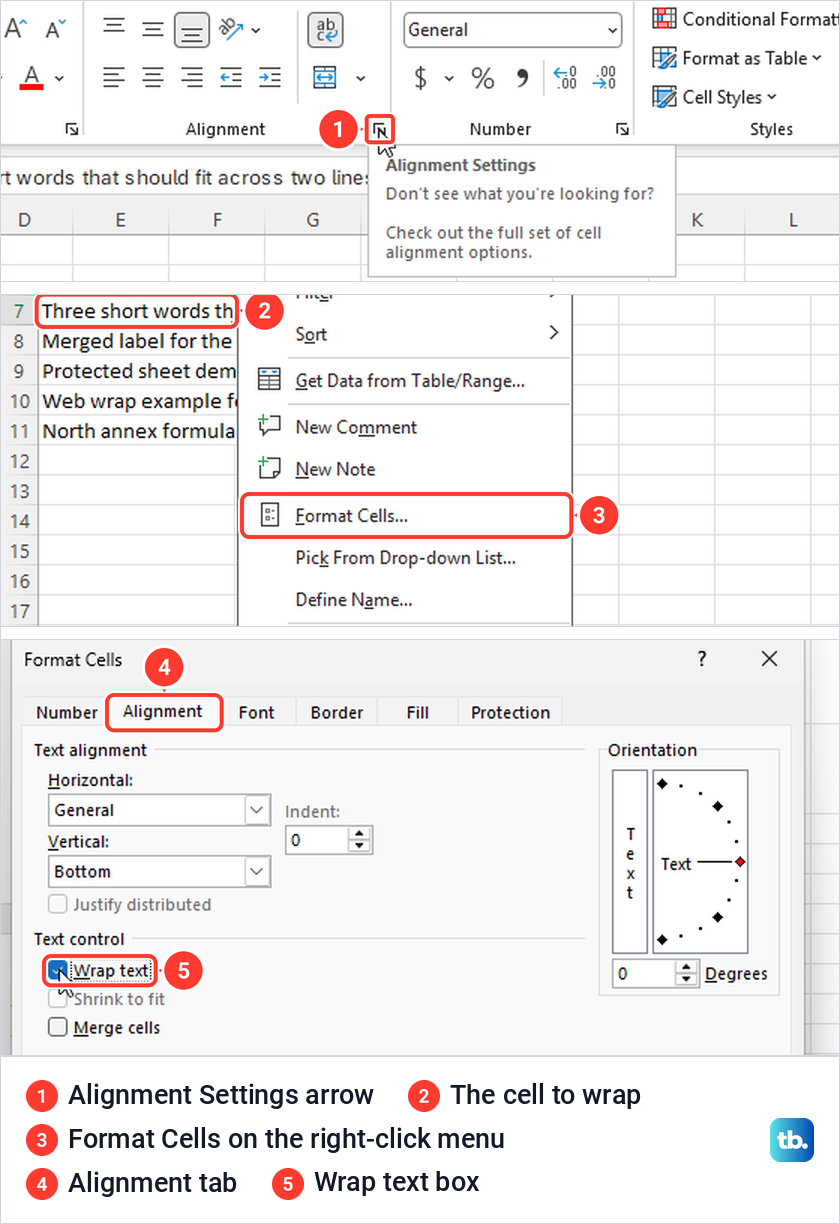
The right-click menu has no Wrap Text item of its own, only Format Cells, and the dialog opened on the Number tab the first time we used it. Microsoft's Excel shortcut list has no key for Wrap Text itself, but pressing Alt shows Key Tips, letters on each tab and button, so press H for Home and then the letter on the Wrap Text button. Ctrl + 1 is one of the Excel keyboard shortcuts worth learning if you format sheets often.
Start a new line exactly where you want
Wrap Text decides the breaks for you. To choose a break yourself, double-click the cell or select it and press F2, put the cursor where the new line should start, and press Alt + Enter. Press Enter to finish.
In A4 we typed First line second line, moved the cursor before second and pressed Alt + Enter. After Enter, A4 showed two lines, and the Wrap Text button was shaded even though we never selected it for that cell, because Excel had switched wrapping on by itself. So there is no need to turn Wrap Text on before you add a break.
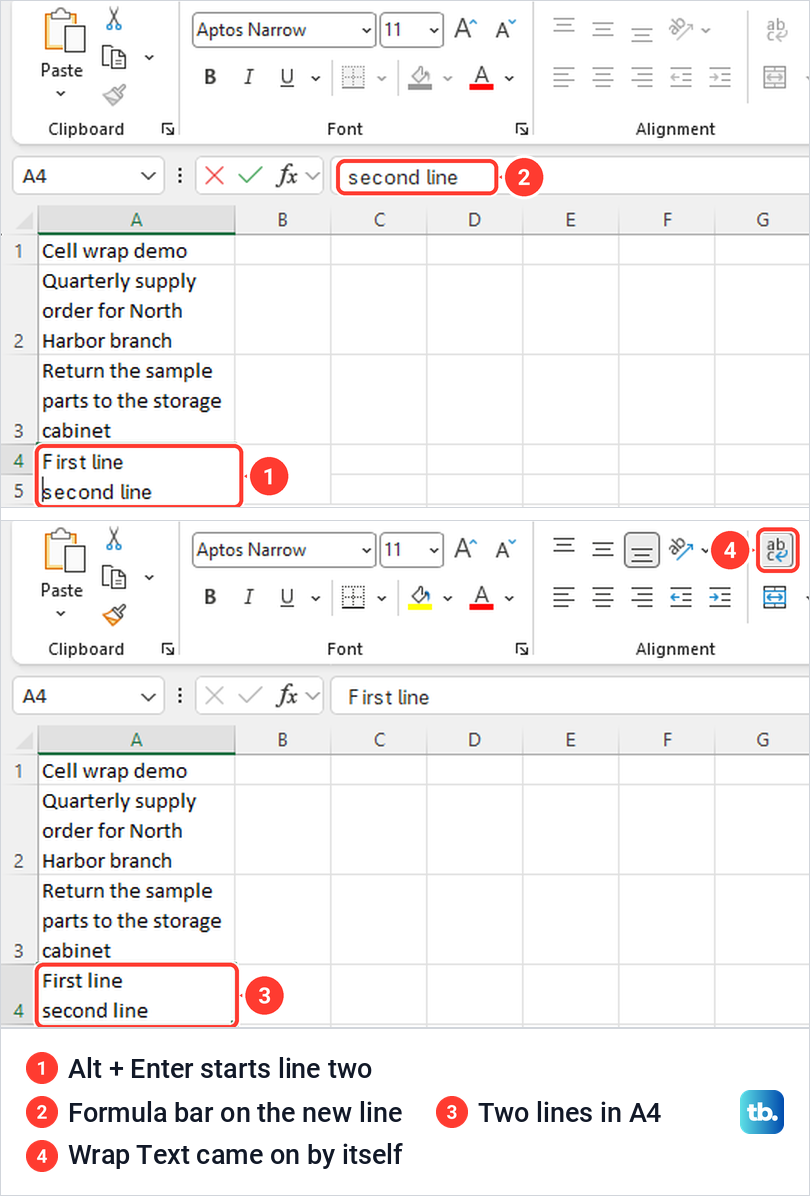
With A4 selected, the formula bar showed only First line, so a second line that seems to be missing there is still in the cell. Because wrapping is on, the rest of the text also wraps to the column width.
Our guide on how to start a new line inside a cell covers more ways to do this, including on a Mac and on phones. If the shortcut puts nothing on a new line, the steps to fix Alt Enter in Excel go through the keyboard and editing causes.
Put a line break in a formula result
A formula can build a line break with CHAR(10), the line feed character. In C5 we joined North from A5 and annex from B5 with =A5&CHAR(10)&B5. The cell showed Northannex on one line, with no sign of the break.
Selecting Wrap Text for C5 put North above annex, and the formula in the formula bar did not change. Microsoft's own example of a line break inside a TEXT formula asks for the same two parts, CHAR(10) where the break goes and Wrap Text turned on for the cell.
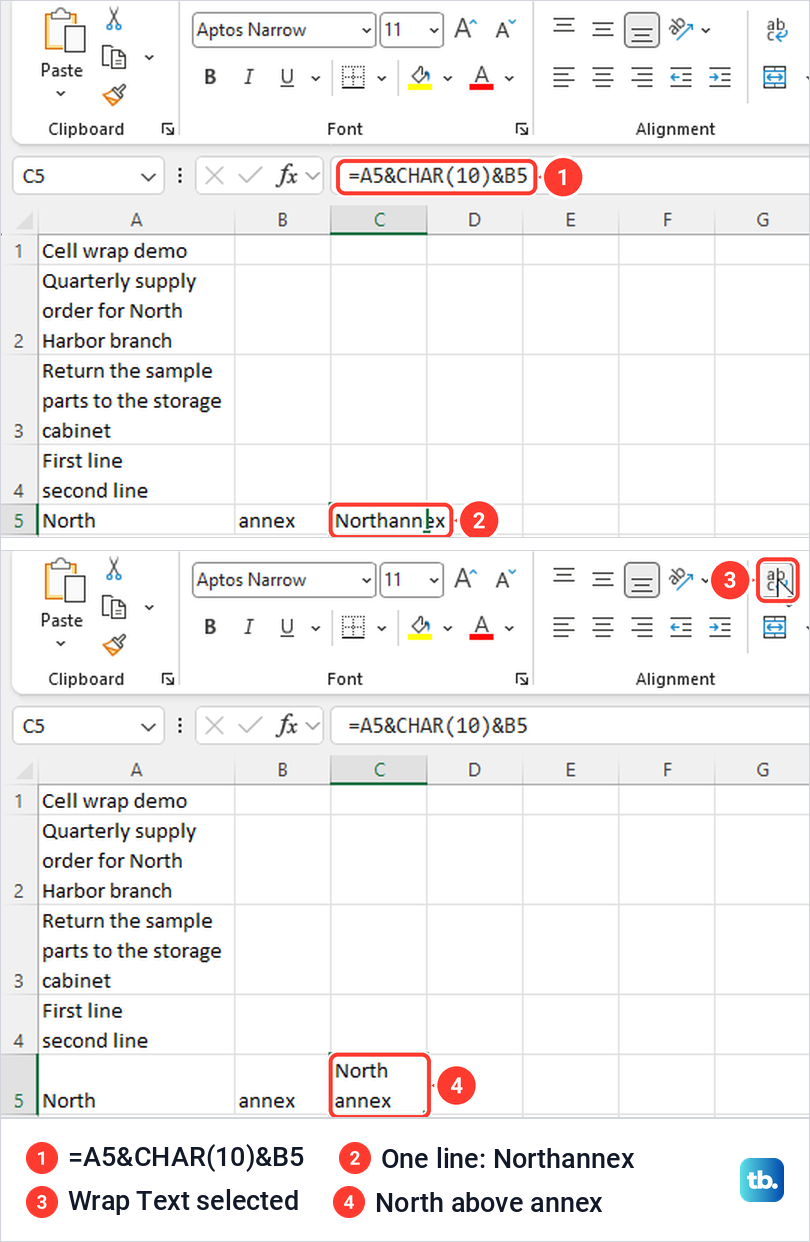
So when a formula with CHAR(10) still shows one line, the cell is not set to wrap. If the cell shows the formula itself or no result at all, fix an Excel formula that is not working first, then add the wrap.
Show every line of wrapped text
Microsoft says wrapped text can stay hidden when the row is set to a specific height or the cell is merged. To try the first case we set row 3 to a height of 15 under Home > Format > Row Height, and the wrapped A3 shrank to its first line, Return the sample.
Select the row by its number, then choose Home > Format > AutoFit Row Height in the Cells group. All three lines of A3 came back, and the Row Height box then read 45. Microsoft also says you can double-click the boundary below the row number, or drag that boundary down until every line shows.
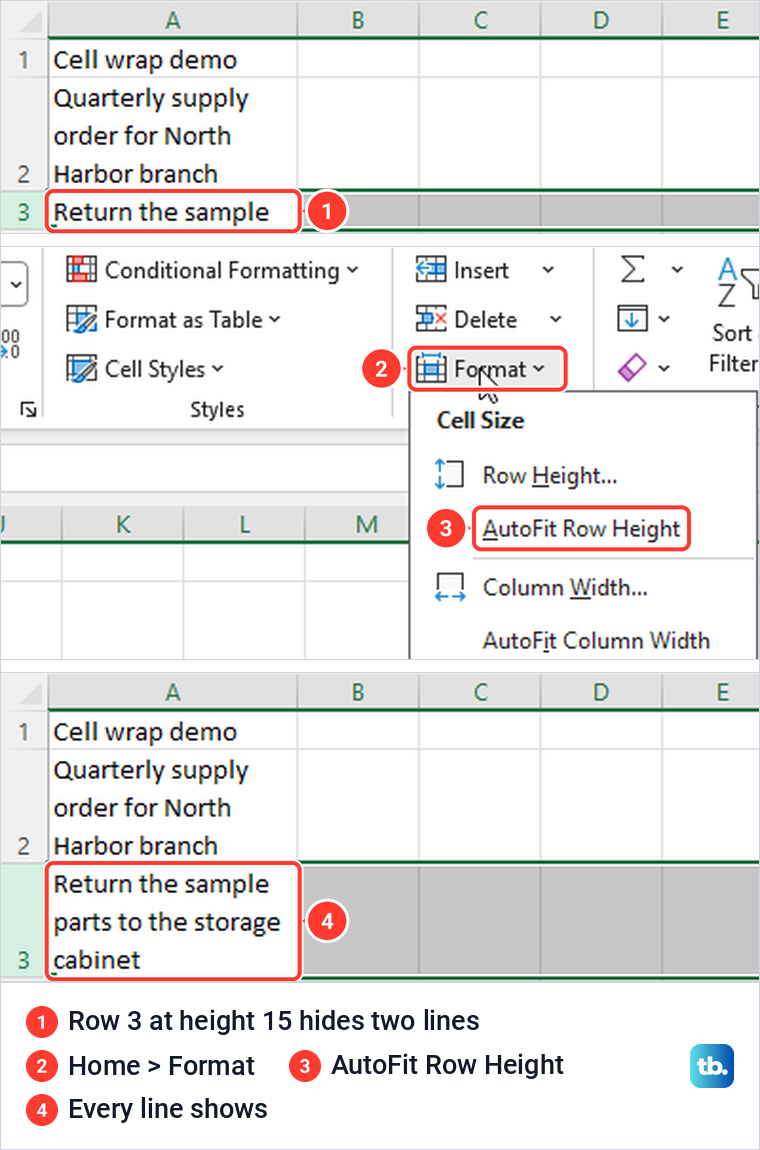
Run AutoFit again after you drag a column wider or narrower, since the row did not follow the drag on our PC. If AutoFit still leaves lines hidden in a row with no merged cells, our guide to fix AutoFit Row Height covers the less common causes.
Long words with no spaces
Microsoft's help pages say a single long word does not wrap and is not split. On our PC it was split. AveryLongUnbrokenInventoryIdentifier in A6 broke into AveryLongUnbroken and InventoryIdentifier, and in a narrower column the word Protected came out as Protecte, with the d carried to the start of the next line.
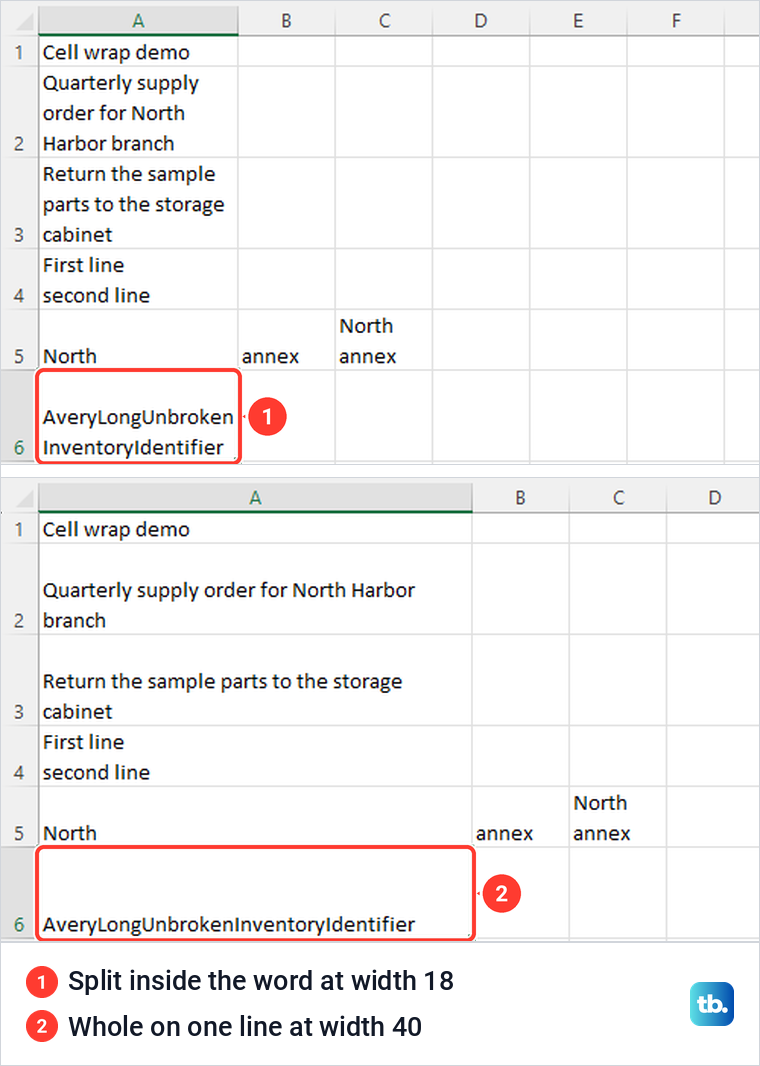
Codes, file names and web addresses are hard to read when they are split like that. Microsoft's fix still works, which is to widen the column or use a smaller font. When we set column A to a width of 40, the identifier fit on one line.
Wrap text in merged cells
In our merged A8:B8 cell, Wrap Text applied, but AutoFit did not increase the row height. We merged A8 and B8 with Home > Merge & Center > Merge Cells, selected Wrap Text, and the merged cell showed only Merged label for the North on one line.
AutoFit Row Height changed nothing on that row. Dragging the bottom border of row 8 down by hand showed the rest, and that is the fix to use when the cells must stay merged. Unmerge Cells on the same menu put the text back in A8 with nothing lost, and the cell kept the height we had dragged.
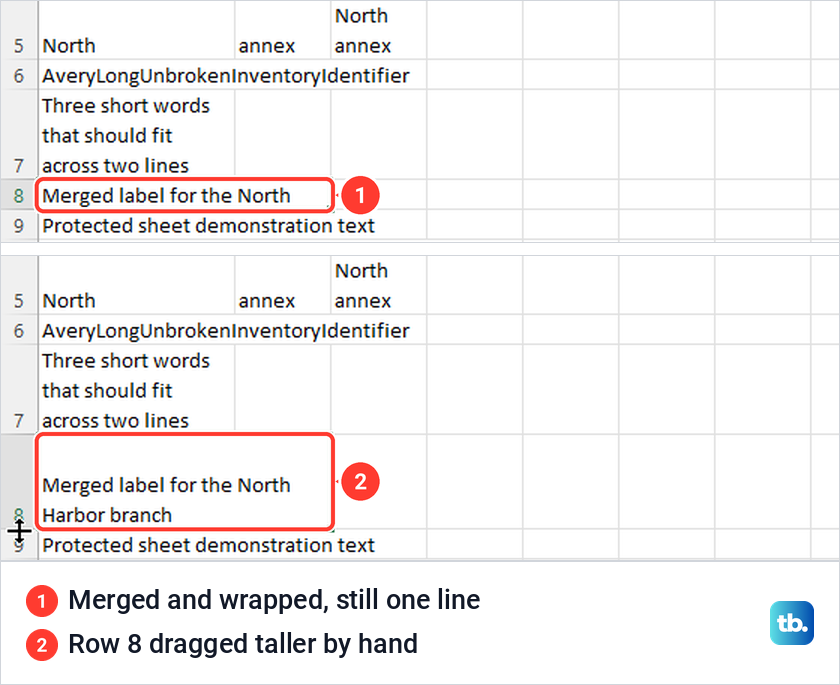
Merging has a catch that matters more than wrapping. Microsoft says only the upper-left cell's contents stay in a merged cell and the contents of the other cells are deleted. Our B8 was empty, so Excel merged without a warning, and our guide on merging cells without losing data shows what to do when both cells hold text.
If the rows must size themselves again, unmerge cells in Excel and then run AutoFit Row Height. Where you can, keep a long label in one unmerged cell and wrap it there, since AutoFit can then size the row for you.
Fix a greyed out Wrap Text button
Wrap Text turns grey for two common reasons, and neither shows a message. The first is that you are still typing in the cell. With A10 open for editing, the whole Alignment group was grey on our PC, along with the Number group and most of the Cells group, and the status bar at the bottom left read Edit instead of Ready.
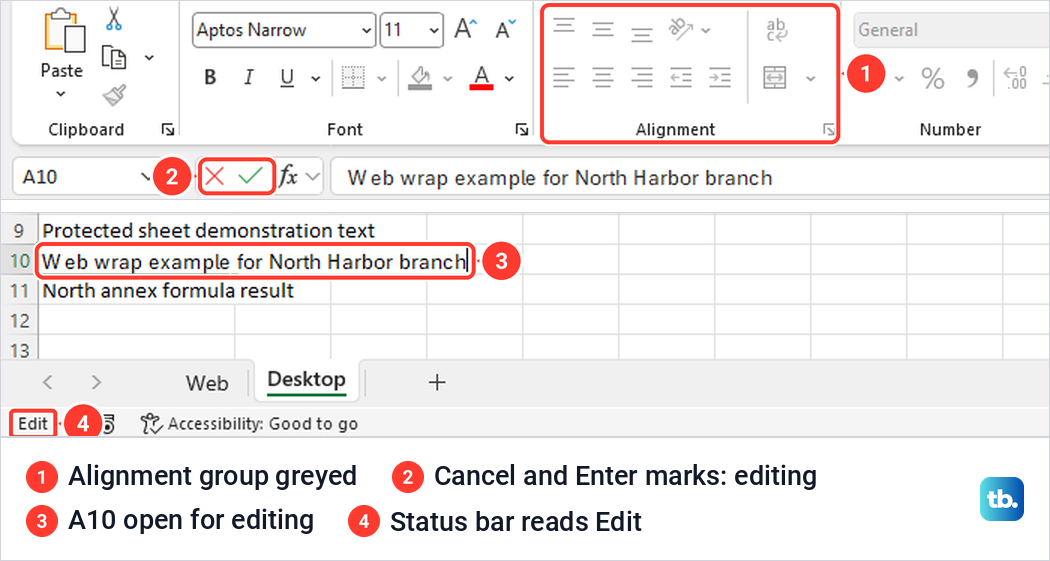
Press Enter or Esc to leave the cell, then select it and try again. After Esc, Wrap Text worked on A10 at once. Microsoft's help says the same thing: when Excel is in Edit mode, you can't change the way text wraps.
The second reason is a sheet protected without the Format cells permission. We protected a sheet with Review > Protect Sheet, left the password empty and left Format cells unticked, and Wrap Text went grey along with the Font, Alignment and Number controls. Clicking it did nothing at all.
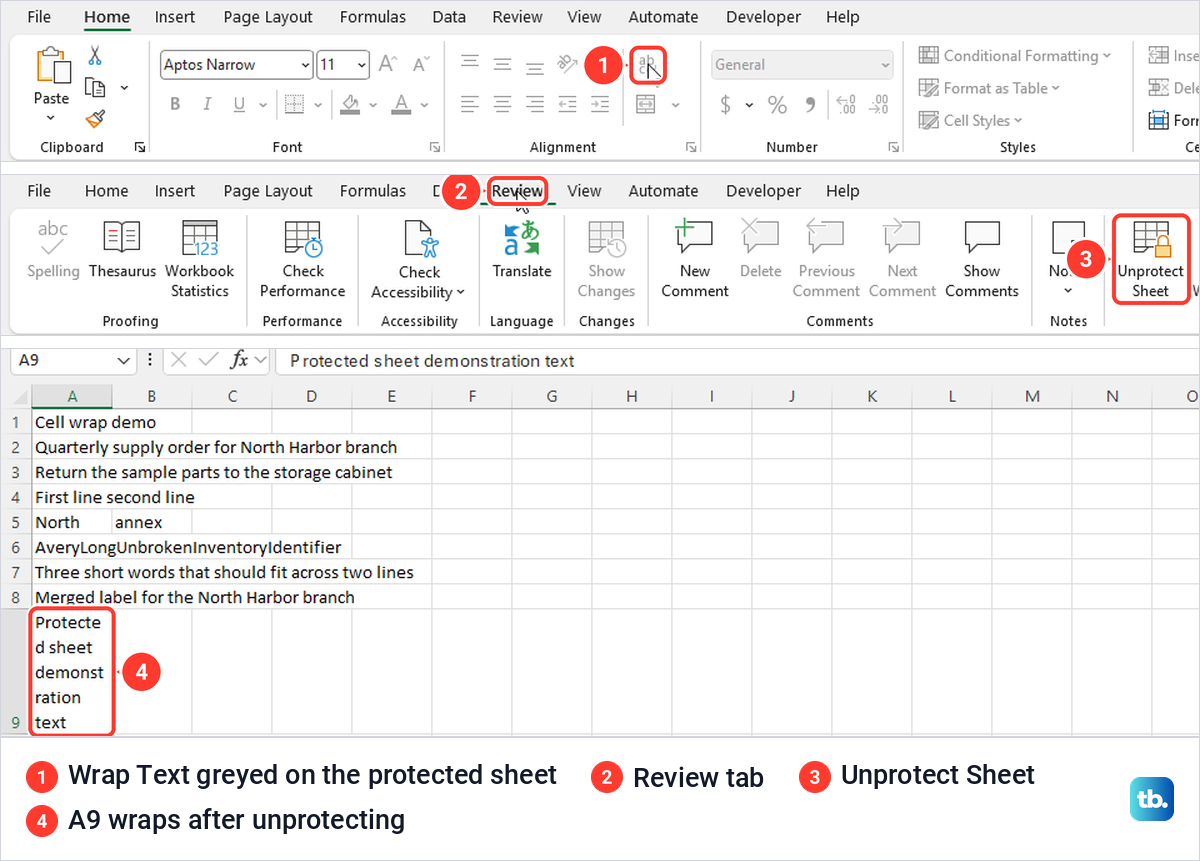
On the Review tab the button now read Unprotect Sheet. Selecting it lifted the protection without asking for anything, because we had set no password, and Wrap Text worked again. If a password box appears and you do not know the password, ask the person who protected the sheet, and our guide to unprotect an Excel worksheet walks through the steps.
If you protect the sheet again and others should be able to wrap text, tick Format cells in the Protect Sheet list, since Microsoft says that permission covers the Font and Alignment groups of the Home tab. Our guide to lock cells in Excel explains how protection and locked cells work together. If the button is available but wrapping still seems to do nothing, see how to fix Excel word wrap that is not working.
Wrap text in Excel for the web
Excel for the web has the same button. In Microsoft Edge our new workbook opened in Editing mode, shown by the Editing button at the top right, and Wrap Text sat in the Home tab's Alignment group as an icon whose tooltip reads Wrap Text. Selecting A10 and then the icon wrapped the cell.
In our browser the ribbon was collapsed, so Home opened as a panel over the top rows and closed whenever we clicked a cell. We had to select Home again before each Wrap Text click.
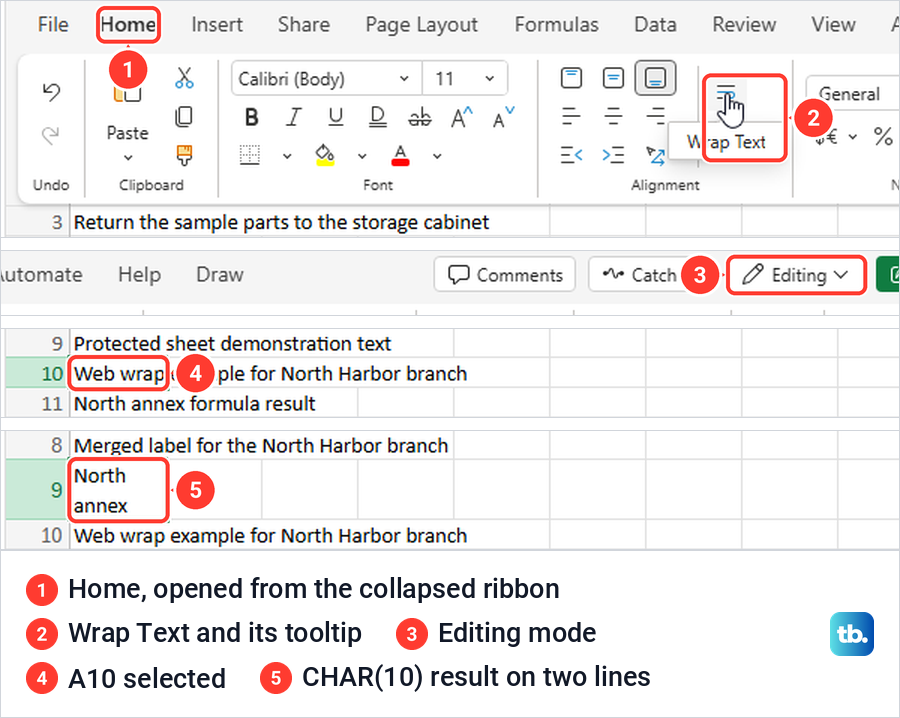
Alt + Enter worked as on the desktop. It broke the line and wrapped the cell without a click on Wrap Text, and in the narrower web column the rest split too, so First line sat above second and line. The formula ="North"&CHAR(10)&"annex" showed Northannex until we selected Wrap Text, then North above annex.
Wrap text in Excel for Mac
On a Mac, Microsoft's steps are the same in outline: select the cells, then select Wrap Text on the Home tab. Its Mac help says the text wraps to fit the column width and adjusts when you change the width. If lines are hidden, Microsoft points to Home > Format > Auto-fit Row Height.
For a break at a point you choose, Microsoft's Mac help gives Control + Option + Return while you edit the cell. Its general shortcut list also gives Command + Option + Return, so try that if the first does nothing on your keyboard.
How we tested this guide
We tested this in Excel for Microsoft 365 on Windows 11, version 25H2, and in Excel for the web in Microsoft Edge, wrapping text in a practice workbook.
Frequently Asked Questions
Is there a keyboard shortcut to wrap text in Excel?
Microsoft's shortcut list has no single key combination for Wrap Text, but its Key Tips reach it from the keyboard: press Alt, then H for the Home tab, then the letter Excel shows on the Wrap Text button. Ctrl + 1 opens Format Cells, where the Wrap text box sits on the Alignment tab, and Alt + Enter adds a line break of your own while you edit a cell.
Why is Wrap Text on but I can only see one line?
A set row height or merged cells can hide wrapped lines. Select the row and choose Home > Format > AutoFit Row Height, or drag the row's bottom border down for a merged cell.
Can I wrap a whole column at once?
Yes. Select the column letter at the top of the sheet, then select Home > Wrap Text, and every cell in that column is set to wrap.
Why does my CHAR(10) formula still show one line?
The cell needs Wrap Text turned on. Our formula showed Northannex until we selected Wrap Text, then North above annex, both in the desktop app and in Excel for the web.
Does Wrap Text work in merged cells?
On our sheet Wrap Text applied to a merged cell, but the row did not grow to fit. AutoFit Row Height changed nothing on that merged cell, so drag the row's bottom border down, or unmerge the cells and then use AutoFit.
Why is the Wrap Text button greyed out?
Two common causes are that you are still editing a cell, or that the sheet is protected without the Format cells permission. Press Esc or Enter first, and if the button stays grey, look for Unprotect Sheet on the Review tab.
How do I remove wrap text in Excel?
Select the wrapped cells and select Wrap Text again. On our sheet that put A2 back on one line and returned row 2 to its normal height.