Alt+Enter not working in Excel usually means Excel is not editing the cell, the line break is hidden, or your version uses a different shortcut. The fastest fix is to start in the cell itself, make the new line visible, then check the Excel web, Mac, protection, keyboard, and repair settings that block the shortcut.
Use Alt Enter inside the cell
The most common cause is that Excel is only selecting the cell, not editing its text.
Double-click the cell, or select the cell and press F2.
Click the exact spot inside the text where the new line should begin.
Press Alt+Enter.
When the cell itself is hard to edit, select the cell and click inside the formula bar.
Click where the break belongs, then press Alt+Enter.
Make the new line visible
Alt+Enter can insert the line break correctly while the result still looks unchanged. Excel needs wrapping turned on before the second line displays properly.
Select the cell or cells, open Home, go to the Alignment group, and select Wrap Text. On Mac, use Home and Wrap Text.
If the break still seems missing after Wrap Text is on, check the row height next.
Fit the row height
Select the cell or range where the wrapped text is hidden.
Open Home, go to the Cells group, choose Format, and select AutoFit Row Height.
Drag the bottom border of the row until every wrapped line is visible.
Use AutoFit Row Height when a cell has several manual line breaks.
Switch Excel for the web to editing
The most common Excel for the web cause is Viewing mode, which lets you look at the workbook but not edit a cell.
Switch the workbook to Editing mode before trying the shortcut.
In Excel for the web, press Alt+Windows logo key, Z, M, E.
Edit the cell, click where the break belongs, and press Alt+Enter.
When the browser is taking over keyboard shortcuts, select Help, choose Keyboard Shortcuts, search for any keyboard shortcut, choose the shortcut category, select Override browser shortcuts, optionally select Show Overrides, and select Close.
Use the right shortcut for Mac and mobile
This applies when you are using Excel for Mac, Excel on a phone or tablet, or a formula that needs to generate the line break. Alt+Enter is the Windows shortcut, not the universal Excel shortcut.
On Excel for Mac, double-click the cell, click where the line should break, and press Control+Option+Return. Microsoft also documents Option+Return and Command+Option+Return as Mac line-break shortcuts depending on context.
On iPhone or iPad, double-tap inside the cell, tap and hold where the break should go, and tap New Line.
On Android, tap the keyboard toggle button to open the numeric keyboard, tap and hold where the break should go, and tap New Line.
For formula-generated text, turn on Wrap Text for the output cell and put CHAR(10) where the break belongs. Microsoft gives this pattern: ="Today is: "&CHAR(10)&TEXT(TODAY(),"mm/dd/yy").
Turn on in cell editing
This fixes the case where double-clicking the cell or pressing F2 does nothing.
Open File in Excel for Windows.
Select Options.
Choose Advanced.
Under Editing options, select Allow editing directly in cells.
Select the cell again.
Press F2 or double-click the cell.
Click where the line should break.
Press Alt+Enter.
Remove protection that blocks edits
The most common locked-workbook cause is that Excel cannot edit the cell, so Alt+Enter has no place to insert the break.
For a protected worksheet in Excel for Windows, go to File, Info, Protect, and Unprotect Sheet.
You can also go to Review, Changes, and Unprotect Sheet.
Enter the sheet password when Excel asks for it, then select OK.
Return to the cell and try Alt+Enter again in Edit mode.
In Excel for the web, use Review and Manage Protection when only some ranges can be edited. You need ownership, permission, or the sheet or range password to change those protection settings.
For a downloaded or untrusted workbook in Protected View, select Enable Editing when the yellow Message Bar appears.
If a red Message Bar appears, use File and Edit Anyway only when you trust the file.
On a work or school device, contact your help desk or administrator when Update Options is missing and only About appears, or when Protected View cannot be exited locally.
Check keyboard settings in Windows
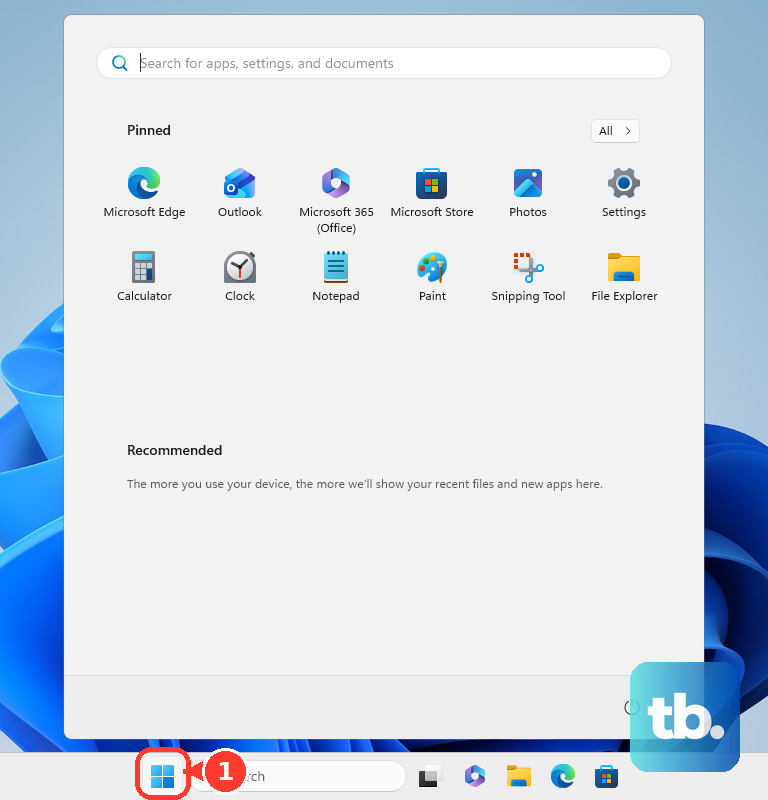
Windows 11 accessibility keyboard settings can change modifier-key behavior or ignore quick key presses. Open Start, then Settings, Accessibility, and Keyboard, and turn Sticky keys off when modifier keys are acting unexpectedly.
On the same Keyboard settings page, turn Filter keys off when brief or repeated keystrokes are being ignored. Pressing Shift five times toggles Sticky Keys, and holding Right Shift for eight seconds toggles Filter Keys.
To test the physical keyboard, turn on the On-Screen Keyboard toggle from that same page. Edit the Excel cell and use the on-screen keys to send Alt+Enter.
With Windows voice access enabled, edit the cell and say Press Alt Enter to send the shortcut hands-free.
Update or repair Excel
This fixes app-level problems when Alt+Enter or cell editing fails across workbooks.
In Windows, open any Microsoft 365 app such as Excel or Word.
Create a new document.
Go to File, Account, Product Information, Update Options, and Update Now.
When Update Now is missing, select Enable Updates first.
On Windows 11, open Start, Settings, Windows Update, and Advanced options.
Turn Receive updates for other Microsoft products when you update Windows on.
On Mac, when the apps came from microsoft.com, open Excel, choose Help, and select Check for Updates.
In Microsoft AutoUpdate, select Update or Update All, then restart Excel.
When the apps came from the Mac App Store, open the Mac App Store from your Dock or Finder.
Select Updates on the left side menu, then select Update All or the Update button next to Excel, and restart Excel.
On iPhone or iPad, open App Store and tap your profile picture.
Scroll down and tap Update next to a Microsoft 365 app, or tap Update All.
If Excel shortcuts still fail across workbooks on Windows, right-click Start and open Installed apps.
Select your Microsoft 365 or Office product.
Select the ellipses.
Choose Modify.
Use Quick Repair first, or use Online Repair for a deeper repair.
Use uninstall and reinstall only after update and repair fail.
On Windows, open Control Panel, Programs, and Programs and features.
Select your Microsoft 365 product and choose Uninstall.
Reinstall from the official Microsoft 365 apps page by signing in and choosing Install apps.
On Mac, open Finder and Applications.
Command-click the Microsoft 365 apps.
Ctrl-click the selection and choose Move to Trash before reinstalling.
Frequently Asked Questions
Why does Alt+Enter do nothing in Excel?
The cell is usually selected instead of being edited. Double-click the cell or press F2, click where the line break should go, then press Alt+Enter.
Why did Alt+Enter work but the second line is hidden?
Wrap Text is off or the row is too short. Turn on Wrap Text, then use AutoFit Row Height so the inserted line break can display.
What is the Mac shortcut for a new line in an Excel cell?
Use Control+Option+Return. Microsoft also documents Option+Return and Command+Option+Return for Mac depending on context.
Can I add an Excel line break with a formula instead of Alt+Enter?
Yes. Turn on Wrap Text for the output cell and use CHAR(10) in the formula where the line break should appear.