

To add bullet points in Excel, select a blank cell, choose Insert > Symbols > Symbol, type 2022 in the Character code box, then click Insert and Close and type a space and your text. If your keyboard has a numeric keypad, turn Num Lock on and press Alt + 7 on the keypad instead, and Alt + Enter starts a new line inside the same cell, where you add the next bullet before typing the next item.
Excel has no Bullets button for cells the way Word does, so every way to insert bullet points in Excel cells either types a bullet character into the cell or makes the cell display one. Text boxes are the exception, because desktop Excel gives them real list bullets from a right-click menu. You can also make a bulleted list in one Excel cell with a line break, or bullet a whole column at once with a formula or a format.
The short version
- One bullet: Insert > Symbols > Symbol, character code 2022, Insert, Close, then type.
- Faster with a keypad: Alt + 7 on the numeric keypad, with Num Lock on.
- Several lines in one cell: press Alt + Enter between items.
- A whole column:
=UNICHAR(8226)&" "&A2in a new column, or the custom format"• "@to show bullets without changing the text. - Real list bullets: a text box in desktop Excel, then right-click the text > Bullets.
Pick the right bullet method
| Method | Best for | What ends up in the cell |
|---|---|---|
| Insert > Symbols > Symbol, code 2022 | One bullet on any keyboard | A real bullet character before your text |
| Alt + 7 on the numeric keypad | Quick bullets on a full-size keyboard | A real bullet character before your text |
| Alt + Enter between items | Several bulleted lines in one cell | One cell with line breaks and Wrap Text on |
| Ctrl + V a list copied from Word | Reusing a list you already have | One item per cell by default, and our pasted list used the Symbol font |
=UNICHAR(8226)&" "&A2, filled down | Bulleting a column of existing text | A formula result in a new column, with the source left alone |
Custom format "• "@ | Showing bullets without editing the text | Your original text, with the bullet added to how the cell looks |
| Text box, right-click the text > Bullets | A list that floats over the sheet | Nothing, because the list lives in the text box |
Read the last column before you start. A typed bullet becomes part of the cell's text, so it shows in the formula bar and goes wherever the text goes. A custom-format bullet changes how the cell looks without changing its stored text, and on our sheet the formula bar kept showing the plain words.
If you want people to pick one entry from a fixed list rather than read a bulleted one, that is a different feature. You can create a drop-down list in Excel for that instead.
Insert a bullet with the Symbol dialog
Click the blank cell where the bullet should go, or double-click a cell that already has text and click just before its first word, then open the Insert tab. When the Excel window is not very wide, Symbols shrinks to a single button at the right end of the ribbon, and clicking it opens a small menu with Equation and Symbol. Choose Symbol.
Our dialog opened on the Currency Symbols subset with the Euro sign selected, which is not what you want. Click in the Character code box at the bottom, delete what is there and type 2022, with from set to Unicode (hex). The dialog jumps to the General Punctuation subset and shows Unicode name: Bullet beside the box.
Click Insert. The bullet appears in the cell and in the formula bar straight away, while the dialog stays open and its Cancel button turns into Close. Click Close next.
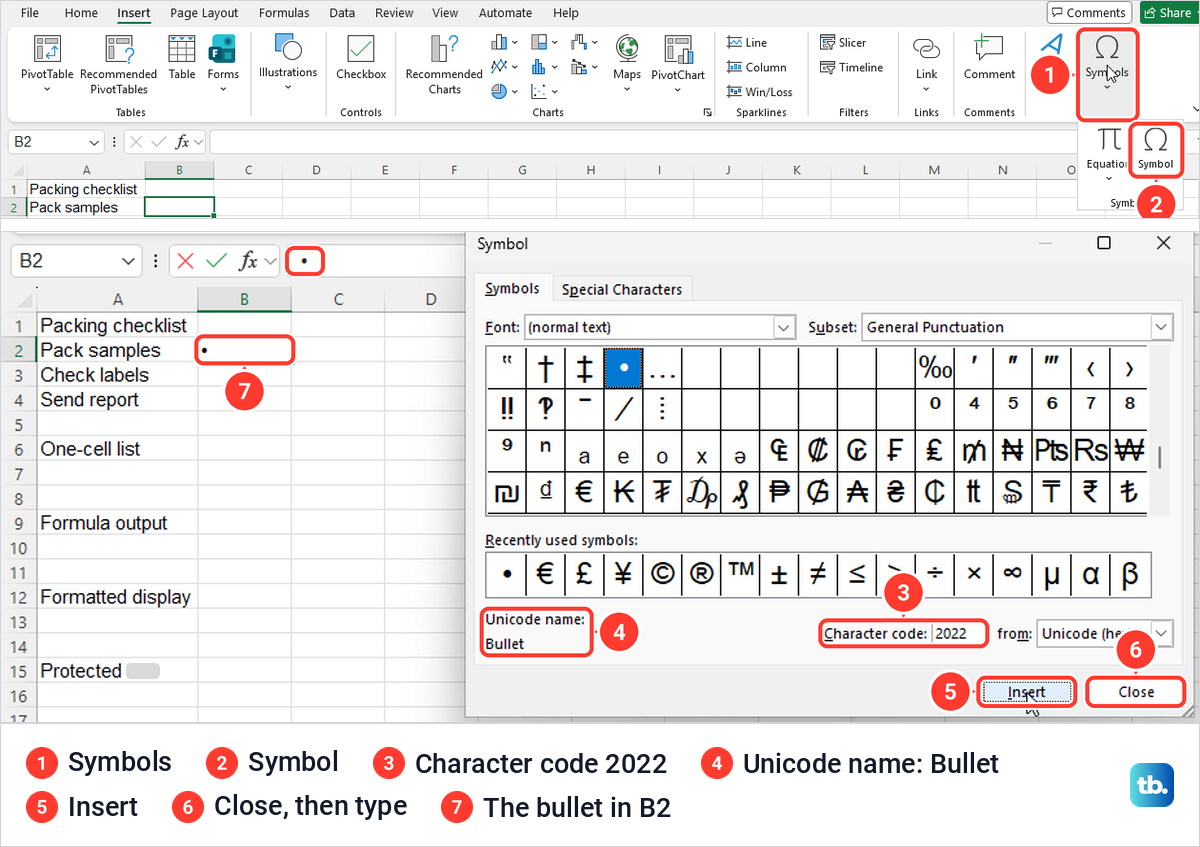
After Close, the cell was still in Edit mode on our PC, with the insertion point right after the bullet, so you can type a space and your words at once and press Enter. Pressing F2 first, as some instructions suggest, only switched the status bar from Edit to Enter. Our cell B2 then read • Pack samples in the cell and in the formula bar.
The next time you open the dialog, the bullet sits first in the Recently used symbols row, so one click selects it. The Symbol command also stayed clickable while we were typing in a cell, with only Equation greyed out, so you can add a bullet partway through an entry without leaving the cell.
Type a bullet with Alt and 7 on the numeric keypad
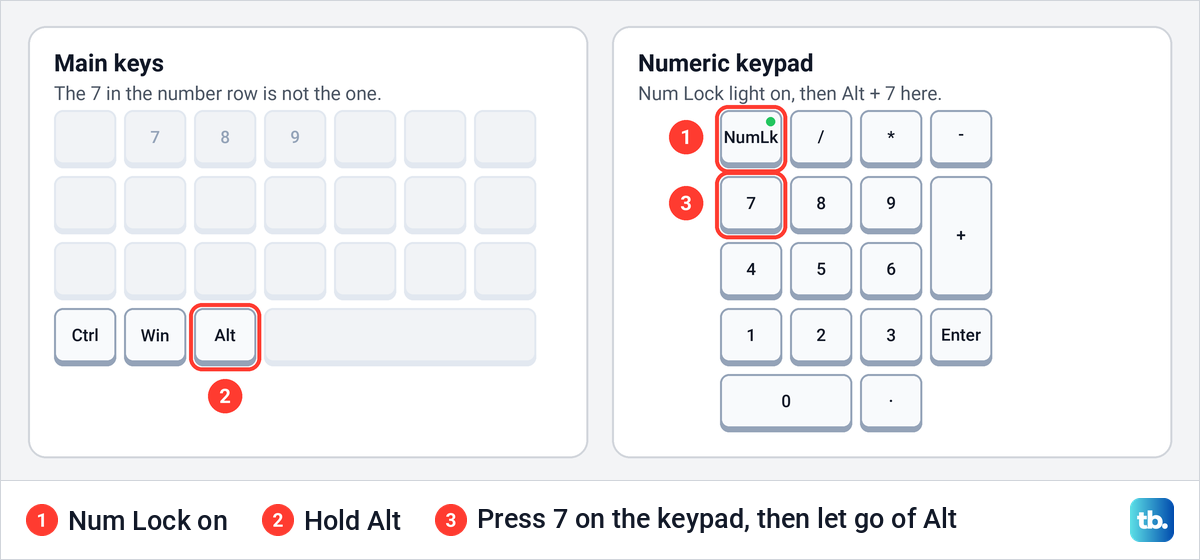
Microsoft's shortcut is Alt + 7, using the 7 on the numeric keypad at the right of the keyboard rather than the 7 above the letters. Hold Alt, press 7 on the keypad, let go of Alt, then type a space and your text.
The catch is Num Lock. With Num Lock off, Alt and keypad 7 did nothing at all on our PC, and the cell stayed empty with the status bar still reading Ready. With Num Lock on, the same keys typed a bullet at once, and B3 became • Check labels. If your keyboard has no numeric keypad, use the Symbol dialog above, which needs no special keys.
Make a bulleted list in one Excel cell
To stack several bullets inside one cell, type the first bullet and its text, press Alt + Enter, then type the next bullet and its text. Plain Enter finishes the cell, while Alt + Enter is what lets you start a new line in an Excel cell. It is one of the Excel keyboard shortcuts worth knowing if you build lists in cells.
In B6 we pressed Alt and keypad 7, typed Pack samples, pressed Alt + Enter, added a second bullet and typed Check labels, then pressed Enter. Excel kept both bulleted lines in that one cell.
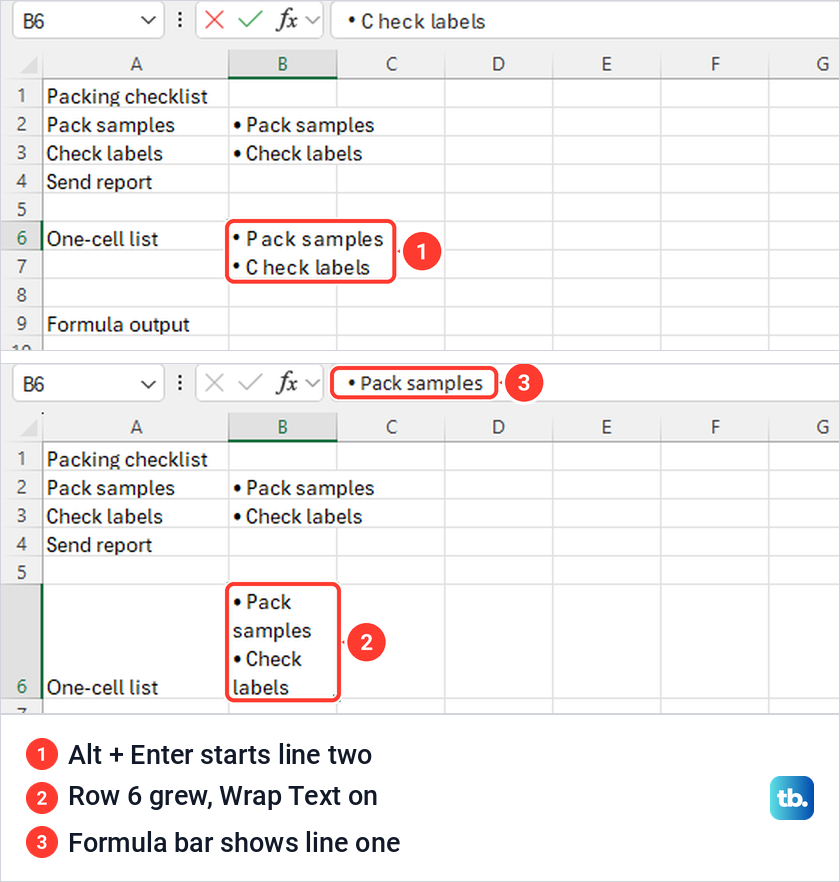
When we pressed Enter, Excel made row 6 taller by itself and switched on Wrap Text for the cell, so there was nothing to resize by hand. In our narrow column each line wrapped again, giving four short lines instead of two. Widen the column by dragging the right edge of its header, and see how to wrap text in Excel if you want more control over the breaks.
One thing caught us out. Home > Format > AutoFit Column Width made column B narrower rather than wider, so drag the edge instead. The formula bar also showed only the first line of the cell, so a short formula bar does not mean the second bullet is missing. If Alt + Enter types nothing or jumps to another cell, fix Alt Enter when it stops working before you try another method.
Paste a bulleted list from Word
Copying an existing list from Word works, but where it lands depends on how you paste. We made a two-item bulleted list in Word, copied it, clicked B9 in Excel and pressed Ctrl + V. Excel put Pack samples in B9 and Check labels in B10, each with its own bullet, which is the one-item-per-cell default Microsoft describes.
Those bullets are not quite what they look like. The cell font switched to Symbol at size 12, and the formula bar showed a small middle dot, because Word's bullet arrived as a middle-dot character drawn in the Symbol font, followed by a run of spaces. It looks right in the cell, but the stored character is a dot, not the bullet from code 2022.
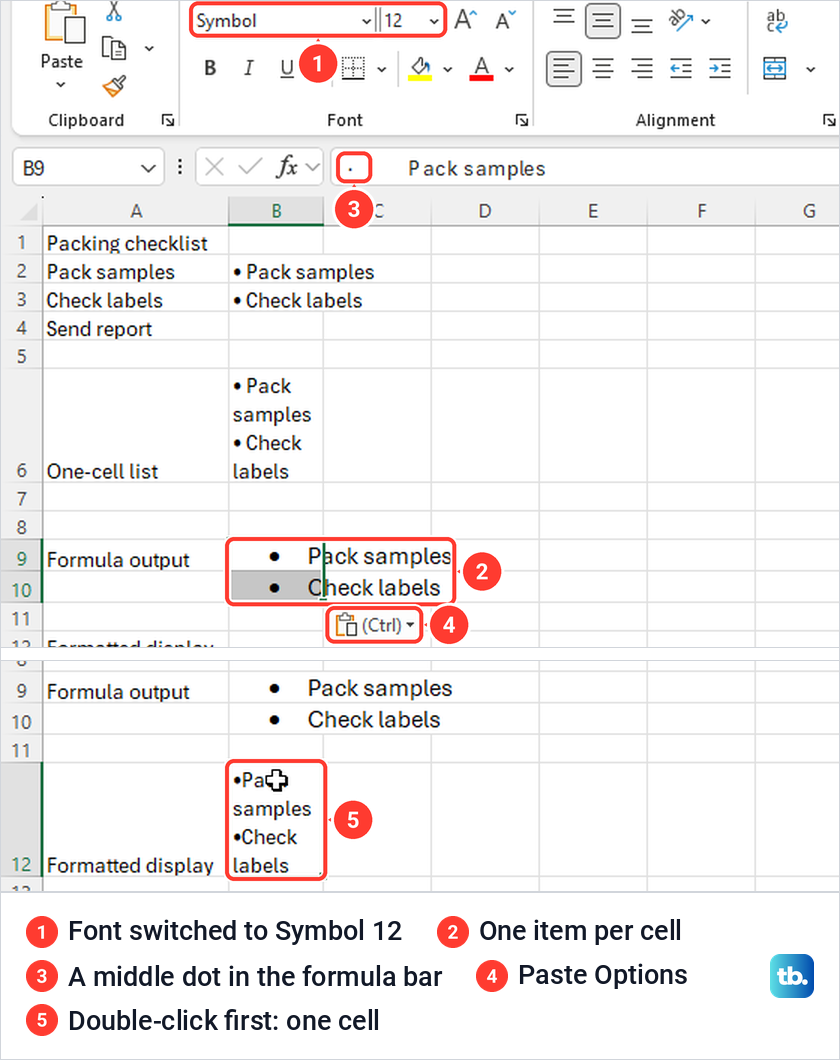
To get the whole list into one cell, double-click the cell first so it is in Edit mode, then paste. Our B12 received both items as two lines, each with a real bullet and a tab, in the cell's own font and with Wrap Text switched on. That makes the double-click paste the better choice whenever the bullet character matters.
Pasting onto merged cells was not the trap it is often said to be. We merged B18 and B19 and pasted the same list on top, and Excel removed the merge without a warning and put one item in each cell, losing nothing. If a copied list does not arrive at all, fix cut and paste in Excel before you blame the bullets.
Add bullets to a whole column with UNICHAR
To bullet a column of text that is already typed, put a formula in the next column instead of editing every cell. We typed =UNICHAR(8226)&" "&A2 in C2 and filled it down to C4, which gave • Pack samples, • Check labels and • Send report beside the original list. The formula bar kept showing the formula, and A2 to A4 did not change.
UNICHAR returns the character for a Unicode number, and 8226 is the decimal form of the bullet the Symbol dialog calls 2022. The two ampersands join the bullet, a space in double quotes and the text in A2, the same way you would combine two columns in Excel. Change A2 to point at your first row of text, then fill the formula down to your last row.
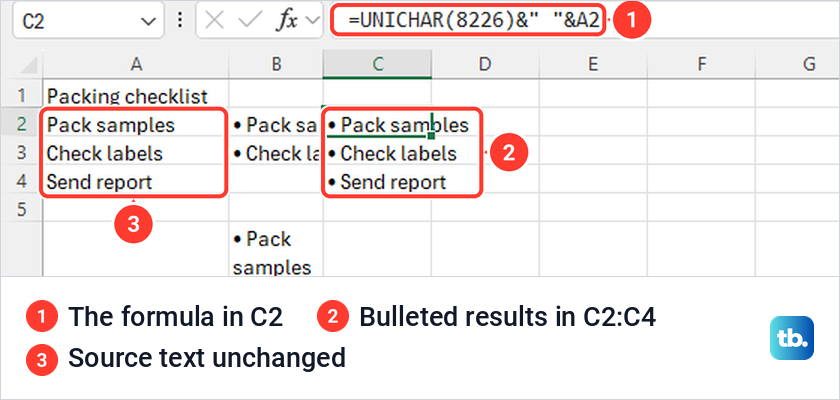
The results stay formulas, so they keep following the source column. To keep the bulleted text without the formulas, copy the results and paste them back over themselves with Home > Paste > Paste Values, after which the source column can go. If a cell shows the formula as you typed it instead of a bullet, the cell was probably formatted as Text before you typed, and you can fix Excel formulas showing as text in a few clicks.
Show bullets with a custom number format
A custom number format changes how the cells look without changing their stored text, which is handy for a column that other formulas read. Select the cells, then click the small arrow at the bottom right of the Number group on the Home tab, whose tooltip reads Number Format. That opens Format Cells on its Number tab.
Choose Custom at the bottom of the Category list. In the Type box, replace what is there with "• "@, which we pasted in from the clipboard, and check that the Sample line shows a bullet before your text. Then click OK.
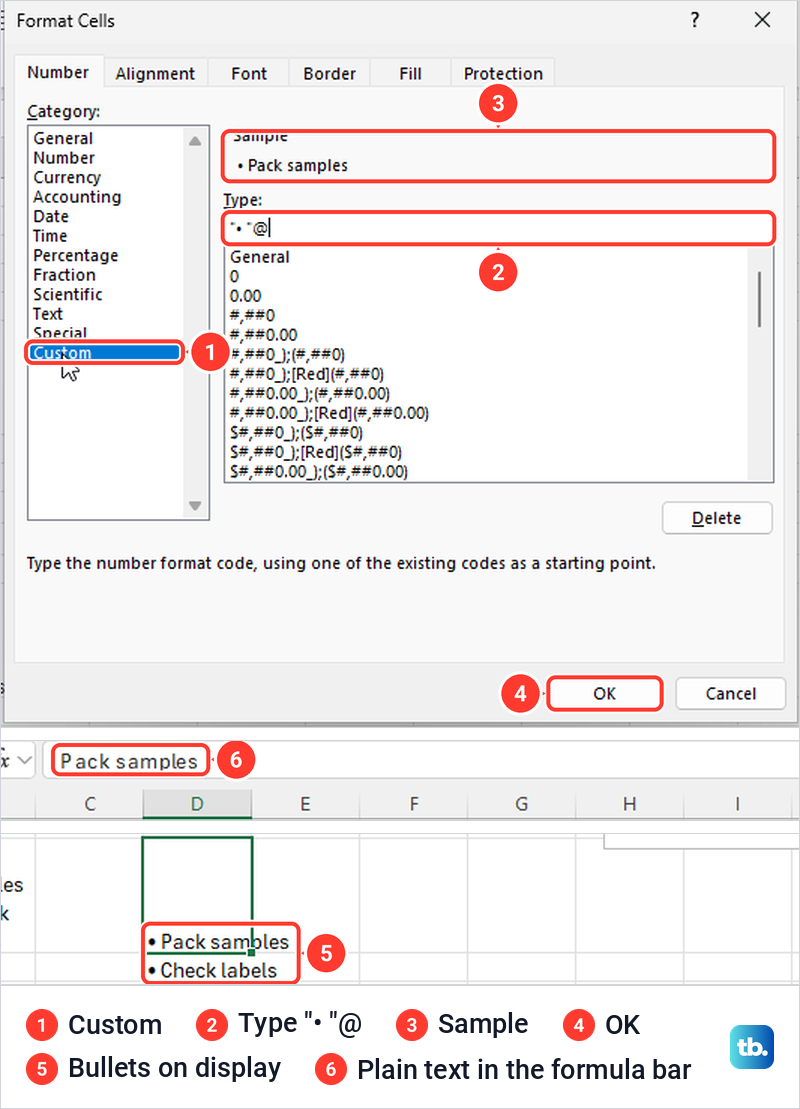
Our D12 and D13 then showed • Pack samples and • Check labels, while the formula bar for D12 still read Pack samples with no bullet. The quotation marks hold the bullet and its space, and the @ stands for the text in the cell, which is the text section in Microsoft's number format rules. When we reopened Format Cells, "• "@ had been added to the end of the Custom list, ready to reuse in that workbook.
Make a bulleted list in a text box
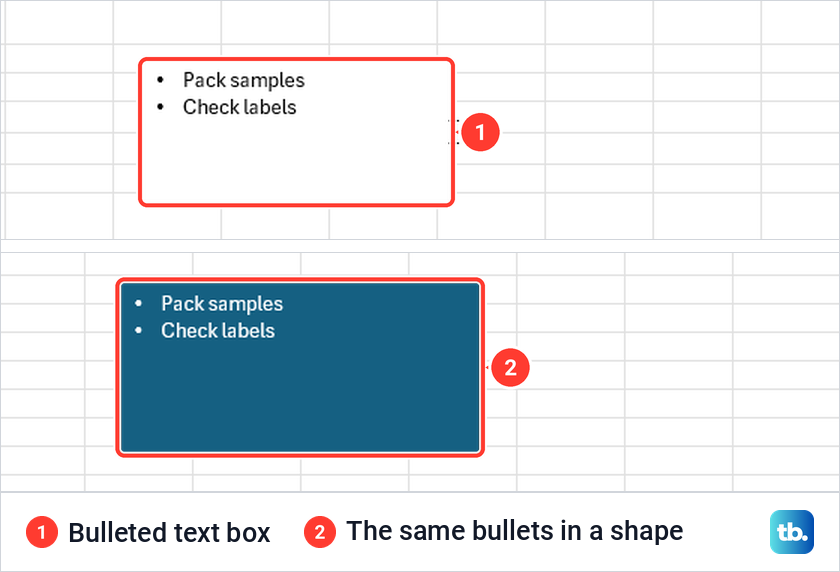
For a list that floats over the grid, such as notes beside a chart, use a text box, which takes real list bullets. Open Insert > Text > Text Box, where on our window Text was a single button that opened a small menu with Text Box, Header & Footer, WordArt, Signature Line and Object. Drag on the sheet to draw the box, then type each item on its own line.
Select the text, right-click it and point to Bullets. The gallery offered round, hollow round, square, hollow square, four-diamond, arrowhead and check mark bullets, plus None, with Bullets and Numbering at the bottom.
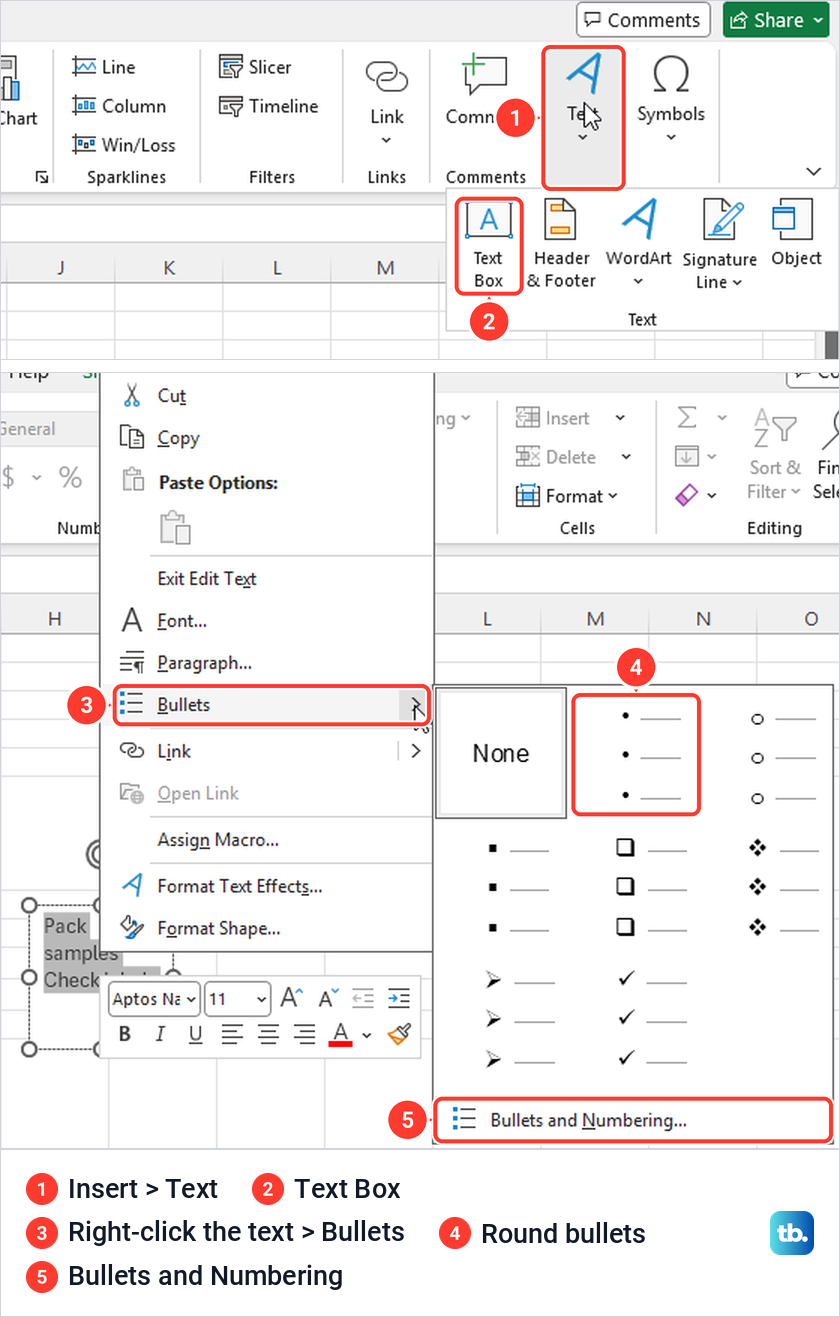
We chose the round bullets, and each line in the box became a bulleted paragraph while nothing in the cells underneath changed. A shape works the same way, because we drew a rectangle from Insert > Illustrations > Shapes, typed two lines, and right-click > Bullets offered the same gallery. Since the list is not in any cell, formulas, sorting and filtering do not include it, so keep lists you need to work with in cells.
Add bullet points in Excel for the web
Excel for the web handles bullets differently, and some of what we saw there does not match Microsoft's own help pages. If you have never opened a workbook in a browser, our Excel for beginners guide shows where to start, and once it is open, check that it is in Editing mode. In Viewing mode a yellow Read-only bar with an Edit Workbook button appeared and our typing was ignored, and the mode menu at the top right offers Editing, Viewing and Open in Desktop.
There was no Symbol command on the web Insert tab, so the Symbol dialog is a desktop route. The UNICHAR formula works unchanged, and =UNICHAR(8226)&" "&A2 in G2 showed • Pack samples. You can also copy a cell that already holds a bullet and paste it where you need one.
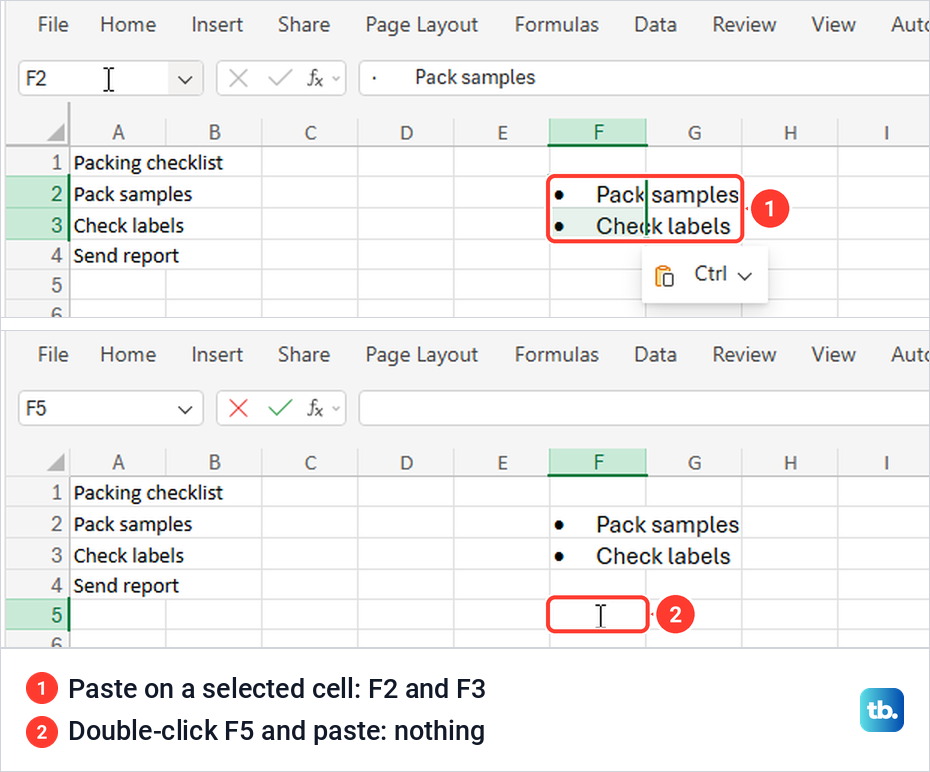
Pasting a Word list on a selected cell behaved as on the desktop, with one item in F2 and one in F3. In our web workbook, double-clicking F5 and pasting left it empty on both tries. If that happens to you, paste into separate cells, or choose Open in Desktop and use the one-cell method there.
Microsoft's help page still says custom formats cannot be created in Excel for the web, but ours could. Open Home, click the Number Format list, which has no Custom entry, and choose More Number Formats at its foot. In the All formatting options pane, set Choose Category to Custom, enter "• "@ in the Type box and click the green check mark beside it.
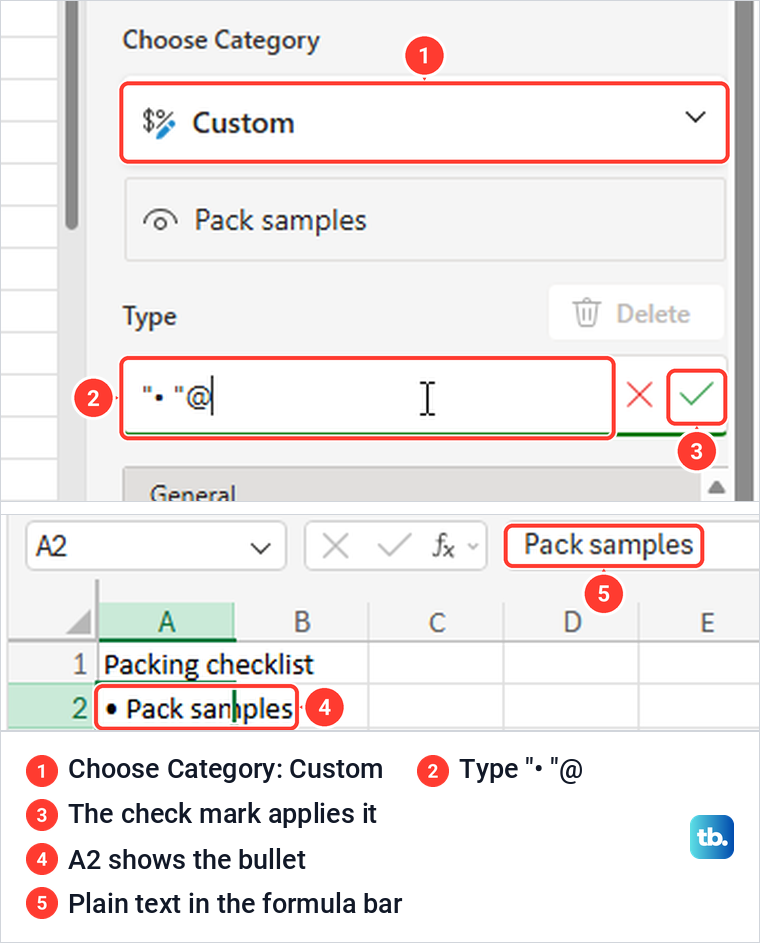
Pressing Enter in the Type box did not apply the format for us, while the check mark did. A2 then showed • Pack samples, with Pack samples alone in the formula bar, as on the desktop.
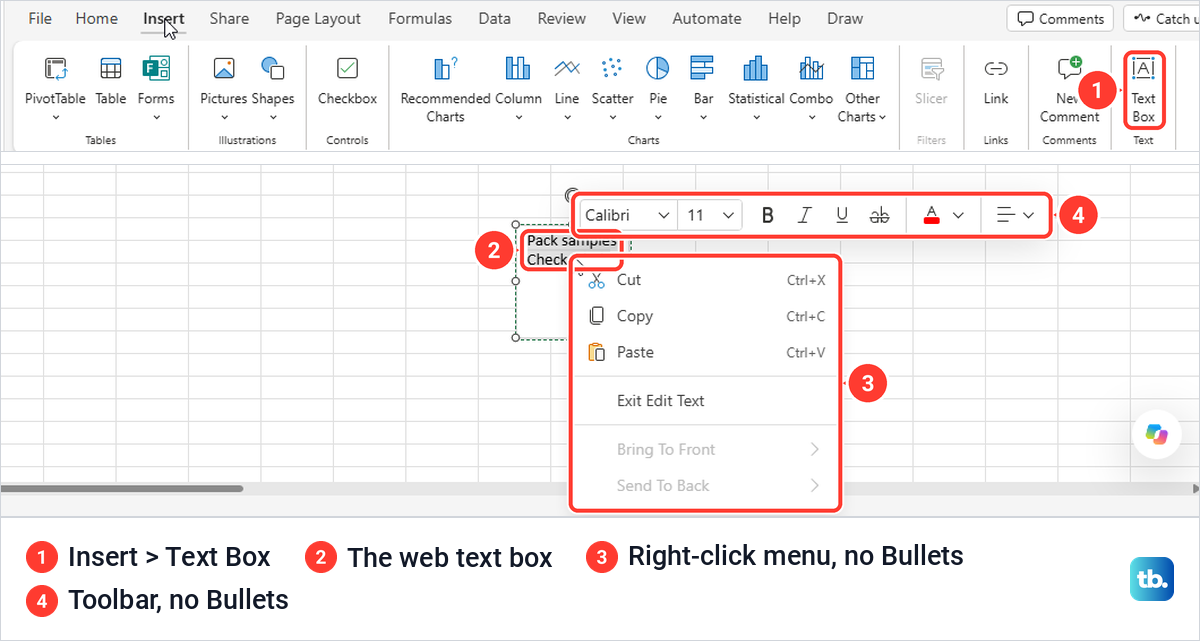
Text boxes are the other surprise. Microsoft says they are not supported in Excel for the web, yet Insert > Text Box inserted one at once in our workbook. Its right-click menu and its formatting toolbar had no Bullets command, though, so a bulleted text box still needs the desktop app.
Everything survived a reload. The pasted cells, the UNICHAR result, the custom-format bullet and the text box were all still there, although the cells pasted from Word were redrawn in a serif font.
When a bullet does not appear
If Alt + 7 types nothing, press Num Lock and try again, since that is exactly what failed and then worked on our PC. On a keyboard with no numeric keypad, use the Symbol dialog with code 2022 instead.
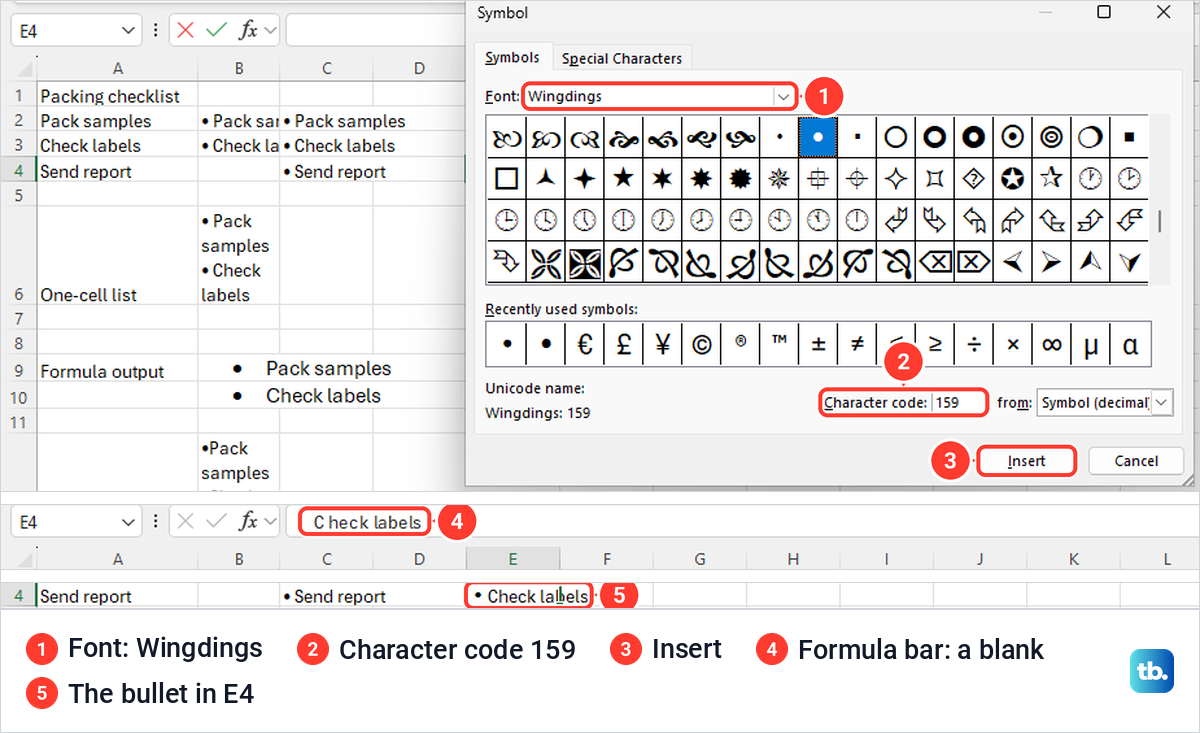
If the font in your cell has no bullet, Microsoft suggests choosing Wingdings in the Font list of the Symbol dialog and entering character code 159. When we did, the from list switched to Symbol (decimal) and code 159 selected a round bullet. The bullet remained visible in E4, but the formula bar drew its character as a blank.
A protected sheet blocks the change. Typing in a locked cell brought up a message saying the cell is on a protected sheet and that we might be asked for a password. Choose Review > Unprotect Sheet, which asked us for nothing because no password had been set, and the bullet then went in.
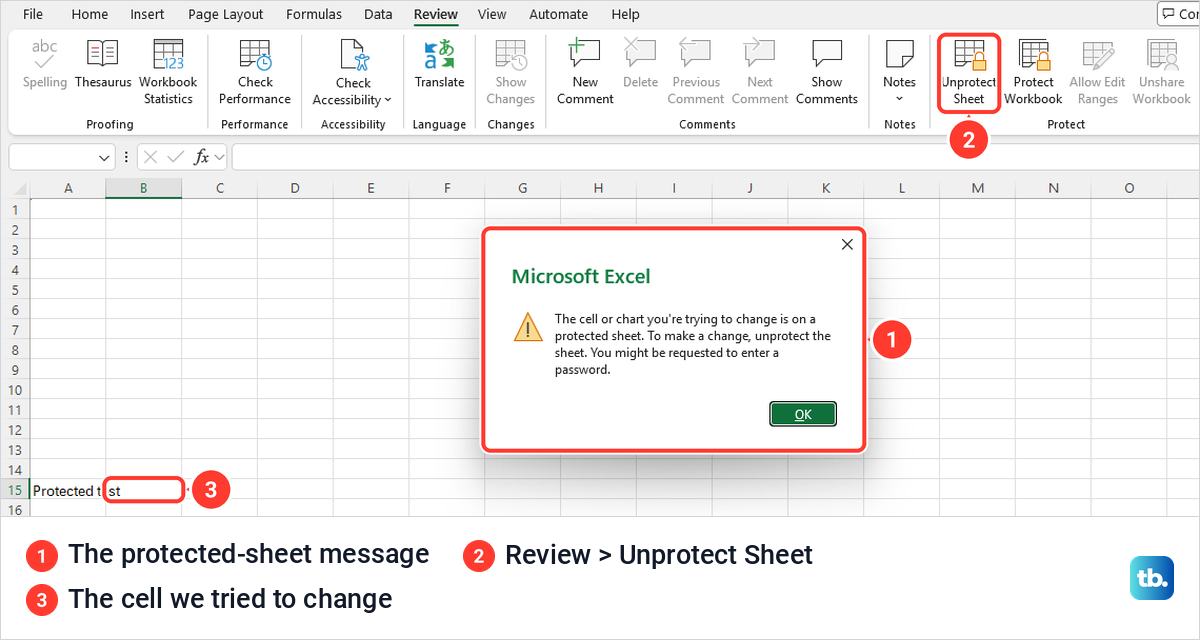
If the sheet has a password, Microsoft says you must enter it to unprotect the sheet, so ask whoever set it. Our guide to unprotect an Excel worksheet covers the full steps when you have that permission.
If a one-cell list is cut off, the column is too narrow or the row too short. Widen the column first, and if a row keeps a fixed height after you edit it, fix AutoFit Row Height in Excel so the row fits every line.
How we tested this guide
We tested this in Excel for Microsoft 365 on Windows 11, version 25H2, bulleting a made-up packing checklist, and again in Excel for the web in Microsoft Edge.
Frequently Asked Questions
Can Excel make automatic bulleted lists like Word?
Not in cells. A cell takes a typed bullet character or a custom format that displays one, while a text box or shape in desktop Excel has a real Bullets command on its right-click menu.
How do I put two bullet points in one cell?
Type the first bullet and its text, press Alt + Enter, then type the second bullet and its text. Excel made our row taller and switched on Wrap Text by itself.
Why does Alt and 7 do nothing?
Use the 7 on the numeric keypad, not the one above the letters, and check that Num Lock is on. On our PC the shortcut did nothing with Num Lock off and worked as soon as it was on.
How do I add bullets to a whole column?
Apply the custom format "• "@ to show bullets in front of text entries while the text stays as it is. To get new cells that contain the bullet, use =UNICHAR(8226)&" "&A2 in the next column and fill it down.
Can I paste a Word bullet list into one Excel cell?
In desktop Excel, yes. Double-click the cell before you paste and both items land in it as separate lines, while a plain paste puts each item in its own cell.
Does the bullet become part of the cell value?
It does when you use the Symbol dialog, the keypad shortcut or the UNICHAR formula. A custom format changes how the cell looks without changing its stored text, and the formula bar showed our text without the bullet.
Can I add bullets in Excel for the web?
Yes, with the UNICHAR formula, a custom format from More Number Formats, or a list pasted from Word into separate cells. The web Insert tab had no Symbol command, and its text box had no Bullets option, so use desktop Excel for those two.