

Excel word wrap looks broken when the cell is in Edit mode, the row is too short, the text has no spaces, or the worksheet blocks formatting. Start with the visible layout fixes first, then move into workbook protection and Excel repair only when the same problem shows up across files.
1. Turn on Wrap Text from the ribbon
Select the cell or range, then go to Home > Alignment > Wrap Text. The cell must be selected as a cell, not opened for typing.
On Excel for Mac, select the cells, open Home, and click Wrap Text. On Windows, select the range and press Alt, then H, then W to trigger the same ribbon path.
2. Exit Edit mode and use Format Cells
When the cursor is flashing inside the cell, press Enter or Esc. Select the cell again, then use Home > Alignment > Wrap Text.
Select the cell or range, then right-click the selection and choose Format Cells. Open Alignment, select Wrap text, and select OK. Keyboard route: press Ctrl + 1 on Windows or Command + 1 on Mac, then choose Alignment > Wrap text > OK.
3. Autofit the row so wrapped lines show
Wrap Text changes how the cell lays out text. The row still needs enough height to display every line.
Use Home > Cells > Format > AutoFit Row Height. For manual sizing, select the row, go to Home > Cells > Format > Row Height, enter a larger value, and select OK. You can also drag the boundary below the row heading, or double-click that boundary to AutoFit the row.
4. Widen columns for long unbroken text
A single long word or unbroken string does not wrap normally in Excel. Make the column wider or reduce the font size so the content is visible.
Use Home > Cells > Format > Column Width, enter a larger width, and select OK. Another option is to use Home > Cells > Format > AutoFit Column Width. You can drag the boundary on the right side of the column heading, or double-click that boundary for AutoFit.
Select the cells and use Home > Font Size to reduce the text. For Shrink to fit, right-click the cells, choose Format Cells, open Alignment, select Shrink to fit, and choose OK.
5. Unmerge cells that hide wrapped text
Merged cells are a known reason wrapped text does not display correctly. First, find them: go to Home > Find & Select > Find > Options > Format > Alignment > Merge cells > OK > Find All.
To fix the layout, select the merged cell, open the Merge & Center down arrow, and select Unmerge Cells. Then apply Home > Alignment > Wrap Text and finish with Home > Cells > Format > AutoFit Row Height.
6. Insert a line break for exact placement
- 1.Double-click the cell, or select it and press F2.
- 2.Click where the new line should begin.
- 3.On Windows, press Alt + Enter.
- 4.On Mac, press Control + Option + Return or Command + Option + Return.
- 5.In Excel for the web, press Alt + Enter while editing.
On mobile, double-tap the cell, tap and hold where the break should go, then tap New Line.
7. Remove protection and restore editing rights
Protected sheets block Wrap Text, row height, and column width changes when formatting is not allowed.
In Excel for Windows, use File > Info > Protect > Unprotect Sheet, or go to Review > Changes > Unprotect Sheet. Enter the password when Excel asks for it.
In Excel for the web, use Review > Manage Protection and turn off Protect sheet, or use Review > Pause Protection. Worksheet protection isn’t available in GCCH (U.S. Government Community Cloud High) or DOD environments. For rights-managed, work, school, OneDrive, or SharePoint files, ask the owner for Edit or Full Control permission.
8. Fix Excel when formatting breaks everywhere
When Wrap Text and row sizing fail across multiple workbooks, treat Excel itself as the problem.
Switch surfaces: In Excel for the web, use Home > Alignment > Wrap Text. For desktop-only formatting, select Editing in the upper-right, then choose Open in Desktop.
Disable add-ins on Windows: Hold Ctrl while double-clicking Excel and select Yes, or press Windows + R, type excel /safe, and select OK. Then go to File > Options > Add-ins, choose Excel Add-ins or COM Add-ins next to Manage, select Go, clear an add-in checkbox, and select OK.
Update Office: On Windows, open Excel and go to File > Account > Update Options > Update Now. Select Enable Updates first when that button appears. On Mac, use Help > Check for Updates, then select Update or Update All.
Repair Office on Windows: In Windows 11, right-click Start > Installed apps, select your Microsoft 365 or Office product, choose the ellipsis, select Modify, then choose Online Repair > Repair.
Reinstall Office last: Check the install type in File > Account. For Click-to-Run installs, use Control Panel > Programs > Programs and Features, select your Microsoft 365 product, and choose Uninstall. Reinstall from Microsoft’s official Microsoft 365 download page.
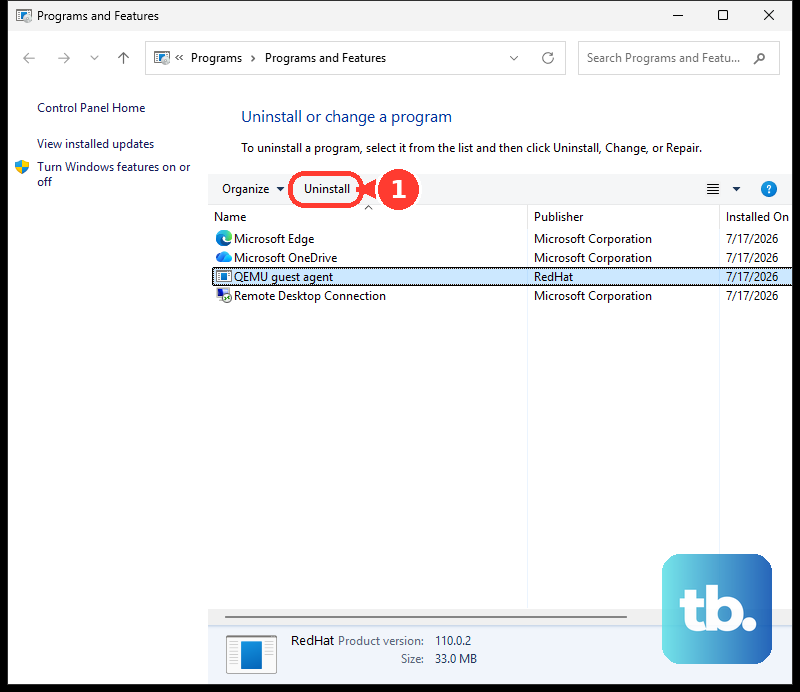
Use Microsoft’s current repair, uninstall, and download paths. Older Easy Fix wording belongs to old Office instructions.
Frequently Asked Questions
Why does Excel wrap some text but not a long URL or ID?
Excel does not wrap a single long unbroken string normally. Widen the column, reduce the font size, or use Format Cells > Alignment > Shrink to fit.
Does Wrap Text work in Excel for the web?
Yes. Use Home > Alignment > Wrap Text while editing is allowed. When a desktop-only formatting command is needed, select Editing in the upper-right, then Open in Desktop.
How do I make wrapped text start at the top of a tall cell?
Right-click the cell, choose Format Cells, open Alignment, change Vertical to Top, and select OK.
Can Copilot fix Wrap Text in Excel?
Copilot in Excel can apply formatting and manage workbook layout on supported Microsoft 365 accounts. Open Copilot from the icon in the lower-right corner of Excel and ask it to turn on Wrap Text for a specific range and autofit the row heights.