


A loose or damaged video cable, altered color settings, or a display or graphics-driver fault can make your monitor look green. Start by reconnecting the cable, testing a known-good replacement, and restoring the monitor's normal color settings. If the tint remains, use the monitor's built-in diagnostics to separate a display fault from a computer problem.
Check whether the green color covers the entire desktop or only a video, game, or app. A whole-screen cast calls for connection and display checks first, while a green video player with normal desktop colors calls for the browser and app checks below. Change one setting at a time and compare the result before continuing.
The short version
- Check the connection: Reconnect the cable at both ends, try a known-good replacement, and bypass any dock or adapter.
- Restore normal colors: Select a neutral monitor preset or reset its color controls before adjusting individual RGB channels.
- Separate hardware from software: White or gray diagnostic screens that remain green after a monitor reset point toward a display fault.
- Follow the affected area: Check system color settings for a whole-screen tint and browser or game settings for an app-only problem.
| Check | Best use | Next step if unchanged |
|---|---|---|
| Cable and accessory checks | External monitor discoloration | Restore monitor color settings |
| Neutral preset or color reset | Modified monitor colors | Run built-in diagnostics |
| Diagnostics and another computer | Separate display and computer faults | Seek repair or check computer settings |
| Windows color settings | Whole-screen tint on Windows | Check graphics color overrides |
| Mac color settings | Whole-screen tint on macOS | Check profiles and software updates |
| Graphics color overrides | Custom NVIDIA or AMD colors | Update or roll back the driver |
| Driver recovery | Persistent or update-related tint | Reinstall the graphics device |
| Browser and game checks | Green video or one affected app | Remove app-specific filters |
Check the cable and bypass accessories
Turn off your computer and external monitor, then disconnect the video cable from both devices. Reconnect it firmly at each end before turning them back on. These checks apply to HDMI, DisplayPort, USB-C video, DVI, and VGA connections.
Inspect the connectors for bent or broken pins, then test a known-good cable compatible with your display. A damaged or unsuitable cable can cause missing colors or discoloration that comes and goes. Compare the colors after replacing the cable before changing software settings.
Disconnect any dock, dongle, or adapter and connect the monitor directly to the computer. Next, try another compatible video output on the computer. If neither change helps, continue with the monitor's color controls.
View the screen straight on and adjust its height or tilt before judging the result. Some LCD monitors show color differences when viewed from an angle. If the green cast changes with your viewing position, adjust that position before changing color settings.
Restore the monitor's normal color settings
Use the menu paths for your exact monitor model, because monitors from the same brand can have different layouts. Start with a neutral picture preset or a color reset. Lowering green immediately can mask a problem without isolating its cause.
On Dell P2425HE, P2425E, and P2725HE families, open the joystick's Main Menu, then select Color > Preset Modes > Standard. To clear modified color controls, select Color > Reset Color. If that does not help, select Others > Factory Reset > Yes for a full reset.
The Dell G2725D uses a different layout: choose Memory Recall in its main on-screen menu to restore factory defaults. On LG monitors with this joystick menu, open Settings > General > Reset to Initial Settings > Yes. Check your model's manual if those controls are absent.
On Samsung monitors that offer these controls, use the JOG or menu controls to select Standard or sRGB and turn off Eye Saver Mode. Check the Red, Green, Blue, and Color Tone controls for unwanted adjustments. Choose a preset appropriate to your display and intended use.
If you intentionally use custom colors, the Dell P-series families above expose RGB adjustments under Color > Preset Modes > Custom Color. The G2725D instead uses Color Adjust > User Color, with Preset Mode off for RGB adjustment. There is no universal green-channel value, so restore inappropriate changes rather than copying arbitrary numbers.
Run diagnostics and test another computer
Built-in color diagnostics help determine whether the monitor itself produces the green cast. On the Dell P-series families above, open Main Menu > Others > Self-Diagnostic, press the joystick, and cycle through the test screens. Check the white and gray screens for the same tint.
For a Dell G2725D, select Setup Menu > Self-Diagnostic. For other Dell models, identify your monitor at Dell Support, then open Documentation > Manuals and Documents > User Guide to find its diagnostic procedure. The joystick sequence varies by model.
If white and gray diagnostic screens remain green after a reset, software color adjustments are unlikely to repair the underlying fault. Dell directs you to contact Technical Support when the monitor fails its diagnostics. Arrange repair or replacement instead of adding more color corrections.
Connect the affected external monitor to another computer and compare its colors. If the problem follows the monitor, focus on the display and its connection. If it looks normal on the second computer, continue with the original computer's color settings and graphics software.
Turn off Windows color alterations
On Windows 11, open Start > Settings > Accessibility > Color filters and turn Color filters off. If only interface colors have changed, select Accessibility > Contrast themes > None, then click Apply.
Next, open Settings > System > Display > Night light. Turn it off and disable Schedule night light so the color change does not return on a schedule. This lets you compare colors without the night setting, though it does not necessarily explain excessive green.
Open Settings > System > Display > Color profile and select the affected display. Expand an unwanted profile and select Remove, or use Add profile to add the correct ICC file for your monitor and active picture mode. Select the intended profile and click Set profile.
Once the connection and monitor settings are correct, select Calibrate display in the same Color profile area if the colors still need adjustment. Follow the display calibration steps. On an HDR-enabled external display, Calibrate display instead prompts you to use the Windows HDR Calibration app. Use calibration only after the hardware checks, since it cannot repair a monitor that fails its diagnostics.
For an HDR-capable display, open Settings > System > Display, select the affected screen, and open HDR. Turn HDR off and compare the same content. If the problem occurs only with HDR enabled, focus on HDR and the connection before changing RGB balance.
Check Mac filters and display profiles
On a Mac, open the Apple menu > System Settings > Accessibility > Display. Turn off Color filters and check Invert colors. The accessibility Color Tint option can deliberately tint the entire screen.
Open System Settings > Displays and select the affected display. Turn off True Tone if your configuration supports it, then open Night Shift and turn off its manual setting and any unwanted schedule. Compare the colors with these adaptive and scheduled changes disabled.
Under Displays, select the manufacturer-appropriate or recommended Color profile. Supported Apple reference-mode displays use Preset instead, where you can select a model-appropriate general-use preset.
For a supported ordinary display that still needs calibration, open Color profile > Customize > Add (+) and follow Display Calibrator Assistant. Supported third-party HDR10 displays also offer a High Dynamic Range toggle under Displays; turn it off to compare colors without HDR. That toggle is not universal on built-in Apple displays.
Remove graphics software color overrides
Graphics software can apply its own color changes after you restore the monitor and operating system settings. For an NVIDIA-controlled display, open NVIDIA Control Panel > Display > Adjust desktop color settings, select your display, and enable Override to reference mode. This bypasses desktop color overrides on supported connections; the controls may be unavailable when another GPU controls the output.
For compatible Radeon graphics, open AMD Software, search for Display, and select Display Settings. Select the affected display and turn off Custom Color. Also inspect Color Temperature Control if you previously enabled a white-point adjustment.
Check that the monitor's input color format matches the connected source. On the Dell P-series families above, select Color > Input Color Format and choose RGB or YCbCr to match the source. Available formats depend on the input.
NVIDIA's Output dynamic range and Intel Graphics Software's Quantization Range primarily affect black and white levels. Changing the range is not a universal green-tint fix, and the correct choice depends on what your display expects.
Recover or update the graphics driver
For a temporary Windows graphics problem, press Windows + Ctrl + Shift + B to reset the graphics driver. If the tint remains, select Start > Power > Restart. Compare the display again before installing or removing drivers.
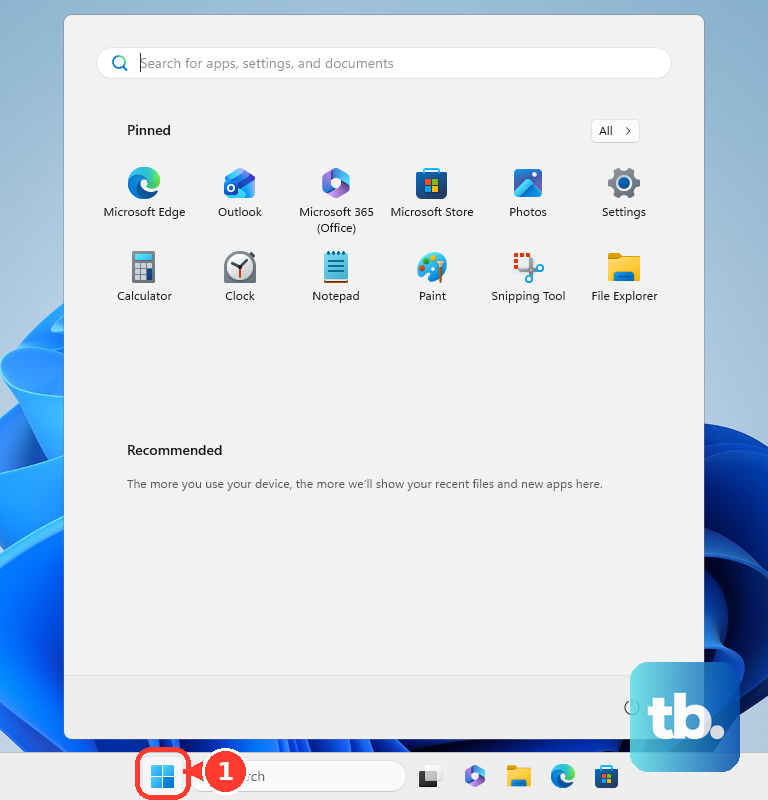
If the tint began after a graphics-driver update, right-click Start and open Device Manager. Expand Display adapters, right-click your GPU, and select Properties > Driver > Roll Back Driver. Choose a reason, click Yes, and restart when prompted. Rollback requires an available previous driver and administrator access.
If rollback is unavailable or the problem did not follow an update, open Settings > Windows Update and select Check for updates. Check Advanced options > Optional updates for an applicable display driver, select it, and click Download and install. Restart after installation.
If driver recovery still fails, have a compatible vendor driver available in case automatic reinstallation fails. Open Device Manager > Display adapters, right-click the GPU, and select Uninstall device > Uninstall. Restart so Windows can attempt to reinstall the driver.
Mac display drivers are included with macOS updates. Open the Apple menu > System Settings > General > Software Update and install the compatible update offered. Recheck the affected display after the update.
Fix green video or one affected app
When the desktop looks normal and only a YouTube video is green, play the same video in another already-installed browser. If the colors look normal there, continue with the affected browser's settings.
In Chrome, check whether graphics acceleration is responsible for the green video. Enter the following address to open its system settings.
chrome://settings/systemTurn off Use graphics acceleration when available, then click Relaunch. Replay the same video to compare the result.
In Firefox, open Settings > Tabs and browsing > Performance. Clear Use recommended performance settings, then clear Use hardware acceleration when available, quit Firefox, and restart it. If your layout differs, look for Performance under General.
For browser content altered by a color-filter extension, open Chrome's More > Extensions > Manage extensions and disable the suspect extension. Compare the same content after disabling the filter.
For NVIDIA video-only color changes, select NVIDIA Control Panel > Video > Adjust video color settings, choose the display, and select With the video player settings. For filtered games, open NVIDIA app > Settings > Features > Overlay and turn off Game Filters and Photo Mode. In AMD Software, open Game Color, select the game profile, and turn off Custom Color, then check that the global override is also off.
Frequently Asked Questions
Why does the green tint return after I sign in?
A startup color, calibration, or monitor utility can reapply settings. On Windows 11, open Settings > Apps > Startup and turn off the suspect app. On a Mac, open System Settings > General > Login Items & Extensions, select the suspect item under Open at Login, and remove it before restarting.
What should I check if f.lux changes my monitor's colors?
On Windows, open the f.lux tray menu > Options and disable Use display data for better color accuracy. On a Mac, open the f.lux menu-bar icon > Disable and choose a temporary duration, or select Quit f.lux. If the cast remains after quitting, check the selected display profile separately.
Can a monitor companion app change colors when I switch apps?
Yes, Dell Display and Peripheral Manager can assign monitor presets to individual applications. Open DDPM, select the monitor, and open Display Settings > the color tab. Choose Manual to prevent application-triggered preset switching, or correct the assigned preset under Auto.
Why are my ASUS monitor's color controls unavailable?
Supported ASUS ROG monitors can restrict display controls in a power-saving mode. Open the monitor's System Setup > Power Setting and select Standard Mode or High Performance Mode. If the controls remain unavailable, use System Setup > All Reset > Yes, then confirm the switch to Standard Mode or High Performance Mode.
What can I do if Photoshop alone has incorrect colors?
Disable GPU rendering to check whether it causes the app-specific problem. On Windows, open Edit > Preferences > Performance; on a Mac, open Photoshop > Settings > Performance. Clear Use Graphics Processor, click OK, and restart Photoshop.