


To fix a Windows laptop stuck on a black screen, connect it to power, disconnect unnecessary accessories, then press Windows + Ctrl + Shift + B to reset the graphics driver if Windows is responding. Try switching display output next, then move to a restart or Windows recovery if needed. The shared shortcuts also apply to Windows 10; Settings instructions use Windows 11 menus.
If the screen went black during a Windows reset, leave the laptop powered and let the reset finish. Microsoft says the screen can stay black for more than 15 minutes, and manually restarting can make the reset fail. Do not interrupt a firmware update either.
The short version
- Start with connections: Connect power and disconnect docks, external displays, and unnecessary peripherals.
- Try the display shortcuts: In a responsive Windows session, reset graphics with Windows + Ctrl + Shift + B, then try switching output with Windows + P, P, and Enter.
- Follow the symptom: Try restarting Windows Explorer for a black desktop with a cursor, or recovery tools when startup fails.
- Protect your files: Back up accessible files before resetting or reinstalling Windows.
| Fix or check | When to try it | Main requirement or catch |
|---|---|---|
| Power and monitor connections | Before software troubleshooting | Check charging, monitor power, and video cables |
| Disconnect accessories | Especially after connecting a dock or peripheral | Reconnect accessories individually |
| Hardware brightness keys | Dell screen appears black | Key combination depends on the model |
| Graphics reset | Windows responds but the screen stays black | Requires a responsive Windows session |
| Switch display output | Output may be directed to another screen | Try another projection mode |
| Restart Windows Explorer | Black desktop with a cursor | Task Manager must open |
| Start missing Explorer | Explorer is absent from Task Manager | Windows 11 procedure |
| Forced restart | Laptop does not respond | Avoid active resets and firmware updates |
| External monitor test | Built-in screen remains black | Requires a supported video output |
| Windows brightness adjustment | A usable display is available | Built-in display must support software brightness |
| Dell LCD self-test | Suspected internal-screen fault | Supported Dell models only; diagnostic check |
| Recovery through interrupted startup | Windows cannot reach the desktop | Requires functioning recovery files |
| Recovery through Settings or restart | Windows controls remain accessible | Windows 11 procedure |
| Recovery through USB media | Built-in recovery will not load | Media must match the device architecture |
| Safe Mode | Normal startup fails | Provides access for diagnosis and driver changes |
| Graphics driver rollback | Problem followed a driver update | Administrator access and previous driver required |
| Graphics device reinstallation | Driver repair is needed | Windows attempts reinstallation after restart |
| Manufacturer driver installation | A replacement driver is needed | Match model, Windows version, and architecture |
| Low-resolution video | Problem followed a display-setting change | Uses the existing graphics driver |
| Refresh-rate correction | An incompatible rate was selected | Requires a working image |
| Startup Repair | Windows fails to start | BitLocker key may be requested |
| Update removal | Problem followed a Windows update | Some updates cannot be removed |
| System Restore | Problem followed a recent change | Requires an existing restore point |
| System file repair | Windows is accessible but problems persist | Run commands inside Windows |
| Windows updates | An available update addresses the fault | Requires a usable desktop |
| Conflicting application removal | An application has been identified as the cause | Requires a usable desktop |
| Reinstall through Windows Update | Less disruptive repairs failed | Eligible Windows 11 installations; preserves files, apps, and settings |
| Windows reset | Other repairs failed | Keeping files still removes apps and settings |
Check power and disconnect accessories
Connect the laptop to its charger and let it charge. Disconnect the dock, external displays, and nonessential peripherals, then retry startup. If the display returns, reconnect accessories individually to identify which connection triggers the problem.
For a black external monitor, check its power and video connections, then try another cable or monitor. On a Dell laptop with brightness keys, repeatedly press the Brightness up key, holding Fn if necessary. For another brand, use the brightness-key combination documented for your model.
Reset graphics and switch display output
Press Windows + Ctrl + Shift + B to reset the graphics driver. A beep or screen flicker indicates a response. This shortcut requires a responsive Windows session.
If Windows is sending the image to another display, changing projection mode may restore it. Press Windows + P, press P again, then press Enter. Repeat if necessary to try another output mode.
Restore a black desktop with a cursor
For a black desktop with a visible cursor, try restarting Windows Explorer. Press Ctrl + Shift + Esc to open Task Manager, or press Ctrl + Alt + Del and select Task Manager. Right-click Windows Explorer and select Restart.
On Windows 11, you can start Explorer when it is missing from Task Manager. Select Run new task, enter explorer.exe, then select OK. If Task Manager will not open and the laptop remains unresponsive, continue with the restart procedure.
Restart an unresponsive laptop and test another screen
For an unresponsive laptop, Microsoft recommends holding the Power button for 20 seconds to force a restart. Follow your manufacturer's procedure when it specifies different timing, and do not interrupt an active reset or firmware update. Follow the procedure to restart a computer that is unresponsive if you need help with this step.
If the built-in screen remains black, connect a known-working monitor through a supported video port. On Dell laptops, press Windows + P and select Duplicate or Extend; equivalent testing on other laptops requires a supported video output. A working external image helps isolate an internal-screen problem.
With a usable display on Windows 11, open Start > Settings > System > Display and raise Brightness if your built-in display supports software brightness control. If neither firmware nor Windows produces an image, follow the hardware checks for a laptop with power but no display. Windows software repairs require a usable image somewhere.
On Dell laptops supporting LCD built-in self-test, shut down, hold D, and press Power. Release D when colors appear, inspect the color sequence, then power off to exit. Report abnormalities to Dell; this test diagnoses the screen rather than repairing it.
Open recovery and start Safe Mode
When Windows cannot reach a usable desktop, access the Windows Recovery Environment. During ordinary startup, hold the Power button until shutdown when the Windows or manufacturer logo appears, then repeat once. Start the laptop a third time and select Advanced options on Automatic Repair. This requires functioning recovery files; do not interrupt firmware installation.
With a usable Windows 11 sign-in screen or Start menu, hold Shift while selecting Power > Restart instead. On Windows 11, another route is Settings > System > Recovery, then under Advanced startup, select Restart now.
If recovery requests a BitLocker key, open the Microsoft recovery-key portal on another device and sign in to the account holding the key. Match the recovery-key ID, then enter the associated 48-digit key on the laptop.
When built-in recovery will not load, a suitable existing recovery USB or compatible Windows installation media can provide another route. For Windows 11 installation media, boot from it, select your language preferences and Next, then select Repair my PC and Next. Follow the steps to recover Windows using a USB drive, matching the media to the laptop's architecture and using its manufacturer's boot-menu instructions.
Inside recovery, select Troubleshoot > Advanced options > Startup Settings > Restart. Press 4 or F4 for Enable Safe Mode. Safe Mode provides access for diagnosis and driver changes; reaching it does not by itself repair the cause.
Repair the graphics driver or display setting
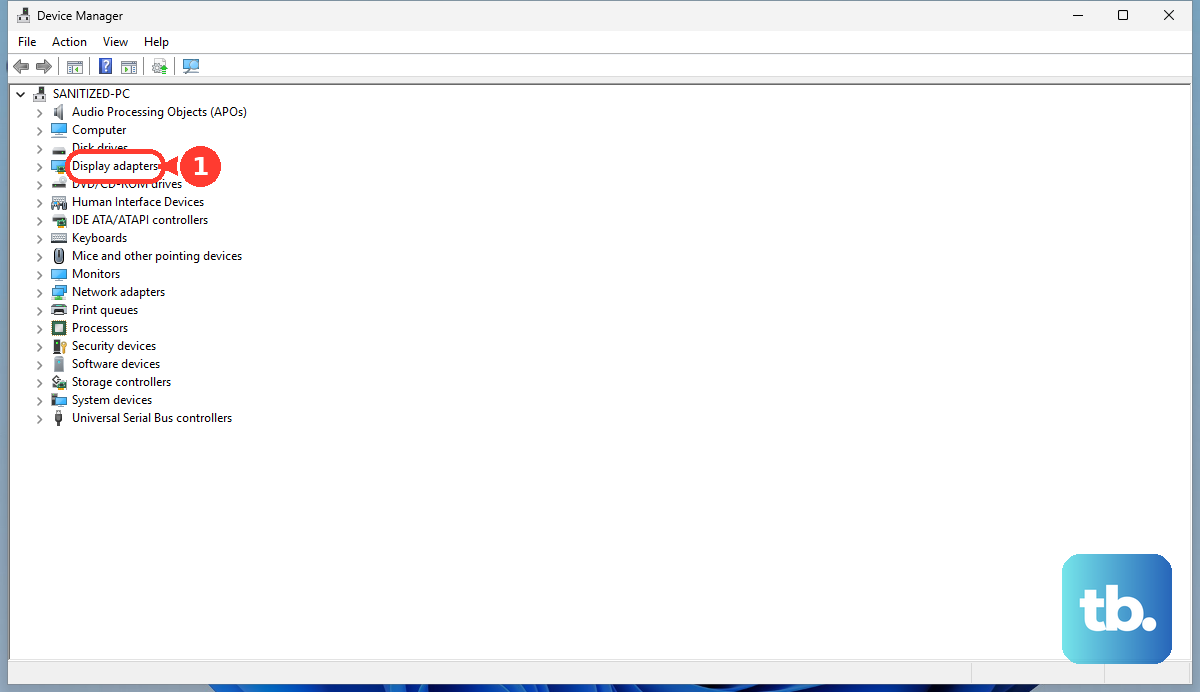
If the black screen began after a graphics driver update, try rolling back that driver from a usable Windows session or Safe Mode. Right-click Start, open Device Manager, expand Display adapters, then right-click your graphics device and select Properties. Open Driver, select Roll Back Driver, choose the appropriate reason, and select Yes. Restart if requested.
Rolling back requires administrator access and an available previous driver. Another option is to right-click the affected graphics device under Display adapters, select Uninstall device, then select Uninstall. Restart the laptop so Windows can attempt to reinstall the driver.
For a replacement manufacturer driver, match the laptop model, Windows version, and architecture. Follow the steps to find and update your graphics driver to obtain the appropriate package. In Device Manager, expand Display adapters, right-click the graphics device, select Update driver, and choose Browse my computer for drivers. Select Browse... and the extracted driver folder, followed by OK, Next, and Close.
If the failure followed a display-setting change, select Troubleshoot > Advanced options > Startup Settings > Restart in recovery. Press 3 or F3 for Enable low-resolution video, which uses the existing graphics driver at reduced resolution and refresh rate. With a working image on Windows 11, open Settings > System > Display > Advanced display, select the affected display, and select a supported value under Choose a refresh rate.
Repair startup or undo a recent change
When Windows fails to start, select Troubleshoot > Advanced options > Startup Repair > Restart in recovery. Supply the BitLocker recovery key when requested. You can use Startup Repair for boot problems before considering a reset.
If the black screen started immediately after a Windows update, try removing that update. In recovery, select Troubleshoot > Advanced options > Uninstall Updates > Uninstall latest quality update. Some updates cannot be removed.
If you have a restore point from before the problem, select Troubleshoot > Advanced options > System Restore. Choose that restore point, selecting Show more restore points if needed. Select Scan for affected programs to review the impact, then select Next > Finish. System Restore preserves personal files; restart after recovery completes.
Repair Windows files after regaining access
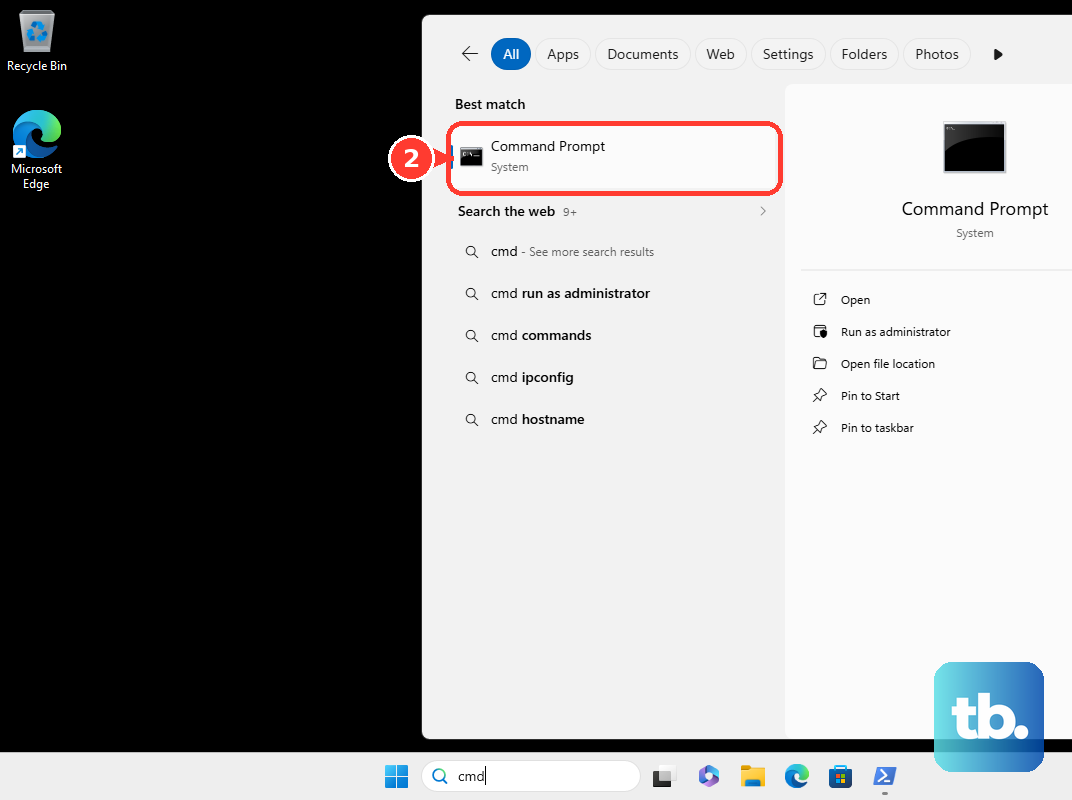
Once Windows is usable, you can repair Windows using Command Prompt to address damaged components and system files. Search for cmd, right-click Command Prompt, and select Run as administrator. Run this command first:
DISM.exe /Online /Cleanup-image /RestorehealthWait for DISM to finish before running the next command. Run the following command and let System File Checker reach 100 percent:
sfc /scannowThese commands apply to a running Windows installation, not an offline repair from the recovery command prompt. On Windows 11, also open Start > Settings > Windows Update and select Check for updates to install applicable fixes.
If you have identified a conflicting application, remove it after recovering a usable desktop. On Windows 11, open Start > Settings > Apps > Installed apps, find the application, and select More > Uninstall. Follow the application's confirmation prompts.
Use a reset only after less disruptive repairs
With Settings accessible, eligible Windows 11 installations can reinstall the current version while preserving files, apps, and settings. On Windows 11, open Start > Settings > System > Recovery; under Fix problems using Windows Update, select Reinstall now, then OK. Keep power and internet connected, then restart after installation.
This option requires Windows 11 22H2 or later with the February 2024 optional update or later. Certain enterprise update-management policies make it unavailable.
If other repairs fail, back up accessible files before resetting. On Windows 11, open Settings > System > Recovery > Reset PC, then choose Keep my files to preserve personal files while removing apps and settings. Review how to reset Windows without losing files before proceeding.
Choose Remove everything instead only if you intend to erase personal files as well. Choose Cloud download or Local reinstall and review the reset wizard before starting. Leave the laptop powered throughout the reset, including extended black-screen periods.
Frequently Asked Questions
Why is my ASUS laptop black after a BIOS update or RAM change?
On ASUS laptops, a lit power indicator with no image after a BIOS update, battery disconnection, RAM change, or EC/RTC reset can occur during memory training. Connect power and wait approximately 5 to 10 minutes. Do not force shutdown during memory training.
What should I do differently on a Surface Laptop?
Disconnect accessories and the Surface Dock, connect the intended charger for at least 15 minutes, then close and reopen the lid and press Power. If needed, connect a keyboard and press Windows + Ctrl + Shift + B. If a forced restart is needed, hold Power until the Surface shuts down, restarts, and shows the Windows logo, approximately 20 seconds, then release.
Can disabling Fast Startup help a Dell laptop with a black screen?
Dell includes disabling Fast Startup in its Windows black-screen troubleshooting. From a usable administrator session, open an administrator terminal, select Yes, run powercfg -h off, and restart. This also disables hibernation.
Can I go back if the black screen started after a Windows upgrade?
With Windows accessible on Windows 11, open Settings > System > Recovery, select Go back when available, and follow the rollback wizard. This is normally possible within 10 days and requires the retained windows.old and $windows.~bt folders. Personal files remain, but apps, drivers, and settings changes made after the upgrade can be removed.