


To fix a laptop that has power but no display, increase brightness, disconnect accessories, reset the graphics driver if Windows is running, and use your laptop maker’s power-reset procedure. Test an external monitor if the built-in screen stays dark. Whether a manufacturer logo appears helps you choose between operating system repairs and startup or hardware checks.
The short version
- Start simple: Connect the correct charger, raise brightness, and remove docks and nonessential accessories.
- Reset Windows output: Press Windows + Ctrl + Shift + B when Windows is running.
- Isolate the screen: Test a known-working external display to help narrow down the fault.
- Choose the right branch: A screen that shows a startup logo needs different troubleshooting from one that never displays anything.
- Protect recovery: Never interrupt identified firmware recovery or memory training.
| Fix or test | When to try it | What comes next |
|---|---|---|
| Brightness and accessory checks | Screen is dark at startup or after sleep | Check Windows output if Windows is running |
| Windows graphics reset | Windows is running with a blank screen | Check the selected display output |
| Windows output selection | Output may be directed elsewhere | Select the built-in screen or duplicate output |
| Windows Explorer restart | Black desktop with a cursor | Use recovery if the desktop stays blank |
| Dell power reset | Unresponsive Dell laptop | Test external output if the reset fails |
| HP power reset | Unresponsive HP notebook | Test external output if the reset fails |
| Acer power reset | Unresponsive Acer laptop | Check for a documented battery-reset hole |
| MSI controller reset | Unresponsive MSI laptop | Test external output if the reset fails |
| ASUS controller reset | Unresponsive ASUS notebook | Allow any subsequent memory training to finish |
| Lenovo emergency reset or power drain | Model manual documents the procedure | Reconnect AC and restart |
| Surface force restart | Unresponsive Surface Laptop, Studio, or Go | Test external output if the restart fails |
| External display test | Built-in screen stays dark | Check cables and compare startup behavior |
| Windows Safe Mode | Recovery is visible but normal startup fails | Repair or reverse a graphics-driver change |
| Graphics-driver rollback | Failure followed a driver update | Restart with the retained previous driver |
| Graphics-driver update | Suspected driver fault without a recent update | Restart after installation |
| Display-adapter reinstallation | Driver update does not resolve the fault | Restart so Windows attempts reinstallation |
| Low-resolution video | Failure followed a display-setting change | Restore supported resolution and refresh rate |
| Windows Startup Repair | Windows fails to load but recovery works | Let the repair finish |
| System Restore | Recent system change and an available restore point | Restore a point before the failure |
| Mac restart and brightness checks | MacBook has a blank screen | Try macOS Recovery |
| Mac disk repair | macOS Recovery is visible | Restart after First Aid |
| macOS reinstallation | Startup still fails after disk repair | Reinstall without erasing |
| Chromebook hardware reset | Brightness checks do not restore the image | Try recovery if the reset fails |
| ChromeOS internet recovery | Recovery appears and offers internet recovery | Back up accessible files before erasing local storage |
| Dell LCD self-test | Supported Dell with a dark internal screen | Report abnormal color patterns |
| Lenovo LCD self-test | Model manual confirms support | Observe the solid-color sequence |
| Hardware upgrade reversal | Failure began after RAM or SSD replacement | Restore factory hardware and retest |
| Removable-memory checks | Service manual permits access | Reseat modules and test modules and slots separately |
| Professional repair | Supported checks fail or diagnostics report faults | Provide startup observations and diagnostic results |
| Windows factory reset | Less disruptive software repairs fail | Back up before removing apps and settings |
Check brightness and remove accessories
Before forcing a shutdown, check whether the laptop may be completing firmware recovery or memory training. On an ASUS laptop that recently had a BIOS update, battery disconnection, memory replacement, or controller reset, leave power connected for 5 to 10 minutes. An indicated ASUS BIOS recovery can take approximately 5 to 8 minutes before its progress screen appears; follow the displayed recovery estimate without interrupting power.
Connect the correct power supply and check its connections, then press a keyboard key or briefly press Power to wake the laptop. Press Increase Brightness several times, holding Fn with it when your model requires that combination. Identify the brightness key in your model’s manual.
For a Surface, charge for at least 15 minutes, then close and reopen the lid before trying Power again. Watch for a manufacturer logo and listen for startup sounds. Record repeating beeps or flashing LEDs and look up the exact pattern in the model’s manual before choosing further troubleshooting.
Shut down and disconnect docks, USB accessories, external storage, memory cards, and other nonessential devices. Start the laptop by itself with its charger connected. If the picture returns, reconnect accessories individually to identify which connection brings back the problem.
Move phones, magnetic watchbands, jewelry, and magnetic pens away from the screen edges and palm rest. Remove the laptop from any stack of devices and try waking it again. Dell says magnetic objects can activate the lid sensor on supported laptops, causing sleep or loss of video.
Try the Windows display shortcuts
When Windows is running but the screen is blank, press Windows + Ctrl + Shift + B together. A beep or screen flicker can follow as Windows resets the graphics driver. Wait and check whether the image returns.
Output may also be directed to another display. Press Windows + P, press P again, then press Enter to change the output mode; repeat as needed. Once the menu is visible, select PC screen only to return output to the laptop or Duplicate for an attached monitor.
For a black desktop with a cursor, press Ctrl + Shift + Esc to open Task Manager, right-click Windows Explorer, and select Restart. If that process is missing, select Run new task, enter the following command, and press Enter.
explorer.exeRestart with the correct power reset
If the screen remains unresponsive, restart a computer that is frozen using your laptop’s procedure. Microsoft’s general Windows blank-screen procedure is to hold Power for approximately 20 seconds, then turn the laptop on again. Use a documented manufacturer procedure instead where available, and never interrupt identified firmware recovery or memory training.
For a Dell power-drain reset, turn off and disconnect AC power, peripherals, and any user-removable battery. Hold Power for 15 to 20 seconds, reconnect the battery and AC, then start the laptop. Remove the battery only when your model supports that procedure.
For HP, turn off, disconnect AC and nonessential devices, and remove discs and memory cards. Hold Power for approximately 15 seconds, reconnect AC, and start the computer. This procedure also covers supported HP notebooks with non-removable batteries.
For Acer, hold Power until the laptop shuts down, unplug AC, and disconnect peripherals. Hold Power for at least 30 seconds, reconnect AC, and start again. For MSI, shut down, disconnect AC, hold Power for more than 25 seconds, then reconnect AC and turn on.
For ASUS, shut down, remove peripherals, connect the adapter, and hold Power for 40 seconds. On models using the 20-second design, release it after the indicator’s rapid flashing stops. Turn the laptop on again and allow any memory training to finish.
If your Acer manual identifies a Battery Reset hole, turn off and unplug the laptop before inserting a paperclip into that hole. Hold its button for 10 to 15 seconds, remove the paperclip, and power on. Do not assume an unidentified opening is a reset hole.
For a Lenovo with a documented emergency-reset hole, disconnect AC and connected cables, then use the hole as the model’s manual directs. Reconnect AC before restarting. Without that feature, follow the power-drain procedure in your model’s manual.
On a Surface Laptop, Laptop Studio, or Laptop Go, hold Power until it shuts down, restarts, and displays the Windows logo, approximately 20 seconds, then release it. If the supported reset changes nothing, test an external display.
Test an external monitor and compare startup
Connect a known-working monitor or television using a compatible video cable and power on both devices. Connect directly rather than through a dock when possible. In Windows, press Windows + P and select Duplicate or Extend once you can see the menu.
If the external display stays dark, reseat its cable, substitute a known-working cable, and try another supported video port. Disconnect adapters or docks that may interfere, and test the monitor with another computer. These checks help separate a laptop fault from a cable, adapter, or monitor problem.
An external picture helps isolate the internal display path and provides a temporary way to reach settings or recovery tools. It does not identify the exact failed component by itself. If the built-in screen returns but the picture is unclear, fix a blurry computer screen by restoring the appropriate display settings.
Compare what appears during startup on each screen. If the manufacturer logo clears and the laptop moves on to loading the operating system before the screen goes black, continue with operating system troubleshooting. If it stops at the logo, or the screen goes black during those startup checks, check your model’s diagnostic codes and hardware guidance first. If neither screen displays a logo or recovery menus, use your model’s diagnostic codes and hardware checks before attempting menu-based repairs.
Repair Windows when the startup screen works
Use Windows recovery only when its menus are visible on the internal or external screen. From a working desktop, open Settings > System > Recovery > Advanced startup and select Restart now. Alternatively, hold Shift while selecting Restart.
If Windows will not load, interrupt Windows loading twice; on the third start, select Advanced options. Use this only for a Windows startup failure, never during firmware recovery. Choose Troubleshoot > Advanced options > Startup Settings > Restart, then press 4 or F4 for Enable Safe Mode.
If the failure followed a graphics-driver update, open Device Manager and expand Display adapters. Right-click the GPU, select Properties > Driver > Roll Back Driver, choose the applicable reason, and select Yes. This requires administrator access and a retained previous driver; restart if prompted.
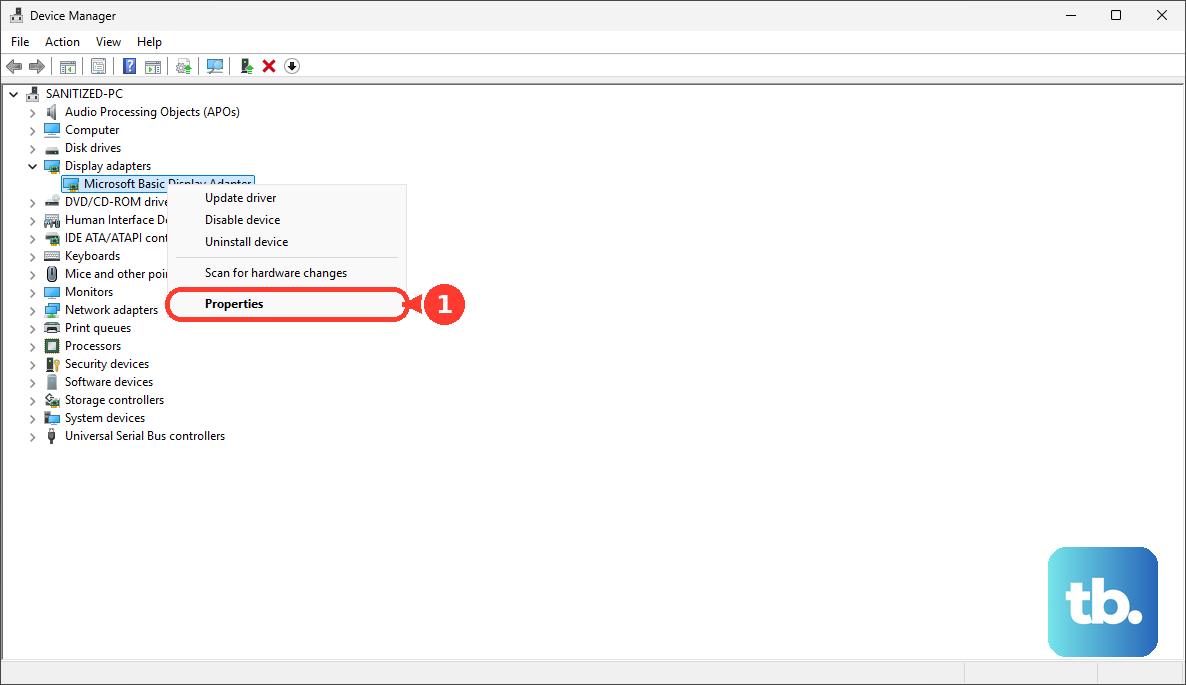
Without a recent driver update to reverse, right-click the adapter and select Update driver > Search automatically for drivers. Restart after installation. If the fault persists, select Uninstall device, then Uninstall, and restart so Windows attempts reinstallation; download the matching laptop-maker driver beforehand when possible.
If the black screen followed a resolution or refresh-rate change, return to Startup Settings and press 3 or F3 for Enable low-resolution video. Once Windows starts, open Settings > System > Display, select the affected display, and choose the Display resolution marked (Recommended). Under Advanced display, select the affected display and choose a supported value for Choose a refresh rate.
For a broader Windows startup failure, choose Troubleshoot > Advanced options > Startup Repair > Restart in recovery. Supply the BitLocker recovery key if requested and let the repair complete.
If a recent system change caused the failure, choose Troubleshoot > Advanced options > System Restore and select a restore point before the problem. Select Show more restore points if needed, and optionally select Scan for affected programs. Select Next > Finish, then restart afterward. System Restore retains personal files while reversing subsequent system changes.
Restore a MacBook display
On a MacBook, hold Power for up to 10 seconds until it turns off, then turn it on again. Press down Touch ID on models that use it as the power button. Raise brightness with Increase Brightness before moving to recovery.
For an Apple silicon Mac, shut down and hold Power until startup options appear, then select Options > Continue. On an Intel Mac, start while holding Command + R. Select the startup volume and an authorized user if requested.
If recovery displays properly, select Disk Utility > Continue, then choose View > Show All Devices. Run First Aid > Run on the last volume first, then work upward through volumes, volume groups, containers, and the device. Quit Disk Utility and restart afterward.
If startup still fails, back up if possible, return to recovery, select Reinstall macOS, and click Continue. Choose Macintosh HD rather than Macintosh HD - Data if offered. Complete installation without closing the lid or interrupting power; reinstalling without erasing normally preserves apps and personal data.
Restore a Chromebook display
Raise brightness first. With a monitor connected, pressing and holding Decrease brightness intentionally leaves the picture only on the monitor. To hard-reset most models, turn it off, hold Refresh, tap Power, and release Refresh when startup begins. Google warns that a hardware reset may affect files in the Downloads folder, and some models require their own procedure.
If the Chromebook still fails, remove peripherals, hold Esc + Refresh, and press Power, releasing the keys when recovery appears. On supported models, select Recover using internet connection and follow the recovery prompts. Recovery erases local storage, so back up accessible local files before proceeding. If no recovery image appears, continue with hardware service rather than attempting invisible menu selections.
Run hardware checks and arrange repair
On a Dell supporting the LCD built-in self-test, turn it off, hold D, and press Power. Release D when solid colors appear and inspect the patterns for abnormalities. Report failures to Dell; this checks the display independently of Windows.
On a supported Lenovo, turn off, connect AC, then press Fn + left Ctrl + Power together. Watch the solid-color sequence for approximately 20 seconds. Confirm support in the model’s Hardware Maintenance Manual before using that shortcut.
If the trouble began after a RAM or SSD upgrade, restore the factory hardware configuration using the model’s service instructions and retest. For accessible removable memory, shut down and disconnect AC and the battery as the service manual directs, then reseat it. Where multiple removable modules exist, test one module at a time and test the slots separately. Seek service when memory is inaccessible or soldered.
If the screen remains blank, arrange inspection of the panel, backlight, display cable, lid sensor, memory, or motherboard. Give the manufacturer your diagnostic codes, whether a logo appears, and whether external output works. When a failed BIOS update or diagnostic pattern points to firmware trouble, follow the exact recovery procedure supported for your model.
Reserve a factory reset of your laptop for a software failure after less disruptive repairs fail and recovery output is visible. Back up first, then open Settings > System > Recovery > Reset PC, or choose Troubleshoot > Reset this PC in Windows recovery.
Choose Keep my files or Remove everything, then choose Cloud download or Local reinstall and complete the prompts. Both reset options remove apps and settings; choosing Remove everything also deletes personal files. Do not interrupt the reset, and use hardware service if the display component itself has failed.
Frequently Asked Questions
Why does the screen go dark only when the picture changes?
Windows content-adaptive brightness can cause excessive dimming. Open Settings > System > Display > Brightness and set Change brightness based on content to Off if your laptop exposes that control.
Can VoiceOver leave a Mac screen black while it still works?
Yes, VoiceOver Screen Curtain can keep the display dark while VoiceOver remains active. Turning off VoiceOver also turns off Screen Curtain, or you can triple-tap the trackpad with three fingers when using VoiceOver gestures.
Should you reset the SMC on an Apple silicon MacBook?
Connect power and restart, or shut down and turn the Mac on again; Apple silicon handles the SMC reset automatically. Apple documents no additional SMC-reset key sequence for these Macs.
What if a Mac cannot display macOS Recovery?
An Apple silicon or T2 Mac may need a firmware revive using another Mac running macOS 14 or later. A revive preserves data, while a firmware restore erases the affected Mac. The connection requires your model’s correct DFU port and a USB-C cable supporting data and charging, rather than a Thunderbolt 3 cable.