
To calculate a percentage in Excel, divide the part by the total and format the answer as a percentage. With 42 in B2 and 50 in C2, type =B2/C2 in D2, press Enter, then select Percent Style on the Home tab, and 0.84 becomes 84%. Tax, discounts and percentage change are all variations on that one Excel percentage formula, part divided by total.
Do not multiply by 100 as well, because the Percentage format already does that for the display. We worked the share, tax, discount, original amount and change examples below in Excel for Microsoft 365 on Windows 11, version 25H2, on a sheet of made-up numbers, and repeated the share and fixed-rate steps in Excel for the web in Microsoft Edge.
The short version
- Share of a total: type
=B2/C2, then select Percent Style or press Ctrl + Shift + %. - Percentage of a number: multiply, as in
=B5*C5for 8.9% of 800. - Take a percentage off: use
=B6*(1-C6), or a plus sign in place of the minus to add one. - Copying one rate down a column: lock it with dollar signs, as in
$C$5. - Wrong answer: check the cell's format, the total, the formula and Formulas > Calculation Options.
Excel percentage formulas at a glance
| What you need | Formula | Result on our sheet | Format the answer as |
|---|---|---|---|
| The share of a total, 42 out of 50 | =B2/C2 | 0.84, shown as 84% | Percentage |
| A percentage of a number, 8.9% tax on 800 | =B5*C5 | 71.2 | Number or currency |
| An amount after a discount, 25% off 113 | =B6*(1-C6) | 84.75 | Number or currency |
| The original amount, when 15 is 75% of it | =B7/C7 | 20 | Number or currency |
| Percentage change, 2342 to 2500 | =(C3-B3)/B3 | 6.75% with two decimals | Percentage |
| A share whose total may be zero | =IF(C8,B8/C8,0) | 0 instead of #DIV/0! | Percentage |
Each formula points at cells rather than typed numbers, so the answer changes when you change an input. Type rates with their percent sign. When we typed 8.9% into C5, Excel displayed 8.90% and stored 0.089, which is the number the tax formula multiplies by.
Calculate a percentage of a total
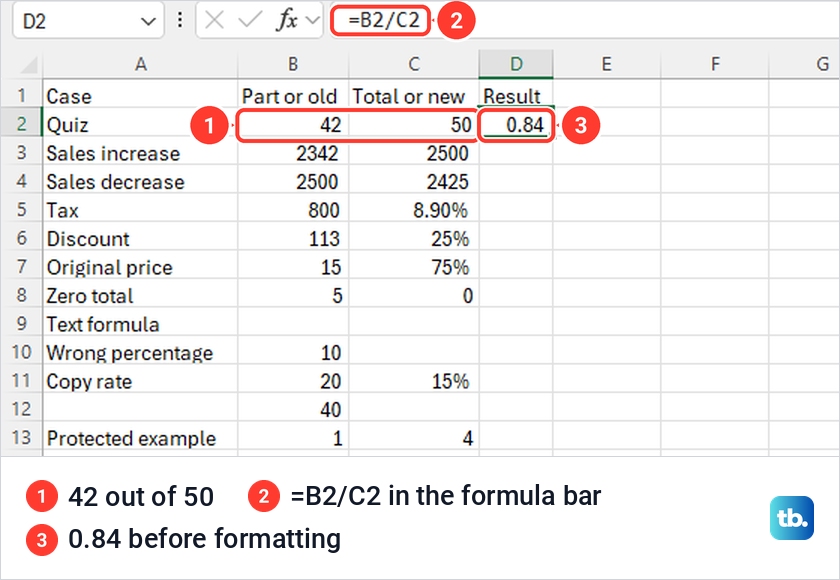
A percentage of a total is the part divided by the whole. Our practice sheet holds 42 correct answers in B2 and 50 questions in C2, so the share goes in D2.
Click D2, type =B2/C2 and press Enter. Excel showed 0.84, which is already the right answer written as a decimal, 84 hundredths. The next section turns it into 84%.
The total does not have to be typed in. If your whole is spread down a column, sum a column in Excel first, then divide the part by the cell that holds that sum. Either way the formula stays the part divided by the total, with the total after the slash.
Excel for Microsoft 365 also has a PERCENTOF function. As we typed it, Excel described it as returning the percentage of a subset of a given data set, and =PERCENTOF(B2,C2) returned 0.84 in the desktop app and in Excel for the web. Microsoft says it is logically equivalent to dividing the sum of the subset by the sum of the whole, so it still needs percentage formatting and saves nothing for two single cells.
Format the answer as a percentage
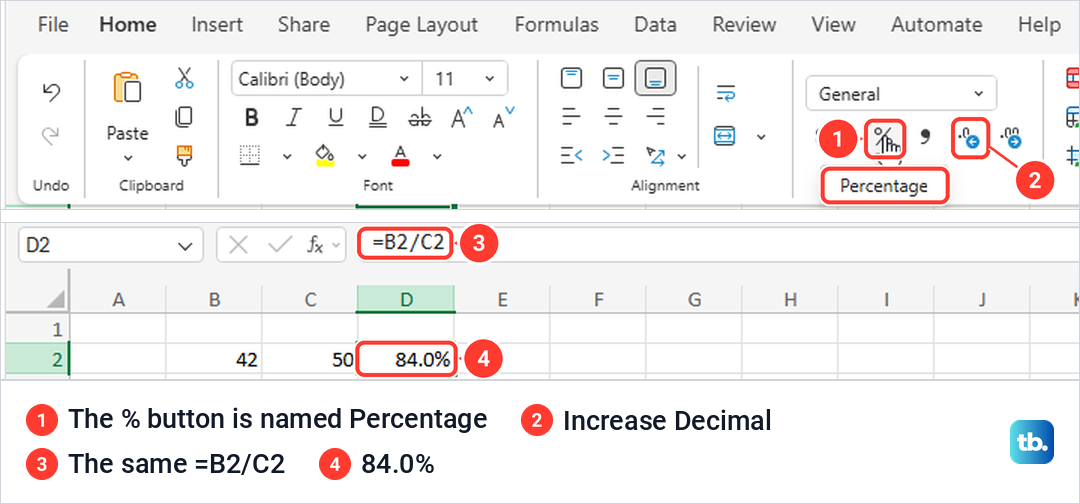
Select the answer cell and choose Percent Style, the % button in the Number group of the Home tab. Its tooltip on our PC read Percent Style (Ctrl+Shift+%), Format as a percent, so Ctrl + Shift + % applies the same format from the keyboard. D2 changed from 0.84 to 84%, while the formula bar still showed =B2/C2.
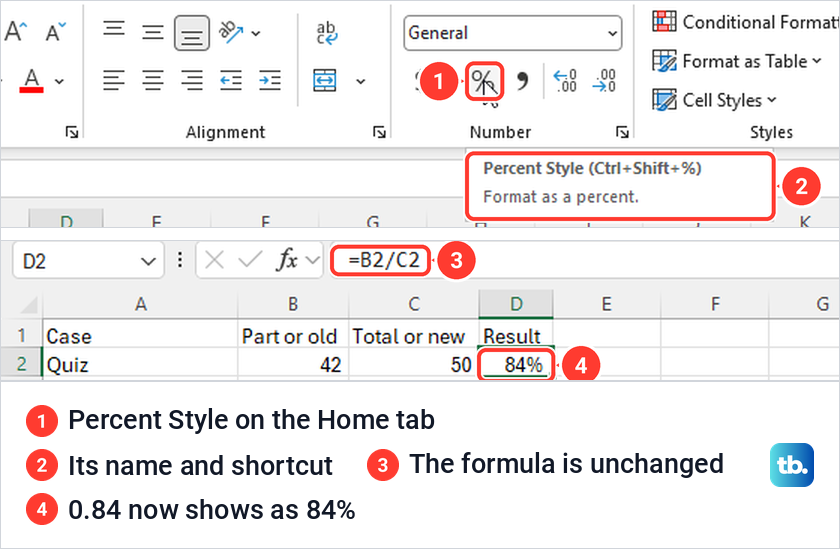
Formatting changes how the number looks, not what it is. Microsoft describes the Percentage format as one that multiplies the cell value by 100 and displays the result with a percent symbol. That is why the formula should not multiply by 100 too, because doing both makes the answer 100 times too large.
Choose how many decimal places to show
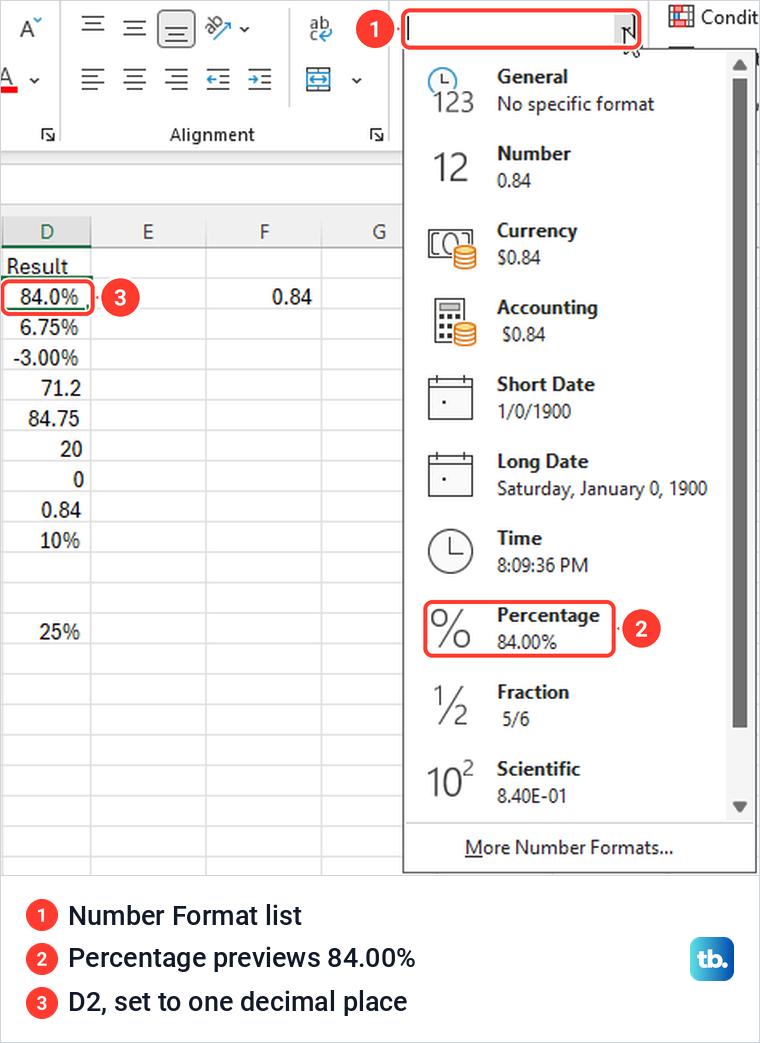
Percent Style showed no decimals on our sheet, so 0.84 became 84% and a change of 6.75% appeared as 7%. For more places, select Increase Decimal beside it, or press Ctrl + 1 to open Format Cells. Ours opened on the Number tab with Percentage selected, and setting Decimal places to 1 made both the sample and the cell read 84.0%.
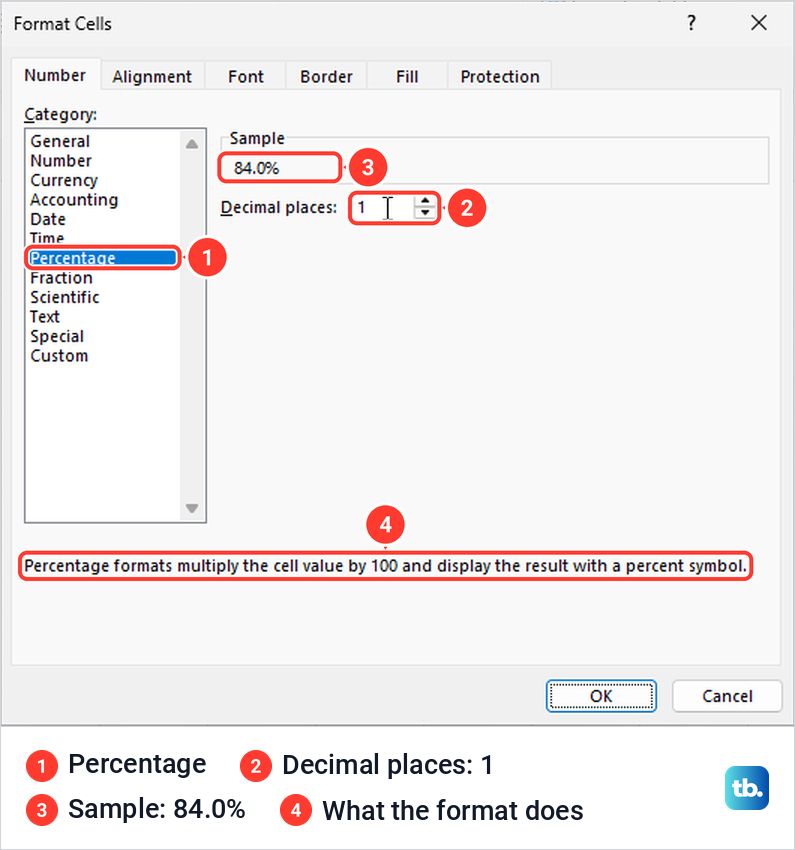
Right-clicking the cell and choosing Format Cells opens the same dialog, and so does the small arrow in the corner of the Number group. Pick Percentage, set the decimal places and select OK. On our sheet a 1 out of 4 result in D13 showed 25% with the decimal places set to 0.
The routes do not all start at the same precision. Percent Style gave us 84% with no decimals, but the Percentage entry in the Number Format list on the Home tab previewed the same value as 84.00%. Set the decimal places yourself, and use one setting for a whole column so the figures line up.
Find a percentage of a number
To find a percentage of an amount, such as sales tax or a tip, multiply the amount by the rate. Our sheet has 800 in B5 and a tax rate of 8.9% in C5, and =B5*C5 in D5 returned 71.2.
Leave that answer in a number or currency format rather than Percentage, because 71.2 is an amount of money, not a share. The asterisk is Excel's multiplication sign, and our guide to multiply in Excel with cell references explains it in more detail.
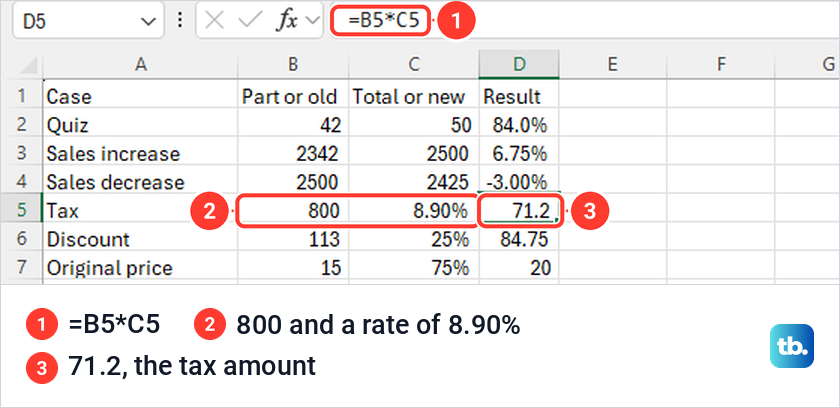
Typing the rate with its percent sign is what makes this work. Excel stored our 8.9% as 0.089, so the formula multiplied 800 by 0.089. Type 8.9 without the sign and the same formula multiplies by 8.9, which gives an answer 100 times too large.
Increase or decrease an amount by a percentage
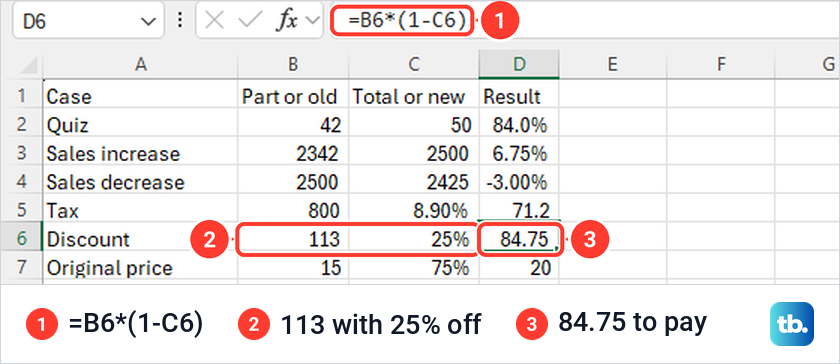
To take a percentage off, multiply by one minus the rate. For a 25% discount on 113, our sheet used =B6*(1-C6) in D6 and returned 84.75, the price after the discount.
In that formula 1 stands for 100%, so 1 minus 25% leaves 75% of the original. Keep the brackets, because Excel multiplies before it subtracts and would otherwise work out 113 minus 0.25, which is 112.75. If the minus sign is new to you, see how to subtract values in Excel first.
To add a percentage instead, put a plus sign where the discount formula has a minus, so the amount is multiplied by 1 plus the rate. Microsoft's example is =B2*(1+C2), with the amount in B2 and the rate in C2. The same pattern covers a price rise, a pay increase or a service charge added to a bill.
Find the original amount from a percentage
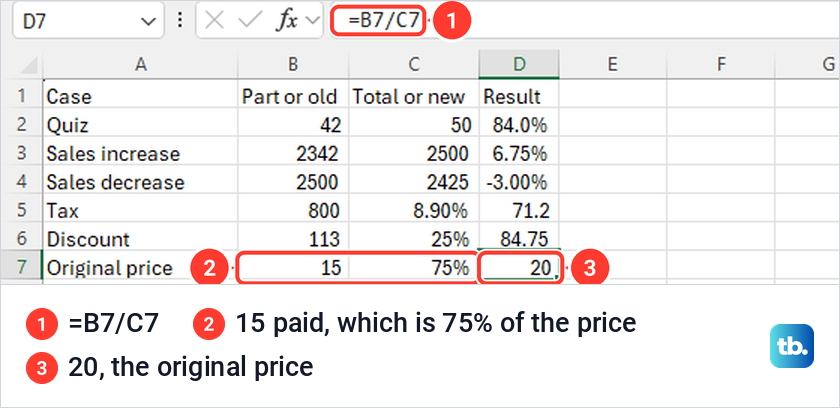
Sometimes you know the result and the percentage and need the starting amount. If a shirt cost 15 after 25% off, you paid 75% of the original price, so divide 15 by 75%.
Our sheet has 15 in B7 and 75% in C7, and =B7/C7 returned 20. Divide by the rate when the number you have is a part of the original, and multiply when you want a part of an amount you already know.
Calculate percentage change
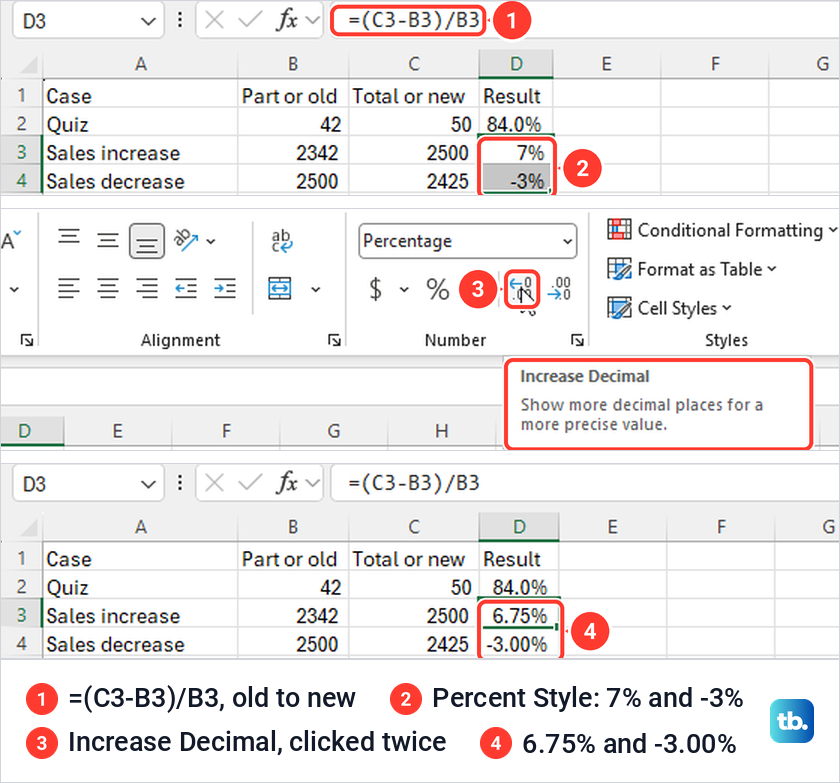
Percentage change is the difference divided by the old value. Our sales rose from 2342 in B3 to 2500 in C3, so D3 holds =(C3-B3)/B3, and the fall from 2500 to 2425 uses =(C4-B4)/B4 in D4.
With Percent Style the two answers showed as 7% and -3%. Two clicks on Increase Decimal brought them to 6.75% and -3.00%, so check the decimals before you report a change. A negative answer is a fall, and Excel adds the minus sign for you.
Always divide by the old value, the one you are measuring the change from. For more old to new examples, follow our guide to calculate percentage change in Excel.
Keep a percentage fixed when you copy a formula
When one rate applies to a whole column, put it in one cell and lock that cell with dollar signs before you fill the formula down. Without them, Excel moves every reference down one row for each row it fills.
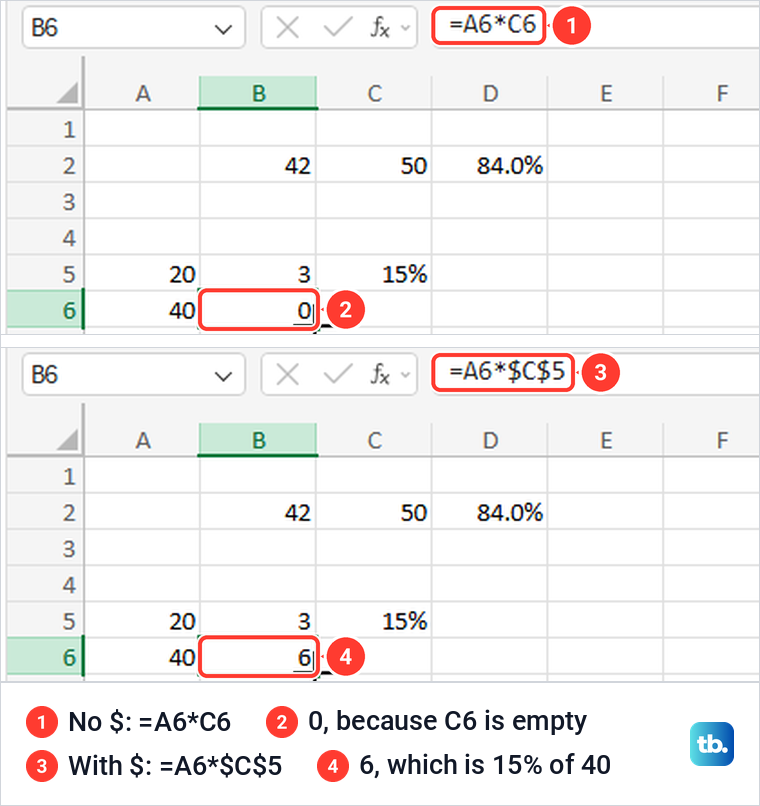
In Excel for the web, we put 20 and 40 in A5 and A6 and a 15% rate in C5. =A5*C5 in B5 returned 3, but dragged down to B6 it became =A6*C6 and returned 0, because C6 is empty.
Changing the first formula to =A5*$C$5 and dragging it again fixed it. B6 then held =A6*$C$5 and returned 6, which is 15% of 40, because the dollar signs kept the rate on C5.
The same rule applies to a total. To show each row's share of one total cell, put a dollar sign before the column letter and before the row number of the total's reference, the way $C$5 locks our rate, then fill the formula down. Our guide to locking cells in Excel explains what each dollar sign does. If dragging the fill handle does nothing at all, fix Excel fill series before copying the formula down.
Calculate a percentage in Excel for the web
The formulas are the same in a browser. In Excel for the web in Microsoft Edge, =B2/C2 with 42 and 50 showed 0.84, just as on the desktop.
The labels differ a little. The web app's % button is named Percentage in its tooltip rather than Percent Style, and the Number Format list on the Home tab has a Percentage entry. We chose Percentage from that list and then selected Increase Decimal once, and D2 showed 84.0% with =B2/C2 still in the formula bar.
PERCENTOF worked in Excel for the web as well, returning 0.84 for the same two cells. One difference matters if you turn calculation off, because Microsoft says the web setting affects the current workbook only, while the desktop app applies it to all open workbooks.
In Excel for Mac, Microsoft's steps use the same formulas. Click a blank cell, type the formula and press Return, then click Percent Style on the Home tab, and use Increase Decimal or Decrease Decimal to change the places shown.
Fix a percentage that looks wrong
If a percentage looks wrong, check the cell's format, the total, the formula and the calculation setting. Use the checks below to find the cause and fix it.
Excel shows 1000% instead of 10%
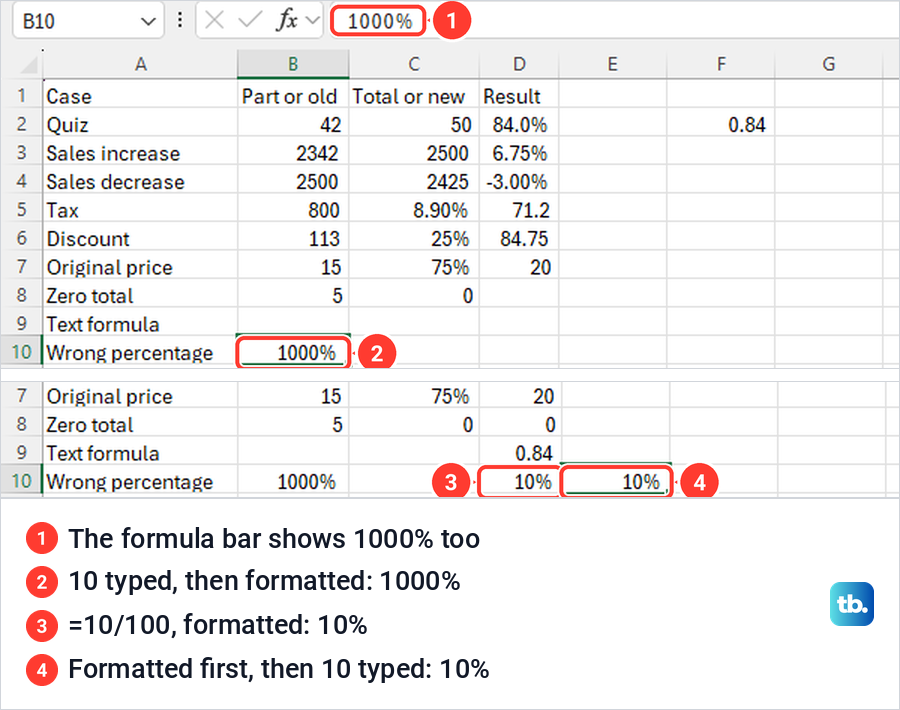
Percent Style shows whatever is already in the cell multiplied by 100. When we formatted a cell that held 10, it showed 1000%, and the formula bar showed 1000% as well.
Two entries gave the expected 10%. =10/100 with Percent Style showed 10%, and so did typing 10 into an empty cell that we had formatted as Percentage first. Microsoft says that in a cell formatted as Percentage beforehand, typing 10 or 0.1 both result in 10.00%. In an unformatted cell, typing the % sign yourself also works, as it did for our 8.9% rate.
The percentage is 100 times too large
If a formula multiplies by 100 and its cell also has the Percentage format, the 100 is applied twice. Remove the *100 from the formula and keep the format, or keep the *100 and set the cell back to General or Number.
The cell shows #DIV/0! instead of a percentage
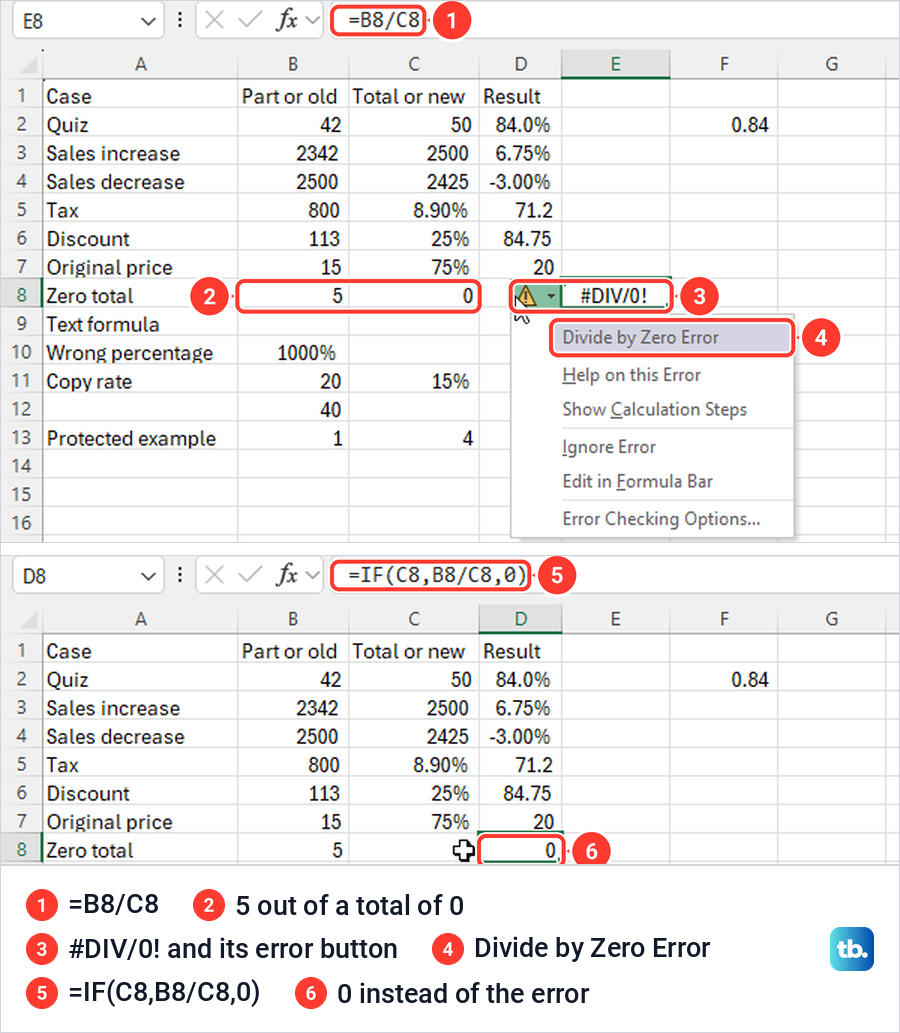
Excel shows #DIV/0! when the total is zero, and Microsoft says a blank total cell does the same. On our sheet, 5 divided by a total of 0 showed the error with a warning button beside it, and its menu was headed Divide by Zero Error.
If the total is just not filled in yet, test it before dividing. =IF(C8,B8/C8,0) showed 0 on our sheet, and Microsoft's example =IF(A3,A2/A3,""), written for a part in A2 and a total in A3, leaves the cell empty instead. Our guide to using an IF statement in Excel explains how the test works.
Microsoft also offers IFERROR for this, but notes that it is a blanket error handler that suppresses every error, not just #DIV/0!. Prefer the IF test, so a broken reference still shows up while you build the sheet.
The formula shows instead of the answer
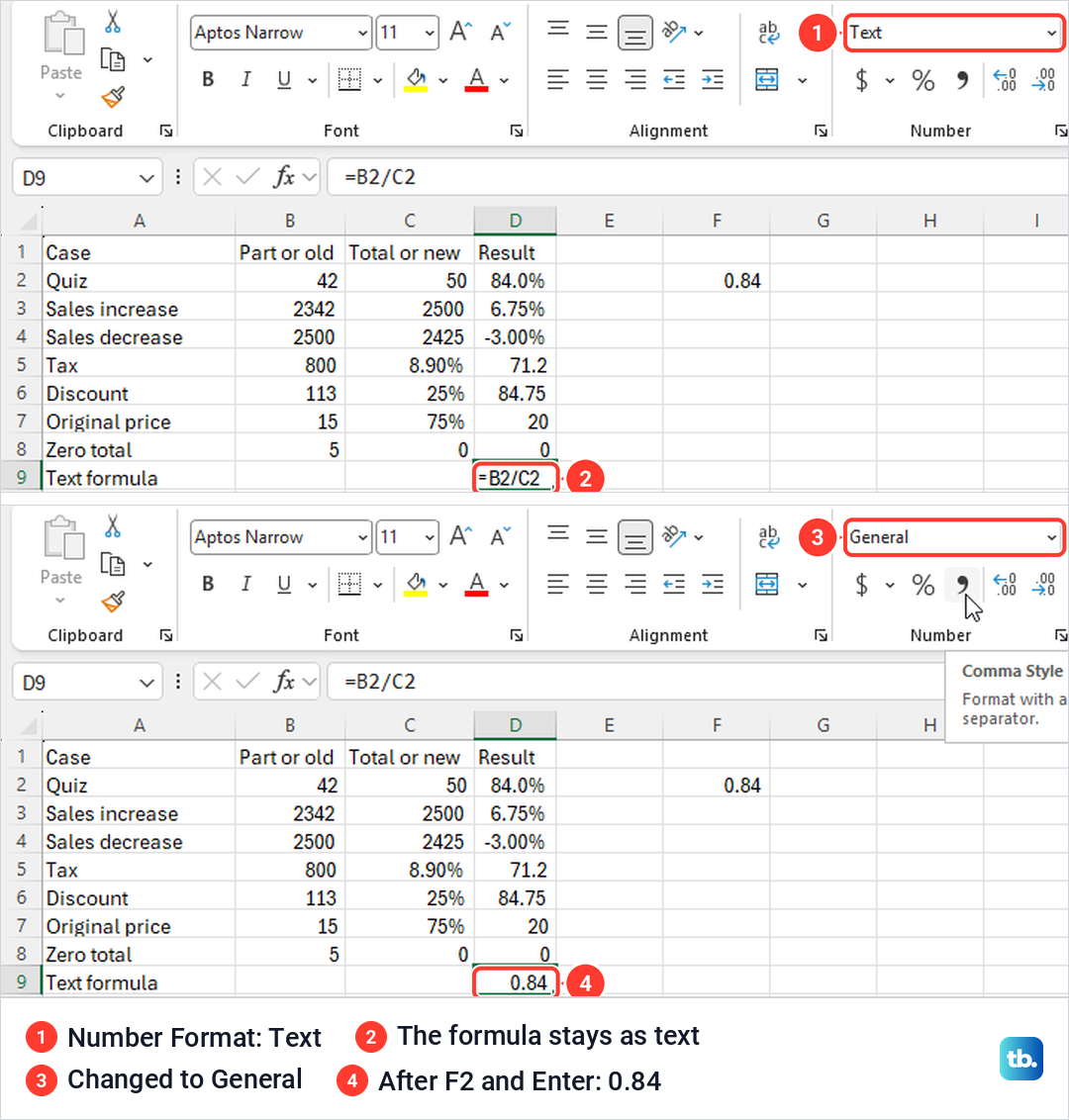
A cell formatted as Text keeps whatever you type as text, formulas included. We set D9 to Text from the Number Format list and typed =B2/C2, and the cell showed the formula itself. Changing the format to General, then pressing F2 and Enter to re-enter it, returned 0.84.
If every formula on the sheet shows as text, Show Formulas on the Formulas tab is probably on, and Microsoft gives Ctrl + ` (the grave accent key) as its shortcut. On our sheet it displayed each formula, and the raw 0.089 behind our 8.9% rate, until we selected it again. If neither fix helps, fix formulas showing as text with the full checklist.
The percentage does not update
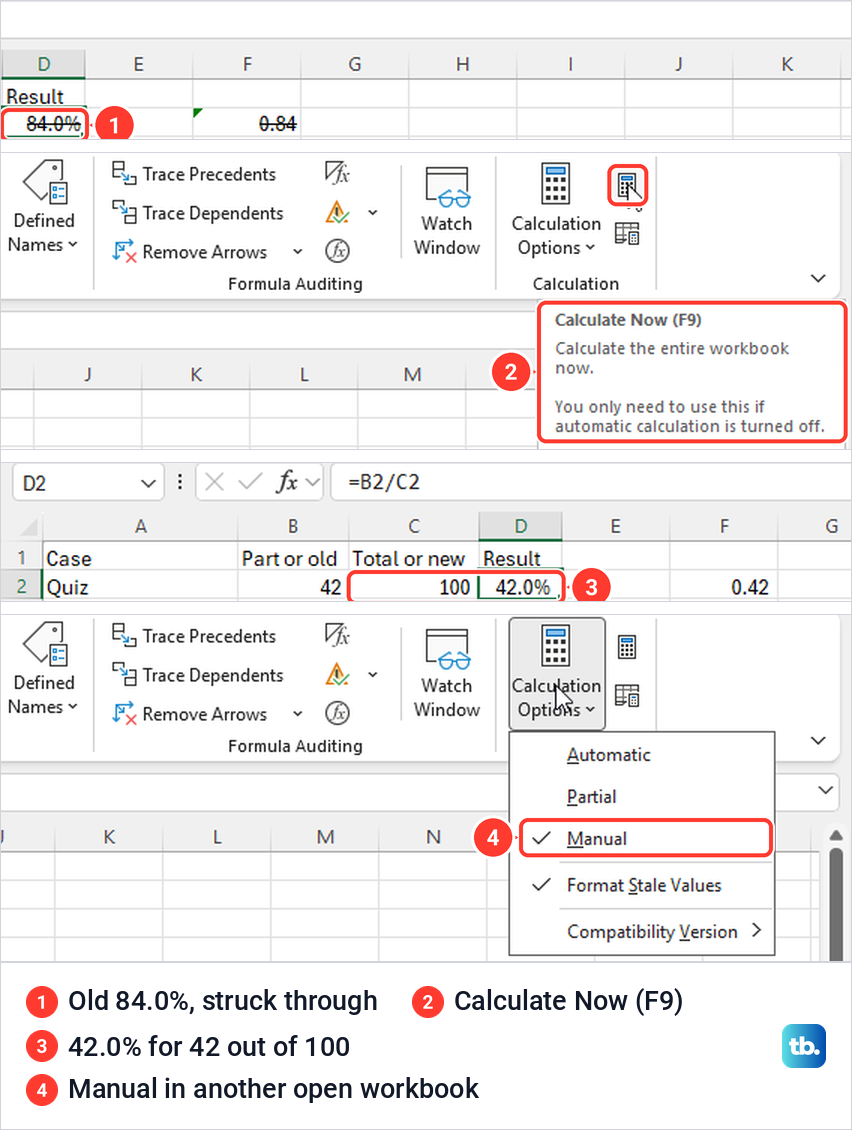
If you change a number and the percentage stays the same, check Formulas > Calculation Options. Automatic is the default calculation setting. When we switched to Manual and changed the total in C2 from 50 to 100, D2 kept showing 84.0%, drawn struck through, and the status bar read Calculate. The strikethrough is the Format Stale Values option at work, which was ticked alongside Manual in the Calculation Options menu on our PC.
Calculate Now in the Calculation group, whose tooltip names F9, updated it to 42.0%. On the desktop the Manual setting reached our other open workbook too, which matches Microsoft's note that the option affects all open workbooks.
Switch back to Automatic when you finish, and our sheet showed 84.0% again once the total was back to 50. If Automatic is already on and results still go stale, fix Excel formulas that are not working for the rarer causes.
Excel will not let you edit the formula
A protected sheet blocks changes to locked cells. When we protected our sheet without a password and tried to edit D13, Excel said the cell or chart you're trying to change is on a protected sheet, and the Review tab showed Unprotect Sheet.
Selecting Review > Unprotect Sheet asked for nothing on our sheet, which had no password, and D13 took its formula again. If the owner set a password, Microsoft says you enter it in the Unprotect Sheet dialog, and our guide to unprotect an Excel worksheet covers removing protection when you know the password.
How we tested this guide
We tested this in Excel for Microsoft 365 on Windows 11, version 25H2, working the share, tax, discount and change examples, then the share in Excel for the web in Edge.
Frequently Asked Questions
What is the formula for a percentage of a total in Excel?
Divide the part by the total, as in =B2/C2, then apply the Percentage format. For 42 out of 50, Excel returns 0.84, which displays as 84%.
How do I calculate 8.9% of 800 in Excel?
Put 800 and 8.9% in two cells and multiply them, as in =B5*C5. The answer is 71.2, an amount, so leave it in a number or currency format.
Why does Excel show 1000% when I typed 10?
The cell held 10 before it was formatted, and the Percentage format multiplies the value by 100. Type 10% with the sign, use =10/100, or format the empty cell as Percentage before you type 10.
How do I stop #DIV/0! in a percentage formula?
Fill in the total, or test it first with =IF(C8,B8/C8,0), which shows 0 while the total is zero or blank. IFERROR also removes the error, but it hides every other error too.
How do I keep one percentage fixed when I copy the formula?
Add dollar signs to the rate's cell, as in =A5*$C$5, then fill down. Without them the reference moves with each row and the copies return wrong answers.
Why does my percentage not change when I edit the numbers?
Calculation is probably set to Manual. Select Formulas > Calculation Options > Automatic, or press F9 to recalculate once.
Is Percent Style the same as the Percentage format?
Yes, Percent Style applies the Percentage format, and the Number Format box read Percentage after we used it. The difference on our PC was the decimals, since Percent Style showed 84% while the Number Format list previewed 84.00%.