
Keeping an eye on your Samsung Galaxy A16's battery status is a smart way to understand its overall health and daily performance. While Samsung doesn't provide a single, simple percentage like some brands, there are several built-in tools within Android 14 and One UI 6.1 that give you a clear picture. Let's walk through the best ways to check it.
Start with the Battery and Device Care Menu
Your first stop should always be the main battery settings. Swipe down from the top of your screen and tap the gear icon, or find the Settings app. From there, navigate to Battery and device care > Battery.
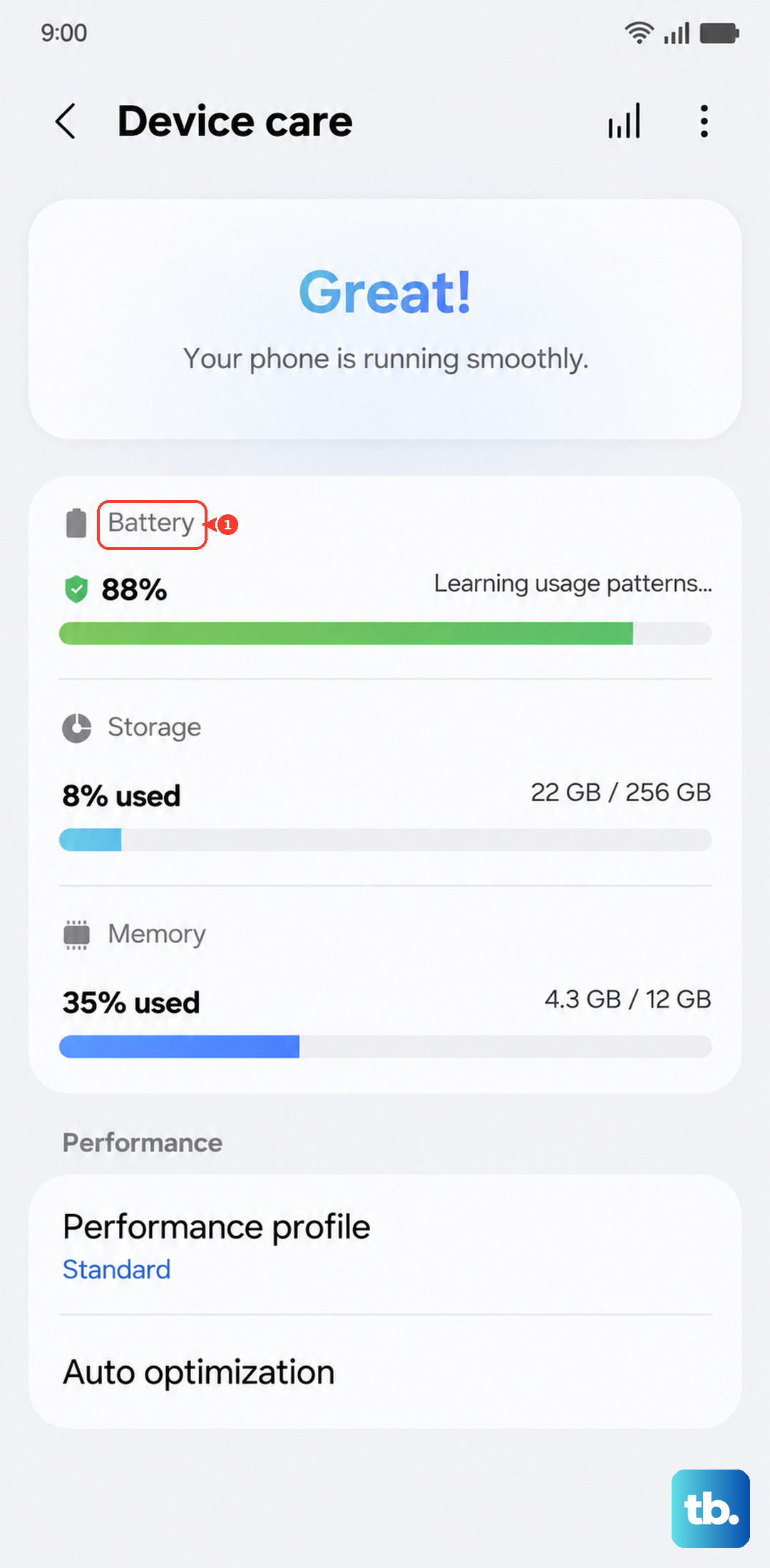
This screen is your hub. You'll see your current charge level and an estimate of how much time is left. For a deeper look, tap on Battery usage. This breaks down exactly which apps have been consuming power since your last full charge.
It's incredibly useful for spotting apps that are draining your battery in the background without you realizing it. If you see a social media or messaging app with high background usage, you might want to restrict it.
Run a Diagnostic with Samsung Members
For a more formal health check, use the Samsung Members app that came pre-installed on your A16. Open the app and tap on the Get help tab at the bottom. Then, select Interactive checks.
You'll see a list of components you can test. Tap on Battery status. The app will run a quick diagnostic and tell you if your battery is operating normally or if there's an issue. This is the closest you'll get to an official "battery health" verdict from Samsung itself.
I find this method is the most reliable for peace of mind, as it's using Samsung's own diagnostics. It's a good habit to run this check every few months.
Understand Your Charging Protection Options
Your Galaxy A16 has features designed to extend the battery's long-term lifespan. Head back to Settings > Battery and device care > Battery > More battery settings. Here, you'll find Battery protection.
You can set it to cap your maximum charge at 85%, which significantly reduces wear on the battery cells. Given the A16's large 5000mAh battery, charging to 85% should still get most users through a full day, making this a great trade-off for longevity.
Also in this menu, make sure Adaptive battery is turned on. It learns how you use apps and automatically limits power for ones you rarely open, which can really help with daily endurance.
Use the Hidden Service Menu for Technical Data
There's a hidden diagnostic menu that provides raw technical data. Open your Phone app and dial *#0228#. A simple menu will pop up showing your battery's current voltage, temperature, and other stats.
While this doesn't give a straightforward "health" rating, a consistently low voltage reading when the battery is near full can be a sign of aging. For most people, the Samsung Members diagnostic is easier to interpret, but this is an option for the curious.
Just tap the Quick Start button at the bottom of that menu to close it when you're done looking.
Recognize When a Replacement Might Be Needed
Over time, all batteries lose capacity. If your Galaxy A16, which is only a year old, is struggling to make it past lunchtime on a charge, suddenly shuts down at 20%, or feels like it's getting unusually warm during basic tasks, the battery could be degrading faster than expected.
Physical swelling is an immediate red flag. If the back of your phone is bulging or the screen is lifting, stop using the device and contact Samsung support. For general wear and tear, Samsung offers official battery replacements through their authorized service network.
Daily Habits to Keep Your Battery Healthy
Your charging habits make a big difference. Always use a good quality USB-C cable and, ideally, a Samsung 25W charger to get the fastest supported speed for the A16. Avoid leaving the phone plugged in at 100% for days on end, which is why the 85% protection mode is so handy.
Try to keep the phone out of extreme heat, like a dashboard in direct sun. Also, enabling Dark Mode takes great advantage of the A16's AMOLED display, as black pixels turn off completely and save a noticeable amount of power.
Finally, if you ever feel the phone is lagging during multitasking, clearing the app cache through the Device Care menu can sometimes improve general performance and, indirectly, battery efficiency by smoothing out software hiccups.