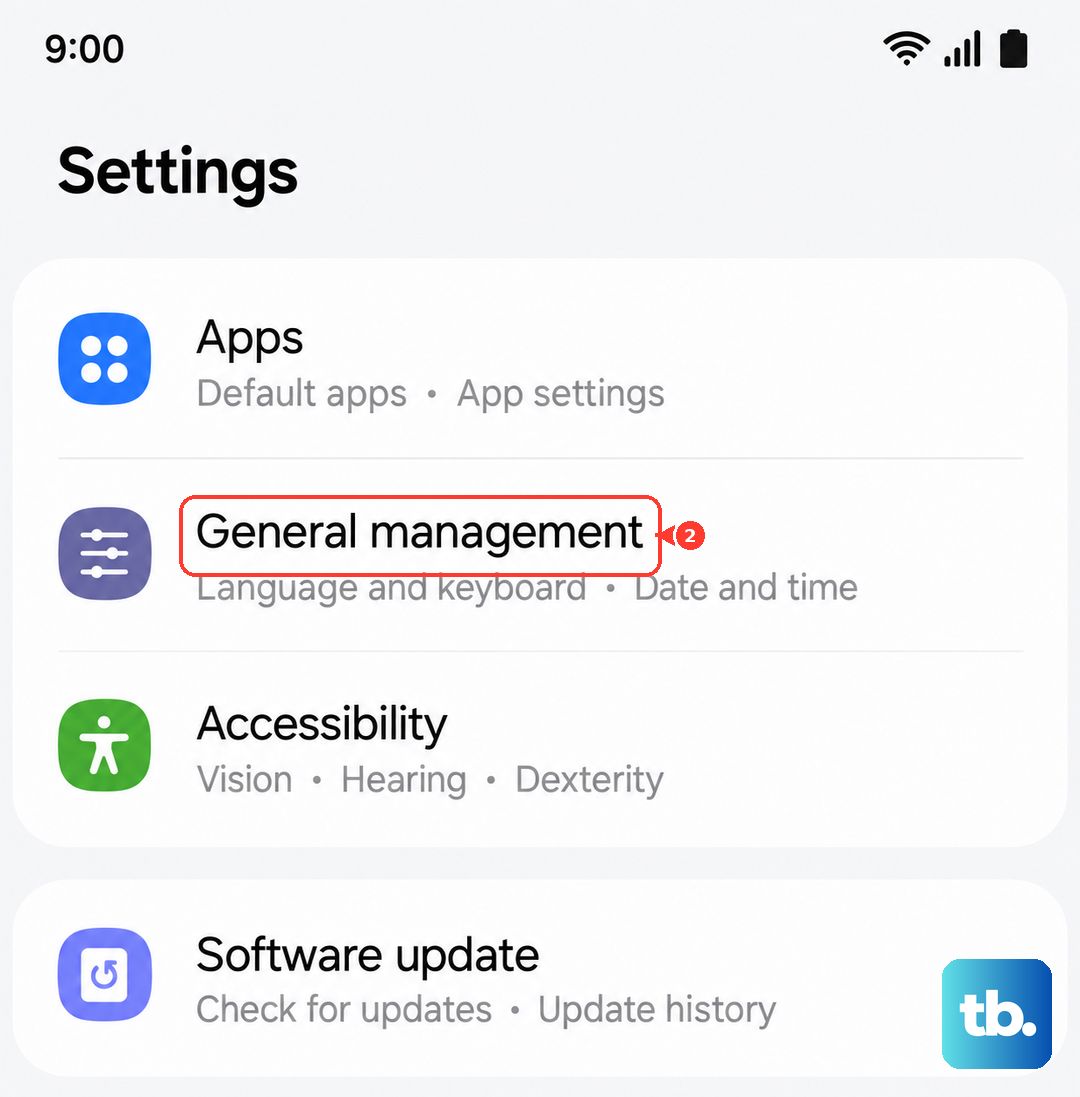
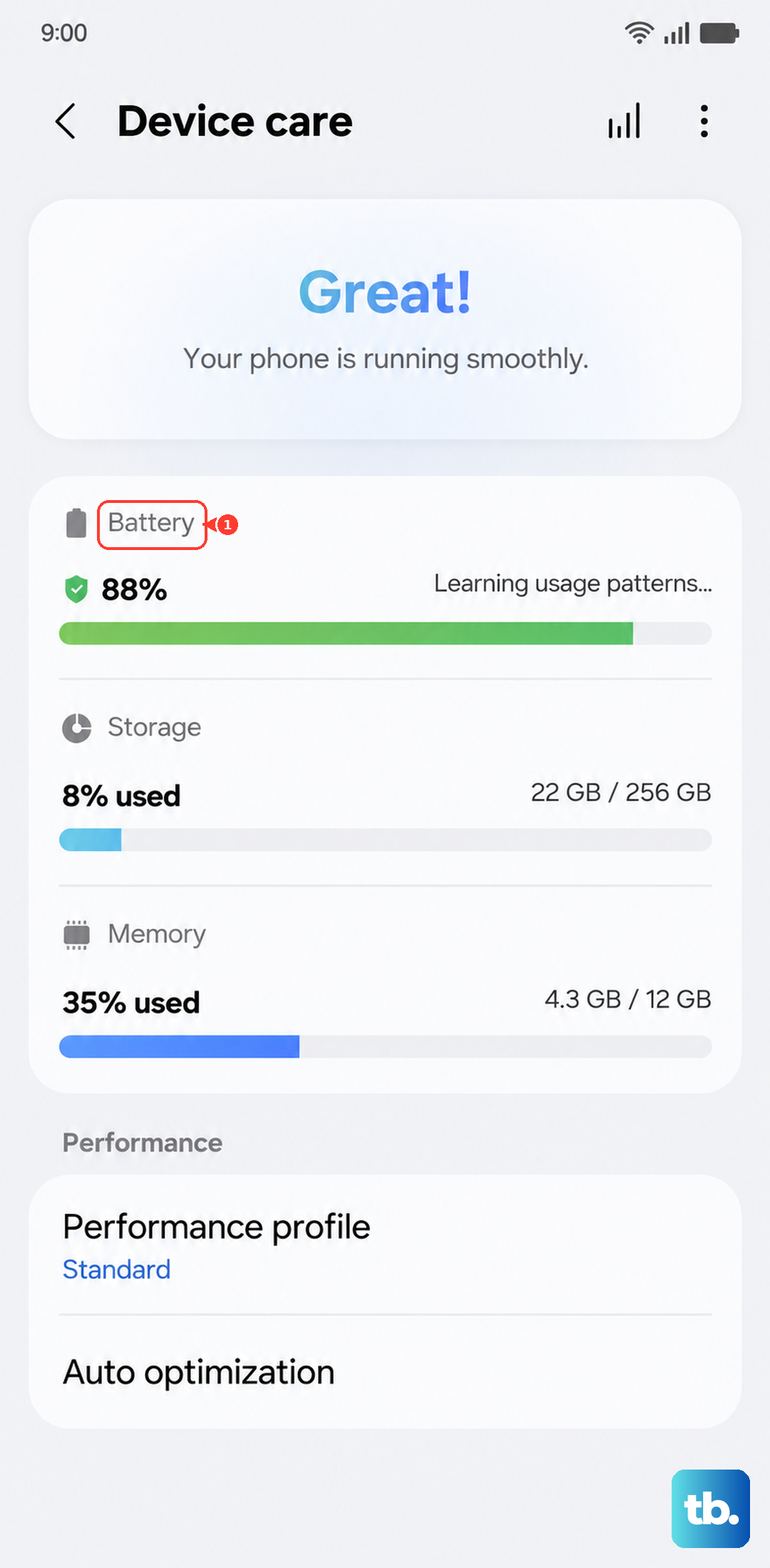
If your Samsung Galaxy S25 Ultra is losing battery faster than it should, the first thing to do is check the battery health and usage stats. These checks can help you identify a battery issue or an app using excessive power. For battery checks, open Settings > Device care > Diagnostics > Phone diagnostics. Review the battery test result, then check app usage separately under Settings > Battery.
More importantly, tap on Battery from the main Settings menu. Look at the usage graph and tap View details to review app usage, Screen on time, and Screen off time. If you see an app using a suspiciously high percentage, that's your likely culprit.
Manage Your Display and Performance
The S25 Ultra's stunning 6.9-inch display is a major battery draw. A simple fix is to lower the brightness. You can also enable Adaptive brightness so it adjusts automatically. I'd recommend setting the screen timeout to 30 seconds under Settings > Display > Screen timeout.
Consider using Dark mode, especially with the phone's OLED screen. The darker color scheme can help reduce power consumption. You can set it to turn on automatically at night in Settings > Display > Dark mode settings by enabling Turn on as scheduled. Also, reduce the screen resolution from the max WQHD+ to FHD+ in the display settings. The difference in sharpness is minimal for daily use, but it can give your battery a noticeable boost.
The Snapdragon 8 Elite for Galaxy chip is powerful, but the Light performance profile can help prioritize battery life over processing speed. If you're not gaming or editing video, try switching the performance profile. Go to Settings > Device care > Performance profile and select Light instead of the default Standard. You can also open Device care and tap Battery to review battery use.
Control Background Activity and Connectivity
Background apps are a common drain. Head to Settings > Apps, select any app, and tap Battery. You can set it to Restricted to limit its background activity. Be careful with messaging apps like WhatsApp or Samsung Email, as restricting them might delay notifications.
Location services are another big one. Go to Settings > Location and review which apps have recent access. For apps that don't truly need to know where you are, change the permission to Allow only while using the app or deny it completely. You can also turn off Wi-Fi and Bluetooth scanning in the location settings menu.
The S25 Ultra's S Pen doesn't support Air actions, so it doesn't keep a Bluetooth connection running. If you're not using any Bluetooth accessories, just turn Bluetooth off from the quick settings panel. You can also reduce unwanted app notifications in Settings > Notifications > App notifications by turning off the switches for apps you don't need alerts from.
Update Software and Use Built-in Tools
Always make sure your phone is running the latest software. Updates often include battery optimizations. Check by going to Settings > Software update > Download and install. Update your apps through the Galaxy Store and Google Play Store too, as bug fixes can resolve power-hungry behavior.
Samsung includes some great automated tools. Go to Settings > Battery > Background usage limits. Here, you can enable Put unused apps to sleep to let the system manage apps you haven't opened in a while. To add apps to Deep sleeping apps, open the list, tap the plus sign, select the apps, and tap Add. These apps only work when you open them.
Don't forget about the quick toggle for Power saving mode. You can add it to your notification panel. When enabled, it limits background network usage, reduces performance, and caps the screen to 60Hz. For a more aggressive save, open Settings > Battery > Power saving and turn Power saving off before adjusting its options. Enable Limit apps and Home screen, which simplifies the Home screen and further restricts background activity, then turn Power saving back on.
Check for Hardware and Charging Issues
If the drain is sudden and severe, a misbehaving app might be the cause. Try booting the phone into Safe Mode. Press and hold the Side and Volume down buttons together to open the power menu, then touch and hold Power off and tap Safe mode. If the battery life is normal in Safe Mode, a downloaded app is likely the problem. You'll need to uninstall apps one by one to find the offender.
Your charging habits matter. While the S25 Ultra supports 45W wired charging, you need a compatible PPS charger like Samsung's own 45W EP-T4510 to hit that speed. Using a slow or incompatible charger can mean the phone takes longer to charge; excessive heat isn't ideal for long-term battery health. Wireless charging is convenient, but it's less efficient and generates more heat than wired.
As a last resort, you can reset all your settings without deleting your personal data. This returns settings to their defaults and may help with settings-related problems, while keeping security and language settings, accounts, personal data, and settings for downloaded apps. Go to Settings > General management > Reset > Reset all settings. Tap Reset settings, then Reset to confirm, and review your preferences afterward.