


If your new Samsung Galaxy S25+ is running out of juice way too fast, you're not alone. It's a common frustration, especially right after setting up the phone. The good news is there are several straightforward things you can check and adjust that often make a big difference.
Before you dive into settings, give your phone a little time if it's brand new. The initial setup and indexing process can cause significant battery drain for the first 24 to 48 hours. After that period, the battery life should stabilize and become more representative of normal use.
Check What's Using Your Battery
Your first stop should always be the battery usage menu. This tells you exactly which apps and services are consuming power. Go to Settings > Battery. Here, you'll see a breakdown of usage since your last full charge.
Look for any apps using a surprisingly high percentage. A social media or streaming app at the top isn't unusual, but if something like "Android System" or "Phone idle" is abnormally high, it might point to a deeper issue. This screen is your best clue for targeted troubleshooting.
Manage Your Display Settings
The screen is almost always the biggest battery drain on any phone. On the S25+, you have a few powerful levers to pull. First, consider disabling the Always-On Display. While convenient, it keeps a part of your screen active constantly. You can turn it off in Settings > Lock screen > Always On Display.
Next, take a look at your screen resolution and refresh rate. The S25+ can run at a super-smooth 120Hz, but that uses more power. If battery is a priority, try switching to a standard 60Hz refresh rate in Settings > Display > Motion smoothness. You can also lower the screen resolution from WQHD+ to FHD+ in the same menu for additional savings.
Finally, make sure your screen timeout is set appropriately. A shorter timeout means the screen turns off faster when you're not using it. Head to Settings > Display > Screen timeout and choose a time like 30 seconds or 1 minute.
Control Background Activity
Apps running in the background can silently eat away at your battery. Samsung's One UI has a feature called "Put unused apps to sleep" that automatically manages this. You can check and adjust it by going to Settings > Battery > Background usage limits.
You can also manually place specific battery-hungry apps into "Deep sleep" here, which prevents them from running in the background at all. This is perfect for apps you don't need notifications from. Additionally, go to Settings > Apps, select any app, and tap Battery to choose between Unrestricted, Optimized, or Restricted background usage.
Review Connectivity Features
Wireless radios searching for a signal are a common drain. If you're in an area with poor cellular service, your phone works harder to maintain a connection, which kills the battery. In these situations, try enabling Airplane mode when you don't need calls or texts, or switch to Wi-Fi calling if your carrier supports it.
For location services, not every app needs to know where you are all the time. Go to Settings > Location and review app permissions. Change apps from "Allow all the time" to "Allow only while using the app" where it makes sense. Also, tap on "Improve accuracy" and consider turning off Wi-Fi and Bluetooth scanning if you don't need them.
If you have a Wi-Fi 7 router, be aware some S25+ users have reported occasional disconnections that could cause the phone to struggle between networks. If you suspect this, try temporarily using the 5GHz band or restarting your router.
Update Your Software and Apps
Software bugs are a frequent cause of unexpected battery drain. Make sure your phone is running the latest version of Android and One UI. Check for updates by going to Settings > Software update > Download and install.
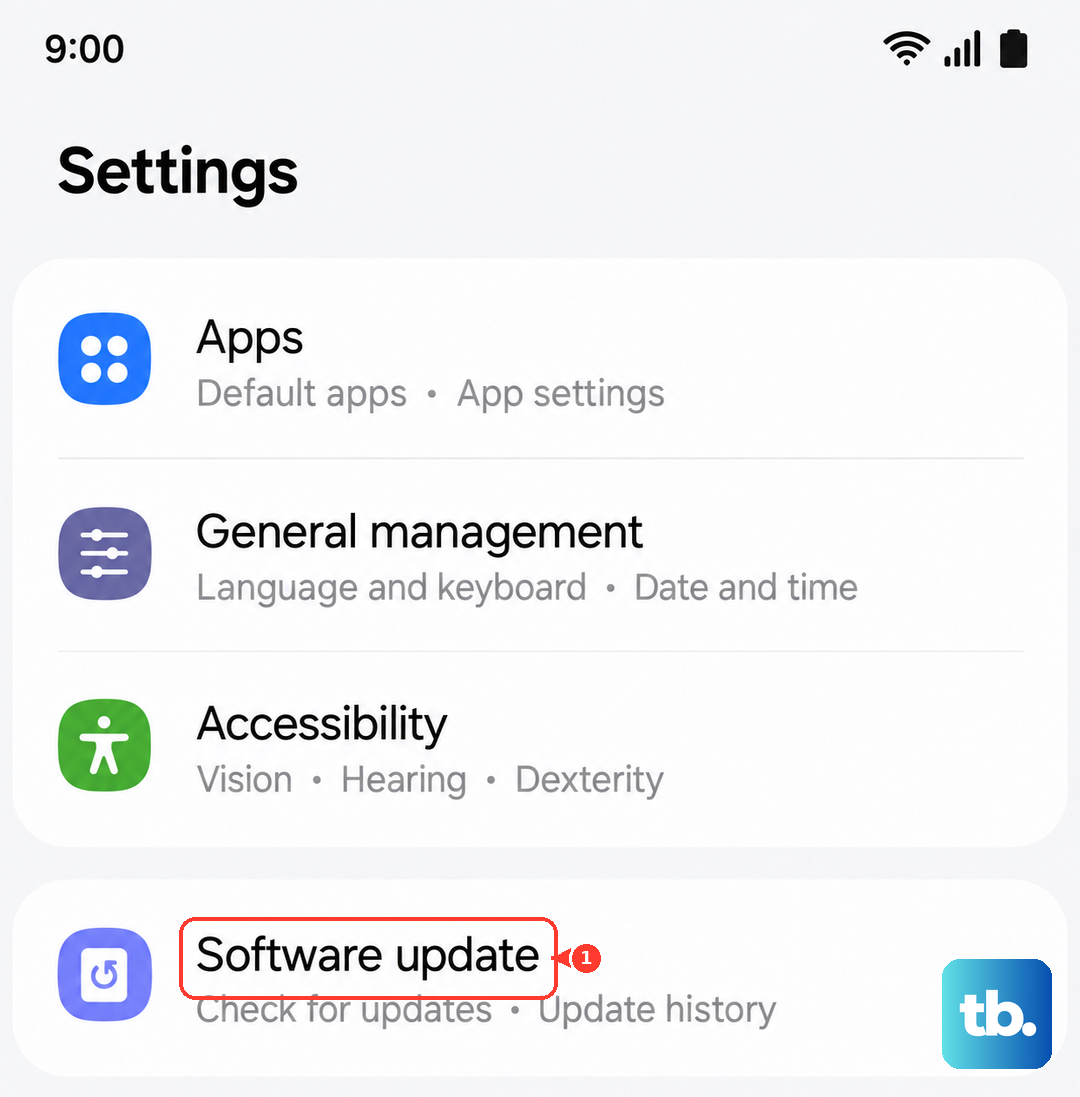
Outdated apps can have similar problems. Open the Google Play Store, tap your profile icon, and go to Manage apps and device > Updates available. Installing all pending updates can often resolve battery issues caused by app incompatibility.
Use Built-in Optimization Tools
Don't overlook the automated tools Samsung provides. The "Adaptive battery" feature learns your usage patterns and tries to limit power for apps you rarely use. You can find it in Settings > Battery > More battery settings. Make sure it's turned on.
For a quick boost when you're running low, use Power saving mode. You can enable it from the quick settings panel or in Settings > Battery. It limits background data, reduces performance, and caps the refresh rate to extend your remaining charge.
Check for Rogue Apps and Perform a Reset
If a single app is malfunctioning, it can wreak havoc. From the battery usage screen, if you see an app that's using far more power than it should, try force-stopping it. Go to Settings > Apps, select the app, and tap "Force stop." Then, clear its cache from the storage menu. If the problem persists, uninstall and reinstall the app.
When all else fails, a software reset can clear out glitches causing drain. A good first step is a network settings reset, which won't delete your personal data. Go to Settings > General management > Reset > Reset network settings. This will erase Wi-Fi passwords and Bluetooth pairings, so be prepared to reconnect.
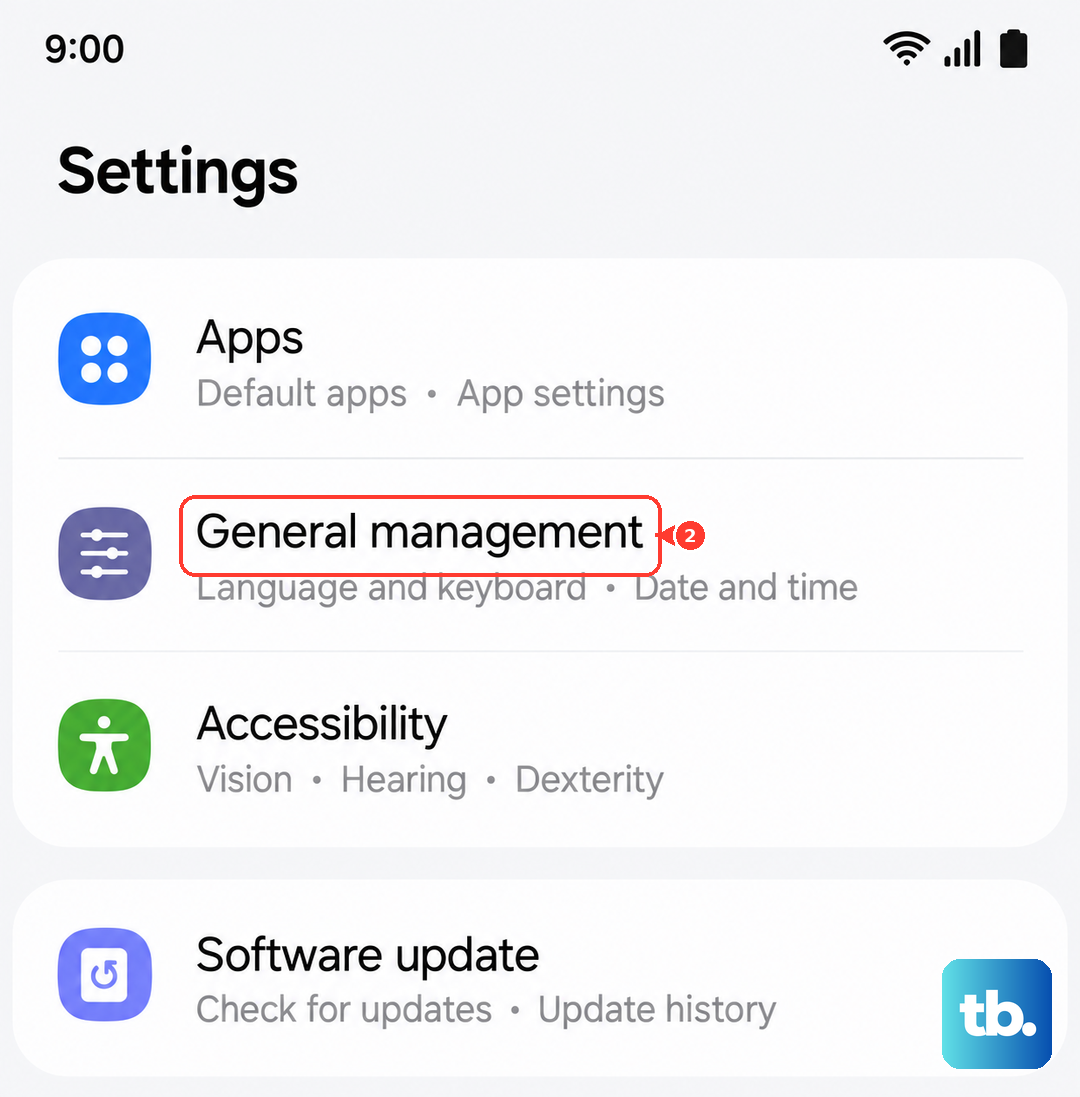
If the drain started after a major update, wiping the cache partition can help. Turn off your phone, then press and hold the Volume Up and Side buttons simultaneously. When the Samsung logo appears, release only the Side button. Use the volume keys to navigate to "Wipe cache partition" and select it with the Side button. Reboot the system afterwards.
Consider Your Charging Habits
While this won't fix a sudden drain, good habits preserve long-term health. The S25+ supports 45W wired and 15W Qi2 wireless charging. For the fastest wired speeds, you need a compatible Samsung 45W charger, which isn't included in the box. I'd recommend using one from a reputable brand.
Avoid letting the battery consistently drop to 0%. Similarly, you don't need to charge it to 100% every time. Modern batteries are happiest between 20% and 80%. You can enable a protective feature in Settings > Battery > More battery settings > Battery protection to cap the maximum charge at 85%.