If your Samsung Galaxy A16 is starting to feel sluggish, you're not alone. A big 5000mAh battery is great, but over time, performance can dip. The good news is there are plenty of simple tweaks to speed things up again.
Lag on the A16 often comes from a few common places. The phone's processor can get bogged down by too many background apps, or storage can fill up with cached data. Sometimes, it's just a visual effect that's a bit too heavy for smooth operation.
Restart Your Phone
This is the universal first step for a reason. A restart clears out the phone's temporary memory and stops any stuck processes. Just press and hold the Side button and Volume down button together for a few seconds, then tap "Restart" and tap "Restart" again.
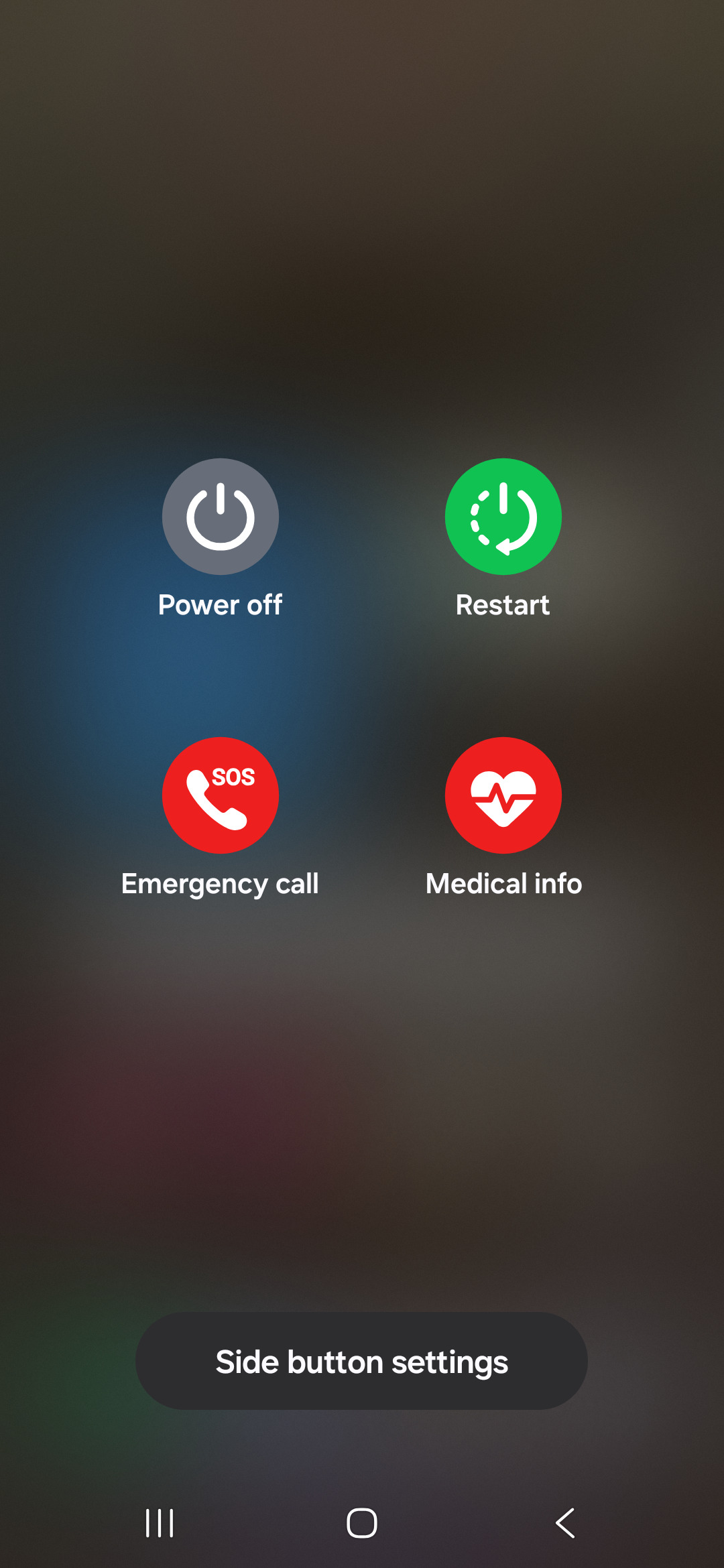
If the screen is frozen and you can't use the menu, you'll need to force a restart. Press and hold the Volume down button and the Side button together for more than 7 seconds until the phone restarts.
Close Apps Running in the Background
Having too many apps open can eat up your RAM. To close them, swipe up from the bottom of the screen and hold, or tap the Recents navigation button if you have those enabled. You'll see all your recent apps.
Swipe up on each app card to close it individually, or tap "Close all." I'd make a habit of doing this once a day, especially if you've been multitasking heavily.
Free Up Storage Space
When your internal storage gets too full, everything slows down. Head to Settings > Device care > Storage. This gives you a great breakdown of what's using space.
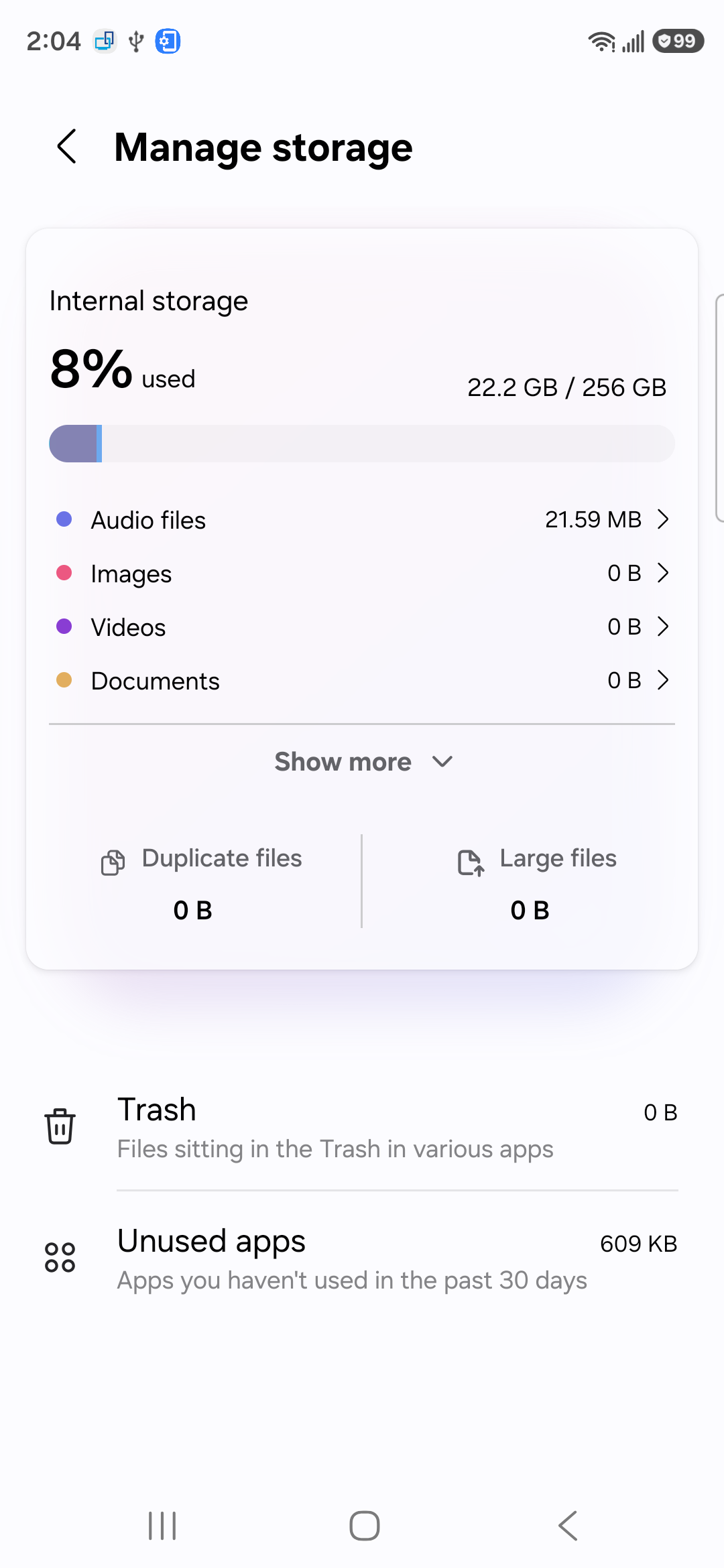
Look for large files you don't need, like old downloads or videos. Select a file category, touch and hold the files you want to remove, then tap "Delete" or "Delete all" and "Move to Trash." To clear an app's cache, go to Settings > Apps, select the app, then tap "Storage" and "Clear cache."
Clear App Cache Regularly
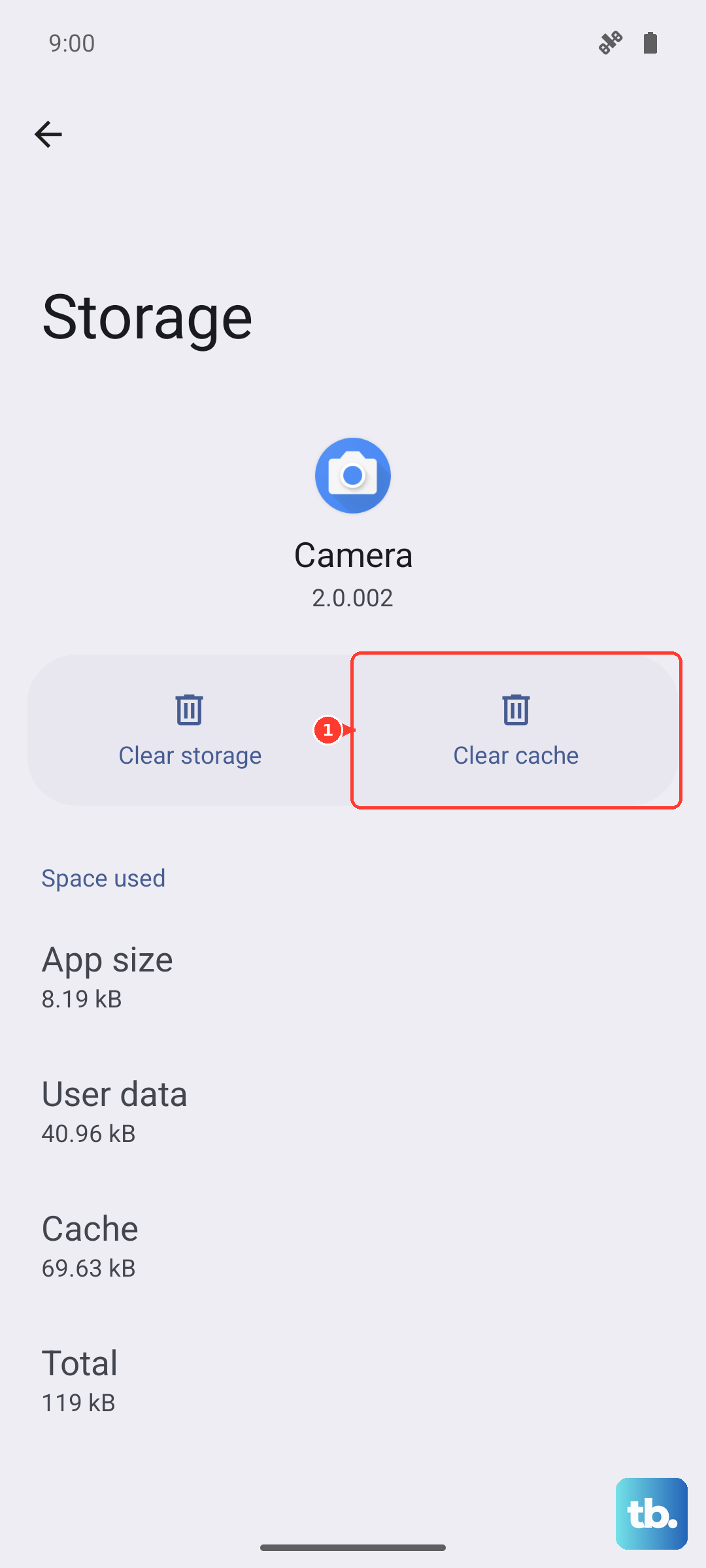
This is a key tip for the A16. App cache is temporary data that can become corrupted and slow things down. Go to Settings > Apps, select an app, then tap "Storage". You'll see the "Clear cache" button.
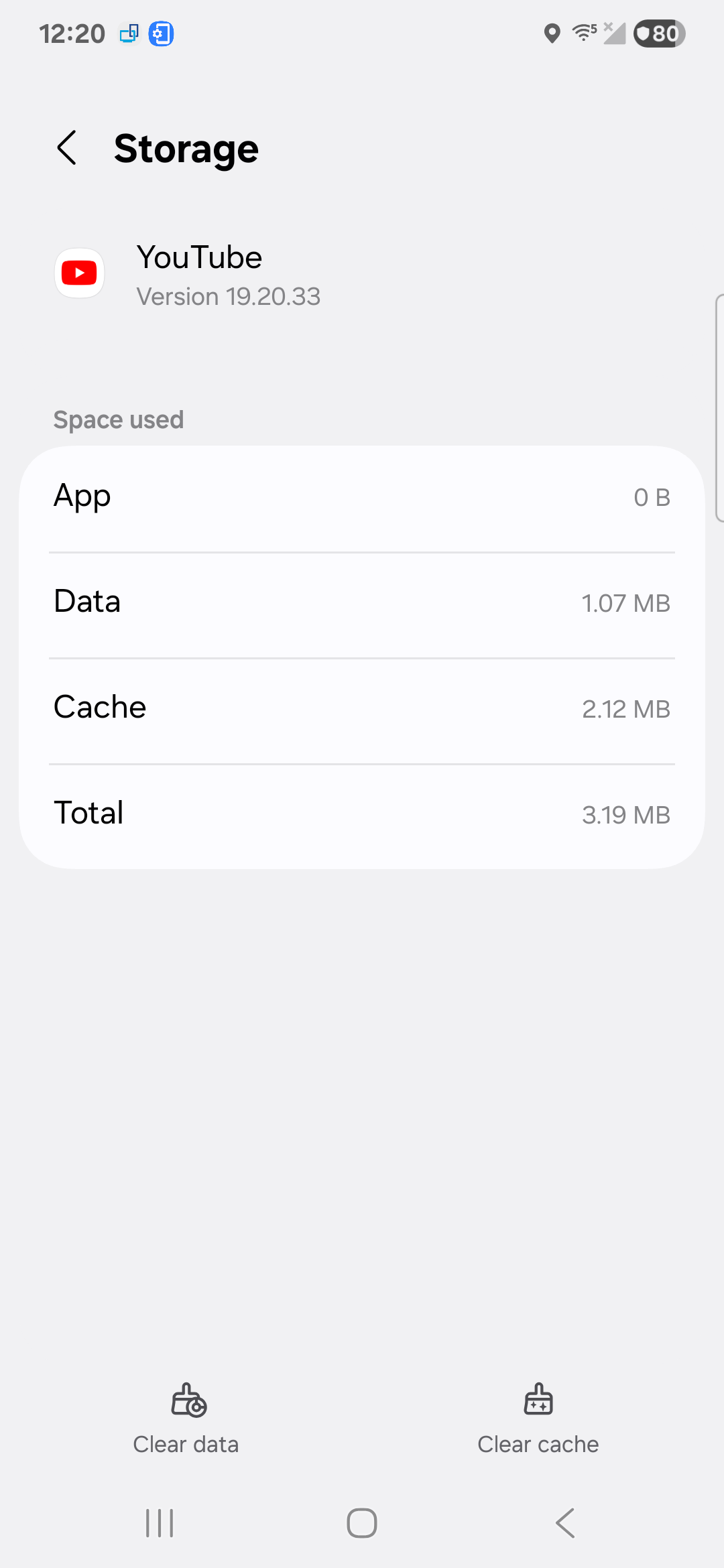
Focus on apps you use a lot, like social media, browsers, or messaging apps. Clearing cache won't delete your login info or personal data, just the temporary files.
Update Your Software and Apps
Outdated software is a common culprit for lag and bugs. Samsung regularly releases updates that include performance improvements. Check for them by going to Settings > Software update > Download and install.
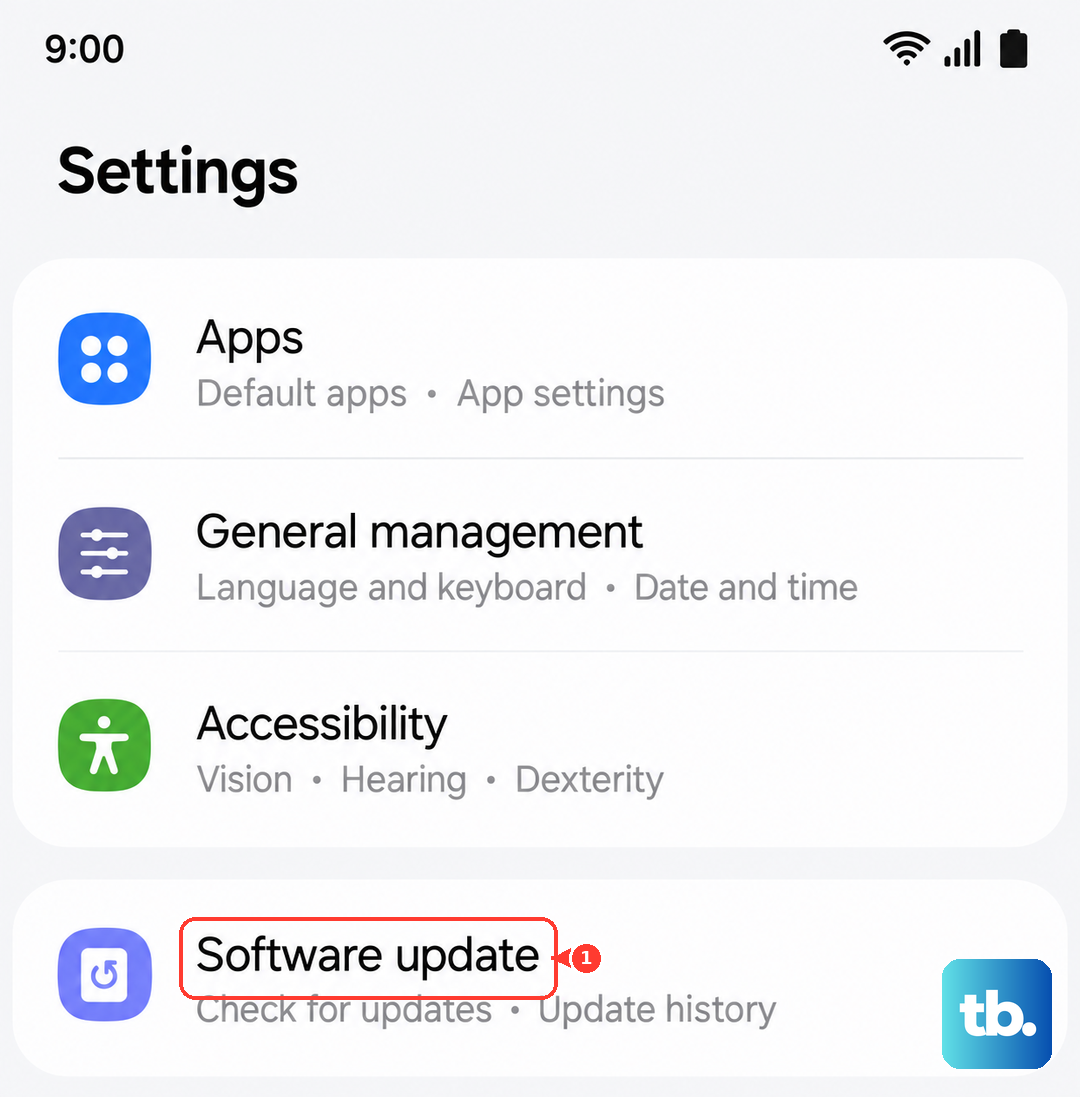
For your apps, open the Google Play Store, tap your profile icon, and go to "Manage apps and device." Tap "Update all" under the "Updates available" section. Keeping everything current can help with performance and bugs.
Enable Dark Mode
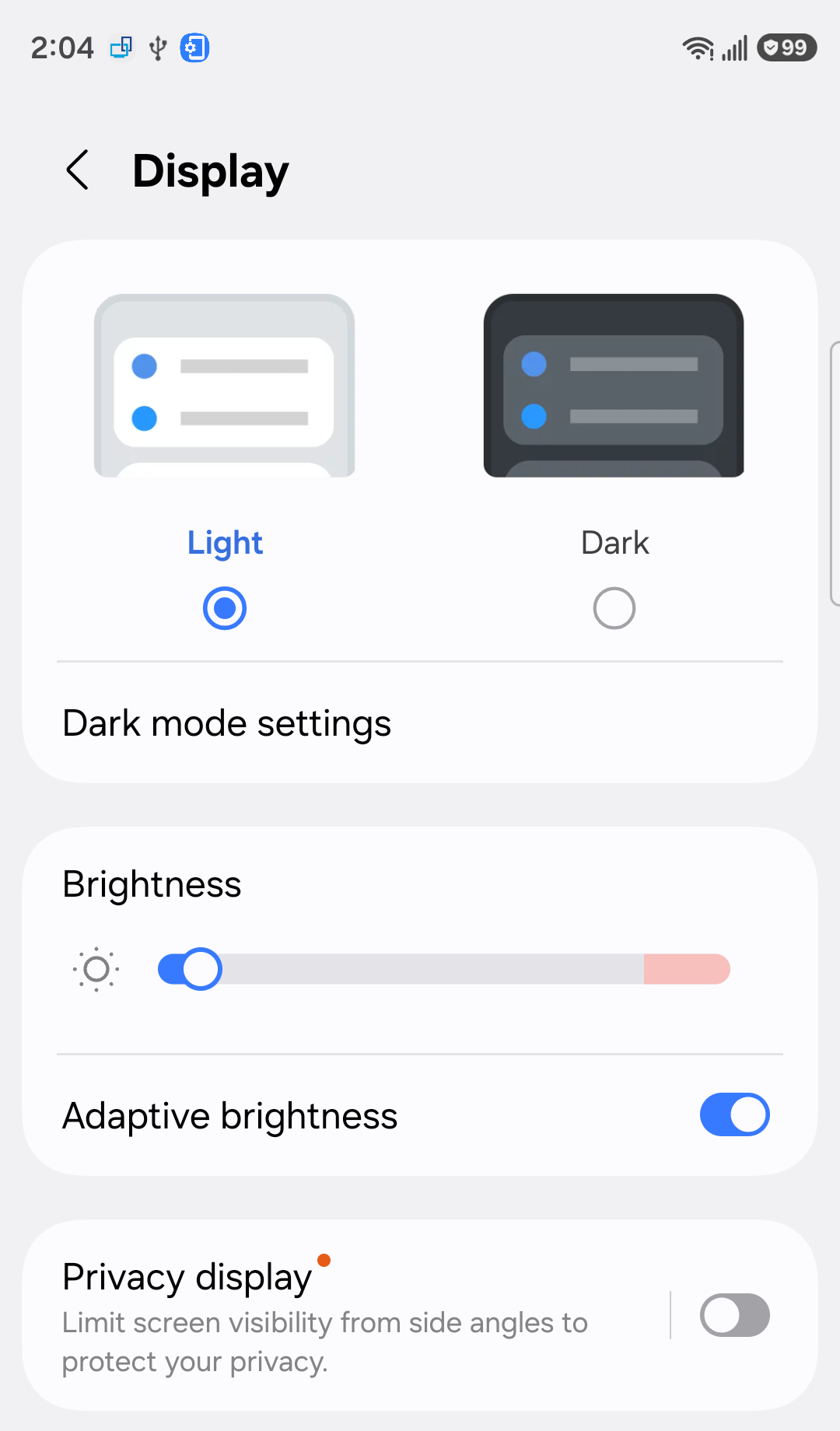
This is a great trick for the A16's AMOLED display. Since black pixels are turned off, Dark Mode reduces the power needed to light the screen. This can help with battery life.
You can turn it on in Settings > Display > Dark mode. You can also set it to turn on automatically at sunset. You may also find it easier on the eyes.
Reduce Animations and Visual Effects
The smooth animations in One UI look great, but they require processing power. Speeding them up or removing them can make the phone feel instantly snappier. You'll need to enable Developer Options first.
Go to Settings > About phone > Software information and tap "Build number" seven times. Then, go back to Settings and find "Developer options". Scroll to the "Drawing" section and look for "Window animation scale", "Transition animation scale", and "Animator duration scale". Change each one from 1x to 0.5x.
Manage Background Activity
Some apps are very active in the background, checking for updates and notifications. You can put them to sleep to save resources. Go to Settings > Battery > Background usage limits. You can also open Battery from Device care.
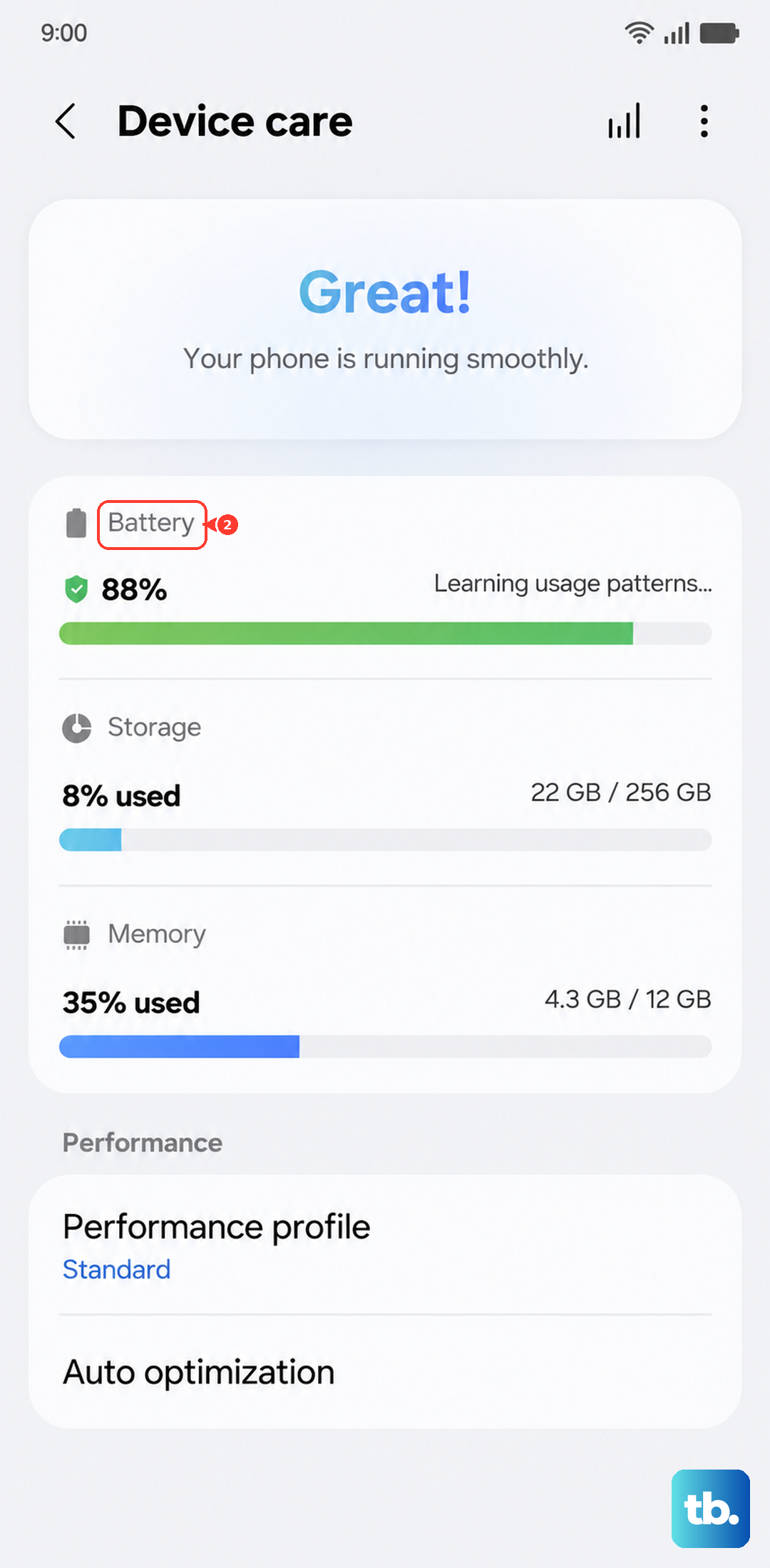
Here, you can enable "Put unused apps to sleep" automatically. For more control, tap "Deep sleeping apps", tap Add (the plus sign), select your apps, then tap "Add". These apps only work when you open them, so choose apps you don't need running in the background. This can help save battery and reduce background activity.
Use a Genuine 25W Charger
While the A16's 25W charging isn't the fastest, using the right charger matters. The A16 supports up to 25W Super Fast Charging, as well as 15W Fast Charging. A slower charger may take longer to charge the battery.
For the best and most consistent charging speed, use an official Samsung 25W charger or a reputable third-party charger that supports USB Power Delivery (PD). Avoid charging from a low-power source like a laptop USB port if you need a quick boost.
Perform a Light Reset
If you've tried everything and the phone still feels slow, a reset of your settings can help. This won't delete your photos or apps. It resets settings to their defaults while keeping security and language settings, accounts, personal data and settings for downloaded apps.
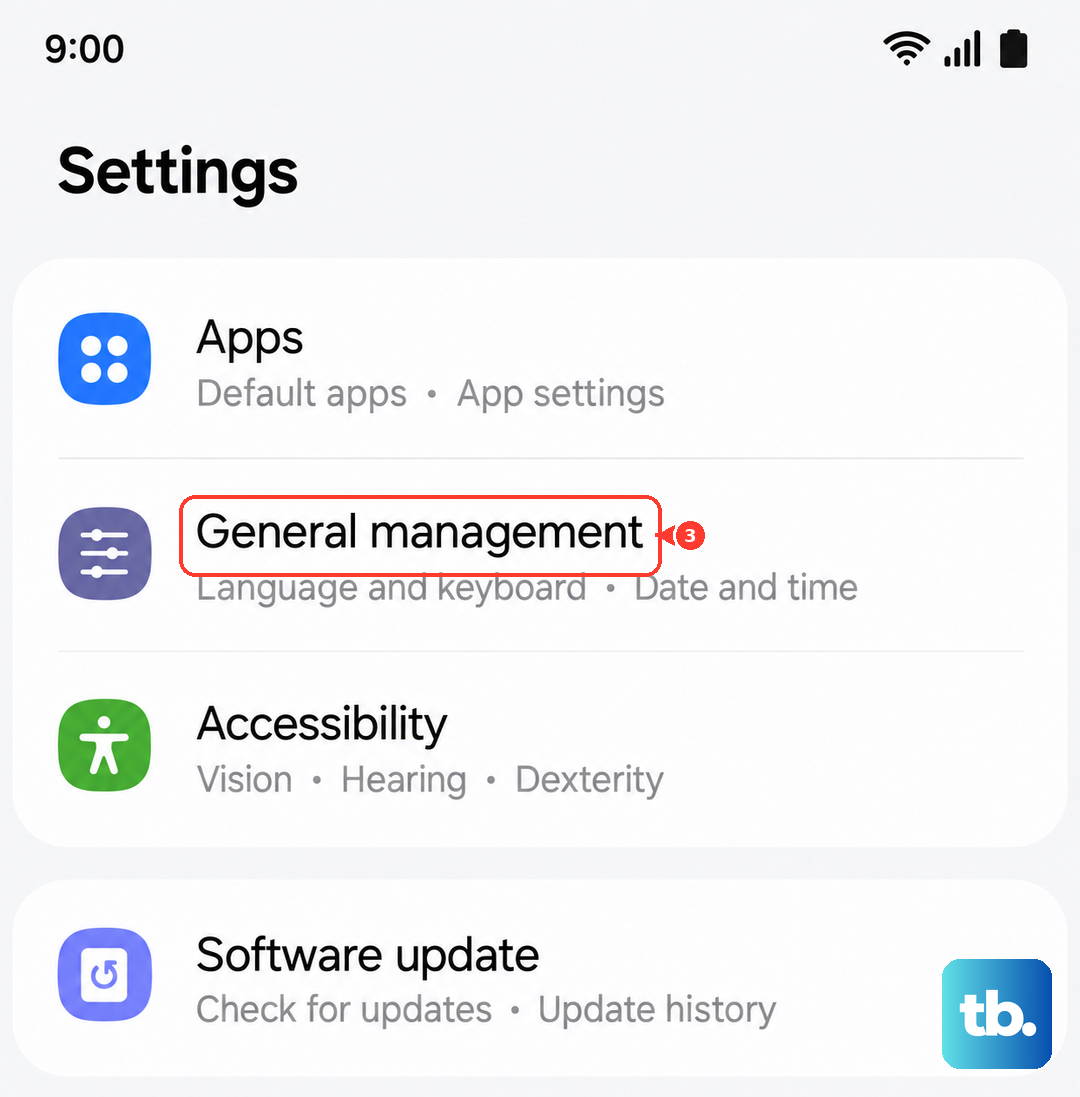
Go to Settings > General management > Reset > Reset all settings. Tap "Reset settings", enter your PIN if prompted, then tap "Reset". Once the reset is complete, check whether the phone feels more responsive and adjust any settings you need.