


If your Samsung Galaxy A36 is running out of juice way too quickly, you're not alone. It's a common headache, especially with new software like One UI 7. The good news is there are several straightforward things you can check and adjust to get your battery life back on track. Let's start with the most common culprit.
Check What's Draining Your Battery
Before you change anything, it's smart to see where your power is actually going. Samsung's battery menu is pretty detailed. Head to Settings > Battery.
Here, you'll see a breakdown of usage since your last full charge. Tap on the graph or "View details" to see which apps have been the most active. If you see a social media app, game, or messaging service using a huge percentage, that's your first clue. I'd start by looking here every time.
Manage Your Display Settings
The screen is almost always the biggest battery drain on any phone. On your A36, you have a few powerful levers to pull. First, consider lowering the brightness a notch or two from the quick settings panel. It makes a bigger difference than you might think.
Next, check your screen timeout. Go to Settings > Display > Screen timeout and set it to 30 seconds or one minute. This stops the screen from staying on if you forget to lock it. Also, enable Dark Mode from the quick settings or in Settings > Display. It saves power, especially with darker wallpapers.
Control Background Activity and Connections
Apps refreshing in the background and constant network searches are silent battery killers. For location, go to Settings > Location and make sure it's only on for apps that truly need it, like maps. You can set most others to "Allow only while using the app."
Then, tackle background refresh. Go to Settings > Apps, select a power-hungry app from your battery report, and tap Battery. Set it to "Restricted" to prevent it from running in the background. For mobile data, if you're in an area with weak 5G, your phone works harder. Try switching to LTE/4G by going to Settings > Connections > Mobile networks > Network mode.
Update Your Software and Apps
Since the A36 launched with One UI 7, there have been some initial bugs that can affect performance and battery. A software update often includes optimizations and fixes. Check for one by going to Settings > Software update > Download and install.
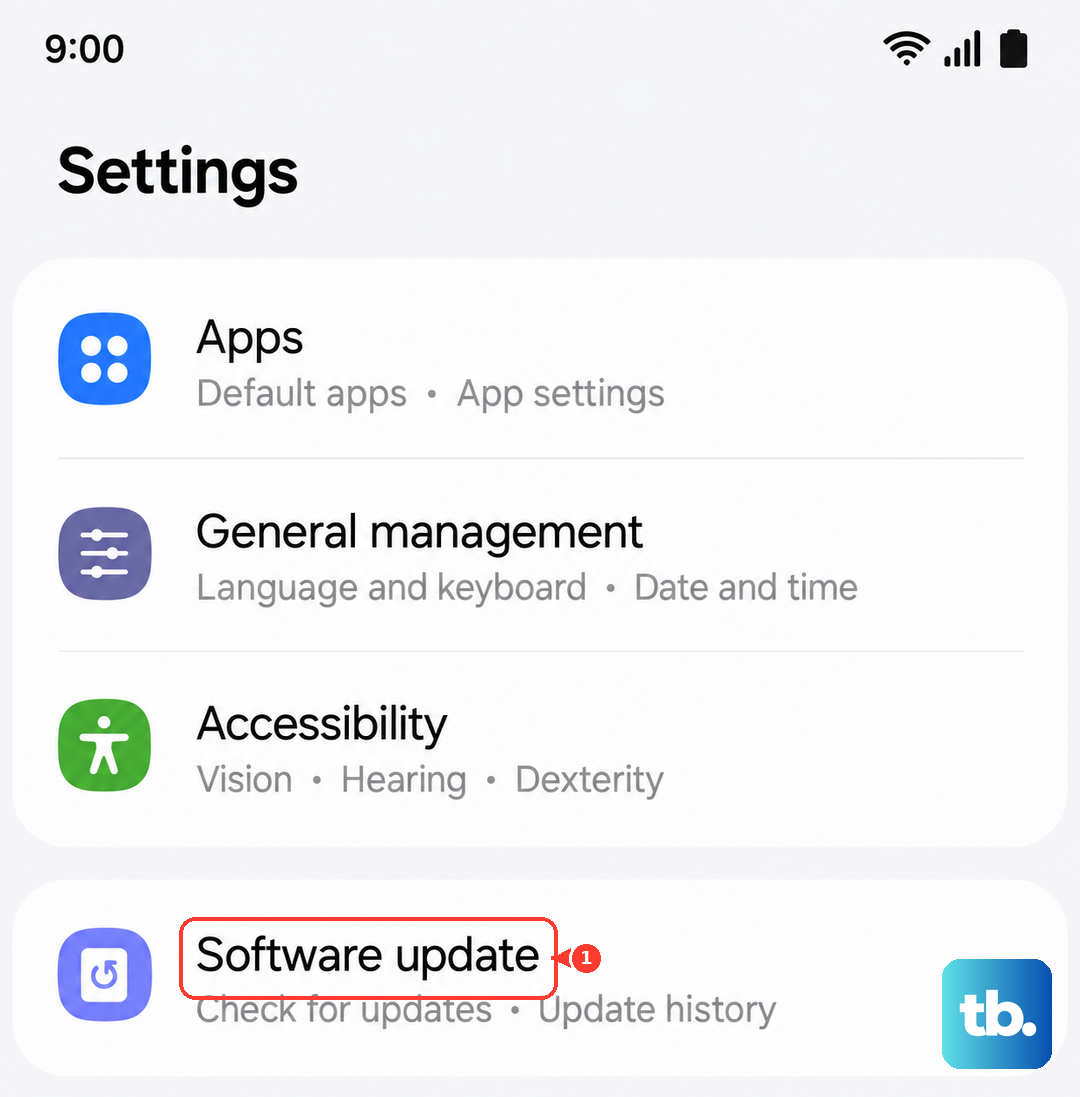
Outdated apps can also be problematic. Open the Galaxy Store and Google Play Store, check for updates, and install them all. Developers frequently release updates that improve efficiency and squash battery-draining bugs.
Use Battery Protection and Optimizations
Your A36 has built-in tools to help. One of the best is Battery Protection. Find it in Settings > Battery > More battery settings. Enabling "Battery protection" limits charging to 85%, which is great for long-term battery health if you're often near a charger.
Also, look for "Adaptive battery" in the same menu and make sure it's on. It learns how you use apps and limits power for ones you rarely open. The "Put unused apps to sleep" feature is another good one to enable.
Review and Remove Unnecessary Features
Some features are nice but not essential. If you don't use the "Always On Display," turn it off in Settings > Display. Reduce animations by enabling Developer Options (tap "Build number" in Settings > About phone seven times), then go to Developer options and set "Window animation scale," "Transition animation scale," and "Animator duration scale" to 0.5x.
Take a minute to review your widgets and live wallpapers. Each one that updates constantly uses a little bit of power. Removing widgets you don't actually glance at can help. Similarly, if you have Bluetooth or Wi-Fi scanning on for location accuracy but don't need it, you can turn those off in the location settings.
Perform a Force Restart
Sometimes a simple software glitch can cause abnormal battery drain. A force restart can clear this up without deleting any of your data. On the Galaxy A36, press and hold the Volume Down button and the Side (Power) button together for about 10 seconds. Release when you see the Samsung logo appear on the screen.
Check Your Charging Gear
The Galaxy A36 doesn't come with a charger in the box, so you might be using an old or incompatible one. For the fastest 45W charging, you need a USB-PD (Power Delivery) compatible charger and a good quality USB-C cable. Slow charging from a weak power source can sometimes make the battery seem like it's draining faster because it's not getting a full, healthy charge.
Reset All Settings
If you've tried everything and the drain persists, a settings reset can help. This won't delete your photos, messages, or apps, but it will revert all your system settings (like Wi-Fi passwords, ringtones, and display preferences) back to default. It's a good way to rule out a misconfigured option. Go to Settings > General management > Reset > Reset all settings.
Monitor After a Factory Reset
This is the last-resort step, so make sure you have a full backup first. A factory reset wipes the phone completely and installs a fresh copy of One UI. If the extreme battery drain continues even after a reset, it could point to a hardware issue with the battery itself. You'd want to contact Samsung support in that case, as the battery may need professional inspection.