
If your Samsung Galaxy Tab A9+ battery seems to vanish faster than it should, you're not imagining things. That large 7040mAh battery has a lot of screen to power, and the Snapdragon 695 chip can work hard with demanding apps. The good news is a few simple tweaks can make a big difference in how long your tablet lasts.
Check What's Draining Your Battery
Before you start changing settings, it's smart to see where your power is actually going. Android's built-in battery tracker is your best friend here. Head to Settings > Battery and device care > Battery.
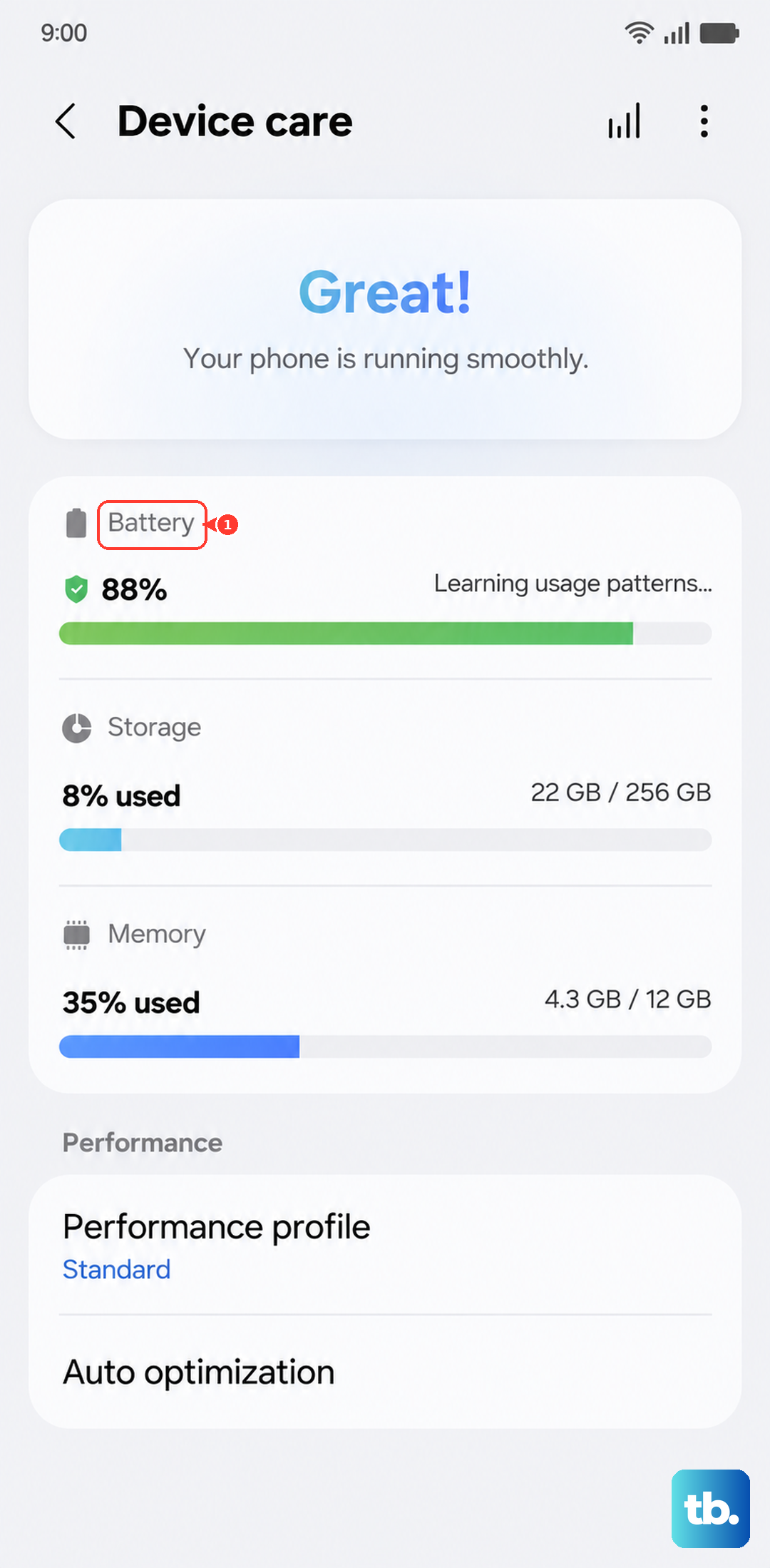
Tap on Battery usage to see which apps have been the biggest power hitters over the last 7 days. If you see a game or social media app at the top, that's expected. If something like "Android System" or "Screen" is using an unusually high percentage, it points to a system-wide setting that needs adjustment.
Adjust Your Screen Settings
The display is almost always the biggest battery user on any tablet. On the Tab A9+, you have a few powerful levers to pull. First, consider lowering the brightness. You can do this quickly from the notification shade, or set it in Settings > Display.
Next, shorten the screen timeout. Go to Settings > Display > Screen timeout and set it to 30 seconds or 1 minute. This ensures the screen turns off quickly when you're not using it. I'd also recommend enabling Dark mode, which can save power, especially with darker wallpapers. Find it in Settings > Display > Dark mode.
For long reading sessions, don't forget the Reading Mode. It optimizes the display for text and can be easier on the battery. You can turn it on from the Quick Settings panel by swiping down twice from the top of the screen.
Manage Apps Running in the Background
Apps refreshing in the background are a major hidden drain. The Tab A9+ runs One UI 6 on Android 14, which has good tools for this. Start by putting unused apps to sleep. Go to Settings > Battery and device care > Battery > Background usage limits.
Here, you can enable Put unused apps to sleep automatically. For more control, tap Deep sleeping apps and add apps you never need notifications from. This completely stops their background activity. Also, check Settings > Apps, select any power-hungry app from the battery menu, and tap Battery. Set it to Restricted to limit its background work.
Turn Off Connectivity You Aren't Using
Bluetooth, Wi-Fi, and Location Services constantly search for signals. If you're not using a Bluetooth speaker or keyboard, swipe down and toggle Bluetooth off. For location, go to Settings > Location and turn it off entirely, or tap App permissions to deny location access to apps that don't truly need it.
When you're on a stable Wi-Fi network, consider turning off mobile data if your model has it. You can also disable Wi-Fi scanning. Go to Settings > Location > Location services and turn off Wi-Fi scanning and Bluetooth scanning.
Optimize Your Charging Habits
The Tab A9+ supports 15W wired charging, which is on the slower side for its large battery. Using the right charger matters. Make sure you're using a charger that supports at least 15W output. A cheap, low-power charger will take forever and might not charge efficiently.
Letting your battery run down to zero frequently isn't great for its long-term health. Try to keep it between 20% and 80% when you can. Also, enable any battery protection features. Go to Settings > Battery and device care > Battery > More battery settings. Look for options like Battery protection which limits charging to 85% to prolong battery lifespan.
Update Your Software and Apps
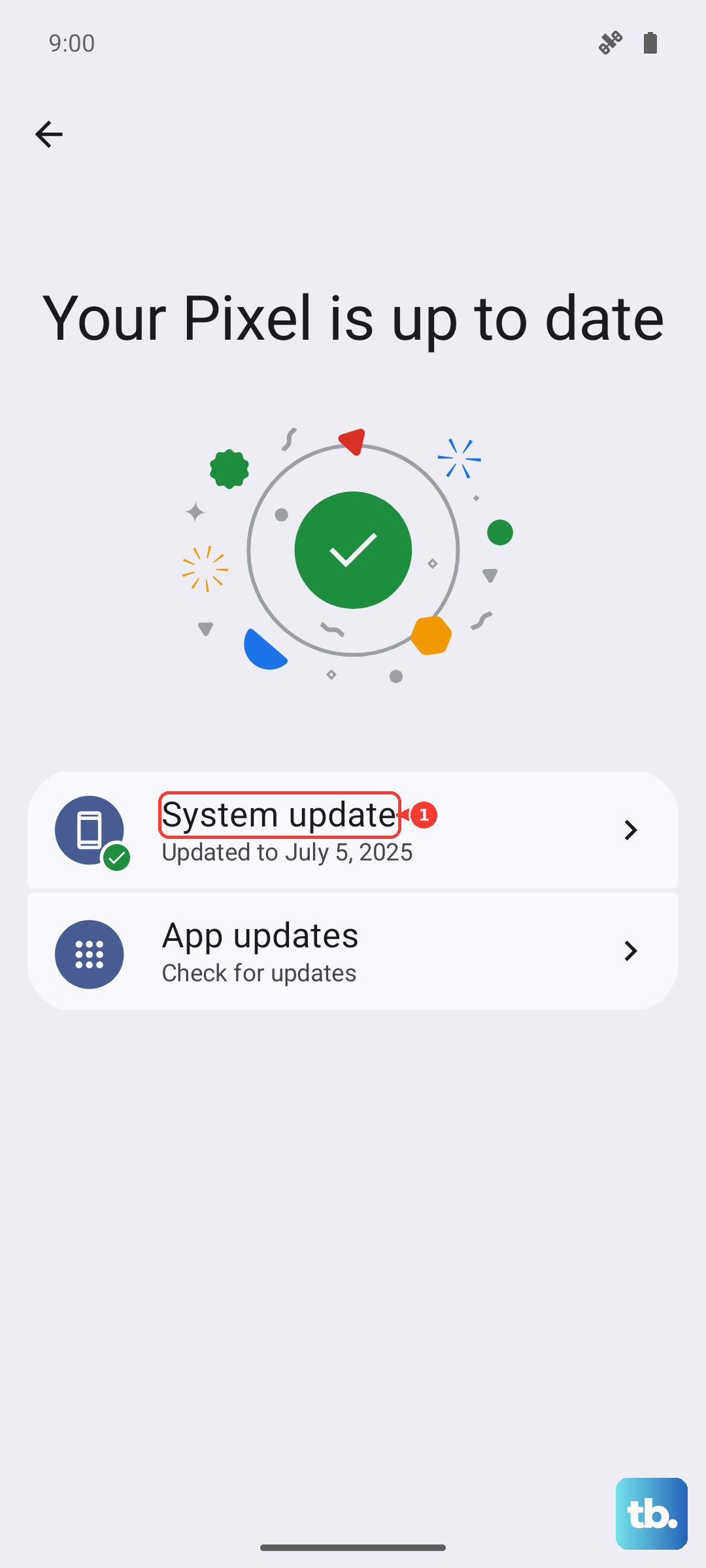
Software updates often include optimizations that improve battery efficiency. Check for system updates by going to Settings > Software update > Download and install. For your apps, open the Galaxy Store and Google Play Store to check for updates, as developers frequently release patches that fix battery-draining bugs.
Use Power Saving Modes
Don't be shy about using the built-in power savers. You can turn on Power saving mode from the Quick Settings or in Settings > Battery and device care > Battery. This limits background network usage, reduces performance, and dims the screen.
For maximum endurance, tap on Settings next to Power saving and enable Limit apps and Home screen. This is great for when you need every last minute of battery life. It switches your screen to a dark theme and severely restricts background activity.
Perform a Force Restart
If your battery started draining rapidly after a recent app install or update, a minor software glitch might be the cause. A simple force restart can clear this up without deleting any data. Press and hold the Volume Down button and the Power button simultaneously for about 10 seconds until you see the Samsung logo appear, then release.
Reset All Settings
If you've tried everything and the drain persists, a misconfigured setting might be to blame. You can reset all your system settings back to default without touching your personal files. Go to Settings > General management > Reset > Reset all settings.
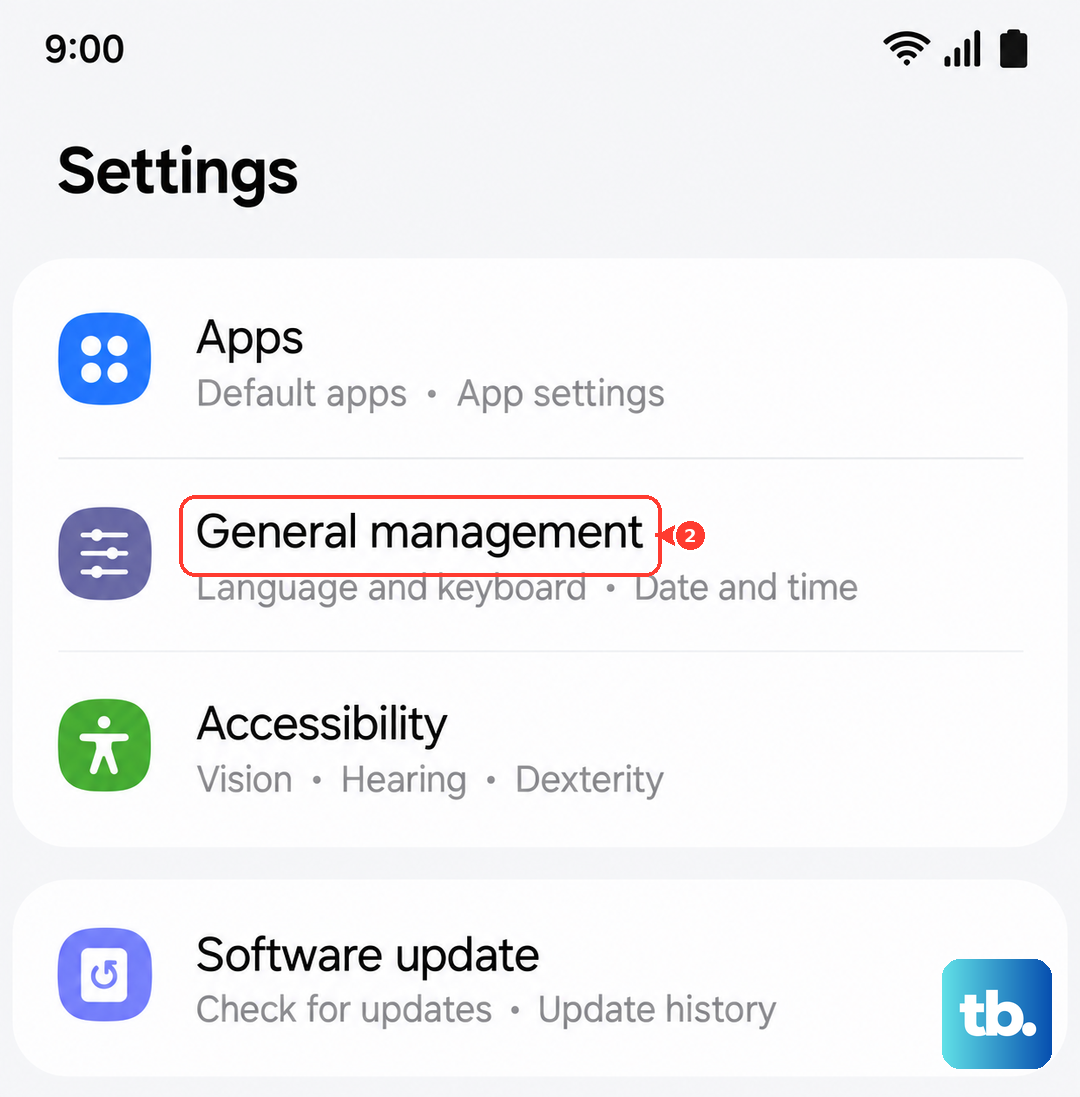
This will reset network settings, display preferences, and keyboard layouts, so you'll need to reconnect to Wi-Fi and adjust things like brightness again. It often resolves persistent battery issues caused by a conflicting configuration.