


If your Samsung Galaxy S25 FE's battery is draining faster than it should, you're not alone. It's a common frustration, but the good news is there are several straightforward things you can check and adjust. I'd start by looking at the battery usage stats, as that often points directly to the problem.
Check Battery Usage and Health
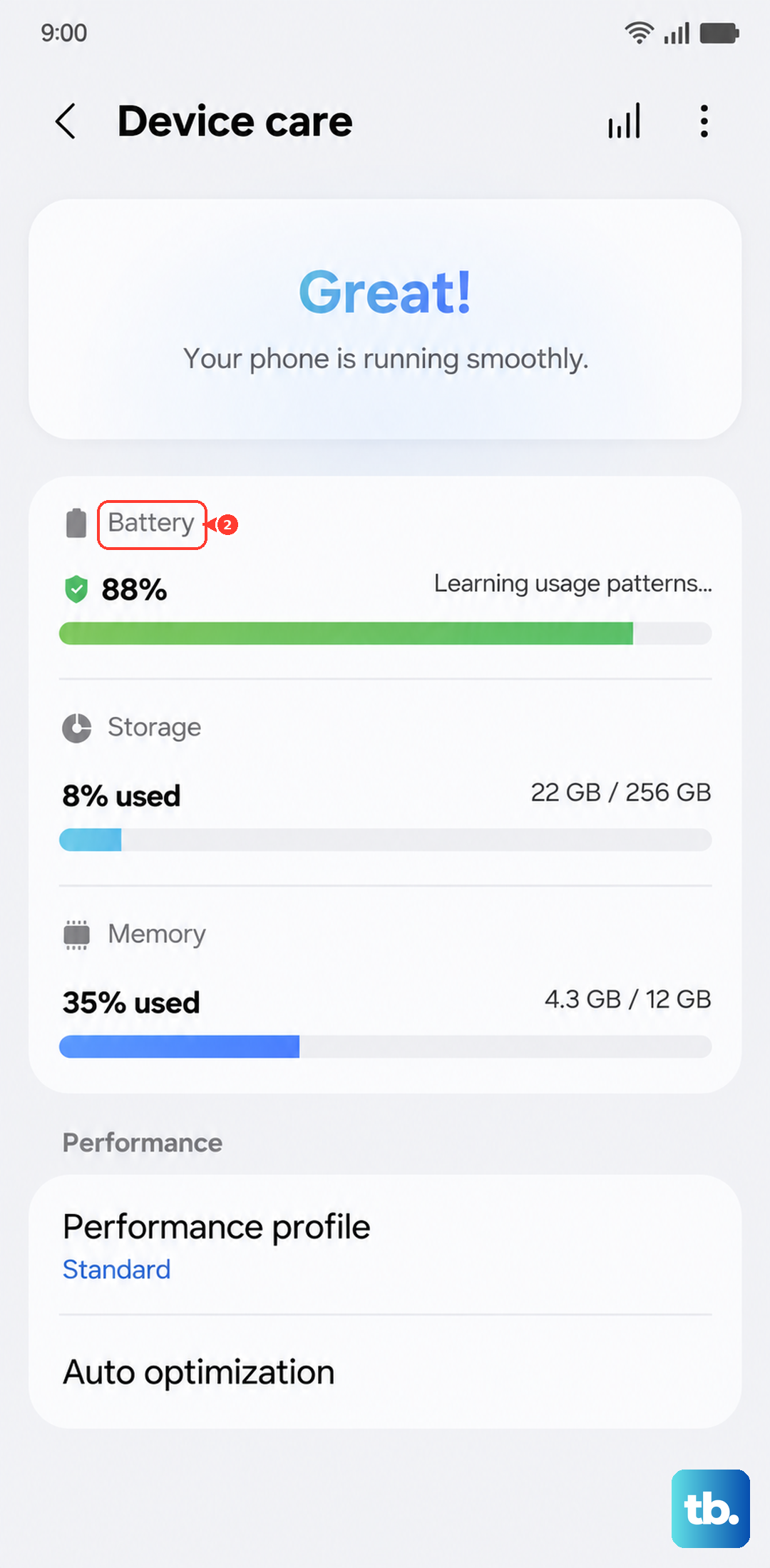
Head to Settings > Battery and device care > Battery. Here, you'll see a breakdown of which apps have been using your battery over the last 24 hours or 7 days. A single app using an unusually high percentage is a major red flag. While you're there, tap on "More battery settings" to see if features like Adaptive Battery are enabled, as they can help over time by learning your usage patterns.
For a deeper look at the battery's physical condition, you can check its health. Go to Settings > About phone > Battery information. This screen shows the battery's design capacity and its current estimated capacity. If the current capacity is significantly lower than the design capacity, it indicates the battery is wearing out.
Manage Display and Performance Settings
The screen is one of the biggest battery drains on any phone. On your S25 FE, try reducing the screen brightness manually or ensure Adaptive Brightness is working properly. You can also shorten the screen timeout. Go to Settings > Display > Screen timeout and set it to 30 seconds or 1 minute.
Consider using Dark Mode, especially with the S25 FE's display. You can find it under Settings > Display > Dark mode. Also, the high refresh rate is smooth but uses more power. If battery is critical, you can switch to the standard 60Hz by going to Settings > Display > Motion smoothness and selecting "Standard."
Control Connectivity Features
Features that are always searching for a signal can be silent battery killers. If you're in an area with poor 5G coverage, your phone works harder to maintain a connection, which drains the battery faster. You can temporarily switch to 4G/LTE by going to Settings > Connections > Mobile networks > Network mode.
Similarly, turn off Wi-Fi, Bluetooth, and Location (GPS) when you're not actively using them. You can do this quickly from the notification panel. For location, go into Settings > Location and review which apps have recent access. Change permissions for non-essential apps to "Allow only while using the app" or deny them entirely.
Limit Background Activity
Apps refreshing in the background, even when you're not using them, are a major culprit. Samsung's One UI gives you good control over this. Go to Settings > Apps, select a power-hungry app from your battery usage list, and tap "Battery." Here, you can set it to "Restricted" to prevent most background activity.
Also, check for apps that are set to "Always on" for notifications or data sync. Email apps, for instance, can be set to fetch new messages every 15 minutes instead of pushing them instantly. Look for these sync settings within each individual app's settings menu.
Update Your Software and Apps
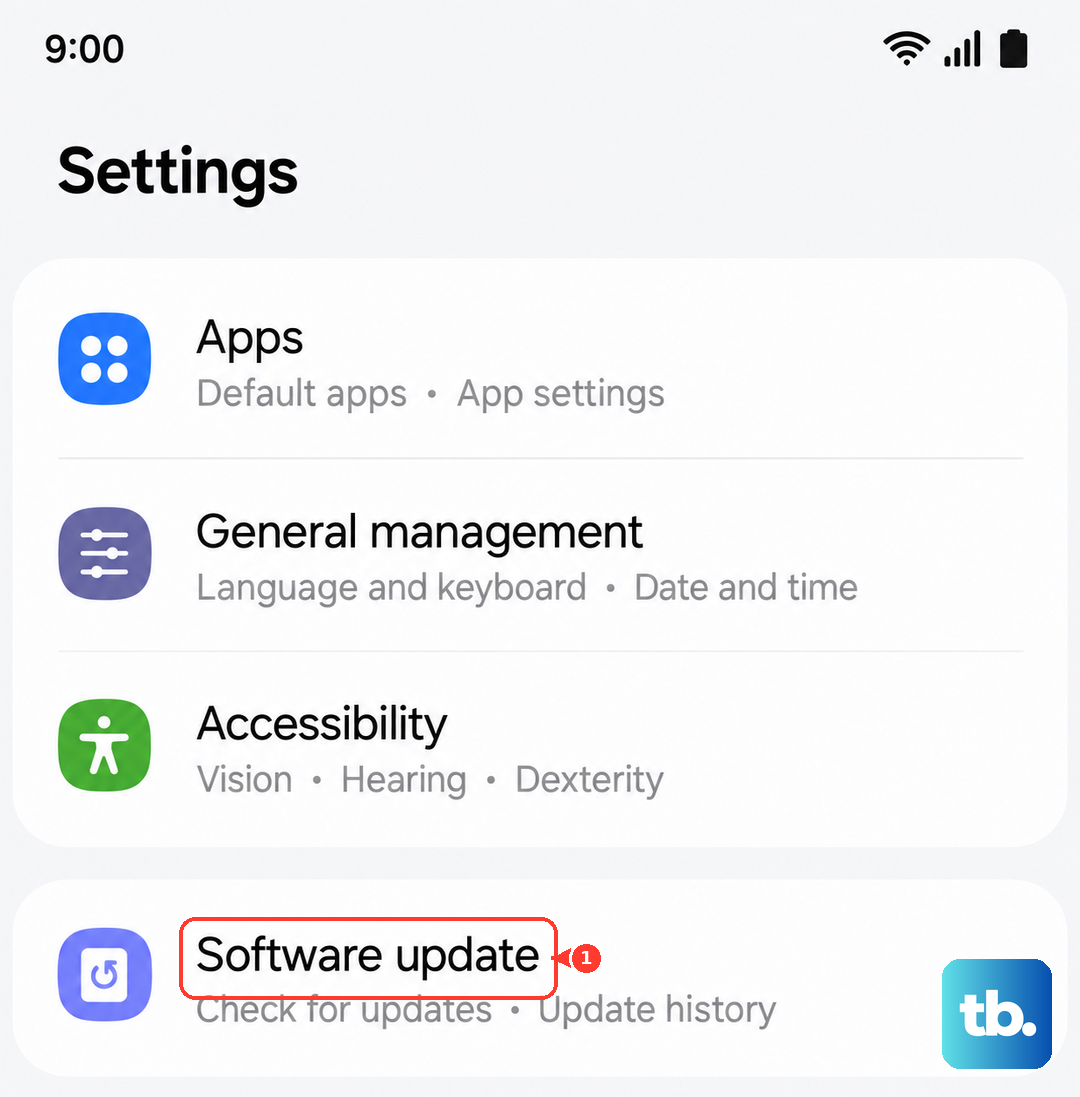
Software updates from Samsung often include optimizations and bug fixes that can improve battery life. Go to Settings > Software update > Download and install to check for the latest One UI and Android security patches. It's worth noting that occasionally, right after a major update, the phone might need a few days to re-optimize app usage, which can cause temporary higher drain.
Make sure your apps are updated too. Developers frequently release updates that fix battery-draining bugs. Open the Google Play Store, tap your profile icon, and go to "Manage apps & device" to see available updates.
Use Power Saving Modes
Your S25 FE has built-in tools for this. Light power saving mode, which you can enable from Settings > Battery and device care > Battery > Power saving, limits background network usage and slightly reduces performance. It's a good balance for everyday use when you need a bit more juice.
For more extreme situations, there's also an Adaptive power saving option that automatically switches modes based on your usage, and a Maximum power saving mode that strips the interface down to essentials. These are great when you're far from a charger and need to make the battery last.
Review and Remove Unused Apps
Sometimes, the simplest fix is to clean house. Apps you installed once and forgot about might still be running processes in the background. Go through your app drawer and uninstall anything you genuinely don't use. Pay special attention to apps that claim to clean memory, boost battery, or manage tasks, as they often do the opposite by constantly running.
Check for Device-Specific Issues
The Galaxy S25 FE uses the Exynos 2400 chipset, which is powerful but can run warm during extended gaming or video sessions. This heat directly impacts battery efficiency. If you're a heavy gamer, consider lowering the graphics settings in your games and taking breaks to let the phone cool down.
Also, since the phone doesn't come with a charger in the box, ensure you're using a compatible one. For the fastest 45W wired charging, you need a Samsung 45W Super Fast Charging 2.0 adapter (like the EP-T4510) and a 5A USB-C cable. Using a slower, generic charger is fine, but it won't charge as quickly.
Perform a Forced Restart
If the battery drain started suddenly and seems system-wide, a software glitch might be the cause. A forced restart can clear this without deleting any data. Simply press and hold the Volume Down button and the Side key (power button) together for about 10 seconds, until you see the Samsung logo appear and the phone restarts.
Reset All Settings
If you've tried everything and the drain persists, a deeper reset might help. This will revert all your system settings (like Wi-Fi passwords, Bluetooth pairings, and display preferences) back to default without touching your personal photos, messages, or apps. You can find this option at Settings > General management > Reset > Reset all settings.