
That frustrating buffering symbol might not be your internet provider's fault. Common household items could be sabotaging your Wi-Fi signal without you knowing it. A single poorly placed device can cut your connection speed by up to 50%.
The culprits range from microwave ovens acting as signal vampires to large mirrors creating reflective interference. Even decorative items like fish tanks and Christmas lights can create watery barriers or seasonal slowdowns.
Other major offenders include concrete walls that block signals and neighboring networks causing invisible congestion. Your own Bluetooth devices, baby monitors, and other electronics are also constant frequency fighters in this unseen war for bandwidth.
Microwave Ovens: The Signal Vampire

Your microwave uses a 2.4GHz frequency, like most Wi-Fi networks. When in use, it can block signals within a 10-foot radius, causing interruptions. Video calls may drop during lunch prep.
To prevent this, place your router at least 10 feet from your microwave or switch to a 5GHz Wi-Fi network. This change should reduce disconnections when the microwave is in use.
Large Mirrors: Reflective Interference

Mirrors reflect light and Wi-Fi signals, potentially reducing signal strength by up to 50% if a large mirror is between the router and your devices. To fix this, avoid placing mirrors between your router and frequently used Wi-Fi areas. If moving the mirror isn't an option, adjust your router's position or its antennas to bypass the interference.
Fish Tanks: Watery Barriers

Water absorbs Wi-Fi signals, therefore a fish tank can reduce signal strength. A medium-sized aquarium can significantly block the signal if placed between your router and devices.
To alleviate this, avoid positioning your router behind an aquarium. If rearranging is difficult, try elevating your router above the tank or move it to the side to improve connection quality.
Bluetooth Devices: Frequency Fighters
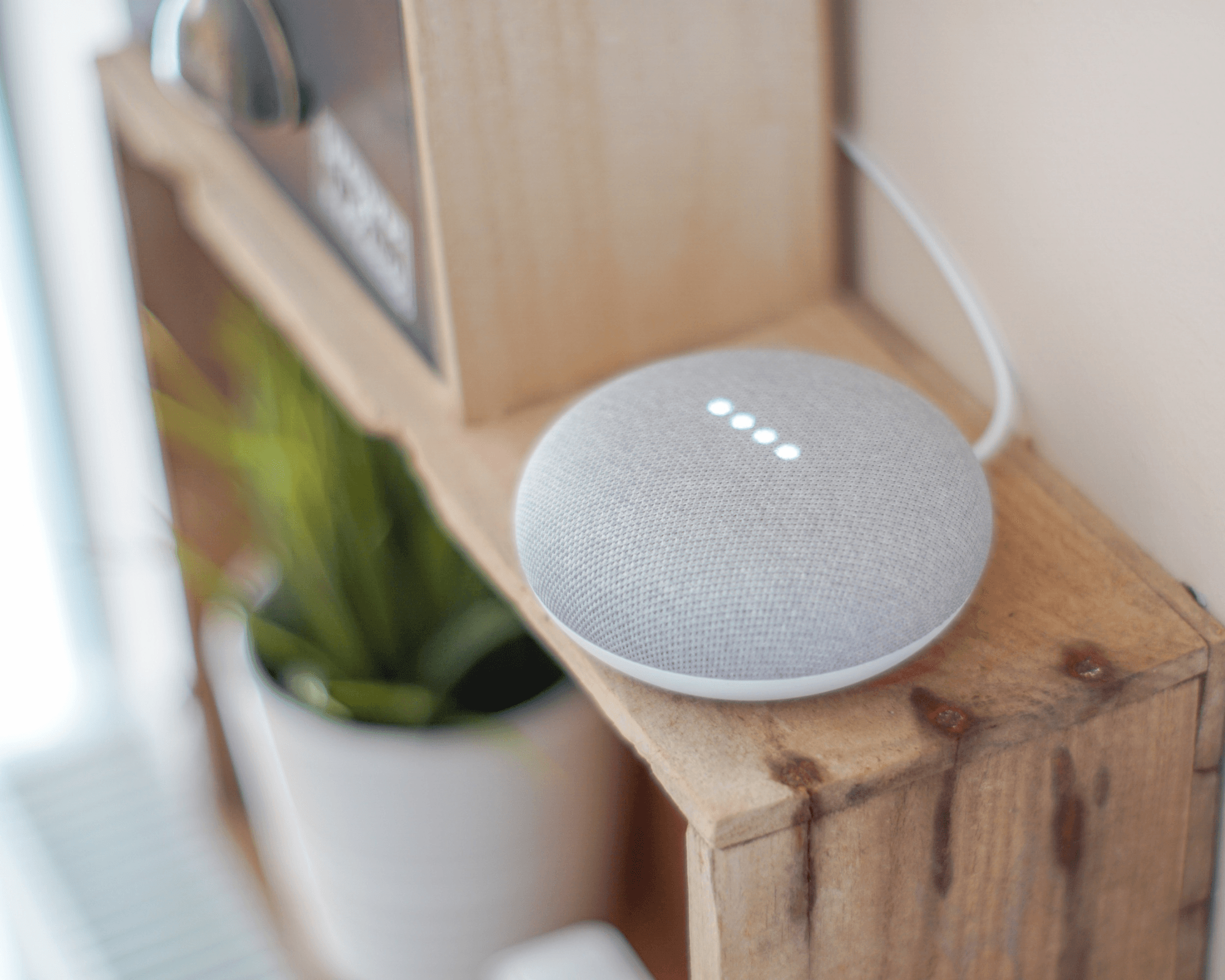
Bluetooth speakers, headphones, and smart home hubs all use the 2.4GHz bandwidth, and these devices can degrade wi-fi performance due to frequency overlap. Impact, however, varies widely based on device proximity, activity, and wi-fi setup.
To fix this issue, turn off Bluetooth devices when not in use, especially during important video calls or downloads. For permanent setups, keep Bluetooth devices at least 6 feet from your router to reduce interference.
Baby Monitors: Constant Interference
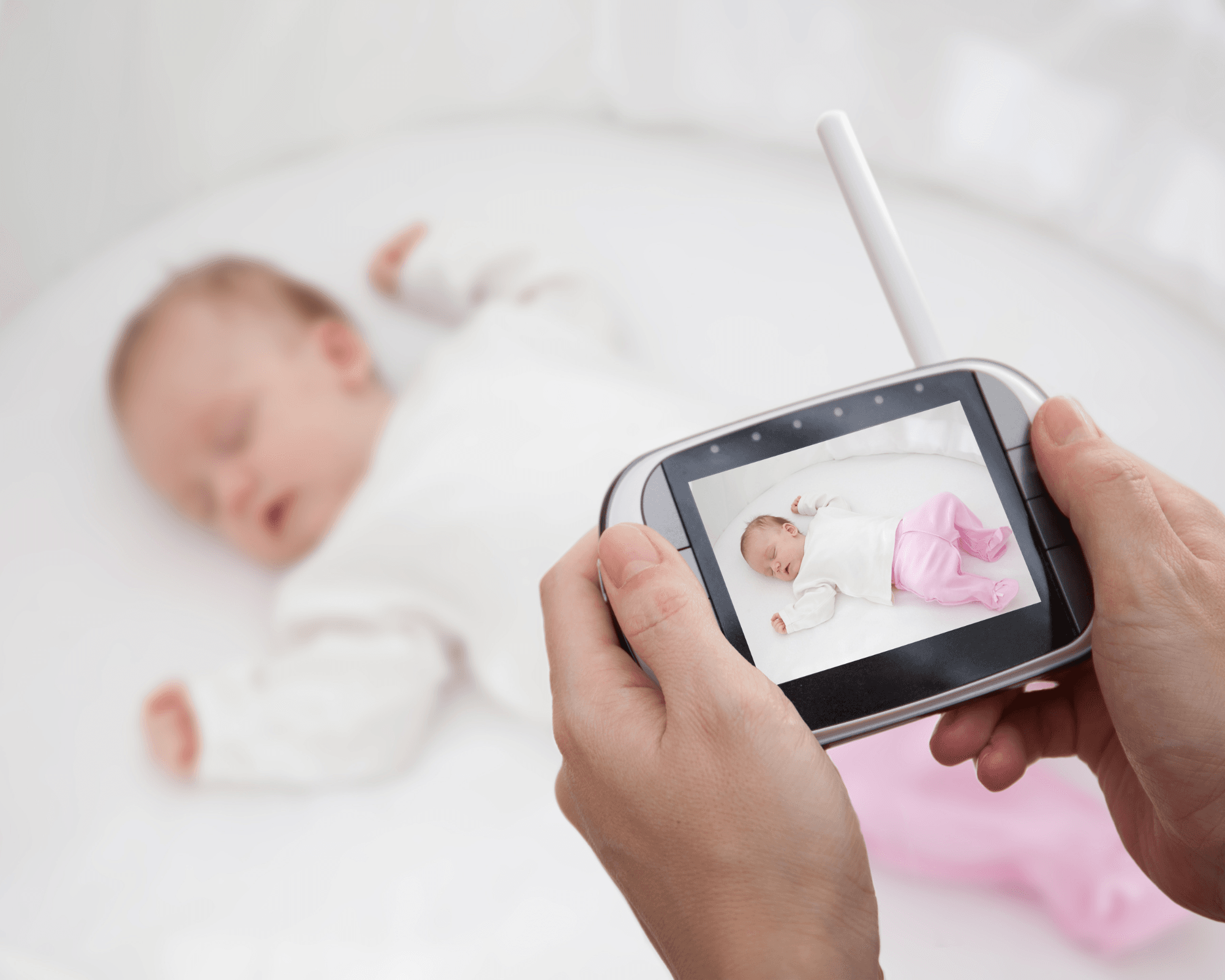
Most baby monitors use the 2.4GHz frequency and transmit continuously, causing interference that can reduce Wi-Fi speeds by 15-25%. To prevent this, If possible, get a baby monitor that uses the 900MHz frequency. Alternatively, position your router and monitor on opposite sides of your home. The distance will help reduce signal conflicts.
If you enjoyed this guide, follow us for more.
Christmas Lights: Seasonal Slowdowns
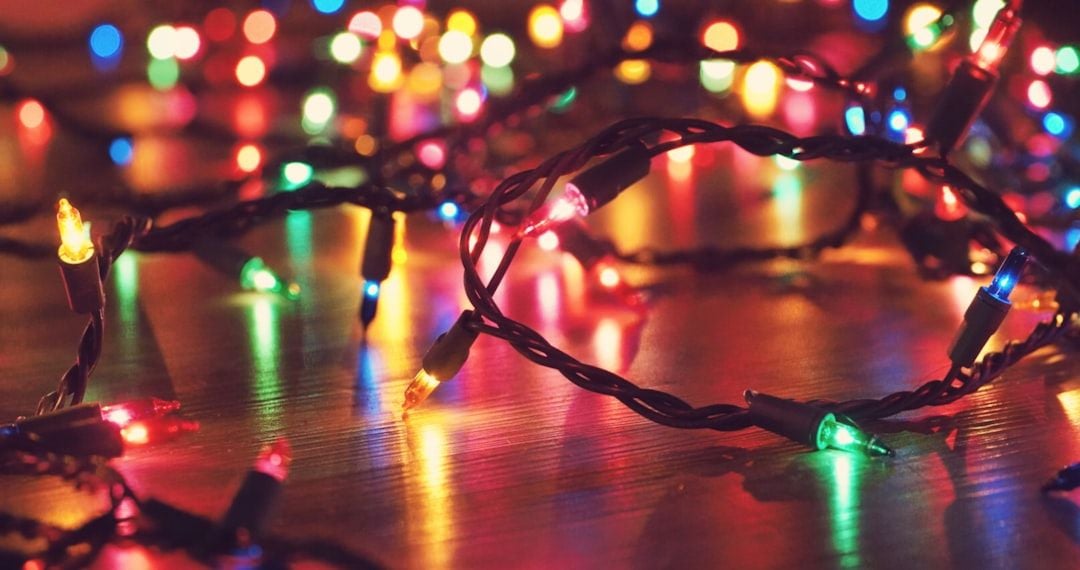
Electromagnetic interference from LED and blinking Christmas lights can affect Wi-Fi performance, particularly when they are in close proximity to networking equipment. To fix this issue, keep holiday lights at least 6 feet away from your router. Avoid draping them near network cables. If you notice slowdowns, try unplugging some lights to find the problem.
Concrete Walls: Signal Blockers

A single concrete wall can reduce your Wi-Fi signal by 10-15 dB. To improve this, use mesh Wi-Fi systems or range extenders to bypass concrete barriers. Place additional access points on the same side of concrete walls as your devices. For a permanent solution, consider running Ethernet cables through concrete barriers.
Neighboring Networks: Invisible Congestion
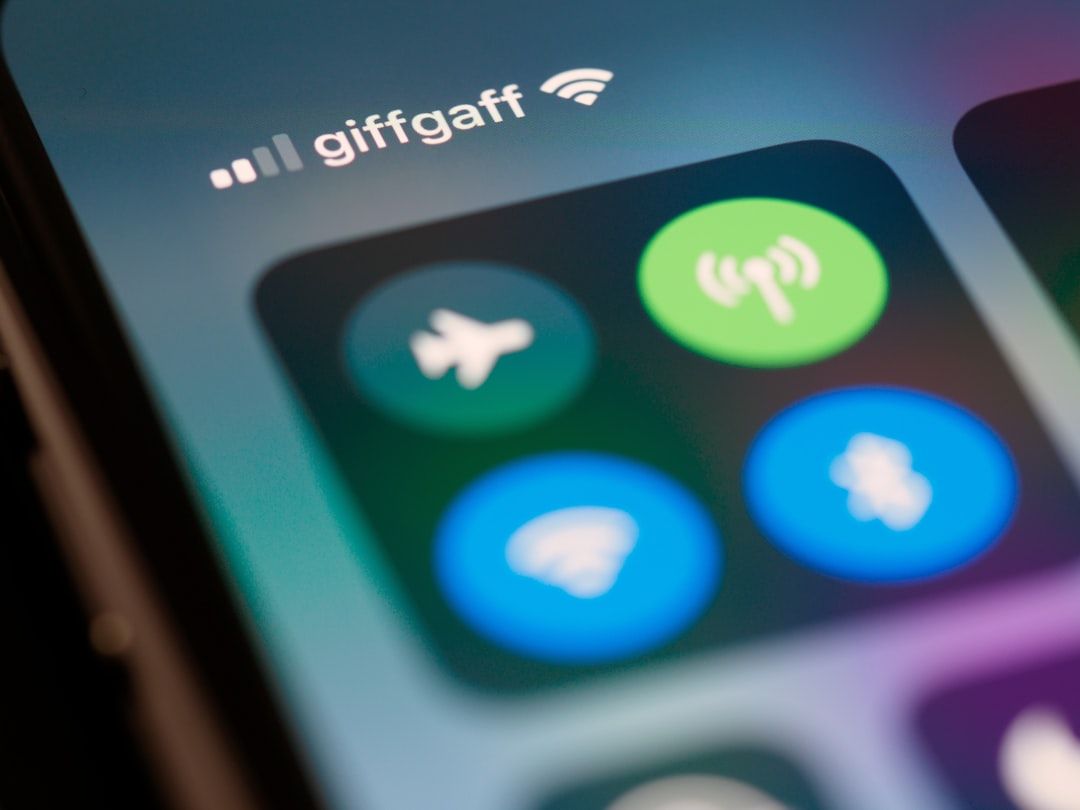
Overlapping wi-fi networks in densely populated areas like apartment buildings can lead to channel congestion, resulting in reduced speeds. To optimize this, download a Wi-Fi analyzer app to identify crowded channels in your area. Then, access your router settings and select a less congested channel, usually 1, 6, or 11 for 2.4GHz networks. Repeat this every few months as neighboring configurations change.
See also: The Hidden Risks of Public Wi-Fi and How to Stay Safe
If you enjoyed this guide, follow us for more.