
If your Samsung Galaxy Tab S10+ isn't lasting through the day like it used to, the large, beautiful screen and powerful processor can sometimes be the culprits. The good news is that Android and One UI give you a ton of control to rein things in. Let's start with the most effective check you can do right now.
Identify the Battery Drain Culprit
Open Settings and go to Battery. Here, you'll see a detailed breakdown of what's been using your power since the last full charge.
Pay close attention to the screen-on time and any apps showing unusually high percentages. A social media or video app at the top is normal if you've been using it a lot, but a background service or system app using 20% or more is a red flag. This screen is your best clue for where to focus your efforts.
Optimize Your Display Settings
The Tab S10+'s expansive display is its best feature and its biggest power draw. Start by pulling down the Quick Settings panel and adjusting the brightness slider down to a comfortable level. Automatic brightness is handy, but it often keeps the screen brighter than necessary, especially indoors.
Next, head to Settings > Display. Consider reducing the Screen timeout to 1 or 2 minutes. If you have the 120Hz refresh rate enabled, switching it to Standard (60Hz) can save a significant amount of power, though you'll lose some smoothness in scrolling.
For the always-on display, you can find its settings in the same Display menu. Turning it off entirely is the biggest battery saver, but you can also set it to Tap to show so it only appears when you need it.
Manage App Background Activity
Apps refreshing in the background are a major source of silent battery drain. Go to Settings > Apps, select any power-hungry app from your battery report, and tap Battery. Here, you can set it to Restricted to prevent it from running in the background at all.
For less aggressive control, use the built-in optimization. Go to Settings > Battery > Background usage limits. You can enable Put unused apps to sleep automatically and add specific apps to a Deep sleeping list.
Also check location permissions in Settings > Location. Switch apps that don't genuinely need to know where you are from "Allow all the time" to "Allow only while using the app" or deny permission entirely.
Connectivity and Performance Tweaks
Turn off Wi-Fi, Bluetooth, and GPS when you're not using them. The tablet constantly scans for networks and devices, which adds up. The Quick Settings panel is the fastest way to toggle these on and off as needed.
The Dimensity 9300+ chip is powerful but can get warm under heavy loads like gaming or video editing, which triggers thermal throttling and uses more power. If you're not doing intensive tasks, try enabling a power-saving profile. Go to Settings > Battery and tap Power saving. You can choose from Light, Medium, or Maximum modes, which limit CPU speed, background network usage, and always-on display.
I've found that for general browsing and media, the Light or Medium mode doesn't impact the experience much but can noticeably extend battery life, especially toward the end of the charge.
Update and Reset
Outdated software can sometimes have bugs that cause poor power management. Check for updates by going to Settings > Software update > Download and install. Samsung regularly releases optimizations, so it's worth making sure you're on the latest version of One UI and the Android security patch.
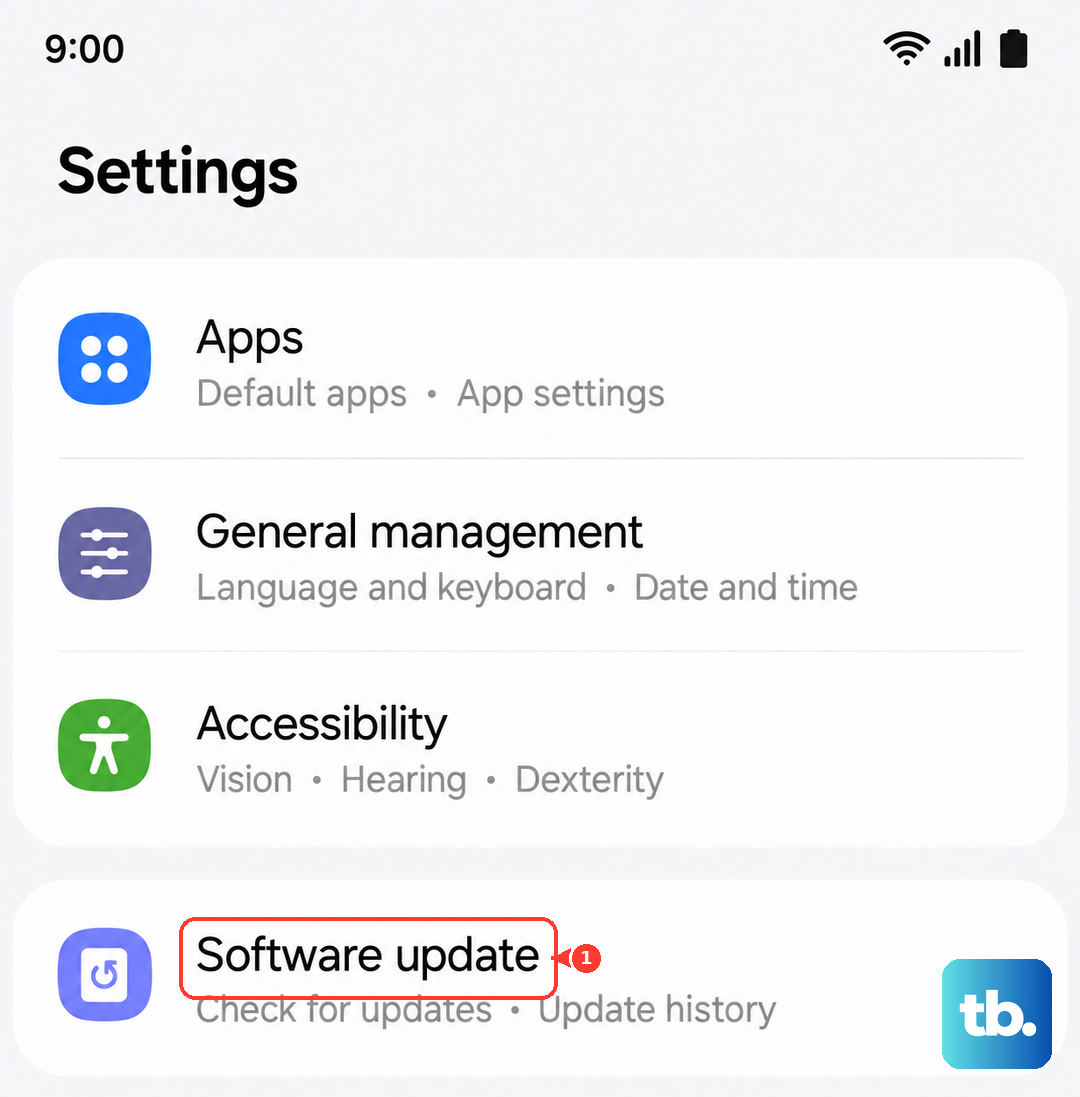
If you've tried everything and the drain is still sudden and severe, a settings reset can help. This won't delete your personal files like photos or documents. Go to Settings > General management > Reset > Reset all settings.
This will revert your Wi-Fi passwords, wallpaper, and all system settings back to default, which can clear out any software glitches causing the problem. It's a good final step before considering anything more drastic.
Charging Habits for Long-Term Health
Since the Tab S10+ doesn't come with a charger in the box, using the right one matters. For the fastest possible charge, you need a USB-PD (Power Delivery) charger that supports 45W output. Look for this specification when buying a new charger or use a known good one from a recent Samsung phone.
Avoid letting the tablet consistently drain to 0% or sit at 100% charge for days on end. Samsung's software includes protection to slow charging at high levels, but for battery longevity, keeping it between 20% and 80% is ideal when you can. Also, try not to use the tablet for demanding tasks while it's fast charging, as the combined heat from charging and the processor isn't great for the battery.