
If your Samsung Galaxy A16 is running out of juice way too quickly, you're not alone. That big 5000mAh battery should last, but sometimes software or settings get in the way. Let's get straight to the most common fix first.
Head to Settings > Battery and device care > Battery. Look at the graph and the list of apps below it. This is your detective tool. An app showing high usage here, especially when you haven't been actively using it, is often the prime suspect. You can tap on it to see if it's running in the background excessively.
Manage Power-Hungry Apps
Once you've identified a culprit from the Battery menu, you have a few options. For social media, messaging, or email apps, try restricting their background activity. Go to Settings > Apps, select the app, then tap Battery. Change the setting from "Optimized" to "Restricted".
If an app is constantly draining power and you don't absolutely need it, consider uninstalling it, especially if it's a recent install. For pre-installed apps you can't remove, you can often disable them. In the same app info screen, tap "Disable" to stop it from running entirely.
Optimize Your Display Settings
The screen is one of the biggest battery drains on any phone. On the A16's AMOLED display, enabling Dark Mode is a significant saver. You can turn it on manually in Settings > Display > Dark mode, or set it on a schedule.
Also, take a look at your screen brightness. The A16's screen can struggle in direct sunlight, tempting you to max it out. Try keeping it at 50% or lower indoors and rely on adaptive brightness. You can find this slider quickly in the notification panel.
Reduce your screen timeout. A shorter time means the display turns off faster when you're not using it. Go to Settings > Display > Screen timeout and set it to 30 seconds or 1 minute.
Control Connectivity Features
Turn off location services for apps that don't genuinely need it. Navigate to Settings > Location and review app permissions. Change apps like weather or social media to "Allow only while using the app" instead of "Allow all the time".
Bluetooth and Wi-Fi scanning for location can also run in the background. In Settings > Location > Location services, tap "Improve accuracy" and toggle off Wi-Fi scanning and Bluetooth scanning.
When you're not using them, turn off Bluetooth, GPS, and even Wi-Fi via the quick settings panel. Your phone won't waste energy searching for connections. I'd also recommend checking sync settings for accounts like Google or Samsung Cloud and reducing the frequency if possible.
Use Built-In Samsung Tools
Don't overlook Samsung's own device care features. Go to Settings > Battery and device care and tap "Optimize now". This runs a quick check and can close unnecessary background processes.
Putting your phone into Power saving mode is a more aggressive step. You can enable it from the Battery settings or your quick panel. It limits background network usage, reduces performance, and caps the screen to 60Hz, which can add hours of life.
For a deeper clean, clear the cached data for all apps. This can sometimes clear out glitchy processes that cause drain. Go to Settings > Battery and device care > Storage, tap "Apps", then the three-dot menu, and select "Clean now".
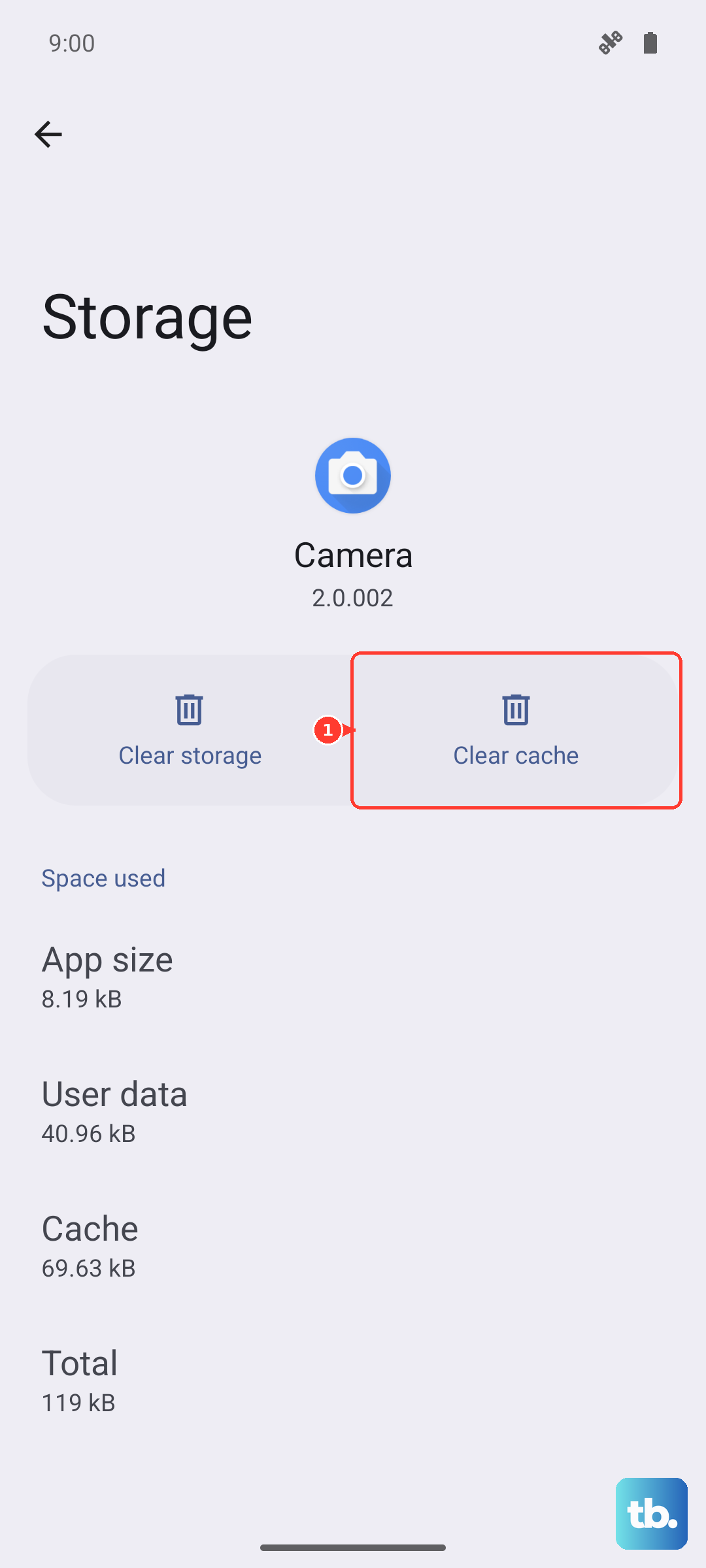
Update Software and Check for Glitches
Always make sure your phone is running the latest software. Updates often include battery performance improvements and bug fixes. Check manually in Settings > Software update > Download and install.
If you've tried everything and the drain started suddenly, a temporary glitch might be to blame. Try a soft reset by holding the Volume Down and Power buttons together for about 10 seconds until the phone restarts. This clears the phone's temporary memory without deleting any data.
For a more thorough reset that won't erase your personal files, you can reset all settings. This will revert Wi-Fi passwords, Bluetooth pairings, and your preferences back to default, which can resolve conflicting configurations. Find this in Settings > General management > Reset > Reset all settings.
Consider Your Charging Habits
While not a direct fix for software drain, your charging routine affects long-term health. For the fastest charge on the A16, use an official Samsung 25W charger or a reputable PD-compliant one. The 25W speed is a bit slow for such a large battery, so avoid using it heavily while it's plugged in with a slow charger.
Try to avoid letting the battery consistently drop below 20%. Lithium-ion batteries experience more stress during deep discharges. Occasional charges throughout the day are better than one full cycle from 0 to 100.











