
If your Samsung Galaxy Z Flip 6 is struggling to make it through the day, you're not alone. That 4000mAh battery has to power two screens and a powerful chipset, which can lead to faster drain than expected. The good news is there are several settings you can adjust to get more life out of a single charge.
Check What's Draining Your Battery
Before you start changing settings, it's smart to see what's actually using your power. Samsung's battery menu gives you a clear breakdown. Go to Settings > Battery.
Here, you can view usage since your last full charge. Look for apps with unusually high percentages. I'd pay special attention to the Cover Screen if you use it a lot, as running apps on that smaller display still consumes power. This is your first clue.
Optimize Your Display Settings
The main inner display is the biggest battery user on any phone, and the Z Flip 6 is no exception. Start by pulling down the quick settings panel and lowering the brightness slider. Even a small reduction can make a noticeable difference over a full day.
Next, head to Settings > Display. Set the screen timeout to 30 seconds or one minute. Since this phone folds, you can also use Flex Mode to prop it up and turn off the display during video calls, which saves power.
Enable Dark Mode from the same menu or your quick settings. The inner display uses AMOLED technology, where black pixels are actually turned off. Using dark backgrounds and themes can significantly reduce power draw.
Manage App Behavior and Connectivity
Apps refreshing in the background are a major culprit. Go to Settings > Apps, select an app, and tap Battery. You can set it to "Restricted" to prevent background activity. Do this for apps that don't need constant updates, like games or streaming services.
Location services are another drain. Swipe down and long-press the Location icon, or go to Settings > Location. Review which apps have recent access and change permissions to "Allow only while using the app" for anything that doesn't need to always know where you are.
Turn off Wi-Fi, Bluetooth, and NFC when you're not using them. You can find quick toggles for these in your notification panel. Constantly searching for networks or devices uses more battery than you might think.
Use Built-In Samsung Optimization Tools
Samsung includes some powerful tools to help. Open the Settings app and go to Battery. Tap on "Optimize now" to let the phone automatically close background apps and clear temporary files.
In the same menu, tap on Battery and then Power saving. You can enable a standard Power saving mode here, which limits background network usage and slows the processor slightly. For extreme savings, tap "More options" and turn on "Adaptive power saving," which automatically applies settings based on your usage habits.
Also in the Battery menu, look for "Background usage limits." Here, you can enable "Put unused apps to sleep" and "Deep sleeping apps." This automatically manages apps you rarely use, preventing them from waking up and using power.
Update Your Software and Apps
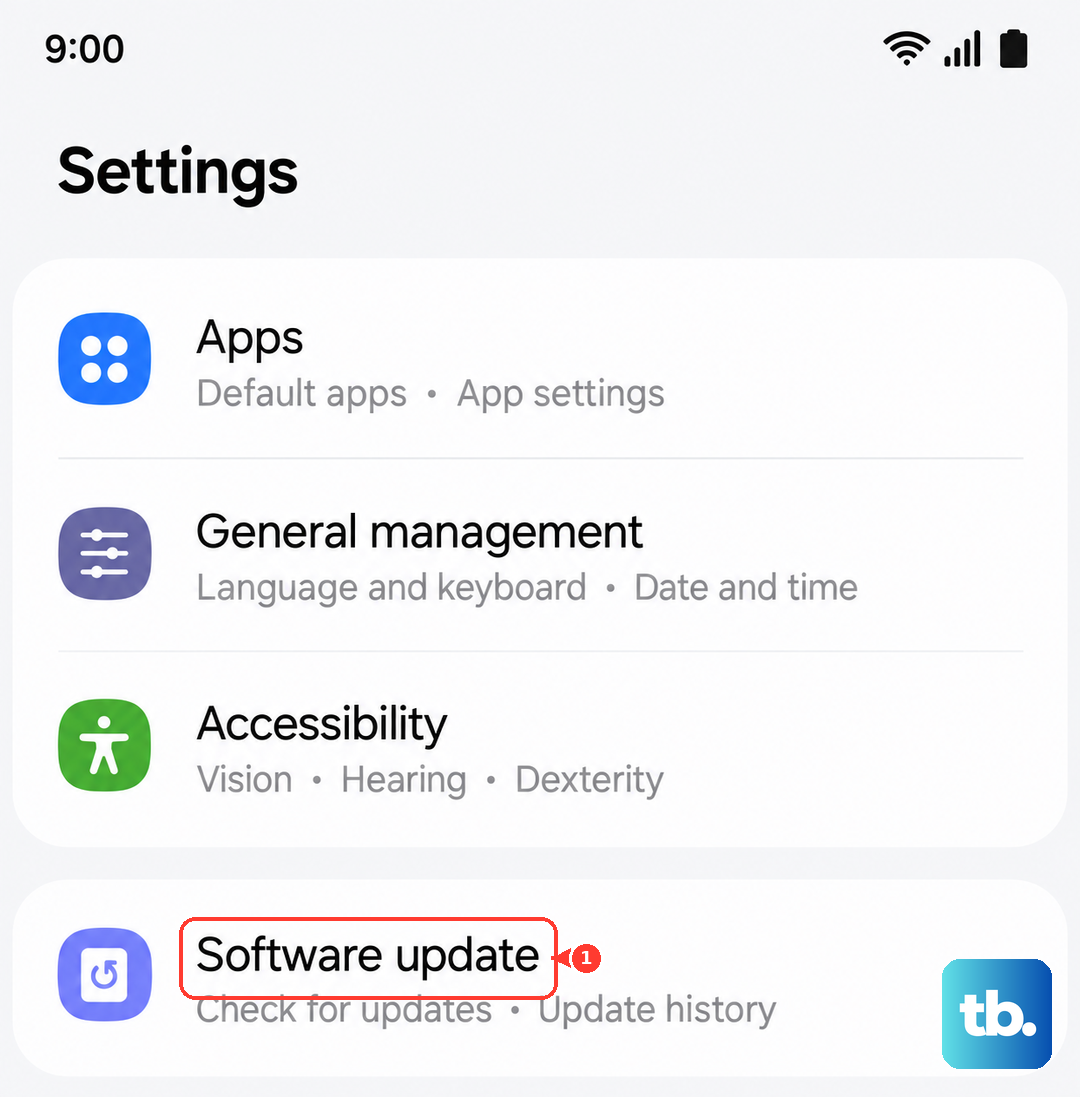
Software updates often include battery performance improvements and bug fixes. Check for your phone's update by going to Settings > Software update > Download and install.
Make sure your apps are updated too. Open the Galaxy Store and tap the menu icon, then go to "Updates." Also, check the Google Play Store by tapping your profile picture and selecting "Manage apps & device." Outdated apps can sometimes have bugs that cause excessive battery drain.
Review Cover Screen and Labs Features
The Cover Screen is incredibly useful, but running complex widgets or apps on it does use battery. Consider simplifying your Cover Screen layout. Press and hold on the Cover Screen to edit and remove widgets you don't absolutely need.
If you've enabled Labs features to run more apps on the Cover Screen, remember these are experimental. They can sometimes lead to higher battery usage. You can manage these in Settings > Advanced features > Labs. It's worth disabling any you aren't actively using.
Check for a Problematic App or Reset
If the drain started suddenly, a recently installed app might be the cause. Check your battery usage stats again. If you see a single app using a huge percentage, try uninstalling it to see if the problem stops.
You can also try booting into Safe Mode. Press and hold the power button, then tap and hold the "Power off" icon on your screen until you see the Safe Mode prompt. This temporarily disables all third-party apps. If your battery life improves dramatically in Safe Mode, you know a downloaded app is to blame.
As a last resort, you can reset all settings. This won't delete your personal data, but it will reset Wi-Fi passwords, Bluetooth connections, and all system preferences to default. Go to Settings > General management > Reset > Reset all settings.
General Z Flip 6 Battery Tips
For the fastest charging, use the official 25W Samsung charger or a compatible third-party PPS charger. The phone supports 15W wireless charging, but wireless is generally less efficient and generates more heat, which isn't ideal for battery health long-term.
Try to avoid letting the battery consistently drop below 20%. Lithium-ion batteries last longest when kept between 20% and 80% charge. Using the phone while it's charging, especially for demanding tasks, can also cause it to heat up and charge slower.
If you've tried all these steps and your battery is still depleting unusually fast, it might be worth getting the battery health checked. You can contact Samsung Support or visit an authorized service center to have them run a diagnostic.