
If your Galaxy Z Fold 6 is running out of juice way too quickly, you're not alone. A phone with two screens and a powerful processor has a lot to manage, and sometimes a single setting or app can throw things off. Let's start with the quickest way to see what's going on.
Check What's Draining Your Battery
Before you change anything, head to Settings > Battery. This is your command center. Tap on "Battery usage" to see exactly which apps have been using power over the last 24 hours or 7 days.
You might find a social media app running constantly in the background or a game that's more demanding than you realized. This screen tells you the real story. If you see an app using a suspiciously high percentage (like over 20%), that's your prime suspect.
Adjust Your Screen Settings
The Z Fold 6's large inner display is fantastic, but it's also the biggest battery drain. A few tweaks here can make a huge difference. First, consider lowering the brightness. You can do this quickly from the notification panel or in Settings > Display.
Next, reduce the screen timeout. Go to Settings > Display > Screen timeout and set it to 30 seconds or 1 minute. This ensures the screen turns off quickly when you're not using it. I'd also recommend enabling Dark mode, as it saves power on the phone's OLED panels.
You can find it in Settings > Display > Dark mode. For an even bigger saving, set your wallpaper to a dark or black image, especially for the inner screen.
Manage Apps Running in the Background
Apps refreshing in the background are a major culprit. Samsung's One UI gives you good control over this. Go to Settings > Apps, select a power-hungry app from your battery usage list, and tap "Battery."
Here, you can set it to "Restricted" to prevent it from running in the background at all. For less drastic measures, head to Settings > General management > Battery > Background usage limits. You can put unused apps to sleep or enable "Adaptive battery," which learns your habits and limits apps you don't use often.
Turn Off Unnecessary Connections
Location services, Bluetooth, and Wi-Fi scanning can silently eat battery. For location, go to Settings > Location and review which apps have access. Switch any non-essential ones to "Allow only while using the app."
Turn off Bluetooth and Wi-Fi from the quick settings panel when you're not actively using them. Also, check for a setting called "Scanning" under both Wi-Fi and Bluetooth menus, and disable it. This stops your phone from constantly searching for networks and devices.
Update Your Software and Apps
Software updates often include optimizations and bug fixes that improve battery life. Check for the latest system update by going to Settings > Software update > Download and install.
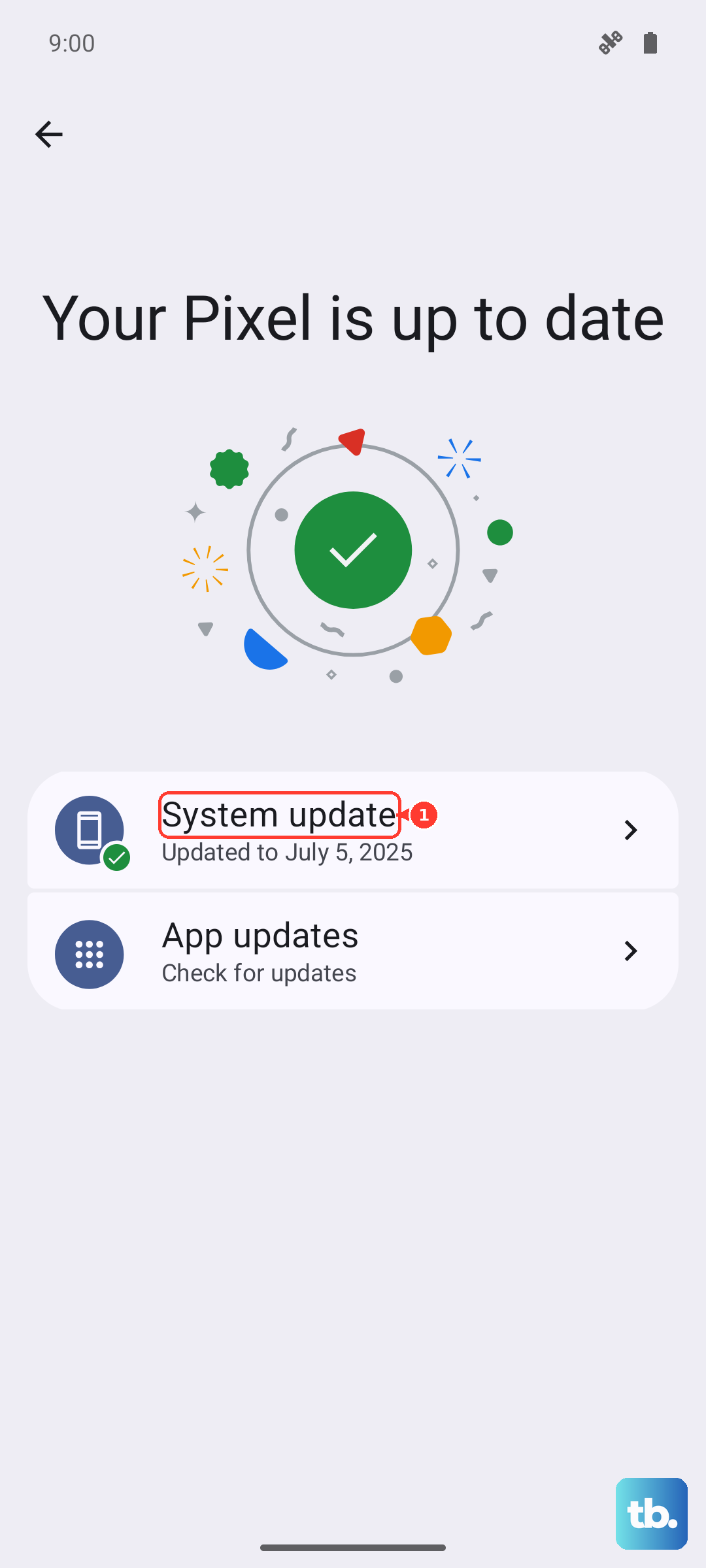
Outdated apps can also cause problems. Open the Galaxy Store and Google Play Store, go to your profile menu, and check for any pending updates. Keeping everything current ensures you have the latest efficiency improvements.
Use Power Saving Modes
Don't overlook the built-in power savers. You can enable Light performance profile in Settings > Battery > Performance profile. This slightly limits the CPU for better efficiency.
For more significant savings, tap "Power saving" on the same battery page. This reduces background activity, limits location services, and caps performance. You can even enable "Adaptive power saving" to let the phone turn these features on automatically when it predicts you'll need them.
Check for a Failing Battery or Software Glitch
If you've tried all the software fixes and the drain is still severe, it's worth checking for a deeper issue. First, try a forced restart to clear any temporary glitch. Press and hold the Volume Down button and the Side key together for about 10 seconds until the Samsung logo appears.
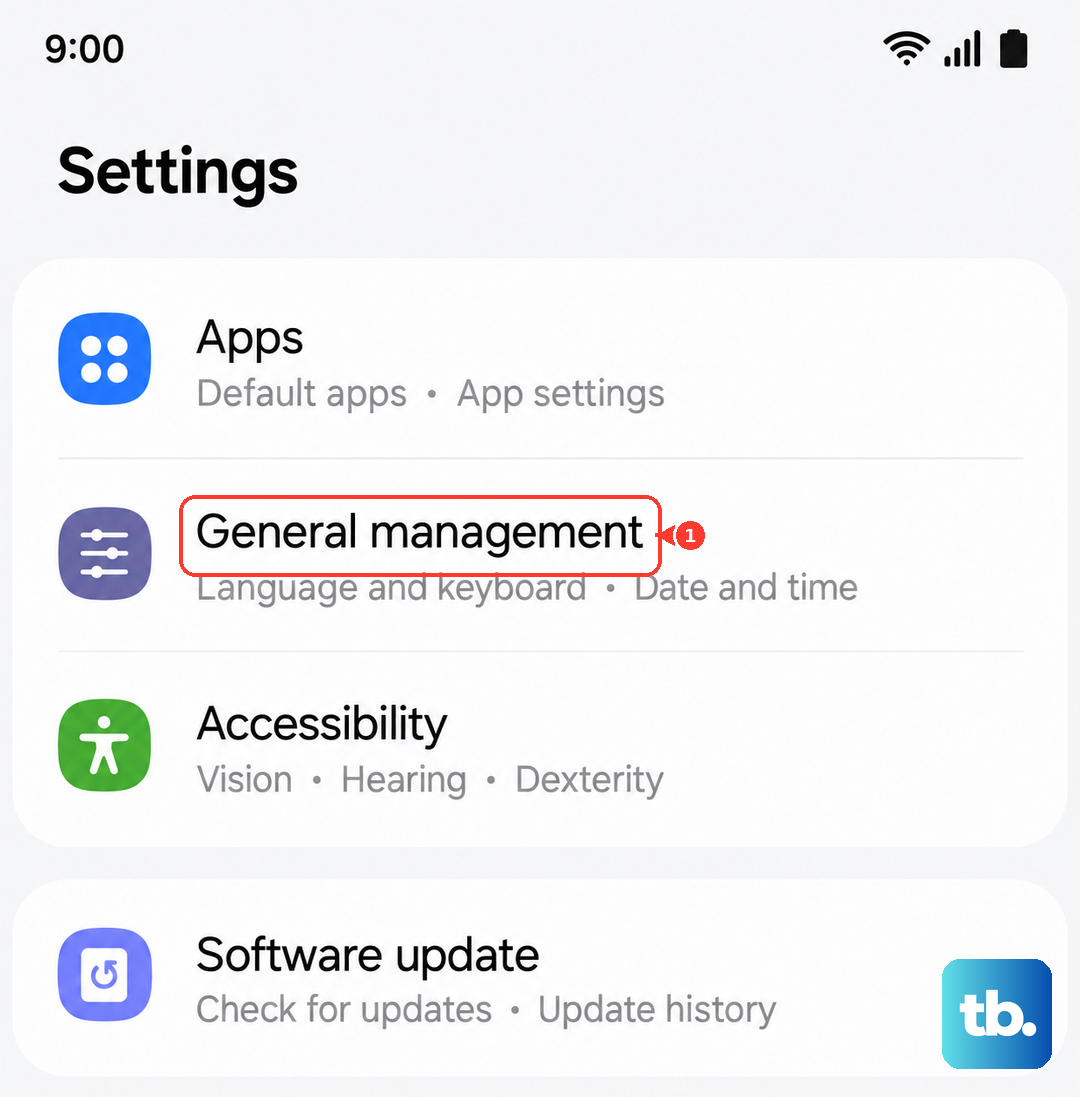
For a more thorough reset that won't delete your data, go to Settings > General management > Reset > Reset all settings. This will revert your network, display, and sound settings back to default, which can sometimes resolve a misconfiguration causing drain.
Finally, consider your charging habits. While the Z Fold 6 supports 25W wired and 15W wireless charging, using a slower, non-Samsung charger or exposing the phone to extreme heat while charging can stress the battery over time. Try to keep the battery between 20% and 80% for daily use when possible.