
When your Samsung Galaxy A16 keeps closing apps, it usually comes down to a few common issues. I'd start by checking your storage and giving the phone a quick restart. That fixes it more often than you'd think.
Restart Your Galaxy A16
Hold down the Volume Down button and the Power button at the same time. Keep holding them for about 10 seconds until you see the Samsung logo appear. This force restart clears out any temporary glitches in the memory that might be causing apps to quit.
Check Your Available Storage
Go to Settings > Battery and device care > Storage. The A16 supports microSDXC expandable storage, so if you're below 1GB of free space, add a card or free up room, otherwise apps will struggle. Delete old downloads, clear app caches, or move photos to the cloud to free up room.
This is especially important on the A16 because its 5000mAh battery means you use it for long periods, which can fill up storage faster with cached data.
Update Your Apps and System
Open the Google Play Store, tap your profile icon, and go to Manage apps & device. Tap Update all to get the latest versions. App developers release patches for bugs that cause crashes on specific phones like the A16.
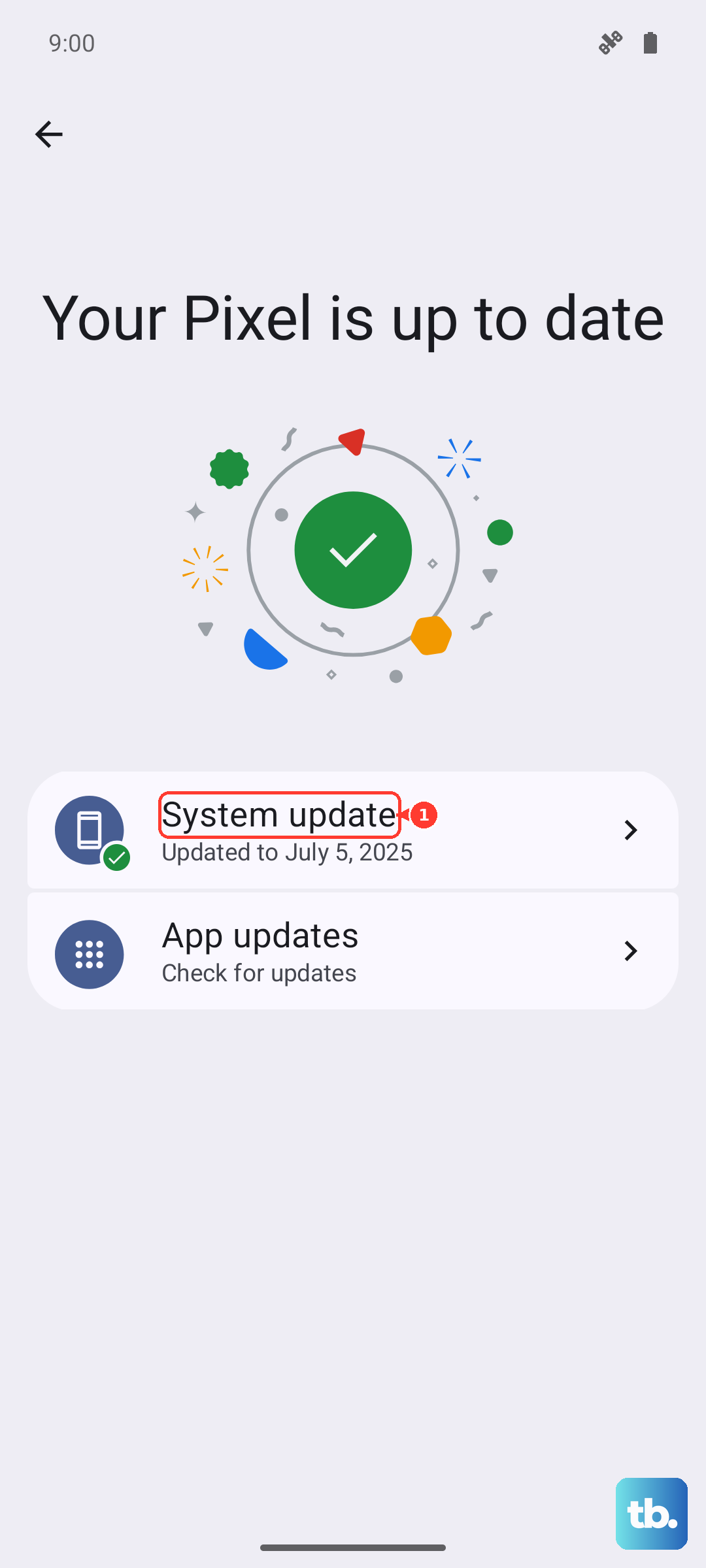
Next, check for a system update. Go to Settings > Software update > Download and install. Samsung regularly pushes One UI updates that improve stability and app compatibility with each new Android version (the A16 has already been updated to Android 16).
Clear an App's Cache and Data
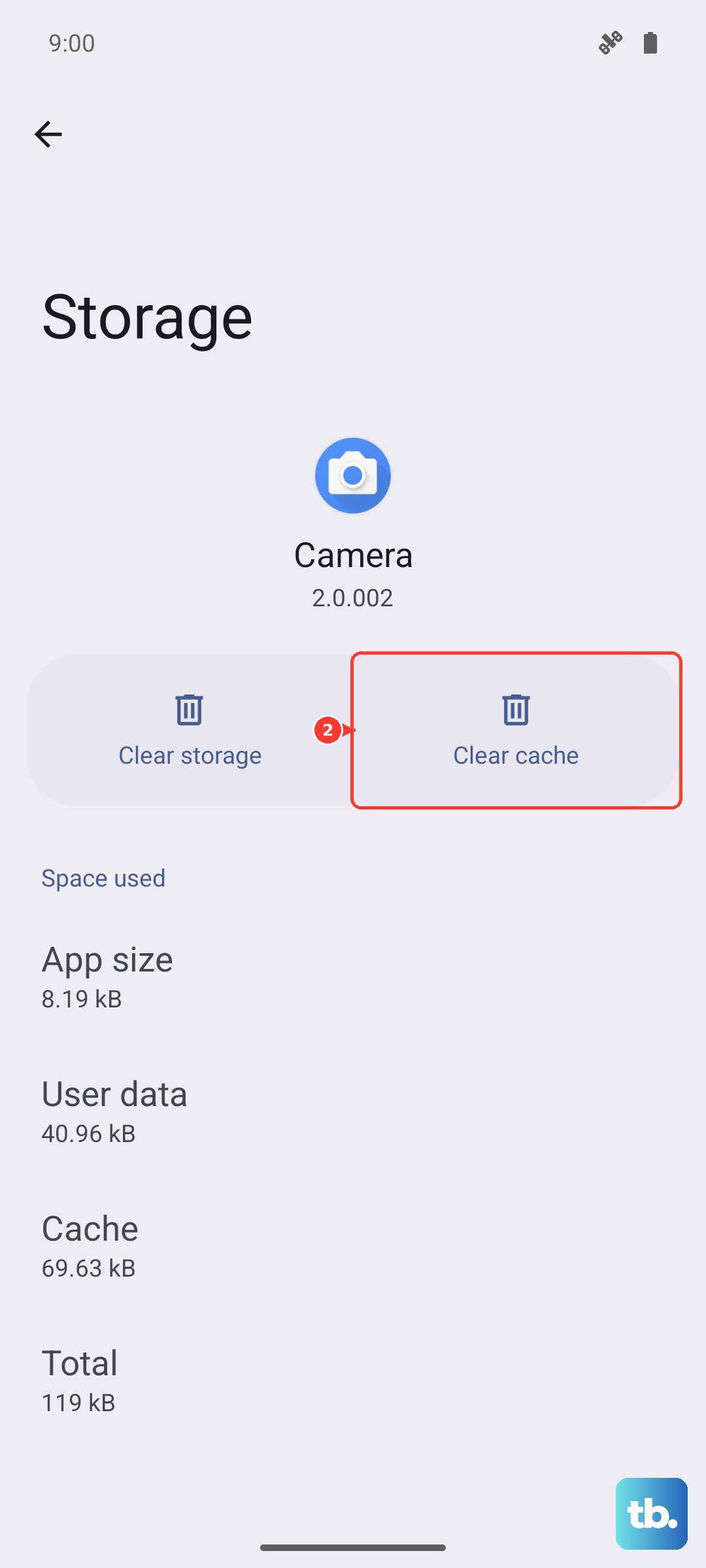
If one specific app keeps closing, its temporary files might be corrupted. Go to Settings > Apps, select the problematic app, and tap Storage.
Tap Clear cache first. This is safe and won't delete your login info. If the app still crashes, go back and tap Clear data. This will reset the app like it's brand new, so you'll need to sign in again.
Manage Your Device's Memory
The Galaxy A16 can experience some lag with heavy multitasking, which can lead to apps closing in the background. Go to Settings > Battery and device care > Memory.
Here, you can see which apps are using the most RAM. Tap Clean now to close background processes. For a more permanent fix, consider uninstalling apps you don't use. Fewer apps running means more memory for the ones you need.
Check for Problematic App Permissions
Sometimes an app crashes because it's being denied a permission it needs. Go to Settings > Apps, select the app, and tap Permissions.
Review the list. If an app like your camera or maps keeps closing, make sure it has permission to access your location, camera, or microphone. Toggle the permissions off and back on to refresh the connection.
Reinstall the Problem App
If clearing data didn't work, a fresh install might. Press and hold the app icon on your home screen and tap Uninstall. Then, open the Google Play Store, search for the app, and install it again.
This ensures you have a clean copy of all the app's files, which can resolve conflicts that occurred during its initial installation or a previous update.
Boot Into Safe Mode
This helps you figure out if a third-party app you downloaded is causing the problem. Press and hold the power button until the power menu appears. Then, press and hold the Power off option on your screen.
Tap Safe mode when it appears. Your phone will restart with only Samsung's default apps running. If your apps work fine in Safe Mode, something you installed is likely the culprit. You'll need to uninstall recent apps one by one to find the bad one.
Reset All Settings
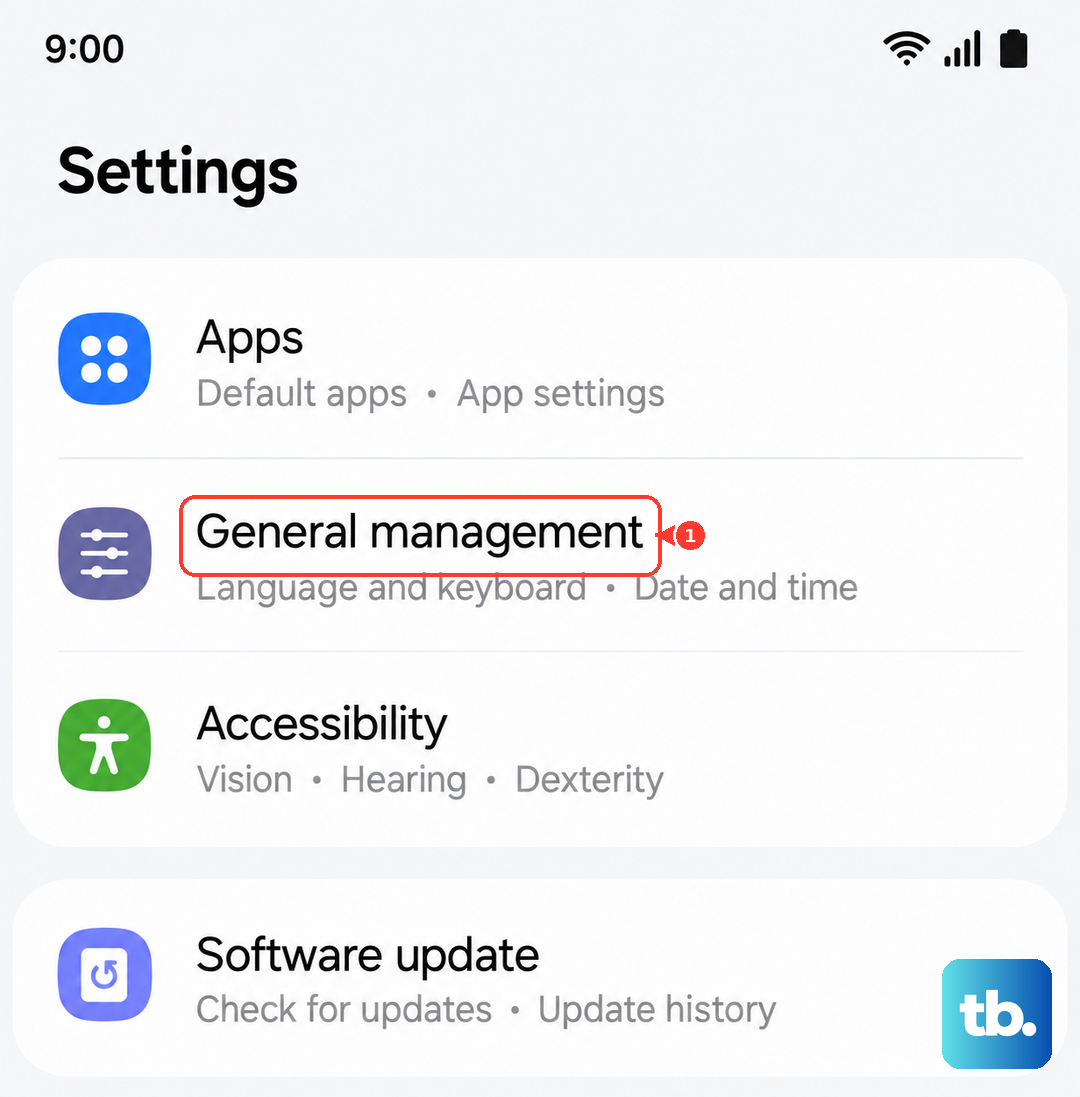
This won't delete your personal data like photos or messages, but it will reset all your system preferences to default. Go to Settings > General management > Reset > Reset all settings.
You'll have to reconfigure things like your Wi-Fi passwords, wallpaper, and ringtones, but it can fix deeper software conflicts that cause apps to misbehave without doing a full factory reset.