
To mute an Apple Watch, press the side button once to open Control Center, then tap the bell to turn on Silent Mode. The bell turns red with a line through it, and you tap it again to unmute. On older watchOS, such as watchOS 8 on an Apple Watch Series 3, swipe up from the watch face to open Control Center instead.
Silent Mode quiets alerts, notifications and sound effects, while wrist taps for alerts can carry on. To keep the screen dark as well, use Theater Mode, and to stop the taps too, use Do Not Disturb.
Silent Mode is not total silence. Apple says alarms and timers still sound while the watch is charging, and our Apple Watch Series 11 with watchOS 26.5 prints the same warning on the page with its Silent Mode switch. Siri and music have their own volume controls as well.
The short version
- Mute: press the side button (swipe up on older watchOS), then tap the bell in Control Center. A red bell means Silent Mode is on.
- Taps stay on: Silent Mode keeps wrist taps. Set Haptics to Off, or use Do Not Disturb, to stop them.
- Dark screen too: tap the two masks in Control Center for Theater Mode.
- One ringing alert: cover the screen with your palm for 3 seconds.
- On the charger: alarms and timers still sound, even in Silent Mode.
- One noisy app: change it in the Watch app under My Watch > Notifications.
Which quiet mode to use
Apple Watch has four ways to stay quiet for a while, plus two for a single alert or a single app. They differ in what still gets through, so pick by the result you want rather than by the name. The table follows Apple's own comparison of the modes.
| What you want | Use | What still happens |
|---|---|---|
| Quiet alerts, but keep the taps | Silent Mode, the bell | Allowed alerts still show and can tap your wrist; alarms and timers sound on the charger |
| Quiet alerts and a dark screen | Theater Mode, the masks | Wrist taps still arrive; a tap, the side button or the Digital Crown wakes the screen |
| No notification sounds or taps | Do Not Disturb, the moon | Alarms still sound |
| Quiet except chosen people and apps | A Focus | Allowed people, apps and time-sensitive alerts get through |
| Silence an alert that is ringing now | Cover to Mute, your palm over the screen for 3 seconds | That alert is muted for now; wake-up alarms are not |
| Quiet one noisy app | Watch app, My Watch > Notifications | Every other app alerts as before |
Silent Mode is the right pick for a meeting, a class or a quiet room, because allowed alerts can still appear and tap your wrist. Theater Mode suits a cinema or a concert. Do Not Disturb or a Focus suits sleep, work and anything where even a tap on the wrist is too much.
Mute Apple Watch from Control Center
Press the side button once. It is the flat button below the Digital Crown, and Apple places it at the lower right of the watch. When we pressed it on our watch, Control Center opened with Wi-Fi, Airplane Mode, the battery level, Ping iPhone, the flashlight and the moon for Do Not Disturb on its first screen.
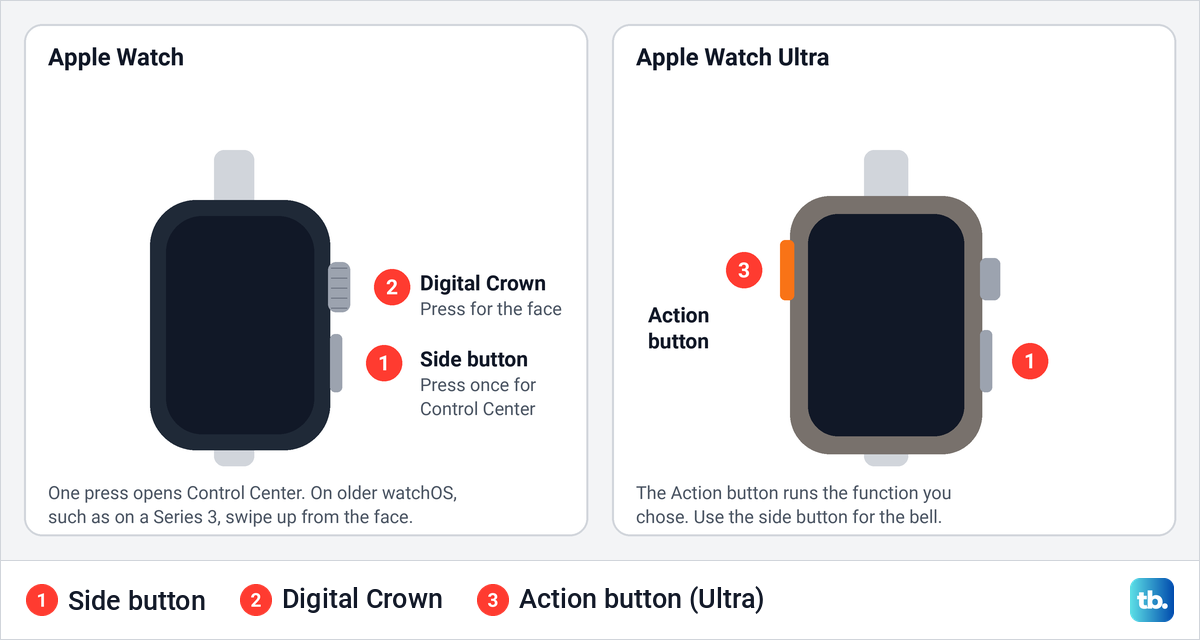
On an Apple Watch Ultra, the Action button on the left side runs the function you chose for it, so it will not open Control Center; use the side button on the right. Do not hold it: Apple uses a press and hold of the side button for turning the watch off and for Emergency SOS, so one short press is all you need.
Scroll down until you reach the bell, then tap it. On our watch the bell sat in the second row, under Theater Mode and Water Lock and next to the text size button. The tile turned red with a line through the bell, which means Silent Mode is on, and we tapped it again to turn Silent Mode off.
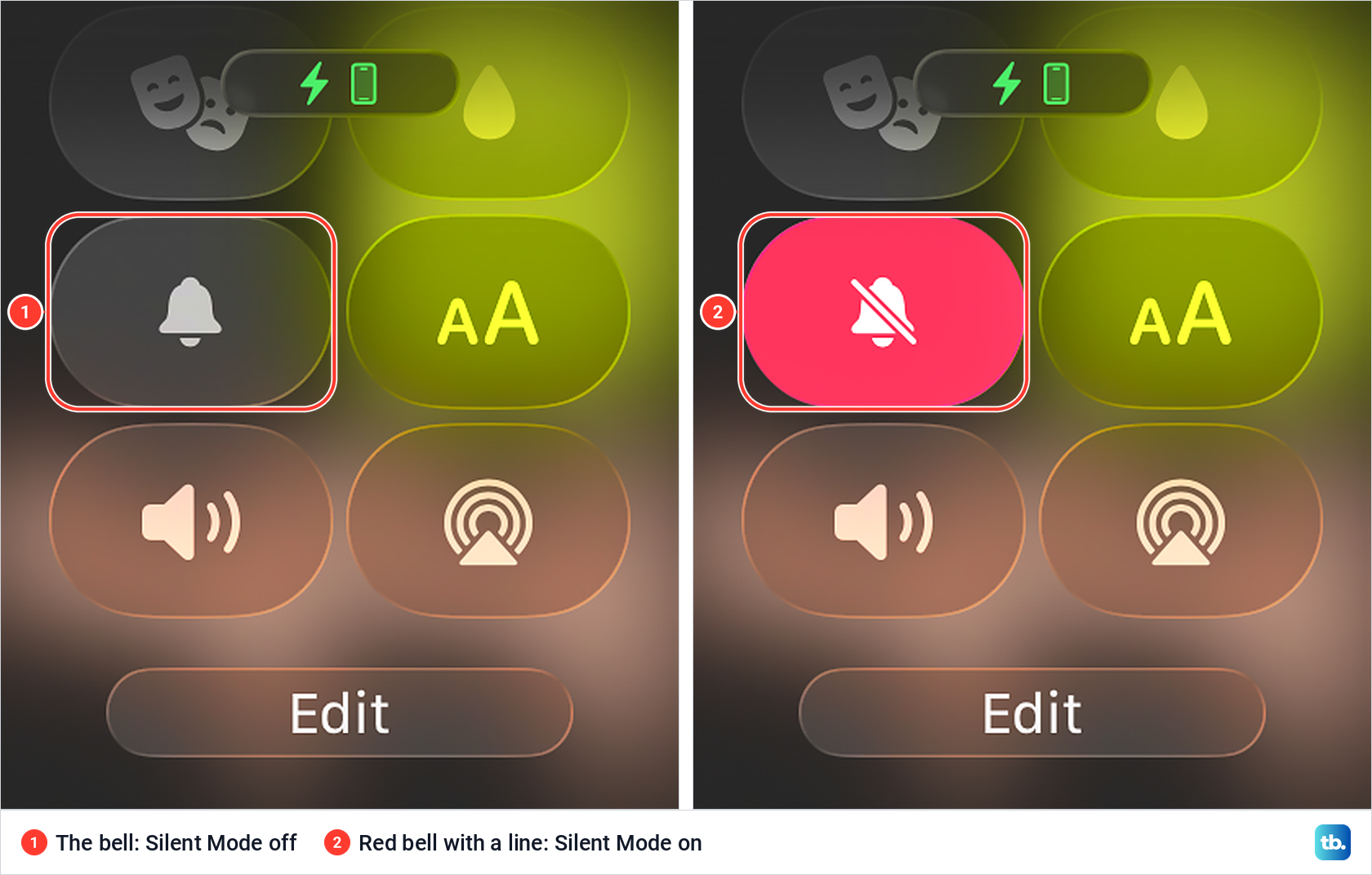
Control Center can be rearranged with the Edit button at the bottom, so the bell may sit somewhere else on your watch. On older software the way in is different: Apple's watchOS 8 guide says to swipe up from the watch face to open Control Center. That is still the route on an Apple Watch Series 3, which cannot update past watchOS 8.
Turn on Silent Mode in Settings
The bell has a twin in the Settings app, which helps if you have moved the bell or taken it out of Control Center. Press the Digital Crown, open Settings and scroll to Sounds & Haptics. On our watch it sat between Siri and Passcode.
At the top of the page, under Ringtone and Alerts, turn on the Silent Mode switch. The volume slider below it sets how loud ringtones and alerts are; the Silent Mode switch is what turns their sound off. Under the slider our watch printed Apple's warning: "Silent mode will not silence alarms and timers when Apple Watch is charging."
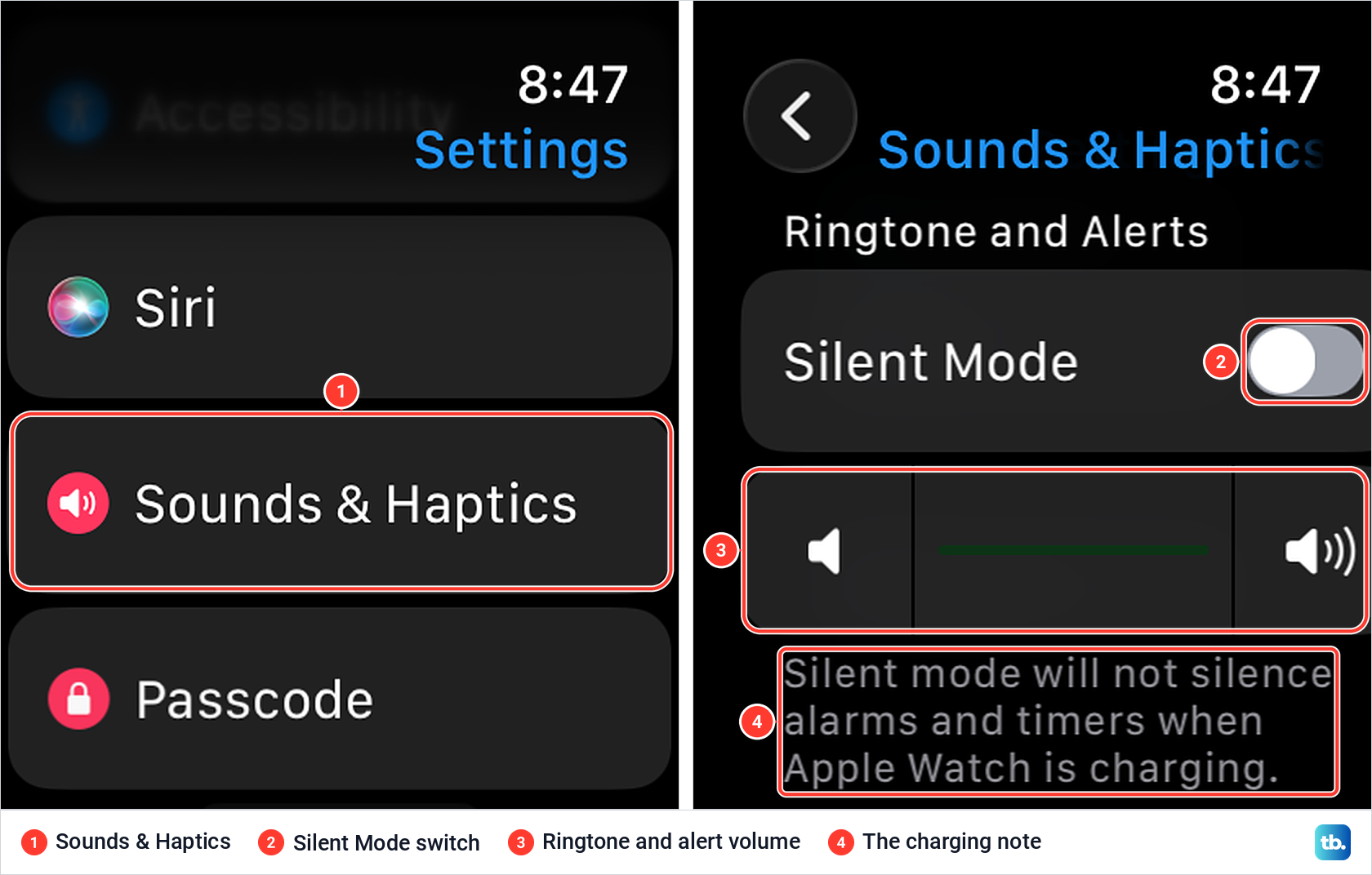
Further down the same page, our watch listed the tones for ringtones, texts, mail, calendar alerts and reminders, then separate switches for Crown Haptics and System Haptics. Those switches are covered in the haptics section below, because they work apart from Silent Mode.
Mute Apple Watch from your iPhone
Apple gives a second route through the paired iPhone. Open the Apple Watch app, tap My Watch, tap Sounds & Haptics and turn on Silent Mode. Apple's support pages point to the same My Watch tab for the watch's other sound and haptic settings. If the app cannot find your watch after you change phones, the guide to pairing Apple Watch with a new iPhone covers that setup.
What Silent Mode still lets through
Apple describes Silent Mode as muting all alerts, notifications and sound effects while you still receive haptic notifications. Notifications also still light up the screen, because Apple's comparison lists visual notifications and the display as on in Silent Mode. That leaves four things that can still reach you.
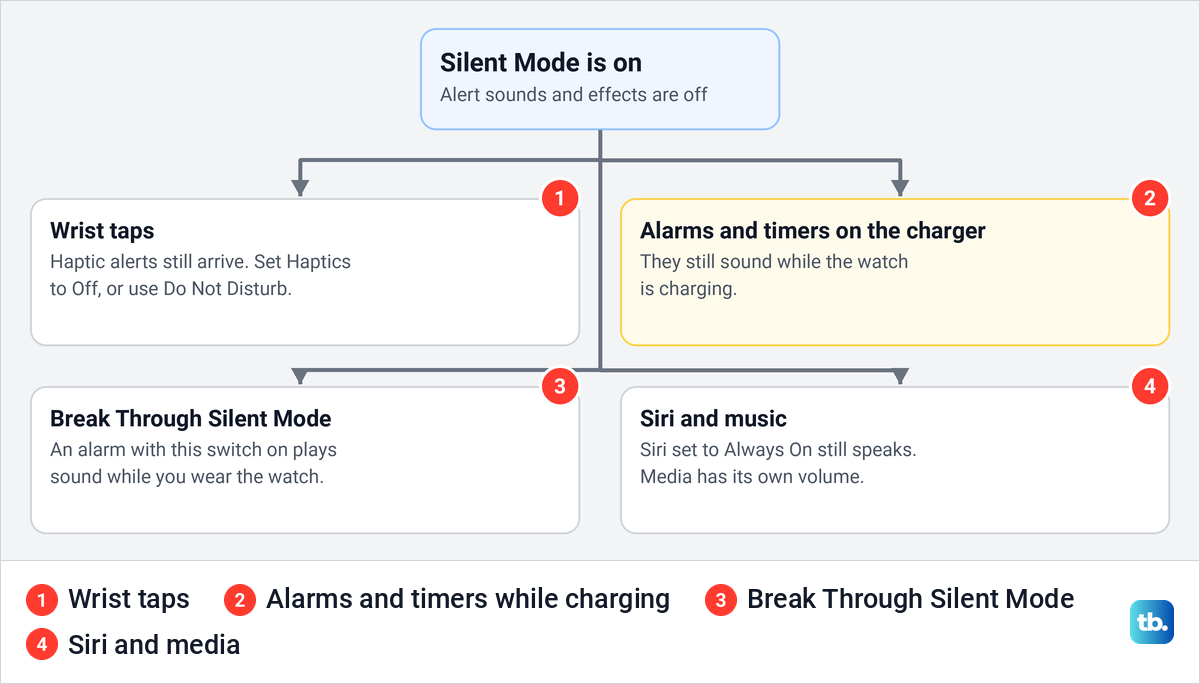
The first is the tap on your wrist, which the Haptics setting or Do Not Disturb can stop. The second catches most people out: while the watch is on its charger, alarms and timers sound even in Silent Mode. If you are not sure the watch is charging, check how to tell whether your Apple Watch is charging before you change an alarm.
The charging chime is a different sound. Apple says the watch plays a chime when charging begins unless it is in Silent Mode, so Silent Mode does stop that one. It is a later alarm or timer on the charger that still rings.
The third is an alarm with Break Through Silent Mode turned on, which Apple says makes sound always play while you wear the watch. The fourth is Siri and media, which have their own volume and are covered near the end of this guide.
Make an alarm silent or loud
To have an alarm tap your wrist without a sound, Apple's tip is to turn on Silent Mode and leave Break Through Silent Mode off for that alarm. To make one alarm ring out loud while the watch is muted, open the Alarms app, tap the alarm time and turn on Break Through Silent Mode. Both settings are about the watch on your wrist, because on the charger alarms sound anyway.
To change a sleep-schedule wake-up alarm's sound setting, open the Sleep app. Apple's tip there is to tap Break Through Silent Mode if you want that alarm to play out loud while Silent Mode is on. For the full schedule and Sleep Focus, use our guide to setting up sleep tracking on Apple Watch.
Mute a ringing alert with Cover to Mute
When a call, timer or alert is already ringing, you do not need Control Center. Apple says to rest your palm on the display for at least 3 seconds, and you feel a tap that confirms the alert is muted. You can still answer the call or reset the timer afterwards.
The gesture works only when Cover to Mute is on. In the Apple Watch app on our iPhone with iOS 26.5, it was under My Watch > Gestures and already switched on, with the 3-second rule printed underneath. Apple says it is on by default and puts the same switch in Settings > Gestures on the watch, where our watch's Settings list also had a Gestures entry.
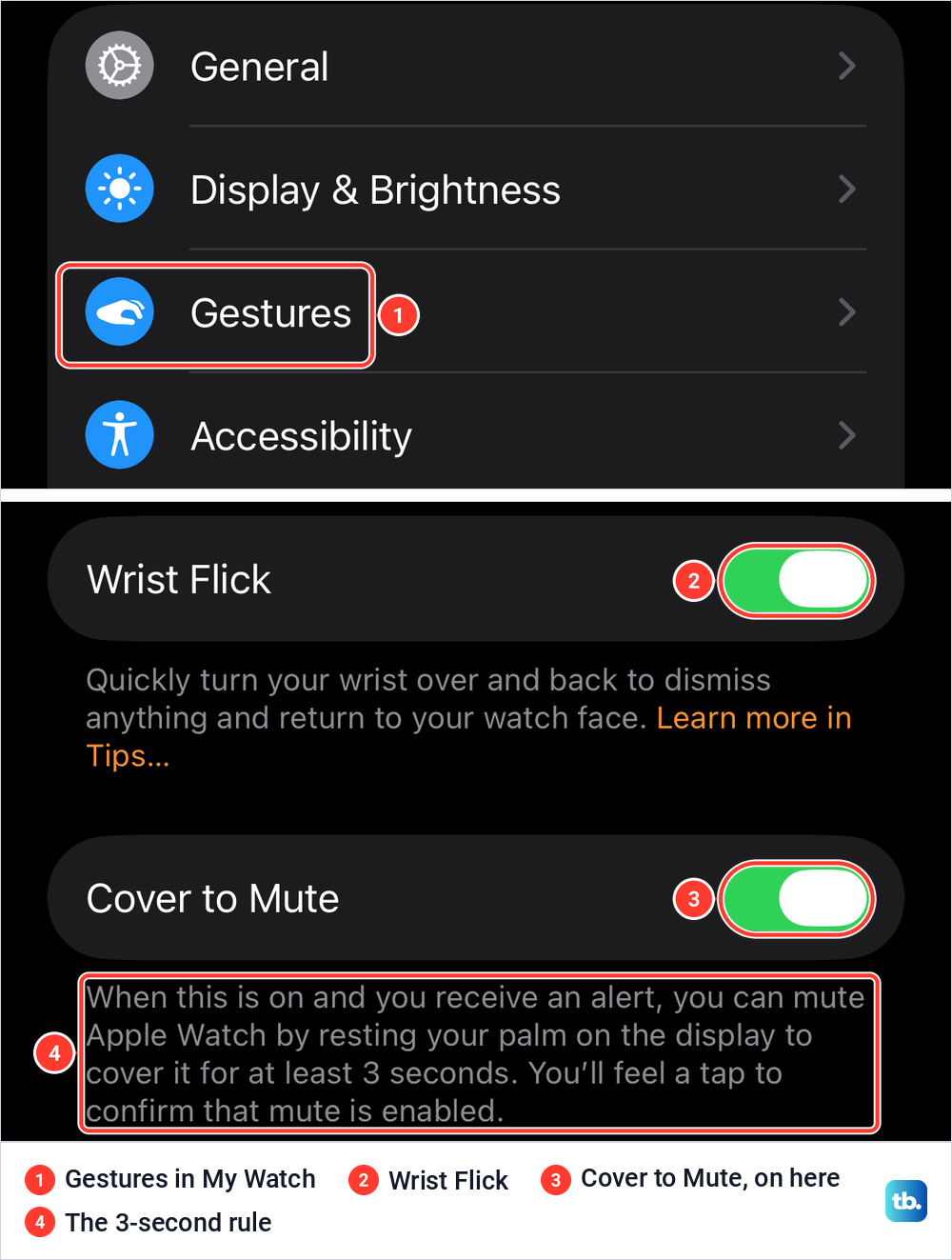
Cover to Mute is a quick fix for one alert, not a mode. Apple calls it a temporary mute, so turn on Silent Mode if you want the alerts after it to stay quiet as well. To avoid accidental cancellations during sleep, Apple notes that wake-up alarms are not silenced by covering the screen.
The same Gestures page held Wrist Flick, also switched on. Apple says a quick turn of the wrist away from you and back mutes incoming calls, silences timers and dismisses notifications. It works on Apple Watch SE 3, Series 9, Ultra 2 and later models.
Use Theater Mode for a quiet, dark screen
Theater Mode adds a dark screen to Silent Mode. Apple says it stops the display from turning on when you raise your wrist, and turns on Silent Mode, while haptic notifications still arrive. Its button is the two masks in Control Center.
When we tapped the masks on our watch for the first time, it showed an explanation instead of switching on at once. It read: "Theater mode turns on Silent Mode and keeps the screen dark until you tap the screen, or press the Digital Crown or side button." Tap the Theater Mode button on that screen to turn it on, or the X to close it without changing anything.
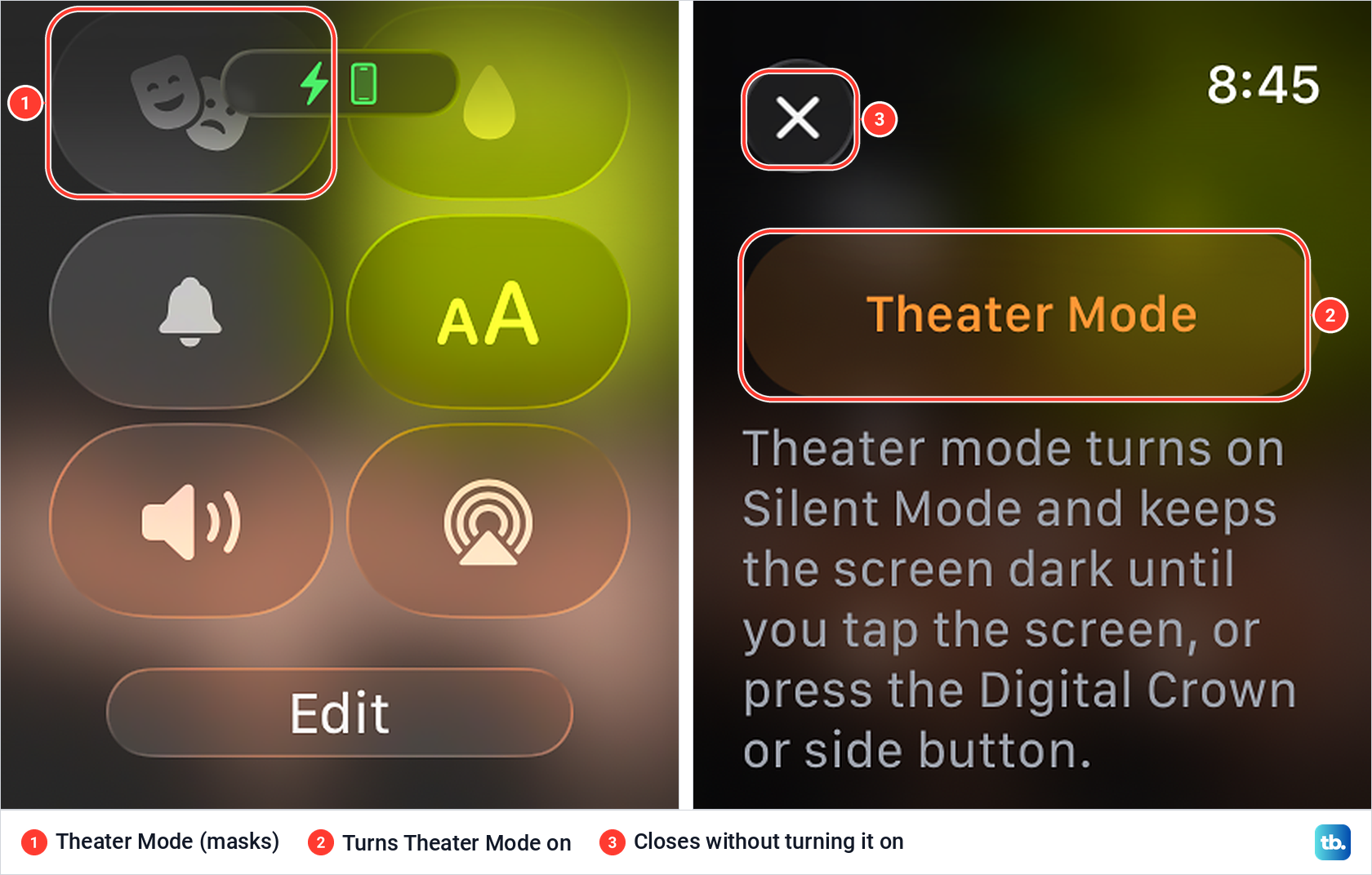
Apple says the Theater Mode icon appears at the top of the screen while it is on. To wake the watch, tap the display, press the side button, or turn or press the Digital Crown, then tap the masks again in Control Center to turn it off. If the screen stays black after all of that, follow the guide to fixing an Apple Watch that will not turn on.
Stop notification taps with Do Not Disturb or Focus
Silent Mode and Theater Mode both let wrist taps through. To stop the sounds and the taps from notifications, Apple's route is the Focus control in Control Center: press the side button, tap the moon, then choose Do Not Disturb or another Focus. On our watch the moon sat on the first screen of Control Center, next to the flashlight.
Next you choose how long it lasts. Tap On, or pick an ending point such as one hour or until you leave your current location. Apple says Do Not Disturb keeps calls and alerts, except alarms, from sounding or lighting up the screen.
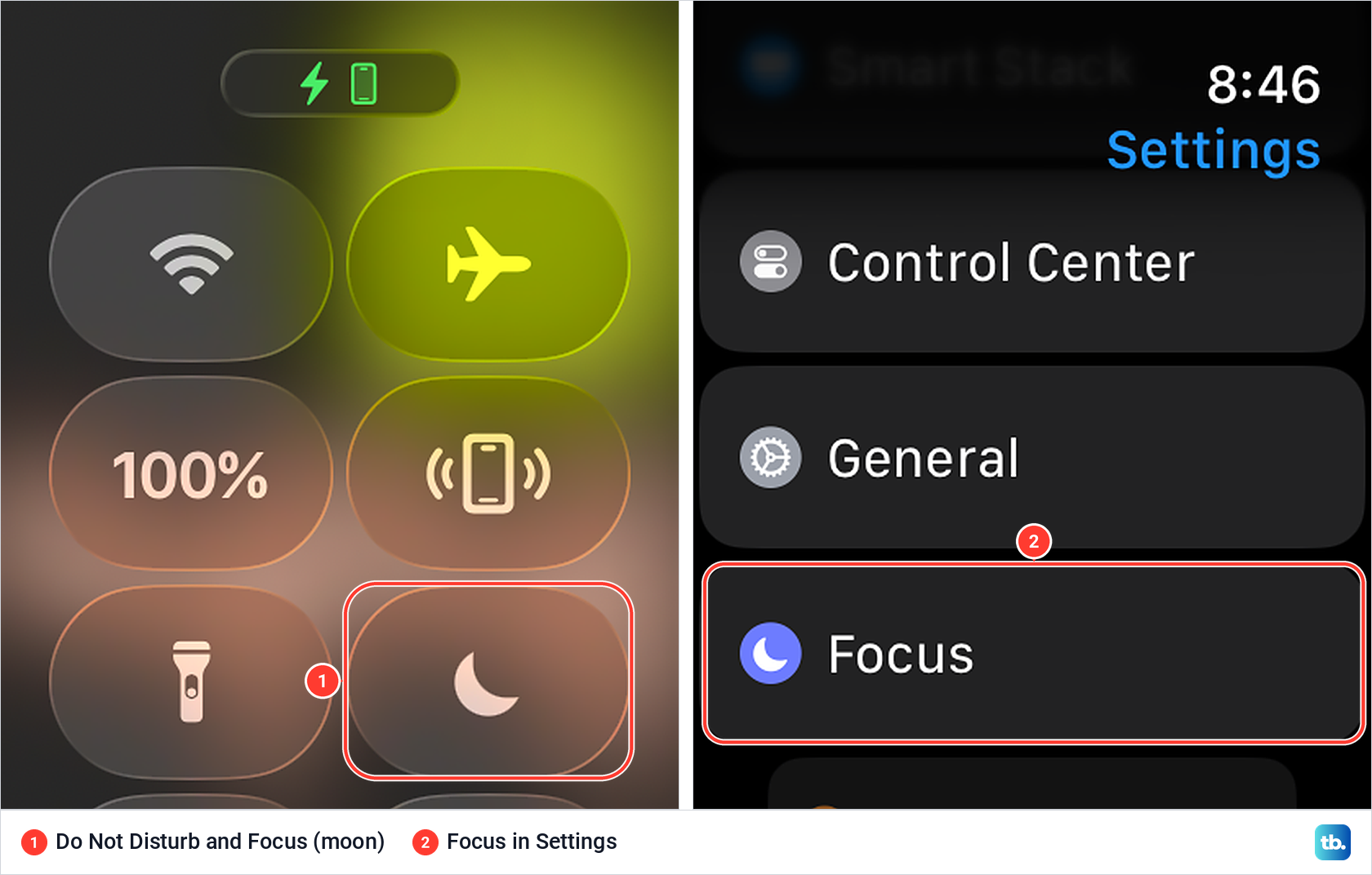
A Focus is Do Not Disturb with exceptions. You choose who can contact you, which apps can notify you and whether time-sensitive notifications come through, and Apple says time-sensitive alerts arrive at once even under a Focus that holds most notifications back. Our watch's Settings app had a Focus entry just below General, where Apple says you can add a schedule.
Focus is shared with your iPhone. Apple says a Focus you turn on at the watch activates on the paired iPhone as well, so if both go quiet, check how to turn off Focus on iPhone, since Apple lists Do Not Disturb as one of the Focus modes.
On the iPhone you can also give each Focus its own watch face: open Settings > Focus, choose the Focus, then under Customize Screens tap Choose below the Apple Watch image. Our guide to changing and customizing your Apple Watch face covers the faces themselves.
Turn off wrist taps and other haptics
If the taps themselves are the problem, change them in Settings > Sounds & Haptics > Haptics. Apple gives three choices, Off, Default and Prominent, where Prominent adds an extra tap that announces some alerts. Choose Off for no wrist taps on alerts. Apple notes that haptics work best when the back of the watch touches your skin, with a snug but comfortable fit.
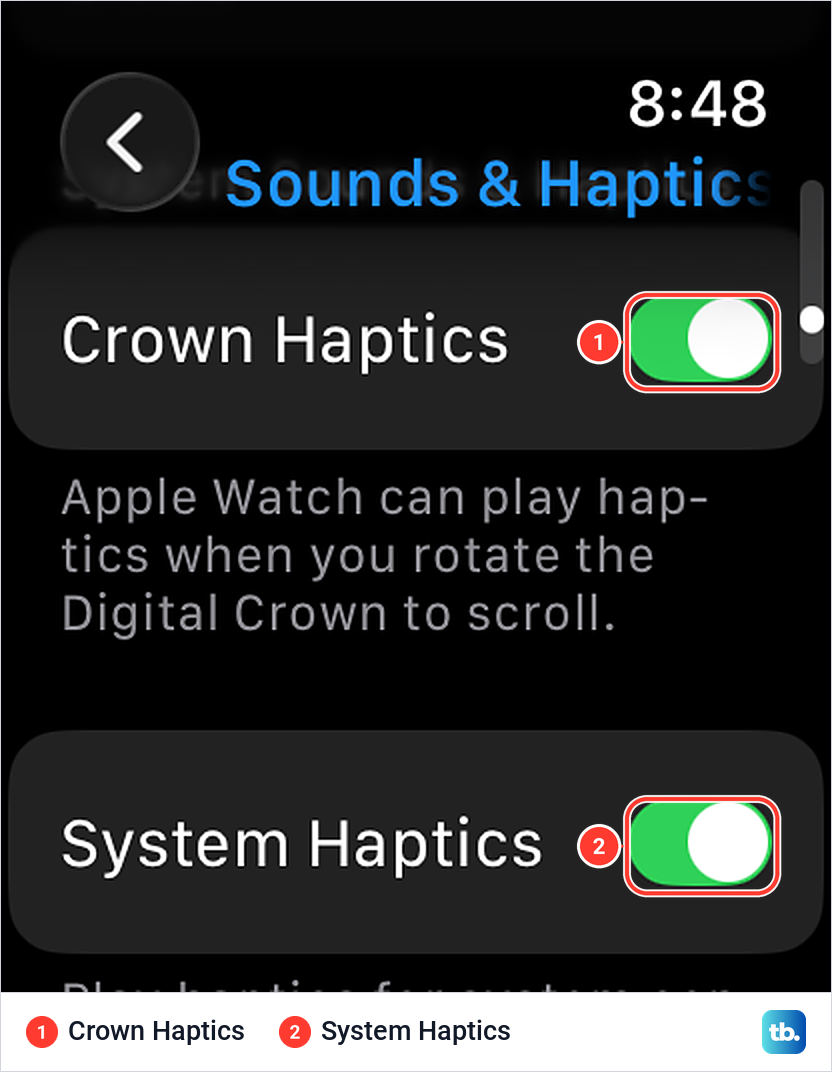
Two more switches sit lower on the same page. On our watch both Crown Haptics, the clicks you feel when you turn the Digital Crown to scroll, and System Haptics, for system controls and interactions, were switched on. Turn them off one by one if those small clicks bother you, since neither is part of Silent Mode.
Silence one app without muting the watch
Muting the whole watch is heavy-handed when one app is the noisy one. By default the watch mirrors your iPhone's notification settings, but Apple lets you change some apps on the watch alone. Open the Apple Watch app and tap My Watch > Notifications. On our iPhone, Notifications sat at the top of the My Watch settings list.
If the app offers Custom, tap the app, tap Custom and pick an option. Send to Notification Center delivers the app's notifications without a sound and without showing them, and with Notifications Off the app sends none.
Apple notes that some apps only let you turn their watch notifications off completely. For those, scroll down to the Mirror iPhone Alerts From section on the same Notifications page and turn off the switch next to the app.
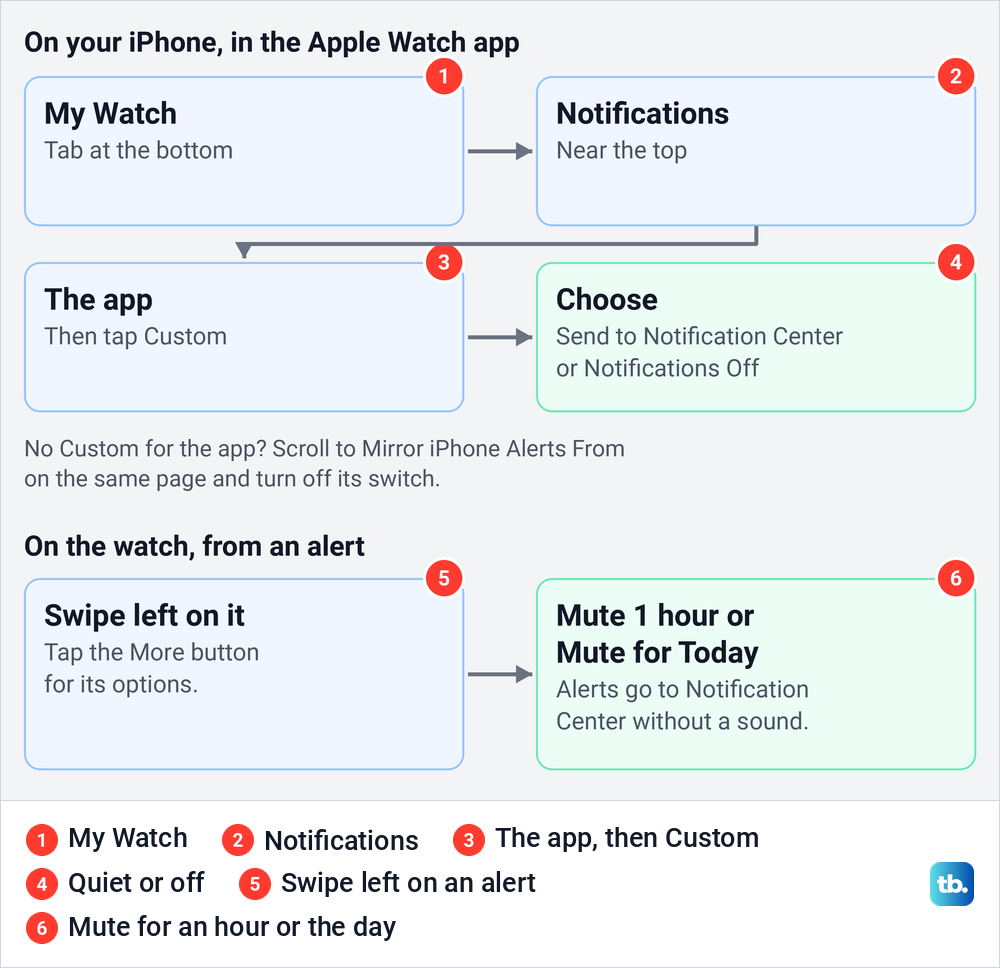
For a short break, do it from the watch. Apple says to swipe left on a notification, tap the More button and choose Mute 1 hour or Mute for Today, and the app's alerts then go straight to Notification Center without a sound. Swipe left on one of its notifications later, tap the More button and tap Unmute to undo it.
If the app is just as noisy on your phone, you can turn off notification alerts on your iPhone for that app too. For apps that mirror the iPhone, that change carries over to the watch.
Why you still hear Siri or music
Apple Watch keeps separate volumes for system sounds such as alerts, alarms and timers, for Siri, and for media such as music and podcasts. Silent Mode is about alerts, so Siri still talks when Siri Responses is set to Always On. To change that, open Settings > Siri > Siri Responses and choose Control With Silent Mode or Headphones Only.
For music and podcasts, turn the Digital Crown while audio plays, or tap the speaker button in Control Center, which sat just below the bell on our watch, then drag the slider. If you want the opposite, our guide to turning up Apple Watch volume explains each of those controls.
How we tested this guide
We tested this on an Apple Watch Series 11 with watchOS 26.5, turning Silent Mode on and off from Control Center.
Frequently Asked Questions
Does Silent Mode stop my Apple Watch from vibrating?
No. Apple says you still receive haptic notifications in Silent Mode. Set Settings > Sounds & Haptics > Haptics to Off, or turn on Do Not Disturb, to stop the taps.
Why does my Apple Watch alarm go off when it is muted?
Apple says alarms and timers still sound while the watch is charging, even in Silent Mode, and our watch prints the same warning in its settings. While you wear it, an alarm with Break Through Silent Mode turned on also plays sound.
Can I make an Apple Watch alarm vibrate without sound?
Yes. Apple's tip is to turn on Silent Mode and leave Break Through Silent Mode off for that alarm, so it taps your wrist while you wear the watch. On the charger it will still sound.
What is the difference between Silent Mode and Theater Mode?
Both mute alert sounds, and both can still tap your wrist for alerts. Theater Mode also keeps the screen dark when you raise your wrist, and Apple's comparison lists its visual notifications as off.
Why does my Apple Watch still talk in Silent Mode?
Siri speaks in Silent Mode when Siri Responses is set to Always On. Choose Control With Silent Mode in Settings > Siri > Siri Responses, and remember that music and podcasts have their own volume.
How do I unmute my Apple Watch?
Press the side button, or swipe up on older watchOS, and tap the red bell so it turns off. If the watch is still quiet, look for Theater Mode or a Focus in Control Center, and check the Silent Mode switch in Settings > Sounds & Haptics.
Can I mute just one app on my Apple Watch?
Yes. In the Apple Watch app, go to My Watch > Notifications, tap the app, tap Custom and choose Send to Notification Center or Notifications Off, or, for an app without Custom, turn off its switch under Mirror iPhone Alerts From. For an hour or a day, swipe left on one of its notifications on the watch and choose Mute 1 hour or Mute for Today.