

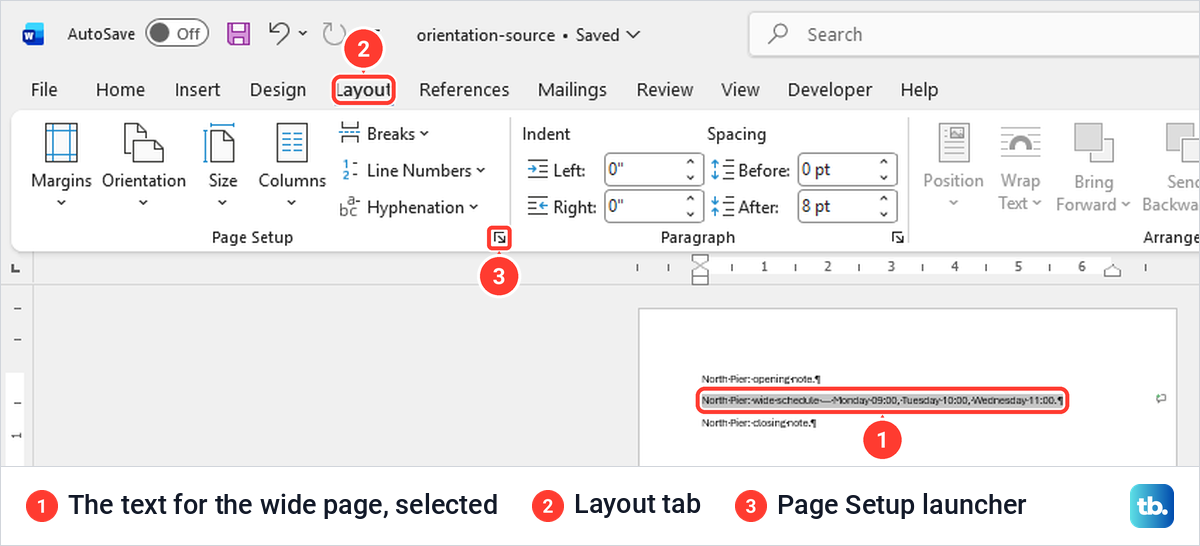
To make one page landscape in Word, select the content that belongs on the wide page, open the Layout tab and click the small Page Setup launcher in the corner of the Page Setup group. Choose Landscape, set Apply to as Selected text and click OK. In our middle-page example, Word added a section break before and after the selection, so the pages around it stayed portrait. It is the quickest way to change the orientation of one page.
When you want to decide exactly where the wide part starts and ends, put two Next Page section breaks around it, click inside it and choose Layout > Orientation > Landscape. Both methods are below, along with the mistakes that undo them.
The short version
- Content already in place: select it, open the Layout tab's Page Setup launcher, choose Landscape, set Apply to as Selected text and click OK.
- Exact boundaries: add Layout > Breaks > Next Page before and after the wide part, click inside it, then choose Orientation > Landscape.
- Click after the first break, not at the end of the line before it, or the page above turns too.
- Page breaks do not work: a Ctrl + Enter page break does not create a new section, so pages in the same section turn together.
- Word for the web has an Orientation button but cannot add section breaks, so make the single wide page in the desktop app.
Ways to make a single page landscape in Word
| Method | Use it when | What happened on our PC | Watch for |
|---|---|---|---|
| Page Setup launcher, Landscape, Apply to Selected text | The content for the wide page is already in the document | Word added two Next Page section breaks and gave portrait, landscape, portrait pages | Select only what belongs on the wide page |
| Two Next Page section breaks, then Orientation, Landscape | You want to set exactly where the wide part starts and ends | Only the middle section turned landscape | Click after the first break, not before it |
| Page Setup, Apply to This point forward, used twice | You want the wide part to start at the cursor | The first change turned everything after the cursor landscape, the second turned the end back | Skip the second change and the rest stays landscape |
| Layout, Orientation, Landscape with no section breaks | The whole document should be landscape | Every page of the one-section document turned landscape | Not a way to change a single page |
| Page breaks, Ctrl + Enter | Never for orientation | All three pages turned landscape together | Use section breaks instead |
The first three rows are the ones to use for a single page. The last two rows are the two ways every page ends up landscape, and both are shown with our results further down.
Make selected content landscape with Page Setup
This method suits content that is already in the document. Select exactly what belongs on the wide page and nothing more, because Word gives the new orientation to everything in the selection. If the wide part is a table or a picture and you are not sure your selection takes in all of it, use the two section breaks method below instead, which works from where you click rather than from a selection.
Open the Layout tab. In the bottom right corner of the Page Setup group is a small arrow, the dialog launcher, and on our PC its tooltip was headed Page Setup, with the line Check out the full set of page formatting options. Click it to open the Page Setup dialog, which opened on its Margins tab.
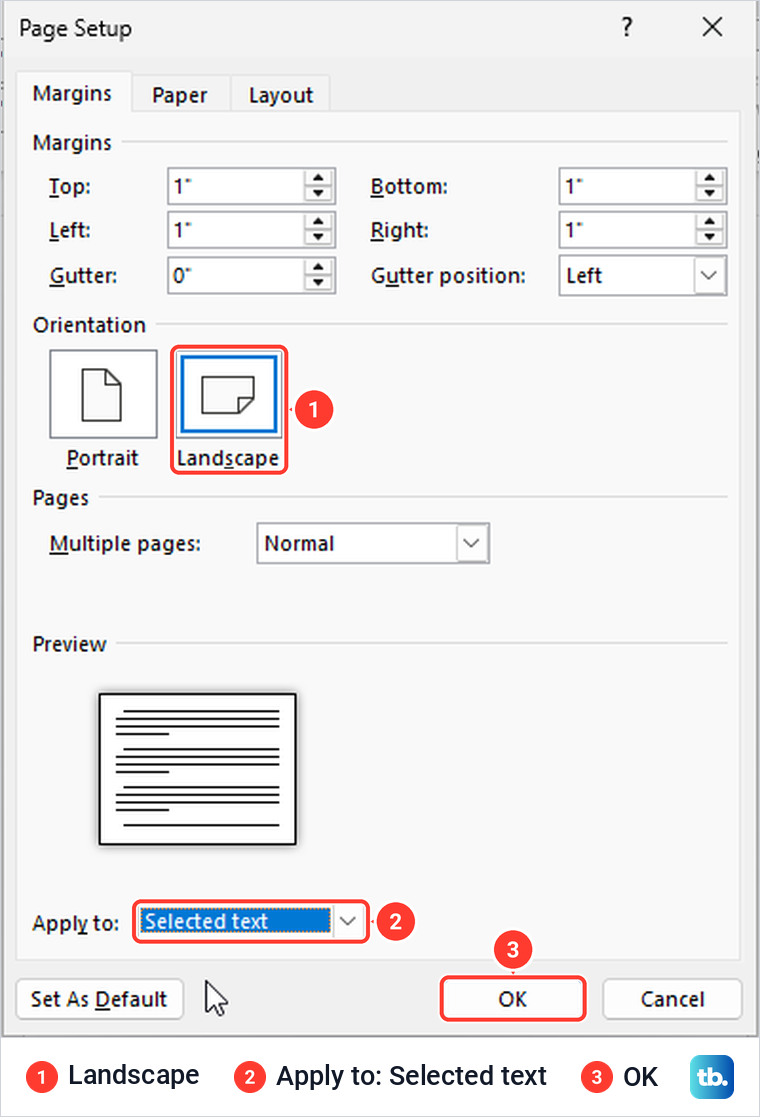
Under Orientation, click Landscape. Then open the Apply to list at the bottom of the dialog. With our middle paragraph selected it held just two choices, Whole document and Selected text, and Whole document was chosen by default.
Choose Selected text and click OK. If you leave Apply to on Whole document, every page turns landscape instead of one.
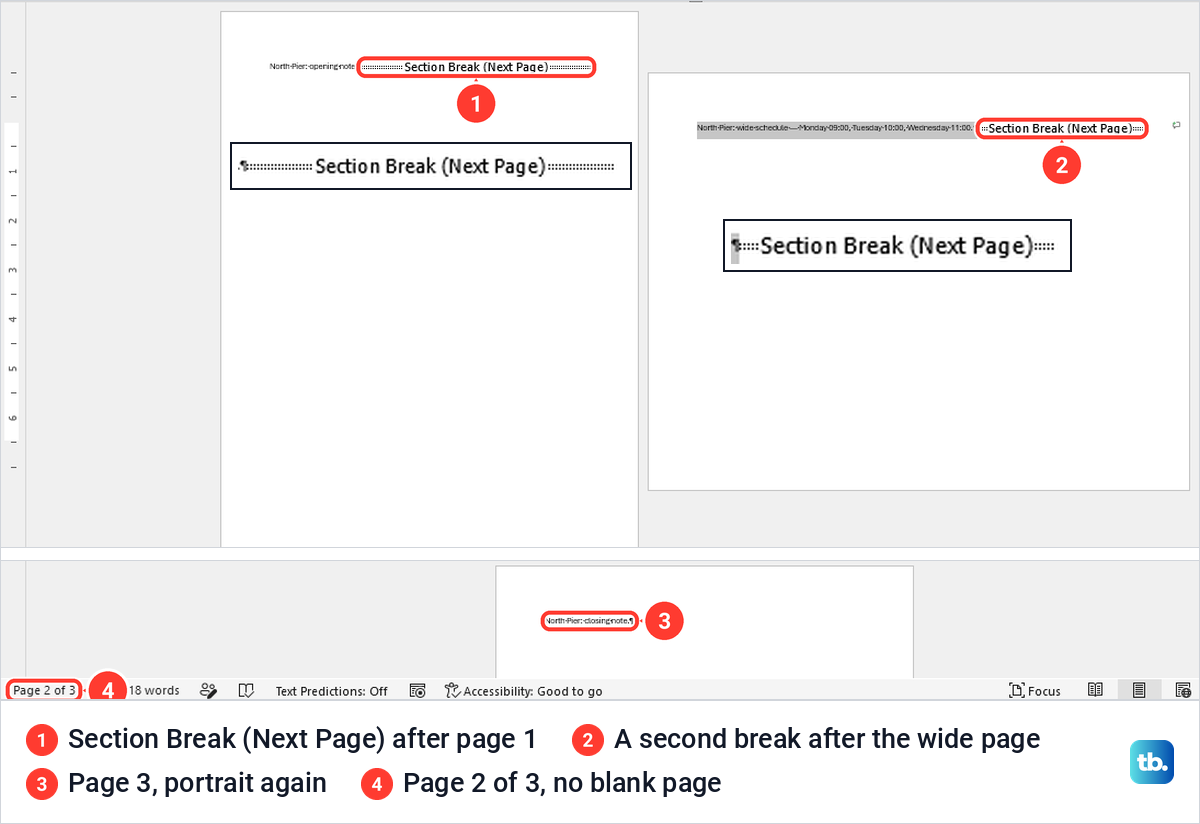
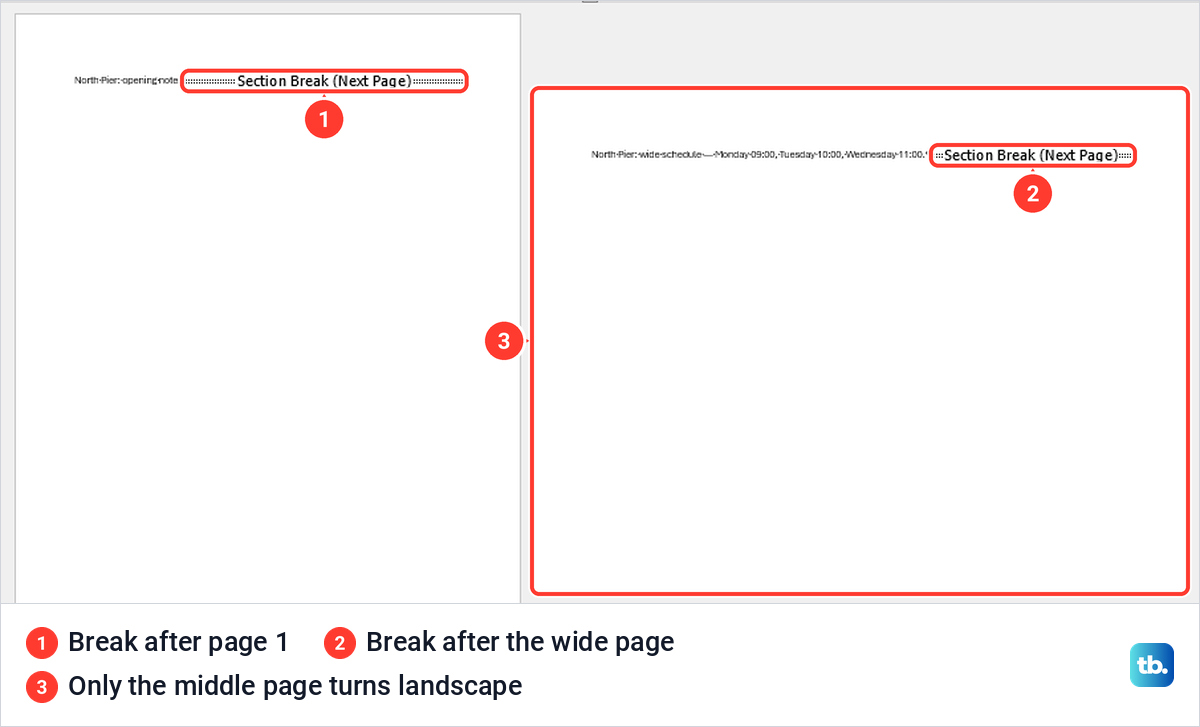
Word did the rest. Our three-paragraph document became three pages: the opening note on a portrait page, the selected paragraph alone on a landscape page, and the closing note on a portrait page, with the status bar reading Page 2 of 3. With Show/Hide on, a Section Break (Next Page) marker sat at the end of page 1 and another at the end of the wide page.
There was no blank page, because our selected paragraph fit on one landscape page. Content longer than one landscape page carries on to a second wide page, since both pages then belong to the same landscape section.
Fit a wide table or picture on the landscape page
Landscape gives the page more width but less height. If a table is still too wide, make the table itself narrower by shrinking its column widths or its font, or narrow the margins of the wide page alone: with the cursor on it, open the Page Setup launcher, change the margins and leave Apply to on This section. A table that is too long rather than too wide is better left to run onto a second wide page than squeezed onto one.
When only a line or two spills over, you can change line spacing in Word before you shrink the type. If a picture needs repositioning after its page widens, see how to move an image in Word.
How section breaks keep the other pages portrait
Word stores orientation per section, not per page. A new document is one section, which is why the plain Orientation button turns every page at once. To give one page its own orientation, it has to sit in its own section, with a section break before it and another after it.
Microsoft's section break help explains the two types that matter here. A Next Page break starts the new section on the following page, which is what a separate wide page needs, while a Continuous break starts the new section on the same page, so it is the wrong choice for this job.
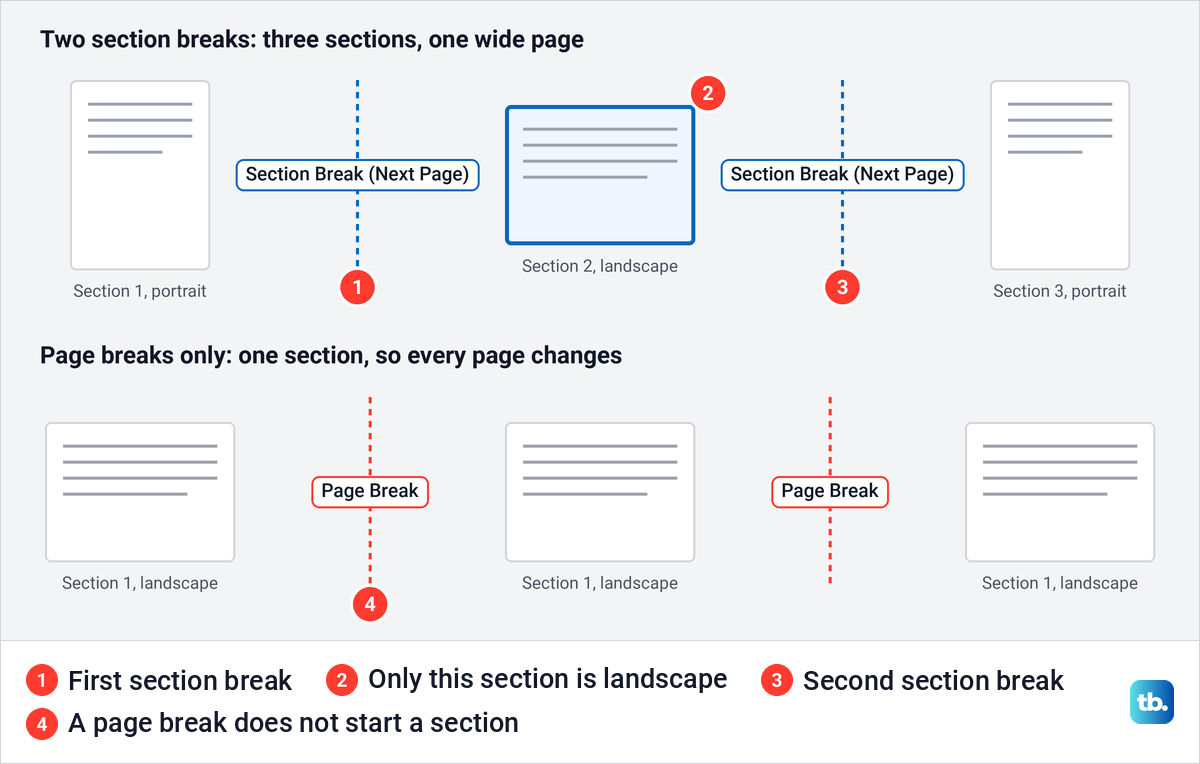
You cannot see section breaks until formatting marks are on. Click Show/Hide, the ¶ button on the Home tab, and each one appears as a dotted line labelled Section Break (Next Page). When the breaks are in the right places, you can turn off paragraph marks in Word again, and the breaks stay where they are.
Make an exact page landscape with two section breaks
Use this method when you want to choose the first and last line of the wide part yourself, or when the wide part is a table or picture. For a long report with complex formatting, make a copy of your Word document first, so you can compare the layout before and after.
Click at the start of the text that should begin the wide page. Open Layout > Breaks and choose Next Page, which sits under Section Breaks in the menu. Do not choose Page at the top of the same menu, because that is a plain page break.
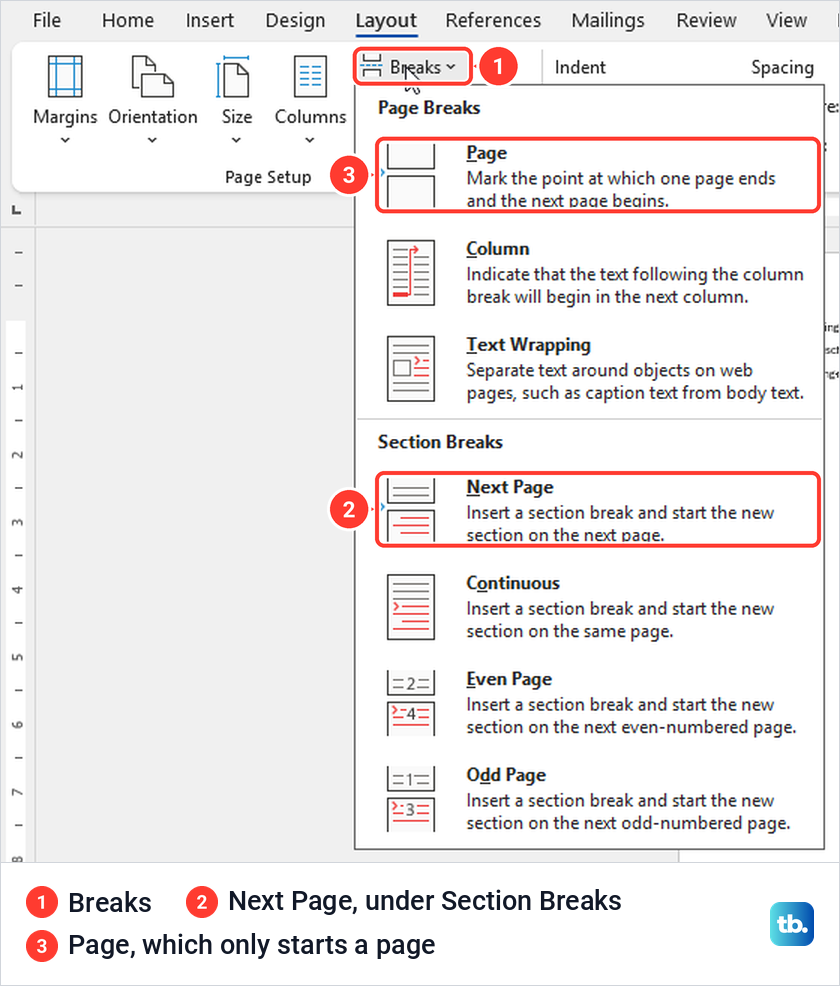
Now click at the start of the text that should go back to portrait and choose Layout > Breaks > Next Page again. In our test document this left three portrait pages, with a section break marker at the end of the first page and another after the middle text.
Click anywhere in the middle part, open Layout > Orientation and choose Landscape. The status bar is a quick check before you click, since ours read Page 2 of 3 with the cursor in the middle section.
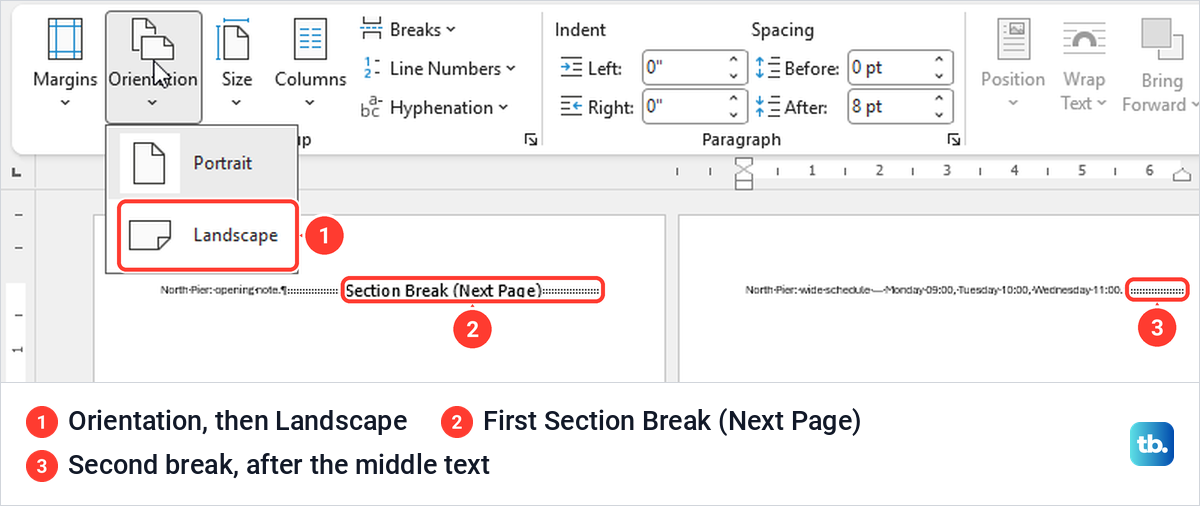
Only the middle page turned landscape for us, and the pages before and after it stayed portrait. Both Section Break (Next Page) markers stayed where we had put them.
Use the Apply to list to target one section
The Apply to list at the bottom of the Page Setup dialog changes with what you have selected, which is why its choices seem to come and go. On our PC it never showed all of its options at once.
With text selected in a document that had no section breaks, it offered Whole document and Selected text. With no selection in a document that had no section breaks yet, it offered Whole document and This point forward. With the cursor in a document that already had section breaks, it offered This section, This point forward and Whole document, and This section was chosen by default.
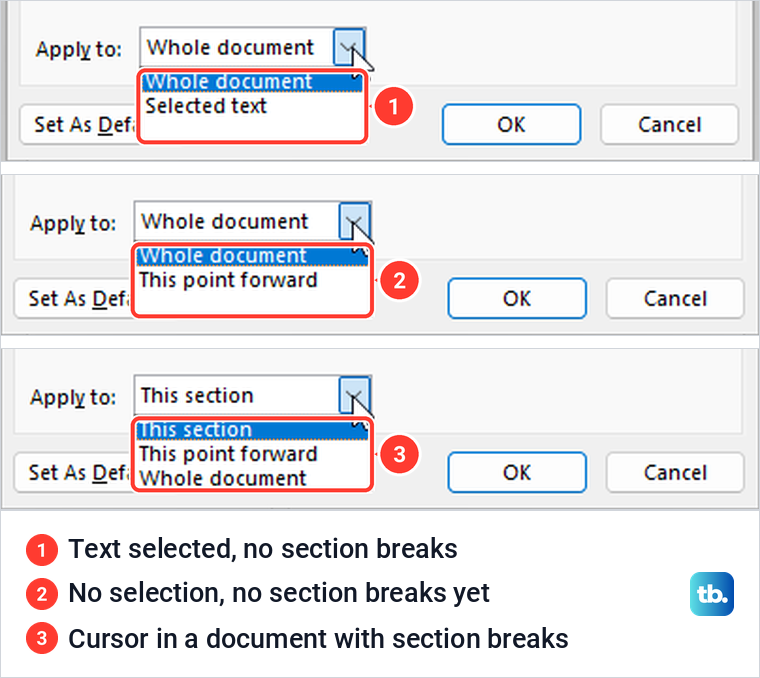
That last case gives a second way to change the middle page. Click in the section, open the Page Setup launcher, choose Landscape or Portrait, leave Apply to on This section and click OK. When we switched our middle section to Portrait and back to Landscape this way, only that page changed each time.
Microsoft's own steps for a specific section start with a double-click on the section break that follows that section, then the Margins tab, where the same Orientation and Apply to settings sit. Either way, check that Apply to reads This section before you click OK.
Start landscape at the cursor and switch back
The This point forward choice changes the orientation from the cursor to the end of the document. It is handy when the wide part is in the middle, but it takes two changes, one to turn landscape and one to turn back.
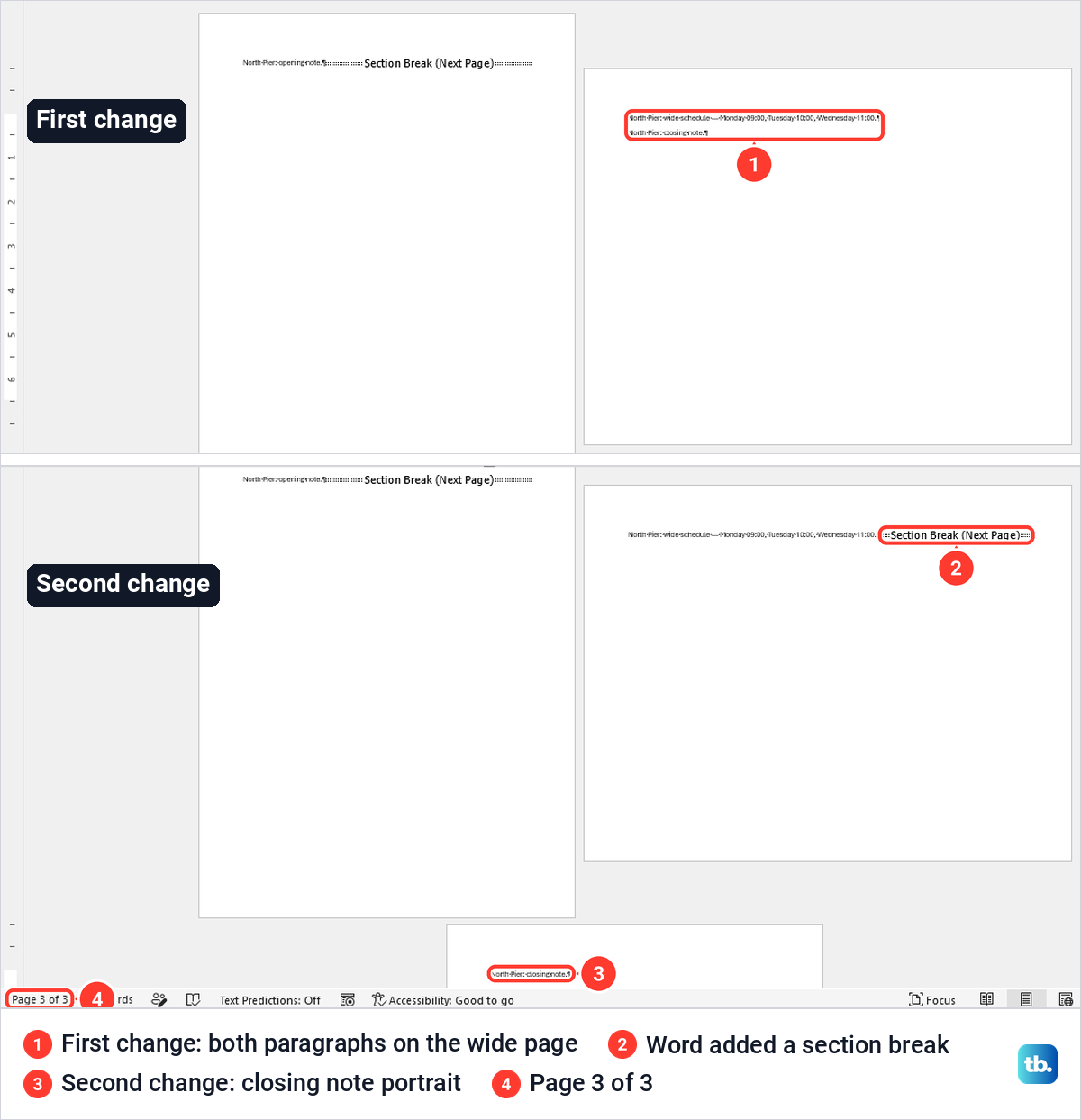
Click at the start of the first paragraph for the wide page, open the Page Setup launcher, choose Landscape, set Apply to as This point forward and click OK. In our document Word added a section break before the cursor, and everything after it, the middle paragraph and the closing note, landed on one landscape page.
Then click at the start of the first paragraph that should be portrait again, choose Portrait and This point forward, and click OK. That gave us portrait, landscape and portrait pages, Page 3 of 3, with a section break at the end of each of the first two pages. Skip the second change and the rest of the document stays landscape.
Why every page turned landscape
If the Orientation button turned the whole document landscape, the document is still one section. In our test document, which had no section breaks, Layout > Orientation > Landscape turned every page wide, which is what Microsoft says that button is for.
Page breaks do not change that. We put Insert > Page Break (Ctrl + Enter) before the middle and closing paragraphs, which gave three separate pages, then clicked on page 2 and chose Landscape. All three pages turned landscape, because a page break only starts a new page and the document was still one section.
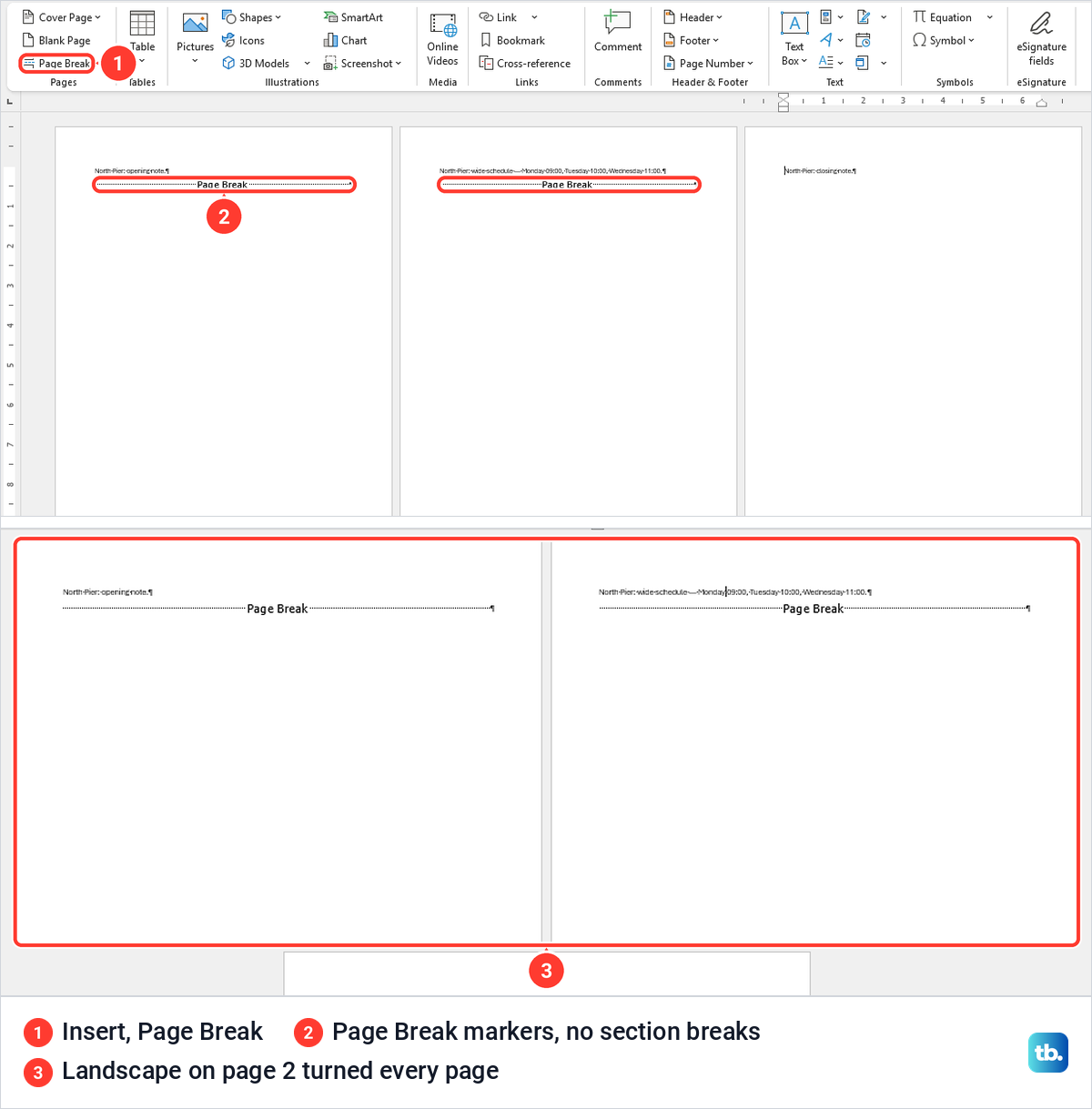
The fix is to undo with Ctrl + Z and use the Selected text method, or to replace the page breaks with Next Page section breaks. With Show/Hide on, the two are easy to tell apart, since a page break is labelled Page Break and a section break reads Section Break (Next Page).
Why the page before the break changed too
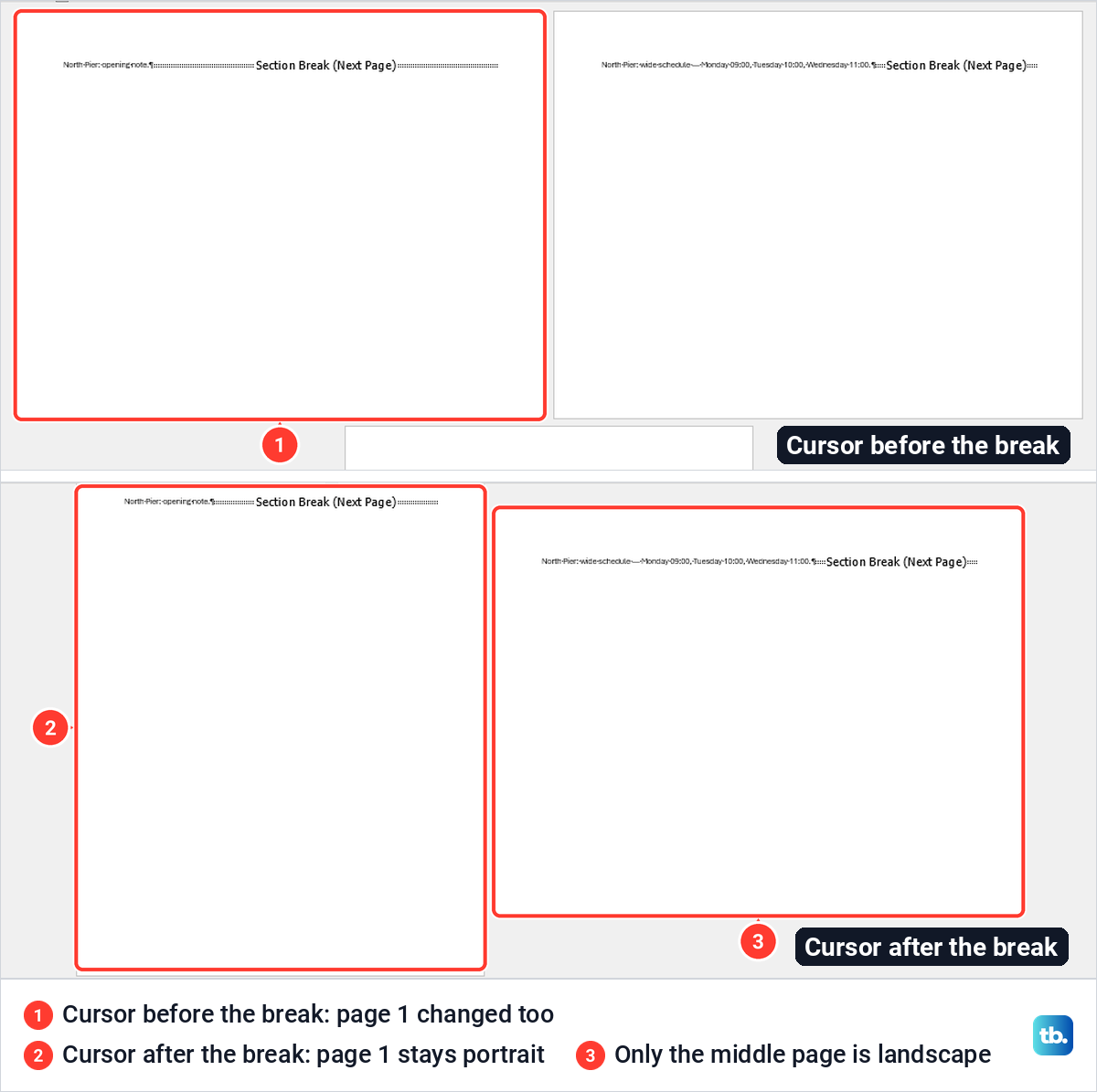
Where the cursor sits matters as much as the breaks. With our two section breaks in place, we put the cursor at the very end of the opening paragraph, just before the first break, and chose Landscape. Page 1 turned landscape along with page 2, because the end of that line still belongs to the section above the break.
We pressed Ctrl + Z, which put page 1 back to portrait, moved the cursor to the start of the middle paragraph after the break and chose Landscape again. This time only the middle page changed. Microsoft gives the same advice: if the change lands in the previous section, undo it, move the cursor to after the section break and try again.
Remove a blank page next to the landscape page
One cause of an empty page is a stray page break next to a section break. When we added Insert > Page Break at the start of the closing paragraph on top of our two section breaks, Word showed Page 4 of 4, with a blank portrait page holding only a Page Break marker and the closing note pushed to page 4.
Pressing Backspace at the start of the closing note did not remove it on our PC. Clicking at the start of the Page Break marker and pressing Delete did, and the document went back to Page 3 of 3 with both section breaks and the wide page untouched.
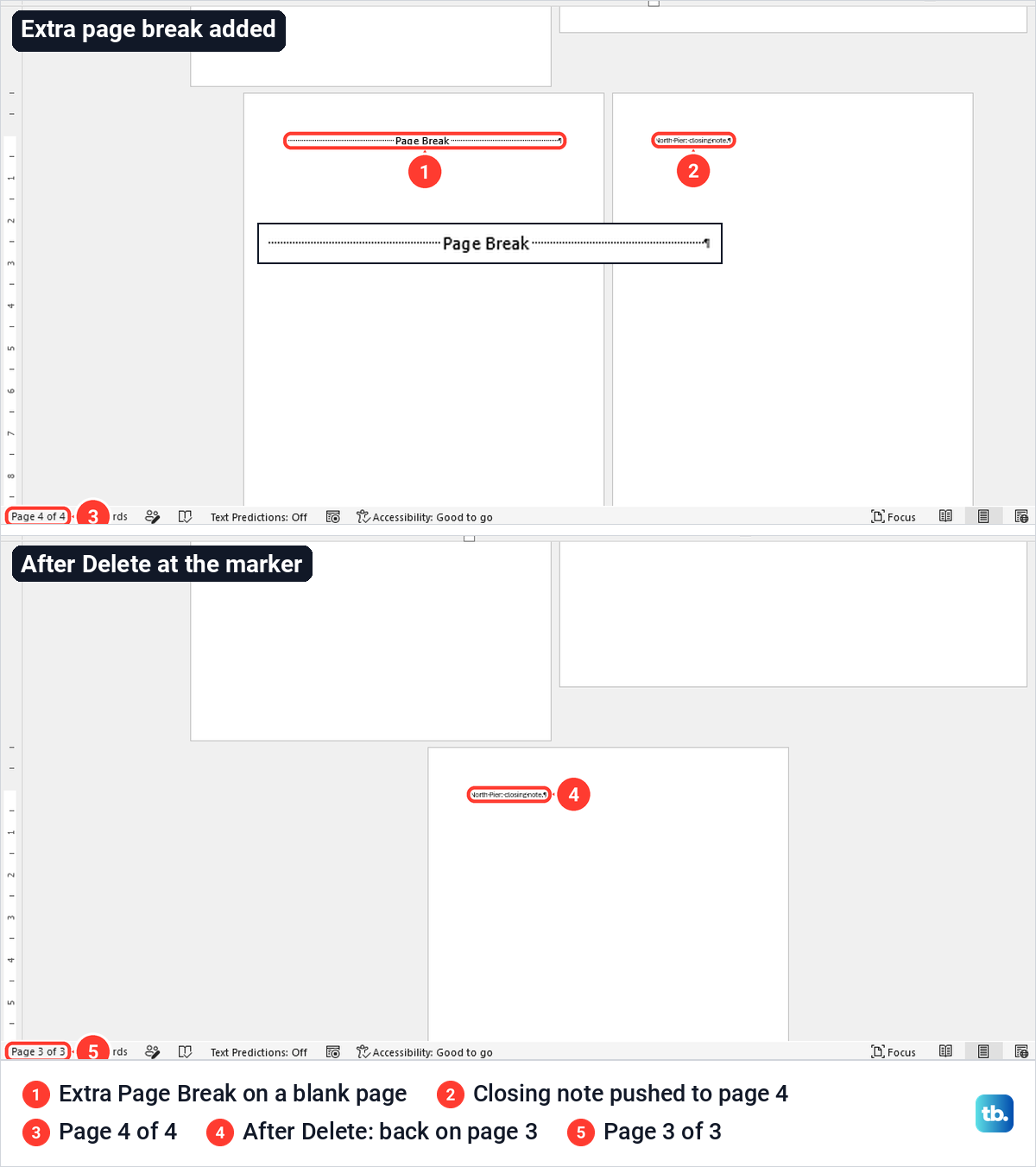
Delete only the extra Page Break, not a Section Break (Next Page) marker. Microsoft warns that when you delete a section break, the combined section uses the formatting from the section that followed the break, so the landscape page can turn portrait, or a portrait page can turn landscape.
If you really need to remove a section break in Word, check the orientation of the merged pages afterwards. If a blank page remains after you have checked its breaks, use our steps to remove an unwanted page in Word.
Check page numbers, headers and the printout
Section breaks can affect headers, footers and page numbers. Microsoft says sections are linked by default, so a header from one section carries over when you create a section break. If the landscape page needs a different header or footer, turn off Link to Previous in that section's header or footer before you change it.
If the numbering restarts or uses the wrong format in one section, click in that section and open Insert > Page Number > Format Page Numbers. It sets the number format and the starting number, and our guide on how to add page numbers in Word walks through the other numbering options.
Moving text onto new pages also shifts the page numbers listed in a table of contents. If your document has one, update it once the wide page is in place, as our guide to create a table of contents in Word explains.
Before you print or share the file, look through it in File > Print to check the shape of each page. To share the finished layout, save the Word document as a PDF, and if the preview looks right but Word will not print, treat that as a printing problem rather than an orientation one.
When the Orientation button is greyed out
One reason Orientation goes grey is that Word will not let you edit the document. We protected our test document with Review > Protect > Restrict Editing, chose No changes (Read only) and started enforcing it without a password. The mode button switched to Viewing, and Orientation, Margins, Breaks and the rest of the Page Setup group went grey.
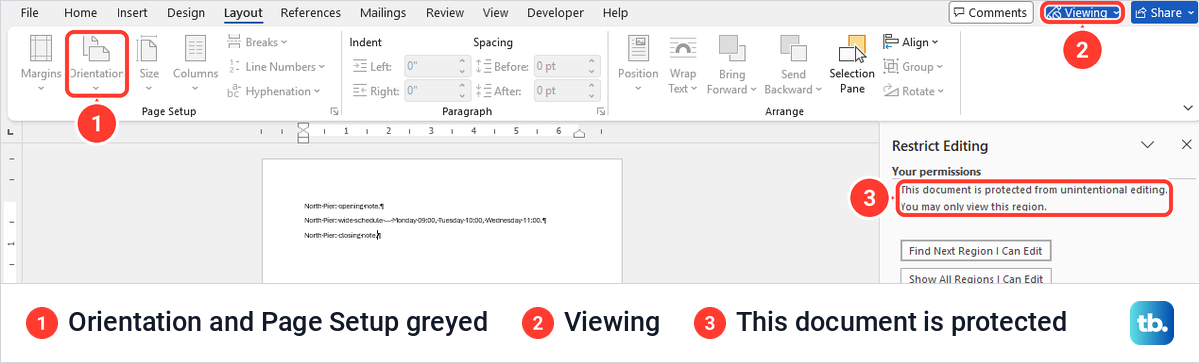
Stop Protection at the bottom of the Restrict Editing pane turned it off again, and it asked for no password because none was set. The Layout ribbon stayed grey until we clicked into the text, and then Orientation opened normally.
If someone else protected the file with a password, Microsoft says you might need to know that password, or be listed as an authenticated owner, to remove the protection. Ask the person who protected the document to remove it or to share the password.
Two other states block editing too. If a yellow bar at the top says Protected View, Microsoft says to select Enable Editing on it, and only if you know the file comes from a trustworthy source. If the mode button reads Viewing, for example in a file set to always open read-only, switch it to Editing first.
Make one page landscape in Word for the web
Word for the web has an Orientation button, but it cannot create the sections that keep the other pages portrait. In Microsoft Edge, its Layout tab had an unlabelled Orientation icon with just Portrait and Landscape, and Landscape turned our one-section document wide with no Apply to choice.
It cannot make the section breaks a single landscape page needs. The web Breaks menu offered only Page and Column, and Microsoft's help says Word for the web can't add section breaks yet.
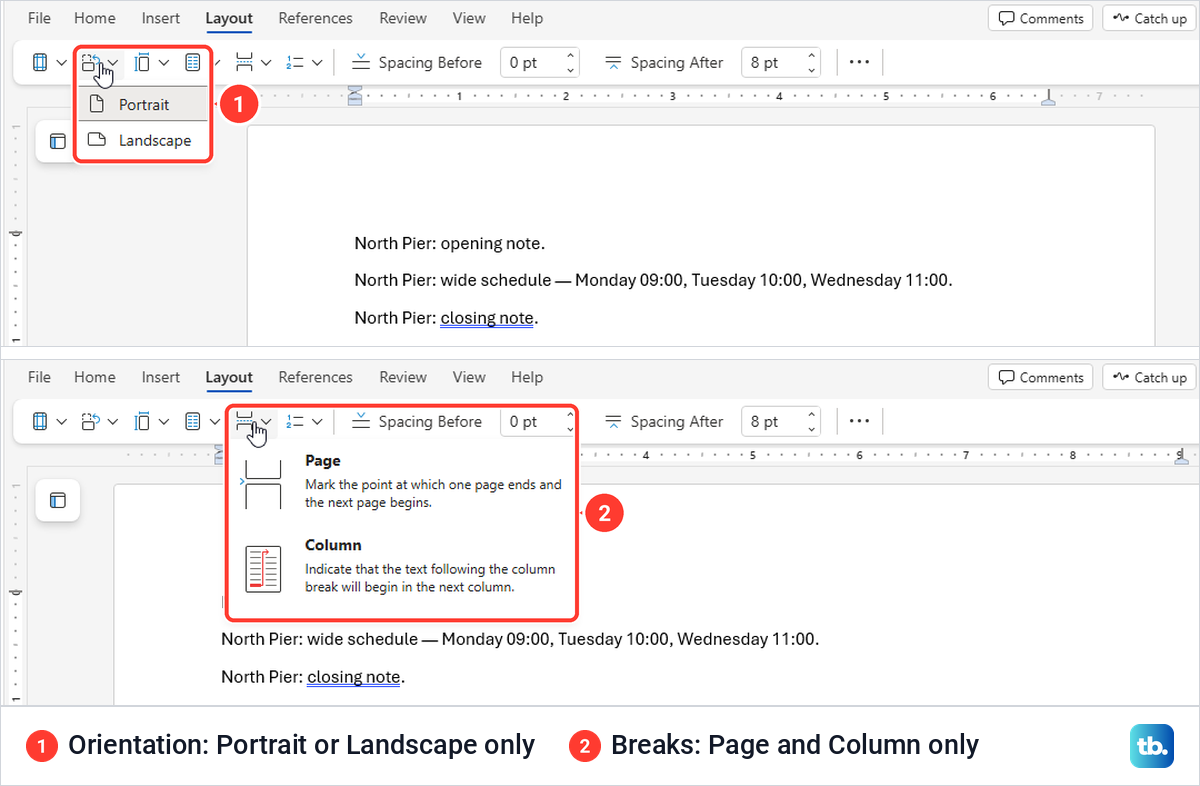
Microsoft's advice is to open the document in the desktop app, add the section breaks there and save, and the file stays where it was stored. In the web app, the mode menu at the top right, labelled Editing, has Open in Desktop, which made Edge ask whether to open Word.
Make one page landscape on a Mac, iPhone or Android
Word for Mac uses the same idea with different menus. Microsoft's steps are to select all the text on the pages you want to change, open Format > Document, click Page Setup, choose the orientation and click OK, then set Apply to as Selected text and click OK.
Microsoft adds that changing the orientation of part of a document on a Mac requires section breaks. If the entire document changes orientation, make sure the change was applied to Selected text, This point forward or This section, and use Layout > Breaks for the Next Page section breaks.
On phones, Microsoft says Word for mobile devices can't use a different orientation for certain pages or sections, and notes that not all orientation features are available on all devices. On a phone, Layout > Orientation changes the whole document, so make the single landscape page in Word on a computer.
How we tested this guide
We tested this in Word for Microsoft 365 on Windows 11, version 25H2, turning the middle page of a three-paragraph document landscape.
Frequently Asked Questions
Do I have to insert section breaks myself to make one page landscape?
No. With Landscape and Apply to set as Selected text, Word added a Section Break (Next Page) before and after the wide page on our PC. Add them yourself only when you want to set exactly where the wide part starts and ends.
How do I change the orientation of only one page in Word?
Select that page's content, open the Page Setup launcher on the Layout tab, choose Landscape or Portrait, set Apply to as Selected text and click OK. The same steps give you one portrait page inside a landscape document.
Why did all my pages turn landscape?
Either the document is still one section, because it has no breaks or only page breaks, or Apply to was left on Whole document. Undo with Ctrl + Z, then use Selected text or two Next Page section breaks.
Why did the page before my section break turn landscape too?
The cursor was still in the section above the break, at the end of the line just before it. Undo, click at the start of the text after the break and choose Landscape again.
How do I get rid of a blank page after making a page landscape?
Turn on Show/Hide and look for an extra Page Break marker on the blank page. Click at the start of that marker and press Delete, and leave the Section Break (Next Page) markers alone. If there is no Page Break marker on the blank page, follow our steps to remove an unwanted page in Word, linked in the blank page section above.
Can Word for the web make only one page landscape?
Not on its own. Its Orientation menu turned our whole one-section document landscape and its Breaks menu has no section breaks, so open the file in the desktop app to make the single wide page.
Can I make one page landscape on an iPhone or Android phone?
Microsoft says Word for mobile devices can't use a different orientation for certain pages or sections of a document. Use Word on a Windows PC or Mac for the steps above.