Windows Hello is the Windows feature that lets you sign in to a device with facial recognition, a fingerprint or a PIN instead of a password. Face sign-in needs a compatible infrared camera, and fingerprint sign-in needs a fingerprint reader. Windows Hello can also create and store passkeys for websites and apps that support them.
What Windows Hello needs
The hardware depends on which sign-in method you pick. Microsoft's Windows Hello setup page lists the requirements for each biometric option.
- Facial recognition: a Windows Hello-compatible infrared camera, either built into the PC or connected externally.
- Fingerprint recognition: a fingerprint reader.
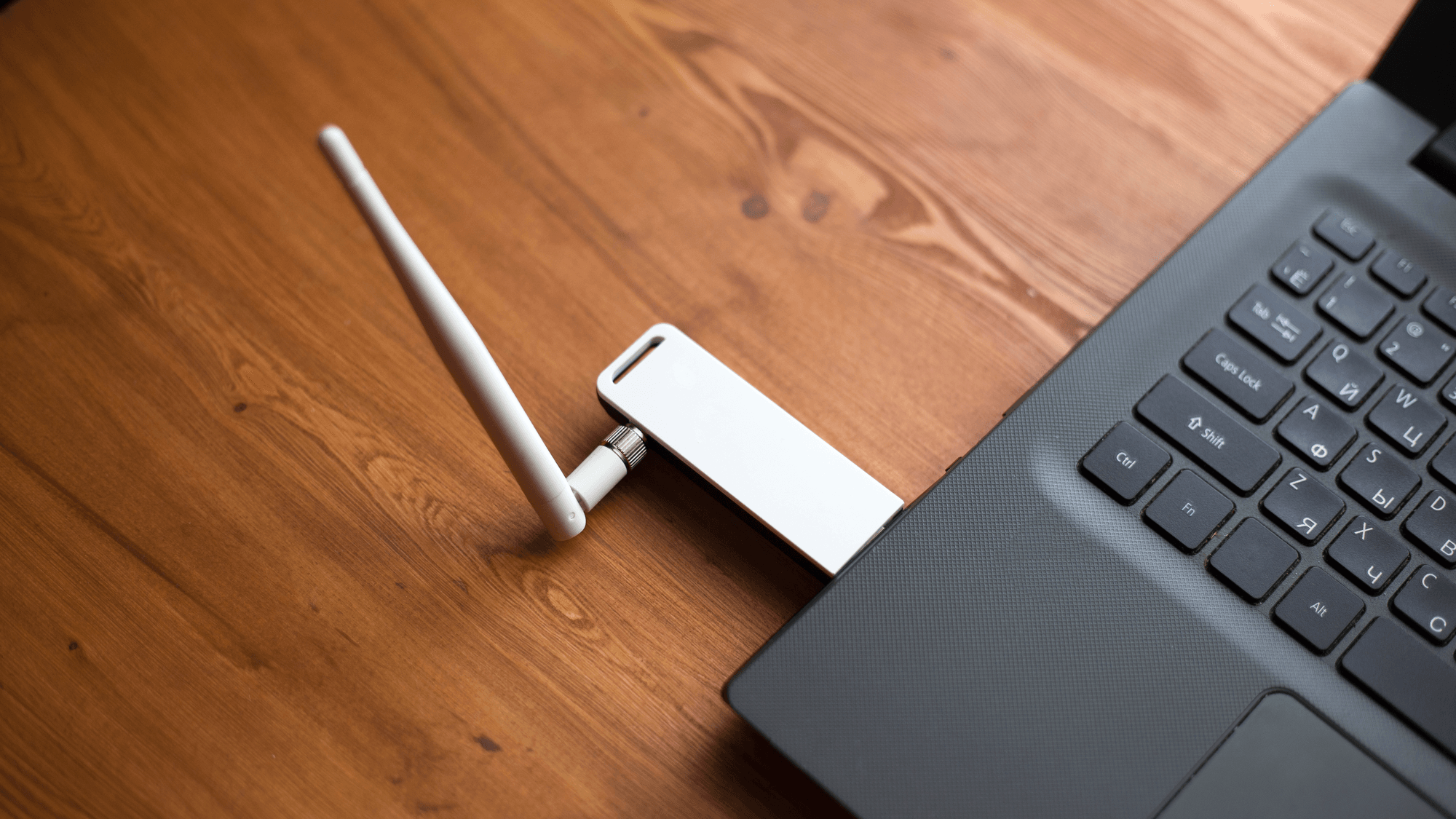
- External hardware: Microsoft says compatible cameras and readers can be connected through USB.
How to set it up
Open Settings, then Accounts, then Sign-in options. Under Ways to sign in, select Facial recognition (Windows Hello), Fingerprint recognition (Windows Hello) or PIN (Windows Hello). Select Set up and follow the instructions.
Microsoft says a Windows 11 change starts rolling out in November 2026. With it, if face or fingerprint recognition does not immediately succeed, PIN entry appears alongside it.
What Enhanced Sign-in Security adds
Enhanced Sign-in Security, or ESS, adds protection for biometric data. Microsoft describes it as using specialized hardware and software, including Virtualization Based Security (VBS) and Trusted Platform Module 2.0.
The two biometric methods are protected in different ways. With ESS enabled, VBS isolates the face recognition algorithm from the rest of Windows, and face templates are generated within VBS and encrypted before they are stored on disk. ESS fingerprint sign-in requires a sensor that performs matching internally. That sensor isolates fingerprint matching and template storage in its own hardware and sets up a secure session with the Windows biometric components.
Not every PC supports it. Microsoft's hardware documentation, dated February 19, 2026, says ESS requires VBS-compatible hardware and configuration, TPM 2.0, and ESS-compatible biometric sensors and drivers. ESS facial recognition also requires firmware configured by the manufacturer with a Secure Devices (SDEV) ACPI table.
On Windows 11 version 24H2 or newer, Microsoft places the ESS control at Settings, Accounts, Sign-in options, Additional settings, Enhanced sign-in security. Microsoft's page also addresses devices that have no toggle there. Where the toggle is present, On enables ESS and blocks Windows Hello peripherals that lack ESS support. Off permits those peripherals.
Microsoft's page on third-party fingerprint readers and cameras says some external Windows Hello-compatible fingerprint readers support ESS. External camera modules do not. A peripheral without ESS support only works for Windows Hello sign-in when ESS is disabled.
Turning ESS off has a cost. Microsoft's peripheral setup instructions state that disabling ESS removes existing ESS enrollments and associated credentials, including passkeys. They can be provisioned again afterward.
How passkeys fit in
For websites and applications that support passkeys, you can create and store a passkey with Windows Hello, then sign in with the device's biometrics or PIN. Microsoft describes passkeys as using FIDO public and private key cryptography. With Windows Hello, your face, fingerprint or PIN unlocks use of the private key. Microsoft says the biometric information stays on the device and is not sent to the service.
For a personal Microsoft account, the option is in Advanced Security Options. Choose Add a new way to sign in or verify, then Face, Fingerprint, PIN or Security Key. Follow the prompts, choose where to save the passkey, and complete verification. Selecting Windows device or Windows Hello as the saving option stores the passkey locally on that Windows device.
To see what is stored, open Settings, then Accounts, then Passkeys. That page lets you view and delete passkeys saved locally on the device.
What to do next
If your PC has a built-in infrared camera or fingerprint reader, setup starts in Sign-in options. If it has neither, a compatible USB camera or reader is the route Microsoft describes, and a fingerprint reader that supports ESS is the type to look at if you want to keep ESS on, since Microsoft says some external readers support ESS and external cameras do not.
If you already use passkeys saved with Windows Hello, Microsoft says disabling ESS for a peripheral removes ESS enrollments and associated credentials, including passkeys. Settings, Accounts, Passkeys lists the passkeys saved locally on the device. See How to Set Up Windows Hello to Sign In Without a Password, How to Fix Windows Hello Fingerprint Recognition and Windows Hello PIN Not Working.