


To fix Windows Hello fingerprint recognition, clean and dry the reader and your finger, sign in with your PIN after failed scans, then enroll your fingerprint again if recognition still fails. If Windows cannot detect the reader, check Windows updates and the fingerprint driver instead.
These steps use Windows 11 menus. Keep a working PIN or password available before removing fingerprints or changing drivers so you can continue signing in while troubleshooting.
The short version
- Start with the sensor: Clean it using your device maker's instructions and let both the reader and your finger dry.
- Clear a scan lockout: Sign in successfully with another available method before trying your fingerprint again.
- Refresh enrollment: Add another finger or remove your existing fingerprints and set them up again.
- Check software and hardware: Install applicable Windows and reader updates, then seek manufacturer service if the sensor remains undetected.
| Fix | When to try it | Main consideration |
|---|---|---|
| Clean and dry the reader | Scans fail or recognition is inconsistent | Follow your device maker's cleaning instructions |
| Adjust finger placement | A Surface reader rejects your finger | Keep the finger flat, central, and still |
| Select fingerprint sign-in | Another sign-in method is selected | Choose the fingerprint option under Sign-in options |
| Sign in with your PIN or password | Repeated scans trigger a biometric lockout | Sign in successfully before retrying your fingerprint |
| Reset your PIN | Your fallback PIN also fails | Complete account verification |
| Restart Windows | Recognition stops unexpectedly | Save your work first |
| Reconnect a Surface keyboard | A compatible keyboard reader fails | Reattach the keyboard securely |
| Check the Surface power button light | You use a supported fingerprint power button | Wait for its LED before scanning |
| Reconnect or charge Microsoft Modern Keyboard | Its fingerprint reader fails | Use the supplied USB cable |
| Add another finger | One enrolled finger is unreliable | Capture different angles during enrollment |
| Remove and enroll fingerprints again | Recognition remains unreliable | Removal clears your enrolled fingerprints |
| Complete Windows Hello setup | Enrollment or PIN setup is incomplete | Compatible fingerprint hardware is required |
| Install Windows updates | Applicable updates are pending | Restart after installation |
| Install optional driver updates | Windows offers relevant hardware updates | Select updates applicable to your devices |
| Update through MyASUS | Your supported ASUS device offers updates | Complete any required restart |
| Update through Lenovo Vantage | Your supported Lenovo computer offers updates | Install applicable packages |
| Check updates through Surface | Your Surface needs drivers or firmware | Connect the fingerprint keyboard first |
| Enable the reader | The device is disabled | Check Biometric devices |
| Search automatically for a driver | Windows detects the reader | Complete any offered installation |
| Roll back the driver | Failure follows a driver change | A retained previous driver is required |
| Reinstall the fingerprint device | The reader still fails | Have the manufacturer's driver available |
| Install a manufacturer driver | Automatic reinstallation fails | Match the model, Windows version, and architecture |
| Check external reader security | A compatible non-ESS reader will not configure | Disabling ESS removes its additional protection |
| Perform a clean boot | You suspect a startup software conflict | Restore normal startup afterward |
| Uninstall a conflicting application | You have identified the conflicting software | Follow manufacturer guidance where applicable |
| Repair Windows components and files | You suspect Windows corruption | Run DISM before System File Checker |
| Repair reinstall Windows | Software trouble persists | Preserves apps, files, and settings |
| Obtain hardware service | The reader remains undetected or fails diagnostics | Contact the computer or reader manufacturer |
| Reset Windows | Software repairs have failed | Back up files and obtain your BitLocker recovery key |
Clean the reader and check your finger
Remove dirt and oil from the fingerprint sensor using the cleaning method approved for your device. Let the reader and your finger dry completely, then retry with a finger you have already enrolled. Cleaning instructions differ by manufacturer, so do not assume a cleaner suitable for one laptop is safe for another.
On a fingerprint-equipped Surface, place your enrolled finger flat and centrally on the sensor, covering its active area with light pressure. Keep the finger still during the scan. Microsoft suggests a little moisturizer for very dry skin and enrolling an undamaged finger when a cut or scar affects recognition.
For other readers, follow the manufacturer's handling instructions. If a clean, dry finger still fails, move to another sign-in method before repeating more scans.
Sign in with your PIN or password
At the Windows sign-in screen, select Sign-in options and choose the fingerprint option to select fingerprint authentication explicitly. If recognition fails, choose your available PIN or password option and sign in. You can then troubleshoot without depending on the reader.
After repeated unsuccessful scans trigger Windows Hello's biometric protection, complete a successful sign-in using another available authentication method. Microsoft's Windows Hello for Business documentation says restarting alone does not restore biometrics disabled by this protection. After signing in successfully, try fingerprint recognition again.
If your PIN also needs attention, open Settings > Accounts > Sign-in options, select PIN (Windows Hello), then select I forgot my PIN. Complete account verification and create a new PIN. For a Microsoft account, you can also select I forgot my PIN beneath the PIN box at sign-in when that option appears. For a local account, sign in with your password first.
Restart Windows and reconnect fingerprint accessories
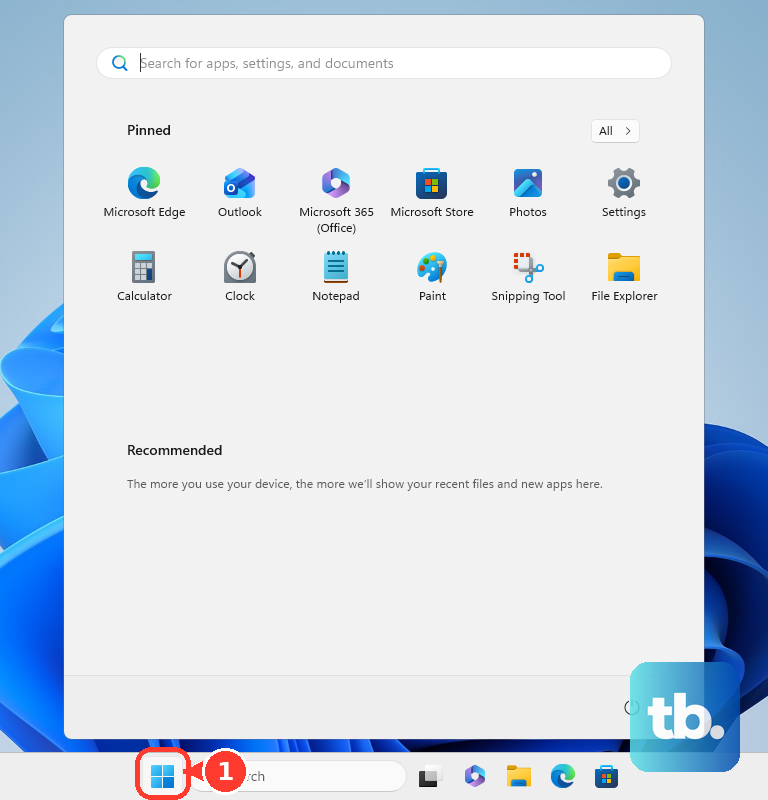
Save your work, select Start > Power > Restart, and retry the reader after Windows starts again. Choose Update and restart when Windows offers it to finish pending updates. If the PC has frozen, follow the steps to restart a computer that is unresponsive.
On a Surface Pro using a compatible fingerprint-equipped keyboard or Type Cover, detach the keyboard and reattach it securely before retrying. On the fingerprint-equipped Surface Laptop Go and Surface Laptop 13-inch models covered by Microsoft's guidance, check that the LED around the Fingerprint Power Button is illuminated before scanning. Place your enrolled finger centrally on the button with light pressure.
For Microsoft Modern Keyboard with Fingerprint ID, connect it to your compatible, internet-connected PC using its supplied USB cable and turn its power switch on. Select the pairing notification, or switch the keyboard off and on if you missed it. Leave the cable connected to charge the keyboard; a solid white charging LED indicates a full charge. Microsoft's installer for this keyboard does not support Arm-based PCs.
Add another finger or renew your enrollment
With a functioning, configured reader, open Settings > Accounts > Sign-in options > Fingerprint recognition (Windows Hello) and select Add a finger. Authenticate when prompted and capture different angles of the new finger during enrollment. Microsoft's Surface instructions call this button Add another.
If recognition remains unreliable, return to Fingerprint recognition (Windows Hello) and select Remove. This removes your enrolled fingerprints, so confirm your alternative sign-in method works first. Select Set up and complete enrollment again, capturing the full fingerprint.
For an incomplete setup, open Settings > Accounts > Sign-in options. Under Ways to sign in, select Fingerprint recognition (Windows Hello) > Set up and complete enrollment, including any required PIN setup. If setup cannot detect the reader, continue with updates and driver checks.
Install Windows and manufacturer updates
Open Settings > Windows Update and select Check for updates. Install the applicable updates and restart Windows. Retry fingerprint sign-in before changing the driver manually.
Next, open Settings > Windows Update > Advanced options and turn on Receive updates for other Microsoft products. Under Additional options, select Optional updates. Expand Driver updates, select applicable device updates, choose Download and install, and restart. Optional driver updates appear only when available.
On supported ASUS devices that offer this feature, open MyASUS > System Update, select the applicable driver or BIOS packages, and choose Update selected items. Complete installation and any required restart; results appear under Update History. On supported Lenovo computers with Vantage, open Lenovo Vantage and select Device > System Update > CHECK FOR UPDATES, install applicable updates, and complete required restarts.
For Surface, connect the fingerprint keyboard before updating, then open Surface > Help & support and check the update status. When updates are available, select Check for updates to open Windows Update. Complete the installations and required restarts before retrying the reader.
Enable or repair the fingerprint driver
Open Device Manager and expand Biometric devices. Right-click the fingerprint sensor and select Enable device if it is disabled; when that option is absent, the device is already enabled. To check for a driver update, right-click the reader, select Update driver > Search automatically for drivers, and complete any offered installation.
If the failure began immediately after a driver change, right-click the reader and select Properties > Driver > Roll Back Driver. Choose the applicable reason, select Yes, and restart if prompted. This requires administrator rights and a retained previous driver.
For a reader that still fails, have its manufacturer-approved driver available before reinstalling the device. Right-click the sensor, select Uninstall device, then select Uninstall and restart Windows so it attempts to reinstall the driver. If automatic reinstallation fails, install the correct package for your reader, computer model, Windows version, and processor architecture.
Dell owners can identify their computer and obtain model-approved packages from Dell Drivers & Downloads. ASUS owners can identify their model in ASUS Download Center, then open Driver & Utility > Driver & Tools, choose the supported operating system, and download the applicable fingerprint driver. For an external reader, obtain its software from the reader manufacturer.
Check security settings for an external reader
If a compatible non-ESS external reader will not configure, check Enhanced Sign-in Security, also called ESS. On Windows 11 24H2 and newer, on hardware exposing the control, open Settings > Accounts > Sign-in options > Additional settings > Enhanced sign-in security. Set the toggle to Off, then configure the compatible non-ESS external reader.
Turning this off disables the additional ESS protection, so make that change only for the relevant external-reader compatibility problem. Windows Hello compatibility alone does not establish ESS compatibility. Support for an ESS-compatible external reader depends on the Windows build, feature rollout, hardware, driver, and firmware.
Check for conflicting startup software
When fingerprint recognition fails after installing third-party biometric or security software, a clean boot can help isolate a conflict. As an administrator, search for msconfig and open System Configuration. Open Services, check Hide all Microsoft services, then select Disable all > Apply.
Open Startup > Open Task Manager, record the enabled startup apps, and disable them. The steps to stop apps opening on startup explain those app controls. Restart and try fingerprint recognition, then restore normal startup and re-enable the items you recorded.
If recognition works during a clean boot, a software conflict needs further isolation. Remove an application only after identifying it as the conflict or receiving manufacturer guidance. Open Settings > Apps > Installed apps, find that application, select More, then choose Uninstall.
Repair Windows or arrange hardware service
If earlier fixes fail and Windows corruption is suspected, install updates and restart before repairing system files. Search for Command Prompt, right-click it, select Run as administrator, and select Yes. Start the component repair with this command:
DISM.exe /Online /Cleanup-image /RestorehealthAfter it completes successfully, run the following command and let verification finish. The steps to repair Windows using Command Prompt explain the broader repair process.
sfc /scannowBefore a full reset, consider Windows' repair reinstallation on Windows 11 22H2 or later with the required servicing updates. Open Settings > System > Recovery, find Fix problems using Windows Update, and select Reinstall now > OK. Keep power and internet connected throughout, then restart after installation if Windows does not restart automatically. This preserves apps, files, and settings, but the option is unavailable on some PCs whose updates are managed by an organization.
If the reader remains undetected or fails its manufacturer's hardware diagnostic, contact the computer or reader manufacturer for repair or replacement options. For persistent software trouble, treat a Windows reset as a last resort. Back up your files and obtain your BitLocker recovery key before starting.
Open Settings > System > Recovery > Reset PC and choose Keep my files. Choose Cloud download or Local reinstall, then complete the reset wizard. Follow the steps to reset Windows without losing files, remembering that keeping files still removes apps and settings. Reinstall the correct manufacturer drivers and configure Windows Hello afterward.
Frequently Asked Questions
Why does fingerprint sign-in stop working in Safe Mode?
Microsoft says PIN and biometric sign-in are unavailable in Safe Mode, so restart normally to use them again. If Windows keeps entering Safe Mode, press Windows + R, enter msconfig, and select OK. Open Boot, uncheck Safe boot, select Apply, and restart.
Does turning on Windows Hello in Chrome or Edge fix the fingerprint reader?
Browser settings control when device authentication is requested, but they cannot repair Windows fingerprint recognition. Resolve the Windows sign-in problem before changing browser authentication preferences.
Should you use Improve recognition for a fingerprint?
Microsoft documents Improve recognition for facial recognition, not fingerprint recognition. For fingerprints, use the enrollment controls under Fingerprint recognition (Windows Hello).
Can you re-enroll a fingerprint through your Microsoft account online?
Fingerprint enrollment is local to each user and device. Microsoft does not document an account web-portal control for remotely repairing or re-enrolling a Windows fingerprint.
Should you run the old Hardware and Devices troubleshooter?
Microsoft has deprecated MSDT and lists Hardware and Devices among the MSDT troubleshooters it is retiring, so do not rely on older instructions for launching it. Use the reader's Device Manager controls and manufacturer diagnostics instead.