

You are tired of typing a password every time your PC wakes up, and you want to sign in with your face, a fingerprint, or a short PIN instead. Windows Hello does exactly that, and on a supported device it takes only a few minutes to set up.
For the reset itself, a browser based random password generator builds a long random password in one click. It runs entirely on your device, so the new password is never transmitted anywhere.
This guide walks you through ways to go passwordless, from the quickest (a PIN) to the most complete (removing the password from your Microsoft account entirely). It also covers the hardware you need, the device-level toggle that hides password sign-in, and the fixes for the most common roadblocks.
Before you start, two things must be in place. You need a Microsoft account if you want to go fully passwordless using the device-level toggle, since that option is only available when you sign in with a Microsoft account. You also need a PIN, which is the foundation everything else builds on.
Confirm Your Hardware and Updates First
A PIN works on any PC. Biometrics need the right sensor. Facial recognition requires a Windows Hello-compatible infrared (IR) camera, built in or as an external USB IR camera.
A standard RGB webcam will not work and produces the message "We couldn't find a camera compatible with Windows Hello Face." Fingerprint sign-in requires a fingerprint reader, often built into a laptop's power button or available as an external USB reader.
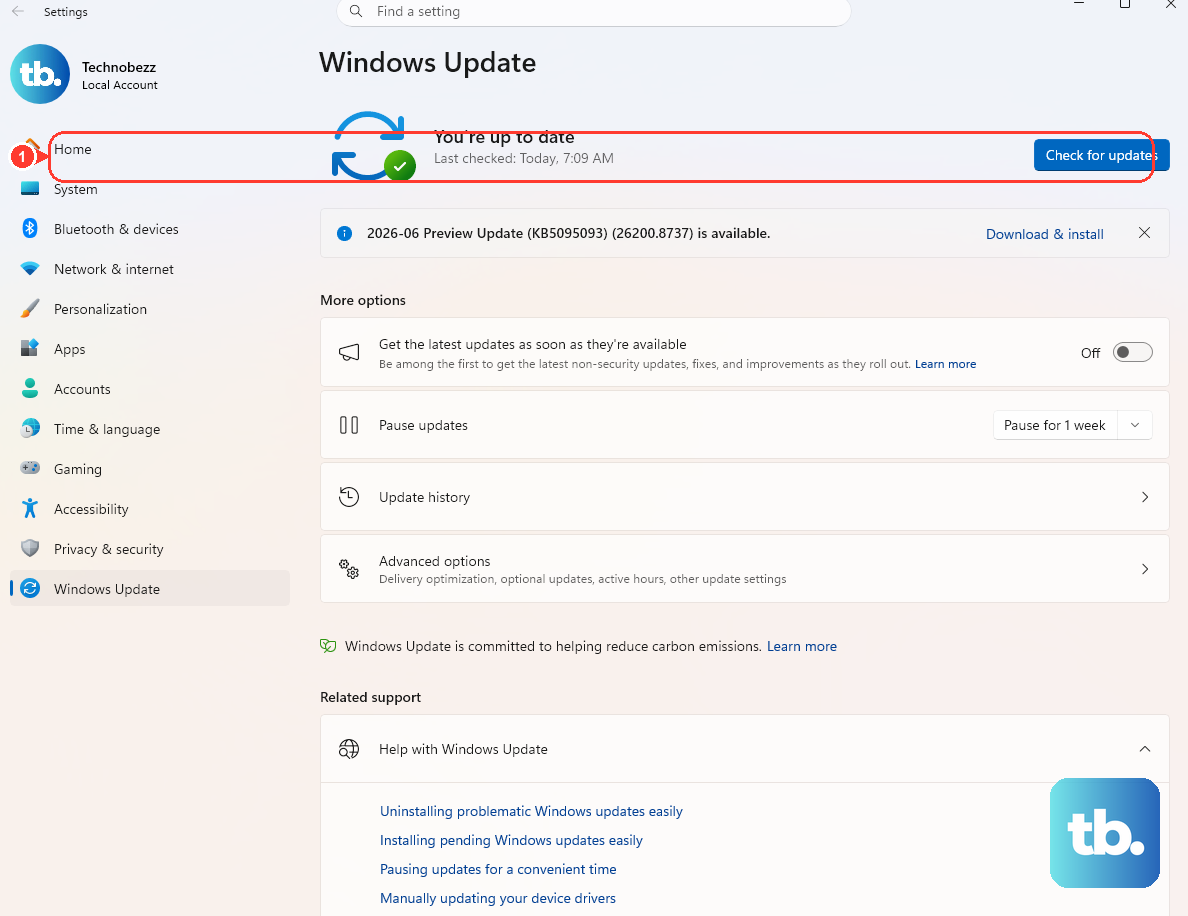
Run Windows Update and install any firmware or driver updates before you begin (on Surface, open the Surface app). Missing IR-camera or fingerprint drivers are a common reason the biometric option is absent or fails.
Set Up a PIN (Do This First)
On Windows 11 the PIN must exist before you can add a fingerprint or face. On Windows 10 the PIN is created inside the biometric wizard, but you can also add it on its own.
Go to Start > Settings > Accounts > Sign-in options (or run the shortcut ms-settings:signinoptions). Select PIN (Windows Hello). Choose Set up, then follow the prompts.
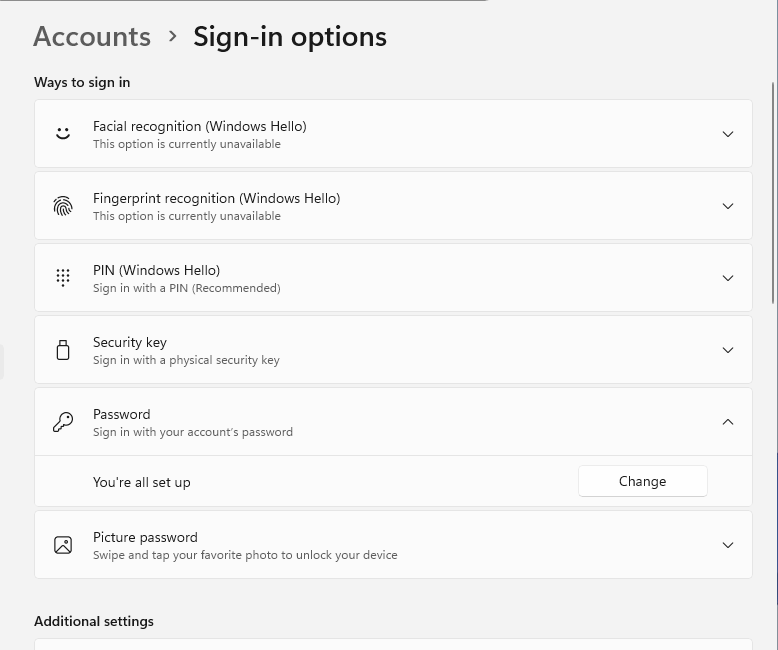
Verify your account password. Enter your new PIN, confirm your new PIN, and select OK.
You can now sign in with just this PIN, no biometrics required. To change it later, return to the same screen and choose Change PIN.
Add a Fingerprint
With your PIN in place, fingerprint enrollment takes under a minute. Go to Settings > Accounts > Sign-in options. Select Fingerprint recognition (Windows Hello).
Choose Set up > Get started, then verify with your PIN. Place your clean, dry finger flat on the reader, and lift and rest it repeatedly as prompted.
Select Next to capture the edges of your finger at different angles. Then select Close.
To register more fingers, open Fingerprint recognition (Windows Hello) and select Add a finger (shown as Add another on some versions). Enrolling a second finger is worth doing so you are not locked into one hand.
Add Facial Recognition
If you have an IR camera, face sign-in is the fastest of all. Go to Settings > Accounts > Sign-in options. Select Facial recognition (Windows Hello).
Choose Set up > Get started, then verify with your PIN. On Windows 10, if you have no PIN yet, select Set up PIN first.
Look directly into the IR camera while it builds your facial profile. When it finishes, select Close.
Re-scan your face with Improve recognition whenever your appearance changes, such as when you start or stop wearing glasses or change your facial hair, so Windows still knows you. Improve recognition adds another face template, whereas choosing Remove and then Set up again keeps only the newest scan.
Hide Password Sign-In on This PC
Once Windows Hello is set up, you can stop Windows from offering the password box on this device. You must be signed in with a Microsoft account.
Open Settings > Accounts > Sign-in options. Look under Additional settings. On Windows 11 the toggle reads "For improved security, only allow Windows Hello sign-in for Microsoft accounts on this device." On Windows 10 it reads "Require Windows Hello sign-in for Microsoft accounts."
Turn the toggle On. At your next sign-in the password option is gone, and you use face, fingerprint, or PIN. To bring the password back on this PC, turn the same toggle Off.
Remove the Password From Your Microsoft Account Entirely
The device toggle above only hides the password on that one PC. To remove the password from the account itself, everywhere, use account-level passwordless. This first requires the Microsoft Authenticator app (or Outlook for Android) added to your account.
Install Microsoft Authenticator, add your Microsoft account to it, and make sure your devices are updated. Go to account.microsoft.com > Security > Advanced security options.
Under Passwordless account, select Turn on. Follow the prompts, then approve the request sent to Microsoft Authenticator. After this you sign in with Authenticator, Windows Hello, a security key, or an SMS code.
To reverse it, return to the same page. Select Turn off under Passwordless account, choose Next, and add a password back.
Keep your account password if you use apps or services that still require it, including IMAP or POP email services, Remote Desktop, Credential Manager, or some command line and task scheduler services.
Use an External or Third-Party Reader (Adjust Enhanced Sign-in Security)
On Windows 11, Enhanced Sign-in Security (ESS) can block non-ESS external fingerprint readers and cameras. External cameras are never ESS-supported, so an external IR camera always needs ESS turned off.
Connect the device per its instructions. Open Settings > Accounts > Sign-in options and look under Additional settings.
On Windows 11 version 24H2 or newer, set Enhanced sign-in security to Off so non-ESS peripherals can be used. On Windows 11 version 23H2, set Sign in with an external camera or fingerprint reader to On.
Important: turning ESS off removes existing ESS enrollments and credentials such as passkeys, so you must re-enroll Windows Hello afterward. Some external fingerprint readers are labeled Windows Hello compatible with ESS support and work without disabling it.
Fix Windows Hello Problems on Surface
Start by updating: open the Surface app. Expand Help & support, check update status, and install updates via Windows Update.
If your face is not recognized ("Couldn't recognize you. Please sign in with your PIN"), go to Sign-in options > Facial recognition (Windows Hello) > Improve recognition. Re-scan. Common causes are a dirty or obstructed camera, harsh or dim lighting, makeup, hats or shadows, or a change in glasses or facial hair.
For fingerprint trouble, wipe the sensor with a lint-free cloth only (no glass cleaner or chemicals). Confirm the LED around a power-button reader is lit. Use the same finger you enrolled, clean and dry, placed flat with light pressure.
Note that the Surface Laptop 13-inch (1st Edition) and Surface Laptop Go do not support facial recognition; use fingerprint on those.
Unblock a Greyed-Out PIN on a Managed PC
On a Windows 10 1607+ device joined to an Active Directory domain, the PIN option can appear dimmed. This happens when both the "Use Windows Hello for Business" and "Use convenience PIN" policies apply and the device is not Microsoft Entra joined.
Your IT administrator resolves it by making sure "Use Windows Hello for Business" is not enabled. Then enable Turn on convenience PIN sign-in at Computer Configuration > Administrative Templates > System > Logon. If you see "managed by your organization," this is the cause.
Reset a Forgotten PIN
If you forget your PIN, you have a path back from both Settings and the lock screen.
While signed in: go to Settings > Accounts > Sign-in options > PIN (Windows Hello) > I forgot my PIN. Verify your account, then choose a new one.
From the lock screen (Microsoft accounts): select I forgot my PIN beneath the PIN box. Follow the verification prompts. If "I forgot my PIN" is not shown, choose Sign-in options.
Sign in with your password, then reset the PIN from Settings. If you forgot the password too, use I forgot my password at the sign-in screen. Afterward, reset the PIN.
Frequently Asked Questions
Do I have to set up a PIN if I only want fingerprint or face?
Yes. The PIN is the foundation of Windows Hello. On Windows 11 it must exist before you can add a fingerprint or face. On Windows 10 it is created as a step inside the biometric wizard. It also acts as your fallback whenever a biometric scan fails.
Why is there no Windows Hello Face option on my PC?
Facial recognition needs a Windows Hello-compatible infrared (IR) camera. A standard RGB webcam will not work, which is why you see "We couldn't find a camera compatible with Windows Hello Face." Some models, such as the Surface Laptop 13-inch (1st Edition) and Surface Laptop Go, have no IR face support at all; use fingerprint instead.
What is the difference between the device toggle and account-level passwordless?
The device toggle ("Only allow Windows Hello sign-in for Microsoft accounts on this device") simply hides password sign-in on that one PC. Account-level passwordless, set at account.microsoft.com, removes the password from your Microsoft account everywhere and requires Microsoft Authenticator or Outlook for Android.
My fingerprint will not register. What should I do?
Clean and dry both the sensor and your finger, place the finger flat with light pressure and hold still, and re-register at different angles. Registering multiple fingers and checking for driver updates also helps. On Surface, wipe the sensor with a lint-free cloth only.
Windows keeps asking me to create a PIN I already have. Why?
This is usually triggered by a security update or system change. Retry creating the PIN. If you cannot sign in, use "I forgot my PIN" from the lock screen (available for Microsoft accounts) to reset it.
If I turn off Enhanced Sign-in Security, do I lose anything?
Yes. Turning ESS off removes existing ESS enrollments and associated credentials such as passkeys, so you must re-enroll Windows Hello afterward.