You sit down at your PC, type the four digits you have entered a hundred times, and nothing happens. Maybe the box rejects the code outright, maybe it greys out, or maybe Windows insists you set up a brand new PIN you never asked to change.
A failing Windows Hello PIN is one of the most frustrating lockouts because it stands between you and everything on the machine. The good news is that most cases trace back to a small set of fixable causes, and you rarely need anything beyond the tools already built into Windows 11 and Windows 10.
The fixes below are ordered from the safest and fastest to the more involved repairs. Start at the top, test your PIN after each step, and stop as soon as you are back in.
Start With a Clean Restart
A restart clears the temporary system errors that frequently block sign-in, so it is the first thing to try on both Windows 11 and Windows 10. Do not just wake the machine from sleep. Perform a full restart so the system reloads cleanly.
If Windows has updates waiting, select the power icon on the sign-in screen and choose Update and restart if it appears, rather than a plain restart. This restarts the PC and finishes installing the updates at the same time. Once the PC comes back, try your PIN again before moving on.
Reset Your PIN Straight From the Lock Screen
If you sign in with a Microsoft account, you can fix a forgotten or rejected PIN without getting to the desktop first. This option does not exist for local accounts, only Microsoft accounts.
- 1.At the Windows sign-in screen, look just below the PIN entry box.
- 2.Select I forgot my PIN. If several accounts are on the PC, pick the one you need to fix.
- 3.Follow the prompts to verify your identity.
- 4.Create a new PIN when prompted, then sign in with it.
If you do not see I forgot my PIN, select Sign-in options, sign in with your password instead, and then reset the PIN from Settings as shown in the next section. This flow works the same way on Windows 11 and Windows 10.
Change or Rebuild the PIN From Settings
If you can already reach the desktop (sign in with your account password if the PIN refuses to cooperate), you can manage the PIN from the sign-in settings. This is the cleanest place to either change the code or force a fresh one. It is also the route for local accounts, since they do not get the reset link on the sign-in screen.
Open Start > Settings > Accounts > Sign-in options.
In Windows 11, select PIN (Windows Hello). In Windows 10, select Windows Hello PIN.
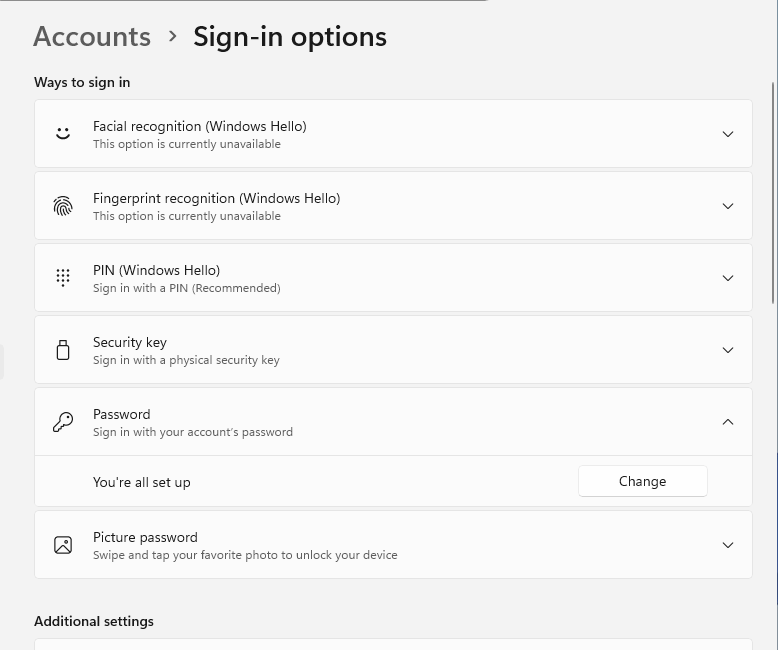
Choose Change PIN if you know the current one (you will need to enter the old PIN), or choose I forgot my PIN to verify your account and create a new one.
You can jump directly to this screen by typing ms-settings:signinoptions into the Run box (press Windows key + R) on both Windows 11 and Windows 10. It saves digging through the menus.
Sign Out and Try Creating the PIN Again
Some failures happen specifically during PIN creation rather than at sign-in. When you get an error while creating the PIN, sign out of your account, sign back in, and then try to create the PIN once more. The fresh session often clears whatever blocked the setup the first time.
A related situation is worth knowing about. If Windows unexpectedly prompts you to create a PIN again even though you already had one, Microsoft says this can be caused by security updates or system changes. Create the PIN again, and check for updates while you are at it to make sure nothing is left half-applied.
Install Every Pending Windows Update
Out-of-date drivers or system files are a common reason Windows Hello starts misbehaving, so getting fully patched can resolve the issue outright. The path differs slightly between the two versions.
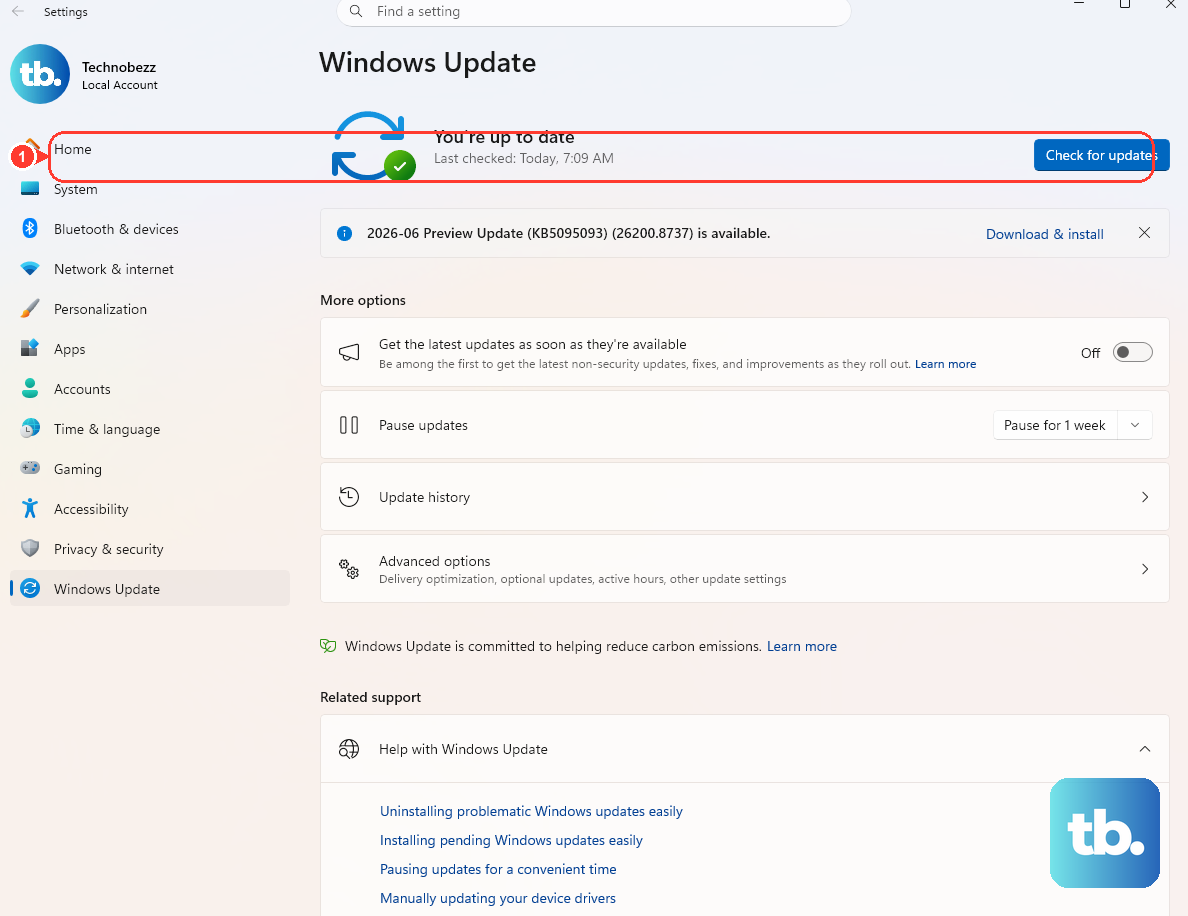
On Windows 11, go to Start > Settings > Windows Update, select Check for updates, then choose Download & install and restart when prompted. On Windows 10, go to Start > Settings > Update & Security > Windows Update, select Check for updates, then Download & install and restart. Run this twice if updates keep appearing, since one batch can unlock another.
Keep in mind that Windows 10 support ended on October 14, 2025. Unless your PC is enrolled in Extended Security Updates, it no longer receives free security fixes, so upgrading to Windows 11 is the long-term fix if your hardware allows it.
Let the Windows Hello Troubleshooter Take a Look (Windows 11)
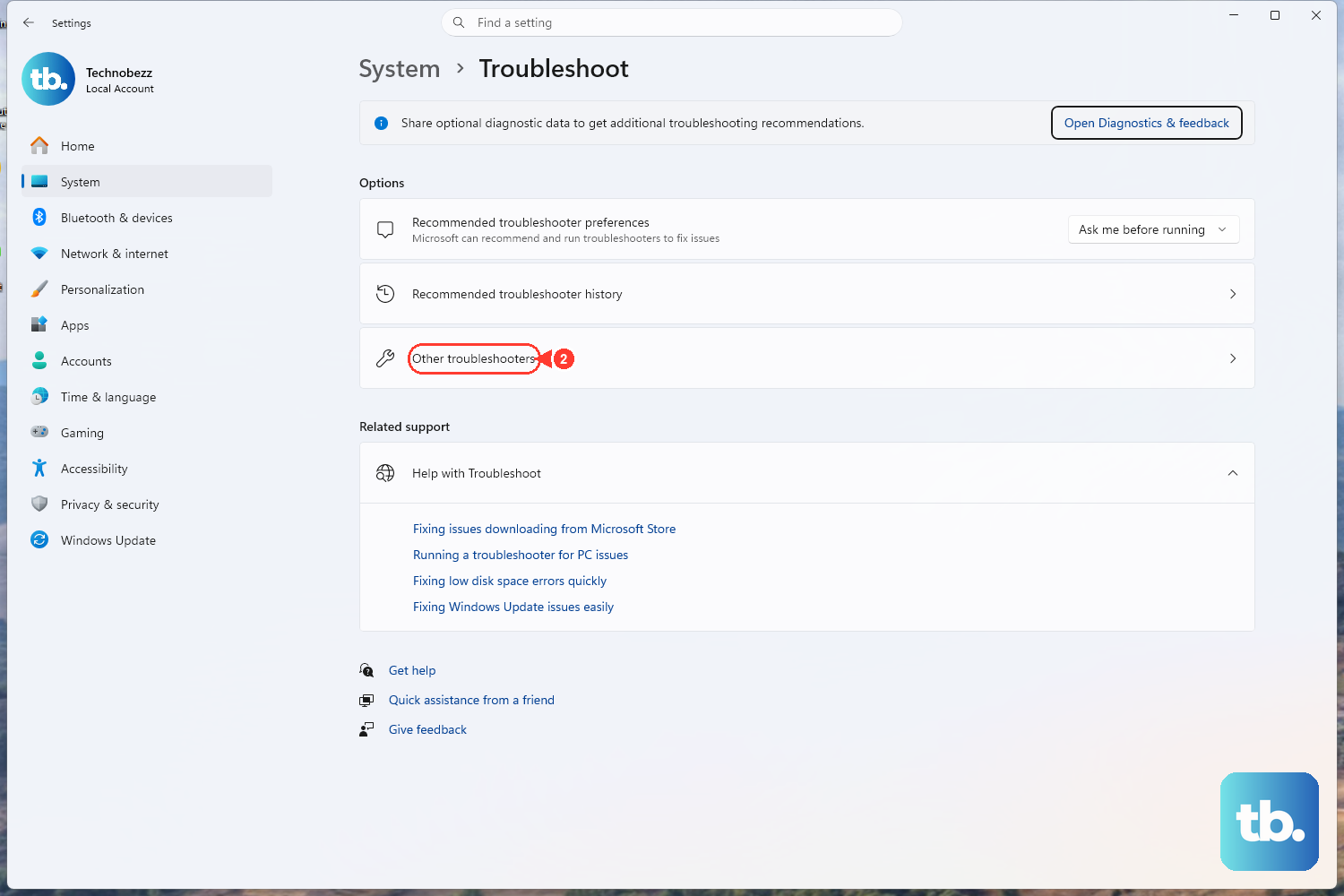
Windows 11 runs its troubleshooters through the built-in Get Help app. The Other troubleshooters page under Settings > System > Troubleshoot does not list one for Windows Hello, so open Get Help directly, search for Windows Hello troubleshooter, and follow the steps. If it asks for permission to run diagnostics, select Yes.
Microsoft recommends it mainly for facial recognition problems, so it helps most when face sign-in is failing along with the PIN. Get Help runs its checks, reports what it found and suggests fixes you can apply. Running it before you start manual repairs can flag a misconfiguration you would otherwise have to hunt for yourself.
Remove the PIN and Reconfigure Windows Hello From Scratch
When the PIN still will not behave, the next move is to tear Windows Hello down and rebuild it. Sign in with your account password instead of the PIN, then set everything up again cleanly.
Open Start > Settings > Accounts > Sign-in options.
Select PIN (Windows Hello) on Windows 11 or Windows Hello PIN on Windows 10.
Remove the PIN, then set it up again from the beginning. If Remove is greyed out on Windows 11, turn off For improved security, only allow Windows Hello sign-in for Microsoft accounts on this device further down the same page, and the button becomes available.
For face or fingerprint sign-in, choose Remove for that method, then Set up again.
A full rebuild often resolves stubborn sign-in problems that a simple PIN reset cannot.
Repair Underlying System Files With DISM and SFC
If the trouble persists, corrupted protected system files may be the cause, and Windows has two built-in command-line tools to fix them. Run them in order from an elevated Command Prompt.
To open it, type cmd in Search, right-click Command Prompt, and choose Run as administrator. Run the component-store repair first so the file checker has good source files to work with:
Run DISM.exe /Online /Cleanup-image /Restorehealth and wait for it to report success.
Then run sfc /scannow in the same window.
Leave the window open until verification reaches 100 percent. Do not close it early.
This applies to both Windows 10 and Windows 11. The process can take a while, so let it finish completely before you restart and test the PIN. If SFC says it could not perform the operation, start Windows in Safe Mode and run it again.
When You Cannot Get Past the Sign-In Screen at All
If the PIN is failing and you also cannot remember your account password, you can still recover access. The path depends on your account type.
For a Microsoft account, select I forgot my password at the sign-in screen (or go to Sign-in options > Web sign-in and follow the prompts). Alternatively, reset it from any browser at account.live.com/ResetPassword.aspx and verify with a code sent to your recovery email or phone. Once the password is reset, sign in and then fix the PIN from Settings as described above.
For a local account, select the arrow next to the password box, then OK, then Reset password, and answer the security questions you set when the account was created. If you made a password reset disk earlier, you can use that instead. Microsoft support cannot retrieve or bypass a lost password, so if neither option works and there is no other administrator account, resetting the PC is the remaining route.
Create a Fresh Account as a Last Resort
If nothing above works, the problem may be a corrupted user profile rather than Windows Hello itself. Creating a new account gives you a clean profile where the PIN can be set up properly. Treat this as a final option, since you will need to move into the new account afterward.
Open Start > Settings > Accounts > Other users (this may read Family & other users).
Next to Add other user, select Add account.
To make it a local account, choose I don't have this person's sign-in information, then Add a user without a Microsoft account.
Sign in to the new account and set up the PIN under Sign-in options.
If the PIN works flawlessly in the new account, you have confirmed the old profile was the culprit, and you can migrate your files across at your own pace.
Frequently Asked Questions
Why does Windows keep asking me to create a PIN again when I already have one?
Being unexpectedly prompted to set up a PIN again is usually the result of security updates or other system changes. Create the PIN again when asked, and check for pending Windows updates so nothing is left partially installed.
The "I forgot my PIN" option is missing on my lock screen. Why?
The "I forgot my PIN" link at the sign-in screen is available only for Microsoft accounts, not local accounts. If you do not see it, select Sign-in options, sign in with your password, and reset your PIN from Settings > Accounts > Sign-in options. If you have also lost the password, use the Microsoft account or local-account password reset flow first.
Do I need to run DISM before SFC, or can I just run SFC alone?
Run DISM.exe /Online /Cleanup-image /Restorehealth first, and only then run sfc /scannow in the same elevated Command Prompt. DISM provides the files SFC needs to replace any corrupted ones, which makes the scan more likely to succeed.
Are the steps different between Windows 11 and Windows 10?
The steps are nearly identical. The main differences are that the sign-in setting is labeled "PIN (Windows Hello)" in Windows 11 and "Windows Hello PIN" in Windows 10, and the update path is Settings > Windows Update in Windows 11 versus Settings > Update & Security > Windows Update in Windows 10. The Get Help troubleshooter route is for Windows 11. Windows 10 support ended on October 14, 2025, so unenrolled Windows 10 PCs no longer get security fixes.
Will resetting my PIN delete any of my files?
Resetting or changing the PIN affects only your sign-in method, not your documents, apps, or settings. The same is true for reconfiguring Windows Hello from scratch. Your files stay in place, and you are only rebuilding how you unlock the device.