

You hit Ctrl+P (or Command+P) in Word or Excel, and nothing comes out. Maybe the print preview is blank, maybe the job vanishes, or maybe the Print button itself is greyed out and won't respond.
The good news: most printing failures in Office trace back to a handful of fixable causes, and there is a quick way to pin down which one you have. The fastest fixes are first, so work down the list in order and stop when your page prints.
Before changing any settings, run one quick test that tells you exactly where the problem lives.
Find Out Where the Problem Lives
This single diagnostic saves you from chasing the wrong fix. The question is whether the failure is system-wide, app-wide, or tied to one specific document.
- 1.Open a different, non-Office program such as Notepad or Paint. If WordPad is available on your Windows version, it works too, but WordPad was removed starting with Windows 11 version 24H2. In the test app, create a simple file and use File > Print.
- 2.If printing fails here too, the problem is system-wide. It is your printer, driver, or Windows, not Office, so skip ahead to the printer and spooler fixes below.
- 3.If other apps print fine, open a new blank file in the same Office app, type "This is a test", save it, and print.
- 4.If the blank test file prints but your original does not, your original document or workbook is likely corrupted. Use Office's built-in recovery (Repairing a corrupted workbook for Excel; the damaged-document recovery guide for Word).
- 5.If even the blank test file will not print, the issue is broader. Continue through the fixes below.
On a Mac, there is a similar test: open the Notes app, type some text, and choose File > Print. If Notes prints but Office does not, the Office installation is the culprit. If Notes also fails, it is a printer driver or configuration problem.
Check the Print Settings Inside Word or Excel
The most common cause is a setting in the print dialog itself, not a hardware fault. In Word or Excel, go to File > Print and confirm each of these.
Check that the intended printer is selected in the printer dropdown, and its status reads "Ready".
Make sure "Print to PDF" or "Print to file" is NOT selected. Either of those sends your output to a file instead of the printer.
Confirm the page range is set to All pages, not a narrow range that excludes your content.
Match the page size, orientation, and layout to your document and the paper loaded in the printer.
Clear the Offline or Paused State
A printer that is paused, set to "Use Printer Offline", or not set as default will silently swallow jobs.
On Windows 11, go to Start > Settings > Bluetooth & devices > Printers & scanners, select your printer, and choose "Set as default". If "Set as default" is not visible, turn off "Let Windows manage my default printer" under Printer preferences first. Then open the print queue, click the ellipsis (...), and choose "Cancel all" to clear stuck jobs.
On Windows 10, go to Start > Settings > Devices > Printers & scanners, select your printer, and choose "Open queue". Under the Printer menu, make sure "Use Printer Offline" is unchecked and "Pause Printing" is cleared.
If jobs are stacking up on a Mac, click the printer icon in the Dock, click "Resume" if it appears, then select any stuck job and click "Delete Job".
Restart the Print Spooler
On Windows, a stuck Print Spooler service blocks every job. The quick restart fixes most cases.
Press Windows key + R, type "services.msc", and press Enter.
Scroll to find "Print Spooler".
Right-click "Print Spooler" and select "Restart".
Try printing again.
If the queue is badly clogged, do a full clear. Deleting the files while the service runs will not work, so stop the service first.
In the Services app, double-click "Print Spooler", select "Stop", then "OK".
Open File Explorer and go to %WINDIR%\system32\spool\printers (that is C:\Windows\System32\spool\PRINTERS). Delete all files in that folder.
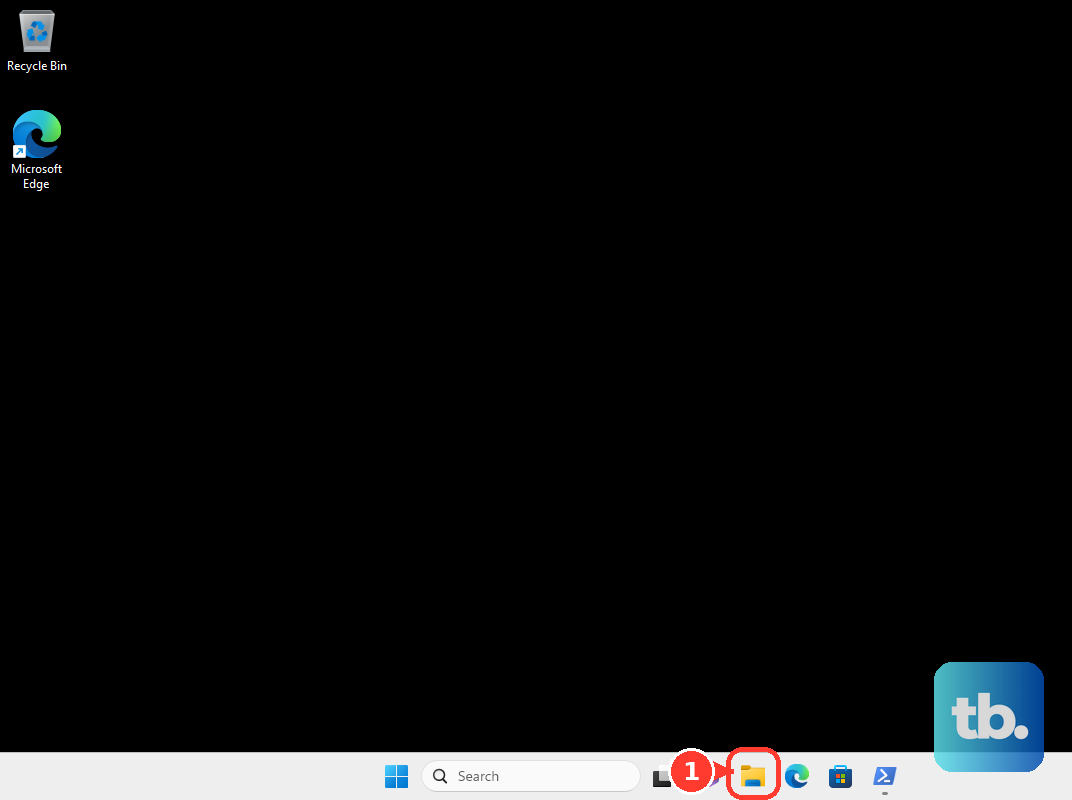
Back in Services, double-click "Print Spooler", select "Start", set "Startup Type" to "Automatic", then "OK".
Print a Windows Test Page
This confirms whether the printer and driver work outside Office entirely.
On Windows 11, go to Start > Settings > Bluetooth & devices > Printers & scanners > select your printer > Printer properties > General tab > Print Test Page.
On Windows 10, go to Start > Settings > Devices > Printers & scanners > select your printer > Manage > Printer properties > General tab > Print Test Page.
If the Windows test page also fails, fix the printer or driver first before returning to Office. You can also let Windows do the work: open the Get Help app on Windows 10 or 11 and run the Printer troubleshooter, then follow the guided prompts.
Update or Reinstall the Printer Driver
An outdated, incompatible, or corrupted driver is a frequent culprit, especially if printing recently stopped after an update.
Go to Start > Device Manager and expand the "Printers" section.
Right-click your printer and choose "Update driver".
If no newer driver is found, choose "Uninstall device", then restart the computer so Windows reinstalls it automatically.
Alternatively, download and install the latest driver from the printer manufacturer's website.
If that does not help, remove the printer entirely and add it back: Start > Settings > Bluetooth & devices > Printers & scanners, select the printer, choose "Remove device", then "Add device" and let Windows find it. Power-cycling the printer (unplug for about 30 seconds) and confirming it is on the same network as the PC also clears many connection faults.
Repair Your Office Installation
If even a blank test file refuses to print, the Office install may be damaged. Quick Repair runs offline and is faster, so try it first.
Go to Start > Settings > Apps > Installed apps (on Windows 10, Apps & features).
Select "Microsoft 365" (or "Microsoft Office").
On Windows 11, choose "Advanced options" or "Modify", then "Quick Repair". On Windows 10, choose "Modify", then "Quick Repair".
Test printing. If it still fails, repeat and choose "Online Repair", which is more thorough but reinstalls Office and requires an internet connection.
You can also reach this through Control Panel > Programs and Features > Microsoft 365 > Change > Online Repair. Before repairing, it is worth simply closing the Office app completely (not just the document window) and restarting the PC, which clears temporary states that can block printing.
Fix a Greyed-Out Print Button
If the Print button or printer options are dimmed and unclickable, the cause is usually a driver problem or a locked-down setting.
Run Office updates: File > Account > Update Options, then choose your update method.
Update the printer driver from the manufacturer's website.
Run the printer troubleshooter from the Get Help app: open Get Help, search for "printer troubleshooter", and follow the prompts. On Windows 10, you may also see the older Devices and Printers > Troubleshoot path.
If you are on a corporate or managed network and the settings stay hidden, they may be disabled by policy. The documented step is to contact your network administrator rather than try to change them yourself.
Fix Printing in Office for Mac
Start with the basics: confirm the printer is on, has paper and ink or toner, and that cables are secure. Then install macOS updates from Apple menu > System Settings > General > Software Update, or Apple menu > System Preferences > Software Update on older macOS versions, restart, and try again.
If a new document fails to print, select the sample text and pick a different font from the ribbon, then print again. If that works, the original font was the problem, not the document.
When the printer itself seems faulty, delete and re-add it: Apple menu > System Settings > Printers & Scanners, or System Preferences > Printers & Scanners on older macOS versions, select the printer, choose Remove Printer or Delete (-), then use Add Printer, Scanner, or Fax or Add (+) to add it again. If it still fails, Control-click the printer list and choose "Reset Printing System". To clear bad driver files, open Finder > Go > Go to Folder, enter "/Library/Printers/", select all items, and use File > "New Folder with Selection" to move them aside before re-adding the printer.
Corrupted printer preference files can also be the cause. Make a folder on the desktop named "Print Prefs". Open the Go menu > Home (hold the Option key while clicking Go to reveal the hidden Library), open "Library", then "Preferences".
Hold Command and click each "com.apple.print.*.plist" file, drag them into your Print Prefs folder, restart, and try printing again.
Work Around the Known Web and Outlook Bugs
Two failures are confirmed bugs with official workarounds, not anything you can fix by changing settings.
When printing Word, Excel, or PowerPoint for the web on macOS in a browser, the print preview can come up blank and send nothing to the printer. The workaround is to save or convert the document to PDF first, then open and print the PDF. Microsoft has noted this is under investigation.
In new Outlook for Windows, printing a previewed Word email attachment can fail when "Open PDF" does nothing or shows a "404 - File or directory not found" page. Instead of that dialog, select "Open in Word" at the top of the preview, choose "Open in Word on the web" or "Open in Word desktop app", and print from Word. This affects only Word attachments, not Excel or PowerPoint, and does not occur in Outlook on the web.
Frequently Asked Questions
How do I know if it is an Office problem or a printer problem?
Try printing from Notepad or Paint. If your Windows version still includes WordPad, that works too. If those apps fail too, it is a system, printer, or driver issue, so use the Windows printer fixes. If only Office fails, it is app- or document-specific.
One specific document won't print but everything else does. What now?
That document is likely corrupted. Open a new blank file, type "This is a test", and print to confirm. If the blank file prints, recover the original using Office's built-in document or workbook recovery, or rebuild it by adding elements (fonts, tables, images) one at a time until you find the trigger.
What is the difference between Quick Repair and Online Repair?
Quick Repair is faster and works offline, so try it first. Online Repair is more thorough but reinstalls Office and requires an internet connection. Use it only if Quick Repair does not fix the problem.
Why is the print queue ignoring my deletes?
If you are clearing the spooler folder manually, you must stop the Print Spooler service first. Deleting the files in %WINDIR%\system32\spool\printers while the service is running will not work; stop it, delete the files, then start it again.
The Print button is greyed out on my work computer. Can I fix it myself?
Try updating Office and the printer driver, and run the printer troubleshooter. If the settings stay hidden on a managed corporate network, they are likely locked by policy, and the correct step is to contact your network administrator.
Why is my Mac print preview blank when printing from the web?
This is a known issue with Word, Excel, and PowerPoint for the web on macOS that Microsoft is investigating. Save the document to PDF first, then print the PDF instead.