


To start an Acer laptop, connect its supplied or Acer-approved charger if the battery needs charging, open the lid, then press and release the Power button. The button’s location varies by model, so check your laptop’s manual if you cannot find it. Use a brief press for normal startup.
If the laptop does not start, check whether it has no power, has power but a dark screen, or reaches the Acer logo without loading Windows. Start with the checks that match what you see before moving to resets or recovery.
The short version
- Normal startup: Connect the charger if the battery needs charging, open the lid, and briefly press Power.
- No power: Check the outlet and charging connections, disconnect accessories, then use the applicable battery reset.
- Dark screen: Check brightness and display output before attempting Windows recovery.
- Windows will not load: Open recovery and try Startup Repair before considering a reset.
- Different operating systems: Acer Chromebooks and Googlebooks require their own reset and recovery procedures.
| What happens | Start with | Next step |
|---|---|---|
| You need to turn the laptop on | Connect the charger and open the lid | Press and release Power |
| No response to the power button | Charger and outlet checks | Disconnect accessories and retry |
| Power checks do not help | Power button reset | Documented battery-reset pinhole, if fitted |
| Power is on but the screen is dark | Brightness and display controls | Windows graphics reset or Explorer restart |
| Acer logo appears but Windows fails | Startup Repair | Update removal, restoration, or diagnostic startup |
| No Bootable Device appears | Firmware defaults | Boot priority and previous storage configuration |
| Chromebook will not start | Charging checks and hardware reset | ChromeOS update or recovery |
| Googlebook will not start | Compatible charger and charging time | Googlebook USB recovery for OS failures |
| Startup still fails after power checks and reset | Check vents after overheating | Acer hardware service |
Find and press the power button
Look for the physical Power button rather than assuming every Acer uses the same keyboard position. On the Swift 14 AI SF14-51 and SF14-51T, the keyboard-mounted power button also contains the fingerprint reader. Pressing it powers on the laptop; touching the reader serves Windows Hello.
To identify your button, open Acer Drivers and Manuals and enter your serial number, SNID, or part number under Identify your Acer Device. Open your model’s manual and find its notebook-tour diagram. The manual also identifies charging ports, keyboard controls, and supported reset features.
A sleeping or hibernating laptop may only need to resume. The Swift models above resume when you press and release Power; check your model’s manual for its supported power states. Save a long button press for an unresponsive laptop.
Check charging when nothing happens
Seat the charging connector firmly in the laptop, then check the power cord’s connection to the adapter. Test the wall outlet with another appliance or try another outlet. Turn on the surge protector if the charger connects through one.
Some Nitro models have a rear charging connector that needs a secondary push to seat fully. Acer says a slight click indicates full insertion on that connector design. Keep the connector horizontal so it does not obstruct the display.
A deeply discharged battery may need charging time before startup. Acer specifies at least 30 minutes for Aspire A14-52, A14-52M, A14-52MT, A14-52P, A14-52PT, A15-51, A15-51M, A15-51MT, and Aspire Lite AL14-51 and AL14-52M models. After charging, briefly press Power again.
Disconnect the dock, external drives, USB devices, and other peripherals, then retry with the laptop’s adapter connected. A supported Acer USB-C charging dock can require some battery charge before the notebook starts, generally around 6%. Leave it charging before retrying if you are using only the dock.
Reset the internal battery or power controller
For an unresponsive laptop, follow your model’s forced-shutdown instructions. On the Swift SF14-51 and SF14-51T, hold Power for up to 10 seconds, wait at least two seconds after shutdown, then press it again. A forced shutdown can lose unsaved work; the steps for restarting an unresponsive computer cover this situation in more detail.
Acer’s internal-battery reset procedure applies to most Acer laptops, with model-specific instructions taking priority. Hold Power for 10 seconds or until the laptop shuts off, then unplug the adapter and disconnect peripherals. Hold Power for at least 30 seconds, reconnect the adapter, then briefly press Power to start it.
Use the pinhole method only when your model’s manual identifies a battery-reset pinhole underneath the laptop. Turn the laptop off, unplug its charger, and gently insert a paperclip until the internal button depresses. Hold it for 10 to 15 seconds, remove the paperclip, then turn the laptop on.
The Aspire and Aspire Lite models named above have a specific pinhole variation where fitted: unplug AC, close the lid, and locate the underside hole marked with a battery icon. Hold its internal button with a straightened paperclip for 10 to 15 seconds, reconnect AC, then press Power. Without a pinhole, shut down, unplug AC and all accessories, hold Power for a full 30 seconds, reconnect AC, and press Power.
Restore a powered laptop with a dark screen
Press your keyboard’s Brightness up key, then try its Display toggle key. Identify the icons and any required Fn combination in your model’s manual. Acer keyboard shortcuts vary by model.
On a powered Windows laptop, press Windows + Ctrl + Shift + B to reset the graphics driver. To change display mode, press Windows + P, press P again, then press Enter. Check an attached monitor’s power and cables, or disconnect it and retry the built-in display.
If you get a blank desktop or cursor after Windows loads, press Ctrl + Shift + Esc to open Task Manager. Right-click Windows Explorer and select Restart. If it is absent, select Run new task and enter this command:
explorer.exeRepair Windows when it will not finish starting
Turn on the laptop and press Alt + F10 at the Acer logo to open recovery on supported installations. Where your model provides the setting, first press F2 during startup and ensure Main > D2D Recovery is Enabled, then press F10 to save and exit. The shortcut requires working recovery support.
You can also reach recovery from the sign-in screen by holding Shift while selecting Power > Restart. If Windows cannot load and recovery does not open, interrupt startup at the logo twice by holding Power until shutdown. Start a third time and select Advanced options.
In recovery, select Troubleshoot > Advanced options > Startup Repair > Restart. Enter your BitLocker recovery key if requested and let the repair finish. Note the recovery key ID shown on screen. If the key is backed up to your Microsoft account, go to aka.ms/myrecoverykey on another device, sign in, match the key ID, and enter the associated 48-digit key. For a device signed in to a work or school account, go to aka.ms/aadrecoverykey, select Devices, expand the device, and select View BitLocker Keys, or contact your IT department. Also check any printout or USB flash drive where the key was saved.
If startup failed immediately after a Windows update, select Troubleshoot > Advanced options > Uninstall Updates > Uninstall latest quality update. Some updates cannot be removed. If that option does not resolve the problem, an existing restore point gives you another way to undo system changes.
Select Troubleshoot > Advanced options > System Restore and choose a restore point, checking Show more restore points if needed. You can select Scan for affected programs to review the effects. Select Next, then Finish, and select Restart after restoration. System Restore preserves personal files.
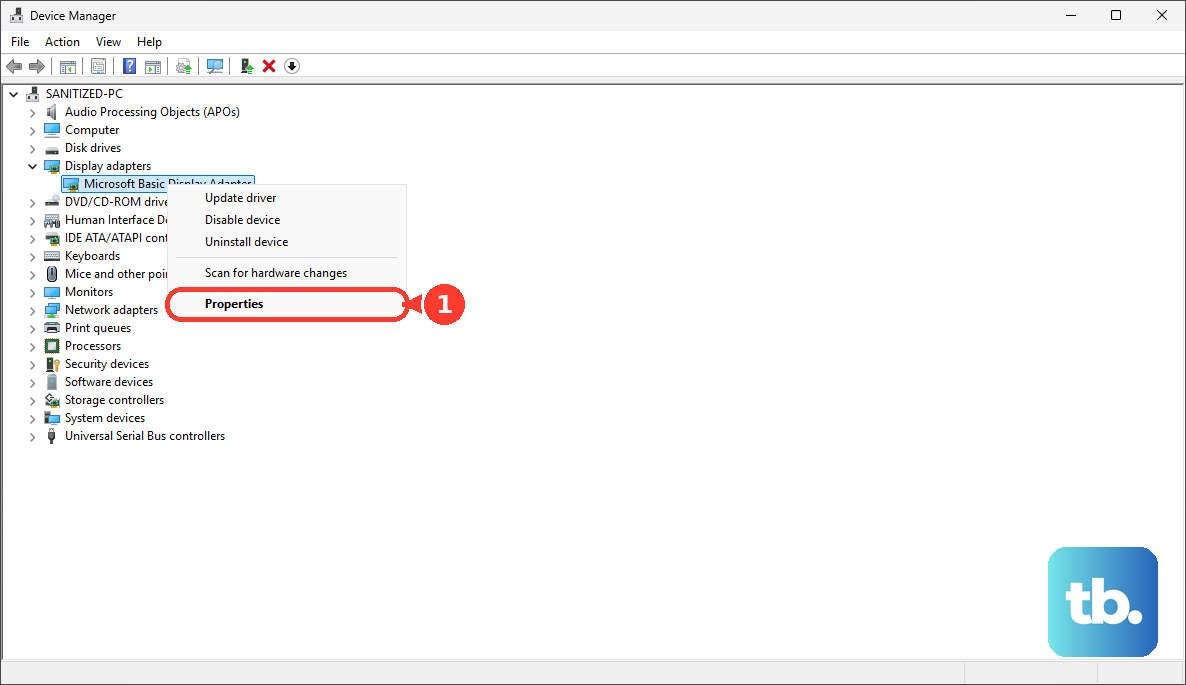
For diagnostic startup, select Troubleshoot > Advanced options > Startup Settings > Restart, then press 4 or F4 for Enable Safe Mode. If a blank screen began after a graphics update, open Device Manager > Display adapters, right-click the graphics device, and open Properties > Driver. Select Roll Back Driver if a previous driver is available.
Once Windows opens, you can stop apps from opening on startup through Settings > Apps > Startup by switching a suspect app Off. If repairs fail, back up accessible data and retain your BitLocker key before you reset your Acer laptop.
In recovery, select Troubleshoot > Reset this PC and follow the displayed reset prompts. Microsoft’s reset options include Keep my files, which retains personal files while removing apps and settings, and Remove everything, which deletes personal files too, with Cloud download or Local reinstall as the reinstall source. For Acer Chromebooks and Googlebooks, follow the recovery steps in their respective sections below.
Resolve a No Bootable Device message
If you see No Bootable Device, check the boot configuration, particularly after a BIOS update. Hold Power for five seconds to shut down, turn the laptop on, and repeatedly press F2 at the Acer logo. The steps for entering BIOS on Windows explain firmware access in more detail.
To restore firmware defaults, press F9, then Enter. Press F10, select Yes, and press Enter to confirm. Retry startup before changing anything else.
If the error remains, enter BIOS again and open Boot. Place the operating-system drive, commonly Windows Boot Manager, first in Boot Priority Order, then press F10 to save.
If a firmware update changed the storage configuration, enter BIOS with F2, open Main, and press Ctrl + S to reveal supported hidden settings. Locate SATA Mode or VMD Controller and restore the configuration used when Windows was installed. Do not guess between AHCI and VMD/RAID. Press F10, select Yes, and press Enter; available settings vary by model.
Start and troubleshoot an Acer Chromebook
Open the Chromebook’s lid and press its physical Power button. On the Acer Chromebook 315 CB315-3H, it sits on the keyboard’s top edge next to the page up key; other designs can use a side button. To wake a sleeping Chromebook, open the lid and press any key or swipe the touchpad; in tablet mode, press Power.
For charging trouble, check the charging indicator, connections, and outlet. Unplug the charger from both the Chromebook and wall, reconnect it to the Chromebook first, then the wall, and charge for at least 30 minutes. Retry startup before attempting a hardware reset.
To hardware-reset most Acer Chromebooks, turn the device off, hold Refresh, and tap Power. Release Refresh when startup begins; Google warns that a hardware reset can remove some files in Downloads. Chromebook tablets instead use Volume Up + Power held for at least 10 seconds, then released, subject to model exceptions.
Once it runs, select the time, then open Settings > About ChromeOS > Check for updates and install the available update. Acer identifies ChromeOS updates as the fix for charging or sleep-related startup failures on several C734, C736, C936, R753, and R756 variants. School administrators must permit updates.
Persistent OS failures can require Chromebook recovery, which erases local data. Disconnect peripherals, hold Esc + Refresh, tap Power, then release the remaining keys when a message appears. Some models use Esc + Maximize instead; Chromebook tablets use Volume Up + Volume Down + Power for at least 10 seconds. If available, select Recover using internet connection and complete recovery.
For USB recovery, open Device Recovery Utility in Chrome on another Chromebook, Windows PC, or Mac and select Get started. Enter the affected model or choose Select a model from a list, select Continue, and choose an empty USB drive of at least 8 GB. Select Continue > Create now; creation erases the USB. On the affected Chromebook’s recovery screen, select Recover using external disk and complete recovery.
Start and troubleshoot an Acer Googlebook
For an Acer Googlebook 14, connect the supplied charger to a power outlet and the Googlebook, then press Power. If it will not start, check the cable, adapter, outlet, and charging port, and make sure no button is being held accidentally. Try another compatible cable or adapter, using the original charger or a compatible charger providing equal or higher power. Charge for at least 10 minutes before retrying.
For missing or damaged Googlebook OS or repeated startup restarts, use Googlebook recovery, which erases local data. Disconnect peripherals, hold Esc + F2, briefly press Power, then release the other keys when the screen lights.
On another Chromebook, Windows PC, or Mac, open Chrome’s Device Recovery Utility and select Get started > Select Googlebook. Choose the manufacturer and product, select Continue, and choose an empty USB drive of at least 32 GB. Select Continue > Create now. On the affected Googlebook’s recovery screen, select Use USB drive and follow the instructions.
Arrange service when startup still fails
After a shutdown associated with overheating, check that cooling vents are unobstructed and free of dust before retrying startup. Address the obstruction first, following the precautions for cleaning a laptop fan safely.
If power-source checks and the applicable battery reset do not restore startup, open Acer Support and select Contact Acer or select Repair My Acer. Have your serial number or SNID and a description of what happens when you press Power. A failed physical power button is also a reason to arrange hardware service.
Frequently Asked Questions
Can you turn on an Acer laptop with an external keyboard?
Certain models support USB wake, but that does not provide universal startup from a complete shutdown. On the Aspire Go AG15-42P, press F2 during startup, open Main, and enable USB Wake from S4 Support for hibernation wake or Wake on USB while lid closed as needed. Press F10 to save and exit, then use a supported USB device to wake the laptop. On Modern Standby systems, the lid-closed option can remain unavailable until S4 USB wake is enabled.
Why does an Acer laptop turn back on after shutdown?
Fast Startup can contribute to immediate restarts after shutdown. Open Control Panel > Hardware and Sound > Power Options > Choose what the power buttons do > Change settings that are currently unavailable. Uncheck Turn on fast startup (recommended) and select Save changes.
What should you do if your Acer keeps starting in Safe Mode?
Press Windows + R, enter msconfig, and select OK. Open Boot, uncheck Safe boot, and restart the laptop.
Can you check the battery after the laptop starts again?
On supported Acer models, open AcerSense > Checkup and select Checkup All, or select Check for the battery section. AcerSense does not support Aspire Lite, Swift Lite, or Nitro Lite models.
Should you install a BIOS update to fix startup?
Install a model-specific BIOS update only when its release addresses your problem and the laptop can run the updater. In Acer Drivers and Manuals, identify your exact laptop, open BIOS/Firmware, and select Download for the appropriate update. Right-click the downloaded archive, select Extract All, and run the extracted application with AC power connected throughout. If Acer distributes your model’s firmware exclusively through Windows Update, open Settings > Windows Update > Check for updates and install the applicable offered updates.