The screen flashes a Blue Screen error, the machine reboots, and then it just loops or hangs before you ever reach the desktop. When a serious problem hits, Windows 11 might shut down or restart unexpectedly, and you are left staring at a stop code with no obvious way back in. Safe Mode is the lifeline here: it loads only a basic set of files and drivers so you can actually troubleshoot, even when normal startup refuses to cooperate.
The good news is that everything you need is already built into Windows 11 (and Windows 10). You do not have to download a separate troubleshooter or hunt for a rescue tool. This guide walks you through reaching the Windows Recovery Environment, booting into Safe Mode, and undoing whatever broke your startup, all using the official recovery flow.
First, Read What Windows Is Telling You
An unexpected restart or a stop code means Windows hit a serious problem. Microsoft uses several names for the same event: a stop code error, a bug check, a kernel error, or a Blue Screen error. They all point to something that interrupted normal operation badly enough that the system could not safely continue.
Before you dive into recovery menus, think about what changed right before the trouble started. If you added new hardware just before the error appeared, a sensible first move is to shut down, remove that hardware, and try restarting. If the PC comes back to life without the new component, you have found your culprit.
If removing hardware does not help (or you did not add any), the next step is to start your PC in Safe Mode so you can perform the remaining troubleshooting from a stable, stripped-down environment. How you get there depends on whether Windows can still limp to a sign-in screen.
When Windows Still Boots: Open Advanced Startup From Settings
If you can still reach the desktop or the sign-in screen, the cleanest route into recovery is through Settings. This drops you straight into the Windows Recovery Environment (WinRE), which is the launchpad for Safe Mode and every repair tool below.
On Windows 11, go to Settings > System > Recovery, then under Advanced startup select Restart now.
On Windows 10, go to Settings > Update & Security > Recovery, then under Advanced startup select Restart now.
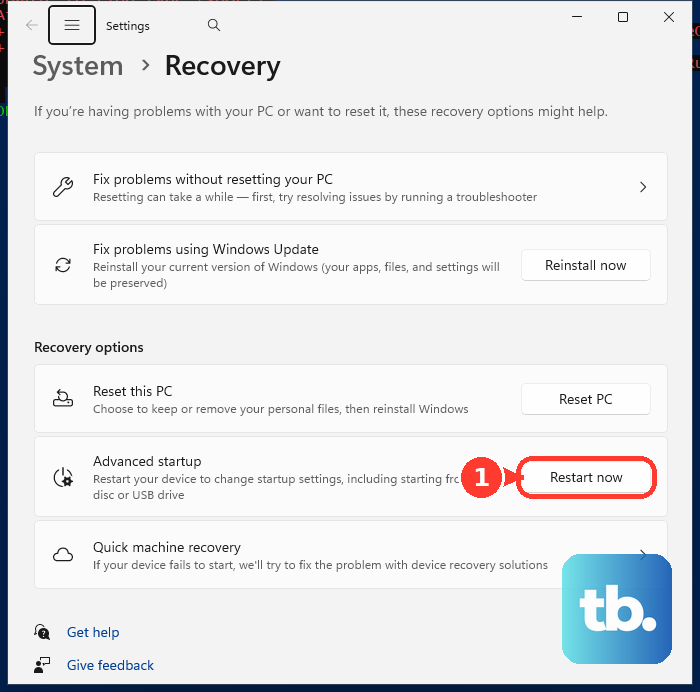
As an alternative on either version, from the sign-in screen or the Start menu, press and hold Shift while you select Power > Restart.
Any of these three methods takes you to the same place: the Choose an option screen inside WinRE. From here, all of the recovery work happens.
When the PC Won't Start at All: Force Recovery Mode
If Windows cannot even get to a sign-in screen, you can still force your way into recovery. When Windows fails to start correctly multiple times, it automatically enters the Windows Recovery Environment on its own.
To trigger that behavior deliberately, interrupt the boot process two times by turning the PC off during startup twice. On the third restart, Windows should automatically boot into WinRE. This is the official way to reach recovery when you simply cannot sign in, and it works on both Windows 11 and Windows 10.
Try Startup Repair Before Anything Else
Once you are inside WinRE, the first tool to reach for is Startup Repair. It is designed specifically for the situation you are in, scanning the PC and trying to fix problems that prevent Windows from starting.
On the Choose an option screen, select Troubleshoot.
Next, select Advanced options.
Then select Startup Repair.
Let it run all the way through. The PC may restart during the process, which is normal. If Startup Repair quietly fixes the boot problem, you may be back in business without touching anything else. If it cannot, move on to Safe Mode.
Boot Into Safe Mode Through Startup Settings
Safe Mode lives behind the Startup Settings menu inside WinRE. Getting there requires one more restart, after which Windows presents a numbered list of boot options.
- 1.From the Choose an option screen, go to
Troubleshoot > Advanced options > Startup Settings. - 2.Select Restart.
- 3.When the Startup Settings list appears, press 4 (or F4) to Enable Safe Mode.
- 4.Press 5 for Safe Mode with Networking, which adds the network drivers and services you need for internet access.
- 5.Press 6 for Safe Mode with Command Prompt, which is handy for the repair commands later in this guide.
Pick the variant that matches your plan. If you intend to download a driver or check for updates, choose Safe Mode with Networking. If you want to run repair commands, Safe Mode with Command Prompt puts you a step ahead.
Note that if your device uses BitLocker or device encryption, you may be prompted for your recovery key to complete a startup change, so have it on hand before you begin.
Once You're In Safe Mode, Undo the Likely Cause
A faulty driver is one of the most common reasons a PC starts crashing on boot, so that is a smart place to begin. In Safe Mode, right-click the Start button and select Device Manager, then look for any device marked with an exclamation point (!). Right-click that device and select Update driver.
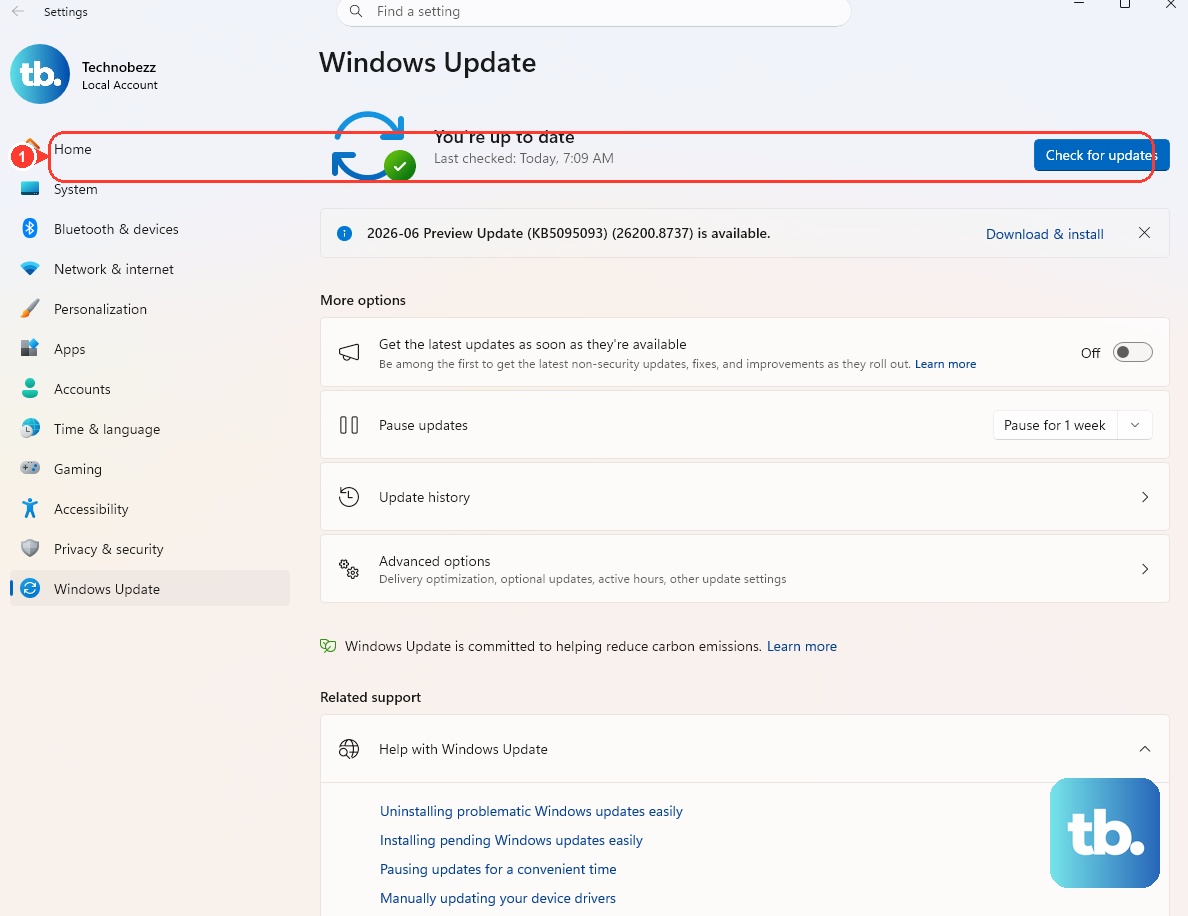
While you are in there, do one quick housekeeping check. Open Start > Settings > Windows Update and select Check for updates to make sure you are not missing a fix Microsoft already shipped.
Repair Damaged System Files With DISM and SFC
If the trouble points to corrupted system files, two built-in tools can rebuild them. The order matters: Microsoft says to run DISM first, because it repairs the Windows component store that System File Checker relies on to do its job.
Open Command Prompt as administrator, either through Safe Mode with Command Prompt or through Troubleshoot > Advanced options > Command Prompt in WinRE.
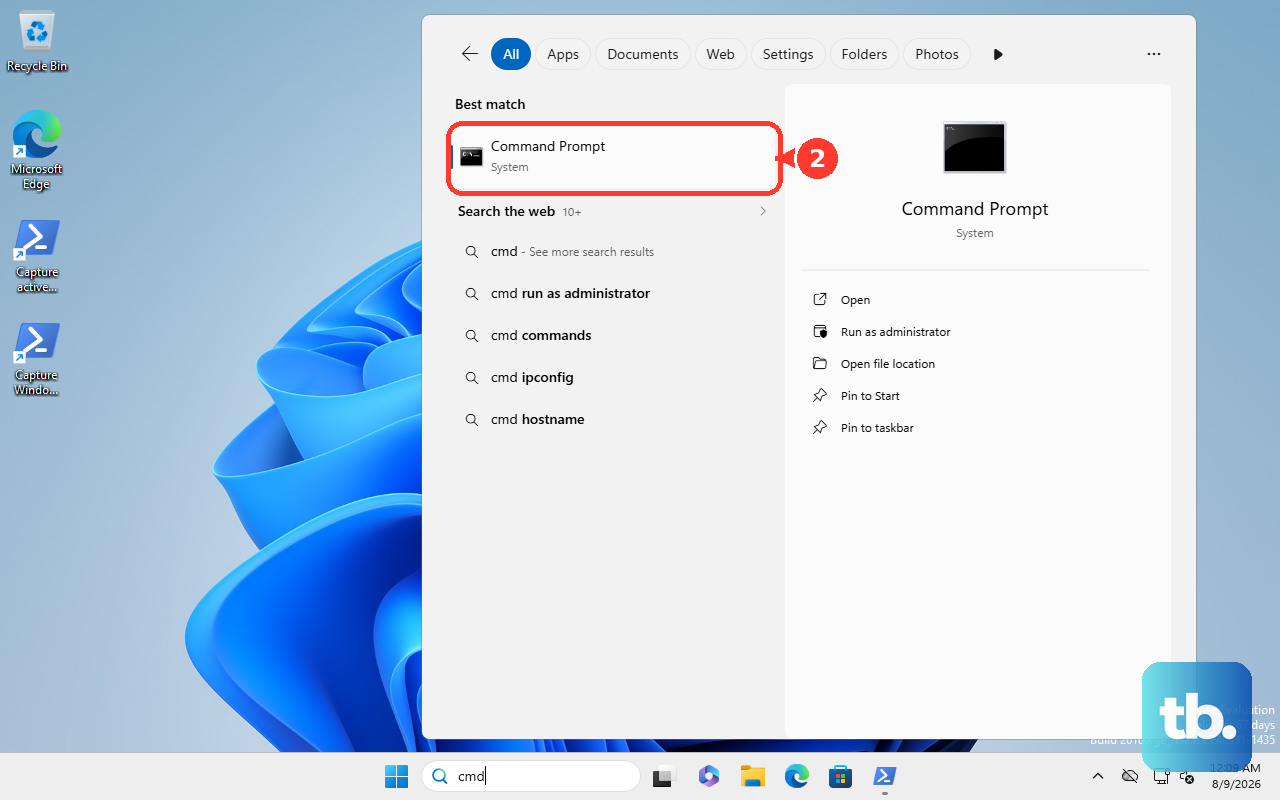
Then run DISM.exe /Online /Cleanup-image /Restorehealth exactly as written, including the capitalization and slashes, and press Enter. This can take several minutes, so let it finish.
After it finishes, type sfc /scannow and press Enter. System File Checker scans protected system files and replaces corrupted ones with a cached copy.
Do not skip the DISM step or reverse the order. Running them in sequence gives SFC a healthy source image to pull its replacement files from.
Check the Disk for File-System Errors
Sometimes the problem is not the files themselves but the file system holding them. Check Disk (chkdsk) scans the drive and fixes structural errors that can block a clean startup.
From an elevated Command Prompt, run chkdsk with the /f switch to fix file-system errors, for example chkdsk d: /f. The disk must be locked for this to run; if it is currently in use, you will be prompted to schedule the check for the next restart.
To go deeper, use the /r switch, which locates bad sectors and recovers readable information; /r includes the functionality of /f. The full syntax printed by Windows is chkdsk [<volume>[[<path>]<filename>]] [/f] [/v] [/r] [/x] [/i] [/c] [/l[:<size>]] [/b] [/scan] [/forceofflinefix] [/perf] [/spotfix] [/sdcleanup] [/offlinescanandfix] [/freeorphanedchains] [/markclean] [/?]. Because /r can take a long time on a large drive, run it when you can leave the PC alone for a while.
Remove a Bad Update or Roll Back Recent Changes
If the crashes started right after a Windows update, you can pull that update out from inside WinRE without booting normally. In WinRE, go to Troubleshoot > Advanced options > Uninstall Updates, then choose Uninstall latest quality update or Uninstall latest feature update depending on what is offered. This is the official path to remove a problem update when Windows will not start normally.
If a wider set of changes is to blame, System Restore can wind the clock back. In WinRE, select Troubleshoot > Advanced options > System Restore. System Restore reverts system files, registry settings, and installed programs to an earlier restore point without affecting your personal files. Pick a restore point dated before the problem began, and let it complete.
Stop the PC From Booting Into Safe Mode Every Time
Once the underlying issue is fixed, you may notice the PC keeps starting in Safe Mode on its own. That usually means a Safe boot flag got left on, and it is a quick fix.
Press Windows key + R, type msconfig, and select OK.
After that, go to the Boot tab.
Clear the Safe boot checkbox.
Select OK, then restart.
This returns Windows to normal startup. If your machine is now booting cleanly and behaving, you are done; keep an eye on it for a day or two to confirm the original error does not return.
Frequently Asked Questions
What is the difference between the three Safe Mode options?
Plain Safe Mode (press 4 or F4) loads only a basic set of files and drivers. Safe Mode with Networking (press 5) adds the network drivers and services you need for internet access, which is useful for downloading a driver. Safe Mode with Command Prompt (press 6) gives you a command line for running repair tools.
How do I get into recovery if my PC won't reach the sign-in screen?
Force the Windows Recovery Environment by interrupting the boot process two times, turning the PC off during startup twice. On the third restart, Windows should automatically boot into WinRE, where you can reach Startup Repair and Startup Settings.
Should I run SFC or DISM first?
Run DISM first. Microsoft says to run DISM.exe /Online /Cleanup-image /Restorehealth before sfc /scannow, because DISM repairs the Windows component store that System File Checker relies on to replace corrupted files.
Will System Restore delete my personal files?
No. System Restore reverts system files, registry settings, and installed programs to an earlier restore point without affecting your personal files. Choose a restore point dated before the problem started.
What should I do if I just installed new hardware before the crashes?
If you added new hardware just before the error, shut down, remove that hardware, and try restarting. If the PC starts normally afterward, the new component was the cause; if not, continue with Safe Mode and the other troubleshooting steps.











