

Troubleshoot a Windows 10 screen crash by checking its stop code and recent changes; for a blank display that still accepts input, press Windows + Ctrl + Shift + B to reset the graphics driver. If the problem returns, check the affected apps and drivers before moving to system file repairs or recovery tools.
The short version
- Blank display: Press Windows + Ctrl + Shift + B when Windows still responds to input.
- Frozen desktop: Open Task Manager to check resource use or restart Windows Explorer.
- Repeated crashes: Photograph the stop code and investigate recent hardware, driver, or app changes.
- Deeper repairs: Try system file repair and Safe Mode before considering a Windows reset.
| Fix or check | When to use it |
|---|---|
| Graphics driver reset | Blank display that still accepts input |
| Display output selection | Blank screen with an external monitor or dock |
| Power and cable checks | Suspected monitor or connection trouble |
| Forced restart | Normal controls do not respond |
| Desktop shell restart | Blank desktop with a movable cursor |
| Resource checks and normal restart | Freezes with excessive resource use |
| Stop code and hardware checks | Crash screen or newly installed hardware |
| Flicker comparison | Flickering or scrambled windows |
| Event log review | Repeated failures after the PC responds again |
| Windows and optional driver updates | Applicable updates are available |
| Device driver update | Evidence points to a particular device |
| Driver rollback | Crashes began after a driver update |
| Application update | One app is implicated |
| Application repair | The affected app offers a repair option |
| Application reset | Repair fails and reset is available |
| Application removal | Crashes followed an app installation or update |
| DISM and System File Checker | Continuing problems warrant system file repair |
| Memory test | Crash evidence suggests memory faults |
| Recovery environment access | You need startup or recovery tools |
| Safe Mode comparison | You need to narrow a startup-related cause |
| Clean boot | A startup app or service may conflict |
| Startup Repair | Windows fails to boot |
| System Restore | A suitable earlier restore point exists |
| Windows reset | Problems persist after other repairs |
Get the screen responding again
For a blank or unresponsive display where Windows still accepts keyboard input, press Windows + Ctrl + Shift + B. A beep or screen flicker indicates that Windows responded to the graphics driver reset.
With an external monitor or dock, an incorrect display mode can also leave the screen blank. Press Windows + P, press P again, then press Enter to change the display mode. Repeat if necessary.
Check the computer and monitor power, then reseat the display cables. Try another cable or monitor, or disconnect external displays and peripherals from a laptop to isolate the failing component. These connection checks also apply when troubleshooting a laptop with power but no display.
Forced shutdowns can lose unsaved work. If normal controls do not respond, restart an unresponsive computer by holding its Power button for approximately 20 seconds, then starting it again. Follow the manufacturer's model-specific procedure when it provides one.
Recover the desktop and reduce resource use
For a blank desktop with a movable cursor, try restarting the Windows desktop shell. Press Ctrl + Shift + Esc to open Task Manager, right-click Windows Explorer, then select Restart. Another way into Task Manager is to press Ctrl + Alt + Delete and select Task Manager.
If Windows Explorer is absent, select File > Run new task. Enter the following command, then press Enter:
explorer.exeWhen the desktop responds but keeps freezing, close unused applications and browser tabs. In Task Manager, inspect Processes and Performance for excessive resource use. Select Start > Power > Restart, then reopen only the applications you need.
Use the crash symptoms to choose a fix
Photograph any stop code and named driver or module on the crash screen. A single unexpected restart may need no further action, but repeated crashes warrant investigation. If the problem began after installing hardware, shut down the PC, disconnect that new hardware, and restart.
For flickering or scrambled displays, press Ctrl + Shift + Esc and watch Task Manager. If it flickers with the rest of the display, investigate the graphics driver. If it stays stable while other windows flicker, investigate incompatible applications.
Once the PC responds again, open Event Viewer and examine Windows Logs > Application and Windows Logs > System around the failure time. Look for application crashes and relevant service errors. Use those details, together with the stop code and recent changes, to choose the next repair.
Update Windows and check the graphics driver
On Windows 10 22H2, open Start > Settings > Update & Security > Windows Update, then select Check for updates. Install applicable updates, inspect View Optional updates for applicable drivers, and restart when required. Availability of new operating system security updates depends on Extended Security Updates eligibility and enrollment.
To find and update your graphics driver, right-click Start and select Device Manager. Expand Display adapters, right-click your graphics device, and select Update driver. Driver changes may require administrator access.
For a driver already downloaded from the manufacturer, select Browse my computer for drivers, then select Browse... and locate its folder. Use the category matching the affected device when the crash points to a different driver.
Rolling back a driver replaces the current version with the retained previous driver. If crashes began after a driver update, open Device Manager, right-click the affected device, and select Properties > Driver > Roll Back Driver. Choose the applicable reason, select Yes, and restart if requested. Rollback requires administrator rights and a retained previous driver; otherwise, follow the update route above.
Repair the app linked to the crashes
When one app is implicated, check for its updates before making broader Windows changes. Open Microsoft Store and check Downloads or Library for updates. For software maintained outside the Store, use the publisher's updater or official website.
On Windows 10, open Start > Settings > Apps > Apps & features, select the application, and open Advanced options if available. Select Repair when the app offers it. For desktop programs, open Control Panel > Programs > Programs and Features, right-click the program, and select Repair or Change; available actions depend on the application.
Resetting an app can remove its data and settings. If repair fails and the app offers the option, select Reset in its Advanced options.
Uninstalling removes the selected application. If crashes began after installing or updating an app, on Windows 10 return to Settings > Apps > Apps & features, select the suspect app, then select Uninstall and confirm with Uninstall. Select Yes if requested, restart, and retest. A Microsoft Store app can subsequently be reinstalled through Microsoft Store > Library, selecting the app and then Install.
Repair Windows system files
For continuing problems, repair Windows using Command Prompt with DISM followed by System File Checker. Search for cmd, right-click Command Prompt, and select Run as administrator. Run this command first:
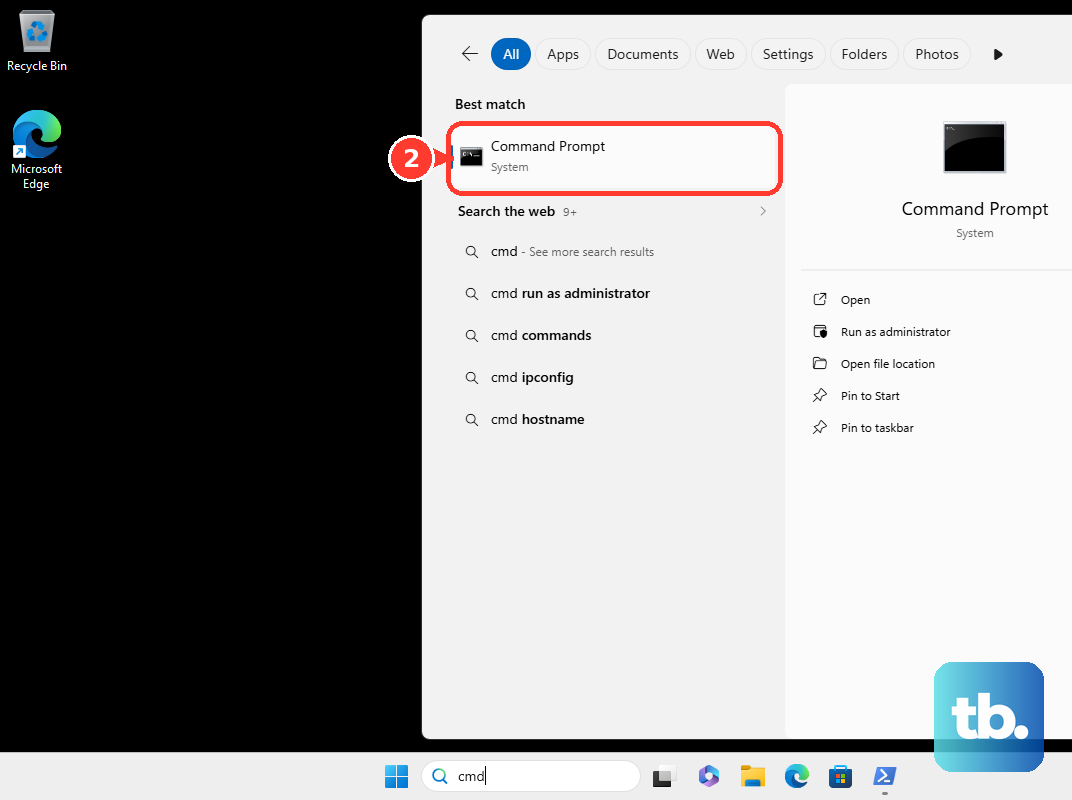
DISM.exe /Online /Cleanup-image /RestorehealthAfter DISM completes successfully, run the following system file scan. Let it finish before closing the window:
sfc /scannowIf the crash evidence suggests memory faults, open Control Panel, search for Memory, and select Diagnose your computer's memory problems. Run the offered test. Afterwards, inspect the System log in Event Viewer for MemoryDiagnostics-Results.
Compare Safe Mode and normal startup
To access the Windows Recovery Environment, hold Shift while selecting Power > Restart. Alternatively, on Windows 10, open Settings > Update & Security > Recovery and select Restart now under Advanced startup. Recovery tools may require your BitLocker recovery key, which you can also check for in saved printouts or USB copies.
In the recovery environment, select Troubleshoot > Advanced options > Startup Settings > Restart. Press 4 or F4 for Safe Mode. Compare its behavior with normal startup to narrow the cause.
For a suspected startup app or service conflict, perform a clean boot as an administrator. Organization policy may restrict this on a managed computer, so involve your administrator if the procedure is blocked. Search for msconfig, open System Configuration, and select Services. Check Hide all Microsoft services, then select Disable all > Apply.
Open Startup > Open Task Manager, record the enabled startup items, then disable them in the Startup tab. This lets you stop apps from opening on startup while testing. Restart and retest, then re-enable groups to identify the conflict. Afterwards, restore Normal Startup in System Configuration and the items disabled for testing.
Use recovery tools when other fixes fail
If Windows fails to boot, use Startup Repair for boot problems. In the recovery environment, select Troubleshoot > Advanced options > Startup Repair > Restart, supplying the BitLocker recovery key if requested. Startup Repair addresses boot failures rather than a single crashing application.
System Restore retains personal files but can reverse later system and application changes. If you have a suitable existing restore point, open Control Panel > Recovery > Open System Restore. Select Next and the restore point, using Show more restore points if needed. Review Scan for affected programs, then select Next > Finish.
When Windows cannot start, you can reach the same recovery option through Troubleshoot > Advanced options > System Restore. It still requires an existing restore point.
A Windows reset removes installed applications and resets settings even when you choose to retain personal files, so back up important files first. To reset Windows while keeping personal files on Windows 10 22H2, open Start > Settings > Update & Security > Recovery. Under Reset this PC, select Get started, then choose Keep my files.
Choose Cloud download or Local reinstall, then review the reset choices before proceeding. If Windows cannot start, use Troubleshoot > Reset this PC in the recovery environment.
Frequently Asked Questions
How can you read a stop code when Windows restarts too quickly?
In the Windows Recovery Environment, select Troubleshoot > Advanced options > Startup Settings > Restart. Press 9 or F9 to select Disable automatic restart on system failure, so you can read the crash details.
What should you do if Windows keeps starting in Safe Mode?
Restart normally first. If Safe Mode persists, press Windows + R, enter msconfig, and select OK. Open Boot, uncheck Safe boot, select Apply, and restart.
How can you isolate Firefox crashes from a Windows problem?
Close Firefox, hold Shift while starting it, and click Open in the Troubleshoot Mode window. Test whether the problem recurs with extensions, themes, and graphics acceleration temporarily disabled. Exit Firefox and start it normally to restore those features.
Can a Dell PC run hardware diagnostics without starting Windows?
On Dell computers with integrated SupportAssist, ePSA, or PSA diagnostics, restart and repeatedly press F12 at the Dell logo. Select Diagnostics from the One Time Boot Menu, run the test, and record any error and validation codes. Select Advanced test for component-specific testing.
Should you use Driver Verifier to fix recurring crashes?
You should reserve Driver Verifier for specialist testing or debugging work. Microsoft warns that it can crash the computer and recommends its use on designated testing or debugging systems.