


To fix Windows when it will not shut down, save your work, close unresponsive apps, then select Start > Power and hold Shift while selecting Shut down. This performs a full shutdown that bypasses Fast Startup. If the problem returns, disable Fast Startup before checking updates, drivers, and Windows system files.
The steps below use Windows 11 menus. Stop when your PC shuts down normally, and use forced shutdown only when Windows remains stuck.
The short version
- Start safely: Save your work and let ongoing shutdown operations finish before intervening.
- Close blockers: End an unresponsive app in Task Manager, then retry shutdown.
- Try a full shutdown: Hold Shift while selecting Shut down to bypass Fast Startup once.
- Fix recurring failures: Disable Fast Startup, disconnect accessories, and install applicable updates.
- Force off only when stuck: Holding the physical power button can discard unsaved work.
| Fix | When to use it |
|---|---|
| Allow shutdown to finish | Windows is still completing ongoing operations |
| Shut down through Start | You have saved your work and closed applications |
| End an app in Task Manager | An unresponsive application blocks shutdown |
| Restart Windows Explorer | The desktop or Start interface is stuck |
| Use the Start context menu | The regular Start menu fails |
| Use Ctrl + Alt + Delete | The security screen still responds |
| Use the desktop shutdown shortcut | You can close apps and focus the desktop |
| Run the shutdown command | Windows still accepts commands |
| Force applications closed with a command | You have saved recoverable work and an app still blocks shutdown |
| Perform a full shutdown | You want to bypass Fast Startup once |
| Restart Windows | You can restart before retrying shutdown |
| Disable Fast Startup | Full shutdown works but normal shutdown fails |
| Use the physical power button | Windows remains unresponsive |
| Use Surface forced recovery | You have a supported Surface model |
| Disconnect peripherals | An accessory may be involved |
| Install Windows updates | Applicable fixes are available |
| Install optional driver updates | Windows offers drivers for your hardware |
| Roll back a driver | Shutdown failed after that driver's update |
| Update the blocking application | The same app repeatedly prevents shutdown |
| Repair or reset an application | The affected app exposes these controls |
| Disable a suspected startup app | You need to isolate software that launches automatically |
| Perform a clean boot | The conflicting app or service remains unclear |
| Repair Windows components and system files | Shutdown failures persist after simpler fixes |
| Run a malware scan | You suspect malware |
| Use System Restore | A restore point predates the problem |
| Reinstall through Windows Update | You need a repair that preserves apps, files, and settings |
| Reset Windows | Other repairs fail and you have backed up your files |
Let shutdown finish and close stuck apps
When Windows displays Shutting down, allow ongoing operations to finish before intervening. ASUS does not specify a universal waiting time. Avoid interrupting an active firmware update or a progressing Windows installation.
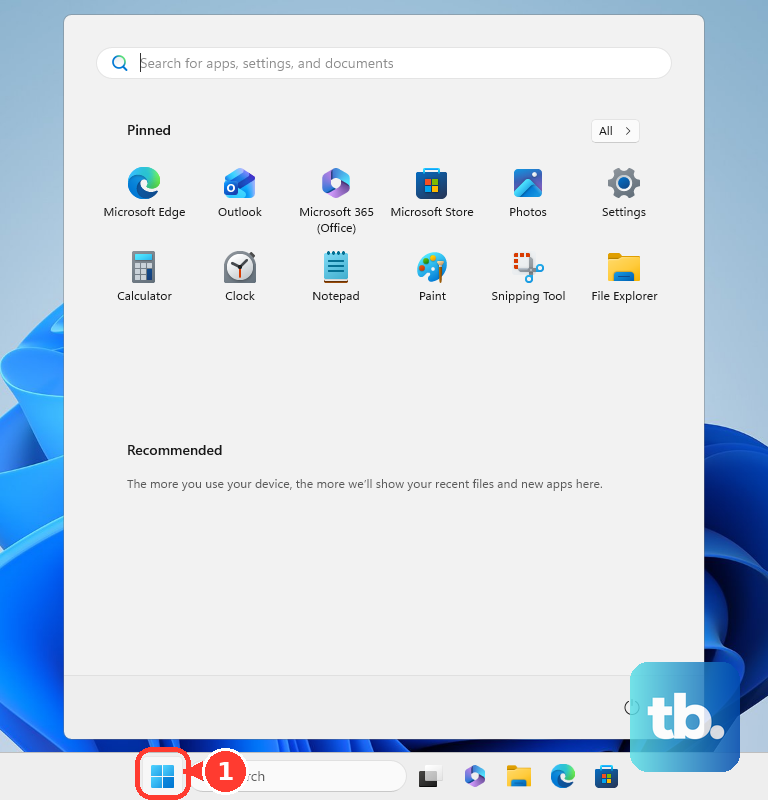
If you can still use the desktop, save your documents and close your applications. Select Start > Power > Shut down once the apps have closed.
If an app is frozen, press Ctrl + Shift + Esc to open Task Manager, select the unresponsive application, then select End task. You can force quit a frozen Windows app, but doing so can discard its unsaved work. Retry shutdown afterward.
When the desktop or Start interface is stuck, find Windows Explorer in Task Manager, right-click it, and select Restart. If you see a blank screen with a cursor and Windows Explorer is not listed, select File > Run new task, type explorer.exe, and press Enter. Try the power menu again afterward. Restarting Explorer can recover the interface, but it cannot repair a deeper shutdown hang.
Try another shutdown control
Right-click Start, then select Shut down or sign out > Shut down. Alternatively, press Ctrl + Alt + Delete, select Power in the lower-right corner, and select Shut down.
For the desktop shortcut, save and close your applications, then press Windows + D to focus the desktop. Press Alt + F4, choose Shut down in Shut Down Windows, and select OK. Without desktop focus, the shortcut closes the active application instead.
You can also request shutdown directly with a command. Save your work, press Windows + R, type the following command, then press Enter.
shutdown /s /t 0If an application still blocks shutdown, the following command forces applications to close without saving their work. Save anything recoverable first, then press Windows + R, enter the command, and press Enter.
shutdown /s /f /t 0Bypass Fast Startup and restart Windows
Try a full shutdown to bypass Fast Startup once. Select Start > Power, hold Shift, and select Shut down.
A restart reinitializes Windows instead of using the Fast Startup shutdown transition. Save your work and select Start > Power > Restart. After Windows starts again, select Start > Power > Shut down.
If a full shutdown helps but normal shutdown keeps failing, disable Fast Startup. Search for Choose a power plan and open it, then select Choose what the power button does > Change settings that are currently unavailable. Uncheck Turn on fast startup (recommended), select Save changes, and retry shutdown.
The Fast Startup checkbox depends on hibernation support and configuration. If it is absent, continue with the next applicable fix.
Recover a completely unresponsive PC
When shutdown remains stuck and Windows no longer accepts input, use your manufacturer's forced power-off procedure. ASUS instructs you to hold the physical power button until the power indicator goes out. Unsaved work can be lost, and you should avoid this procedure during an active firmware update or a progressing Windows installation.
After turning the PC back on, try a normal shutdown before making further changes. If the whole computer remains frozen during ordinary use, follow the steps to restart an unresponsive computer before continuing with software repairs.
On supported Surface models, hold the power button until the device shuts down, restarts, and displays the Windows logo, approximately 20 seconds, then release it. This applies to Surface Pro fifth generation and later, Pro X, Laptop, Laptop Studio, Laptop Go, Go, Studio, and Book 2 and later. After recovery, try a normal shutdown.
Disconnect accessories and update Windows
Disconnect external storage, printers, memory cards, USB accessories, docks, and external displays, then retry shutdown. Keep a necessary display connected to a desktop. If shutdown still fails, continue with Windows and driver updates.
On Windows 11, open Settings > Windows Update > Check for updates. Install the updates offered, complete the requested restart, and test shutdown again.
For hardware updates, on Windows 11 open Settings > Windows Update > Advanced options > Optional updates. Expand the available driver updates, select the applicable drivers, and select Download and install. Restart afterward; driver updates appear here only when available.
If shutdown stopped working immediately after a particular driver update, right-click Start and open Device Manager. Right-click the implicated device, select Properties > Driver > Roll Back Driver, choose the reason, and select Yes. Restart if requested, then retry shutdown. Rollback requires administrator access and an available previous driver.
Find software that keeps blocking shutdown
When the same application repeatedly prevents shutdown, update it before changing system settings. Open Microsoft Store and select Check for Updates for Store apps, then install available updates. For other software, use the publisher's update mechanism and retry shutdown afterward.
On Windows 11, open Settings > Apps > Installed apps, select More beside the affected app, then choose Advanced options > Repair if Repair is available. If Repair is unavailable or fails, select Reset, which can remove the app's data. These controls are available only for supported applications.
To isolate a suspected startup app, on Windows 11 open Settings > Apps > Startup and turn off its toggle. Restart and test shutdown. You can stop apps from opening on startup while identifying the blocker, then re-enable apps that are not responsible.
If the culprit remains unclear, sign in as an administrator and record the service and startup settings before performing a clean boot. Search for msconfig and open System Configuration, select Services, check Hide all Microsoft services, then select Disable all > Apply. Keep Microsoft services hidden before disabling the remaining services.
Open Startup > Open Task Manager, record the enabled items under Startup apps, and disable them. Close Task Manager, select OK in System Configuration, then restart and test shutdown. If shutdown works, re-enable items in groups to identify the cause, then restore the recorded configuration. Do not change unrelated advanced boot settings.
Repair Windows system files
For persistent failures, search for Command Prompt, right-click it, select Run as administrator, and select Yes. You can follow the steps to repair Windows using Command Prompt for help with these tools.
Run the following command to repair the Windows component image. Let it complete successfully before moving to System File Checker.
DISM.exe /Online /Cleanup-image /RestorehealthNext, run System File Checker with the following command. Wait for verification to finish, then retest shutdown.
sfc /scannowIf you suspect malware, open Windows Security > Virus & threat protection > Scan options. Select Full scan > Scan now, then review the results before testing shutdown again.
Restore or reinstall Windows when other fixes fail
A restore point from before the failure can reverse recent system changes. Press Windows + R, enter the following command, then press Enter.
rstrui.exeSelect Next and choose a restore point from before the problem began, selecting Show more restore points if needed. Select Scan for affected programs to review the changes, then select Next > Finish. System Restore preserves personal files, but later applications and system changes can be removed.
If Windows will not start, you can access the Windows Recovery Environment and select Troubleshoot > Advanced options > System Restore. If the device is encrypted, have its BitLocker recovery key before using this option. An available restore point is required for this option.
For a repair that preserves apps, files, and settings, connect power and internet. On Windows 11, open Settings > System > Recovery, find Fix problems using Windows Update, and select Reinstall now. Leave the optional automatic-restart checkbox unchanged if you do not want to alter it, select OK, and restart after installation.
This repair option requires Windows 11 22H2 or later with the February 2024 optional update or later. It may be unavailable on PCs whose updates are managed by an organization.
Resetting Windows is a later option because it removes installed applications and settings. Back up your files and obtain your BitLocker recovery key if applicable, then on Windows 11 open Settings > System > Recovery > Reset PC. Choose Keep my files to retain personal files, and review how to reset Windows without losing files before proceeding.
Choose Cloud download or Local reinstall, review the displayed choices, and complete the reset. Choose Remove everything only if you also intend to remove personal files.
Frequently Asked Questions
Why does my PC restart instead of shutting down?
A shutdown-time crash can trigger an automatic restart, so record any stop code shown so you can troubleshoot that error. If Windows is stuck in a loop where it fails, attempts to restart, and fails again repeatedly, Microsoft documents a Startup Settings option for that case: in Windows Recovery Environment, select Troubleshoot > Advanced options > Startup Settings > Restart, then press 9 or F9 for Disable automatic restart on system failure.
Does seeing my apps reopen mean shutdown failed?
No, Windows can reopen restartable applications after sign-in even when shutdown succeeded. On Windows 11, open Settings > Accounts > Sign-in options and turn off Automatically save my restartable apps and restart them when I sign back in.
Can Safe Mode help identify the shutdown problem?
Yes, successful shutdown in Safe Mode points your investigation toward additional drivers, services, and applications. In Windows Recovery Environment, select Troubleshoot > Advanced options > Startup Settings > Restart, then press 4 or F4 for Enable Safe Mode. An encrypted device may require its BitLocker recovery key.
Should I disable hibernation if the Fast Startup checkbox is missing?
Disabling hibernation also disables its Fast Startup dependency, but it removes hybrid-sleep protection too. It requires administrator access, so consider that tradeoff before using it as an alternative to the checkbox.
Can wake timers explain why the computer turns back on?
Wake timers and device wake permissions can explain waking from sleep, hibernation, or hybrid shutdown transitions. They are not universal explanations for powering on after a full shutdown. If your PC fully powers off and then starts again, check your model's documented firmware controls for scheduled power-on or Wake on LAN.
Is the old Windows Power troubleshooter still a current fix?
Microsoft lists the legacy MSDT Power troubleshooter among the troubleshooters being removed from modern Windows 11. Skip old shortcuts for it; if failed updates are involved, use the Windows Update troubleshooter in Get Help.