

To fix an iPhone that is slow after an update, let update-related background work finish, restart the phone, and free storage if space is low. If the slowdown continues, update affected apps and check power settings and battery health before considering resets. These steps use iOS 27 menus, with model differences noted where needed.
The short version
- Give it time: Update-related work can take a few days to finish.
- Check storage: Apple recommends keeping at least 1 GB free to avoid slowdowns.
- Target the symptom: One slow app or website needs different troubleshooting from an entire slow phone.
- Save resets for last: Back up before erasing or reinstalling iOS.
| Fix | When to use it | Main catch |
|---|---|---|
| Allow background work to finish | Update or setup activity is still running | Allow a few days |
| Restore a suitable temperature | The phone is hot or cold | Stop intensive activity while it cools |
| Restart normally | The phone responds but feels sluggish | Use Settings or hardware buttons |
| Force restart | The phone is unresponsive | Hold the button until the Apple logo appears |
| Review storage recommendations | Free storage is low | Keep at least 1 GB free |
| Offload apps | You need space but want to retain app data | Later reinstallation depends on availability |
| Delete unwanted apps | You no longer need an app | Preserve important app data first |
| Remove files or downloads | Files occupy needed storage | Cloud deletion affects synced devices |
| Update iOS | A compatible update is offered | Back up first |
| Update apps | Affected apps have updates available | Built-in system apps update with iOS |
| Replace an update download | An uninstalled update will not install | This does not remove installed iOS |
| Turn off Low Power Mode | The power-saving mode is enabled | The Settings path depends on your model |
| Turn off Adaptive Power | Its performance adjustments are unwanted | Requires a supported model |
| Check battery health and arrange service | Battery aging may affect performance | Service options and costs vary |
| Close and reopen one app | An app is unresponsive | Routine force-closing can slow launches |
| Reinstall an app or contact its developer | One app remains faulty | Deletion can remove local data |
| Compare networks and locations | Only online activity is slow | Persistent cellular issues need carrier help |
| Clear Safari website data | Safari is slow | You may need to sign in to websites again |
| Reset network settings | Network symptoms persist | Remembered networks are removed |
| Reset all settings | Incorrect or damaged settings remain a concern | Preferences and pairings need reconfiguration |
| Erase through Settings | Last-resort troubleshooting is necessary | Back up before erasing personal content |
| Restore using a computer | iOS needs reinstallation | Erases content and installs compatible iOS |
| Get guided support | Performance problems continue | Available assistance varies by issue and region |
Let update work finish and check the temperature
Open Settings > Battery and look above Daily Usage for Ongoing iOS Update or Ongoing Device Setup. If either appears, allow a few days for that work to finish, then reassess performance.
If the phone is hot, stop intensive games, camera use, or streaming and move it away from sunlight or other heat. If a temperature warning appears, turn the phone off and let it cool. A cold phone needs to return to a moderate environment before you judge its performance; Apple specifies an operating range of 0 to 35°C.
Restart the iPhone
For a normal restart, open Settings > General > Shut Down, then drag the power-off slider. Wait 30 seconds, then hold the Side button until the Apple logo appears. Check whether the activities that were slow have improved.
To shut down with hardware buttons on a Face ID model, hold the Side button and either Volume button until the slider appears. On an iPhone SE second or third generation, hold the Side button. Drag the slider, wait 30 seconds, then hold the Side button until the Apple logo appears.
If the phone is unresponsive, force restart your iPhone. On every iOS 27-compatible iPhone, quickly press and release Volume Up, quickly press and release Volume Down, then hold the Side button until the Apple logo appears. Release the Side button when the logo appears.
Free up storage without losing important files
Open Settings > General > iPhone Storage to check remaining space and the largest apps. Apple recommends keeping at least 1 GB free to avoid slowdowns. Review the recommendations, select Show All when available, then select Enable for an appropriate recommendation or open it to review removable content.
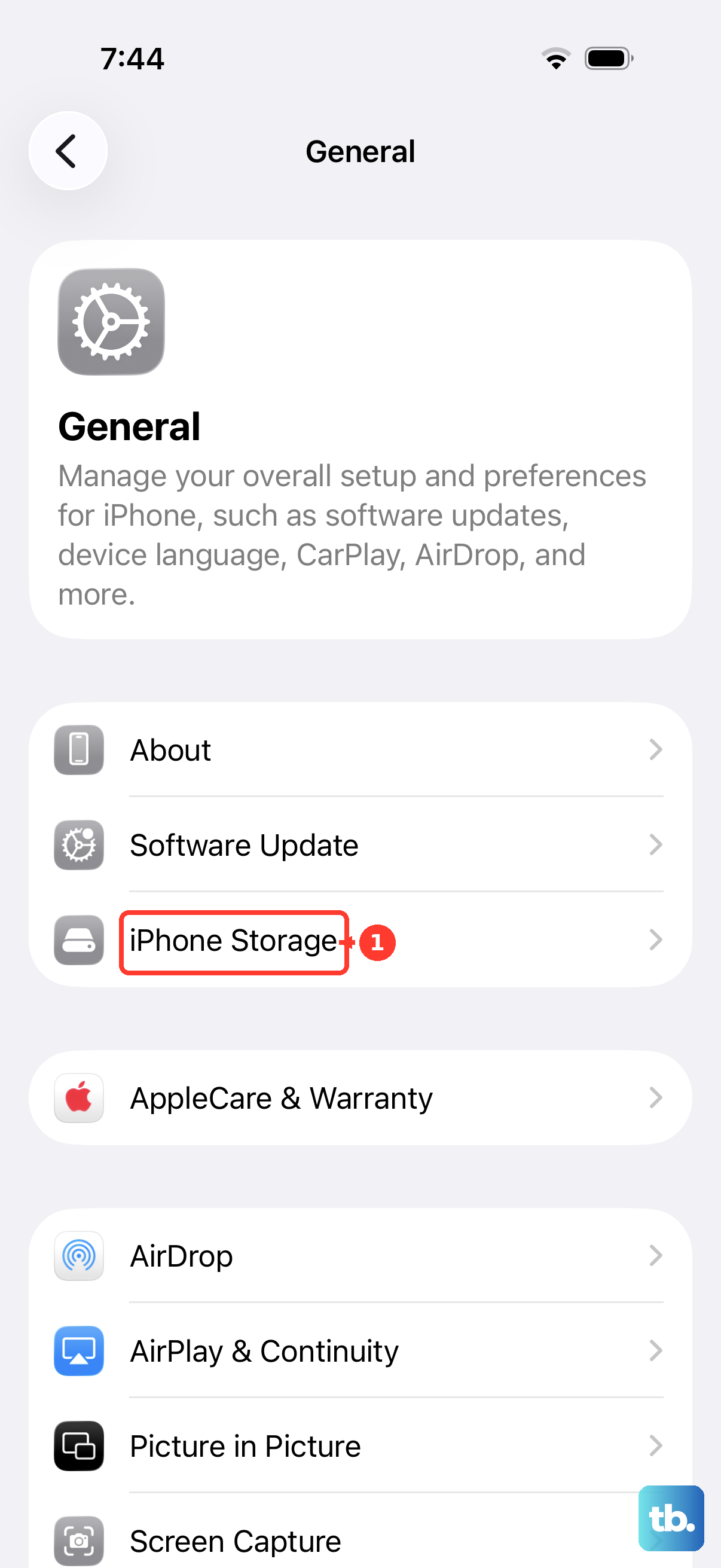
To remove an app while retaining its documents and data, select it within iPhone Storage, tap Offload App, and complete the prompt. Reinstalling it later depends on the app remaining available.
For apps you no longer want, delete apps from your iPhone by holding an app, then tapping Remove App > Delete App > Delete. Removing only its Home Screen icon does not uninstall it. Preserve important app data before deletion.
You can also delete files and remove downloads to reclaim storage. In Files > Browse > iCloud Drive, hold a downloaded cloud file and select Remove Download to keep its cloud original. For an unwanted local file, open Files > Browse, open its location, hold the file, and select Delete. Deleting an iCloud Drive original also deletes it from other synced devices.
Install follow up iOS and app updates
Back up your iPhone, connect it to power and Wi-Fi, then open Settings > General > Software Update. Select Download and Install when an update is offered and complete the installation prompts. Install a version Apple offers for your model.
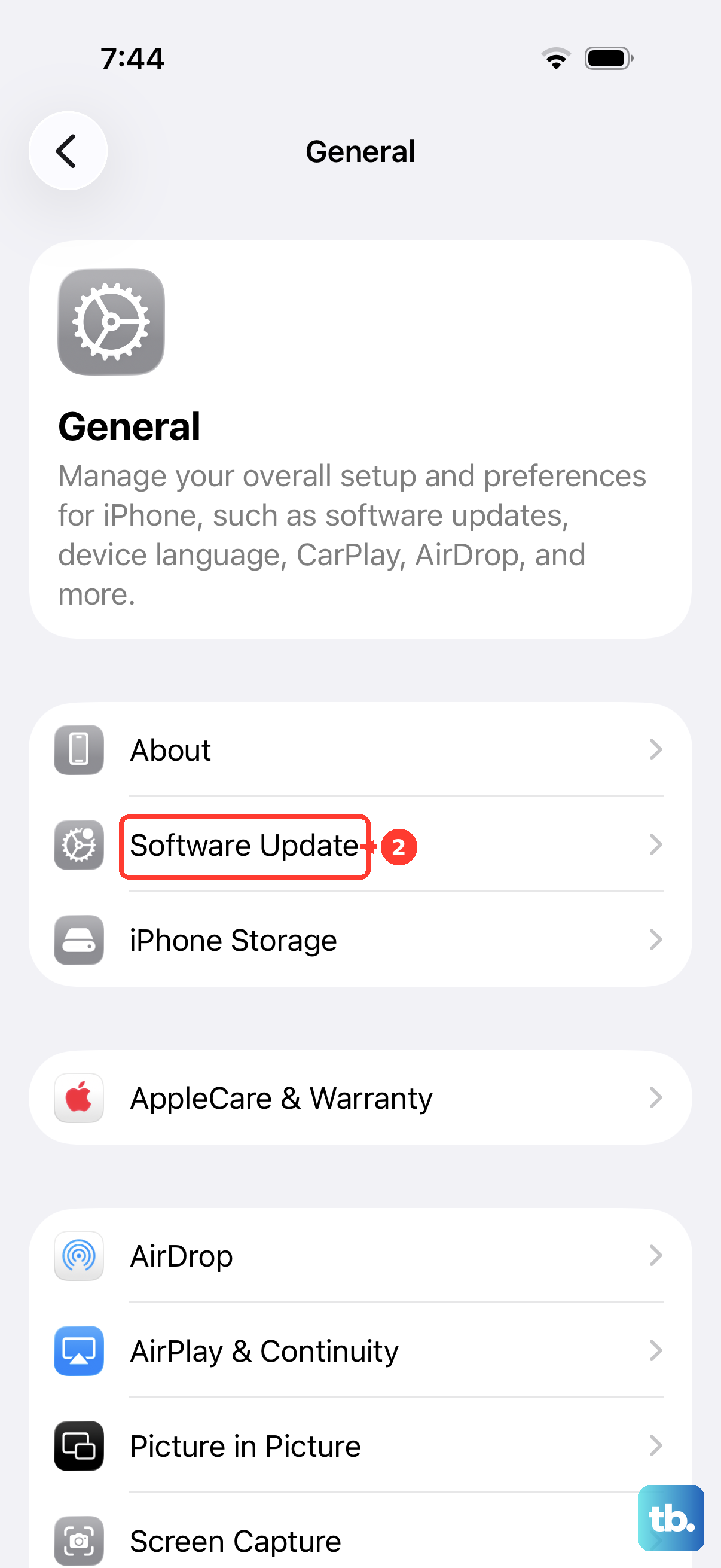
Next, update apps on your iPhone, especially any that became slow after the iOS update. Open App Store, tap your photo or open My Account, then select App Updates. Tap Update beside an affected app or Update All; built-in system apps update with iOS.
If a subsequent iOS update will not install and its downloaded package appears in storage, open Settings > General > iPhone Storage and select that update. Tap Delete Update, then return to Settings > General > Software Update to download it again. This removes the uninstalled package, not the iOS version already running.
Check power settings and battery health
Check whether Low Power Mode is enabled when the phone feels slower. On iPhone 15 and later, open Settings > Battery > Power Mode and turn off Low Power Mode. On iPhone 14 and earlier, open Settings > Battery and turn off Low Power Mode.
Adaptive Power can also make performance adjustments on supported models, including iPhone 15 Pro and Pro Max, the iPhone 16 and 17 families, iPhone Air, and supported newer models. If those adjustments are unwanted, open Settings > Battery > Power Mode and turn off Adaptive Power. Turning off Adaptive Power Notifications alone does not disable it.
An aged battery can affect app launch times and frame rates. On iPhone 15 and later, open Settings > Battery > Battery Health; on iPhone 14 and earlier, open Settings > Battery > Battery Health & Charging. Check capacity and any service recommendation.
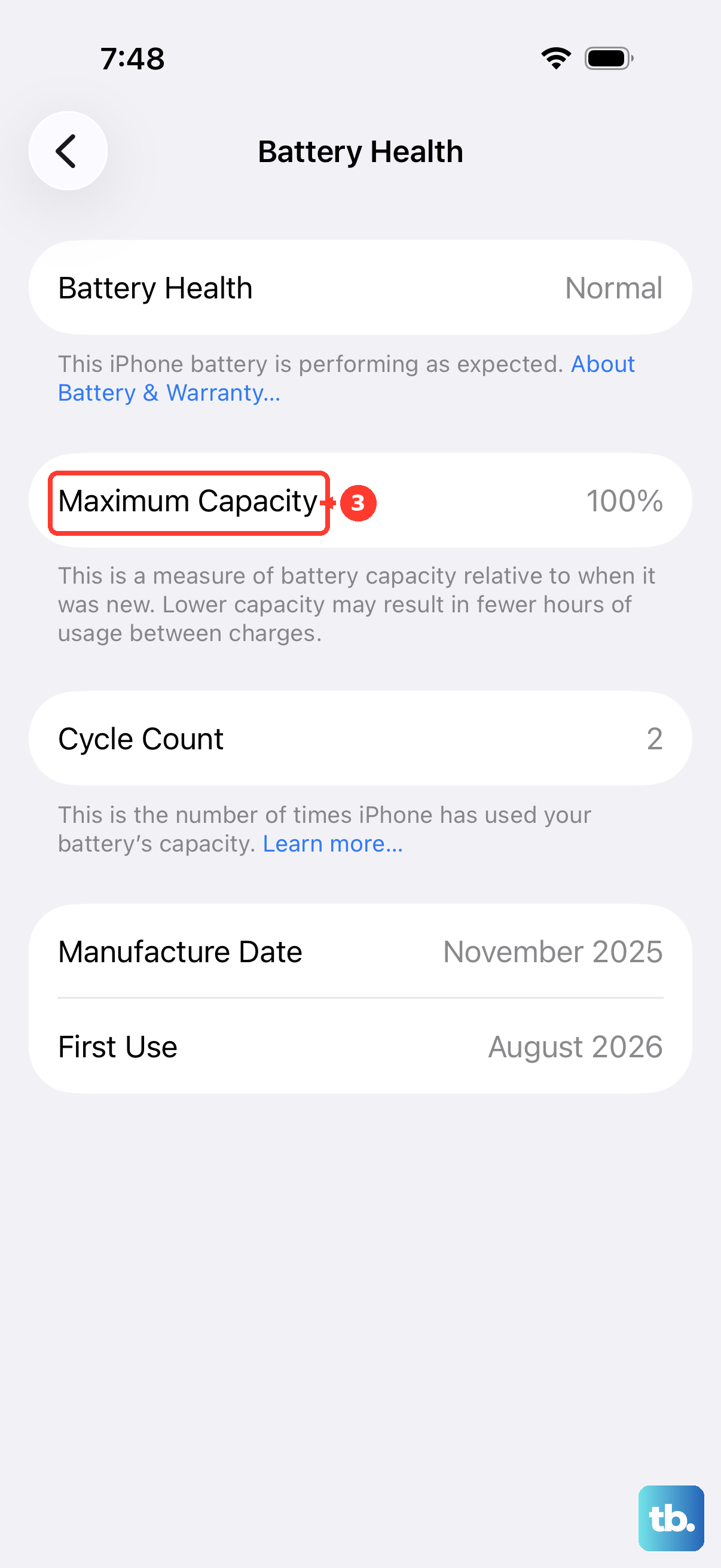
If battery service is recommended, open Apple's iPhone battery service page, choose your device and model, then select Get service. Available routes include an Apple Store, an Apple Authorized Service Provider, or mail-in service. Cost and availability depend on your model, coverage, location, and inspection.
Fix an app that is slow on its own
If one app is unresponsive, close and reopen that app. On a Face ID model, swipe up from the bottom and pause to open the App Switcher; on a Home-button model, double-click Home. Swipe the affected app's preview upward, then reopen it. Apple warns that unnecessary force-closing can slow subsequent launches, so avoid repeatedly closing every app.
If restarting, reopening, and updating do not help, preserve necessary app data before deleting the affected app. Touch and hold it, then tap Remove App > Delete App > Delete. Deletion can remove locally stored data, and reinstallation depends on the app remaining available and compatible.
To find and reinstall deleted apps, open App Store, tap your photo or open My Account, then select Apps & Purchase History > Your Apps. If Family Sharing appears, select My Apps. Find the app and tap its redownload button. If it remains faulty after restarting, updating, and reinstalling, contact its developer through its App Store support information.
Separate slow internet from slow phone performance
Loading delays in streaming, websites, and cloud-dependent apps can come from your connection. Open Settings > Wi-Fi, connect to a reliable network, and compare the affected online activity with local tasks. Try another location or network, and contact your carrier if cellular slowness persists across locations.
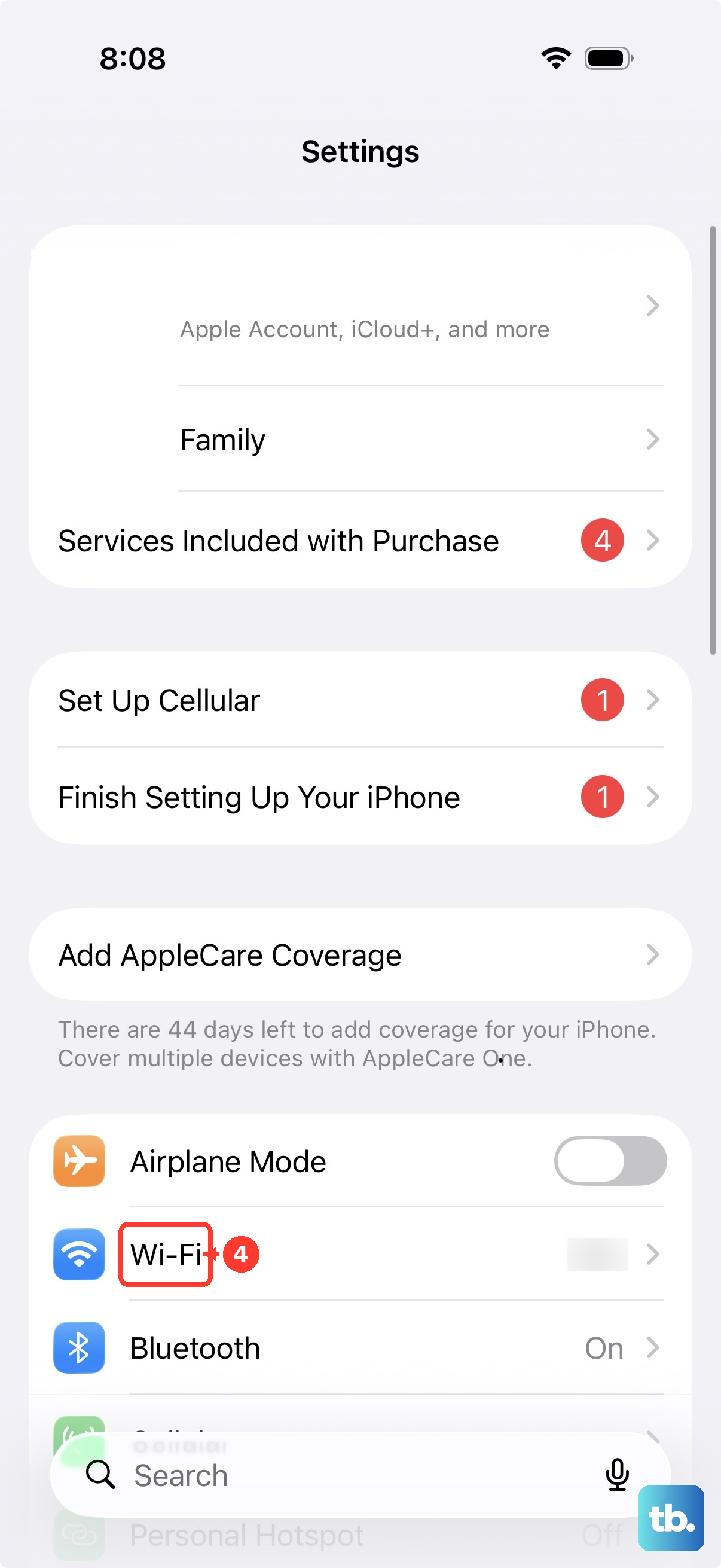
For Safari-specific slowness, open Settings > Apps > Safari > Clear History and Website Data. This also clears cookies and the website data that sites use to save login information, so you may need to sign in to websites again. Choose the desired time range, then tap Clear History. Apple supports occasional website-data clearing to improve Safari performance; this targets the browser rather than device-wide lag.
If network-specific symptoms persist after simpler connection checks, open Settings > General > Transfer or Reset iPhone > Reset > Reset Network Settings. This removes remembered networks and unmanaged VPN settings, so reconnect to Wi-Fi afterward. Settings imposed by a configuration profile or device management remain.
Use resets only after simpler fixes fail
For persistent problems involving incorrect or damaged settings, open Settings > General > Transfer or Reset iPhone > Reset > Reset All Settings. Apple describes this as rarely necessary. Your photos, apps, messages, and documents remain, but you will need to reconfigure affected preferences and reconnect devices.
Erasing the phone is a destructive last resort, so back up first. To erase and factory reset your iPhone, open Settings > General > Transfer or Reset iPhone > Erase All Content and Settings, then tap Continue. To retain cellular provisioning when offered, tap Keep eSIM and Erase Data. Enter the requested passcode and Apple Account password, allow backup completion, then wait for the reset.
If iOS needs reinstallation, restore your iPhone using a computer with Finder on a compatible Mac or Apple Devices on Windows. This erases personal content and installs the latest compatible iOS, so back up first. On your iPhone, open Settings, tap your name, open Find My, then turn off Find My iPhone and supply your account password.
Connect the iPhone and open Finder or Apple Devices, clicking Allow if requested. Select your device, then click Trust on the computer and tap Trust on the iPhone when requested. Select Restore iPhone; if prompted, click Back Up, then Restore. Review the terms and click Agree.
If performance problems continue, install the Apple Support app for guided troubleshooting or a support conversation before repeating destructive steps. Available assistance varies by issue and region.
Frequently Asked Questions
Will Reduce Motion make my iPhone faster?
Reduce Motion changes interface transitions and Liquid Glass motion, but Apple does not promise a general processing-speed increase. On iOS 27, open Settings > Accessibility > Motion and enable Reduce Motion if you prefer less animation.
Should I turn off Background App Refresh?
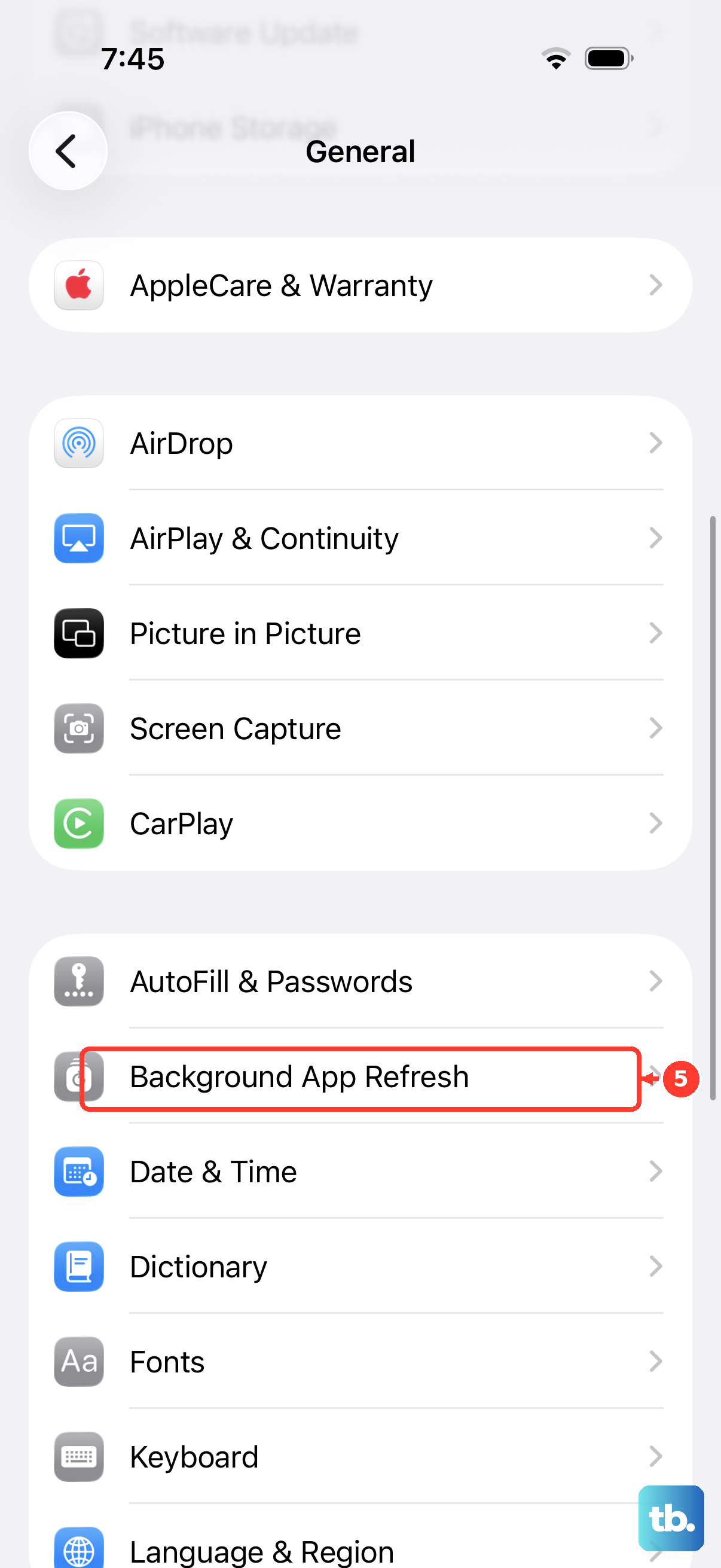
You can use it to reduce background activity, with the tradeoff that new app content can arrive later. Open Settings > General > Background App Refresh > Background App Refresh and select Off. This controls background refresh, but does not establish that suspended apps caused your slowdown.
Why does my iPhone feel slow only when I tap the screen?
Intermittent touchscreen response can resemble processing lag. Clean and dry the screen, disconnect Lightning or USB-C accessories, and check touch response without the case or screen protector. If disconnecting an accessory resolves it, try a different cable, charger, or outlet.
Can turning off beta updates remove a slow iOS beta?
No, opening Settings > General > Software Update > Beta Updates and selecting Off stops future beta offers but leaves the installed beta in place. You can install a suitable public release when it becomes available. Removing the installed beta requires a computer restore to Apple's current public release, which erases the phone. A backup created on the beta may not restore to an earlier public version.
What should I check if only a game is slow?
For a supported game on iOS 27, open it full-screen, then open Control Center > Game Overlay > Controls > Game Mode. Enable Game Mode if it was disabled. It normally activates automatically for supported games.