


To delete files on iPhone, open Files, tap Browse, open the folder containing your file, then touch and hold the file and tap Delete. You can use the same method for folders or select several files to delete together. Deleting an item from iCloud Drive also deletes it from your other devices using that Apple Account.
Choose Remove Download when you want to remove an iCloud file’s downloaded copy while keeping the original in iCloud. Photos, message attachments, and downloads inside other apps have their own removal controls.
The short version
- Delete a file: Touch and hold it in Files, then tap Delete.
- Delete several: Open a folder, tap More, choose Select, select your files, then tap Delete.
- Keep the cloud original: Use Remove Download for downloaded files in iCloud Drive.
- Remove permanently: Files stay in Recently Deleted for 30 days unless you delete them there sooner.
| What you want to remove | Where to go | Main catch |
|---|---|---|
| Local files and folders | Files > Browse > On My iPhone | Deleted items move to Recently Deleted |
| iCloud Drive files | Files > Browse > iCloud Drive | Deletion reaches other devices using the account |
| Only an iCloud file’s downloaded copy | Touch and hold the file, then Remove Download | The original stays in iCloud Drive |
| Internet downloads | iCloud Drive > Downloads, or the location set in Safari’s Downloads setting | Delete saved email attachments from wherever you saved them |
| Deleted Files items permanently | Files > Browse > Recently Deleted | Permanent removal cannot be undone |
| Photos and videos | Photos | iCloud Photos synchronizes deletions |
| Message attachments | The conversation in Messages | Recipients keep their copies |
| Notes containing scans or attachments | The notes list in Notes | Deleting an iCloud note synchronizes |
| Downloaded music | Music > Remove > Remove Download | Delete from Library also removes the library item |
| Downloaded movies and episodes | TV > Library > Downloaded | Computer-synchronized videos require computer sync controls |
| Podcast downloads | Podcasts > Library > Downloaded | You can remove individual episodes or every download |
| Dropbox files or offline copies | The ellipsis button beside the file | Delete affects the cloud file and linked devices |
| An app and its local data | Settings > General > iPhone Storage | Cloud files are not universally removed with the app |
| All personal content on the iPhone | Settings > General > Transfer or Reset iPhone | Back up anything you want to keep before erasing |
Delete individual files or several at once
Open Files and tap Browse, then choose On My iPhone or iCloud Drive. Open the folder you want to clean up, touch and hold a file, and tap Delete. To remove a folder, touch and hold that folder and choose Delete.
For a batch, open the folder and tap More, the three-dot button. Choose Select, tap each file you want to remove, then tap Delete, shown as a trash icon. Check your selection before tapping it, especially in a synchronized cloud folder.
The location determines where the deletion takes effect. Removing an item from iCloud Drive deletes it from other devices using the same Apple Account. Third-party storage services can have different deletion and trash behavior.
Find and delete downloaded files
For Safari and internet downloads, start at Files > Browse > iCloud Drive > Downloads. If you changed where Safari saves downloads in Settings > Apps > Safari > Downloads, open that location instead, such as the Downloads folder in On My iPhone. Touch and hold an unwanted download and tap Delete. To remove several together, tap More > Select, select the files, then tap Delete.
When you cannot locate a download, you can find downloads on your iPhone before choosing what to remove. Safari’s Downloads button also lets you open Downloads to find recent items. Use Files to delete the downloaded document once you locate it.
A saved email attachment needs separate attention. Deleting its email does not remove a copy you saved elsewhere, so delete that copy from its destination too. For an attachment saved in Files, navigate to its folder, touch and hold the file, and tap Delete.
Remove downloads while keeping the iCloud files
To free space while keeping an iCloud Drive original, open Files > Browse > iCloud Drive. Touch and hold a downloaded file and tap Remove Download. This removes its downloaded copy from your iPhone while retaining the cloud file.
To remove several downloaded copies together, tap More > Select and select the downloaded files. Tap More, then choose Remove Download. This option applies to downloaded iCloud Drive files; choosing Delete would remove the cloud original too.
Permanently remove files from Recently Deleted
Files deleted from On My iPhone or iCloud Drive remain in Recently Deleted for 30 days. To remove them sooner, open Files > Browse > Recently Deleted and delete the unwanted items from that location. Doing this removes them immediately and irreversibly.
Review the contents before permanently removing anything. Leaving files there preserves the remaining recovery period, after which they are removed automatically. A third-party cloud service may use a different trash location or retention period.
Delete photos and message attachments
For pictures, screenshots, and videos, open Photos, open an item, and tap Delete, the trash icon. To remove a batch, open your library or a collection, tap Select, choose the items, then tap Delete. With iCloud Photos enabled, those deletions synchronize to your other devices.
To permanently remove deleted photos, open Photos > Collections and choose Recently Deleted under Utilities. Tap View Album, authenticate, then tap Select and choose the items. Tap More > Delete and confirm the removal. In a Shared Library, only the participant who added an item can permanently delete it.
For message attachments, open the conversation in Messages, touch and hold an attachment, then tap More. Select the items you want to remove and tap Delete. Messages in iCloud synchronizes deletion across your devices, but recipients keep their copies.
To permanently remove deleted conversations and their attachments, open the conversation list and tap Filter > Recently Deleted. Select the conversations, choose the delete option, and confirm the permanent removal. Before that final removal, you can recover deleted messages on iPhone when you need to keep a conversation.
Remove files stored inside other apps
For a scan or attachment stored in a note, open the notes list in Notes, swipe left on the note, and tap Delete. To permanently remove that note, open Recently Deleted from the folder list, swipe left on it, then tap Delete > Delete Note. Deleting an iCloud note synchronizes across your devices; removing another person’s shared note only removes it from your list.
Downloaded music has separate choices for local storage and your library. In Music, touch and hold a song or album, then tap Remove > Remove Download. Choosing Delete from Library instead removes the library item, and with Sync Library enabled, that deletion affects other devices.
For downloaded movies and episodes, open TV > Library > Downloaded. Swipe left on an item, tap Delete, and confirm. If the video was synchronized from a computer, remove it through that computer’s sync settings.
In Podcasts, open Library > Downloaded, open a show, then touch and hold an episode and choose Remove Download. To clear every podcast download, return to Downloaded, use More > Remove All Downloads, and confirm.
In Dropbox, open a file preview, tap the ellipsis button, and choose Delete to delete the cloud file and affect linked devices. To keep the cloud original, tap the ellipsis beside the file and turn off Make available offline instead. That removes only its offline copy.
Review storage and remove unwanted app data
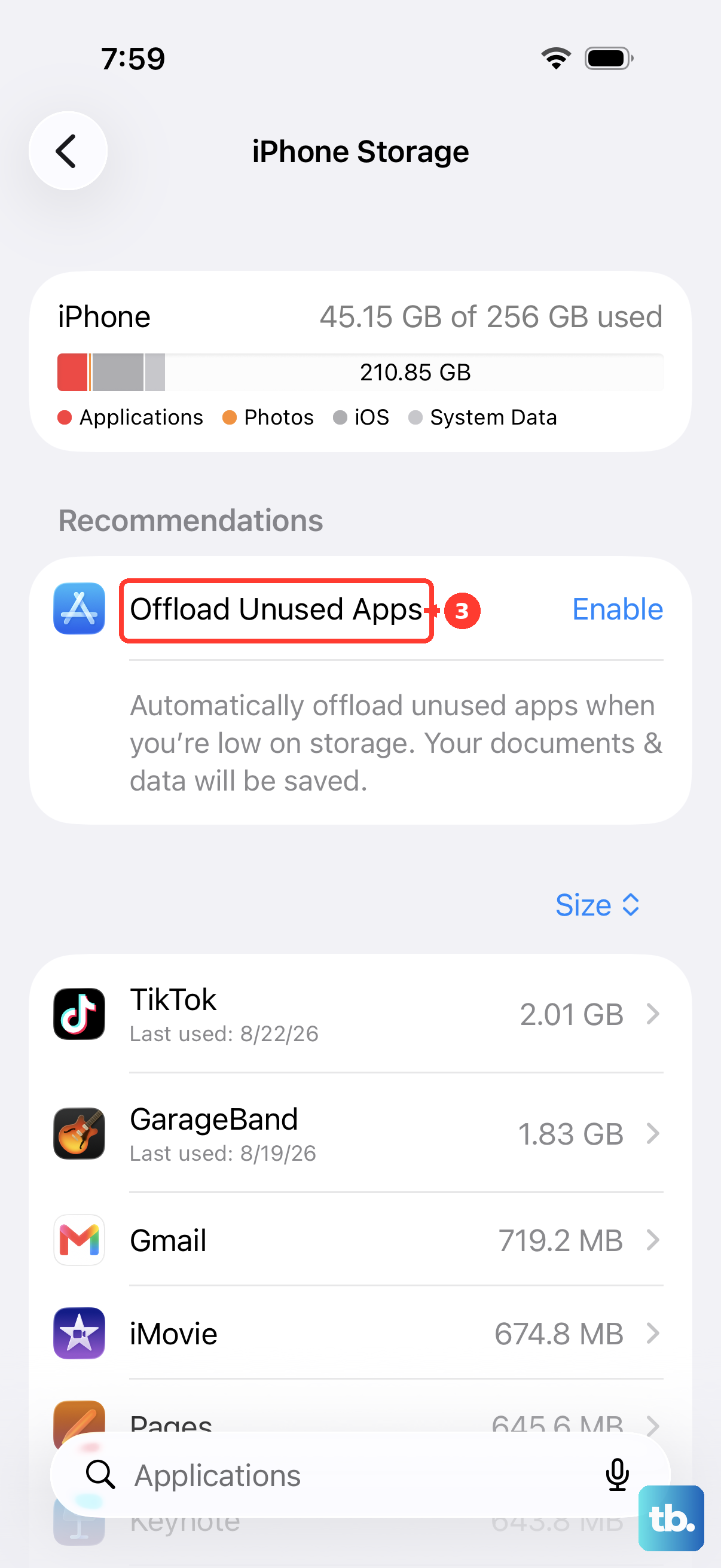
Open Settings > General > iPhone Storage to review storage use. Tap Show All if offered, then open a recommendation to review deletable content, or select an app to see its storage options. Recommendations depend on your device’s content and storage state, and some apps expose individual documents and data here.
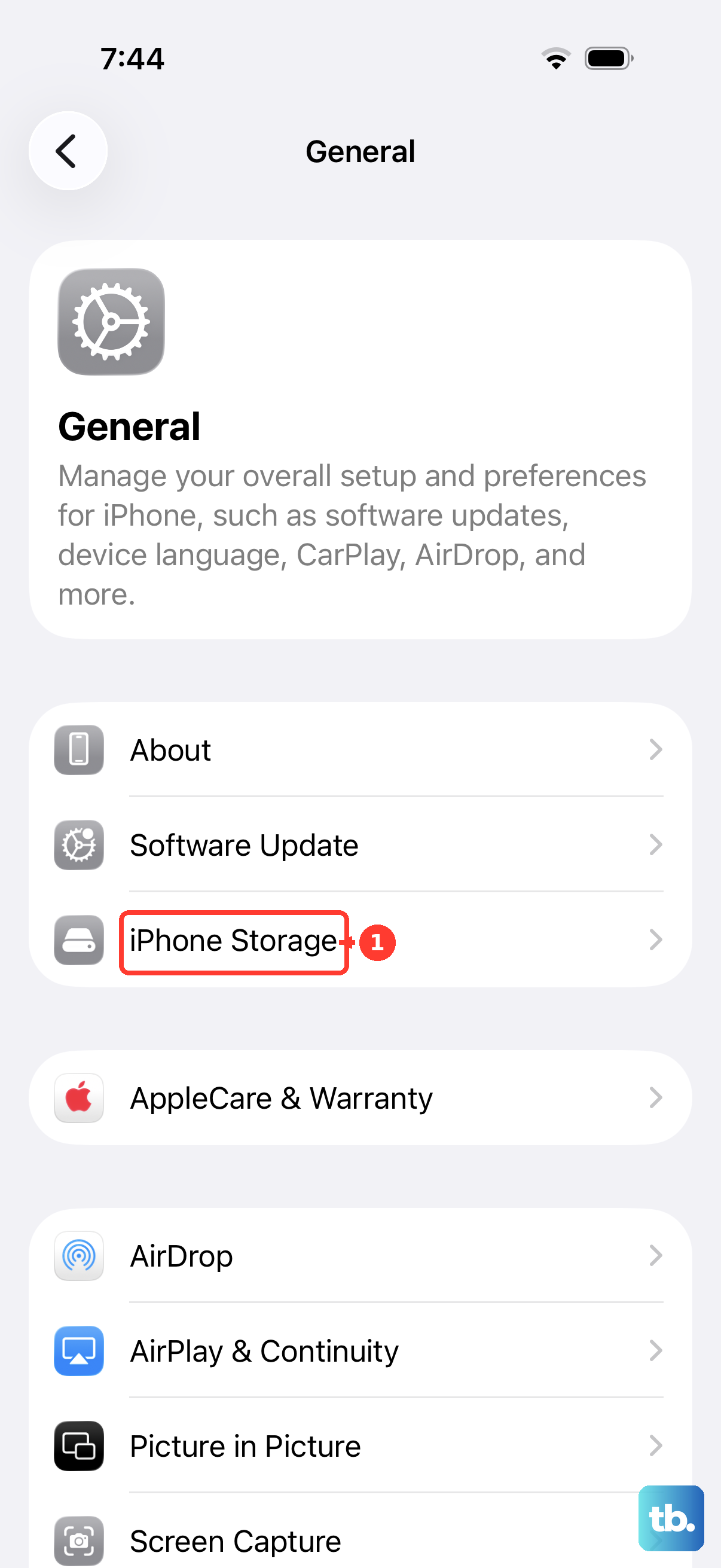
When you want to remove an entire app and its related local data, select it and tap Delete App. Uninstalling a cloud app does not universally delete the files in its cloud account. Remove those files through the service when that is your goal.
You can also delete apps from your iPhone through the Home Screen or App Library. On the Home Screen or in App Library, touch and hold the app, then tap Remove App > Delete App, and tap Delete to confirm.
Erase all files when clearing the entire iPhone
To remove all personal content, back up anything you want to retain, then open Settings > General > Transfer or Reset iPhone > Erase All Content and Settings. Supply the requested credentials, tap Continue, and complete the prompts.
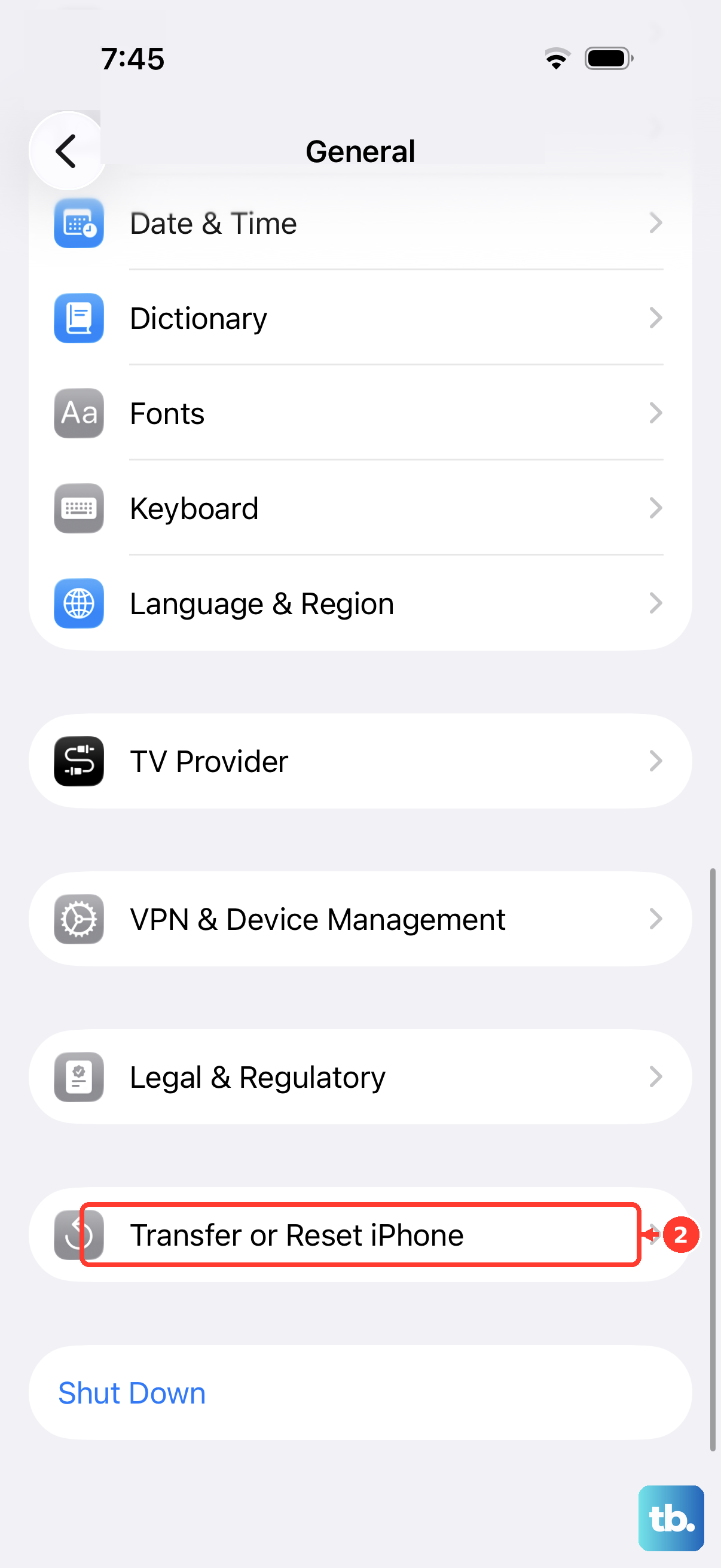
Before you erase your iPhone before selling it, make sure you intend to remove the entire device’s content. Keeping or removing the eSIM is a separate choice during erasure. For individual documents or downloads, use their file or app deletion controls.
Frequently Asked Questions
Does offloading an app delete its files?
No, Offload App and Offload Unused Apps preserve the app’s documents and data. Choosing Remove from Home Screen also leaves its underlying files intact.
Does clearing Safari data delete downloaded documents?
No, Safari cache clearing is separate from deleting downloaded documents. To clear cached website files and cookies, open Settings > Apps > Safari > Advanced > Website Data > Remove All Website Data, then tap Remove Now.
Why can’t I delete computer-synchronized media directly on my iPhone?
Apple says content in the Synced content storage category cannot be removed directly using iPhone. Connect the iPhone to its computer, deselect the synchronized content in Finder or Apple Devices, and click Sync.
Does deleting an iCloud backup delete the files currently on my iPhone?
No, deleting an iCloud device backup does not delete the live files on your iPhone. It removes that backup and disables iCloud Backup for that device.
Will Reset All Settings delete my files?
No, Reset All Settings preserves your content. You cannot use it to delete files.