Google Maps can fail in several familiar ways: the blue dot jumps, GPS drops during navigation, the app freezes, offline maps expire, voice directions disappear, or the web version loads a blank page. Use the symptom that matches your screen, then continue down the page until Maps works again. The fixes use current support paths for Android, iPhone, iPad, Chrome, Edge, Safari, and managed devices.
1. Start with the quickest app checks
Begin here when Google Maps freezes, crashes, shows stale location, or stops responding after a route search.
Force Google Maps closed. On Android, open Settings > Apps > Maps > Force stop, then open Maps again.
On iPhone or iPad, open the App Switcher, swipe up on Google Maps, then open Google Maps from the Home Screen or App Library.
Turn the connection back on. On Android, open Settings > Network & internet > Internet, turn on Wi-Fi or mobile data, and turn off Airplane Mode.
On iPhone or iPad, open Settings > Wi-Fi and turn on Wi-Fi. For mobile data, open Settings > Cellular and turn on Cellular Data (on iPad, Settings > Cellular Data). Then turn off Airplane Mode.
Restart the device. On Android, press the Power button for about 30 seconds, or tap Restart when Android shows it.
On iPhone or iPad, use Apple's power-off controls for your model, turn the device off, then turn it back on.
Turn off power saving during navigation. On Android, open Settings > Battery > Battery Saver > Turn off now.
On iPhone or iPad, open Settings > Battery, then switch Low Power Mode off.
2. Grant precise location access
On iPhone or iPad, open Settings > Privacy & Security > Location Services and switch Location Services on.
Tap Google Maps, choose While Using the App or Always, then switch Precise Location on.
On Android, touch and hold Maps, tap App info > Permissions > Location, then choose Allow all the time or Allow only while using the app.
Switch Use precise location on. Then open Settings > Location > App location permissions and verify Maps is allowed.
When Google Maps asks to improve accuracy, turn on Location Accuracy or Google Location Services.
A wrong or missing blue dot usually starts with permission. Give Maps location access first, then turn on precise location so the app receives an exact position.
3. Narrow the blue dot and recover GPS
Use Maps' blue-dot tools before changing more settings when the blue dot is gray, surrounded by a wide circle, or pointing the wrong way.
Open Google Maps and tap Your location or the blue dot.
When a low-accuracy message appears, tap the message and follow the on-screen suggestion.
Tap Calibrate. For Lens in Maps, point the camera at buildings and signs across the street, then follow the on-screen instructions.
When Lens calibration is not shown, move the phone in a figure 8 until the blue beam narrows and points correctly.
For repeated GPS Signal Lost alerts in a car, move the phone to a clearer view of the sky. Test outside the vehicle when metallic glare-reducing window film blocks the GPS signal. For a hardware check, fully charge the phone, go outside with a clear sky, run a third-party GPS status app, and arrange device repair when the phone cannot acquire GPS.
4. Update Maps and the operating system
Update the app before clearing data: on Android, open Google Play Store, search for Google Maps, then tap Update. On iPhone or iPad, open App Store, tap the My Account button or your photo, open App Updates, then tap Update next to Google Maps.
For Android system software, open Settings > System > Software updates, or use Settings > About phone or About tablet > Software update. For iPhone and iPad, open Settings > General > Software Update and install the available update.
Google's support notice says Google Maps for Android no longer works on app version 10.15 or below, and Google stopped providing new Maps releases for Android 8.1 or below after August 2025. On Android 9 or later, update Maps to a current version.
For Android 8.1 or below, open a mobile browser and go to google.com/maps or maps.google.com.
Google Maps Go supports Android 4.4+ and is designed for Android Oreo Go edition and limited-memory devices; it needs Chrome to work. Open Google Play Store, search for Google Maps Go, then tap Install.
If Chrome is not installed or supported, use google.com/maps in a browser instead.
5. Clear local Maps data
Android cache: open Settings > Apps or Apps & notifications > Maps > Storage or Storage and cache > Clear cache.
Android app data: use the same screen and tap Clear data or Clear storage. This deletes local app data, not Google data stored on Google's servers.
iPhone and iPad app data: open Google Maps, tap your profile picture or initial, then go to Settings > About & terms > Clear application data > OK.
Android reinstall: open Google Play Store, tap your profile icon, go to Manage apps & devices > Manage > Google Maps > Uninstall, then install it again.
On preinstalled Maps builds, open Settings > Apps > Maps > More > Uninstall updates when that option appears.
iPhone and iPad reinstall: touch and hold Google Maps, tap Remove App > Delete App > Delete, then download it again from App Store.
Use these fixes when Maps opens but behaves inconsistently, shows stale data, crashes after the basic checks, or stays broken after an update.
6. Prepare offline maps before a weak-signal trip
Offline maps reduce dependence on a live connection.
Open Google Maps, search for a place, open the place sheet, then tap More > Download offline map > Download.
For a custom area, tap your profile picture or initial > Offline maps > Select your own map > Download.
To refresh an expired area, open Offline maps, tap the expired or expiring map, then tap Update.
For automatic refreshes, open Offline maps > Settings and switch Auto-update offline maps on.
They do not include offline transit, bicycling, walking directions, traffic, or alternate routes, and they are unavailable in some countries and regions.
7. Restore voice navigation
Start navigation, tap the volume setting at the top right, then choose Sound instead of Mute or Alerts.
Open Google Maps > profile picture or initial > Settings > Navigation or Navigation settings > Guidance volume > Louder.
For Android car speakers, pair the phone to the car, set the car source to Bluetooth, then open Google Maps > profile picture or initial > Settings > Navigation and switch Play voice over Bluetooth on.
For iPhone or iPad audio through the phone speaker, turn off Bluetooth and turn off Play voice over Bluetooth. For car speakers, turn on Bluetooth or connect by USB.
When Maps plays chimes instead of spoken directions, connect to the internet, get directions, keep Google Maps open, and continue navigating until voice directions finish downloading.
Silent navigation has three Maps-side checks: guidance sound, guidance volume, and Bluetooth routing. Chimes instead of words mean voice directions still need to download.
8. Repair Google Maps in a browser
In Chrome, fix the common blockers from the browser settings first. Use the latest Google Chrome, Firefox, Safari, or Microsoft Edge on a computer.
Update Chrome from More > Help > About Google Chrome > Relaunch.
Turn on JavaScript from More > Settings > Privacy and security > Site settings > JavaScript > Sites can use JavaScript, or allow Google Maps.
Allow location for maps.google.com from the Page info icon in the address bar > Location > Allow. You can also use More > Settings > Privacy and security > Site settings > Location.
Clear Chrome site data on desktop from More > Settings > Privacy and security > Third-party cookies > See all site data and permissions, search for Google or Maps, then click Delete.
On Chrome mobile, use More > Settings > Privacy and security or Privacy and Security > Delete browsing data.
For 3D or Earth view in Chrome, open More > Settings > System, turn on Use graphics acceleration when available or Use hardware acceleration when available, then relaunch Chrome.
For 2D mode, open maps.google.com/?force=canvas.
In Microsoft Edge, open Settings and more > Settings > Privacy, search, and services > Site permissions > All permissions > Location to allow location.
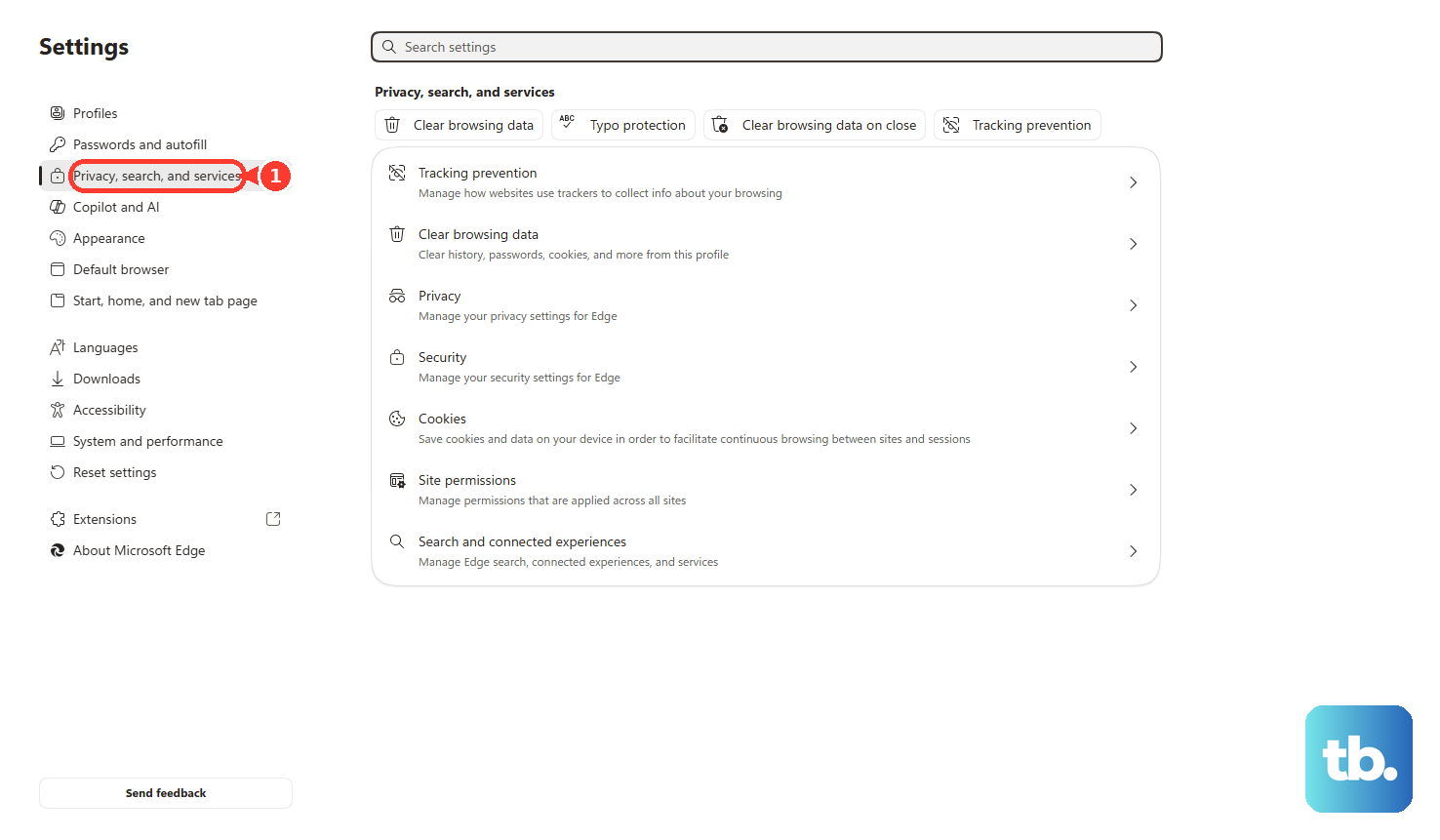
Clear stale Edge site data from Settings and more > Settings > Privacy, search, and services > Clear browsing data > Choose what to clear > Cookies and other site data > Clear now.
On Mac, open System Settings > Privacy & Security > Location Services, turn on Location Services, allow Safari, then approve the Google Maps location prompt in Safari.
When the full Maps web app still fails on a computer, use Google Search for the place, business, or directions.
9. Check account, family, work, and map-data issues
Saved places: tap your profile picture or initial and verify the signed-in Google Account. Saved places require sign-in. Open the You tab and scroll to Your lists.
Maps history: on Android, open Settings > Google > Manage your Google Account > Data & privacy > Web & App Activity. In Maps, use profile picture or initial > Your data in Maps > Search Services History.
Timeline: open Google Maps > profile picture or initial > Your Timeline > More > Location & privacy settings and confirm Timeline is on. Timeline data is device-based with optional encrypted backup.
Location Sharing: on Android, use Settings > Location > Location services > Google Location Sharing. On the web, use myaccount.google.com > People & sharing > Location Sharing > Manage Location Sharing.
Family Link child devices: open Family Link, select the child, then use Controls > Signed-in devices > the child's device > App permissions to allow Maps location. Use Controls > app controls or Google Play controls to allow Google Maps.
Work or school restrictions: sign in with a personal Google Account, or ask the organization admin to turn on the Google service or allow geolocation. Admins manage Chrome geolocation in Google Admin console > Menu > Devices > Chrome > Settings > User & browser settings, then verify at chrome://policy.
Wrong map data: open Contribute > Add place for a missing place. For a wrong pin or address, search the address, tap Suggest an edit > Fix an address, move the map to the building center, enter the info, then tap Submit. For a product issue, tap profile picture or initial > Help & feedback > Send product feedback > Send.
When Maps opens but saved places, Timeline, sharing, or corrections are the problem, fix the account layer instead of reinstalling the app again.
Frequently Asked Questions
Why is Google Maps showing only an approximate location?
On iPhone and iPad, the Precise Location switch controls exact location for Maps. On Android, Use precise location does the same job. Turn that setting on, then calibrate the blue dot inside Google Maps.
Does Google Maps work offline for walking or transit directions?
No. Offline maps do not include transit, bicycling, walking directions, traffic, or alternate routes. Offline maps are also unavailable in some countries and regions.
Why did my saved places disappear after clearing Maps data?
Clearing Maps app data removes local cache and cookies, not Google data stored on Google's servers. Sign back into the correct Google Account, then check the You tab and Your lists.
What works when an Android phone is stuck on Android 8.1 or older?
Use Google Maps in a mobile browser at google.com/maps or maps.google.com. Google Maps Go is another option on Android 4.4+ devices that support it.